
Items filtered by date: December 2014
Vista wont let me move/copy/delete my files
To Fix this issue you need to Take ownership of the file(s).
You can do it the hard way, Or the easy way.
The Hard Way
To take full ownership:
1. Right click file, select properties.
2. Hit security tab, select advanced
3. Click owner tab, the hit edit (accept the UAC pop-up box)
4. Select your username, click OK, accept the pop up box, then OK out of all dialogue boxes

To take full control
1. Right click file, select properties.
2. Hit security tab, then click on your username.
3. Hit edit, then click on your username on the pop up screen
4. Check the box marked "full control" under the allow heading
5. OK out of all dialogue boxes

Now you have ownership and full control of that file.
The Easy way
Download this file and install the TakeOwn+.reg file. After you have done that all you need to do is Right click + Shift on the file that you want to take ownership of and select Take ownership.
Create or Delete A Service in Windows XP
Services are added from the Command Prompt. You need to know the actual service name as opposed to what Microsoft calls the Display Name. For example, if you wanted to create or delete the Help and Support service, the name used at the Command Prompt would be "helpsvc" rather than the Display Name of "Help and Support". The actual service name can be obtained by typing services.msc in Run on the Start Menu and then double clicking the Display Name of the service. Once you know the name;
To Create A Service
- Start | Run and type cmd in the Open: line. Click OK.
- Type: sc create
- Reboot the system
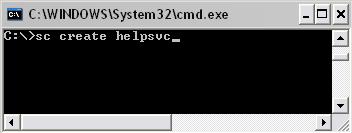
To Delete A Service
- Start | Run and type cmd in the Open: line. Click OK.
- Type: sc delete
- Reboot the system
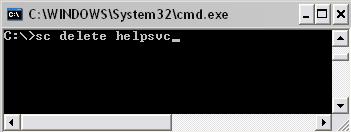
If you prefer to work in the registry rather than through the command prompt to delete services;
- Click Start | Run and type regedit in the Open: line. Click OK.
- Navigate to HKEY_LOCAL_MACHINE\SYSTEM\CurrentControlSet\Services
- Scroll down the left pane, locate the service name, right click it and select Delete.
- Reboot the system
Router Setup - Basics of Port forwarding
When a router connects to the internet it aquires an IP address, it then shares this ip's ports with any computers plugged into it. Each ip has about 65,000 ports.
Now Imagine a router is like a Telephone PBX system, 1 telephone number , lots of extentions and the secretary connects you to the right department. Now imagine the IP address is the telephone number, the extentions are 'ports' and the secretary is the router.
Streams/calls come from the internet to your IP address/telephone number but each piece of information/call has its own port/extention it needs to go to. Your computer needs to recieve this information, so the secretary/router needs to know where to forward the information/packets to.
Setting up these rules to control the flow of data is called 'Port Forwarding', you forward the external data to your 'Internal IP' address.
By default no forwarding is setup so the data is lost and you will get very slow speeds and bad video
There are 3 ways of port forwarding:
1. UPNP - Once this is setup on the router and your PC all ports are forwarded automatically, not all software supports this.
2. DMZ - This is a setting on the router where it will forward all external data to one internal IP address, This is very easy to setup. run 'CMD' from the run menu, type 'ipconfig /all', make a note of your internal IP address and enter it in to the UPNP settings page in the router, If you are using DHCP you will need to change the DMZ setting every time you restart your PC. If using a static this should only be required once.
3. Manual Port Forwarding - This is the hardest of the 3 but can be useful if you are having trouble with connections, There will be a page for port forwarding in your router, sometimes it is called something different. The idea here is you forward just the ports you need to your local IP address. Do not use this method if you are using DHCP, the default setting for networks.
Use this website for more informatino and guides on 'Port Forwarding'
