Items filtered by date: December 2015

Sunday, 15 October 2023 14:04

Capture Analogue Video Cassette Tapes

This article will cover capturing video cassettes (of any type) to your PC using OBS but is focused on VHS cassettes as this is what I used to build these instructions.

  • VHS
  • Betamax
  • Hi8
  • Standard8
  • Video8

TL;DR

  • Setup
    • OBS Studio
    • Windows 10
    • I-O Data GV-USB2 - Analogue Video Capture dongle
    • NVidia GeForce GTX 1050 Ti OC 4GB
    • Panasonic DMR-EZ48VEBK (DMR-EZ48V) VHS Cassette Player
  • OBS Method 3 - Minimal upscaling to a proper 4:3 resolution
    • Capture video analogue signal with OBS using the I-O Data GV-USB2 via the S-Video port with the following settings:
      • Capture Settings
        • I-O Data GV-USB Properties
          • WEAVE: On
          • Source: S-Video
          • Audio: BTSC
          • Colour Space: Rec. 601
          • Colour range: Limited
        • Video
          • Frame Rate and Resolution
            • PAL: 720x576i (5:4) @ 25fps
            • NTSC: 720x480i (3:2) @ 29.97fps
          • Video Standard:
            • PAL_I (UK and Ireland)
            • NTSC_M (North America)
          • Video Format: YUY2
      • Recording Settings
        • Image Processing
          • Deinterlace: Yadif x2
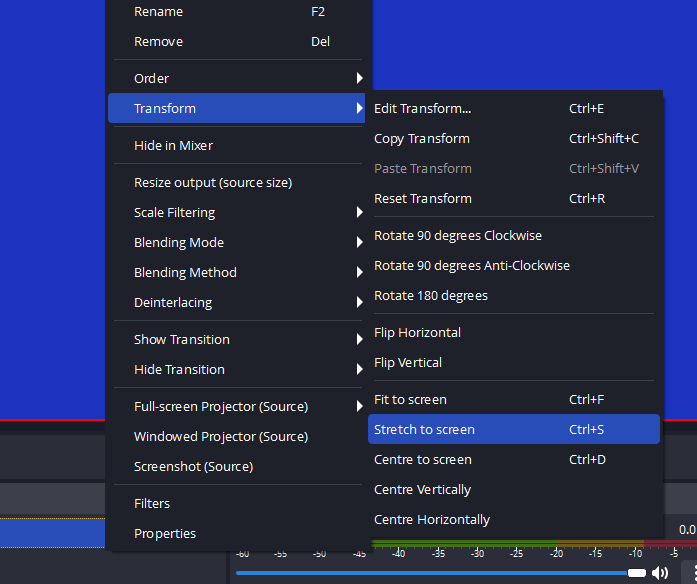
          • Transform: Stretch to screen
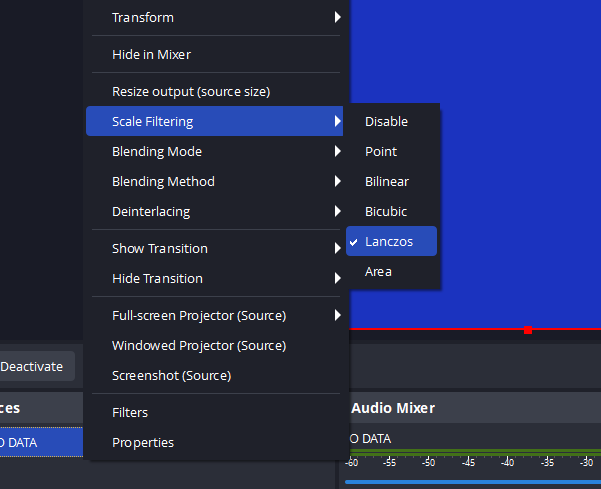
          • Scale Filtering: Lanczos
        •  Video
          • Encoder: Hardware (AMD/QSV/NVENC, H.264)
          • Rate Control: CQP
          • CQ Level: 22
          • Frame Rate and Resolution
            • PAL: 768x576p (4:3) @ 50fps
            • NTSC: 720x540p (4:3) @ 59.94fps
          • Colour Space: Rec. 709
          • Colour range: Limited
        • Audio
          • Sample Rate: 48 kHz
          • Channels: Stereo
        • Recording Format: Matroska Video (.mkv)

NB: There are other settings which you need to look at.

My Setup

  • If you are going to buy kit, make sure your GPU or CPU can encode 1080p @ 60fps using H.264
  • You can use software encoder only if you have a fast enough PC.

Everyone's will be different, but this is mine.

My Equipment

  • Windows 10 PC
  • Panasonic DMR-EZ48VEBK
    • Pros
      • S-VHS Quasi Playback (SQPB)
      • S-Video output for the VHS
      • Can turn OSD off
      • Component, RGB and HDMI outputs
      • PAL and NTSC playback of tapes
      • Plays EP,LP,SP
      • Excellent quality
      • Manuals are easy to find
    • Cons
      • Cannot disable automatic rewind
        • You must play the loaded tape before rewinding (if not rewound) to prevent damage to tape. This procedure allows the player to work out max spin/rewind speed.
      • Cannot disable V.Fast search (fast forward and rewind)
      • The player will stop of there is nothing on the tape.
        • or the counter at least stops
        • is it 5 mins blank = stop ?
  • Daewoo DF-8150P Video Cassette Recorder/DVD Recorder
    • This has a S-Video out.
    • You cannot turn the OSD off.
  • Toshiba DVD Video Player / Video Cassette Recorder SD-23V
    • This has a S-Video out but is only for the DVD player.
  • Nedis VHS-C Cassette Converter (VCON110BK)
    • Do NOT super fast rewind with the adapter.
    • Do not fast forward and rewind tapes with the adapter where possible.
    • I had not choice to rewind the tape in the adapter because I did not have the original camcorder, but what I did was to make sure the rewind mode never went super fast so I was stopping and starting all the time. I did not use the rewind mode with the preview on screen which would have gone slower but the reason I did not use this mode was that I was unsure wether it would harm the tape or not.
    • HOW TO USE A VHS-C TO VHS TAPE ADAPTER - YouTube - Here's how to use a VHS-C tape adapter to watch your old VHS-C tapes in your VHS player.
  • Sony DCR-TRV725E Digital Handycam
    • Made ~2001
    • Support for DCR-TRV725E | Sony UK  - Find support information for DCR-TRV725E.
      • No specs page
      • I have the physical manual, printed in 2001 and is English/Russian.
      • Has the manuals: English/Geman and English/Russian
      • Close specs page: DCR-TRV740E Specifications | Sony UK - Get the detailed list of (technical) specifications for the Sony DCR-TRV740E
    • SONY Handycam DCR-TRV828E Operating Instructions Manual | ManualsLib
      • View and Download Sony Handycam DCR-TRV828E operating instructions manual online.
      • Also for: Handycam DCR-TRV730E, Handycam DCR-TRV725E, Handycam DCR-TRV830e.
    • SONY DCR-TRV725E Service Manual | ManualsLib
      • View and Download Sony DCR-TRV725E service manual online.
    • An X or CLEANING CASSETTE message flashes in the LCD or viewfinder. | Sony UK - This is an indication that the video heads of the camcorder may be dirty or contaminated. To attempt resolving this issue, use a dry head-cleaning cassette to clean the video heads.
    • Pros
      • PAL
      • Plays Digital8 (LP,SP), Hi8 (LP,SP), Standard8 (LP,SP)
      • Some NTSC playback, I think it has to be SP.
      • S-Video output
        • "Connecting using an S video cable (optional) to obtain high-quality pictures." on page 45 of the manual. This means the S-Video connector is a real one and get the signal straight from the tape.
      • Stereo output
      • Infrared remote control
      • Has a mini screen for viewing tapes and setting the menu.
    • Cons
      • Can only record in Digital8.
    • Convert Analogue tapes to Digital
      • Can output Hi8/Standard8 cassettes through the DV/iLink port as a digital signal.
      • Can be used if a user does not have analogue capture device.
      • Remember if you re-encode a digital source then you will loose quality.
  • I-O Data GV-USB2 - Analogue Video Capture dongle
  • USB Video Capture Adapter Cable - S-Video/Composite to USB with TWAIN support (SVID2USB232) | StarTech.com (I have not used device so this is for reference only)
    • Comes with Movavi Video Editor 11 SE on a separate CD.
    • When standard driver is installed: Both USB 2828x Device (Video) and USB 2828x Audio Device (Audio) will show up under Sound, video and game controllers.
    • When TWAIN driver is installed: USB 2828x Video will show up under Imaging Device, USB 2828x Audio Device (Audio) will show up under Sound, video and game controllers.
  • Scart --> HDMI Upscaler Converter
  • Rullz 4K 60Hz U3 (USB 3.0 Video Capture with Loop, 3.5 Mic in and 3.5 Audio out)
  • Cables
    • Scart
    • HDMI
    • S-Video (Shielded)
    • Dual Phono to Dual Phone (for audio) (RCA)
    • RCA Video Cables
      • These cables with sound and video on them, do not follow a standard pin out so each manufacturer has different one configuration and they can also be different lengths so typically brans will share the same cable.
      • Faulty or wrong cable can cause these issues:
        • A buzzing sound from eother the camera or computers speakers.
        • You have a stereo signal from the RCA until you plug in the S-Video cable and then you you only get mono.
        • No video
      • Help! Sound buzzing problem with Hi8 transfer! | avforums
        • My guess is that the AV jack on the camcorder is a combined audio and (composite) video connector. This is probably a four or five contact connector.
        • The buzzing you hear is because the use of an incorrect audio jack (three-contact) is touching the video contact and the video signal is interfering with the audio.
        • You need to obtain the correct AV lead for the camcorder, which has the AV jack one end to either scart plug (you'll then need an adapter for the PC) or three RCA-phono plugs (Yellow-video, Red-audio right, White-audio left). You
        • Be aware the configuration for the four-contact jack is not standard, you will have to specify use with your camcorder at the time of purchase.

Software


Capture Video Cassette Tapes using OBS

There are many ways to sample analogue sources but by far the most used is OBS. These are my settings but can be adapted to match your hardware and setup.

OBS can be complicated for the amateur but once you have been shown around the GUI it is a very easy program to use to capture video and audio from various sources and is not just for Streamers.

  • Don't try to setup or use OBS over Remote desktop as it might causes issues with Sound and Video device mapping issues.
  • OBS only outputs in progressive (1080p, 720p). It will accept interlaced sources (480i, 576i).
  • Use MKV and not MP4. for storage. MKV is a much better format/container and if you need to change this after capture you can.

Setup the PC Environment

  • Update you Windows PC making sure you have the latest video card drivers (no just the ones from Windows Update)
  • Install VLC player
  • Install OBS

Connect up and check your Capture Kit

  • Connect up the capture kit
    • Remember S-Video is better than Composite/RCA
  • Edit the video player's settings for the following (if the option exists)
    • Disable the OSD (On-Screen Display)
    • Set to interlaced output
    • Disable any other image manipulation such as 'comb filter'.
    • Set audio output to Bitstream.
    • Make sure the video output is 4:3 and not 16:9 or auto.
    • Go through all other settings and check the are right for video capturing.
    • Panasonic DMR-EZ48VEBK
      • Menu --> To Others --> Setup --> Picture
        • Comb Filter: Off
        • Still Mode
          • Ignore this as this is just allows you to select wether you show a frame or field when you hit the pause button.
        • Seamless Play: ?
      • Menu --> To Others --> Setup --> Sound
        • Dynamic Range Compression = Off
        • Digital Audio Out
          • Y only need to set this when the using digiatal audio output (SPDIF)
          • LPCM = Audio is output as a left and right channel
          • Dolby Digital/BitStream = Audio is output as digital stream that external kit can decode into audio signal. Supports 5.1
        • PCM Down Conversion: 48KHz
          • Only need to set this when the using digital audio output.
      • Menu --> To Others --> Setup --> Display
        • On-Screen Messages: Off
      • Menu --> To Others --> Setup --> comedian ??????
        • TV Aspect: ? = leave as is
        • Progressive: Off
        • TV System: PAL (or NTSC if required)

Run the OBS Setup Wizard

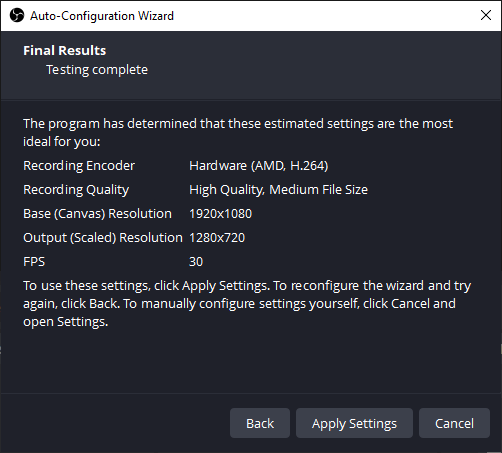
When you first open OBS you will need to run through the wizard. The wizard will test your hardware for optimum performance.

It is straight forward, just make your selections as follows:

Step 1 - Usage Information

Step 2 - Video Settings

Step 3 - Final Results

Don't worry if it does show what you expect, we will be changing all of these settings as required.

Create a new OBS Profile and Scene

Creating a separate profile and scene are optional if all you are going to do is capture your VHS tapes and then uninstall OBS, however it does not harm.

A profile is a settings group for OBS and a new profile starts with a lot of the settings at default. A profile also allows you to save your settings for individual projects and export/import them as needed.

  • Menu --> Profile --> New
  • Add Profile
    • Name: VHS Capture
    • Show auto-configuration wizard: unticked

This following just makes things clear and clean so if you are using OBS with other things for example that your scene won't conflict with other scenes.

  • Menu --> Scene Collection --> New
  • Name: VHS

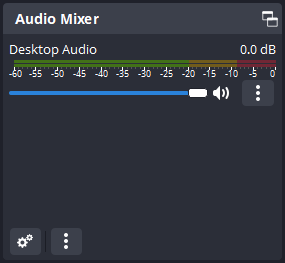
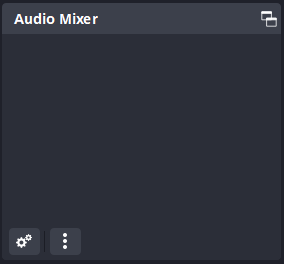
Audio Mixer sources have disappeared

After you have created a new scene the Audio Mixer sources have disappeared, this is normal.

Before

You could have either of these depending what kit you have plugged in.


After

Recording Configuration

Encoding

There are two options for the 'Output Mode' (Simple and Advanced), which define what options are available for you to set, and which will be left for OBS to set.

  • Simple requires very little configuration and gives really good results.
  • Advanced gives more control and the potential to get much better results.

You need to pick an option and then carry on with the instructions. If you are unsure, start of with using 'Simple' and then move to 'Advanced' when you know what the advanced settings do but if you follow my instructions exactly I would recommend the `Advanced setup`

Option 1 - Simple
  • Settings --> Output --> Output Mode: Simple
    • This configures the output options to `Simple`.
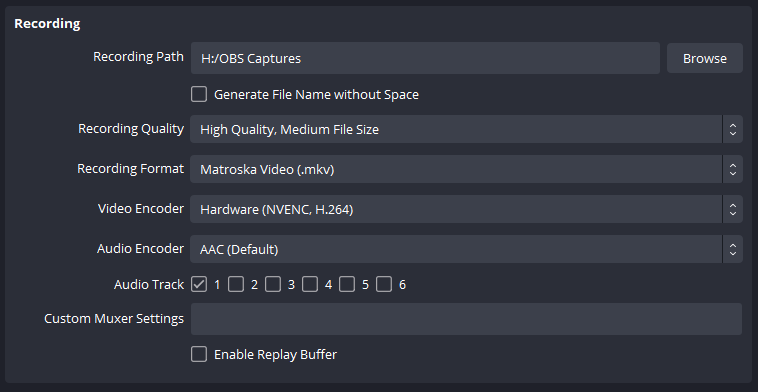
  • Settings --> Output --> Recording

    • Recording Path: H:\[Your OBS Captures Path]
    • Recording Quality: High Quality, Medium File Size
      • This setting affects the compression level.
    • Recording Format: Matroska Video (.mkv)
      • Don't use mp4. Remux later or have OBS remux the mkv automatically when the capture is finished.
    • Video Encoder: Hardware (NVENC, H.264)
      • Always use H.264
      • If you have hardware encoding support (most modern GPU have this), then select this so your CPU does not need to do the work.
      • Some other possible hardware options
        • Hardware (AMD, H.264) = AMD
        • Hardware (QSV, H.264) = Intel = Quick Sync Video
        • Hardware (NVENC, H.264) = Nvidia = Nvdia Encoding
        • Hardware (NVENC, HEVC) = Nvidia = Nvdia Encoding = H.265
    • Audio Encoder: AAC (Default)
    • Audio Track: Track 1 only
    • Custom Muxer Settings: leave empty
    • Notes
      • The bitrate is variable when using `Simple`. The rest of the meta information for the capture you can from the outputted file using MediaInfo.
      • Defaults OBS 'Simple' settings for reference:
        Recording Quality: High Quality, Medium File Size
        Recording Format: Matroska Video (.mkv)
        Video Encoder: Software (x264)
        Audio Encoder: AAC (Default) / (FFmpeg AAC)
        Audio Track: 1
        Custom Muxer Settings: {blank}
        
Option 2 - Advanced
  • Settings --> Output --> Output Mode: Advanced
    • This configures the output options to `Advanced`.
  • Settings --> Output --> Recording --> Recording Settings

    • Type: Standard
    • Recording Path: H:\[Your OBS Captures Path]
    • Generate File Name without Space: leave off as this is not needed in Windows.
    • Recording Format: Matroska Video (.mkv)
      • Don't use mp4. Remux later or have OBS remux the mkv automatically when the capture is finished.
    • Video Encoder: NVIDIA NVENC H.264
      • Always use H.264
      • If you have hardware encoding support (most modern GPU have this), then select this so your CPU does not need to do the work.
      • if you see NVIDIA NVENC H.264 (Depreceated), don't use it, use NVIDIA NVENC H.264 and once this is select the old encoder will not be available anymore.
    • Audio Encoder: FFmpeg AAC
    • Audio Track: Track 1 only
    • Rescale Output: Disabled
    • Custom Muxer Settings: leave empty
    • Automatic File Splitting: leave off
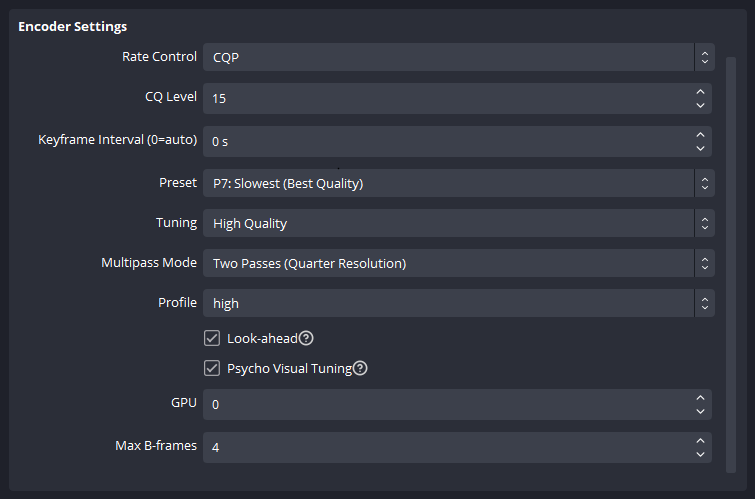
  • Settings --> Output --> Recording --> Encoder Settings

    • Rate Control: Constant QP
      • aka CQP
    • Constant QP: 22
      • aka CQ Level
      • The lower the level:
        • the higher the quality of encoding.
        • the larger the file size.
        • the less compression that is applied.
      • I have chosen level 22 but you might get better results with other values.
      • 15 is practically lossless
      • 0 is lossless
    • Keyframe Interval (seconds, 0 = auto): 0 s
      • The `s` is automatically added on.
    • Preset: P7: Slowest (Best Quality)
    • Tuning: High Quality
    • Multipass Mode: Two Passes (Full Resolution)
      • This option controls how and if the encoder pre-scans a frame so it can better compress it.
      • Default: Two Passes (Quarter Resolution)
      • If your GPU or CPU maxes out then you might need to reduce this setting as it can be resource intensive.
      • This option controls how and if the encoder prescans a frame so it can better compress it.
        • Single Pass: This means no multipass mode. The frame will be encoded directly
        • Two Passes (Quarter Resolution): The frame will be scanned at quarter resolution to help calculate the compression for the next pass.
          • This is the OBS default.
        • Two Passes (Full Resolution): The frame will be scanned at full resolution to help calculate the compression for the next pass.
      • New OBS Settings for 28.1 Questions | Reddit
        • Multipass Mode: This one confuses me as this is a new option. It defaulted to Two Passes (Quarter Resolution), but I set it to Single Pass for better performance (if I'm understanding that correctly).
      • NVENC streaming Preset and Multipass Mode - what settings are correct for streaming? | OBS Forums
        • What are the correct settings for streaming? Is there anything we should be guided by when choosing these options?
        • Is it a big diference betwenn P5 Slow Good Quality and P7 Slowest Best Quality when it comes to computer load (usage) during the stream?
      • what is the difference between "quarter" and "full" resolution multi pass mode in obs? | OBS Forums
        • This is a setting that changes Nvenc encoder behavior. It's an encoder optimization available from the more recent RTX Nvidia GPUs. Since this encoder is a dedicated circuit within the GPU, changing this setting will just change resource demands within the encoder but not the 3D resources used by games or apps.
        • As far as I understand, this setting is about gathering frame statistics in the 1st path of the multipass encoder mode. These statistics help with better compression of the data.
        • By only gathering 1/4 of the image data, the statistics are slightly worse than with full resolution, but needs less resources within the encoder, so it is able to encode higher resolutions or higher fps. This becomes important if the encoder is just not able to achieve the desired fps (for example 60) by a small amount.
        • The negative result of quarter resolution is slightly bigger file size, which is negligible for any non-bitrate orientated rate control such as CQP. The file will be the same quality but just a few kilobytes bigger.
        • With CBR and streaming, bigger data size means tiny quality loss, because the quality has to be reduced to achieve the same bitrate. However, this is probably not perceptible, while frame drops due to encoder overload are very perceptible.
      • Complete Guide to OBS Multi-Path Mode: Best Settings for Different Uses | Streamer Magazine
        • Learn how to enhance video quality with OBS's multipass mode, including optimal settings for streaming and recording with NVIDIA NVENC.
        • For Recording|2-pass + CQP
          • For recording in OBS, the combination of 2-pass and CQP (Constant Quantization Parameter) is recommended.
          • CQP automatically adjusts bitrate based on scene complexity to maintain consistent video quality, ensuring high-quality videos even in fast-moving scenes.
          • Meanwhile, 2-pass initially analyzes the entire video to determine bitrate allocation before proceeding with encoding, allowing for high-quality preservation of video details. Nevertheless, it does lead to longer processing times and increased GPU load, thus, pairing 2-pass with CQP is advisable when prioritizing quality in recording.
    • Profile: high
    • Look-ahead: enabled
    • Adaptive Quantisation: enabled
      • Adaptive quantization in OBS allows for dynamic adjustments in video encoding quality, enhancing the visual output by optimizing bitrate usage based on scene complexity.
      • Adaptive quantization (AQ) is a feature in video encoding that adjusts the quantization parameter (QP) dynamically during the encoding process. This means that the encoder can allocate more bits to complex scenes and fewer bits to simpler ones, improving overall video quality without significantly increasing the file size or bitrate.
      • Benefits of Using Adaptive Quantization
        • Improved Quality: By dynamically adjusting the bitrate, adaptive quantization can significantly enhance the quality of fast-moving or complex scenes.
        • Efficient Bitrate Usage: It allows for more efficient use of available bitrate, ensuring that high-motion scenes receive the necessary data for clarity while conserving resources during less complex scenes.
        • Better Streaming Experience: For live streaming, this feature can help maintain a consistent quality level, reducing the likelihood of artifacts or quality drops during high-motion content. By enabling adaptive quantization in OBS, you can optimize your streaming or recording settings for better visual quality, especially in dynamic content scenarios.
      • Same as "Psycho-Visual Tuning" but now with the proper nomenclature rather than a confusing marketing term.
    • Max B-Frames: 4
    • Custom Encoder Options: leave empty
  • Settings --> Output --> Audio --> Track 1

    • Audio Bitrate: 192kb/s

Advanced Video

The colour space and range need to be defined so the image looks right on modern devices. The defaults are the best but you need to know about these.

  • Settings --> Advanced --> Video  check `colour format` to use

    • Renderer: Direct3D 11
      • There are no other options on my system.
    • Colour Format: NV12 (8-bit, 4:2:0, 2 planes).
      • This is responsible for the `Chroma subsampling`
      • NV12 is a modern format.
    • Colour Space: Rec. 709 (default: Rec. 709) 
      • Places like YouTube use 'Rec. 709'and this is the colour space of modern computing and devices. All H.264 stuff should use this colour space.
      • This configures the output, not the input.
      • VHS were recorded in Rec .601 but we are not bothered what they were, but what they will be stored as. Now is the time to upgrade the Color Space
      • Rec.709 includes the full Rec .601 colour space and more.
      • Modern equipment (below 4k) use Rec. 709 for their natuve colour scheme so it needs to be this to look right on modern flat panels and TVs (i.e. anything not a CRT). They might not have native Rec. 609 support so the picture will not be exactly the same as the source is altered on the fly before displaying on the panel.
      • BT 709 is the recommended colour space for H.264
      • BT 709 includes all of the 601 colour space and a little more.
    • Colour Range: Limited (default: limited)
      • When using H.264 you should always use the 'Limited colour Range'.
      • PAL and NTSC only ever used the 'Limited colour Range'.
    • SDR White Level: 300 nits (default)
    • HDR Nominal Peak Level: 1000 nits (default)
    • Notes
      • PAL and NTSC DVDs both use Chroma subsampling 4:2:0
      • NV12 is the default in OBS and is equal to 4:2:0
      • High Quality Recording (in OBS Studio) | Xaymar - Pushing 1 Pixel at a time - Describes simply, Colour Format, Colour Space, Colour Range and many other things.
      • OBS Studio: Color Space, Color Format, Color Range settings Guide. Test charts. | OBS Forums
        • For higher compression rate, video encoders usually use methods of representation of each video frame as 3 separate channels: one for luminosity and two for color.
        • This allow to compress color info separately from the luminance. Special math and quantization of this channels bring to us YUV (Y - luma, like "luminance/light"; U and V - chroma, like "chrominance/color").
        • Human eye is less sensible to color than to brightness of the visual signal, thus chroma info (UV) require less detail and may be compressed higher (with loss).
        • Higher compression of the chroma possible through U and V downscale (by horizontal or vertical). This method is called chroma subsampling.
        • In OBS Studio (v0.15.4) you can specify:
          • Color Format - this is equal to the chroma subsampling;
          • YUV Color Space* - this is standard** of the color video you are working with;
          • YUV Color Range - this is video range of the resulting footage.
        • Best compatibility for YouTube service is:
          • Color Format - NV12 (or 4:2:0 subsampling);
          • YUV Color Space - 709 (or BT.709);
          • YUV Color Range - Partial (or TV).
        • Take in mind:
          • NV12, I420 in OBS Studio is equal to 4:2:0 chroma subsampling (formats differ in hw data storing order, addressing).
          • I444, RGB in OBS Studio is equal to 4:4:4 chroma subsampling (no subsampling).
          • For streaming, OBS Studio always forces subsampling 4:2:0. If you setup other subsampling - conversion turned on automatically.
          • RGB doesn't have hw acceleration for conversions (there is warning message about this in OBS Studio log, it's normal).
          • Devices that has TV-out (of any kind) usually has partial range output or configurable parameter for this (look for the device manual). Set OBS Studio's input source settings according to the device setting. If possible, try upload test image to the device and view it 1:1 to determine the output range.
      • OBS Recordings Look Washed Out | Linus Tech Tips - Some information on how NV12 works.
      • Question / Help - GOING NUTS! What Color Format Should I be Using? | OBS Forums
        • As for color space, use 709. It's generally used for HD and above video.
        • Color range (advanced tab) keep it at partial, unless changing videoformat to RGB, then use full.
      • RGB, YUV420, NV21, I420 coding difference
        • Question / Help - NV12 vs I420 - What's faster/better for x264? | OBS Forums
          • NV12 is a way to store data in memory. It's optimized for video cards. As color info it is still 4:2:0. Use NV12.
        • nv12 vs i420 - Bing Search
          • NV12 and I420 are both 4:2:0 color formats used in video processing, but they differ in how they store color information, which affects performance and compatibility.
          • Overview of NV12 and I420
            • NV12: This format consists of a single luma (Y) plane followed by an interleaved chroma (UV) plane. It is optimized for hardware acceleration and is widely used in video processing applications, particularly with DirectX and hardware encoders. NV12 is efficient for real-time applications due to its memory layout, which allows for faster access and processing by GPUs.
            • I420: Also known as YUV 4:2:0, I420 has three separate planes: one for luma (Y) and two for chroma (U and V). The chroma planes are stored separately, which can lead to slightly higher memory usage compared to NV12. I420 is commonly used in software encoding and is compatible with many video processing libraries.
          • Key Differences
            1. Memory Layout 
              • NV12: Interleaved UV plane, which can improve cache performance and reduce memory bandwidth usage during processing.
              • I420: Separate U and V planes, which can be less efficient for certain hardware but may be easier to manipulate in software.
            2. Performance
              • NV12: Generally preferred for real-time applications and hardware encoding due to its optimized layout for GPUs. It is often faster for rendering and processing tasks.
              • I420: While still efficient, it may not perform as well as NV12 in hardware-accelerated scenarios. However, it is widely supported in various software applications.
            3. Use Cases:
              • NV12: Ideal for applications that require fast processing, such as live streaming and gaming, where low latency is crucial.
              • I420: Commonly used in video editing and processing software where separate chroma planes may be beneficial for certain operations.
          • Conclusion
            • In summary, NV12 is generally favored for performance in hardware-accelerated environments, while I420 is more versatile for software applications. The choice between the two formats often depends on the specific requirements of the application, such as the need for speed versus flexibility in processing. Understanding these differences can help in selecting the appropriate format for your video processing needs.
        • About YUV formats · GitHub - About YUV formats.
        • yuv - Image formats NV12 storage in memory - Stack Overflow
        • c# - NV12 format and UV plane - Stack Overflow - describes the different numbers in 4:2:0 and how the pretain to NV12 and YUV
        • YUV - VideoLAN Wiki
          • YUV is a class of pixel formats used in video applications.
          • YUV is actually the name of the color space that is common to all "YUV" pixel formats.
          • It can be helpful to think of NV12 as I420 with the U and V planes interleaved.
          • NV21 is like NV12, but with U and V order reversed: it starts with V.
          • Following the same pattern as NV12/NV21, there are NV16/NV61 (4:2:2 sub-sampling) and NV24/NV42 (4:4:4 sampling) formats. They are mostly used in some funky cheap camera circuitry and not supported in VLC (as of VLC version 2.0).
        • Capture Compression YUY2 UYVY etc - VideoHelp Forum
          • My capture software supports different compressions (yuy2, uyvy, rgb-16, rgb-24, y41p, yvu9, yv12 & i420). what is the difference between these and which is best?
          • All the Y types are different subsampled versions of YCbCr. Most people call this YUV, but YUV is more appropriately an analog colorspace.

Audio Sampling

The defaults are the best and most widely used.

  • Settings --> Audio --> General

    • Sample Rate: 48 kHz (default: 48kHz)
    • Channels: Stereo (default: Stereo)

Consider your options

You need to makes yourself familiar with these terms before going further

We will define the properties of the canvas and output here. The following block of text will give you useful information on making your value selections for the different methods.

  • Base (Canvas) Resolution
    • This is the working area of OBS (Scene/Canvas)
    • In normal OBS use, this is the same as your monitor's resolution
    • This area allows you to add multiple streams/sources onto the same output stream/recording. You can move them around to suit your needs such as profile camera feeds/overlays.
  • Output (Scaled) Resolution
    • This is the output resolution of your stream or recording.
    • This has to be the same or larger that the Base (Canvas) Resolution otherwise clipping will occur.
  • Downscale Filter
    • This is the filter that will be used to convert between the Base and Output resolutions if they are different.
    • Bicubic (Sharpened scaling, 16 samples) = Default
    • Lanczos (Sharpened scaling, 36 samples) = Recommended by most people on the internet.

Select your Capture Method

Method 1 - (Digital Source) (Video Downscaling) (Rullz HDMI) - Viewing

Here we are sampling an analogue signal which is then passed to a digital upscaler which is then optionally reduced down to a lesser resolution with 4:3 ratio maintaining the original source's aspect ratio. 

  • I have used this method with my Scart to HDMI Upscaler which takes care of interlacing and outputs a steady upscaled digital stream.
  • The upscaller will only capture at 1280x720p@60fps and 1920x1080p@60fps
  • My Scart to HDMI Upscaler (1920x1080@60Hz) = 1920x1080 @ 60fps
  • I am going to add my Rullz capture device into OBS, your device should add in just the same (except maybe the audio).
  • This alters the video stream because it gets upscaled and filtered, and therefore is no longer the same video stream.
  • Configure the Scene
    • Settings --> Video

    • Base (Canvas) Resolution: 1920x1080
      • Set this to the resolution of your source.
    • Output (Scaled) Resolution:
      • 1440x1080 (4:3)
      • 1920x1080 (16:9)
    • Downscale Filter: Lanczos
      • Depending on your choice above, this might not be needed.
    • FPS: 60
      • or the FPS of your source.
  • Add Video Capture Device
    • Make sure the video is playing a cassette, or at least turned on because the device might auto detect the correct signal.
    • Sources --> Add Source (+) --> Add Video Capture Device
      • Create new
        • Name: Rullz HDMI
        • Make source visible: ticked
    • Set the Properties for 'Rullz HDMI'
      • Device: FHD Video-USB3.0
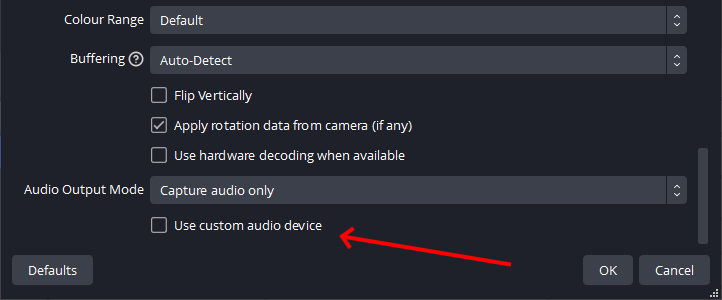
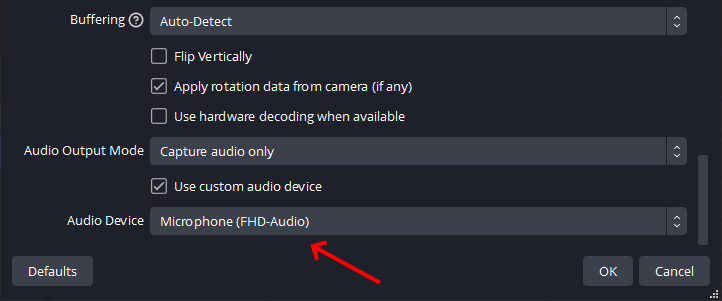
      • Use custom audio device: ticked

        This option will be missing if you do this over Remote Desktop.
      • Audio Device: Microphone (FHD-Audio)
      • Leave everything else the same

Method 2 - (Analogue Source) (Canvas Rescaling) (Upscaling) (I-O Data GV-USB2) - Viewing

The idea behind this method is to take an analogue source and upscale it to a larger resolution, in this case 1440x1080p (4:3).

  • Configure the Scene
    • Settings --> Video

    • Base (Canvas) Resolution: 1440x1080
    • Output (Scaled) Resolution: 1440x1080
    • Downscale Filter: [Resolutions match, no downscaling required]
    • FPS:
      • PAL: 50
      • NTSC: 59.94
      • Notes
        • These are intentionally double the frame rate of the input source because, the source is interlaced so there 2 fields per frame, each of which OBS will create a full frame out of using algorithms.
  • Add Video Capture Device
    • Sources --> Add Source (+) --> Add Video Capture Device
      • Create new
        • Name: GV-USB2
        • Make source visible: ticked
  • Configure the Video Capture Device
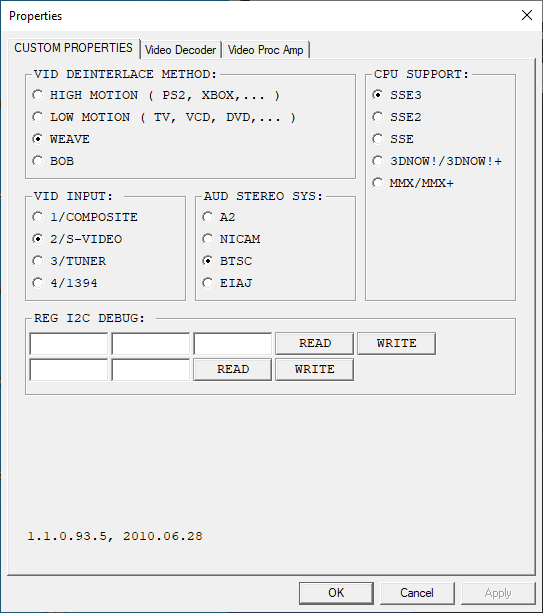
    • Sources --> GV-USB2 --> Properties --> Configure Video
      • CUSTOM PROPERTIES

        • VID DEINTERLACE METHOD: Weave
          • This preserves the Frame Fields to allowing OBS to do better de-interlacing.
          • VID INPUT: S-Video (or Composite if you only have that)
          • AUD STEREO SYS: BTSC
            • BTSC for most captures
            • NICAM is only available on commercial tapes, use this option if the tape is a commercial tape with NICAM.
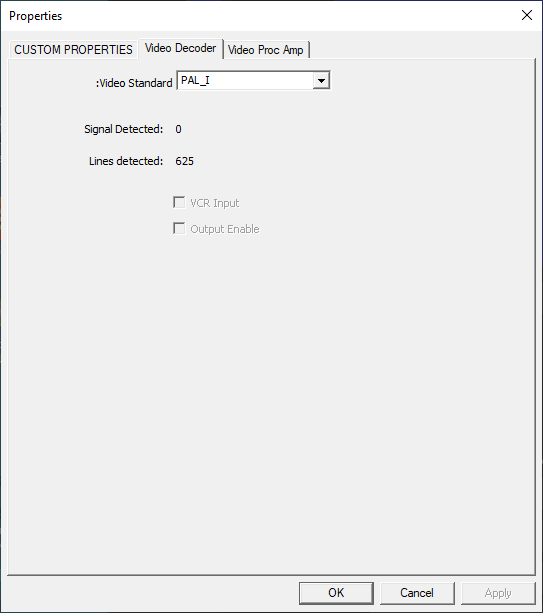
      • Video Decoder
        • Video Standard:
          • PAL_I (UK and Ireland)
          • NTSC_M (North America)
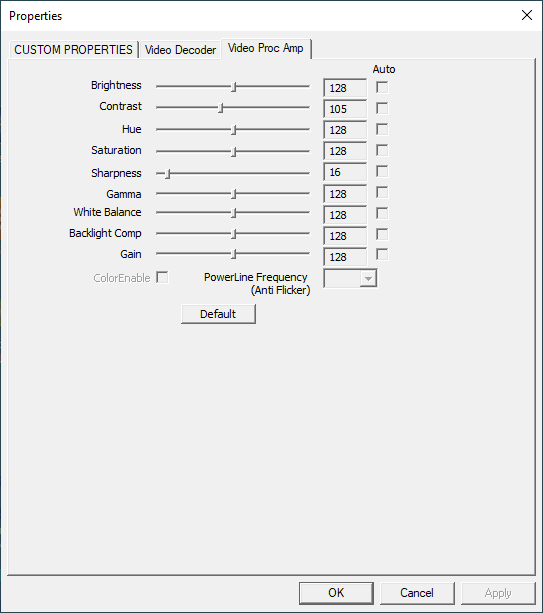
        • Video Proc Amp

          • nothing to change here
    • Sources --> GV-USB2 --> Properties 
      • Scroll down to Resolution/FPS Type and configure the settings as shown below:
        • Resolution/FPS Type: Custom
        • Resolution:
          • 720x576 (PAL)
          • 720x480 (NTSC)
        • FPS:
          • 25 (PAL)
          • 29.97 (NTSC)
          • Note
            • This is the frame rate, not the field rate.
        • Video Format: YUY2
          • The only option I have is YUY2 so Any would work just the same for this setup.
          • Setting this prevents unwanted Video Formats interfering later.
        • Colour Space: Rec. 601
          • This is the one used by legacy TV, Videos and things like that.
          • The OBS default is 'Rec. 709' and that is wrong for this input.
        • Colour Range: Limited
          • OBS default is 'Limited' but there is no harm in setting it here as it is easier to understand.
  • Deinterlacing
  • Resize the capture source to fit the entire Canvas.
    • GV-USB2 --> Right Click --> Transform --> Stretch to screen
  • Increase the quality of the stretch
    • GV-USB2 --> Right Click --> Scale Filtering: Lanczos
  • Filters
    • Nothing to do here.
    • These are not really to do with cleaning up the video, but more handling green screens and preventing audio spikes, but they could be if the right filter was applied.
    • Filters Guide | OBS - OBS Knowledge Base. A guide to the various effects that can be applied using Filters

Method 3 - (Analogue Source) (Canvas Rescaling) (Minimal Upscaling) (I-O Data GV-USB2) - Viewing (Preferred Method)

This capture type should be used by most people as it keeps as close to the original resolution as possible but de-interlacing it and converting it to a native 4:3 aspect ratio resolution which is suitable for all digital devices.

Follow the instructions from Method 2, but instead use the following Base (Canvas) Resolution and Output (Scaled) Resolution:

  • Settings --> Video
    • PAL

      • Base (Canvas) Resolution: 768x576
      • Output (Scaled) Resolution: 768x576
      • Downscale Filter: [Resolutions match, no downscaling required]
      • FPS: 50
    • NTSC

      • Base (Canvas) Resolution: 720x540
      • Output (Scaled) Resolution: 720x540
      • Downscale Filter: [Resolutions match, no downscaling required]
      • FPS: 59.94

Additional OBS Settings

  • Enable Monitoring
    • Menu --> Docks --> Stats
    • This will allow you to monitor your PC's resources and make sure they do not get maxed out.
  • Disable/Mute Desktop Audio
    • Do this via the dashboard by clicking on the speaker
    • This prevents notifications and alarms that Windows can generate being added to the recording.

Video Camera Settings

  • Some Video players also have these settings so you should apply them just the same.
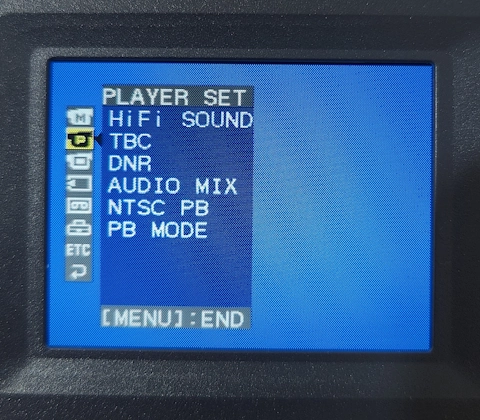
  • There is a more in-depth look at the TBC and DNR features later on in this article, in the notes section.

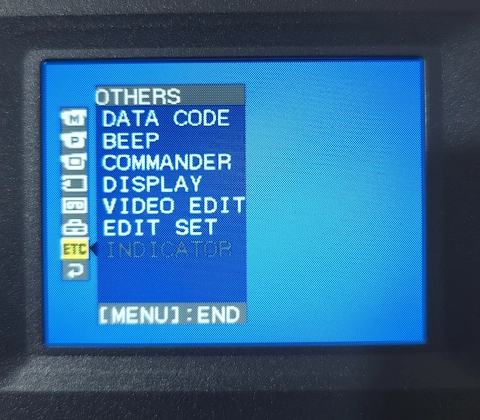
If you are using a Video camera as your source you need to configure these settings on the camera if there are present. You will only find these on the later digtal versions of cameras such as the Sony DCR-TRV725E.

  • Every time you power on the camera, check these settings because a low battery or unplugging will reset them.
    • TBC: On
      • What does this do?
        • Corrects timing errors (“wiggle” or horizontal jitter) that are common on old analog 8mm tapes.
        • Stabilizes the video signal so your capture device doesn’t drop frames or lose sync.
        • Usually results in straighter vertical lines and fewer glitches.
      • What happens?
        • If this is on, the analogue signal must must be converted to digital, before back to analogue.
        • Only if the tape sync is so bad during sampling, you might consider turning this on.
        • This samples the analog waveform into a digital form (usually with high resolution), performs the time-base correction digitally, then converts it back in to and analog signal for S-Video/composite output.
        • No picture detail or resolution is lost.
        • The output signal is not a "pure" analogue waveform, but this would only be an issue if you were using an external TBC, in which case you would disable this feature anyway.
      • My thoughts?
        • Some users have reported poorer image quality with this feature on, but this can vary from camera to camera.
        • Try with both on your setup to see what is best.
    • DNR: Off
      • What does this do?
        • Smooths out grain/noise that’s inherent to analog 8mm recordings.
        • Can reduce chroma noise (colored speckles) and make the picture look cleaner.
        • On Sony camcorders, DNR is usually subtle and doesn’t smear detail too badly (unlike some aggressive VHS filters).
      • What happens?
        • If this is on, the analogue signal must must be converted to digital, before back to analogue.
      • My thoughts?
        • I don't want the camera to do an correcting of the image, so I will this setting off and leave image correction to OBS.
    • PB Mode: Hi8/8
      • Setting this prevents the camera from doing unneeded format autodetecting before playing the video tape, preventing unwanted or missing footage.
      • i.e. do not use `Auto`
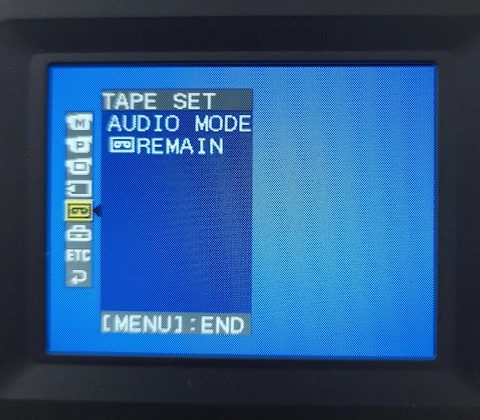
    • Audio: 16-Bit  -   get menu locations
      • Unless the tape is 12-bit and you get playback issues, but this should only be for Digital8 tapes I think
      • A digital stereo audio system that supports 12-bit (32 kHz, stereo 1 and stereo 2) and 16-bit (48 kHz, stereo) recording modes.

Start Capturing

  • Insert your tape
    • When first inserting a video tape you should play it to:
      1. make sure the video players performs AutoTrack. This stops the process getting recorded in the capture.
      2. check the picture looks good and manually run tracking if required.
      3. you can see the picture in OBS
    • Rewind tape.
  • In OBS click `Start Recording`
  • Press play on the video player
  • When the cassette has finished playing, in OBS, click `Stop Recording`
  • Do a short recording (test run) so you:
    • can check everything is working as expected. You can also check to make sure OBS does not give you warnings about the encoding going faulty because the CPU, GPU or HDD is maxed out.
    • use the Stats Dock to monitor the system resources.
  • Test the recording plays and looks as expected in VLC Player.


Capture Video Cassette Tapes using VirtualDub2

I have not captured with VrtualDub2 so the instructions will be cut down. You need to use VirtualDub2 if you want to maintain the interlaced nature of PAL and NTSC.

Archivists will want to keep the format as close to the original as possible and this is not an issue for playback because interlaced modern TV ans PCs will deinterlace video on the fly.

Method 1 - (Analogue Source) (I-O Data GV-USB2) - Viewing (Preferred Method)

  • This stores the video in a modern format with minimal changes.

This is a modern way of storing your VHS cassettes.

  • Input/Capture
    • I-O Data GV-USB
      • WEAVE: On
      • Source: S-Video
      • Audio: BTSC
      • Video Format: YUY2
      • Colour Space: Rec. 601
      • Colour Range: Limited
    • Frame Rate and Resolution
      • PAL: 720x576i @ 25fps
      • NTSC: 720x480i @ 29.97fps
  • Ouput/Recording
    • Video Encoding
      • Format: AVC (Advanced Video Codec) (H.264)
      • Bitrate: CQP 23
      • Frame Rate and Resolution
        • PAL: 768x576p @ 50fps
        • NTSC: 720x540p @ 59.94fps
      • Recording Format: Matroska Video (.mkv)
      • Chroma subsampling: 4:2:0
      • Video Format: YUY2
      • Color Space: Rec. 709
        • The reason for these changes is that your standard definition video source was originally recorded in a 601 colour space (709 is for HD content and sRGB is for screen captures).
      • Colour Range: Limited
    • Audio
      • Format: AAC LC (Advanced Audio Codec Low Complexity)
      • Sampling rate: 48 kHz
      • Channels: 2 Channels (Stereo)
      • Bitrate: 192kb/s
    • Image Processing
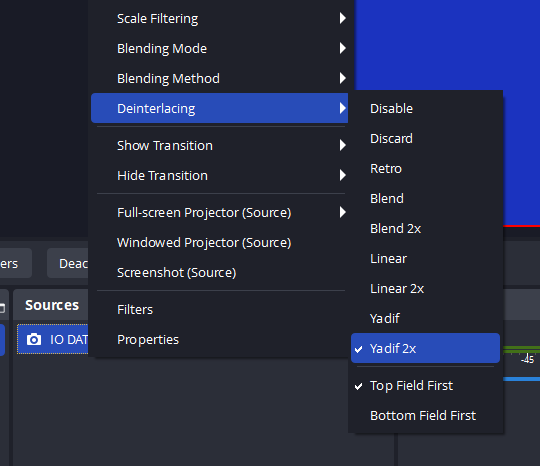
      • Deinterlace: Yadif 2x (Top Field First)
      • Imaging Scaling: Lanczos
  • Post Processing
    • none

Method 2 - (Analogue Source) (I-O Data GV-USB2) - Archiving

  • This maintains the video stream except for changes due to compression by the CODEC (unless you use a Lossless CODEC).
  • The resolution and format will stay the same.

This will create a copy close as possible to the original video. There is no change in resolution or audio settings.

  • Input/Capture
    • I-O Data GV-USB
      • WEAVE: On
      • Source: S-Video
      • Audio: BTSC
      • Video Format: YUY2
      • Colour Space: Rec. 601
      • Colour Range: Limited
    • Frame Rate and Resolution
      • PAL: 720x576i @ 25fps
      • NTSC: 720x480i @ 29.97fps
  • Ouput/Recording
    • Video Encoding
      • Format: MPEG Video
      • Bitrate: Variable
        • Target Bitrate: 3500kbps
        • Max Bitrate: 9000kbps
        • These are a guess for VHS cassettes.
      • Frame Rate and Resolution
        • PAL: 720x576i @ 50fps
        • NTSC: 720x540i @ 59.94fps
      • Recording Format: Matroska Video (.mkv)
      • Chroma subsampling: 4:2:0
      • Video Format: YUV
      • Color Space: Rec. 601
      • Colour Range: Limited
    • Audio
      • Format: MPEG Audio
      • Sampling rate: 48 kHz
      • Channels: 2 Channels (Stereo)
      • Bitrate: 192kb/s
    • Image Processing
      • Deinterlace: n/a
      • Imaging Scaling: n/a
  • Post Processing
    • Edit the MKV and and change the DAR (Display Aspect Ratio) to 4:3


Capture Video Cassette Tapes using a DVD-RW

This is one of the easiest methods if you have a 'Combi VHS DVD-RW Recorder'.

  • This is the easiest method for anyone and should give good results
  • The interlaced format from the VHS tape will be maintained as per PAL and NTSC formats.
  • These devices will use a Lossey CODEC but usually with a fixed bitrate so it knows how much data it can fit on a DVD.

Instructions

  • Set all recording settings to high
  • Initiate a VHS tape copy
  • Done


Post Capture Processing

You now have your validated capture you need to make it better.

  • Basic
    • Rename the video file OBS has created (unless you have already changes the output file naming syntax)
  • Trimming
    • Trim the unwanted stuff at the beginning and the end using LosslessCut.
    • LosslessCut will trim the video file without re-encoding.
    • No instructions are needed as this software is so simple to use.
  • Edit the Metadata
    • This is optional but is useful when archiving your tapes and allows you to add additional information.
    • There are many free software that allow this such as MKVToolNix.

Notes

Post Capture Processing

Trimming

MKV

Software

OBS Studio

  • Official Sites
  • General
    • Don't capture over remote desktop as it will mess things up
    • x.264 is the default 'High Quality, Medium File Size' in MKV
    • Can record in x.264/SVT-AV1/AOM AV1
    • x.265/HEVC is not and will not be supported because licensing complexities.
    • default x.264 CODEC settings
      MKV
      Codec: H264 - MPEG-4 AVC (part 10) (avc1)
      Encoder: Lavf59.16.100
      Codec: MPEG AAC Audio (mp4a)
      Channels: Stereo
      Sample rate: 48000 Hz
      
    • interlaced output | OBS Forums
      • OBS does not natively provide deinterlacing, and can only record in progressive scan mode. If your capture card does not provide on-the-fly deinterlacing, you may have to record as progressive-interlaced, then use a video editor to either convert or deinterlace it.
      • Unfortunately OBS cannot output anything but progressive. It's primarily meant as a live production tool, with the secondary ability to record that live content. Many have started using it as an all-purpose recorder, but it is not.
  • Settings
    • To change the codec or output format:
      • File --> Settings --> Output
      • Under the 'Recording' section you can change the output filetype and a few other things.
      • To see more options, set Output Mode to Advanced (this is at the very top)
    • Change file naming convention
      • Settings --> Advanced --> Recording --> Filename Formatting
    • Advanced OBS settings: What they are and how to use them | by Andrew Whitehead | Mobcrush Blog - Ready to take the next step in knowing way too much about OBS? includes B-frames
    • Export Settings
      • Menu --> Profile --> Export
    • Input/Output Resolutions
      • The recording resolution will be the Output (Scaled) Resolution and not the sources input. This is because OBS can have many inputs.
      • Base (Canvas) Resolution = This is the work area, the canvas, where you can arrange multiple sources such as overlays, facecams and your main stream. This is usually the size of your monitors resolution or your primary stream of different.
      • Output (Scaled) Resolution = The resolution of the outputted recording or stream will be.
      • How to Change OBS Output Resolution for Streaming & Recording - YouTube | tech How - A short tutorial on how to change your OBS Studio output resolution for streaming and recording.
    • Remove the red border around the Preview/Canvas/Source window.
      • Question / Help - Red border around sources | OBS Forums
        • Q: When you select a source it shows the boundaries or borders with a red border around the source, is there a png for that or is it something else then a png
        • A:
          • The red border is for sizing the source..Just click on one side and drag it to the size you want..
          • To get rid of the border and lock the source so it's not accidentally moved click the padlock icon next to the source in the source list.
        • Q: I disabled the red borderlines so i cant move anything (it was an accident) But how do i enable it again so i can see the red borderlines so i can move my text again ?
        • A:
          • Click the padlock icon next to the source in the source list. ( unlock it) then it may be necessary to click in the preview window to get the red border to reappear.
          • Just worked it out, go to `Menu --> Edit --> Lock Preview` and untick it:
    • Simple Vs Advanced settings
    • Reset OBS to default settings
    • Automatically Stop recording
    • Colour Settings
      • I-O DATA GV-USB2 default settings sample - VideoHelp Forum
        • Using S-video and OBS right now.
        • Whether this is an issue with the codec, OBS or the card but chromo sub-sampling for NTSC should be 4:1:1. and not 4:2:0 which is PAL
        • Also the DAR appears to be 16:9 and VHS does not support that without letter-boxing.
        • Personally I would do another sample with AmarecTV or Vdub just to compare the output.
        • 4:2:0 color space in obs capture is not appropriate, should be 4:2:2
  • Best Settings
  • Capture Tutorials
    • Digitizing VHS Tapes Using OBS - Tim Ford Photography & Videography
      • Did you know you can digitize your VHS tapes using OBS for under $20? Well, you can, and this post tells you how to do it!
      • Has a YouTube Video.
      • Uses the StarTech USB Video Capture Adapter Cable (SVID2USB232)
      • A great tutorial but has a few issues:
        • Fixed bitrate rather than a variable bitrate. Tjhis means somes frames will have their quality reduced. I would recommend variable bitrate so the frame is encoded as required with no comprimise.
        • Uses 29.97 for capturing NTSC rather than 59.94
        • Uses Bicubic and not Lanzcos
        • To get rid of the black bars (overscan) he stretches the image. This will distort the DAR (Display Aspect Ratio). Just leave them in. All tvs (and some modern panels tvs) have overscan of varing amounts.
      • The article explains some other technical stuff including overscan (blackbars), colour profiles and more.
      • Resolutions
        • In the Settings menu, click on the “Video” tab.
          • For NTSC, change the “Base (Canvas) Resolution” to 720×480 (3:2). If you are in the United States, use this setting. The NTSC standard was used in most of the Americas (except Argentina, Brazil, Paraguay, and Uruguay), Liberia, Myanmar, South Korea, Taiwan, Philippines, Japan, and some Pacific Islands nations and territories.
          • For PAL, change the “Base (Canvas) Resolution” to 720×576 (5:4). The PAL region is a television publication territory that covers most of Asia, Africa, Europe, South America and Oceania.
        • If you’ll be digitizing your tapes for use on a modern device (like a computer or a phone) use one of these for the “Output (Scaled) Resolution” setting:
          • For NTSC, type in 720×540
          • For PAL, type in 768×576
        • The reason for this is that your old-school VHS tapes use a resolution that will not look correct when played back on a typical computer or phone screen (it will look a bit stretched). By changing the output resolution, you’ll be using a square pixel aspect ratio which will look correct on more modern devices.
      • Colour Space and Range
        • Go to the “Video” section at the top and change the “Color Space” to “601.” The reason for this is that your standard definition video source was originally recorded in a 601 color space (709 is for HD content and sRGB is for screen captures). The “Color Range” should be set to “Limited.” Press OK.
      • For lossless capture using OBS it'll be 4:2:2, which is technically better than 1394 dv transfers (those are 4:1:1).
      • Recommends
        • CBR
        • 3500 Kbp/s.
        • 48kHz / 192bits
    • Lossless 4:2:2 Digitizing of Video Tapes Using OBS - Tim Ford Photography & Videography
      • Did you know you can digitize your video tapes to lossless quality using OBS? Well, you can, and this post tells you how to do it!
      • Some of the information might not be correct.
    • How To Capture, Denoise, and Restore VHS Tapes - YouTube | TheBenCrazy
      • This video will show you how to record/capture/digitize your old home family VHS tapes or any VHS tapes onto your computer in HD. It will also walk you through using software to denoise and restore the the captured video.
      • This is very thorough tutorial using both Elgato and OBS devices to capture the tapes, it then moves on to showing how to trim the capture with Sony Vegas.
      • All settings are shown.
      • Explains CQP
      • Tells you the best Video Players to buy
    • How to convert VHS videotape to 60p digital video (2023) - YouTube | The Oldskool PC
      • This tutorial will teach you how avoid the most common mistake people make when trying to convert VHS/videotape to digital video -- and all it takes is a $50 piece of hardware and free software. Intended for pure beginners, this tutorial walks you through every step to produce perfect conversions every time.
      • This tutorial uses an Analogue to USB adapter which preserves a lot of the analogue attributes which then need to be dealt with, i.e. interlacing.
      • Explains interlacing
      • Why you should use 60fps
    • Standard Recording Output Guide | OBS - While OBS Studio is strong for broadcasting live to the internet, it is also a great tool for being able to record, either at the same time as streaming or solely for offline usage. 
    • Quick Start Guide | OBS - OBS Knowledge Base. A quick introduction to OBS Studio that guides you towards creating your first stream or recording!
    • Using OBS to Capture Videotapes with a USB Capture Device on Windows - YouTube
      • I have a few issues with this tutorial so do not take all of this process as correct.
      • In this tutorial, I cover the equipment, software, and settings needed in order to successfully capture video from your old, analog videotapes using OBS.
      • Uses the Startech SVID2USB232
      • Settings --> Advanced --> Video --> Color Space:
        • 601 is SD colour space
        • 709 is HD colour space
  • Full Tutorials
  • Misc Tutorials
  • Streaming Tutorials
    • OBS Setup Guide | Volume - A guide to setting up OBS for streaming.
    • How to Use OBS Studio for Professional Video Streaming in 2023 - Want to learn how to use OBS Studio for professional broadcasting? Explore powerful features like window capture in this step-by-step tutorial.
    • Getting started with OBS: A beginner's guide - Koytek Wattenberg Media - OBS is an amazing tool for creators, if you want to live stream; record your videos or even do both at the same time. This guide will focus on beginner advice, and a later guide will tackle more advanced advice regarding the use of OBS and the YouTube Live Dashboard.
    • Best TWITCH Stream Settings for Nvidia users! OBS 28.1 BETA PRESETS - YouTube | EposVox
      • The new OBS 28.1 beta is weird... it adds some new NVENC presets, but are they as magical as it seems?! In this video, I test P1 through P7 of the new NVENC H.264 encoder and test it across Lovelace, Ampere, Turing, Pascal, and Maxwell generations to see what the best settings for you would be.
      • The best settings for NVidia cards using H.264
      • Recommended for streaming
        • Preset: P6
        • Multipass Mode: Two Passes (Quarter Resolution)
    • Never worry about Twitch settings AGAIN! AV1 on Twitch | Nvidia CES News & More! - YouTube | EposVox - Twitch streaming will NEVER be the same! Today at CES, Nvidia helped announce a new Twitch feature called "Enhanced Broadcasting" which will allow the streamer to send their own encoding ladder of transcodes to Twitch instead of relying on Twitch's servers. This gives transcoding to streamers who aren't partnered and can help improve quality and reduce latency! Plus the changes that make this happen allow for Twitch to start leveraging HEVC and AV1 encoding and to start supporting 1440p and 4K streaming! Th
  • Desktop Screen Recording
    • How to Record Your Screen with OBS - YouTube | Guiding Tech
      • OBS, or Open Broadcasting Software, is a free and open source tool that is perfect for streaming and recording right on your desktop. If you’re ready to capture your next gaming experience, here’s what you can do!
      • Add Source --> Display Capture
  • Remux With OBS
    • OBS can remux files into MP4 automatically after recording
    • How to convert/remux mkv files to mp4 using OBS - YouTube
      • Not all video editing programs support mkv files, but OBS Studio (Open Broadcaster Software) has a built-in way to convert (or, more accurately, “remux”) mkv files to mp4 files. Here’s how to do it: Open OBS, click File, then Remux Recordings
    • (OBS REMUX) - How to convert MKV Files with OBS - YouTube
      • Converting (or Remuxing) an MKV file in OBS is extremely easy. While this video is directed towards those who are using OBS to record their screen, the concept also applied if you have an MKV file (maybe from the internet) laying around that you need to change to MP4 format.
    • How to convert mkv to mp4 using OBS studio | Remux recordings OBS studio - YouTube
      • In this video I will show you how to convert mkv to mp4 using OBS studio
    • Standard Recording Output Guide | OBS - If you record in a file format that is not mp4 and want to convert it to mp4 for easy use in the video editing software of your choice or to make it easier to upload to social media, OBS has that built in for you. If you click on File then select Remux Recordings and press the … button to select which video(es) you’d like to remux. After that hit the Remux button and OBS will convert your videos for you, once completed it’ll provide a prompt saying so.
  • Resizing
  • Downscale Filter
    • Default downscale filter = Bicubic (Sharpened scaling, 16 samples)
    • Lanczos filter is the best
    • Best OBS Downscale Filter - The Ultimate Resize Comparison - YouTube | Tech Guides
      • Which is the best OBS downscale filter in terms of performance and video quality? In this video, I compare 9 different methods to downscale a live stream in OBS Studio: Bilinear, Bicubic, Lanczos, Rescale Output, and Canvas Resizing. By looking at gaming benchmarks and an objective assessment of image quality (PSNR) I am able to show that downscaling using the Video Tab and the Lanczos filter is the best choice!
      • Very detailed video on downscaling.
      • Use the Lanczos filter for downscaling, it is the best and is recommend by many.
      • There 3 different types of Downscaling are:
        1. Video Rescaling
          • Settings --> Video --> Base (Canvas) Resolution: 1920x1080 - This is your working area (Canvas) which should usually match your monitor's resolution.
          • Settings --> Video --> Output (Scaled) resolution: 852x480 - This is the resolution of the output used for making files and by making this less than your Base (Canvas) Resolution the output will be downscaled.
          • Settings --> Video --> Downscale Filter: Lanczos (Sharpened scaling, 36 samples) - This is the algorythm used to reduce the Base feed to the required Output resolution.
          • This always uses the GPU to downscale.
        2. Encoder Rescaling
          • Set Base and Ouput resolutions to be the same
            • Settings --> Video --> Base (Canvas) Resolution: 1920x1080
            • Settings --> Video --> Output (Scaled) resolution: 1920x1080
          • Settings --> Output (in `Advanced Mode`) --> Streaming --> Rescale Output: 852x480
            • Select a lesser resolution and it will be downscaled.
            • x.264 = CPU
            • AMD HW H.264 (AVC) = GPU
        3. Canvas Rescaling
          • Set Base and Ouput resolutions to be the same. This resolution will be lower than the input source.
            • Settings --> Video --> Base (Canvas) Resolution: 852x480
            • Settings --> Video --> Output (Scaled) resolution: 852x480
          • This causes the video to be clipped on the canvas. So to fix this:
            • Right click on the canvas --> Transform --> Stretch to screen
            • The video now fits the screen.
          • You can select different filters, but we will select our favourite.
            • Right click on the canvas --> Scale Filtering: Lanczos.
          • This always uses the GPU to downscale.
    • Downscale Filter OBS | tips for efficiency
      • Are you looking for a way to downscale your video streams without sacrificing quality? In this blog post, we’ll introduce you to the Downscale Filter for OBS. We’ll show you how to set it up and how to use it to get the best results for your streams. So, keep reading to learn more!
      • The best downscale filter for OBS will vary depending on your specific computer hardware and internet connection. For most users, the “Bicubic” downscale filter will provide the best results.
      • Bicubic: This is the default filter used in OBS. It does a decent job at downscaling but can sometimes create blurry images.
      • Lanczos: This is the best quality filter, but can sometimes take longer to render.
      • What downscale filter should I use for my twitch streams? Generally, if you have high-speed internet connectivity and a good quality webcam, then using the bicubic filter should give you the best results. But if you have slower internet speeds or a lower quality webcam, then the bilinear or Lanczos filters may be better choices.
    • Getting your video settings right in OBS | by Andrew Whitehead | Mobcrush Blog
      • Upgrade your stream settings for visibly better results
      • We all have a basic grasp of terms like 720p and 1080p — the bigger the number, the better the video quality. But when it comes to streaming, sometimes lowering the quality in one area can help boost it in another.
      • This guide will show you how to set up OBS so you can make an informed decision about what video output resolution is best for your content. Other factors like bitrate (read about that here) and frame rate (full guide here) will also impact your stream quality, so be sure to brush up on those concepts too! Let’s get started.
        • Base (Canvas) Resolution
          • This setting determines the resolution of the space you use to layout your overlays in OBS
          • describes how to set
          • Put simply, the Base (Canvas) Resolution is your main video source that your recordings and streams will feed off.
        • Output (Scaled) Resolution
          • The Output (Scaled) Resolution is used when recording (not streaming) in OBS by taking your Base (Canvas) Resolution and flattening it down for the encoder.
          • If you find any of this confusing, and all you care about is live streaming, set the Base and Output resolution to the same size.
        • Downscale Filter
          • Bilinear and Area are the first two options, but at this point, they’re more like legacy settings that you can ignore. They’re very low quality and you lose too much detail using them.
          • The next two are Bicubic and Lanczos, which are both great options, but Bicubic is the better choice if you want to take a little strain off your PC, while Lanczos looks better looking but needs more CPU or GPU cycles.
          • If you stream using NVENC, you should use Lanczos as the filtering will be handled by your GPU’s onboard encoder and will look much better than Bicubic.
        • Why is this useful? Well maybe you have a Base (Canvas) Resolution of 1080p, and then you need to quickly change to a lower stream resolution for whatever reason, but you don’t want to have to resize ALL your overlays and video sources.
        •  This means:
          • use Lanczos where possible, Bicubic is less CPU intensive but does a worse job.
          • Downscale filters seem to be in order of greatness Bilinear --> Lanczos  in the GUI list.
    • Which downscale filter to use? | OBS Forums
      • The processing load difference between bicubic and lanczos is negligible on any hardware that isn't a complete potato with no business even trying to livestream. Ignore the performance delta as it's unspeakably tiny.
      • Normally bicubic is recommended. It's a standard rescale and provides good quality.
      • Lanczos is more of a personal-preference/situational thing; it's normally used for face-cams and other real-life video... it does have a higher sampling count, and OBS' implementation includes a sharpen pass; good for real video, not so much for synthetic video (like gameplay) where you may get some minor over-sharpen artifacting (like halo effects in solid color blocks). But you likely won't even notice unless you're specifically looking for it.
      • Default: Bicubic (especially for full-frame downscales)
      • Face-cam: right-click, Scale Filtering, Lanczos
      • Lanczos made my stream laggy as hell. Went back to bicubic and it works perfect. my upload is 30mbps and my hardware is AMD ryzen 7 3700x and gtx 1660 super. no hardware or ISP limitations so what gives? Lanczos is a turd do not use folks.
  • Misc
  • Troubleshooting
    • Get log files
      • Menu --> Help --> Log Files
    • No Audio
    • Cannot go full screen
      • Best Ways to Fix OBS Not Recording Full Screen - Being an OBS Studio user, you might have several times caught up with OBS not recording full-screen issues. Well, worry not! As we're here with the best solutions for that. Let's have a look at them.
    • Black Screen
      • OBS: Why Is My Screen Black? Try These Fixes - OBS isn’t immune to glitches, and there’s one particular issue that’s plagued Windows users. We’re talking, of course, about the infamous Black Screen. The error typically occurs during live streaming, and there are several possible causes. In this article, we’ll get to the heart of the matter while showing you how to fix it with step-by-step instructions.
    • Encoding Performance Troubleshooting | OBS - OBS Knowledge Base. Learn best practices to solve encoding performance issues

MKV

VirtualDub

  • Supports capture of interlaced videos
  • Capturing interlaced video as interlaced - Is it possible - VideoHelp Forum
    • I have been researching the best way to capture VHS to computer and the best minds say to capture the video as interlaced and to not deinterlace the video. Over the years I have been capturing VHS using a Panasonic DV camera, it captures as interlaced but the color space is 4:1:0. I just recently bought an I-O Data USB capture device and it will capture as 4:2:2, but I can't find any software that will capture as interlaced. I have tried VirtualDub and OSB and both seem to only capture deinterlaced (OSB is for sure that way). Vegas 13 Pro capture program does not recognize he I-O data device as a proper device for capture.
    • Likely you didn't configure VirtualDub properly.
      • Under "Video" -> "Capture pin..." you should select 720x480 for NTSC sources and 720x576 for PAL sources. Some devices like old tuner cards need 704 instead of 720 but 720 is the most common.
        Also select the proper color space here. You want YUY2 or UYVY (both are 4:2:2).
      • That should give you an interlaced capture, unless the capture device itself does something funky or the source is simply not interlaced (two fields taken at the same point in time make up a progressive frame).
    • Thanks for everyone's advice. As it turns out VDub was capturing interlaced video all along. I was using GSpot to determine whether a clip was interlaced or not and none of the field order indicators were set in GSpot, so I assumed the clip was progressive.
  • Capturing with VirtualDub [Settings Guide] - digitalFAQ Forum - My guide is a work in (eternal?) progress. Until then, sanlyn's guide is below. HOWEVER , important update to sanlyn's guide below.

VirtualDub2

This is the successor of VirtualDub and fixes a lot of issues. Instructions and other things out there for VirtualDub will be valid for this software.

AmaRecTV

  • Supports capture of interlaced videos (i think)
  • This is good for showing games on PC in a window, you can deinterlace etc..
  • AmaRecTV 3.10 Free Download - VideoHelp - AmaRecTV is a simple and easy Direct Show Video Capture Recording and Preview tool. Requires the AMV Video Codec (trialware $30).
  • If you do try AmarecTV ignore the bit on the VideoHelp's download page that says it "Requires the AMV Video Codec (trialware $30)." The version on that page (v2.31) doesn't need the AMV Codec to run, you just need to press the 'Update Codec List' button on the 'Recording' tab of the 'Config' window to choose from a list of compatible codecs installed on your system.
  • If you're feeling brave (or can understand Japanese) there are a couple of newer versions available if you poke around on the Japanese AmarecTV website. Version 3.10 is the last version (as far as I'm aware) that doesn't require you to buy their AMV Video Codec. Having said all of that, I'm not sure what advantages v3.10 has over the v2.31 on VideoHelp's download page? Both seem to work well. I'd leave v4.?? well alone as it not only does need their Codec but I think I'm right in saying that you need to do a little registry cleaning after uninstalling it before you can install an earlier version again.
  • AmarecTV Tutorial - YouTube | Armaggedun_ - Quick tutorial on how to use AmarecTV. I hear a lot of people can't figure out how to use it, and/or don't know about it. Thought I'd make this video.

VOB/MPEG Header Editors

When you copy a VOB from a DVD make sure you update all headers.

  • DVDPatcher 1.06 Free Download - VideoHelp - (2003) DVD Patcher is a tool to change the video headers in mpg/mpeg2/vob video. Change aspect ratio, framerate, resolution/size and bitrate.
  • Restream 0.9.0 Free Download - VideoHelp - (2003) With Restream you can change many options of a MPEG2 Elementary Stream without re-encoding. Change Aspect Ratio, Framerate, resolution in the mpeg header, correct and remove sequence extension.
  • MPGPatcher 2020.08.14 Free Download - VideoHelp - (2020) MPGPatcher is a command line tool to change video basics (resolution/size, framerate, aspect ratio, bitrate) in mpg-video files. Patches the video headers only, does no reencoding.

Shotcut

HandBrake (might move to DV)

  • HandBrake – Convert Files with GPU/Nvenc Rather than CPU – Ryan and Debi & Toren - In this post, I’ll show how to use this feature in Handbrake and show some comparisons to illustrate the benefits and tradeoffs that result.
  • Tips for Encoding Videos using HandBrake
    • Tips for creating good video encodings or DVD/BluRay rips, specifically when using HandBrake.
    • The tips give concrete instructions for the program HandBrake, which is a freely available, popular, and good tool for encoding videos—if you use it correctly.
    • A very indepth tutorial and does not just apply to HandBrake.
    • Yadif or Bwdif vs. decomb
    • Denoise
      • In short: if you want to preserve film grain, you will need a very high bitrate. If you want a small file, apply denoising to get good image quality at a low bitrate. NLMeans works best.
      • Modern codecs like H.264 are pretty good at keeping quality acceptable even at lower bitrates. However, although these codecs do have a kind of denoising effect at low bitrates, below a certain point this breaks down and the codec makes a mess of it. If you have a noisy video source (e.g., low-quality VHS tapes, a DVD of an old TV show, a film with a lot of ‘grain’), and you cannot afford encoding it at the extremely high bitrate that will correctly preserve all the noise, then it is a better idea to filter out as much of the noise as possible before the actual encoding starts. The codec will then have a much easier job at producing a good image at a low bitrate.
      • Recent versions of HandBrake have two types of denoise filters: the old HQDN3D (has nothing to do with Duke Nukem 3D by the way), and the new NLMeans.
  • Deinterlacing
    • Most effective 2x deinterlacer? | Reddit
      • They are two different algorithms for deinterlacing.
      • I am a big fan of yadif. It is a much simpler deinterlacer, and much faster, and in motion, to me, everything looks as it would look on an actual TV. If it looks wrong in yadif, then it'll look wrong viewing it on an actual interlaced TV, IMHO.
      • But, decomb is an attempt to improve on it further, and it can sometimes get a slightly better result in cases where yadif (and real interlaced TVs) struggle like near-horizontal lines or repeated patterns of fine horizontal lines. Also, decomb is a bit "smarter" in the sense that it can switch into different modes depending on context. Visually to me, though, occasionally this means it leaves a little bit of "combing effect" in the picture where it is only slight, which yadif by its nature never does. On the other hand, yadif by its nature can tend to have a bit of a "smoothing" effect which you may or may not like.
      • Having performance/speed tested bwdif as implemented in the Handbrake nightlies, it's fast and/or parallelizes well with many cores, so it beats Decomb+EEDI2 by an order of magnitude or more. Hopefully, it ends up being the qualitatively superior option that some users are looking for, but that remains to be seen, I don't think I'm qualified to do that testing so I'll have to wait for somebody else to do it.
    • Best Deinterlace Settings? | Reddit
      • The safest bet if you don't know the source is Bob deinterlace, 2x frame rate (I prefer "yadif" to "decomb" but YMMV, decomb is much slower though) but you can do better with film source DVDs which will usually be telecined as 3:2 pulldown so you can do a detelecine first, in most cases auto will work, and then completely disable deinterlacing and it should be crisp.
      • thanks for sharing your knowledge. I got great results for deinterlacing an old interlaced sitcom from dvd source, went with yadif + bob + 2x framerate (59.94) and the motion is so smooth, picture looks great (although a bit softer), and no visible combing. I always thought "decomb + default" was fine, but I apparently didn't know what I was missing :) It's fantastic.
      • For me, I have found that decomb with the preset of EEDI2 Bob works great. Takes a long time though. I have interlaced detection at default and everything set to off.
    • A Complete Guide to Deinterlace Video with HandBrake
      • How to use HandBrake to deinterlace DVD or video? What's the difference of Yadif and Decomb? Is there a simpler tool than HandBrake to deinterlace video? All will be answered in this article.
      • Yadif is a popular and fast deinterlacer.
      • Decomb switches between multiple interpolation algorithms for speed and quality.
      • Interlace Detection, when enabled, allows the Deinterlace filter to only process interlaced video frames.
    • HandBrake deinterlacing settings? - digitalFAQ Forum
      • Use Decomb, EEDI2Bob
      • It's better than Yadif for AA (anti-alias), but still worse than QTGMC.
      • Yadif leaves % of jaggies, not pleasant to watch.
    • HandBrake deinterlacing settings | Reddit
      • When you use 'bob' you have to set the framerate in the video tab accordingly.
      • 50fps for PAL, 59.94 for NTSC, with 'constant framerate' selected
      • Should come out nice and smooth like watching it on a CRT TV.
      • Field order will be automatically detected.

LosslessCut

  • GitHub - mifi/lossless-cut
    • The swiss army knife of lossless video/audio editing.
    • LosslessCut aims to be the ultimate cross platform FFmpeg GUI for extremely fast and lossless operations on video, audio, subtitle and other related media files.
    • The main feature is lossless trimming and cutting of video and audio files, which is great for saving space by rough-cutting your large video files taken from a video camera, GoPro, drone, etc.
    • It lets you quickly extract the good parts from your videos and discard many gigabytes of data without doing a slow re-encode and thereby losing quality.
    • There are also many more use cases.
    • Everything is extremely fast because it does an almost direct data copy, fueled by the awesome FFmpeg which does all the grunt work.
  • lossless-cut | The swiss army knife of lossless video/audio editing - Official Website.
  • LosslessCut keyboard shortcuts ‒ DefKey - LosslessCut is a simple, cross-platform video and audio trimming tool that cuts files without losing quality. It supports various formats and is useful for quickly editing large media files.
  • Keyboard Shortcuts and Menu | mifi/lossless-cut | DeepWiki
    • This document covers LosslessCut's keyboard shortcut system and key binding management.
    • It explains how keyboard actions are defined, stored, customized, and executed throughout the application.
  • Command line interface (CLI) | lossless-cut - LosslessCut has basic support for automation through the CLI.

Misc

  • Capture TV/DVD/VCR Free Downloads - VideoHelp - Download free Capture TV/DVD/VCR software. Software reviews.
  • Best software for capturing? - VideoHelp Forum
    • I was reading a post a week ago by someone on here that knows what he's doing. He recommended some program that was the best for capturing. unlike all of the garbage you get from big box mart. For the life of me, I can't find it.
    • For SD capture, you need a capture card that can pass uncompressed YUY2 to AmaRecTV.
    • VirtualDub
    • VirtualDub (or the VirtualDub FilterMod aka. VirtualDub2 fork) is very flexible as far as capture is concerned. But that can also make it more difficult to get set up properly some devices. Many people have good luck with AmaRecTV after giving up on VirtualDub.
    • Some hints for VirtualDub:
      • Do not play the audio while capturing (turn off Audio -> Enable Audio Playback). This cause A/V sync errors with most devices.
      • Do not compress the audio while capturing (audio codecs are usually single threaded and too slow).
      • Do not capture video uncompressed. Disk drives are too slow for this.
      • Do not use lossy high compression video codecs while capturing (MPEG2, Mpeg4 part2, h.264, h.265).
      • Use fast lossless compression codecs like huffyuv, ut video codec, etc.
      • If you still have audio sync problems play around with the sync settings at Capture -> Timing -> Resync Mode. Especially try enabling Do Not Resych Between Audio And Video Streams (which causes more problems than i solves for many devices).
      • And of course, there's all the usual things to try: https://forum.videohelp.com/threads/104098-Why-does-your-system-drop-frames
    • If you do try AmarecTV ignore the bit on the VideoHelp's download page that says it "Requires the AMV Video Codec (trialware $30)." The version on that page (v2.31) doesn't need the AMV Codec to run, you just need to press the 'Update Codec List' button on the 'Recording' tab of the 'Config' window to choose from a list of compatible codecs installed on your system.
    • If you're feeling brave (or can understand Japanese) there are a couple of newer versions available if you poke around on the Japanese AmarecTV website. Version 3.10 is the last version (as far as I'm aware) that doesn't require you to buy their AMV Video Codec. Having said all of that, I'm not sure what advantages v3.10 has over the v2.31 on VideoHelp's download page? Both seem to work well. I'd leave v4.?? well alone as it not only does need their Codec but I think I'm right in saying that you need to do a little registry cleaning after uninstalling it before you can install an earlier version again.

Video Camera Research

  • General
    • CCD are too old, no UK/PAL Video8 or Hi8 video player has a s-video port, and most, if not all have only a mono output for sound.
    • I am guessing later cameras all support XR format or it was never popular
    • Sony CCD-TRV Series Cameras - Information, illustrations and specifications for the Sony CCD-TRV series video cameras.
    • Sony DCR-TRV series comparison | avforums
      • Here is a list of all Sony Digital 8 PAL (UK system) models.
      • Models marked * will also play old 8mm analogue PAL recordings made in Standard 8, HI8, in both (SP) and (LP) modes.
      • They all have Firewire output & Time Base Correction.
    • Best camera for Video8 tape playback? | digitalFAQ
      • From other posts on this forum I gather the best Hi8 camera for the job would be one of the following:
      • All Sony Digital 8 PAL (UK system) models. Models marked * will play old 8mm analogue PAL recordings made in Standard 8, HI8, in both (SP) and (LP) modes. All models marked * have switchable timebase correction.
    • List of Sony Digital8 Camcorders That Play 8mm and Hi8 Tapes
      • We have the most complete list of Digital8 camcorders that play 8mm and Hi8 tapes, as well as listing which camcorders cannot play back your 8mm / Hi8 tapes. Be careful to buy the right camcorder.
      • These camcorders are a European version that records at 24 frames per second, which is referred to as PAL, but they can also play back NTSC format 29.97 frames per second. And some of these have analog playback capabilities.
      • All PAL Digital 8 camcorders can also play back NTSC / US
      • These European camcorder models end with an “E”, the list below is backward compatible and can still playback Video8 and Hi8 PAL tapes originally recorded at 24 frames per second.
      • Most Sony Digital8 camcorders can playback Hi8 and Video 8 tapes, especially the earlier models of Digital 8 as this was one of the features to draw in Hi8 and Video8 users. Some later model Digital8 camcorders did not have this Hi8 playback feature so be careful when buying one.
    • Video8/Hi8/Digital8/DV/Betamax Buying Guide for quality conversion | digitalFAQ
      • Lists
        • Hi8 stereo with TBC and s-video:
        • Hi8 mono with TBC and s-video:
        • Digital8 with Video8/Hi8 playback and s-video:
      • All the Digital8 cams with Video/Hi8 playback should have the same robust TBC/DNR circuit seen in the listed Hi8 models.
    • Digital8 vs Hi8 vs Video8 Camcorders | EverPresent - What’s a Digital8 camcorder with 8mm and Hi8 playback? Read our guide to learn all about the different types of camcorders and what they can do.
    • Handycam - Wikipedia - Handycam was first used as the name of the first Video8 camcorder in 1985, replacing Sony's previous line of Betamax-based models of camcorders. The name was intended to emphasize the "handy" palm size nature of the camera, made possible by the then-new miniaturized tape format.
    • Sony video HI8 XR CCD-TRV87 Hi 8 Operating Instructions Manual [Page 6] | ManualsLib
      • Analogue only
      • Hi8
      • S-Video
  • Which models support S‑Video output?
    • Sonys Hi8 and Video8 camcorders began including true 4‑pin S‑Video outputs starting around the Hi8 era (late 1980s to early 2000s). Video8-only models (the original analog) typically have only composite (RCA) out.
    • Some Digital8 camcorders can playback Video8/Hi8 tapes but often digitize the signal first, meaning the S‑Video isn't a true analogue feed. Many enthusiasts prefer earlier Hi8 models for capturing direct analog S‑Video output.
  • Digital8/Hi8/Standard8 Format and tapes
    • The actual cassettes for Video8 and Hi8 are physically the same size and shape. The difference lies in the tape's magnetic formulation and the way the video signal is recorded (higher bandwidth for Hi8).
    • When a Hi8 camcorder plays a Video8 tape, it will play it back at the Video8's original resolution and quality (around 240 lines), not the higher 400 lines of Hi8. You won't magically get Hi8 quality from a Video8 recording.
    • A Video8 camcorder typically cannot play Hi8 tapes because it lacks the necessary electronics to decode the higher-frequency Hi8 signal.
    • Digital8 uses the same cassettes but stores a digital stream on the tape rather than an analogue stream.
    • 8 mm video format - Wikipedia
      • The 8mm video format refers informally to three related videocassette formats.
      • These are the original Video8 format (analog video and analog audio but with provision for digital audio), its improved variant Hi8, as well as a more recent digital recording format Digital8.
      • Some Digital8 camcorders support Video8 and Hi8 with analog sound (for playback only), but this is not required by the Digital8 specification.
  • Which output type should you use for captureing on a Digital8 camera when playing back analogue tapes?
    • FireWire (DV out):
      • Gives you a perfect digital transfer of Digital8 recordings.
      • For Video8/Hi8, it digitizes the analog tape internally and encodes it as DV before output.
      • Pros: stable, frame-accurate capture, no dropped frames.
      • Cons: DV compression (lossy, 4:1:1 or 4:2:0).
    • S-Video (analog out):
      • For Video8/Hi8, this avoids DV compression — you get an analog signal, which you can capture with a good external digitizer (e.g., a capture card that records to lossless formats).
      • Potentially better for archival, because you can choose modern lossless codecs and apply noise reduction later.
      • Cons: depends on the quality of your capture card and drivers; dropped frames are more likely without a stable TBC in the chain (though your camcorder’s built-in line TBC usually helps).
    • = Use the S-Video connection

Video Camera Settings

Time Base Corrector (TBC)

  • What is TBC?
    • This is a function found in many analog-to-digital camcorders (especially Digital8 models). It's designed to stabilize video signal timing—correcting wobble, dropped lines, or sync errors as a tape plays back.
    • Even though you may not need full professional‑grade correction, many Digital8 camcorders include a simple line‑based TBC, which helps smooth playback in real time as footage is passed through the camera for capture.
    • Used to stabilize shaky analog playback signals.
    • In Digital8 mode / FireWire capture from D8 tapes, TBC setting doesn’t apply.
  • What does this do?
    • Corrects timing errors (“wiggle” or horizontal jitter) that are common on old analog 8mm tapes.
    • Stabilizes the video signal so your capture device doesn’t drop frames or lose sync.
    • Usually results in straighter vertical lines and fewer glitches.
  • Why might you turn it off? (This has not been verified and is just opinion of the internet)
    • Several users on forums like DigitalFAQ or VideoHelp recommend disabling the built‑in TBC for their camcorder-based transfers:
      • They found the output with TBC off looked more vibrant and less shifted, whereas enabling TBC sometimes slightly shifted the image or altered saturation
      • The built‑in TBC is often just a line TBC, not a full frame‑based solution. Some users felt the camera performed better with TBC off, preserving natural color and detail in their captures
      • Also, if you're capturing Digital8 (D8) tapes, the internal TBC doesn’t apply—it only affects analog Video8/Hi8 playback when you're capturing from tape via composite or S‑Video input
    • In other words: if you're transferring a D8 tape via FireWire in digital mode, TBC makes no difference. But if you're capturing analog inputs, it might slightly degrade color or alignment depending on the camcorder.
    • When capturing analog sources via camera, TBC may do more harm than good in some models.
    • Users observed that turning TBC off yields truer colors and less image shift during capture.
  • General
    • Time base correction - Wikipedia
      • Time base correction (TBC) is a technique to reduce or eliminate errors caused by mechanical instability present in analog recordings on mechanical media. Without time base correction, a signal from a videotape recorder (VTR) or videocassette recorder (VCR), cannot be mixed with other, more time-stable devices such as character generators and video cameras found in television studios and post-production facilities.
      • Time base correction counteracts errors by buffering the video signal as it comes off the videotape at an unsteady rate, and releasing it after a delay at a steady rate.
    • Time Base Corrector (TBC) Explained : How it Works and Types of TBC
      • A time base corrector (TBC) fixes picture issues related to VHS and S-VHS tape to digital conversion. How does it work? Types of TBC.
      • Why Do Time Base Errors Occur?
        • Tape wear – tape that is often played – wear is quicker on low-quality tape material
        • Misalignment of VCR head(s)
        • Mechanical problems associated with tape playback
      • What are the Signs of Time Base Errors?
        • screen jitter
        • red and blue haze (commonly found on VHS tape playback)
        • dropped frames
        • audio synchronization problem
        • jagged frames
      • When Do You Need a TBC?
        • You need a time base corrector when you’re working with VHS and S-VHS tapes.
        • You’ll need a time base corrector when playing the VHS and S-VHS.
        • You’ll also need a TBC when you copy tape from one VCR to another.
        • Most importantly, you’ll need a time base corrector when you’re undertaking analog to digital video conversion.
        • In the days old, VHS and S-VHS need to be time-base corrected before they were ready to be used in TV broadcast stations.
      • This article offers a lot more information.
    • Edit Suite: TBC Trivia - Videomaker
      • Many people don't quite understand what a TBC does. Even some of the video know-it-alls can't completely explain what happens to video inside a TBC.
      • Video frames are made of stacks of horizontal scan lines. Each line contains an electronic representation of a thin slice of the image in the frame. When all the lines in a frame appear together on screen, the whole image is visible.
      • For a video frame to look as crisp and clear as possible, each scan line must begin at the same horizontal point just off the left side of the screen. If they don’t, the picture will look fuzzy or “soft” because the details in each scan line don’t line up with details in the adjacent scan lines. Severe distortions or variations in line position can even cause the frame to “break up” or jitter during playback.
      • Unfortunately, videotape recording and playback introduces a slight drifting of the scan lines–time base error–into nearly every video frame. Tape stretches easily, especially when it’s wrapped around the hot mechanical parts inside your VCR for long periods of time. That causes the VCR to read a slightly different “start point” for each scan line recorded on the tape. The error is inevitable, and all videomakers must deal with it, regardless of the chosen tape format.
      • TBCs, however, can eliminate this problem by correcting the video output from a VCR. A TBC can realign the scan lines by digitizing each video frame and storing it in a digital “buffer.” It then redraws each scan line in the proper position and sends the corrected frame back out.
    • Recording with Hi8 Camera, TBC/DNR settings on or off? | digitalFAQ Forum
      • As hodgey said the TBS and DNR functions don't/can't do anything while recording (in Camera mode). They are only available during playback (in Player or VTR mode depending on your model of camcorder). If you record the video on the Hi8 camcorder and then play it back on the D8 camcorder, the D8 may have the TBC and DNR functions available during playback. Some D8 camcorders cannot playback Hi8 tapes at all. I don't know if all that can playback Hi8 also have the TBC/DNR function though it seems likely that they would.
      • Also, on a D8 camcorder that can playback Hi8 tapes, the TBC/DNR functions are ONLY available when playing analog (Hi8 or Video8) tapes. Since a D8 recording is already digital (DV format) they could not serve their purpose of aligning and cleaning up the analog signal (since there isn't one).
    • TBC on Digital 8 / Video 8 camcorder - to use or not to use? - VideoHelp Forum
      • sphinx99
        • After much much analysis (some of which might actually be posted on these forums from way back) I elected to turn it off for all my captures. The TBC seemed to muck up the color, shifts the image and did a few other things. I was using an EV-S7000 and its on-board TBC as a reference--the deck TBC did what a TBC should do (clean up certain kinds of artifacting due to clock/sync issues) without touching the color.
        • I also found that the TRV820 seemed to do an incredible job of digitizing video with the TBC off--it actually extracts more usable video than the $2000 deck did with its TBC on.
      • Capmaster
        • Keep in mind that built-in TBCs in camcorders are almost always "line" TBCs and are slightly more than afterthoughts. They correct the horizontal line timing, but do nothing for the vertical timing. They help, but not as much as you might think. You won't get the same benefit you would with a serious TBC. The full TBCs are "frame" TBCs.
        • The full TBCs cost quite a bit more because they have full frame buffers, and that means expensive buffer memory.
    • What is a TBC, how do I get it? | digitalFAQ
      • For the tbc explanation : imagine a perfect vertical line recorded on vhs : without tbc it'll be more or less crooked whereas with tbc it'll be straight or almost. That would be the effect of a line-tbc. There are other types of tbc (frame tbc and i think field tbc ? ) dedicated for very bad tapes generally 
      • I Don't use head cleaner. Ever. Not now, not years/decades ago. All those do is pushed around dirt, not remove it. Actually open it up, and clean with either non-cotton (!!!) swabs, or the copy-paper method (as foam/chamois swabs are getting both more expensive, and lower in quality, can actually damage the VCR). Detailed posts on this are in the forum.
      • "TBC" is a wide term, refers to many things. Line TBC, frame TBC, frame sync TBC, field TBCs, etc. And those can vary highly based on source designed for. So you can't just randomly look for the term "TBC", and then smash a buy button on Amazon/eBay/wherever. The ES10/15, for example, is just a strong+crippled line TBC, with non-TBC frame sync. Whereas the TBC-1000 is a frame sync TBC, along with Cypress models, few others.
    • Timebase Corrector (TBC) FAQ | digitalFAQ
      • A 'timebase corrector' or 'time base corrector' -- often simply referred to as a 'TBC' -- is a device that corrects the signal and/or image quality of video tapes, especially VHS and S-VHS tapes. By the most basic definition, video is input into a buffer, and then it is corrected before being output again. However, the term "TBC" is often used so loosely, that it seems any type of "correction" can apply. There is no universal or standardized definition, so product makers can get away with calling anything a TBC. Sometimes I wonder if my toaster has a TBC.
      • The best way to define a TBC is by empirical analysis of devices that exist, and claim to have a TBC inside, and analyzing what they do.
      • Even worse than DVD recorders, the so-called "TBCs" found in DV converters generally do nothing to help with your video or signal quality.
    • TBC and DNR may be important to some | DigitaFAQ
      • Line TBC is usually resides inside a VCR or a camcorder, The helical scan of a video tape is mechanical and it's never perfectly precise due to mechanical imperfections and speed fluctuations of both the capstan and the video drum motors, as a result the scanned lines are not perfectly stacked (commonly known as mouse teeth) and they don't have the same length.
      • In a nutshell, the line TBC digitizes those lines on the fly one by one for each field and store each line in a memory buffer then apply the digital processing on each one to give it a fixed length and a time stamp then converts them back to analog with a corrected horizontal blanking signal built from those time stamps. the whole process is considered lossless. Some machines combine the DNR with TBC to avoid an extra A-D/D-A step such as most VCR's and some have it separated like in most camcorders.
      • External TBC or full frame TBC on the other hand corrects the timing of fields or frames, it digitizes and stores the whole field or frame one at a time in a memory buffer and time stamps those frames evenly to correct the vertical blanking signal. Then a frame synchronizer follows after.
      • Most external TBC's are built in frame synchronizer, it's function is to duplicate missing frames or drop extra ones, Also capture software are built in frame sychronizers too but if the the external TBC exists in the workflow chances are the capture software will not have any problems.
      • Some PCI capture cards from back in the day are built in full frame TBC and frame synchronizer, as well as some pro capture devices like the BE75 from Ensemble Designs, This saves an extra A-D/D-A step, so the whole process is done in one step during the digitizing of the analog video.
    • s-video output on Digital8 camcorder? | digitalFAQ
      • latreche34
        • You should compare the S-Video captures not the composite, if one only has S-Video it is automatically the winner regardless how its composite output looked like.
        • To answer your question about the Digital8, Yes D8 camcorders don't have a true analog output path, the signal gets digitized and stabilized first and then converted back to analog for output but not in DV standard (though no one knows what chroma sub Sony uses in their line TBC, we just assume that they are not stupid to not use 4:2:2).
        • In the other hand, Video8 and Hi8 camcorders equipped with line TBC act like a D8 camcorder when the TBC is on, but when it is off they output true analog signal.
      • lordsmurf
        • Some D8 may bypass the DV circuits, but many/most do not. It's something to be aware of. Testing required. DV is obvious at 200%, color loss, gray smears, color tint changes (especially stark reds and greens and blues).
      • latreche34
        • DV is output via firewire only, It is not fed back to the analog outputs, But the analog came from an internal ADC/DAC conversion for D8 camcorders, according to the diagram below:
        • Digital8 Camcorders:
          Analog tape -> ADC -> TBC/DNR -> DAC -> Analog output
          Analog tape -> ADC -> TBC/DNR -> DAC -> DV Encoder -> Firewire (iLink)
        • Analog Camcorder:
          Analog tape -> ADC -> TBC/DNR -> DAC -> Analog output - When TBC on.
          Analog tape -> Analog output - When TBC is off.
      • NB
        • I think that on Digital8 camera when you turn off the TBC/DNR and there is a S-Video connector then the signal from this is pure analogue similiar as described above for Hi8 and Standard8 cameras.
        • When you are capturing analogue tapes on Digital8 camera but your are using the Firewire then TBC/DNR are not configurable options, presumable because they are fixed on when using this method.
      • Not all Digital cameras allow you to turn the TBC/DNR off.
      • If the TBX is on, then it definately folows the rules above.
  • Sony camcorder TBCs
    • Sony camcorder TBCs are line TBCs, not full-frame TBCs.
      • They fix line-level timing errors (wobble, jitter, bent edges).
      • They don’t regenerate sync or prevent dropped frames in capture — that’s what an external full-frame TBC (or a capture card with good frame synchronization) is for.
      • If your capture device is picky about sync, you may still need an external frame TBC or frame synchronizer for perfect captures.


Types of TBC
  • Analog TBCs and “line memory”
    • Traditional analog TBCs often use analog delay lines (like special capacitors or CCD-based devices) to store one video line.
    • In this case, the “memory” is still an analog signal — the voltage waveform representing the video line is preserved and then replayed at a precise timing.
    • Nothing has been digitized yet; it’s just temporarily buffered in analog form.
  • Digital TBCs
    • Modern TBCs (and most inside Digital8 camcorders) do digitize the video line internally for processing.
    • They sample the analog waveform into a digital form (usually with high resolution), perform the time-base correction digitally, then either:
      • Encode it to DV (FireWire), or
      • Convert it back to analog for S-Video/composite output.
    • Even though digitization happens internally, this is hidden from the user — you still think of it as “analog playback stabilized by TBC.”
    • The TBC’s “resolution” is sufficient to preserve all the detail the tape itself contains.
    • It does not limit the picture, it just stabilizes it.
    • When capturing via S-Video, you’re still getting full tape resolution — just with horizontal jitter corrected.
  • Line-Based
    • It works by temporarily storing each video line in memory, then outputting it at a perfectly regular interval.
    • This process is line-level correction, so it can be applied entirely in the analog domain.
    • This will only fix horizontal jitter and wobble.
  • Full Frame
    • These are expensive but loads the whole frame into it's memory, corrects any error and then outputs a pure analogue signal.
  • Analog TBC (classic):
    • Uses analog delay lines or similar circuitry to store and output each line.
    • “Resolution” is essentially limited by the original video signal and analog circuitry — typically the full horizontal and vertical resolution of Video8/Hi8 (~240–400 TV lines horizontal, ~240 vertical).
    • No digitization occurs, so there’s no quantization — it’s just the original waveform stabilized.
  • Digital TBC (modern, inside most Digital8 cams)
    • Internally, each video line is digitized at some bit depth and sample rate for stabilization.
    • The “resolution” of the TBC is determined by:
      1. Sampling rate — usually high enough to reproduce full video bandwidth (e.g., >13.5 MHz for standard definition, matching typical Y/C analog sampling in DV).
      2. Bit depth — often 8–10 bits per channel internally.
    • After correction, the line is converted back to analog for S-Video output.


Does my Digital8 Camera give me a pure analogue signal

If I do not have the TBC on, i get a pure analogue signal out of my s-video, but if I enable TBC I get a re-constituted analogue signal?

  • TBC Off
    • The analog signal from the tape goes straight through to the S-Video output.
    • You’re getting a “raw” analog signal: horizontal jitter, line wobble, and any timing errors are still present.
    • This is truly what the tape recorded — no stabilization.
  • TBC On
    • The camcorder’s TBC stabilizes each video line, often by temporarily storing it (digitally or via analog delay) and outputting it at a perfectly timed interval.
    • The resulting S-Video signal is still analog, but it’s “re-constituted” — the wobble and timing errors are corrected.
    • It’s cleaner and more stable, but technically it’s no longer the raw waveform exactly as it came off the tape.

How does a TBC Works

Analogue vs Digital

Have a look at the basic comparassion of a digital and analogue Line TBC.

Type Line storage Signal is digital? Example
Analog TBC Analog delay line No Classic Hi8 decks, early broadcast TBCs
Digital TBC Digitized line in memory Yes, internally Most Digital8 camcorders, modern video capture devices

Tapes vs TBC

Parameter Video8 / Hi8 Digital8 TBC (typical)
Horizontal resolution ~240–400 TV lines Enough to fully reproduce the tape’s lines (~400+)
Vertical resolution ~240 TV lines Full vertical lines preserved
Output Analog waveform (S-Video/Composite) Stabilized analog waveform or DV stream
Detail effect Original tape detail Maintains tape detail; no meaningful loss
  • TBC does not reduce the effective video resolution noticeably.
  • For Video8 / Hi8 tapes, the horizontal resolution is naturally limited by the tape (~240–400 TV lines for Video8, up to ~400 for Hi8).
  • TBC “resolution” is usually slightly higher than the tape can reproduce, so it doesn’t limit detail, it only stabilizes the lines.
Simplfied diagram of analog vs digital TBC workflows in a Digital8 camcorder 
           VIDEO8 / Hi8 TAPE PLAYBACK
           -------------------------
                  Analog signal
                        │
                        ▼
        ┌────────────────────────────┐
        │  TBC (Time Base Corrector) │
        └────────────────────────────┘
                │         │
   Analog TBC   │         │  Digital TBC (inside most Digital8 cams)
   (classic)    │         ▼
   │            │   ┌──────────────────────┐
   │            │   │ Analog → Digital line│
   │            │   │ conversion & memory  │
   │            │   └──────────────────────┘
   ▼            │         │
Output        Output    Output
  │             │         │
S-Video /     FireWire  S-Video / Composite
Composite     (DV)      (analog, after DAC)
(analog)      Digital   Stable analog signal

Explanation:

  1. Analog TBC (classic):
    • Stores a line in an analog delay line.
    • Corrects jitter without digitizing.
    • Output can go directly to S-Video/composite analog capture.
  2. Digital TBC (common in Digital8):
    • Line is digitized internally for processing.
    • After correction, it can either:
      • Go out as DV (FireWire), or
      • Be converted back to analog for S-Video/composite output.
  3. Key takeaway:
    • Even if the TBC digitizes the line internally, the S-Video output is still stable analog.
    • FireWire output receives the DV stream with the TBC already applied.
Simplified workflow diagram showing TBC, DNR, and outputs for your Digital8 camcorder
          VIDEO8 / Hi8 TAPE PLAYBACK
          -------------------------
                 Analog signal
                       │
                       ▼
         ┌────────────────────────────┐
         │  TBC (Time Base Corrector) │
         └────────────────────────────┘
                       │
                       ▼
         ┌─────────────────────────────┐
         │       DNR (Noise Reduction) │
         └─────────────────────────────┘
                       │
          ┌────────────┴────────────┐
          ▼                         ▼
   S-Video / Composite         DV Encoder → FireWire
      (analog)                 (digital DV)
Explanation:
  1. TBC
    • Stabilizes horizontal timing (line wobble) from the tape.
    • Can be analog or digital internally.
    • Applied before DNR and outputs.
  2. DNR
    • Cleans up analog noise (grain, chroma speckles).
    • Applied after TBC.
    • Affects both S-Video analog output and DV encoding.
  3. Outputs
    • S-Video / Composite: analog signal, TBC-stabilized and optionally DNR-cleaned.
    • FireWire: digital DV stream, TBC- and DNR-processed during encoding.
Visual comparison showing the effect of TBC ON/OFF and DNR ON/OFF
 
for your Video8/Hi8 tapes when captured via S-Video or FireWire:
VIDEO SIGNAL FLOW (Video8 / Hi8)

Tape Signal (Analog)
│
├─ TBC ON  ──► Lines stabilized (horizontal jitter removed)
│   │
│   ├─ DNR ON  ──► Noise reduced, smoother image
│   │               │
│   │               ├─ S-Video / Composite Output → Clean analog signal
│   │               └─ DV Encoder → FireWire → Digital DV with DNR applied
│   │
│   └─ DNR OFF ──► Original noise preserved
│                   │
│                   ├─ S-Video / Composite Output → Stable analog with full grain
│                   └─ DV Encoder → FireWire → Digital DV with original noise
│
└─ TBC OFF ──► Lines unstable, horizontal wobble remains
    │
    ├─ DNR ON  ──► Noise reduced but unstable lines
    │   │
    │   ├─ S-Video / Composite → Jittery but smoother analog
    │   └─ FireWire DV → Jittery digital
    │
    └─ DNR OFF ──► Full analog grain and jitter
        │
        ├─ S-Video / Composite → Jittery, noisy analog
        └─ FireWire DV → Jittery, noisy digital

How to interpret:

  1. TBC ON vs OFF:
    • ON = stable lines, corrects horizontal jitter.
    • OFF = wobbly, unstable video.
  2. DNR ON vs OFF:
    • ON = smoother, cleaner picture, some detail softening.
    • OFF = full original grain and noise preserved.
  3. Outputs:
    • S-Video / Composite = analog playback, benefits from TBC/DNR applied internally.
    • FireWire (DV) = digital capture, TBC/DNR already baked in during DV encoding.
A compact visual cheat sheet for your Digital8 camcorder settings:

TBC On

          ┌───────────────────────────────┐
          │   VIDEO8 / Hi8 TAPES          │
          └───────────────────────────────┘
                     │
         ┌───────────┴─────────────────────┐
         │                                 │
     FireWire (DV)                    S-Video / Composite
         │                                 │
  ┌──────┴──────────┐          ┌───────────┴──────────────────┐
  │ TBC ON          │          │ TBC ON                       │
  │ DNR ON          │          │ DNR ON                       │
  │ → Stable, clean │          │ → Stable, clean analogue     │
  │   digital DV    │          │    good for lossless capture │
  └─────────────────┘          └──────────────────────────────┘
  ┌───────────────┐            ┌──────────────────────────────┐
  │ TBC ON        │            │ TBC ON                       │
  │ DNR OFF       │            │ DNR OFF                      │
  │ → Stable DV,  │            │ → Stable analog, full grain  │
  │   raw noise   │            └──────────────────────────────┘
  └───────────────┘            

 TBC Off

          ┌───────────────────────────────┐
          │   TBC OFF (NOT RECOMMENDED)   │
          └───────────────────────────────┘
                     │
         ┌───────────┴───────────┐
         │                       │
       DNR ON                 DNR OFF
         │                       │
  Jittery, cleaner          Jittery, noisy
  analog / DV               analog / DV

Notes

  • TBC ON = always for Video8/Hi8 to fix jitter.
  • DNR
    • ON = Cleaner picture
    • OFF = Preserves grain/noise.
  • FireWire
    • Easiest, frame-accurate
    • Use for Digital8 tapes.
  • S-Video
    • Analog output.
    • Best for lossless external capture or post-processing especially if using a high-quality lossless capture card.
    • Use for Video8/Hi8 Tapes.
Video8/Hi8 native resolution vs TBC-corrected output on S-Video:
 
        VIDEO8 / Hi8 TAPES
        ----------------
Horizontal Lines
│
│  Raw Tape Signal (TBC OFF)
│  ──╲╱──╲╱──╲╱──╲╱───╲╱──   ← Slight wobble/jitter
│  ──╲╱──╲╱──╲╱──╲╱──╲╱──
│  ──╲╱──╲╱──╲╱──╲╱──╲╱──
│
│  TBC ON → Corrected Signal
│  ──╲╱────╲╱────╲╱────╲╱──  ← Lines aligned, stabilized
│  ──╲╱────╲╱────╲╱────╲╱──
│  ──╲╱────╲╱────╲╱────╲╱──
│
└──────────────────────────────→ Horizontal resolution preserved

Explanation:

  1. TBC OFF
    • Each line may wobble horizontally because of timebase errors.
    • The signal is fully analog, but unstable.
  2. TBC ON
    • Each line is re-timed and aligned to a stable clock.
    • The horizontal and vertical resolution of the original tape is preserved.
    • The resulting analog output (S-Video) looks stable and can be captured digitally without wobble.

Digital Noise Reduction (DNR)

  • What does this do?
    • Smooths out grain/noise that’s inherent to analog 8mm recordings.
    • Can reduce chroma noise (colored speckles) and make the picture look cleaner.
    • On Sony camcorders, DNR is usually subtle and doesn’t smear detail too badly (unlike some aggressive VHS filters).

DNR and TBC in Practice

  • Practical note for capturing Video8/Hi8
    • With S-Video capture:
      • TBC ON → stabilizes the picture.
      • DNR ON → reduces noise, but may soften fine detail slightly.
    • With FireWire capture:
      • TBC ON → still stabilizes playback before DV encoding.
      • DNR ON → also applied before DV encoding, so the captured DV file already has DNR baked in.
    • Summary:
      • Both TBC and DNR affect the S-Video output just like they do with FireWire.
      • TBC always helps (keep it ON).
      • DNR is a trade-off: cleaner picture vs. slightly reduced detail.

side-by-side recommendation chart (TBC/DNR)

Here’s a clear side-by-side recommendation chart for your Sony Digital8 camcorder, covering Video8/Hi8 vs Digital8 tapes, the output method, and TBC/DNR settings:

Tape Type Output Method TBC DNR Notes / Recommended Use
Video8 / Hi8 (analog) FireWire (DV) ON ON Digitizes analog tape internally to DV. TBC stabilizes the picture; DNR cleans noise. Best for convenience and stable DV capture.
  FireWire (DV) ON OFF Preserves original analog noise for archival purposes; still stable playback.
  S-Video ON ON Stable and clean analog signal; good for external lossless capture (e.g., to a high-quality capture card).
  S-Video ON OFF Stable playback with full original analog grain; best for maximum archival detail.
  S-Video OFF ON Not recommended — TBC off may cause horizontal jitter/wobble, even if DNR cleans noise.
Digital8 (DV) FireWire (DV) N/A N/A Native DV transfer — no analog processing; TBC/DNR settings don’t affect the digital file.
  S-Video ON ON Analog output with DNR applied; good for live playback on older TVs, but the DV file from FireWire is superior for archival.
  S-Video ON OFF Analog output preserves detail and grain; mostly for viewing purposes rather than capture.

Results you can expect

Tape Type Output TBC DNR Effect / Notes
Video8 / Hi8 FireWire (DV) ON ON Stable, clean digital capture; DNR baked in.
Video8 / Hi8 FireWire (DV) ON OFF Stable, raw analog noise preserved in DV.
Video8 / Hi8 S-Video ON ON Stable analog output, cleaner picture; good for lossless external capture.
Video8 / Hi8 S-Video ON OFF Stable analog with full original grain; best for archival detail.
Video8 / Hi8 S-Video OFF ON Cleaner picture but unstable (wobbly lines); not recommended.
Video8 / Hi8 S-Video OFF OFF Jittery, noisy analog; worst-case scenario.
Digital8 (DV) FireWire (DV) N/A N/A Native DV transfer; best for archival or editing.
Digital8 (DV) S-Video ON ON Analog output, smoothed with DNR; good for playback.
Digital8 (DV) S-Video ON OFF Analog output, original detail preserved; mainly for viewing.

Key Takeaways

  1. TBC should almost always be ON for analog tapes (Video8/Hi8).
  2. DNR ON vs OFF depends on your goal:
    • ON → cleaner picture, slightly softer detail.
    • OFF → raw analog grain preserved, more work in post-processing.
  3. FireWire is best for DV capture: frame-accurate, no external noise, convenient.
  4. S-Video is true analog output: best if you want to capture in a lossless format and apply custom noise reduction later.


Capture Hardware

Capture Hardware Troubleshooting

Rullz

  • No sound when capturing using the Rullz (solution will apply to other hardware)

I-O Data GV-USB2 - Analogue Video Capture dongle

  • Missing capture resolutions
    • The v112 driver has issues and is missing various capture resolutions. You need to use the v111 driver instead.
  • Blackbars on the left and right side of the capture stream
    • This is normal and part of the NTSC and PAL specification.
  • Corruption at the bottom of the capture stream
  • Driver
  • Misc
  • Example Captures (move to top)
  • Blue instead of my capture source picture (based on OBS, but will apply to other software)
    • You are supposed to see a blue screen when the GV-USB2 doesn't have a video input signal. If it wasn't working, you wouldn't be seeing that blue screen.
    • Blue screen usually means no signal. Not exactly the same as no device recognised.
    • When just connected by the S-Video cable this might present as a black screen.
  • Black instead of my capture source picture (based on OBS, but will apply to other software)
    • This can be cause by one or more things listed below
    • Have you got the correct source (S-Video/Composite) selected in the GV-USB2 settings?
      • OBS --> GV-USB2 Properties --> Configure Video --> Custom Properties --> Video Input
    • Have you got the "Video Standard" correctly selected i.e PAL_I or NTSC_M for your region?
      • OBS --> GV-USB2 Properties --> Configure Video --> Video Decoder --> Video Standard
    • Have you set the capture resolution?
      • In OBS you need to specify the resolution because (i think)
        • OBS cannot auto detect it,
        • or when not using NTSC, the default resolution for the device is 720x480 (NTSC)
      • So for your settings should look the image below, but for purposes getting an image on screen we are only concerned about the resolution being manually set.
    • Windows Camera Permissions
      • Streaming / Recording / Equipment forum - GV-USB2 Capture Card Stopped Working in OBS - Speedrun
        • I finally figured out that the capture card stopped working because of an update to Windows 10.
        • As of the Windows 10 April 2018 update, version 1803, you need to change a setting to get this capture card to work. With Win10 (and I assume 11) is that the O/S often blocks access to video capture devices, treating them like cameras. You have to give apps access to cameras in the Privacy Settings. 
          • Start Menu -->Settings --> Privacy --> Camera --> App permissions:You need to toggle "Allow apps to access your camera" to on. If it is already on, turn it off and then back on.
        • After that, the GV-USB2 capture card should show up in OBS, or any streaming program.
    • Check your video player is outputting a signal
      • Check your video player is outputting a signal to a TV so you can rule that out. Start off with the composite signal as this is the most robust.
      • It might not be the usb capture device, it could be the video player itself not outputting a signal. try another video player.
      • The video player might also need to detect the TV at the other end of a cable (S-Video, in particular) or it's firmware does not know what to do or where to output the signal? This might only apply to some of the connections such as S-Video.
      • On your video player, only 1 SCART socket might output the signals.
    • The GV-USB2 is not initiated correctly
      • The usb capture device needs to be receiving a signal when it is hooked up for the first time (I think) so it can correctly established the proper protocol to use.
        • Once you have established your video player is working, connect it by Composite and see if it is now fixed!
        • When testing with the VCR, make sure you have a tape playing. The internally-generated menus & "blue back" of most VCRs is a non-standard signal that many capture devices can't recognize.
      • The video player might not start sending a signal until it sees a TV, the GV-USB2 might not turn on until it gets a valid signal.
        • This is more likely to be an issue when using the S-Video rather than composite, but you never know.
        • The solution is to bring the adapter to life using the composite and then switch to the S-Video. The composiote signal should be fully dumb with no device handshaking.

Sony DCR-TRV725E Digital Handycam

  • dddddd
    • Audio output is mono
      • This is most lkely because the camera's microphone is mono.
      • It is recording in stereo, it always does.
      • You can plug in an external stereo microphone and the camera will record left and right channels (stereo).
    • ddddd
      • Here’s the breakdown:
        • Recording format: Digital8 camcorders record their video/audio onto 8mm tapes (Hi8 or Digital8), but the audio is stored digitally (16-bit, 48 kHz or 12-bit, 32 kHz), which supports stereo sound.
        • Built-in microphone: Many Sony Handycams from the Digital8 line had only a single built-in mic, which made it effectively mono unless you used an external stereo microphone.
        • External mic input: Most mid-to-higher-end models (like the DCR-TRV series) include a 3.5mm mic jack or Sony’s “Active Interface Shoe” for accessories. If you plugged in a stereo mic, they could record true stereo audio.
        • Playback: When playing back tapes recorded in stereo, the camcorder outputs in stereo through A/V or FireWire (i.LINK).
      • So:
        • If you only ever used the built-in mic, it’s often mono (even if recorded on two channels).
        • If you used an external stereo mic, many models could capture full stereo.
    • Built-In Mic vs. External Mic
      • While the audio system is stereo-capable, the built-in microphone may still record in mono or at best mimic stereo (common in many camcorders of this era). To capture true stereo, you'll want to use an external stereo microphone plugged into the mic jack.
    • Summary: Does It Only Record in Mono?
      • No, the DCR-TRV725E does not record only in mono.
      • Its hardware supports digital stereo recording.
      • The built-in mic only provides mono sound.
      • Stereo requires connecting an external stereo mic via the mic input.
  • Banding on the video output
    • This is caused by dirty heads.
    • Sony Handycam Playback Problems | Tom's Guide Forum
      • Read the link I gave. It lists the parts. The drum is the big silver cylinder that's slightly tilted.
      • Usually it has 4 heads on it, spaced 90 degrees apart. Its purpose is to spin at an angle to the tape, so the heads can read/write at a faster tape speed than the speed the tape is pulled across the mechanism.
      • If it doesn't spin, the heads don't pass over the tape correctly, and you get no recording or signal.
  • Noise at the bottom of the image
    • This is not particular to this camera model
    • It is called `headswitch`
  • Green / Pink border on the right of the image
    • This is caused by the analogue reading circuits aof this camera, before digitisation.
    • Video8: green glow at right edge with Sony D8 camcorder?
      • I got myself a Sony DCR-TRV240E for digitizing some Video8 cassettes, based on volkjagers Hi8/D8 camera list. The built-in TBC is working nicely, unfortunately there's a green glow at the right edge throughout the video.
      • I experienced the same issue with my Sony DCR-TRV460E. Apparently it occurs with all Sony Digital8 PAL model camcorders when a video8 or Hi8 tape is played through it. I don't think Digital8 tapes are affected and I haven't seen any reports from users of NTSC models.
      • It can be fixed in filtering using AviSynth.
      • Here is a very helpful script. It is from a thread titled Hi8 capture using Digital8 camcorder - Edge color issues
      • lordsmurf
        • These are generally recording issues, or more accurately the recording camcorder. With overscan, you never knew anything was wrong.
    • Hi8 capture using Digital8 camcorder - Edge color issues - VideoHelp Forum
      • memrah
        • My problem is, the right hand side of the videos have a thin vertical bar with a pink / green hue! It changes color depending on the scene.
        • Now, the problem area is actually in the overscan area so, when viewed on a CRT screen, it is not even visible, but since newer display systems have very little to no overscan, and I am planning to share some of these videos to be viewed on computers, I would like to capture the image without the edge color distortion if possible.
      • lordsmurf
        • It's probably the camera's fault -- it was shot that way.
        • Mask and re-center.
        • It's in the overscan anyway.
      • Brad
        • Forgive lordsmurf for posting in a flurry and apparently skipping over that one part.
        • His suggestion is good anyway, if you don't want to play the camcorder lottery and try to find one that fulfills your requirements of no edge color problem and no color bleeding.
      • memrah
        • As for the green / purple band issue, do you think it is the 460E malfunctioning? First I thought the original camcorder that recorded the tapes could be faulty like lordsmurf suggested too, but that is why I did the test with the TR2000E and it turns out the green bar is generated by the 460E during playback. It is not there when the TR2000E is used for playback.
        • Is there an adjustment somewhere perhaps a hidden service menu in these D8 camcorders that can be used to fix this issue? Can it be bad video heads? I am really curious why or what is causing this. The camera used in that other thread I mentioned in my original post is a Hi8 and it has the same problem as my D8, so I am guessing this is not a Digital8-specific issue either.
      • Brad
        • I won't even pretend like I have any knowledge from which to base a guess on. I'll just say that the people engineering it probably didn't care about some garbage appearing in the overscan area at the time.
      • jagabo
        • The discolored edge probably has something to do with a chroma sharpening filter in the camera creating an over-sharpening halo at the high contrast edge. The V channel gets inverted:
      • There is a lot more on this thread and deserves a read.
    • Green/pink vertical stripe on the right of a captured Video 8 AVI - VideoHelp Forum
      • Q:
        • I attached a screenshot of an AVI that I captured with a Sony Digital 8 camcorder from a Video 8 tape. There is a vertical stripe with falsy colors
        • There is a vertical stripe with falsy colors on the right of the video, about 10-12 pixels wide.
        • The stripe appears most obviously as a green stripe on red areas, as it does on the red jacket in the screenshot.
        • What is the reason for this?
        • And can I prevent it, e.g. by trying another camcorder (which I do not currently have)?
        • Or is this on tape?
      • A:
        • jagabo
          • That's typical of Sony D8 captures of (Hi)8mm tapes.
          • I don't know if it's on the tape or not. But many people using Sony D8 camcorders report the same issue. Sometimes much worse than yours.
          • The discoloration can be fixed by smearing the color near the edge over to the edge.
        • phelissimo_
          • I've looked now at some of the Hi8 tapes which I captured on a D8 camcorder and they also have such a green stripe.
        • dellsam34
          • It's chroma shift, it's inherit to tape based analog consumer camcorders, It can be fixed after capture in the digital domain, Never done it though, I'm pretty sure some members here dealt with this problem before. 
        • jagabo
          • It's hard to tell from the image but it doesn't look like a chroma shift to me. It's more of a loss of one of the chroma channels near the right edge of the frame. A different playback device might help. See the differences in playback by different VHS decks in this post.
        • dellsam34
          • What I see is the lines of chroma are shorter than the luma lines by few pixels, If one can writes a code to expand the chroma lines to a full length it will solve the problem I believe. Or see if Vdub has a setting for that.
        • oln
          • Yeah, this is an inherent thing on the newer PAL Sony Hi8/D8 camcorders (when playing PAL tapes), the last few rightmost pixels of one of the color channels end up being "blank". I've seen similar effects on one or more edges from the later Sony PAL Hi8 decks as well.
        • Various solutions to try are mentioned in this thread.
    • 56 hours of Hi8 to digital project- two burning questions - VideoHelp Forum
      • Q: I presume that the green/ pink lines on the right and top borders of the picture are due to dirty video heads (if that is the right word) on the camera. I have used a cleaning tape with no benefit. 
      • A: It might be the way the original camera recorded the tapes. Those edges were invisible on a CRT due to overscan - consumer cameras often hid a lot of evils in the overscan (e.g. like the head switching!).

Panasonic DMR-EZ48VEBK (DMR-EZ48V)

  • Maintenance
  • Troubleshooting
    • Panasonic - Troubleshooting - Error message on a DVD Player or Recorder | Panasonic - Panasonic DVD Players and Recorders provide messages when they detect something is not correct or when a process is being performed. This may be standard operation or indicate a problem. View this answer troubleshoot the message you are receiving.
    • Panasonic DMR-EZ48V VHS to DVD self aware problems | avforums
      • Q:
        • This VHS to DVD recorders seem to have an feature when it notices a blank in the tape, it has to make a chapter and rewind the tape automatically where the blank spot began.
        • The player does not rewind the tape far enough cutting 1-2 seconds off the beginning.
        • Is there a way to disable the automatic rewind feature on this machines and just record to dvd from the tape all the way through (blank spots and all, basically an unedited dump)?
        • I know there is a workaround by hooking up an external VCR and record to the DVD recorder, but I'm trying to avoid buying another VCR player for something that should work the first time.
      • A:
        • Follow the advanced copy procedure as set out on page 54 of the [ UK Manual ] and follow the sequence there, but pay special attention to point number 5 about setting a copy time.
        • When a copy time is set, titles are not divided and unrecorded parts are also copied.
      • Note
        • The US version doesn't have this feature stated that you mentioned. The UK model has a few minor features and differences that the US model does not have. The Copy Time feature being one of them.
    • Disable automatic rewind
      • There does not seem to be an options of this so as a soon as the tape gets to the end, the player rewinds the tape at super fast speed.
    • Disable Super Fast rewind
      • There is no option for this.
      • You have to keep stopping the tape when rewinding just before it starts to spin up fsast and the start rewinding again.
  • Please Wait Error
    • This can be caused by a faulty power supply
    • Can indicate a particular section of the video player not powering up correctly, such as the dvd player.
    • Panasonic DVD Recorder DMR-EZ45VEBS - when I switch it on I get either a "Hello" or alternating " Please Wait" message! | justanswer.com
      • Nothing else happens and I cannot get machine to function with either handset or machine control buttons. It won't even eject or power on/ off. I unplug it form power overnight and same thing happened.
      • Several technical options discussed here.
    • Problem with Panasonic DMR-EZ45V — Digital Spy
      • Q:
        • Over the last week when i finalize a disc it has been making a grinding noise, but would work ok.
        • But today it wouldn't finalize, so i switched the machine off at the mains.
        • Now when i turn it on, the display, just says PLEASE WAIT.
        • It has been doing this nfor more than an hour now.
        • Is there a reset button or maybe something i could do to get it to work!!
      • A:
        • I presume a disc is still in it.
        • It will be stuck in an endless loop struggling to initialise a disc it cannot read, so your priority is to try to get that disc removed so the machine can finish booting properly.
        • So - try again from mains switch on. - Wait 2 minutes. DO NOT press any buttons. If it will not get past the 'please wait'.. press and hold the power switch for 12 seconds.
        • This will hopefully switch the machine off.
        • WHEN it is OFF, press STOP and Channel Up buttons on the unit at the same time and hold for about 5 seconds.
        • Dispose of that disc... but examine the recording surface first... Look for evenness of dye distribution. Look for any obvious surface dirt. Look for any obvious surface damage at the point at the end of the burned area - if there is any. [ Discs are burned from the inside first toward the outside of the diameter. ] ... and note which make and batch it came from.
        • You will very likely find that if you can rescue this situation that most of the disks from that batch will behave similarly.
    • Help with "PLEASE WAIT" message on Panasonic DMR E85H | AVS Forum
      • Replace the HDD
      • Try holding the Channel Up and Down buttons on the unit at the same time. If you can get it to reset, set your clock manually and turn DST OFF.
      • I recently had my first problem with my Pana 85 in a couple of years. This came after one of those very brief power outages. I was getting the "Please wait" and U99 messages, and the unit would only stay on for a minute at a time. The advice from the manual didn't work, so I thought I'd try to track down something from this forum. I found this thread, and sure enough, holding down these two buttons did the trick!
    • Panasonic DMR-E85 Locks Up on Please Wait - ecoustics.com
      • I fixed my DVD Recorder, it turned out to be a power supply issue. There are two capacitors that fail in the power supply (the power supply is located under the hard drive holding bracket). I easily observed the failed capacitors because they appeared slightly bloated, with a slight leakage of substance on the top.
    • Panasonic DMR-ES15 - Please Wait !! | Electronics Forums
      • A guide to diagnosing the power supply and diagnising dodgy capacitors.
    • HOW CAN I FIX ERROR CODE U99 IN PANASONIC DMR-EZ45VEBS? | how to mend it .com - Panasonic dvd players
    • This works on my DMR-E100 so may work on the DMR-ES10.
      • Press & Hold the power button until the machine shuts down
      • Then with the machine off press and hold "stop" & "channel up" buttons on the recorder front panel for over 5 seconds. Release both buttons, the machine should turn on and eject the disk.
    • panasonic DMR-EZ45VEBS U61 error code? | how to mend it .com - Panasonic dvd players
      1. It's working checking the capacitors in the power supply and by the DVD drive and under it, if these have popped tops they have cooked and will allow ripple on the supply lines that cause all sorts of problems including U error codes.
      2. Disconnect from mains, remove metal case cover (four silver screws on sides and three black screws on back) Remove metal plate/cover off top of dvd drive (another four silver screws which are tight !). Clean the dvd spindle with isopropyl alcohol and several cotton buds until the buds come away clean. Do the same for the cap (on the inside of the lid) that rests on top of the spindle if it looks dirty. While you are at it, give the laser lens a GENTLE rub with another clean cotton bud. Be carefully on reassembly the edges of the metal cabinet are SHARP ! After re-assembly and subsequent switch-on insert unformatted Panasonic RAM disc abfpd format it.
      3. I put the disc in shiny side up ie upside down and that worked I then put the disc in the correct way and it worked good Luck
      4. After reading this page I tried inserting a blank unformatted dvd and it cleared the recurring error U61 message.
      5. U61 can be caused by a bad laser.
      6. I was frustrated with this U61 error code until I read the comments on this site. I put in a new DVD-R and the recorder reset itself immediately.
      7. I also solved the problem by opening the front flap and pressing the channel up and down buttons at the same time. Machine went into RESET mode, automatically retuned all the stations and it then worked fine.
  • Reviews
  • Manuals
  • Owner ID Pin
    • How do I reset the owner ID on a Panasonic DMR_EX77 please? | justanswer.com - Unfortunately, you cannot unregister the Owner ID on any DMR player. That information is stored on a NAND flash memory chip, and it cannot be reset or erased in any way. You can reset the player to its factory default condition-with the instructions provided in my previous answer-but unfortunately, the owner ID won't be reset.
    • Panasonic DMR-EZ27EB Owner ID & PIN Number reset | AVForums
      • Once the PIN number has been set, you cannot return to the factory preset
      • The Pin number cannot be reset by button pushing.
      • The reason it would cost for such an operation is that it would involve connecting equipment to erase and reprogram an 'eeprom'.
    • Panasonic DMR-HWT130: PIN problem | AVForums
      • This unit has two pin numbers associated with it: The owner identity PIN, and a separate parental control PIN.
      • You probably put a pin number in on original setup for owner identity...but it seems likely that you have never input a parental control pin, so it should still be at the default 0000, albeit you say you have tried that.
      • The parental control pin is only required for titles that have a 'G' next to them in the list of recorded titles. Is it possible that you have encountered such a title for the first time?
      • The requirement for a parental pin can be turned off for all titles (see page 70 of the manual)... but the pin number is required to change this setting (Catch 22).
      • Reset the parental Pin number by:
        1. While the unit is on, press and hold [OK], the yellow button and the blue button at the
          same time for more than 5 seconds.
          “00 RET” is displayed on the unit’s display.​
        2. Repeatedly press (right) until “03 VL” is displayed on the unit’s display.
        3. Press [OK].
          • “INIT” is displayed on the unit’s display.
          • The PIN number for parental control returns to the factory preset (“0000”).​

Toshiba DVD Video Player / Video Cassette Recorder SD-23VB

  • Tracking issues
    • Auto-Tracking can be turned of in the OSD/Menu.
    • Manually adjusting VCR tracking function. - The Official Dynabook & Toshiba Support Website provides support for various models.
      • Some of Toshiba’s VCRs will attempt to auto track when a tape begins playing.
      • If the tracking point the VCR chooses is still incorrect, or the VCR did not auto track, the tracking can be adjusted manually.
      • On the VCR itself or on the VCR’s remote, there should be two tracking buttons, a plus (+) and a minus (-). Using these buttons, adjust the tracking until the image is to your liking.
    • I have a toshiba vcr/dvd combination macine. There is no tracking button. Is there a way to automatically adjust the tracking? | Fixya
      • Usually VCRs do not offer specifically labelled tracking buttons as such, however they may incorporate tracking into their channel UP/DOWN buttons, both on the front of the main unit and/or remote. Some brands also offer V-LOCK (vertical lock or still image adjustment) (in pause mode during playback) to stabilise the image, reducing vertical jitter, which again can be adjusted as required using the same buttons as used for tracking. In most cases, pressing both CH UP and CH DOWN together while the tape is playing should centre track (revert back to auto tracking) the unit.
    • I am sure if your VCR has channel buttons on it, try pressing either one while a tape is playing. See if it affects the tracking at all. If it does, press both buttons together for 5 seconds or so, then release - auto/centre tracking takes over.
  • Buying Guide
    • auto tracking ?
    • S-Video is for DVD player only.
    • Can turn of OSD.

Daewoo DF-8150P Video Cassette Recorder/DVD Recorder

  • Connection Procedure - This makes sure the video supplies a video signal.
    1. Make sure you connect th video player to a TV via composite (scart might be ok) before you power the unit on. This allows the video to boot correctly.
    2. You can have the S-Video left Connected to your GV-USB2 device. If you are still having issues, make sure the S-Video cable is disconnected from the video player.
    3. Once the video player has been initiated correctly it will work fine. It might only be after a full disconnection from the power that this needs to be done.
  • Troubleshooting General
    • Daewoo DF8150P VHS/DVD Combo - Locked | AVForums
      • A: The display now show the word "LOCK" when we power up the machine or attempt to use it. There is no mention of how to deal with this in the user guide.
      • Q: With some older Daewoo VCRs to unlock required you to push and hold for 5 secs the power button on the front of the machine...with other models you had to do the same but this time using the power button on the remote control.
    • You need to use audio button on the remote to enable HiFi audio. It will stay on mono until you do this. it will reset back to mono when you eject the tape.
    • The options in the menu are limited.
    • When the RGB option is selected, the video player will do the de-interlacing.
  • Get rid of OSD
    • Using the display button on the remote is the only way to get rid of the OSD
    • turn off/disable VCR On Screen Display for capturing - VideoHelp Forum
      • On pretty much every VCR I've ever used turning off the OSD was a matter of hitting the "display" button on the remote of few times to cycle through the OSD options until it all disappears.
      • You did mention the tracking bar which probably means you have some sort of automated tracking turned on. With that enabled anytime there is a jitter in the tape the VCR wants to adjust you'll see the OSD pop up. There should be an option somewhere in the setting to turn off automatic tracking.
    • A Comprehensive Guide to Learn about OSD Timeout - If you are wondering what does OSD Timeout exactly mean? Here's a Comprehensive Guide to Learn about OSD Timeout.
  • Tracking
    • Auto Tracking
      • The automatic tracking function adjusts the picture to remove snow or streaks. It works in the following cases:
        • When a tape is played for the first time.
        • When the tape speed (SP, LP) changes.
        • When streaks or snow appear because of scratches on the tape.
    • Manual Tracking
      • If noise appears on the screen during playback, press the [TRACKING +/-] buttons on the remote control until the noise on the screen is reduced.
        • In case of vertical jitter, adjust these controls very carefully.
        • Tracking is automatically reset to normal when the tape is ejected or the power cord is unplugged for more than 3 seconds.
  • Green tint on picture
    • Green tint on Daewoo DVD recorder with new tv | AVForums
      • Check to see what output the Daewoo is providing.
      • It sounds like it is outputting S Video... Either change it to RGB [preferably] or plug into a socket in the TV that will take S video and switch / configure the TV input as necessary.
      • It turned out the vcr was set to s-video and not rgb , so a quick menu change improved the picture no end
      • A fully wired scart cable can carry an RGB signal - but only if the scart connector at one end is told to output an RGB signal (as opposed to composite) and only if the scart connector at the other end is told to expect an RGB input (as opposed to composite, or s-video).
      • I would guess that your Daewoo PVR was set to only output composite, the TV is set to expect input composite, so the colours were fine (if not particularly clear). The Daewoo DVDR is set to ouput RGB, the TV is not set to expect input RGB (or can't accept RGB on that particular scart socket), so the colours are poor.
  • Buying Guide
    • cannot turn of auto tracking, when triggered causes OSD
    • S-Video works for VHS and DVD
    • cannot turn OSD  off fully, but can cycle it with the remote control
    • output options are great
    • can copy VHS to DVD

Other Video Capture Tutorials

  • The Best Easy Way to Capture Analog Video (it's a little weird) - YouTube | Technology Connections
    • Describes the process in general.
    • He uses a composite to HDMi Upscaler and then a HDMI capture device and finds this the best result.
    • Finally shows you what he does in Adobe Premier Pro CC
    • 60 frames a second gives a smoother video like when playing the video
  • How to convert VHS videotape to 60p digital video (2016) - YouTube
    • This video and its method have been replaced by the video I have based method 2 on.
    • This uses VirtualDub to capture and HandBrake to transcode.
    • Sound should be one of the following:
      • PCM 48000Hz, Stero 16-bit
      • PCM 44100Hz, Stero 16-bit
  • Analog Video Capture follow-up - YouTube | Technology Connextras
    • @470s - component/composite/svideo - S-Video can prevent DOT Crawl. Comb filter will remove DOT crawl.
    • @770s - DOT Crawl = grainy look.
  • The Ultimate Video Recording, Encoding and Streaming Guide - Unreal Aussies
    • Over the next few posts I’ll take you through the main technical points of recording, encoding and streaming video, in particular game footage. Most people can set up scenes and webcams with just a little patience, trial and error. But so many people out there don’t understand some of the basic, yet crucial concepts that go on under the hood.
    • If you’re reading this, you’ve undoubtedly heard of NVENC, Fraps, x264, DxTory, Shadowplay and a bunch of other technologies. In this guide, I’ll be focusing on what I think are the best, yet still pretty easy to use.
    • OBS, HandbBrake, AviDemux and a lot of other related subjects.
  • CAPTURE CARD DOCUMENTATION - Latency, Decode Modes, Formats, & MORE! | OBS Forums | EposVox
    • IN THIS RESOURCE: I will provide extensive documentation about the connection types, supported decode modes, supported resolutions, frame rates, passthrough, and input latency (to preview) of every capture card I have access to.
      • Intro/Overview
      • Decode Mode Support
      • Notes on RGB Color Space
      • Format Support
      • Notes on Scaler Support
      • Input Latency Testing
      • Notes on “Bitrate” support
      • Testing Methodology
      • Limitations & Future Improvement
      • How to submit capture cards for testing
    • Some buyers are looking for capture cards that provide specific decode modes to the user. These are color compression formats (not to be confused with data compression) that affect the bandwidth required by the video feed through the device, as well as the total image quality.
    • YUY2 - 4:2:2 color space, uncompressed data stream
      • This is the most common, and generally the target you want to aim for
      • Requires more bandwidth over USB/PCIe bus, but has minimal system resource load and latency
  • The ULTIMATE VHS Capture Guide - YouTube
    • Your family home videos are slowly deteriorating, it's always best to transfer them to a digital format, however a good amount of people often transfer their tapes in substandard quality. This video will hopefully show you the best method to transfer your tapes.
    • Uses VirtualDub for the capture software.
    • Why not to use 'VHS --> DVD' on a combi recorder @ 352s

Technical Videos (Misc)

  • Compatible Color: The Ultimate Three-For-One Special - YouTube | Technology Connections
    • RCA's attempt at creating a new color television standard that would be compatible with existing black and white TVs initially faced technical challenges. However, it was an obviously great idea from a backward compatibility standpoint, and the National Television Systems Committee latched onto this idea and helped to propel RCA's idea to the real world. This is that story.
    • This explains how Luminance and Chrominace all work together to make a TV picture.
  • Macrovision: The Copy Protection in VHS - YouTube | Technology Connections - Did you ever try to copy one VHS tape to another and find that it just, well, didn’t work? Macrovision was the clever creation of what is now TiVo that managed to confuse a VCR without causing too much distress to a TV. In this video, we find out what it is, how to spot it, and how it works (with a healthy dose of speculation).

PAL/NTSC/SECAM on VHS, DVD and DV Technology

We need to go over some of the technology so you know why you are selecting certain values and will allow to make changes where necessary.

General

  • PAL
    • Phase Alternation by Line
    • Native storage resolution is 720x576 @ 25fps which is not 4:3.
  • NTSC
    • National Television System Committee
    • Native storage resolution is is 720x480 @ 29.97fps which is not 4:3.
  • NTSC vs PAL
    • What's the Difference Between NTSC and PAL? - The differences between NTSC and PAL are significant, and we're still dealing with them. But both are vanishing from new TVs.
    • NTSC vs PAL - Difference and Comparison | Diffen - NTSC and PAL are two types of color encoding systems that affect the visual quality of content viewed on analog televisions and, to a much smaller degree, content viewed on HDTVs.
    • PAL and NTSC are interlaced. This means that it puts up half a picture every cycle (alternate lines), so you only get 25 full frames a second but because method the picture appears as 60 frames a second. (PAL and NTSC have different timings).
    • You need to capture at the de-interlaced FPS and not the standard frame rate this is because a 30fps interlaced delivers a frame rate of 60fps and if you dont then the video will appear choppy.
      • (PAL 50fps, or NTSC 59.94fps)
    • What is the difference between PAL_B, PAL_D, PAL_ G, PAL_ I | vegascreativesoftware
      • There are various versions of PAL, most commonly used method is called PAL B/G, but others include PAL I (used in the UK and in Ireland) and PAL M (weird hybrid standard, which has the same resolution as NTSC has, but uses PAL transmission and color coding technology anyway). All of these standards normally work nicely together, but audio frequencies might vary and therefor you should check that your appliances work in the country you're planning to use them (older PAL B/G TVs can't decode UK's PAL I audio transmissions even that the picture works nicely).  
      • PAL_I (UK and Ireland)
      • NTSC_M (North America)
    • NTSC vs PAL: What are they and which one do I use? - Corel Discovery Center
      • In PAL regions, the standard household outlet uses a 50Hz current, so the default FPS rate was 25. The other primary difference in the two signals is that PAL signal uses 625 signal lines, of which 576 (known as 576i signal) appear as visible lines on the television set, whereas NTSC formatted signal uses 525 lines, of which 480 appear visibly (480i).
  • Misc
    • Both PAL and NTSC effective display resolution is 720x540 when presented on a TV (cathode ray tube - CRT)
      • PAL has overscan = some pixels get cut off to fit this resolution.
      • NTSC has underscan = the image needs to be stretched to fit this resolution.
    • Each horizontal scan line can be sampled at any resolution becasue it is analogue. 720 is seen as the accepted max resolution you can scan the horizontal after this there is no improvement so not many devices will do above 720.
    • There is aways a set number of vertical scan lines.
    • DV videos are 720x576 (SAR) but have a DAR 4:3 set.
    • DVDs are 720x576 (SAR) but have a DAR 4:3 set.
    • super vhs is best + nicam
      • nicam might only be present on commercial tapes and requires another head on the video player.
    • There is a video player head for each field, so 2 heads for a full frame.
    • A square is a square, so when you strect the captured video stream to 4:3 it will look right as this is all the CRT screen does, takes a weoired resolution and stretches it to 4:3 which is the original ratio of the captured image.
  • To change SAR to DAR
    • Stretching or reducing the NTSC/PAL source to a 4:3 resolution on OBS will correct the view ratio to allow saving the image in the correct ratio
    • You can just add a 'Display Aspect Ratio' (DAR) of 4:3 instead which is how DVDs and DV formats do it. This is only possible when stored digitally and in a format that supports DAR.
  • Terms
    • Glossary of Audio & Video Media Terminology | Media College - Definitions and explanations of audio, video and general media terminology.
    • Storage aspect ratio (SAR)
      • The dimensions of the video frame, expressed as a ratio.
    • Display aspect ratio (DAR)
      • The aspect ratio the video should be played back at.
    • Pixel aspect ratio (PAR)
      • The aspect ratio of the video pixels themselves.
      • A Pixel aspect ratio (often abbreviated PAR) is a mathematical ratio that describes how the width of a pixel in a digital image compared to the height of that pixel.
    • Anamorphic
      • I think this is where the DAR does not match the SAR, or the output resolution is not the same as the stored resolution.
      • HandBrake Documentation — Anamorphic Guide
        • Anamorphic in HandBrake means encoding that distorted image stored on the DVD, but telling the video player how to stretch it out when you watch it. This produces that nice, big, widescreen image.
    • Underscan / Overscan
      • How to Fix Overscan and Underscan Between a TV and Computer - Make Tech Easier
        • When you connect your desktop to your TV, you might encounter an overscan problem. Here are some ways to fix the overscan issue on a TV.
        • But there’s a good chance you’ll encounter problems with overscanning, which is when the monitor or TV cuts off the edges of your desktop. The opposite problem is underscan, where the image is too small for the screen.
        • This tendency of TVs is a relic from the olden days of CRT TVs, but thankfully, it can be fixed using a number of methods we have for you here.
      • How to Properly Crop the Overscan in VirtualDub [GUIDE] - digitalFAQ Forum
        • As anybody converting VHS tapes to DVDs/Youtube quickly discovers, the video signal contains a lot of junk on the edges of the screen -- noise not seen when it was played on a television. This is actually an intentional "feature" of traditional video signals, as it allowed broadcasters to hide non-video signal functionality which did present itself as noise. Closed caption data, for example.
        •  That concept has been explained in depth here: https://www.digitalfaq.com/forum/video-capture/315-errors-edges-converted.html
      • Question about capturing VHS and overscan - VideoHelp Forum
        • Q:
          • I was reading this website about overscanning. According to the source, overscanned ares are not visible when you are watching the content on a TV.
          • So should I crop/add black borders (mask) to cover up a few pixels on the edges (and remove head switching noise) or not?
        • A:
          • All about taste, really up to you. If you do, I would fill the boarders with pure black instead of cropping to a weird resolution, assuming you want this on DVD. And replace the head noise at the bottom with pure black is you want.
          • When you burn it to DVD, it will shrink it to 720x576. Then when played on an HDTV, a 4:3 video will be stretched to 788x576 (for 4:3 PAL Material). So keep this in mind, and maybe just keep your VHS captures at 720x576 when you burn them to DVD. Just don't want you taking my advice from your other thread and upscale the video to 788x576 and then put it on DVD which will just shrink it down again, only to be upscaled again.
        • An in-depth discussion about AR (Aspect ration ) and blackbars (overscan)
        • I know of at least two softwares (AviDemux and VirtualDub *with BorderControl plugin) that can add black over top of your overscan without the cropping/adding hassle.
        • Nobody in the industry cares about this small AR difference and it's common practice to just encode the 720x480 frame when making DVDs from analog video tapes.
        • Just about every 4:3 DVD I come across comes with black bar padding to follow ITU.
        • All DVDs that I know include bars for 4:3 content
        • The amount of overscan varies from TV to TV. In the day of CRTs it could be as much as 10 percent at each edge. So of a 704x480 active picture area as much as 70 pixels at the left and right edges, and 50 pixels top and bottom would be cut off. More typical was about 5 percent. This was because CRTs were not good at keeping the picture the right size and centered. They also suffered from many other geometry problems which were less obvious when you couldn't see the edges of the frame. And all these problems varied from TV to TV, with temperature, age, orientation of the TV, etc. Modern fixed panel TVs don't suffer from these kinds of problems but still overscan by 2 or 3 percent at each edge by default.
      • Black Borders / Black Bars
        • Leaving them in fine and normal
        • This is normal
        • The picture in the middle is the coprrect ration
        • The black bars (Overscaling is to allow old TVS (CRt's) that never couls show thefull picture becasue they were curved and this eased that situation)
        • You can remove the black bar by selecting the area, using shift expand it to cover the whole capture area.
        • Some people post-process and cover the sides with a 'real' black bar and then some devices know to remove them from the picture they display.
        • Why Vmix 22 video with black bars at both right and left 
          • The vmix video both input/output screen has black bar at both left & right end. Even the recorded file. Please Can it be cleared?
          • Let me guess - that "SMI Grabber" is an analogue capture device, and what you're seeing is fact that the active line width in traditional PAL/NTSC video is less than the total line width that is captured (eg 720x576 for PAL).
          • Some cameras fill the entire line with picture content, some don't. Consumer cameras often do, and broadcast cameras typically don't.
          • This area at the edges is usually lost in the "overscan" area of a traditional CRT TV, but the way you're using it (as a source in vMix) you are going to see it.
          • The easiest solution is to zoom in very slightly on the X axis (value >1) so that your active picture fills the width of the screen. To summarize, this is an issue caused by a combination of your camera and capture device - not an issue with vMix.
  • VHS Resolution
    • What is VHS resolution? — Digital Spy
      • I am trying to find out what the resolution of VHS and S-VHS is. I know that VHS is 250 lines and S-VHS is 400 lines but I don't fully understand this.
      • The VHS recorder is a two head device with the tape wrapped around just over a half of rotating head assembly (the drum);
      • the odd fields of the interlaced 625/525 video are recorded/played back by one head - the even fields by the other;
      • there is a brief period during the recording process when both heads are in contact with the tape.
      • and more technical information......
    • The VHS Format | Media College - Information about the VHS format, including history, specifications, etc.
    • What is the frame rate of VHS? – VideoAnswers
      • Old school cameras that shoot on VHS and Hi8 formats tend to be 29.97fps and motion pictures shot on film tend to be 24fps.
      • Some other video formats have a frame rate of 23.98 to approximate the film look.
    • What is the Resolution after Converting VHS Tapes? | Legacybox
      • When converting a standard VHS videotape to digital video, the quality will resemble that of analog video. This is a breakdown of all the elements that determine video quality.
      • For the short answer, most tapes are digitized at 480p and about 24-29fps. What does that mean? That means each VHS is digitized at about half of the resolution of high definition, and the frame rate is much lower than most TVs’ max refresh rate is.Reddit - Dive into anything
  • Audio
    • LPCM (from my video manual)
      • Select this when connected to a 2 channel digital stereo amplifier. The DVD Recorder+VCR's digital audio signal will be output in the PCM 2ch format when you play a DVD (or VHS tape) recorded with a Dolby Digital (only for DVD) or MPEG soundtrack. If the DVD is recorded with a DTS sound track then no sound will be heard.
    • Bitstream (from my video manual) = USE THIS ONE
      • This is a didigtal stream straight from the tape.
    • PCM
      • Bitstream Vs. PCM For Audio – Which Is Better? - Bitstream and PCM are capable of producing the same audio quality, and the only difference is how your setup decodes the compressed file. Compatibility with devices and supported frequencies are bigger factors to consider than sound and transmission when choosing between PCM and bitstream.
    • NICAM
      • Nicam: Most Up-to-Date Encyclopedia, News & Reviews | Academic Accelerator
        • An in-depth article on NICAM and it's history.
        • Full-size VCRs were already taking full advantage of tape, using an additional helical scan head and depth multiplexing to record a high-quality audio signal diagonally below the video signal. Mono audio tracks (or, on some machines, non-NICAM, non-Hi-Fi stereo tracks) are still recorded on linear tracks, and when played back on a Hi-Fi machine, they will have the same effect as recordings made on that machine. Backward compatibility has been ensured. Non-Hi-Fi VCR. Such devices are often referred to as "HiFi Audio", "Audio FM"/"AFM" (FM stands for "Frequency Modulation"), and sometimes informally as "Nicam" VCRs (Nicam Broadcast Audio Signal (because it was used for recording). It also recorded standard audio tracks, making it compatible with non-HiFi VCR players, and its excellent frequency range and flat frequency response meant it was sometimes used as a replacement for audio cassette tapes
      • Does this require another head in the viodeo player?
      • Is this only available on commercial tapes because you require a special recorderto put NICAM on the tape.
    • Dynamic Range Compression
      • From the Panasonic DMR-EZ48VEBK manual, page 92
        • Dynamic range is the difference between the lowest level of sound that can be heard above the noise of the equipment and the highest level of sound before distortion occurs. Dynamic range compression means reducing the gap between the loudest and softest sounds. This means you can hear dialogue clearly at low volume.
      • Quick Tip: For Best Audio, Turn OFF Dynamic Range Compression and Loudness Controls — Bob Pariseau - Many Audio Video Receivers (AVRs), and some Source devices such as movie disc players, will include Digital Audio processing options for Dynamic Range Compression or Loudness Adjustment.  Should you use them? In a word, No!  Not if your goal is best quality Audio.
      • How does Automatic Dynamic Range Compression work? | Reddit
        • Dynamic compression basically lowers loud and increases soft sounds. (Normal talking no screaming or whispering but for all sounds)
        • Compression for the audio format is basically packing it into a smaller space, lossless(like trueHD) does this in a way that the sound can be unpacked and still stay identical (like .zip files on the computer) while lossy compression (DD, DD+ etc) gets rid of some of the information to pack it even tighter saving storage space/bandwidth.
      • Dynamic Range Compression? | AVForums
        • If your desire is to listen as the Director intended then surely you should have it switched off? I am not sure why they would recomend it being set to 'STD' as it is obviously applying some compression in that mode.
        • Personally I would leave it off but by all means experiment
        • given that i spend my days coding DRC's and other audio algorithms, if you want the biggest difference between speech and explosions turn DRC to off. unless Sony have messed up their coding, any enabling of drc will result in less range between the quietest and loudest moments.
      • Dynamic Range Compression: Techniques, Applications, And Tips | SoundScapeHQ
        • Discover the definition, purpose, and history of dynamic range compression. Explore its advantages, disadvantages, and how to use it effectively in various applications and genres.
        • Introduction to Dynamic Range Compression
        • Definition and Purpose
        • History and Evolution

Interlacing / Deinterlacing

  • General
    • Modern screens and devices can only show complete frames, they cannot show individual fields. One frame is two fields.
    • All DVDs are interlaced. This is so they match the NTSC or PAL standards.
    • Interlaced sources are only good on CRT Tvs as they will show artifacts on flat panel TVs or monitors, especially in high movement scenes.
    • When you Deinterlace a source, the frame rate needs to double to match the field rate.
    • Understanding Interlacing: The Impact on Image Quality - DigitalGadgetWave.com - Interlacing is a technique commonly used in television and video to display images.
    • Progressive Vs Interlaced Video Encoding: A Complete Guide - Muvi One
      • Progressive vs interlaced video encoding - a complete comparative guide. Know the differences between progressive vs interlaced video encoding.
      • Once the frame is divided into fields, the encoding process involves the sequential transmission of these fields. Rather than transmitting the entire frame at once, interlaced encoding transmits the odd field first, followed by the even field. 
      • This transmission pattern ensures that each field is displayed in rapid succession, creating the illusion of a complete frame to the viewer’s eye.
  • Interlacing Explained
    • Interlaced video - Wikipedia
    • What is deinterlacing? The best method to deinterlace movies | 100fps.com 
      • A great part of this site deals with interlacing/deinterlacing which introduces some of the nastiest interlacing problems like these.
      • Weave/Do Nothing = Show both fields per frame. This basically doesn't do anything to the frame, thus it leaves you with mice teeth but with the full resolution, which is good when deinterlacing is NOT needed. 
      • Bob (Progressive scan)
        • There is also this way: Displaying every field (so you don't lose any information), one after the other (= without interlacing) but with 50 fps.
        • Thus each interlaced frame is split into 2 frames (= the 2 former fields) half the height.
        • As you see, you won't lose any fields, because both are displayed, one after the other.
      • This article discusses many key facts
    • Video Capturing Concepts: Interlacing Examples – The Digital FAQ - Here are some examples of interlaced and non-interlaced video.
    • Welcome Secrets of Home Theater and High Fidelity - See interlacing explained with animated GIFs.
    • A Guide on Interlaced Video - This blog post guides anyone looking to learn about interlaced videos. It covers topics such as what Interlacing is, how it differs from Progressive Video, and the benefits of Interlacing. Furthermore, it also talks about deinterlacing and how to deinterlace a video for streaming.
    • Deinterlacing in OBS Studio with GV-USB2 - YouTube | Fizztastic
      • This video gives the best example, side by side, of the different deinterlacing filters.
      • Capture settings: GV-USB2 (S-Video), 8:7 Aspect Ratio (Point Scaling), 512x448 Output Resolution.
      • The Filters
        • Left column are control inputs [Bizhark (RGB) and Raw footage].
        • Blend2x is visually incorrect because of the missing flashing of the Dash Bar and in other various places.
        • Linear2x produces a flickery image between the two fields.
        • The best filters is in my opinion Retro followed very closely by Yadif2x.
        • The Retro filter produces a very stable image in flickering condition whereas Yadif2x switches fields producing a slight wavy effect in flashing parts. It also leaves artifacts on the next frame of a disappearing sprite.
      • All the other filters in OBS studio (Blend, Discard, Linear and Yadif) all produce a 30 FPS video.
    • Learn interlacing and field order in Premiere Pro - Learn to convert progressive to interlaced video in Premiere Pro.
    • Field Order - Who's on First? by Chris and Trish Meyer - ProVideo Coalition - If you thought most NTSC video ran at 29.97 frames per second, that's only half the story – literally. It actually runs at a speed of 59.94 fields rather than 29.97 frames per second (fps), with pairs of fields “interlaced” to form a complete frame (see the illustration at left). When you shoot footage with [...]Read More... from Field Order – Who’s on First?
    • Interlace, Interleave, and Field Dominance | mir.com
      • This document presents an overview of the features of interlaced video streams which are essential to understand for working with digital video.
      • All DV streams are lower-field-first.
      • If you are ever going to use a DV source for any of your material, you'll want to choose lower-field-first for all of your material.
    • Digital Video Fundamentals - Frames & Framerates (page 2/3): Progressive and Interlaced - AfterDawn: Guides - There are two basic formats for video, progressive and interlaced. Film is a progressive source because each picture fills the entire frame. That means the framerate is the number of individual pictures. Analog video, on the other hand, uses interlaced, or field based, video.
  • Frames / Fields
    • Fields are not complete images.
      • They are only half of an image at a particular point in time.
      • They are not a half resolution full image. Information is missing.
      • Alternating fields will capture odd and then even rows of an image which looks like a comb.
      • 2 fields make a frame.
    • Fields (Top / Bottom)
      • Which field first? When transcoding or just capturing a video with interlacing, you need to know which filed comes first, but they usually are as follows:
        • VHS: Top Field first
        • DVD: Top Field First
        • DV: Bottom Field First
    • Identifying Top/Bottom field in interlaced video | Mistral Solutions - This paper elaborates an approach that can be adopted to determine top/bottom fields in an interlaced video. Knowing the top and bottom field is important if the video is deinterlaced using Field Combination, Weaving + Bob, Discard and other algorithms based on motion detection.
    • All About Video Fields - Lurker's Guide - lurkertech.com
      • This article explains with the help of diagrams fields and frames.
    • Larry Explains Video Interlacing & Deinterlacing - YouTube - This is an excerpt of a recent PowerUP webinar called "Ask Larry Anything." In this short tutorial, Larry Jordan illustrates what video interlacing is, why deinterlacing is necessary and why deinterlacing always degrades video image quality.
    • Fields & Interlacing Part 1/7: Explained - YouTube
      • The first part to an old but still useful course Chris & Trish Meyer created on the subject of fields & interlaced video. This one covers why interlaced video exists, how it is created, and the difference between fields and frames.
      • At the beggining it shows uyou a great example of fileds and frames.
    • Interlaced vs. Progressive Scan - 1080i vs. 1080p - YouTube | Techquickie - What's the difference between 1080i and 1080p? Does it actually matter?
    • How to view fields
      • It is not always easy to see unless there is a lot of movement in the image, but a sign it is there is the combing artifacts
      • Load the video in AviDemux and do a frame by frame scan and it should show you.
      • VLC Player
  • Deinterlacing
  • Algorithms
  • Algorithm Comparrisions
    • How to Use FFMPEG deinterlace Effectively - Learn efficient FFMPEG deinterlace. Quick guide for effective use of FFMPEG deinterlacing to enhance video quality.
      1. Yadif (Yet Another DeInterlacing Filter): This filter is like a friendly neighbor who knows a bit about everything. It works by comparing frames and deciding the best way to fill in the lines. It's great because it can handle most videos you throw at it, making it a go-to choice for general use.
      2. Bwdif (Bob Weaver Deinterlacing Filter): Think of bwdif as the craftsman, taking a bit more time to get things just right. It uses a method that checks both the past and future frames to decide how to fill those lines. This results in higher quality, especially in videos with lots of motion.
      3. Idet (Interlace Detection): Idet is like the detective, analyzing the video to figure out exactly where and how it's interlaced before it even starts the deinterlacing process. This filter helps you make smart decisions and is especially useful for videos where it's not clear how they were interlaced in the first place.
    • Recent comparison of deinterlacers? - Doom9's Forum - Recent comparison of deinterlacers? General Discussion
      • BWDIF is ok, but nothing crazy good. Better than w3fdif, YADIF, but not really on pair with motion adaptive ones.
      • BWDIF is "based on yadif with the use of w3fdif and cubic interpolation algorithms". It's relatively fast, which is its best feature. Don't expect miracles, but it's good choice when trade between quality/speed is important.
      • In avs, vs there is really nothing better than QTGMC. In pro world you have deinterlacing in Alchemist (Alchemist File now), Tachyon which are similar to QTGMC (in some aspects better in others worse). They are fairly quick though as they use GPU.
    • Andrew's Tutorial Blog: Which deinterlacing algorithm is the best? Part 1 - HD interlaced footage - An in-depth article with an extensive list.
    • Best Deinterlacing like QTGMC - VideoHelp Forum - I heard QTGMC is the best deinterlacer for videos, but it's very slow. How do I make other deinterlacers like yadif or nnedi have the same quality as QTGMC when I deinterlace videos using them?
    • Deinterlacing advice - Doom9's Forum - Deinterlacing advice Newbies
    • Deinterlacer Benchmark - The most comprehensive comparison of deinterlacing methods

Legacy Hardware

  • Composite (RCA)
    • Understanding Composite Video Signals - ClearView - Dive into our detailed CCTV guide to understand composite video signals, their components and their crucial role in CCTV operations.
    • Composite video - Wikipedia
      • A gated and filtered signal derived from the color subcarrier, called the burst or colorburst, is added to the horizontal blanking interval of each line (excluding lines in the vertical sync interval) as a synchronizing signal and amplitude reference for the chrominance signals. In NTSC composite video, the burst signal is inverted in phase (180° out of phase) from the reference subcarrier.[7] In PAL, the phase of the color subcarrier alternates on successive lines. In SECAM, no colorburst is used since phase information is irrelevant.
    • Composite Video vs S-video - Difference and Comparison | Diffen
  • Component
    • Component video - Wikipedia
    • what is the difference between rgb and component?? | Official Pyra and Pandora Site
      • Here is the solution (I work as a technical director at a TV station ;):
        • RGB
          • The best and original color system.
          • You have three lines: Red, Green and Blue.
          • (some RGB, such as RGB cables on computers, also need horizontal and vertical sync lines, but the picture itself uses three lines).
        • Component
          • Developed by Sony.
          • Component also uses three lines, but the three lines consist of:
            • Y = Luminance
            • R-Y (or Cr) = Reduced Red
            • B-Y (or Cb) = Reduced Blue
          • Y usually is the green line from RGB, R-Y and B-Y are pure mathematical calculations. Y is the luminance (so, if you only connect Y, you get a nice B/W signal).
          • A component signal can also be YUV, U is a reduced Cb-signal and V is a reduced Cr signal.
          • Component has been developed when RGB only had 5 lines to get the same image quality with only 3 lines.
          • Most people only know the difference between PAL and NTSC as PAL usually being 50 Hz and NTSC being 60 Hz. But there's another difference:
            • As already stated, if you have a composite signal, the color signal is encoded into the luminance (B/W) signal.
            • This encoded signal is called the "color burst".
            • The first guys to develop the television developed this technique using NTSC - but there has been the problem that the colors shifted (on old TVs you had a knob to recalibrate the colors, new TV sets do this automatically for you).
            • The developers in Germany thought of a solution to this problem a came up with a different burst (a mirrored one, to be exactly) so that the TV sets could automatically handle the colors and there's no shifting (so PAL is more advanced than NTSC).
            • The problem now is: The PAL TVs can't decode the NTSC color burst and the NTSC TVs can't decode the PAL color burst - so only the luminance (B/W) signal can be displayed.
          • Using a scart cable
            • When you use a scart cable, you usually connect your DVD Player, PS2 or whatever else using RGB (three lines instead of one).
            • There's no need to decode any colors because they are transmitted seperately.
            • And that's why you have colors on all kinds of TVs (well, they must at least have a RGB scart).
        • Y/C (some VHS-recorders also call it SVHS)
          • All the colors are put together on one line and the luminance gets one line.
          • So we have a total of 2 lines, but we get some loss in the colors (you won't see them, though, they're minimal).
        • Composite (also called CVBS)
          • That's the worst quality. The colors and the luminance are together on one line.
          • The bandwith per line is 5 MHz, the color is encoded (AM) at 4,43 MHz.
          • For those who want to know a little more:
            • The more the contrast changes, the higher is the frequency.
            • (e.g. if you have a striped shirt, you have a high frequency).
            • When you have a contrast change at exact 4,43 MHz, the TV doesn't know whether this is luminance or a color. That's why you have nice flirring colors at shirts with striped shirts ;))
            • And because we only have small bandwith for the colors, they are really blurry at edges.
      • Oh, and none of the four signals here are digital, all pure analog
    • What is better RGB Scart or component? | Reddit
      • Technically speaking what you're referring to are "RGBS" and "YPbPr". SCART is just a connector, and can carry multiple types of video signal. "Component" just means that the video signal is broken into its separate component parts. The most common type of Component video in use by consumers is "YPbPr Component", but professional equipment often uses "RGBS" Component". Computer VGA is a third, similar signal called "RGBHV". "RGBS" means that there is a single separate sync signal. "RGBHV" means that there are separate horizontal and vertical sync signals. There is also "RGsB", or "sync on green", where the sync is integrated into the green signal.
      • RGB and YPbPr are nearly identical in practice. I've seen in claimed that RGB has slightly better color due to the additional processing YPbPr goes through, but the difference is so small that it's nearly imperceptible, and I doubt most people could distinguish them in an A/B test. Your TV has to convert YPbPr to RGB before it can display it, but the higher quality source means very little is lost in the process.
      • RGB works by breaking the red, green, and blue values of the video into separate signals. This is better than something like composite or S-Video because the color data can't interfere with the other colors (short of an improperly shielded cable).
      • YPbPr has the same advantages, but encodes the signal differently. The "Y" in the name is the green connector, which is a Luma signal (the image in black and white, with sync). The "Pb" and "Pr" (blue and red connectors) are the blue and red offsets. Those signals contain the difference between the Luma and their component color, and that color is then calculated from that value. The green value is then derived from the Y value using the Pb and Pr offsets.
      • They're both about the same. RGB has a slightly higher dynamic color range over YPbPr, but it's not likely something most people will notice. However, RGB is limited to 480i.
  • S-Video
    • Should you get an S-Video VCR? Understanding Super VHS / SVHS and S-Video - If you are trying to achieve the best picture quality, get an S-Video VCR.
    • S-Video supplies luminance (luma, monochrome image) and chrominance (chroma, colour applied to the monochrome image) as separate signals which are read directly from the video tape. Unlike the Composite/RCA where the luminance and chrominance signals are sent down the same cable after one of them has been sent through a filter degregating the signal and leading to a phenomenon called Dot Crawl'
    • S-Video - Wikipedia
      • S-Video (also known as separate video, Y/C, and erroneously Super-Video)
      • S-Video did not get widely adopted until JVC's introduction of the S-VHS (Super-VHS) format in 1987
      • In composite video, the signals co-exist on different frequencies. To achieve this, the luminance signal must be low-pass filtered, dulling the image. As S-Video maintains the two as separate signals, such detrimental low-pass filtering for luminance is unnecessary, although the chrominance signal still has limited bandwidth relative to component video.
    • S-Video | Device Drivers
      • Separate Video more commonly known as S-Video, and sometimes incorrectly referred to as Super Video and also known as Y/C, is an analog video signal that carries a video data as two separate signals: lumen (luminance) and chroma (color).
      • This differs from composite video, which carries picture information as a single lower-quality signal, and component video, which carries picture information as three separate higher-quality signals.
      • S-Video carries standard definition video (typically at 480i or 576i resolution), but does not carry audio on the same cable.
    • Test Caps - various composite and s-video cables - VideoHelp Forum
      • Here are some screen caps from AVIs of one of our favorite test patterns showing difference between S-video and Composite.
      • Look closely at the boundaries between different color in these caps:
    • Leads Direct - S-Video Wiring - S-Video is a technical specification for the transfer of video information via a 4 pin mini din cable. These leads are sometimes also referred to as 'S-VHS' leads, which is technically incorrect. However, the two names can be used interchangeably to refer to the same type of cable. These leads are commonly used for connecting video sources such as video cameras, PC Video Grabber cards, DVD players etc.
    • S-Video Cable: All That You Need to Know in Cloom Tech - In this article, we’ll talk about S-Video Cable and answer all the questions you may have about the product.
    • S-Video Cables | cmple.com - s-video cables learning center - learn about different configurations and resolutions of Cmple's s-video cable.
    • What Are S-Video Cables and Connectors For? | Home Cinema Guide - An S-Video cable can be helpful in an AV setup. But, what does it do, and when should you use one? This guide explains when to use an S-Video connector.
  • Scart
    • S-Cideo sockets on scart adapters do not provide a proper S-Video signal, it is just the composite/RCA signal patched onto both the luminesance and chroma lines which therefore only gives you the same quality of a composite signal.
    • Has RGB output available. This might be restricted to 480i max resolution but I have not tested this.
    • Does using an S-Video output via a SCART connector improve the output quality of a VCR? - Video Production Stack Exchange
      • The answer is probably no, unless the SCART socket on your VCR is labeled specifically as "S-VIDEO". The fact that SCART connector has S-Video pins does not guarantee that your VCR provides S-Video signal to these pins. A low-end model will simply transmit a composite signal over the luminance S-Video pin and nothing over the chrominance pin.
      • Even my DVD player having both S-Video and SCART sockets doesn't provide S-Video signal over SCART. Only component RGB.
    • The Ultimate Guide to SCART Connectors and Cables
    • Leads Direct | SCART Wiring - Gives pinouts and a description of scart connectors.
  • SVHS (Super VHS / Super Video Home System)
    • S-Video is not SVHS
    • Super VHS is an improved version of the VHS standard for consumer-level video recording.
    • It was about for a short time before DVDs that provided a better quality experience but required specific video players and different type of video tape.
    • S-VHS - Wikipedia
    • The Many Flavors of Super VHS
      • We'll look at the variations of Super VHS format including S-VHS-C, Super VHS-ET and S-VHS quasi-playback.
      • Recording quality of S-VHS-C camcorders competed with Sony's Hi8 format that also had 400 lines of resolution.
      • S-VHS machines were backward compatible with VHS cassettes but S-VHS video recorders were not selling much in the first few years of production.
    • Learn the Difference Between VHS and S-VHS - Free Video Workshop
      • Although the VHS and S-VHS tape formats look similar, their properties aren't. This article explains the difference between VHS and S-VHS.
      • S-VHS ET = best
      • S-VHS ET was developed by JVC to allow S-VHS ET tapes to be played back on non-ET S-VHS VCRs.
  • Identify VHS Cassette tapes
    • VHS Varieties - How to identify VHS Tape Types - EachMoment - VHS tapes stormed in popularity through the 80s and 90s before declining into obscurity with the rapid rise of the DVD. Now streaming sites like Netflix and Amazon Prime are pushing DVDs into the shadows too. But while the VHS tape was popular, there was lots of innovation and not a lot of universality. Different countries and companies were producing their own twist on the technology and so one VCR was not capable of playing every VHS format.
  • Capture hardware, best to worse, for capturing VHS
    • DV --> S-Video --> Direct Video to DVD (via DVD-RW/Video Combi) --> Component (YPbPr) --> Component (RGB) --> Composite (RCA)
      • DV
        • Fully digital so there is no data loss. Do not use analogue methods to capture this.
      • S-Video
        • This is direct supply of each the luminance and chrominance signals from the video tape.
        • This will allow you to process the video on a PC with modern algorithms and methods not present on the video player whoes hardware and programming cannot be changed.
        • This method does not suffer from dot crawl as does composite.
      • DVD-RW/Video Combi
        • This depends on the quality of the hardware as to whether this is better than S-Video.
      • Component (RGB / YPbPr)
        • This signal has been made by converting the luminance and chrominance signals on the video tape and split into components, so it is dependant on the hardware of the device to do a good job. Component does however have a higher bandwidth that composite and S-Video and in other types of capture this might be the preferred method. An edge case would be capturing DVDs but why would you capture these via analogue when they are already a digital format.
      • Composite (RCA)
        • The original and worst technology to use.
  • VHS
    • Chroma and luminesance are stored as separate data streams on the video tape.
      • S-Video provides these streams as separate data giving a better quality capture.
      • Composite carries both these streams over the same cable, but one of them goes through a low pass filter to prevent interference, however this causes a degredation in the signal and phenominen called dot crawl wihich impares the picture quality.
  • DVD
    • DVD-Video - Wikipedia
      • Has the audio and video specs.
    • DVDs have the following attributes
      • 768x576 (4:3)
      • Can store Interlace/Deinterlaced
      • Can specifiy the viewing ratio of the video file which allow hardware to dynamically change the image output as required to show properly.
    • What is DVD? - VideoHelp
      • DVD stands for Digital Versatile/Video Disc, DVDR stands for DVD Recordable and DVDRW for DVD ReWriteable.
      • This article goes into great detail about the technical specs of the DVD.

Pixel Shapes (Square, Thin, Fat)

  • Pixels on CRT TVs were not square, they were usually taller and the technology was aware of this so an image at a set resolution shown on a TV correctly will appear squahes or otherwised strectched when viewed on a monitor with square pixels. This means some extra work needs to be done on the source to get it to show properly on modern displays.
  • When VHS, PAL and NTSC videos are displayed on TVs (CRT) the ratio is 4:3 (DAR) however because CRTs don't use square pixels the the ratio of the video signal (vertical to horizontal) on a VHS is different (SAR).
  • The effective display of both PAL and NTSC is 720x540 (4:3), NTSC is stretched (this might be called underscan) and part of the PAL signal is cropped (the overscan) allowing both systems to have the same viewing output.
  • PAR, SAR, and DAR: Making Sense of Standard Definition (SD) video pixels - BAVC Media
    • By Katherine Frances NagelsIt’s well-known that while motion picture film has seen many different aspect ratios come and go over its history, video has been defined by just two key aspect ratios: 4:3 for analogue and standard definition (SD) video, and 16:9 for high definition (HD) video. Simple, right? Yes—but underlying this are some aspect ratios that are not so straightforward: those of the video pixels themselves.
    • This article successfully explains that PAL and NTSC do not have square pixels and how this can affect rendering of digitally captured analogue videos.
    • We now have two video resolutions: 720×576 and 720×480, and we know that the aspect ratio of the video frame is 4:3. Yet, it’s clear even at a glance that these two dimensions cannot both produce a 4:3 image. A closer look and a quick maths equation reveals that in fact, neither of these frame dimensions are 4:3!
    • And this is where the non-square pixels come in. In effect, SD video is slightly anamorphic: in order to meet the specifications of Rec. 601 and also fill a 4:3 screen, SD pixels are ‘thin’ or ‘fat’.
    • Since it will probably be transferred at 720×486 or 720×576—as is best practice for preservation
    • But 480i pixels are higher than they are wide, with a pixel aspect ratio (PAR) of 10:11. What about 576i pixels? It’s the reverse.
    • Excellent visual comparision between square and thin/fat pixels
  • Pixel aspect ratio - Wikipedia - A Pixel aspect ratio (often abbreviated PAR) is a mathematical ratio that describes how the width of a pixel in a digital image compared to the height of that pixel.
  • About Aspect Ratios
    • We shall talk about three aspect ratios: frame-size aspect ratio (far), the pixel aspect ratio (par) and the the display aspect ratio (dar).
    • All aspect ratios are given as the ratio of width to height of the rectangle.
    • The frame-size aspect ratio is the shape of the data stored.
    • The pixel aspect ratio determines the shape of a pixel.
    • The display aspect ratio determines the shape of the image that will be displayed.
    • This goes into the maths used to create these values.
  • PAL D1/DV Widescreen square pixel settings in After Effects (CS4 vs CS3) | Mike Afford Media
    • Seems the latest version of After Effects from Adobe (CS4) has changed the PAL D1/DV Widescreen square pixel preset. In CS3, compositions using that preset would be set to 1024 x 576 pixels. The new version (CS4) uses 1050 x 576. So which is right? 1024 or 1050?
    • Has visuals to help with this question and shows the different type of pixel shape.
  • Solved: PAL pixel aspect ratio issue - Adobe Community - 13042553
    • I'm working with some old PAL footage, 720x576.  Premier says its PAL pixel aspect ratio is 1.0940; however the correct pixel aspect for this resolution is supposed to be 1.0666.
    • Change the Comp settings to 720x540 Square Pixel for 4:3 and 960x540 Square Pixel for 16:9. Use Layer > Transform > Fit to Comp to fit the PAL Source exactly to the manually set square
    • I found that my footage of 720x576 would scale to be exactly 4:3, using the PAR of 1.06. The adoption of 1.09 is based on 704x576, which is considered [I think] the displayable portion of PAL. So that explains to me why they adopted this value.
    • Change the Comp settings to 720x540 Square Pixel for 4:3 and 960x540 Square Pixel for 16:9. Use Layer > Transform > Fit to Comp to fit the PAL Source exactly to the manually set square pixel frame sizes.
  • Understanding PAL aspect ratio? - digitalFAQ Forum
    • The actual video area usually is not 704x480 either. The exact measure varies. Remember, the source was analog, not digital. It wasn't measured in precise pixels. 720x576 is essentially 704x576 with an added matte. The matte was missing in the 704.
    • Most lossless codecs don't honor DAR on playback, they simply play the frame as-is.
    • The physical aspect ratio of the original 720x576 frame is 5:4, which is not a 4:3 image. VHS and VHS-C are designed for playback as 4:3 images for your old 4:3 CRT TV. As far as rectangles go, a 4:3 image is slighter wider than a 5:4 image. Another way of stating the image ratios is that 4:3 = 1.333 to 1 and 5:4 = 1.25 to 1.
    • 4:3 is the only image ratio that VHS and VHS-C can were designed to play as analog tape source, whether the image has extra borders or no borders and whether the core image fills the entire frame or not.
    • The reason for capturing to the anamorphic format of 720x576 is because that is the format that will be required for DVD or Standard Definition BluRay authoring.
    • You can also crop the 720x576 image to 704x480 (sorry, but a width of 702 simply will not play correctly and your DVD authoring program won't let you use it). ALso, some ornery equipment won't use 704 width exactly, but can use more or less than 704. It depends on the source and the capture gear. If you wanted square-pixel 4:3 for playback from FFv1, you should have encoded to 768x576 or to the more standard 640x480 (note that you would still have side borders and head-switching noise, and neither of those frame sixes can be used for DVD or BluRay).

Ratio, Resolution, PAR, SAR and DAR calculations

This area can be quite tricky to understand but is not needed for most people and is here as a reference for me and other nerds.

  • To get the DAR resolution
    1. You can use media info to get the DAR but it will only show you the ratio. if you put this same file into handbrake it will show you thre actual resolution of the DAR
    2. To get the DAR resolution of a film and not just the ratio, play it in VLC Player and then save a screen shot. This will give you the true DAR.
  • NTSC 4:3 aspect ratio 720x540? - digitalFAQ Forum
    • For uploading to YouTube/sharing, I am using ffmpeg to change the storage aspect ratio and re-encode to H.264 MKV files. This is working fine and I've got no problems.
    • For archiving the original HuffYUV files, I am using ffmpeg to change the display aspect ratio and remux into an MKV. I am changing the DAR only, with the intention being simple playback at the correct aspect ratio with no other changes to the file. SAR is not changed and the file is not re-encoded.
    • This was going fine working with my PAL tapes (I think), but now I've tried NTSC and I'm having difficulties. I've done a lot of Googling over the past few hours but haven't really got a clear answer.
    • Capturing at 720 and cropping to 704, Again it's only about 3% stretch if you keep 720 and don't mind the ugly 16 grey pixels on the sides of the frame. 704 is accurate, 720 is an approximation according to the D1 standard.
  • Is 720x480 DVD source conversion to 720x540 upscaling? - VideoHelp Forum
    • ALL DVDs have a Storage Aspect Ratio (SAR) of:
      • 720x480 for NTSC
      • 720x576 for PAL
    • When the Display Aspect Ratio (DAR) is 4:3, the display is resized to 720x540, for both NTSC and PAL
    • When the DAR is 16:9, the display is:
      • 854x480 for NTSC
      • 1024x576 for PAL.
    • The variances are due to the simple fact that DVD pixels are not stored as square (PAR=Pixel Aspect Ratio) whereas they are displayed square.
    • H.264 has nothing to do with the original DVD. You must be looking at a conversion
    • All NTSC DVDs are 720x480 (well 704x480 is possible for 4:3, but pretty rare).
    • If you keep the 720 width the same and stretch the 480 height until it's 4:3, in square pixels terms you end up with 720x540.
  • DVD, 720*480 or 720*540 | AVS Forum
    • 720x540 is the display size for both of these formats. Both formats have non square pixels.
    • NTSC pixels are stored a little short and fat, PAL pixels are stored a little tall and skinny.
  • Is PAL 720x576 or 768x576 - VideoHelp Forum
    • jagao
      • Analogue PAL is 576 discreet scan lines but on the horizontal axis is a continuous waveform. It can be sample with as few or as many pixels as you want. It is customary to sample with 720. That is generally considered enough to capture all the detail of the highest quality analogue PAL sources, without being excessive.
      • PAL DVDs, for example, use a 720x576 frame. 720x576 is a 5:4 aspect ratio so the image is adjusted at playback to give a 4:3 picture.
      • Whether you want to resize to square pixels depends on what you are making. DVDs don't support 768x576 so you should leave the video 720x576. If you want to upload to Youtube or some other video sharing network you might want to use square pixels
    • Pandy
      • This depends from sampling clock - for 13.5MHz sampling clock there is 720 pixels max, for 14.75MHz there is 768 pixels max.
        BTW 768 is for square pixel (pixel aspect for 4:3 screen is 1:1), remember there is always Source Aspect Ratio, Pixel Aspect Ratio and Display Aspect Ratio.
    • DB83
      • And just to throw another cog in the wheel, analogue tv transmissions are 625 lines (NTSC 525 lines).
    • pandy
      • Yes but it is not related to luminance bandwidth and sampling rate - there is 576 (480/486) visible lines only remain are so called VBI lines and are used to transmit vertical synchronization + equalization pulses and to transmit various types of data information (teletext, WSS, VPS, Closed Captions etc).
    • Cornucpia
      • One of the primary rules of video, which all here should know by now is:
        Display Aspect Ratio = Pixel Aspect Ratio * Storage Aspect Ratio
      • The DAR = 4:3 = 1.33333 and the SAR = 1.25, as you have mentioned. So plugging those figures into the equation, 1.33333 = ? * 1.25, or rearranging it 1.33333 / 1.25 = ?. Solving it exactly gives: 1.06666666. This is quite close to the standard PAL PAR for non-widescreen: 59/54 or 1.0925.
      • The difference has to do with the fact that in sampling analog PAL signals, it is usually only ~702 of the 720 width that uses active pixels.
      • And 702/576 (or 1.21875) plugged into that original equation gives a PAR of ~1.094. And, since most devices like familiarity, the width of 704 is often used in Rec.601-compliant digital equivalent of PAL analog signals. 704/576 (1.22222) plugged into that equation gives a PAR of ~1.090909. Another standard ratio for PAL PAR non-widescreen is 12/11 or 1.090909. Look familiar?
      • As pandy and jagabo were mentioning, 768 is just the Square Pixel EQUIVALENT to 720's native non-square pixels.
      • Solving that same equation using square (1:1) PAR: 1.333333 = 1 * (? / 576) = 1.3333333 * 576 = ? ..... 768.
    • 2Bdecided
      • In the DVD and digital broadcast world, high quality "PAL" is 720x576, or 704x576 (i.e. with the parts that's not actually used in the analogue world removed - the extra 8 pixels either side were just included in the standard as a tolerance).
      • On quality compromised digital broadcasts it can be 544x576, 480x576, 352x576, and even 352x288 - just like 720vs704, some pixels are sometimes left off either side, making the horizontal pixel count even smaller (e.g. 528x576).
      • All of these resolutions can represent a 4x3 picture or x 16x9 picture.
      • 768x576 is only ever used when manipulating "PAL" video in systems that only understand square pixels. It's basically true to say that real "PAL" video never actually has square pixels.
      • Capture at 720x576. Crop to 704x576 if you want.
    • pandy
      • Question is a bit incorrect - PAL line length (visible part) is in fact equal 52.3us and it can have unlimited number of pixels (this depend only from sampling speed), for typical PAL B/G video signal bandwidth from practical perspective can't be bigger than 5.2MHz assuming fancy DSP involved - standard define bandwidth as 5MHz. Thus real resolution for PAL is (for 13.5MHz sampling) close to approx. 544 pixels.
      • For 13.5MHz maximum bandwidth is 6.75MHz, 1 pixel period is 1/13.5MHz=(approx) 74.074ns, if line period is equal to 52.3 us i.e. 52300ns then maximum number of pixels can be 52300/74.074=706.05, now for 5.2MHz PAL B/G standard bandwidth number of pixels is equal (5.2MHz/6.75MHz)*706.05=543.92 pixel.
      • This bandwidth limitation is usually common for non digital (analog RF broadcast) sources.
  • 720x576 vs 702x576, PAR confusion? - digitalFAQ Forum
    • I need to settle this once and for all. The proper PAR and SAR for PAL SD material.
    • The 720x576 SAR is the standard for both 16:9 and 4:3 material.
    • But the problem starts when PAR and nominal analogue blanking come into place.
    • The bottom line is, should 720x576 DV be displayed at 1,067 or 1,094, and therefore should I master to 720 with 1,067, or 1,094 with blanking bars at sides?
    • To conclude the 1,094 PAR is the proper one for PAL and VLC is not displaying PAL image properly, but the video itself is carrying 4:3 flag, which is correct for active image, but not taking blanking/overscan into account.
  • How do i upscale PAL - VideoHelp Forum
    • It can be confusing. If you have mpeg2, a dvd source or DV.avi then you have 720x576 which have a 4:3 DAR flag to display that 720x576 as 768x576 which is now perfect 4:3. Other 720x576 sources will report as 5:4
    • If you must upscale you an choose practically any size you desire. But there are caveats. Your source is interlaced and if you crop anything you must de-interlace before resizing.
    • Yes. 1280x960 is valid 4:3, but so is 1440*1080 which can save any further scaling in your player/tv.
    • Yes as hello_hello mentioned your VHS footage is only about 704x576, De-interlace first, crop to 704x576 and resize to 1440x1080 for a perfect 4:3 square pixel, resizing from 720x576 will not give you an accurate 4:3 aspect ratio.
    • DVD has actually a legal resolution of 704x576 for PAL/SECAM and 704x480 for all NTSC variants, I haven't seen any mention to 702 being an official standard, But in practice the junk surrounding the frame is never the exact number, it varies from tape format to another and from a standard to another, But when I crop I always base my calculations on 704. It seems to be the most accurate, I even did a circle test in one of the threads to demonstrate it a while back.
    • Lots more maths and discussion here.
  • Blackmagic Forum • View topic - MP4 PAL 720x576 4:3 pixel ratio export in DVR
    • 59:54 is correct as long as you have clap atom (clean aperture) set to 9. This means you have active area of 720-9 pixels for each side, so 702. Then when you calculate you need 59:54 PAR to get DAR as 4:3.
    • If you don't have clap set then you use "digital" flagging as 16:15 (720/576*16/15=1.333)
    • This might be useful in the future.
  • Why is NTSC showing 720 x 540, and not 480? - Moho Forum
    • Has a table of converting resolutions between : Rectangular Size --> Square Size
  • VHS conversion resolution? - digitalFAQ Forum
    • Q:
      • Greetings, I have read many articles on the topic of what resolution to capture VHS tapes in, but all the information just makes my head spin.
      • I would like to get a definitive answer on, in digital terms, what resolution the modes of VHS and S-VHS would be in, and if PAL or NTSC will affect those resolutions. SP, LP, SLP/EP, for both VHS and S-VHS to be clear.
    • A:
      • For all PAL VHS captures, regardless of the tape speed (SP, LP...), the normal resolution is 720x576, to be displayed at 4:3. Rarely, some gear will capture at 768x576, but it is uncommon.
      • VHS, S-VHS, SP, LP, SLP you name it, All SD analog video tape formats are captured at 720x576 for PAL/SECAM and 720x480 for NTSC, That's the native sampling rate per standard, only 704 out of 720 is actually contain the active image, So crop to 704x576 for PAL/SECAM and 704x480 for NTSC then set your aspect ratio to 4:3 during encoding and everything will work out just fine.
      • Sound Issue: Noise floor is the basic level of noise and hiss in a system that is always there whether or not there is a recorded signal. It comes from the electronics, the tape, the electromagnetic signals in the air around the gear, and so on. The signal to noise ratio you see in specs typically compares the desired signal level to the noise floor.
      • Read the forum for very techicnal discussion and futher explanation.
  • CGTalk | video sizes/aspect ratio - the answer!
    • okay, here is the definitive answer of what size video and aspect ratio you should use straight from the horses mouth (i.e. me). if you follow these guidelines you will not go wrong ever!
    • There are some different PAR values here.
  • Aspect Ratio and Digital Video | miraizon
    • This page discusses how aspect ratio works in digital video and common problems associated with editing and playback of anamorphic video.
    • Anamorphic Frame Size
    • Display Aspect Ratio
    • Square Pixel Frame Size
  • Aspect ratios | Doom9.net - A DVD video stream is 720x480, right? But 720/480 = 1.5 which is an impossible aspect ratio for a movie. And what about full screen, widescreen, anamorphic, etc? Many people are unfamiliar with these terms and are unsure about how to resize. This article tries to explain some of these mysteries.
  • Can someone EXPLAIN the whole "720x480" thing to me? - VideoHelp Forum
    • My DV camera obviously captures its video in 720x480, and I'm just curious what the thought process was behind this whole idea. That is, why capturing a 4:3 video will end up as 720x480, which is obviously NOT 4:3 and has to be filtered to play correctly (or so it appears to uneducated me).
    • DV uses non-square pixels, and these are adjusted by your player on playback. NTSC DVD also uses 720 x 480. Just to add to the fun, 16:9 (widescreen) images are also 720 x 480 (NTSC) or 720 x 576 (PAL).
    • The choice of 720x480 had to do with early digital video for broadcast. 704 (with the frame padded to 720x480) pixels were deemed necessary to match the horizontal visual resolution of high quality studio analog video. 480 was chosen because it's the nearst mod16 size that can capture all the resolution of the 486 scan lines of NTSC video (6 are cropped away).
    • So is 720x480 a square-pixel representation of a 480i video?
      • No. Standard definition 480i is 4:3. 720:480 = 3:2. The pixels are 10 percent taller than they are wide (PAR = 10:11). Note that a 720x480 video actually contains the 4:3 image in a 704x480 portion of the frame. There are 8 pixels added to each side for padding. So the full 720 pixel wide frame is slightly wider than 4:3. Using just the 704x480 part:
      • DAR = PAR * SAR
        4:3 = 10:11 * 704:480
        4/3 = (10/11) * (704/480)
        4/3 = (10 * 704) / (11 * 480)
        4/3 = 7040 / 5280
        1.333 = 1.333

Troubleshooting

  • Video Artifacts
    • Time base correction - Wikipedia
    • Noise reduction - Wikipedia
    • Analog Artifacts - Browse by Tags | AVAA - A giant list of all possible artifacts with examples.
    • GitHub - joncampbell123/composite-video-simulator
      • Code to process video to simulate analog composite video.
      • Analog composite video simulation (for retro video-like video production).
      • The reason for this project is to provide the internet a better simulation of composite video-based emulation, especially for the rash of people on YouTube who all have their own ideas on what VHS artifacts looks like.
    • Dot Crawl
      • Use S-Video and not Composite/RCA to reduce or remove this issue.
      • GitHub - zhuker/ntsc: NTSC video simulator
        • This is a python3.6 rewrite of https://github.com/joncampbell123/composite-video-simulator intended for use in analog artifact removal neural networks but can also be used for artistic purposes
        • The ultimate goal is to reproduce all of the artifacts described here https://bavc.github.io/avaa/tags.html#video
        • A composite video artifact, dot crawl occurs as a result of the multiplexing of luminance and chrominance information carried in the signal. Baseband NTSC signals carry these components as different frequencies, but when they are displayed together, the chroma information can be misinterpreted as luma. The result is the appearance of a moving line of beady dots. It is most apparent on horizontal borders between objects with high levels of saturation. Using a comb filter to process the video can reduce the distraction caused by dot crawl when migrating composite video sources, and the artifact may be eliminated through the use of s-video or component connections. However, if it is present in an original source transfer, it might be compounded in subsequent generations of composite video transfers.
        • Has some good examples of video artifacts.
      • Dot Crawl Artifacts from Composite Source? - VideoHelp Forum
        • Dot crawl is the result of incomplete separation of the chroma subcarrier and luma from a composite source. Basically, it's always a problem with composite sources -- the more saturated the colors the more dot crawl artifacts you get. Capture devices usually have 2d (spacial only) or 3d (spacial and temporal) filters to reduce dot crawl artifacts. The temporal component of these filters work well on still parts of the picture but not on moving parts (you risk ghosting if you apply it too strongly to moving parts of the picture) -- which is what you're seeing.
        • An easy way of reducing dot crawl is to blur it away. You can do this by downsizing to half width, then upscaling back to full width. This isn't acceptable with high quality video because the picture gets blurry. But VHS has such low resolution horizontally you can usually do this without harming the picture much. Try using VirtualDub's Resize filter in Lanczos3 mode to scale down to 360x480 then back to 720x480.
        • You can also use more sophisticated methods involving masks to limit the blur to edges, highly saturated areas, and moving areas. But I don't think it's necessary for this clip.
        • There are also dot craw filters for VirtualDub. But, as usual, they don't work really well on moving parts of the picture.
      • "Dot crawl" elimination help? - "Dot crawl" elimination help?
        • Dot crawl is a well know artifact in composite analog video.
        • It happens at highly contrasting colour edges and looks like an unstable checkerboard pattern.
        • It's caused by crosstalk between the luminance and chrominance signals. Depending on the direction of the interference it is also responsible for colour bleeding.
        • In the analog domain, usually some kind of comb filter is used to add some constructive interference to help minimise these issues.
        • If you are capturing yourself, try using component signals instead of composite signals, as that should get rid of these issues .
    • Horizontal Wobble
      • Horizontal wiggle and de-framing when capturing. Malfunctioning card? - VideoHelp Forum
        • An example video is on this post.
        • Hello there! Been searching the forum for a little while, but didn't find any problem exactly like mine. I'm trying to capture some Hi8 tapes from my childhood using a DigitNow! U170 capture card, and I've been experiencing an enormous amount of horizontal wiggle and de-framing, which didn't occur in playback, be it in the camera (HITACHI VM-E340E) or when connected to a TV.
        • A Time Base Corrector (TBC) is needed.
  • Audio Issues
    • VHS - Wikipedia
      • Hi-Fi audio is thus dependent on a much more exact alignment of the head switching point than is required for non-HiFi VHS machines. Misalignments may lead to imperfect joining of the signal, resulting in low-pitched buzzing. The problem is known as "head chatter", and tends to increase as the audio heads wear down.
    • VHS conversion resolution? - digitalFAQ Forum
      • Noise floor is the basic level of noise and hiss in a system that is always there whether or not there is a recorded signal. It comes from the electronics, the tape, the electromagnetic signals in the air around the gear, and so on. The signal to noise ratio you see in specs typically compares the desired signal level to the noise floor
  • VHS Specific
    • Audio Hiss on capture and playback of VHS capture
      • Remove audio hiss during VHS capture? - digitalFAQ Forum
        • There's an audio hiss in both playback and capture. Any thoughts on ways to remove this? I already tried switching from stereo to mono settings and while the hiss is less noticeable, it's still there.
        • In HiFi stereo there is no hiss, probably the VCR is just stays on mono linear track all the time since most low budget camcorder didn't record HiFi stereo anyway. One place to start is try to clean the fixed audio head with q-tips and alcohol.
          • This is possible. But sometimes you need to verify VCR settings, verify it is set to HiFi. Sometimes you'll find that only 1 channel is bad, so you'll capture only L or R HiFi channel.
        • All VHS has hiss to some degree, both linear and HiFi. Some decks do better that others, but it also depends on the tapes. I have mono tapes that hiss loudly in JVC, but not Panasonic. Some in Panasonic, not JVC. Some hiss regardless of deck.
        • Some other good information about the issue here.
    • Moldy VHS tapes cleaning tutorial (in 5 easy steps) - YouTube - The best and easiest way to clean you precious and rare VHS tapes and preserve them for years to come. This video tells you absolutely everything you need to know to remove mold once and for all, even from the nastiest tapes!

Media Resolutions and Information

In this section I will show you all of the resolutions you will come across and it can be used as a reference.

List of Resolutions and relevant information

This a list of various resolutions you will come across. There are others but you probably don't need those.

  • 1920x1080
    • 16:9
    • 1080p
  • 1440x1080
    • 4:3
    • 1080p
    • HDV
  • 1280x720
    • 16:9
    • 720p
  • 1024x576
    • 16:9
    • PAL DVD widescreen output (DAR)
  • 960x720
    • 4:3
    • 720p
  • 853x480
    • 16:9
    • NTSC DVD widescreen output (DAR)
  • 768x576
    • 4:3
    • PAL DVD square output (DAR)
  •  720x576
    • 5:4
    • 576i
    • PAL
      • Fat pixels
      • Interlaced
      • 25 Frames a second (fps)
      • 50 Fields a second
      • Storage aspect ratio (SAR): 5:4 (720×576)
      • Display aspect ratio (DAR): 4:3
      • Pixel aspect ratio (PAR): 59:54 or 1.093 (1.0925)
        • I have also seen 1.0940/1.094
      • All PAL videos are stored in this resolution on all medias.
  • 720x540
    • 4:3
    • NTSC and PAL effective display resolution (4:3)
    • There was never a proper widescreen format for VHS/PAL/NTSC analogue. There is only 4:3 in which a widescreen image is displayed as a rectangle within the square display, and the image is of lesser quality.
      DVDs are a different situation because they are natively digital. The player or TV would automatically crop the images or there would usually be a button on the TV remote to change to a 'Widescreen' display format.
    • NTSC DVD square output (DAR)
  • 720x480
    • 3:2
    • 480i
    • NTSC
      • Thin Pixels
      • Interlaced
      • 29.97 Frames a second (fps)
      • 59.94 Fields a second
      • Storage aspect ratio (SAR): 3:2 (720×480)
      • Display aspect ratio (DAR): 4:3
      • Pixel aspect ratio (PAR): 10:11 or 0.9 (0.909)
      • All NTSC videos are stored in this resolution on all medias.
  • 704x576
    • 11:9
    • PAL
  • 704x480
    • 22:15
    • NTSC
  • 352x576
    • 11:18
    • PAL
  • 352x480
    • 11:15
    • NTSC


PAL/NTSC Physical Media - Verified Values

I have just used random sources for these, some settings will always be the same and others will not.

  • PAL VHS
    • Video
      • Interlaced @ 25ps
      • Frame Resolution: 720x576
      • Field Resolution: 720x288
      • Format Output Resolution: 720x576
    • Audio
      • ?
  • PAL DVD
    • Video
      • Interlaced @ 25ps
      • Frame Resolution: 720x576
      • Field Resolution: 720x288
      • Format Output Resolution: 720x576
      • Bit rate mode: Variable
      • Bit rate: 5105 kb/s - 9800 kb/s
      • 4:3 DAR: 768x576
      • 16:9 DAR: 1024x576
    • Audio
      • Format: AC-3 (Dolby Digital)
      • Bit rate mode: Constant
      • Bit rate: 192kb/s 
      • Sampling rate: 48Khz
    • MediaInfo
      • 16:9
        General
        Complete name                            : E:\VIDEO_TS\VTS_04_1.VOB
        CompleteName_Last                        : E:\VIDEO_TS\VTS_04_3.VOB
        Format                                   : MPEG-PS
        File size                                : 2.10 GiB
        Duration                                 : 55 min 35 s
        Overall bit rate mode                    : Variable
        Overall bit rate                         : 5 405 kb/s
        Frame rate                               : 25.000 FPS
        
        Video
        ID                                       : 224 (0xE0)
        Format                                   : MPEG Video
        Format version                           : Version 2
        Format profile                           : Main@Main
        Format settings                          : CustomMatrix / BVOP
        Format settings, BVOP                    : Yes
        Format settings, Matrix                  : Custom
        Format settings, GOP                     : Variable
        Format settings, picture structure       : Frame
        Duration                                 : 55 min 35 s
        Bit rate mode                            : Variable
        Bit rate                                 : 5 105 kb/s
        Maximum bit rate                         : 9 800 kb/s
        Width                                    : 720 pixels
        Height                                   : 576 pixels
        Display aspect ratio                     : 16:9
        Frame rate                               : 25.000 FPS
        Standard                                 : PAL
        Color space                              : YUV
        Chroma subsampling                       : 4:2:0
        Bit depth                                : 8 bits
        Scan type                                : Interlaced
        Scan order                               : Top Field First
        Compression mode                         : Lossy
        Bits/(Pixel*Frame)                       : 0.492
        Time code of first frame                 : 09:59:59:00
        Time code source                         : Group of pictures header
        GOP, Open/Closed                         : Open
        GOP, Open/Closed of first frame          : Closed
        Stream size                              : 1.98 GiB (94%)
        
        Audio
        ID                                       : 189 (0xBD)-128 (0x80)
        Format                                   : AC-3
        Format/Info                              : Audio Coding 3
        Commercial name                          : Dolby Digital
        Muxing mode                              : DVD-Video
        Duration                                 : 55 min 35 s
        Bit rate mode                            : Constant
        Bit rate                                 : 192 kb/s
        Channel(s)                               : 2 channels
        Channel layout                           : L R
        Sampling rate                            : 48.0 kHz
        Frame rate                               : 31.250 FPS (1536 SPF)
        Compression mode                         : Lossy
        Stream size                              : 76.3 MiB (4%)
        Service kind                             : Complete Main
        
        Menu
        Format                                   : DVD-Video
      • 4:3
        General
        Complete name                            : F:\VIDEO_TS\VTS_02_1.VOB
        CompleteName_Last                        : F:\VIDEO_TS\VTS_02_2.VOB
        Format                                   : MPEG-PS
        File size                                : 1.72 GiB
        Duration                                 : 6 s 720 ms
        Overall bit rate mode                    : Variable
        Overall bit rate                         : 2 196 Mb/s
        Frame rate                               : 25.000 FPS
        
        Video
        ID                                       : 224 (0xE0)
        Format                                   : MPEG Video
        Format version                           : Version 2
        Format profile                           : Main@Main
        Format settings                          : CustomMatrix / BVOP
        Format settings, BVOP                    : Yes
        Format settings, Matrix                  : Custom
        Format settings, GOP                     : M=3, N=12
        Format settings, picture structure       : Frame
        Duration                                 : 6 s 720 ms
        Bit rate mode                            : Variable
        Bit rate                                 : 2 152 Mb/s
        Maximum bit rate                         : 7 000 kb/s
        Width                                    : 720 pixels
        Height                                   : 576 pixels
        Display aspect ratio                     : 4:3
        Frame rate                               : 25.000 FPS
        Standard                                 : PAL
        Color space                              : YUV
        Chroma subsampling                       : 4:2:0
        Bit depth                                : 8 bits
        Scan type                                : Interlaced
        Scan order                               : Top Field First
        Compression mode                         : Lossy
        Bits/(Pixel*Frame)                       : 207.557
        Time code of first frame                 : 00:00:00:00
        Time code source                         : Group of pictures header
        GOP, Open/Closed                         : Closed
        Stream size                              : 1.68 GiB (98%)
        
        Audio
        ID                                       : 189 (0xBD)-128 (0x80)
        Format                                   : AC-3
        Format/Info                              : Audio Coding 3
        Commercial name                          : Dolby Digital
        Muxing mode                              : DVD-Video
        Duration                                 : 6 s 720 ms
        Bit rate mode                            : Constant
        Bit rate                                 : 192 kb/s
        Channel(s)                               : 2 channels
        Channel layout                           : L R
        Sampling rate                            : 48.0 kHz
        Frame rate                               : 31.250 FPS (1536 SPF)
        Compression mode                         : Lossy
        Stream size                              : 158 KiB (0%)
        Service kind                             : Complete Main
        
        Menu
        Format                                   : DVD-Video
  • PAL DVD-RW (Home DVD recorder)
    • Video
      • Interlaced @ 25ps
      • Frame Resolution: 720x576
      • Field Resolution: 720x288
      • Format Output Resolution: 720x576
      • Bit rate mode: Constant
      • Bit rate: 9000 kb/s
      • 4:3 DAR: 768x576
      • 16:9 DAR: 1024x576
    • Audio
      • Format: MPEG Audio
      • Bit rate mode: Constant
      • Bit rate: 384kb/s 
      • Sampling rate: 48.0kHz
    • MediaInfo
      • General
        Complete name                            : Z:\VIDEO_TS\VTS_01_1.VOB
        CompleteName_Last                        : Z:\VIDEO_TS\VTS_01_5.VOB
        Format                                   : MPEG-PS
        File size                                : 4.18 GiB
        Duration                                 : 1 h 2 min
        Overall bit rate mode                    : Constant
        Overall bit rate                         : 9 544 kb/s
        Frame rate                               : 25.000 FPS
        
        Video
        ID                                       : 224 (0xE0)
        Format                                   : MPEG Video
        Format version                           : Version 2
        Format profile                           : Main@Main
        Format settings                          : CustomMatrix / BVOP
        Format settings, BVOP                    : Yes
        Format settings, Matrix                  : Custom
        Format settings, GOP                     : M=3, N=12
        Format settings, picture structure       : Frame
        Duration                                 : 1 h 2 min
        Bit rate mode                            : Constant
        Bit rate                                 : 9 000 kb/s
        Width                                    : 720 pixels
        Height                                   : 576 pixels
        Display aspect ratio                     : 4:3
        Frame rate                               : 25.000 FPS
        Standard                                 : PAL
        Color space                              : YUV
        Chroma subsampling                       : 4:2:0
        Bit depth                                : 8 bits
        Scan type                                : Interlaced
        Scan order                               : Top Field First
        Compression mode                         : Lossy
        Bits/(Pixel*Frame)                       : 0.868
        Time code of first frame                 : 00:00:00:00
        Time code source                         : Group of pictures header
        GOP, Open/Closed                         : Open
        GOP, Open/Closed of first frame          : Closed
        Stream size                              : 3.93 GiB (94%)
        
        Audio
        ID                                       : 192 (0xC0)
        Format                                   : MPEG Audio
        Format version                           : Version 1
        Format profile                           : Layer 2
        Duration                                 : 1 h 2 min
        Bit rate mode                            : Constant
        Bit rate                                 : 384 kb/s
        Channel(s)                               : 2 channels
        Sampling rate                            : 48.0 kHz
        Frame rate                               : 41.667 FPS (1152 SPF)
        Compression mode                         : Lossy
        Stream size                              : 172 MiB (4%)
        
        Menu
        Format                                   : DVD-Video
  • PAL DV
    • Video
      • Interlaced @ 25ps
      • Frame Resolution: 720x576
      • Field Resolution: 720x288
      • Format Output Resolution: 720x576
      • Bit rate mode: Constant
      • Bit rate: 30Mb/s
      • 4:3 DAR: 768x576
      • 16:9 DAR: 1024x576
    • Audio
      • Format: PCM
      • Bit rate mode: Constant
      • Bit rate: 1536kb/s 
      • Sampling rate: 48Khz
      • Bit depth: 16bits
    • MediaInfo
      • Tape 1
        General
        Complete name                            : E:\DV Camera\RAW DV Camera dumps\toddler (25-12-14)\vid.13-10-18_16-35.00.avi
        Format                                   : AVI
        Format/Info                              : Audio Video Interleave
        Commercial name                          : DVCAM
        Format settings                          : BitmapInfoHeader / WaveFormatEx
        File size                                : 56.9 MiB
        Duration                                 : 15 s 601 ms
        Overall bit rate mode                    : Constant
        Overall bit rate                         : 30.6 Mb/s
        Frame rate                               : 25.000 FPS
        Recorded date                            : 2013-10-18 16:35:56.000
        
        Video
        ID                                       : 0
        Format                                   : DV
        Commercial name                          : DVCAM
        Codec ID                                 : dvsd
        Codec ID/Hint                            : Sony
        Duration                                 : 15 s 600 ms
        Bit rate mode                            : Constant
        Bit rate                                 : 24.4 Mb/s
        Width                                    : 720 pixels
        Height                                   : 576 pixels
        Display aspect ratio                     : 4:3
        Frame rate mode                          : Constant
        Frame rate                               : 25.000 FPS
        Standard                                 : PAL
        Color space                              : YUV
        Chroma subsampling                       : 4:2:0
        Bit depth                                : 8 bits
        Scan type                                : Interlaced
        Scan order                               : Bottom Field First
        Compression mode                         : Lossy
        Bits/(Pixel*Frame)                       : 2.357
        Time code of first frame                 : 00:07:38:20
        Time code source                         : Subcode time code
        Stream size                              : 53.6 MiB (94%)
        
        Audio
        ID                                       : 1
        Format                                   : PCM
        Format settings                          : Little / Signed
        Codec ID                                 : 1
        Duration                                 : 15 s 601 ms
        Bit rate mode                            : Constant
        Bit rate                                 : 1 536 kb/s
        Channel(s)                               : 2 channels
        Sampling rate                            : 48.0 kHz
        Bit depth                                : 16 bits
        Stream size                              : 2.86 MiB (5%)
        Alignment                                : Aligned on interleaves
        Interleave, duration                     : 40  ms (1.00 video frame)
        Interleave, preload duration             : 40  ms
      • Tape 2
        General
        Complete name                            : E:\DV Camera\RAW DV Camera dumps\carnival cruise 2007 - vid.06-01-01_00-00.00.avi
        Format                                   : AVI
        Format/Info                              : Audio Video Interleave
        Commercial name                          : DV
        Format profile                           : OpenDML
        Format settings                          : BitmapInfoHeader / WaveFormatEx
        File size                                : 13.0 GiB
        Duration                                 : 1 h 1 min
        Overall bit rate mode                    : Constant
        Overall bit rate                         : 30.0 Mb/s
        Frame rate                               : 25.000 FPS
        Recorded date                            : 2006-01-01 00:00:00.000
         
        Video
        ID                                       : 0
        Format                                   : DV
        Codec ID                                 : dvsd
        Codec ID/Hint                            : Sony
        Duration                                 : 1 h 1 min
        Bit rate mode                            : Constant
        Bit rate                                 : 24.4 Mb/s
        Width                                    : 720 pixels
        Height                                   : 576 pixels
        Display aspect ratio                     : 4:3
        Frame rate mode                          : Constant
        Frame rate                               : 25.000 FPS
        Standard                                 : PAL
        Color space                              : YUV
        Chroma subsampling                       : 4:2:0
        Bit depth                                : 8 bits
        Scan type                                : Interlaced
        Scan order                               : Bottom Field First
        Compression mode                         : Lossy
        Bits/(Pixel*Frame)                       : 2.357
        Time code of first frame                 : 00:24:59:01
        Time code source                         : Subcode time code
        Stream size                              : 12.4 GiB (96%)
         
        Audio
        ID                                       : 1
        Format                                   : PCM
        Format settings                          : Little / Signed
        Codec ID                                 : 1
        Duration                                 : 1 h 1 min
        Bit rate mode                            : Constant
        Bit rate                                 : 1 024 kb/s
        Channel(s)                               : 2 channels
        Sampling rate                            : 32.0 kHz
        Bit depth                                : 16 bits
        Stream size                              : 453 MiB (3%)
        Alignment                                : Aligned on interleaves
        Interleave, duration                     : 40  ms (1.00 video frame)
        Interleave, preload duration             : 40  ms
  • NTSC VHS
    • Video
      • Interlaced @ 29.97
      • Frame Resolution: 720x480
      • Field Resolution: 720x240
      • Format Output Resolution: 720x480
      • 4:3 DAR: 720x540
      • 16:9 DAR: 853x480
    • Audio
      • ?
  • NTSC DVD
    • Video
      • Interlaced @ 29.97
      • Frame Resolution: 720x480
      • Field Resolution: 720x240
      • Format Output Resolution: 720x480
      • 4:3 DAR: 720x540
      • 16:9 DAR: 853x480
    • Audio
      • Format: AC-3 (Dolby Digital)
      • Bit rate mode: Constant
      • Bit rate: 192kb/s 
      • Sampling rate: 48Khz
    • MediaInfo
      • 4:3
        General
        Complete name                            : E:\VIDEO_TS\VTS_01_1.VOB
        CompleteName_Last                        : E:\VIDEO_TS\VTS_01_8.VOB
        Format                                   : MPEG-PS
        File size                                : 7.06 GiB
        Duration                                 : 2 h 23 min
        Overall bit rate mode                    : Variable
        Overall bit rate                         : 7 023 kb/s
        Frame rate                               : 29.970 FPS
        
        Video
        ID                                       : 224 (0xE0)
        Format                                   : MPEG Video
        Format version                           : Version 2
        Format profile                           : Main@Main
        Format settings                          : CustomMatrix / BVOP
        Format settings, BVOP                    : Yes
        Format settings, Matrix                  : Custom
        Format settings, GOP                     : Variable
        Format settings, picture structure       : Frame
        Duration                                 : 2 h 23 min
        Bit rate mode                            : Variable
        Bit rate                                 : 6 691 kb/s
        Maximum bit rate                         : 8 700 kb/s
        Width                                    : 720 pixels
        Height                                   : 480 pixels
        Display aspect ratio                     : 4:3
        Frame rate                               : 29.970 (30000/1001) FPS
        Standard                                 : NTSC
        Color space                              : YUV
        Chroma subsampling                       : 4:2:0
        Bit depth                                : 8 bits
        Scan type                                : Interlaced
        Scan order                               : Top Field First
        Compression mode                         : Lossy
        Bits/(Pixel*Frame)                       : 0.646
        Time code of first frame                 : 00:59:59;00
        Time code source                         : Group of pictures header
        GOP, Open/Closed                         : Open
        GOP, Open/Closed of first frame          : Closed
        Stream size                              : 6.72 GiB (95%)
        
        Audio
        ID                                       : 189 (0xBD)-128 (0x80)
        Format                                   : AC-3
        Format/Info                              : Audio Coding 3
        Commercial name                          : Dolby Digital
        Format settings                          : Dolby Surround
        Muxing mode                              : DVD-Video
        Duration                                 : 2 h 23 min
        Bit rate mode                            : Constant
        Bit rate                                 : 192 kb/s
        Channel(s)                               : 2 channels
        Channel layout                           : L R
        Sampling rate                            : 48.0 kHz
        Frame rate                               : 31.250 FPS (1536 SPF)
        Compression mode                         : Lossy
        Stream size                              : 198 MiB (3%)
        Service kind                             : Complete Main
        
        Text
        ID                                       : 224 (0xE0)-CC3
        Format                                   : EIA-608
        Muxing mode, more info                   : Muxed in Video #1
        Duration                                 : 2 h 23 min
        Start time (commands)                    : 200 ms
        Start time                               : 701 ms
        Bit rate mode                            : Constant
        Stream size                              : 0.00 Byte (0%)
        Count of frames before first event       : 15
        Type of the first event                  : PopOn
        
        Menu
        Format                                   : DVD-Video
  • NTSC DVD-RW (Home DVD recorder)
    • Video
      • Interlaced @ 29.97
      • Frame Resolution: 720x480
      • Field Resolution: 720x240
      • Format Output Resolution: 720x480
      • 4:3 DAR: 720x540
      • 16:9 DAR: 853x480
    • Audio (Guess, same as PAL?)
      • Format: MPEG Audio
      • Bit rate mode: Constant
      • Bit rate: 384kb/s 
      • Sampling rate: 48.0kHz
  • NTSC DV
    • Video
      • Interlaced @ 29.97
      • Frame Resolution: 720x480
      • Field Resolution: 720x240
      • Format Output Resolution: 720x480
      • 4:3 DAR: 720x540
      • 16:9 DAR: 853x480
    • Audio (Guess, same as PAL?)
      • Format: PCM
      • Bit rate mode: Constant
      • Bit rate: 1536kb/s 
      • Sampling rate: 48Khz
      • Bit depth: 16bits

Notes

Codec and Capture Research

A collections of my research links that dont fit into other categories

Useful Sites

  • OBS
    • Wiki - Wiki | OBS - If you're looking for any kind of assistance with OBS Studio, the site has a help portal with links to resources and our support channels.
  • VideoHelp
    • Homepage Video forums, video software downloads, guides, blu-ray players and media.
    • Software Downloads - Download free video and audio software. Old versions, user reviews, version history, screenshots.
    • Forum - This forum will help you with all your video and audio questions!
  • The Digital FAQ – Video, Photo, Web Hosting – Forum - Learn digital media and get video help, photo help, and web design help. Topics include capturing video, converting VHS to DVD, best blank DVDs, fixing DVD problems, digital photo tips, making web sites, and running web sites. High quality video services available. Forums, blogs, reviews, guides and articles.
  • Pricing | TapedMemories.com - This page has picture of all old storage media.

B-frames

  • Video compression picture types - Wikipedia
    • I-frames are the least compressible but don't require other video frames to decode.
    • P-frames can use data from previous frames to decompress and are more compressible than I-frames.
    • B-frames can use both previous and forward frames for data reference to get the highest amount of data compression.
  • B-Frames OBS - B-frame is short for bi-directional predictive frame, a form of video compression. In the 1800 frames of your one-minute video, you are the only moving object. The wall remains still and unchangeable. To cut down on the file size of your video, it is compressed. That is, only the pixels that change position from frame to frame are retained. B-frames perform compression by consulting the frames that come both before and after a frame. So if you have frames 1, 2, and 3, in order to render frame 2, a B-frame checks the pixel alignment on frames one and three. If the pixel alignment is different, then the changed pixels are the only ones that are stored on frame two and later rendered.
  • Help with the impact of raising Max B-frames | Reddit
  • keyframe interval and max b-frames for high FPS recordings | OBS Forums
    • The two parameters deal with quality. They trade off space for quality. If you record with a quality-based rate control such as CQP or CRF, you have infinite space, so you can just optimize for quality if you want. B-frames are the ones with the highest compression (most detail removed), so the more B-frames you insert, the lower the quality. So to optimize B frames for quality, you should use 0 B-frames (none at all) with CQP.
    • With key frames, it's the same, only on a higher level and the other way round. They contain a whole frame and are an anchor for P-frames, which have a higher higher compression (less detail removed) than the keyframes (but lower than the B-frames). So if you want higher quality, use more keyframes, which can be achieved by using a smaller keyframe interval. It has the side effect that a video with more keyframes is better seekable. With lower keyframe interval, video size increases vastly.
    • With CBR rate control, the effect is reversed, since you limit the bitrate. To achieve the forced bitrate, the encoder removes as much detail as needed. If you don't use B-frames or use a lower keyframe interval, the bitrate is consumed completely by the bigger frames, so the general quality must be lowered, which is very visible. So don't do this (don't use CBR for recording).
    • With the Simple/Standard outputs the interval is set in seconds (not frames) so 1 or 2 max. 1 will insert a Keyframe every 240 frames, 2 every 480 frames. If you decide you want to insert a Keyframe more often, like every 1/2 second (120 Frames) or 1/4 second (60 Frames) you'll need to learn how to use the Custom FFMPEG Output.
  • NVIDIA NvEnc Guide | OBS Forums
    • Look-ahead: Checked. This allows the encoder to dynamically select the number of B-Frames, between 0 and the number of B-Frames you specify. B-frames are great because they increase image quality, but they consume a lot of your available bitrate, so they reduce quality on high motion content. Look-ahead enables the best of both worlds. This feature is CUDA accelerated; toggle this off if your GPU utilization is high to ensure a smooth stream.
    • Max B-Frames: Set to 4. If you uncheck the Look-ahead option, reduce this to 2 B-Frames.
  • Question / Help - What is the "b-frames"? (NVENC) | OBS Forums
    • The more B-Frames the higher the quality, generally speaking. Is this even possible to set in NVEnc? Didn't think it was.
    • First, when its constant bitrate video, smaller size = better quality. Second, when its a hardware encoder, the computational increase doesn't matter as long as the ASIC or whatever it is can keep up (doesn't drop frames).
    • For x264 (or any software H.264 implementation), just cranking up B-Frames is bad because there's usually better features to turn on for more benefit and/or less CPU cost. For a hardware encoder, that rule doesn't apply unless someone has measured it and found that it does.
    • Well, when i set my b-frames to "2", i drop like ~60% of frames, so it becomes 10fps instead of 30 for me. Have no idea at all how to use it properly, so i just don't use it.

Video Bitrate

  • General
  • Different Bitrate control protocols
    • VBR
      • Has 2 settings bitrate settings:
        • Target Bitrate
        • Max Bitrate
      • This is an old way of recording video.
    • CBR
      • This is only used for streaming now to allow the remote system to plan for a constant stream.
      • This is an old way of recording video.
      • It is used by DVD-RWs so they know how much space is left. 10,000kb/s is one full DVD (4.7GB)
    • CQP
      • Constant quality control rather that controlling the bitrate. This is the modern way to record video.
      • Constant Quality Number (toolitip in HandBrake)
        • The encoder targets a certain quality.
        • The scale used by each encoder is different.
        • x264's scale is logarithmic and lower values correspond to higher quality. So small decreases in value will result in progressively larger increases in the resulting file size. A value of 0 means lossless and will result in a file size that is larger than the source, unless the source was also lossless.
        • Suggested values are: 18 to 20 for standard definition sources and 20 to 23 for high defination sources.
        • FFMpeg's and Theora's scale is more linear. These encoders do not have a lossless mode.
    • CRF
      • Constant quality control rather that controlling the bitrate. This is the modern way to record video.
    • Using the right `Rate Control` in OBS for streaming or recording | by Andrew Whitehead | Mobcrush Blog - Don't know your CBRs from your CQPs? You will soon!
      • CBR (Constant Bitrate)
      • ABR (Adaptive Bitrate)
      • CQP (Constant Quantization Parameter)
      • VBR (Variable Bitrate)
      • CRF (Constant Rate Factor)
      • Lossless
      • Let’s keep this simple. If you’re streaming, use CBR as every platform recommends it and it’s a reliable form of Rate Control. If you’re recording and need to be high quality, use CQP if the file size is no issue, or VBR if you want to keep file size more reasonable.
    • CBR or CQP :: OBS Studio General
      • An excellent explanation of the two.
      • CQP is a rate control method that keeps the quantization parameter constant throughout the encoding process. The quantization parameter controls the amount of compression applied to each frame, with higher values resulting in more compression and lower quality, and lower values resulting in less compression and higher quality. With CQP, the encoder maintains a constant level of compression, which can result in a consistent level of video quality, but at the cost of using varying amounts of bits for each frame.
      • CBR, on the other hand, keeps the bitrate of the encoded video stream constant throughout the encoding process, regardless of the complexity of the scene. This can result in a consistent level of video quality, but at the cost of potentially wasting bits on simpler scenes, as the same amount of bits are allocated to every frame.
    • In practical / video quality terms, what's the difference between CQP or VBR and CBR? What situations would someone use CQP / VBR over CBR for local recording? | Reddit
      • Short answer:
        • Constant QP means you get predictable quality, but unpredictable bit rate; VBR means you get predictable bit rate, but unpredictable quality.
      • Longer answer:
        • No, CQP means Constant Quantization Parameter, and it's actually just a flat compression ratio without regard to bit rates. It usually yields consistent quality, but not.. "intentionally", if you will.
        • And no, average bit rates of only 50 Mbps are not excessive, especially for 1440p 60fps. Depending on what you record and how, bit rates fluctuate very wildly, especially in pre-production video formats like ProRes.
    • Constant Bitrate (CBR) vs Variable Bitrate (VBR) - Learn the differences between CBR and VBR for video streaming and discover which is best for your needs. Explore the pros and cons of each technology with Digital Samba!
    • What is Video Bitrate and How to Choose the Best Settings - Castr's Blog
      • Bitrate (or bit rate) is how much information your video sends out per second from your device to an online platform.
      • Some great charts for bitrate.
      • Stereo should be 384Kbps
  • Examples
    • 10000 kb/s is about 4.5gb and hour i.e. the size of a DVD , dvd are 25fps, so and double that gives you 20,000 = 9gb and hour
    • Twitch max bitrate is 8000
  • Calculators
  • Streaming Bitrates
    • Broadcasting Guidelines | Twitch Help Portal - Our guidelines are set up in a way to find the right balance between visual quality and playback quality, where both the broadcaster and the viewer can benefit from. Read the info below to help you choose the Encoding, Bitrate, Resolution, and Framerate settings that provide the right balance for the game you're playing, your internet speed, and your computer's hardware. Remember: it's always better to have a stable stream than to push for a higher video quality that might cause you to drop frames or test the limits of your internet connection.
    • YouTube recommended upload encoding settings - YouTube Help - These are recommended upload encoding settings for your videos on YouTube.

Audio Bitrate and Sample Rate

  • I would go with these standard settings from a DVD:
    • Audio Encoder: AAC / AC-3 (Dolby Digital)
    • Bit rate mode: Constant
    • Bit rate: 192kb/s
    • Channels: 2 Channels / Stereo
    • Sampling rate: 48 kHz
    • 16bit - select this when needed.
  • CD Audio is encoded at 1378.125Kbps
  • Some DVDs used 384kb/s or it might be 384kHz
  • OBS only goes up to 320kb/s
  • High bitrate audio is overkill: CD quality is still great - SoundGuys
    • Eager to shell out a bunch of cash for hi-res audio? Save your cash, says Chris. The sample rate and bit depth of CD quality audio can outresolve the limits of your hearing.
    • A CD typically has a bitrate of 1,411 kbps. This bitrate is achieved using a sample rate of 44.1 kHz and a bit depth of 16 bits. This combination allows CDs to deliver high-quality audio, making them a popular choice for music playback.
  • D Audio Quality: An In-depth Analysis
    • Is the audio quality of CDs superior to that of digital formats? As digital streaming gains momentum, this question remains pivotal for audiophiles.
    • CD: 1,411kbps
    • MP3: 320kpbs
  • How Many Kbps Is CD Quality? | MusConv - Nice diagrams.
  • audio - Why rip CDs or download music at high bitrates (eg beyond 192 Kbps)? - Super User
    • Most humans cannot hear the difference beyond ~192Kbps (a full, scientific study would be great)
    • CD audio is encoded at 1378.125Kbps
  • CD Quality: Is It High-Resolution Audio? - All For Turntables - he world of audio quality can be a bit mystifying, with terms like “CD quality” and “high-resolution audio” often used interchangeably or in ways that can confuse consumers. In this article, we aim to clarify what CD quality means and whether it qualifies as high-resolution audio.

Why are the capture files so large in OBS?

  • OBS Recording Produced Massive File Size | OBS Forums
    • You are recording using CQP.
    • That means that the encoder will use as much or as little bitrate as is needed to maintain a given image quality level.
    • Recording a (mostly unchanging) desktop isn't going to need much bitrate.
    • Recording a (constantly moving) first or third person perspective game is going to need A LOT more. Especially if there is a lot of detail and foliage.
    • Entirely normal and expected. To reduce recorded filesizes, bump your CQP level up from 18 to 22 or so. The larger the number, the worse the image quality, but the smaller the file size. Most who are recording for video creation do not keep their high-quality master footage for long, or have devoted recording drives. Good quality in real-time takes space. You CAN then throw the footage through something like Handbrake to re-encode it more efficiently, once it's a dead-file recording.
  • Recording File TOO large | OBS Forums
    • CQP = 14 will produce large file sizes.
    • If you want smaller file sizes with CQP, then you need to lower the quality setting.
    • A higher number will result in lower quality and a smaller file size.
    • Alternatively if you need more precision over file size then consider using CBR, for example 50000 kbps = 6.10 MB/s. Therefore 10 seconds = a 61 MB file size...
    • I would recommend trying 21 - 23 as your CQP value, see if the quality/file size ratio is acceptable. If not play around.
  • Question / Help - Recorded size too big | OBS Forums
    • You chose a CRF value of 10, which will create really huge video files. Sane values are 15-25 (lower values mean better quality and bigger file size). Rules of thumb: an increase of 3 will halve the size. Values below 15-18 (actual value depends on source material) are not distinguishable from the original.
  • Tips on reducing file size when recording locally | Reddit
    • Use CQP or CRF (depending on which encoder you're using) rather than CBR. That will dynamically change the bitrate in the background depending on what's being shown on screen while also maintaining visual quality. One of those two should always be used for local recordings, anyway, using CBR is a waste of storage space if you're doing anything except streaming.
    • A CQP of 26 is good for most things... (the lower the number, the more bitrate it uses... 23 uses double the bitrate of 26, 29 uses half of 26...). Tune it accordingly, start from 26.
    • Rawr_Mom
      • as the other poster said, use CQP instead of CBR. 18 is generally considered visually lossless, 24 will produce smaller files and is a popular choice
      • If your CPU has enough overhead, record x264, CRF. The files are generally smaller than estimated equivalents on nvenc. CPU usage preset (faster, slow, etc) reduces file size further at the cost of CPU utilisation.
      • check with your client if HEVC / H265 encoded video are fine with them; you can record in H265 with the StreamFX plugin for significantly smaller file sizes.
      • if you have tons of space to temporarily spare, you could record at an excessive bit rate (like CQP12, or even Lossless in simple mode) and then re-encode with ffmpeg, which will actually produce files that are quite a bit smaller than recording with those same settings from the outset.
      • For reference: I record 1440/60 at NVENC H264 CQP 12 and then re-encode to Nvenc H265 / HEVC CQP 22, and for 1440p video it's at the point where youtube re-encoding is the bottleneck. I can only tell the difference - on a paused frame of a character running quickly past the screen in poor lighting, looking at her face - if I upscale that final video to 4k for extra youtube bitrate.
  • VHS Capture Size Massive? - VideoHelp Forum
    • 8 Mbps = 1 MByte per second ... simply crunch the numbers and 3 hr tape ~ 10.8 GB. If lowering the bitrate gives unacceptable results, your only other option is to switch to a better compression codec that will give a better result at lower rates.
    • DV is 13GB per hour. Uncompressed can be several times that. Be happy that 4GB per hour is giving you the quality you want.
    • When using MPEG-2, at 720x480, (720x576 in your part of the world) I use very similar file sizes to yours to capture VHS to get satisfactory results (to my eyes). You are on par. I would highly suggest not using anything less than 8mbps as you will get noticeable quality loss for most captures, especially more so if you're capturing live sports events (motion, interlacing, etc).
  • File size way to big. | OBS Forums
    • My settings seem ok, and I can record the video without a problem, but when I complete the recording, the 2-hour long 720p output file is over 12gb in size.
    • Don't record with CBR or VBR, use CQP instead.
      • CQP is a quality-based encoding target that uses as much or as little bitrate as is needed to maintain a given image quality level.
      • 22 is the normal 'good' point, 16 for 'visually lossless', and 12 is generally the lowest you'll want to go even if you plan to edit the video later (to cut down on re-encoding artifacts). The lower the number, the closer to 'lossless' video it gets. But below 16 the filesizes get ridiculously large very fast.
  • Should my file size be this large? How can I lower file size without losing lots of quality? | OBS Forums
    • Q:
      • The issue is that the 1080p 60fps file ended up being 56.1 GB, which is a lot of storage usage. It also caused my 2 hour edited file to also be larger than usual at 7 GB, which my internet connection struggles to upload to YouTube.
      • How can I use less storage for videos like this, but still have high quality gameplay recordings for YouTube? I have thought about switching to Simple mode and just choosing High Quality, but I wasn't sure if that was considerably lower quality, and I would have to stop using multiple audio tracks (which I could if I had to).
    • A:
      • This is something you can only work out with trial & error. If you increase the CQ value, you decrease the quality, thus decrease the file size. Adding 3 to whatever CQ value you have is about half the file size, reducing by 3 is about double the file size.
      • Make a bunch of recordings with different CQ values and judge which quality you accept.

Colour Space (sRGB / Rec. 601 /Rec. 709 / .....)

  • How to Choose the Right Video Color Space - How do you choose the right video color space for your project? I want to take you through a few basic color spaces and their applications.
  • Rec. 601 - Wikipedia
  • Rec. 709 - Wikipedia
  • Question / Help - Colors (YUV full/partial and 601/709 | OBS Forums
    • Defaults are generally recommended if recording to prevent decoding issues (709/partial). If streaming, you should be able to use any of them. I prefer 709/full range.
    • Full range is WAAAAAY better
  • REC 601 vs. REC 709 - When do I use which? | AVS Forum
    • HD source material should be used with Rec 709 throughout the production chain. For example, the mastering monitors should be calibrated to Rec709, the encoders should be set to use Rec709, etc. Per what Stacey has posted previously, this does not seem to happen much in practice.
    • A source component that upscales material should convert from the base color space to the upscaled color space (and vice-versa for downscaling). For example, when going from 480i to HD (720p/1080i), a DVD player should convert the component data to the appropriate Rec709 data before converting to RGB.
    • chriswiggles
      • SD content has a signal flow generally like this: RGB 601 matrix YCbCr 601 matrix RGB
      • And HD is the same, but with 709 coefficients: RGB 709 matrix YCbCr 709 matrix RGB
      • It's tricky when you move between SD and HD resolutions, because there is more than just scaling that has to happen, the colorspace also has to change, and this isn't always the case.
      • I'm not familiar with your player, but if you are outputting upscaled in component, it should twist the space to 709. Most displays, if they see component, will just apply either the 601 or 709 matrix depending on the resolution.
  • Question / Help - 709 vs 601 | OBS Forums
    • Actually, in my opinion you don't really need to test much. Depending on your output resolution you should choose the standard color profile for that resolution.
      • Standard definition: BT.601
      • High-definition (720p/1080p): BT.709
      • Ultra-high-definition (4K/8K): BT.2020 (not available in OBS)
    • Everything uploaded to YouTube will be converted to BT.709, so keep that in mind if you use OBS for that.
    • But last time I checked I remember that Firefox always displays BT.601. I think some other browsers have had this issue as well.
  • Color Gamut: Understanding Rec.709, DCI-P3, and Rec.2020 - For current projectors on the market there are three main color gamut standards: Rec.709 (also known as BT.709), DCI-P3, and Rec.2020 (also known as BT.2020).
  • High precision color spaces (including HDR) · obsproject/obs-studio Wiki · GitHub
  • Rec.709 vs Rec.709-A: Explained - Filmmaking Elements - In this article, we are explaining difference between Rec.709 and Rec.709-A. In the realm of digital imaging and color representation, standardization is key to ensuring consistency across various display devices and platforms.
  • Is 709 actually better quality than 601? | Reddit
    • Q:
      • Many video encoding softwares allow you to choose between YUV color spaces 601 and 709. 709 is often referred to as "HD", and 601 as "SD". But does 709 actually produce better color quality? I know there's a visual difference in the case of greyscale, but I have yet to find anything documenting a visible difference in color quality between the two.
    • A:
      • I don't think color spaces have anything to do with quality/resolution.
      • Yes and no. Rec.601 is an old standard that specifies specifies both resolution and color space. Rec.709 is the newer standard for HD video which specifies the HD resolutions, and also a newer color space. So using 601 color space doesn't directly hurt your resolution, but mixing a 601 resolution with a Rec.709 color space (or visa versa) would be pretty weird and nonstandard, and in many cases would be displayed wrong.
      • Rec.2020 (The UHD standard) does specify a much larger color gamut that is quite different from 709 or 601, but don't worry about that for the immediate future.
      • You should be working to Rec.709 if your end result will be displayed via broadcast, youtube, mobile, etc. All of this equipment/software expects 709 input. You'll get the most accurate/reliable result. You'll only ever need to use 601 in fringe cases. There's just no reason not to work in 709.
    • shoutsmusic
      • Well, according to this CIE plot, 709 includes the whole 601 gamut as well as a little bit more. So it can reproduce more colors, but only by a little.
    • greenysmac
      • 601 is the International Telecommunications Union description of the color space of SD video. It describes the color gamut, white point etc. for the signal.
      • 709 is the same for HD. 2020 is the same for 4k.
      • 2020 can do everything 709 can do (and more!)
      • 709 can do everything 601 does (and more!)
  • Color spaces - REC.709 vs. sRGB | Image Engineering - If you are in a hurry or just not interested in some background information, here is the essence for you – HDTV (Rec. 709) and sRGB share the same primary chromaticities, but they have different transfer functions.
  • What exactly is Rec.709? | Redshark - What exactly is Rec. 709?
  • What is Rec.709? Things You Must Know!! - YouTube | Waqas Qazi - We'll look at what Rec.709 is and why you should care to get familiar with it.
  • YUY2 or RGB for vhs capture? - VideoHelp Forum
    • Almost every capture device captures in YUY2 or a similar YUV 4:2:2 colorspace -- because this is closest to what is transmitted over an s-video or composite cable. If you request RGB they simply convert the YUY2 to RGB, wasting CPU cycles and disk space, and losing quality.
    • = use YUY2 for VHS capture
  • Blackmagic Forum • View topic - Color space transform Rec.601 -> Rec 709
    • Rec. 601 is standard for SD while 709 is standard for HD. So why convert from 601 to 709? The differences are very minor (max. 3% in color values), and depend on NTSC vs. PAL. Gammy curve is the same for both standards.
    • I'm with Marc, done many different documentaries, where more important than going from rec601 to Rec 709 is matching as much as you can the SD footage to the HD footage. I had never worried not even once about converting 601 to709, as soon as it is in Resolve and you start grading it to make it look right, you are already in 32 bit YRGB previewing it in Rec709, so it really does not matter.
    • More important than worrying about rec601, is the conversion from Rec709 to Rec2020
    • Some applications and playback software interpret Prores files as rec709 by default even if they are encoded as rec601. This can be misleading as the file data itself is correct.
    • An extra complication is that rec601 was developed when the only displays were CRT monitors, which have different primaries and transfer characteristics to LCD or LED monitors. Most professional flat panel monitors are rec709 or sRGB and can't natively display a rec601 signal accurately unless the input has been corrected to allow for the slight difference between the two standards.
    • That's correct but very few flat panel monitors have rec601 support.

Colour Range / RGB Colour Range, Limited or Full?

  • Full vs Partial Color Ranges EXPLAINED for Streaming | OBS Forums - EposVox
    • A subject of understandable confusion when it comes to streaming and content creation - especially with game consoles - is RGB Color Range settings. This is one of those things that you may have frustrations with even if you don’t know what I’m talking about. If you’ve had overly-punchy and dark video captures, unsaturated or washed out captures, or just generally want to know what this setting is - this post is for you.
    • This refers to the maximum and minimum luminance values (or white/black levels) in a video signal.
    • Typically TVs and videos formatted for TV only use the Limited (or Partial, or “Legal”) range of 16-235. This means that any information above 235 is seen as white and any below 16 is seen as black.
    • H264 is generally optimized for this Limited/Partial mode.
    • PC monitors, however, typically operate in the Full range of 0-255.
    • In OBS, the setting appears in the Advanced tab of settings, where (in my opinion) it should always be left on Partial. There are some exceptions where Full is okay for recording (which we’ll mention later) but for streaming and most general uses, this should be left on Partial.
    • = leave on Limited
  • OBS STUDIO: Full vs Partial Color Ranges EXPLAINED (Limited vs Legal) Streaming RGB Range StreamLabs - YouTube | EposVox
    • Today we're tackling a technical subject I get asked about all too often: RGB Color Range in OBS Studio, StreamLabs OBS, etc. This has to do with the available luminance values within an 8-bit video signal. I break down the differences between Full and Partial/Limited Range, which you should really be using, and when there are exceptions to this rule.
    • Limited/Partial colour range was called legal range.
    • You should rarely be needing to use full.
    • = leave on Limited
  • All Versions - Full vs Partial Color Ranges EXPLAINED for Streaming | OBS Forums - EposVox -
  • ColourSpace | Data vs. TV Levels - There are two fundamental basics to image levels - creative/grading systems that will output either Data range images (0-255 or 0-1023), or TV Legal levels (16-235 or 64-940), and displays that expect the input signal to be either Data range images, or TV Legal levels, and will display accordingly.

Capture Settings

  • Essay - Video Resolution - In the following article I would like to give you the tools necessary not only to understand our current NTSC video system, but also gain the ability to intelligently approach the new and upcoming video formats.
  • A Quick Guide to Digital Video Resolution and Aspect Ratio Conversions | WayBackMachine
    • Digital video resolution and aspect ratio conversions are more complicated than people generally think. This document tries to shed some light on these issues.
    • Has a conversion table.
  • Hi8/VHS to DVD: which bitrate do you recommend? - VideoHelp Forum
    • Half D1 (352x576 PAL or 352x480 NTSC) with 2-pass vbr and an average bitrate around 3000 kbit/s seems OK for VHS source.
      • This guy was right on the money.. I've done 100's of VHS movie conversions to DVD so far. You will NOT get any added quality going above 352x480 @ 3000 bitrate on VHS.
      • The tradeoff when doing it this way is, of course, you can usually take 2 nearly full VHS tapes. Encode with the above settings. And they will both fit on a single DVD-R.
    • Reilly - I've been doing it for a couple years, and trial and error have confirmed for me that your capture resolutions in vdub should be 352x480 or 360x480. You only need to use 720x480 for mini-DV. For laserdisc I tend to use 704x480. Here's how you tell.
      • Read the thread for the expanation.
  • Correct settings for capturing VHS - please help a newbie | OBS Forums
    • VHS tapes are aspect ratio 4:3, so there will always be black bars if you display this on a 16:9 monitor. You should record to a video file that most closely matches the source material, so record to a 4:3 aspect ratio file. The black bars are added by any media player at playback, but are not contained in the video file.
    • For VHS tapes, record to 768x576 (PAL) - depends on what the capture card is able to produce. In OBS, set Settings->Video->Base resolution and output resolution both to one of these resolutions. In Settings->Video set fps to 50 if you have PAL material or to 59.94 if you have NTSC material.
      Use simple output mode and set the recording quality to "High Quality" or "Indistinguishable Quality". The latter produces bigger files but the best quality.
    • Don't use any video filters with OBS. Record the material as closely to the original as possible, with all drops and damage present. Do any beautifying in a postprocessing step with video editing software. This way you can postprocess the same material over and over again until you are satisfied without the need to re-record from tape.
    • The first postprocessing step would probably be to deinterlace from 50 fps to 25 fps.
    • The next postprocessing steps would be to correct colors or cut unwanted stuff. Since the effective resolution with VHS is only half of the original video (384x288), you might also downscale to this or to a multiple of your recording resolution - this is something you need to work out with trial and error. This downscaling will lessen artifacts/noise created by bloating up the small VHS resolution to 768x576. When upscaled again to your monitor resolution by your media player, the video will look better.
    • There are many different resolution variants (see https://en.wikipedia.org/wiki/Standard-definition_television for example), so you might try variants before fully recording hours of material.
    • here are many details to consider if you want perfect conversion, for example the effective pixel aspect ratio of a VHS recording is not 4:3 - pixels not quadratic. OBS, on the other side, works with quadratic pixels only, so I recommended to record to 768x576. This is aspect ratio 4:3 with pixel aspect ratio 1:1. Actually one should record to 720x576 or 704x480, but this will result in some slightly off aspect ratio, so it's probably better to record 768 horizontally. You can ignore all this and never see any difference during recording and postprocessing. But it may be that after recording and postprocessing, if you actually watch your videos, you might observe circles are ovals actually and wonder why this is.
  • Which is the best resolution and bitrate for capturing VHS t - Alludo USER to USER Web Board
    • When you convert it to MPEG, you generally want to use the highest bitrate possible that still allows your program to fit on a DVD.
    • The maximum bitrate for a DVD is about 10,000kbps (audio & video combined). Most people recommend keeping it down to 8,000 for "burned" DVDs, because some players have trouble with high bitrates on burned DVDs.
    • At 6,000kbps you can get 90 minutes of good quality audio and Dolby audio. (A lot of commercial DVDs seem to be recorded around 6000.) You have to use a lower bitrate to get 90 minutes with LPCM audio. When I've squeezed more than 2 hours of video on a DVD, I really start to nitice the quality-loss.
    • All my captures for VHS transfer to DVD are:
      • FULL D1 720x480 (ntsc), 720x576(pal).
      • Variable bit rate 7000 - 8000 ( I also use Constant Bit Rate alot)
      • Mpeg or Dolby Audio
  • Resolution For NTSC VHS Video Tape | OBS Forums
    • What base & output resolutions should I use to capture old NTSC VHS video tape?
    • A clear question, but somewhat difficult to answer and to understand, because the pixel aspect ratio is not 1:1 as in today's digital video processing. Pixel aspect ratio not 1:1 means a pixel is not a quadrat but actually a rectangle.
    • According to https://en.wikipedia.org/wiki/Standard-definition_television, you should start with 704x480 as resolution in your capture device. It might also be necessary to use 720x480 instead of 704x480, if you get a "full frame" from the digitizer.
    • This should be rescaled within OBS to 640x480 (or 654x480 resp.) to make the pixel aspect ratio quadratic. To achieve this, right-click your source->Transform->Edit transform and set the scaling options like this:
  • Image format/resolutions of recordings in VHS format? - digitalFAQ Forum
    • sanlyn
      • Capturing PAL VHS at 720x576 or NTSC at 720x480 is considered the best size and aspect ratio compromise for most restoration processing and encoding purposes. It is the frame size for standard definition DVD, BluRay, and AVCHD, and can be encoded for 4:3 and 16:9 DAR. After deinterlacing it can be resized to square-pixel sixes for anything you want. Otherwise, if you capture at 768x576 and want to make a DVD or SD-BluRay, you'll have to resize and take a quality hit. Resizing always has a cost. It's best to use resizing methods offered by Avisynth.
      • PAL at 768x576 square-pixel is really an oddball size that isn't usable except for personal players. It can't be used for DVD or BluRay. If you post it on the internet it will be resized to a more standard frame for a website's players.
      • Lossless and/or unencoded AVi files do not store imbedded aspect ratio display data. They will display at the physical frame size and are not resized for different aspect ratios by media players. After your 720x576 AVI is encoded to something like h.264 or MPEG, you can set the display aspect ratio to whatever is appropriate.
    • lordsmurf
      • Capture 720x576, period, nothing more to discuss on it.
      • You never convert to 768x576, you never do anything at that size. DAR translates rectangular pixels to that size for playback, or 720x540, but nothing is stored that way.
  • Captured PAL VHS - Outputting to DVD - What Resolution Should I use? - digitalFAQ Forum
    • 720x480. VHS is interlaced. So is NTSC DVD, and so is PAL DVD. Never resize video while it's interlaced. Deinterlace first, then resize, then re-interlace. NTSC DVD is 29.97fps, not 25fps. If the PAL DVD is movie-based, it could have been made in a number of ways. We'd need a short sample. There are ways to do that in Avisynth and some other free apps without screwing up frames and motion, but I don't think you'll fall in love with Premiere's results. Let us know how it turns out.
  • Digitizing video cassettes on storage media! - GP
    • The formats are saved in 1: 1 quality of VHS / S-VHS / VHS-C / Video8 / Digital8 / Hi8 / DVCAM / MiniDV recordings up to 720 x 576 pixels PAL (Europe) or 720x480 NTSC (America) format in MOV or MPEG4 format with codec H.264 with an audio quality of 48 kHz and 16 kbit/s.
    • It is not the resolution that is decisive, but the quality of the media and how it is digitized, which is very important to us.
    • Wrongly advertised by competitors, but not done in the right way: You cannot create FullHD or 4K quality from a VHS resolution of 720 x 576 pixels.
  • graphics - NTSC scan lines and vertical resolution - Retrocomputing Stack Exchange
    • Q:
      • From https://en.wikipedia.org/wiki/BBC_Micro "the height of the graphics display was reduced to 200 scan lines to suit NTSC TVs". But NTSC is supposed to have 241 visible scan lines per half frame. Why wouldn't you want to make the graphics display vertical resolution 240 instead of 200?
    • A:
      • While nominally 241 scan lines were visible in the sense they contained video information, all TV sets hid a varying amount of scan lines on top and bottom (and left and right) by overscan and by the bezel in front of the screen.
      • So with a vertical resolution of 240, on most TV sets parts at the top and bottom would not be seen. While this doesn't matter much for movies, it's not a good thing if you want to do text editing.
      • This is also the reason while basically all homecomputers and game consoles had some sort of border (which often could be colored) around the center part of the image that carried information: It was to make sure this central part would be visible on all TV sets.
  • capture of VHS using VirtualDub - output size - VideoHelp Forum
    • Hi. It is my understanding that camcorders from the 1990s recorded at 720 x 480, and that would be remain the same when copied onto a VHS tape.
    • Most tapes don't have the same black bars on the left and right especially the 8mm formats, It is always better to capture at the native sampling rate of the ADC chip which is 720 samples and crop or mask later if needed taking into consideration the AR is 704:480 not 720:480.
    • I agree, capturing full frame with overscan is more flexible.
    • But how do you know that the native sampling rate of ADC chip is 720 samples? VirtualDub simply presents all available modes that a particular ADC is capable of, depending on ADC I see different values. So if I select 640x480 from the dropdown I assume that the ADC captures at 640 pixels, not VirtualDub re-samples 720 into 640.
    • It's by design, Never heard of Rec.601 standard? All capture cards are designed on that same standard except some few modern chinese knockoff's that use PC resolutions.
    • Rec 601 defines the format of component digital video and the way analog-digital as well as 525/60 and 625/50 interoperate. I don't see the direct relation to how a particular ADC samples video. My point is that properties like frame rate, frame size, color subsampling, etc that a capturing program displays come from a predefined list that is provided by the ADC. For example, when you switch from 29.97 to 25, the ADC samples video at 25fps. I presume that similarly, when you switch from 720x480 to 640x480, the ADC samples at 640x480 - in hardware. I may be wrong, of course..
  • 720x480 widescreen pixel aspect ratio wrong? - II'm confused about why the Vegas project preset for "NTSC DV Widescreen" sets a pixel aspect ratio of 1:1.2121. DV is 720x480 pixels, and the DV widescreen aspect ratio is 16:9. If you do the math, you find that (16/9) / (720/480) = 1.18518... So where did 1.2121 come from?

Recording Settings

  • VHS to OBS | OBS Forums
    • If you don't rescale, bicubic and lanczos is not applied. And about bitrate: since you're recording, use a quality based rate control like CQP (if you use nvenc on a Nvidia GPU) or CRF (if you use x264) or ICQ (if you use Quicksync on a Intel iGPU). CBR/VBR is for streaming only.
    • Best would be to use simple output mode where you just choose the desired quality and don't have to think about numbers.

Encoders / Decoders / Codecs / Formats

  • General
  • Example Captures/Streams
  • Testing
  • OBS
    • NVIDIA Nvenc Obs Guide | GeForce News | NVIDIA - Configure OBS to get the most quality out of your stream.
      • Base (Canvas) Resolution: Set the resolution you normally play at. That is, your desktop resolution (if you play in borderless mode), or the game resolution you normally enter (if you play in full screen).
      • Output (Scaled) Resolution: Enter the resolution appropriate for your Upload Speed and Bitrate, as we discussed in the previous section.
    • Best OBS Encoders Ranked - X264 Vs NVENC Vs AVC | Streamer's Haven
      • Best OBS Encoders Ranked - 1: (New)NVENC 2: NVENC 3: X264 4: H264/AVC (Advanced Media Framework) - Here's why.
      • There are two types of encoders: Software / Hardware
      • Covers the differences and nvidia and AMD versions.
      • On the other hand, hardware encoding is accomplished using a purpose-built chip that does not need to be processed by the CPU before sending it on its way.
      • AVC/H.264 (AMD Advanced Media Framework) = my video card hardware
    • High Quality Recording (in OBS Studio) | Xaymar - Pushing 1 Pixel at a time - Ever since publishing the guide on how to achieve the best possible NVIDIA NVENC quality with FFmpeg 4.3.x and below, people repeatedly ask me what the best possible recording settings are. So today, as a Christmas present, let me answer this question to the best of my knowledge and help all of you achieve a quality you've never seen before.
    • High Quality Recordings with NVIDIA NVENC (in OBS Studio) | Xaymar - Pushing 1 Pixel at a time - This guide has been merged into the following guides: High Quality Recording (in OBS Studio) with H.264/AVC High Quality Recording (in OBS Studio) with H.265/HEVC High Quality Recording (in OBS Studio) with AV1 Back to the Guide
    • High Quality Streaming with NVIDIA® NVENC (in OBS Studio) | Xaymar - Pushing 1 Pixel at a time - Streaming with more than one PC has been the leader in H.264 encoding for years, but NVIDIAs Turing and Ampere generation has put a significant dent into that lead. The new generation of GPUs with the brand new encoder brought comparable quality x264 medium – if you can find a GPU that is. Let’s take a look at what’s needed to set up your stream for massively improved quality.
    • Audio/Video Formats Guide | OBS Knowledge Base - An overview of audio and video formats available in OBS Studio.
      • For high quality local recording one should use the best quality hardware encoder available (AV1 > HEVC > H.264) together with high-bitrate AAC or lossless audio (e.g. ALAC).
      • MKV is the default container and recommended for most use cases, as it can be easily remuxed into a more compatible format. However, fragmented MP4/MOV may be a good fit for most users who wish to simply upload their videos onto platforms such as YouTube or edit them in common software like Adobe Premiere or DaVinci Resolve.
    • Hardware Encoding | OBS Knowledge Base - Choosing a Hardware Encoder
      • Hardware encoders, as opposed to the included x264 software encoder, are generally recommended for best performance as they take the workload off the CPU and to a specialised component in the GPU that can perform video encoding more efficiently. Modern hardware encoders provide very good quality video with minimal performance impact.
      • However, earlier generation hardware encoders provide a lower-quality image. They offer minimal performance impact in exchange for a reduction in quality at the same bitrates as software encoding using the default preset of veryfast. As such, they can be a last resort if software encoding is not possible such as due to performance constraints.
    • Wiki - AMF Options | OBS
    • Low latency, high performance x264 options for for most streaming services (Youtube, Facebook,...) | OBS Forums
    • OBS H.265 Users! What encoding settings do you guys use? | Reddit
      • For Recording:
        • Rate Control - CQP CQ Level - 16 Keyframe Interval - 0s Preset - Quality Profile - Main GPU - 0 Max B Frames - 2
      • For streaming:
        • (Only option is h264) Video Bitrate - 6000Kbps Audio Bitrate - 320 Encoder Preset - Quality
      • B frames are a type of compressed frame between keyframes which are complete images. They are like partial data that tells you what changes between keyframes rather than encoding a complete image. They help compress the video to a smaller file size.
      • CQP should give you the optimal file size to quality ratio (depending on the preset number) while CBR will give you a constant bitrate. So if you pick a bitrate that is higher than you need to encoder good video at that resolution, then no matter what happens on screen, it will always be clear. CQP will use less data when there is less motion. It should auto adjust when there is more motion to prevent blurriness though. I'm not sure what is wrong with your CQP recordings, try lowering it to 15.
  • GPU Selection
    • The different GPU manufactures have their own separate encoders on modern GPUs:
      • Hardware (AMD, H.264) = AMD
      • Hardware (QSV, H.264) = Intel = Quick Sync Video
      • Hardware (NVENC, H.264) = Nvidia = Nvdia Encoding
      • Hardware (NVENC, HEVC) = Nvidia = Nvdia Encoding = H.265
    • Which NVIDIA graphic cards do support NVENC technology? – Elgato - NVENC is a technology used by NVIDIA that handles video hardware encoding. Many NVIDIA GPUs support this technology, among others some...
    • Video Encode and Decode GPU Support Matrix | NVIDIA Developer - Get the latest video encoding and decoding support information for all NVIDIA GPU products.
    • List of Nvidia graphics processing units - Wikipedia - This list contains general information about graphics processing units (GPUs) and video cards from Nvidia, based on official specifications.
    • NVIDIA NvEnc Guide | OBS Forums
      • The objective of this guide is to help you understand how to use the NVIDIA encoder, NVENC, in OBS. Note: we have simplified some of the concepts to make this guide accessible to a wider audience.
      • GeForce RTX GPUs have dedicated hardware encoders (NVENC), letting you capture and stream content without impacting GPU or CPU performance.  
      • GeForce RTX Capabilities per GPU generation:
        • GTX 10 Series: H.264 and HEVC
        • GTX 16 Series: H.264 and HEVC
        • RTX 20 & 30 Series: H.264 and HEVC, and AI powered effects
        • RTX 40 Series: H.264, HEVC, AV1 and AI powered effects
        • NVENC is NVIDIA’s encoder. It’s a physical section of our GPUs that is dedicated to encoding only. This means that your GPU can operate normally regardless of whether you use this region to stream or record. Other encoders, such as x264, use your CPU to encode, which takes resources away from other programs such as your game. Advanced codecs like AV1 are unable to run on consumer CPUs. This is why using NVENC allows you to play games at a higher framerate and avoid stuttering, giving you and your viewers a better experience.
        • NVIDIA has also worked closely with OBS to help optimize OBS Studio for NVIDIA GPUs, improving performance and enabling the latest and greatest features for quality.
        • One additional advantage of NVENC is that typically, the same version of NVENC is used per GPU generation. For example, a GeForce RTX 4090 and a GeForce RTX 4050 both have the same encoder quality
        • Recommends Lanczos + 60fps
      • Look-ahead: Checked. This allows the encoder to dynamically select the number of B-Frames, between 0 and the number of B-Frames you specify. B-frames are great because they increase image quality, but they consume a lot of your available bitrate, so they reduce quality on high motion content. Look-ahead enables the best of both worlds. This feature is CUDA accelerated; toggle this off if your GPU utilization is high to ensure a smooth stream.
      • Max B-Frames: Set to 4. If you uncheck the Look-ahead option, reduce this to 2 B-Frames.
      • Downscale Filter = Lanczos (Sharpend scaling, 36 samples)
  • NVidia Only

Capture Test Results

Capture File Sizes (Downscale Filter)

Here I ran some samples on my setup to see what results I would get and in particular, file size.

Capture 1 - (852x480 @ 30fps, Variable Bitrate, High Quality: High Quality, Medium File Size, Bicubic)

# OBS Output Settings
Output Mode: Simple
Recording Quality: High Quality: High Quality, Medium File Size
Recording Format: Matroska Video (.mkv)
Video Encoder: Hardware (AMD, H.264)
Audio Encoder: AAC (Default)

# OBS Video Settings
Base (Canvas) Resolution: 1920x1080
Output (Scaled) Resolution: 852x480
Downscale Filter: Bicubic (Sharpened scaling, 16 samples)
Common FPS Values: 30

# MediaInfo
Overall bit rate: 9344 kb/s (this was Variable Bitrate)
Writing application: Lavf60.3.100
Writing library: Lavf60.3.100 First video stream: 852x480 (4:3), at 30.000 FPS, AVC (component)(High@4.2)(CABAC / 4 Ref Frames) First audio stream: 48.0 kHz, 2 channels, AAC LC # File Size 1 hour = 4.0GB

Capture 2 - (852x480 @ 30fps, Variable Bitrate, High Quality: High Quality, Medium File Size, Lanczos)

# OBS Output Settings
Output Mode: Simple
Recording Quality: High Quality: High Quality, Medium File Size
Recording Format: Matroska Video (.mkv)
Video Encoder: Hardware (AMD, H.264)
Audio Encoder: AAC (Default)

# OBS Video Settings
Base (Canvas) Resolution: 1920x1080
Output (Scaled) Resolution: 852x480
Downscale Filter: Lanczos (Sharpened scaling, 36 samples)
Common FPS Values: 30

# MediaInfo
Overall bit rate: 9260 kb/s (this was Variable Bitrate)
Writing application: Lavf60.3.100
Writing library: Lavf60.3.100 First video stream: 852x480 (16:9), at 30.000 FPS, AVC (component)(High@4.2)(CABAC / 4 Ref Frames) First audio stream: 48.0 kHz, 2 channels, AAC LC # File Size 1 hour = 4.0GB

Capture 3 - (1920x1080 @ 30fps, Variable Bitrate, High Quality: High Quality, Medium File Size)

# OBS Output Settings
Output Mode: Simple
Recording Quality: High Quality: High Quality, Medium File Size
Recording Format: Matroska Video (.mkv)
Video Encoder: Hardware (AMD, H.264)
Audio Encoder: AAC (Default)

# OBS Video Settings
Base (Canvas) Resolution: 1920x1080
Output (Scaled) Resolution: 1920x1080
Downscale Filter: [Resolutions match, no downscaling required]
Common FPS Values: 30

# MediaInfo
Overall bit rate: 15.0Mb/s (this was Variable Bitrate)
Writing application: Lavf60.3.100
Writing library: Lavf60.3.100 First video stream: 1920x1080 (16:9), at 30.000 FPS, AVC (component)(High@4.2)(CABAC / 4 Ref Frames) First audio stream: 48.0 kHz, 2 channels, AAC LC # File Size 1 hour = 6.3GB

What I found

  • Bicubic and Lanczos downscale filters had no affect on the size of the file.
  • OBS `Simple Mode` uses Variable Bitrate
  • 1920x1080 (2,073,600 pixels) uses 2.3GB extra an hour over the 852x480 (408,960 pixels). 1080p has 507% the amount of pixels than 480p, but the 1080p file is only 157.5% larger which means it is getting much better compression for the quality.
Capture File Sizes (Video Encoder Settings)
  • Advanced Settings (used below, unless mentioned otherwise)
    • NVidia NVENC (H.264)
    • 720x576 @ 50fps
    • Audio: 48kHz Stereo @ 192kb/s
  • Advanced: CQP

    • CQP Level - 30: 439,003Kb / 15mins * 60mins = 1,756,012Kb/hour (2GB per hour) = 488KB/s = 3904kbps
      General
      Unique ID                                : 35575077448124118703731273079815880816 (0x1AC382BCC8D8B589450B495661974070)
      Complete name                            : H:\OBS Captures\Video Test Captures\CQP 30 - 2024-01-03 16-47-27.mkv
      Format                                   : Matroska
      Format version                           : Version 4
      File size                                : 429 MiB
      Duration                                 : 15 min 14 s
      Overall bit rate mode                    : Variable
      Overall bit rate                         : 3 933 kb/s
      Frame rate                               : 50.000 FPS
      Writing application                      : Lavf60.3.100
      Writing library                          : Lavf60.3.100
      ErrorDetectionType                       : Per level 1
      
      Video
      ID                                       : 1
      Format                                   : AVC
      Format/Info                              : Advanced Video Codec
      Format profile                           : High@L3.1
      Format settings                          : CABAC / 2 Ref Frames
      Format settings, CABAC                   : Yes
      Format settings, Reference frames        : 2 frames
      Codec ID                                 : V_MPEG4/ISO/AVC
      Duration                                 : 15 min 14 s
      Bit rate mode                            : Variable
      Maximum bit rate                         : 11.2 Mb/s
      Width                                    : 720 pixels
      Height                                   : 576 pixels
      Display aspect ratio                     : 5:4
      Frame rate mode                          : Constant
      Frame rate                               : 50.000 FPS
      Color space                              : YUV
      Chroma subsampling                       : 4:2:0
      Bit depth                                : 8 bits
      Scan type                                : Progressive
      Default                                  : No
      Forced                                   : No
      Color range                              : Limited
      Color primaries                          : BT.709
      Transfer characteristics                 : BT.709
      Matrix coefficients                      : BT.709
      
      Audio
      ID                                       : 2
      Format                                   : AAC LC
      Format/Info                              : Advanced Audio Codec Low Complexity
      Codec ID                                 : A_AAC-2
      Duration                                 : 15 min 14 s
      Channel(s)                               : 2 channels
      Channel layout                           : L R
      Sampling rate                            : 48.0 kHz
      Frame rate                               : 46.875 FPS (1024 SPF)
      Compression mode                         : Lossy
      Title                                    : Track1
      Default                                  : No
      Forced                                   : No
    • CQP Level - 26: 1,145,042Kb / 15mins * 60mins = 4,580,168Kb/hour  (4.5GB per hour) = 1272KB/s = 10176kbps
      General
      Unique ID                                : 306329523498121085214532735022649234206 (0xE674EB933E0CE25DB75095E63A22D31E)
      Complete name                            : H:\OBS Captures\Video Test Captures\CQP 26 - 2024-01-11 17-01-38.mkv
      Format                                   : Matroska
      Format version                           : Version 4
      File size                                : 1.09 GiB
      Duration                                 : 15 min 0 s
      Overall bit rate mode                    : Variable
      Overall bit rate                         : 10.4 Mb/s
      Frame rate                               : 50.000 FPS
      Writing application                      : Lavf60.3.100
      Writing library                          : Lavf60.3.100
      ErrorDetectionType                       : Per level 1
      
      Video
      ID                                       : 1
      Format                                   : AVC
      Format/Info                              : Advanced Video Codec
      Format profile                           : High@L3.1
      Format settings                          : CABAC / 2 Ref Frames
      Format settings, CABAC                   : Yes
      Format settings, Reference frames        : 2 frames
      Codec ID                                 : V_MPEG4/ISO/AVC
      Duration                                 : 15 min 0 s
      Bit rate mode                            : Variable
      Maximum bit rate                         : 11.2 Mb/s
      Width                                    : 720 pixels
      Height                                   : 576 pixels
      Display aspect ratio                     : 5:4
      Frame rate mode                          : Constant
      Frame rate                               : 50.000 FPS
      Color space                              : YUV
      Chroma subsampling                       : 4:2:0
      Bit depth                                : 8 bits
      Scan type                                : Progressive
      Default                                  : No
      Forced                                   : No
      Color range                              : Limited
      Color primaries                          : BT.709
      Transfer characteristics                 : BT.709
      Matrix coefficients                      : BT.709
      
      Audio
      ID                                       : 2
      Format                                   : AAC LC
      Format/Info                              : Advanced Audio Codec Low Complexity
      Codec ID                                 : A_AAC-2
      Duration                                 : 15 min 0 s
      Channel(s)                               : 2 channels
      Channel layout                           : L R
      Sampling rate                            : 48.0 kHz
      Frame rate                               : 46.875 FPS (1024 SPF)
      Compression mode                         : Lossy
      Title                                    : Track1
      Default                                  : No
      Forced                                   : No
    • CQP Level - 25: 1,341,655Kb / 15mins * 60mins = 5,366,620Kb/hour  (5.5GB per hour) = 1490KB/s = 11920bps
      General
      Unique ID                                : 276776621679352528233475097513479577539 (0xD0393D0526DC6C71F7BB116058A31FC3)
      Complete name                            : H:\OBS Captures\Video Test Captures\CQP 25 - 2024-01-11 17-50-58.mkv
      Format                                   : Matroska
      Format version                           : Version 4
      File size                                : 1.28 GiB
      Duration                                 : 15 min 0 s
      Overall bit rate mode                    : Variable
      Overall bit rate                         : 12.2 Mb/s
      Frame rate                               : 50.000 FPS
      Writing application                      : Lavf60.3.100
      Writing library                          : Lavf60.3.100
      ErrorDetectionType                       : Per level 1
      
      Video
      ID                                       : 1
      Format                                   : AVC
      Format/Info                              : Advanced Video Codec
      Format profile                           : High@L3.1
      Format settings                          : CABAC / 2 Ref Frames
      Format settings, CABAC                   : Yes
      Format settings, Reference frames        : 2 frames
      Codec ID                                 : V_MPEG4/ISO/AVC
      Duration                                 : 15 min 0 s
      Bit rate mode                            : Variable
      Maximum bit rate                         : 11.2 Mb/s
      Width                                    : 720 pixels
      Height                                   : 576 pixels
      Display aspect ratio                     : 5:4
      Frame rate mode                          : Constant
      Frame rate                               : 50.000 FPS
      Color space                              : YUV
      Chroma subsampling                       : 4:2:0
      Bit depth                                : 8 bits
      Scan type                                : Progressive
      Default                                  : No
      Forced                                   : No
      Color range                              : Limited
      Color primaries                          : BT.709
      Transfer characteristics                 : BT.709
      Matrix coefficients                      : BT.709
      
      Audio
      ID                                       : 2
      Format                                   : AAC LC
      Format/Info                              : Advanced Audio Codec Low Complexity
      Codec ID                                 : A_AAC-2
      Duration                                 : 15 min 0 s
      Channel(s)                               : 2 channels
      Channel layout                           : L R
      Sampling rate                            : 48.0 kHz
      Frame rate                               : 46.875 FPS (1024 SPF)
      Compression mode                         : Lossy
      Title                                    : Track1
      Default                                  : No
      Forced                                   : No
    • CQP Level - 24: 1,524,916b / 15mins * 60mins = 6,099,664Kb/hour  (6GB per hour) = 1695KB/s = 13560kbps
      General
      Unique ID                                : 181228007543681335105184658854276209449 (0x88573EA151230C1148E391CF02279B29)
      Complete name                            : H:\OBS Captures\Video Test Captures\CQP 24 - 2024-01-11 16-21-10.mkv
      Format                                   : Matroska
      Format version                           : Version 4
      File size                                : 1.45 GiB
      Duration                                 : 15 min 0 s
      Overall bit rate mode                    : Variable
      Overall bit rate                         : 13.9 Mb/s
      Frame rate                               : 50.000 FPS
      Writing application                      : Lavf60.3.100
      Writing library                          : Lavf60.3.100
      ErrorDetectionType                       : Per level 1
      
      Video
      ID                                       : 1
      Format                                   : AVC
      Format/Info                              : Advanced Video Codec
      Format profile                           : High@L3.1
      Format settings                          : CABAC / 2 Ref Frames
      Format settings, CABAC                   : Yes
      Format settings, Reference frames        : 2 frames
      Codec ID                                 : V_MPEG4/ISO/AVC
      Duration                                 : 15 min 0 s
      Bit rate mode                            : Variable
      Maximum bit rate                         : 11.2 Mb/s
      Width                                    : 720 pixels
      Height                                   : 576 pixels
      Display aspect ratio                     : 5:4
      Frame rate mode                          : Constant
      Frame rate                               : 50.000 FPS
      Color space                              : YUV
      Chroma subsampling                       : 4:2:0
      Bit depth                                : 8 bits
      Scan type                                : Progressive
      Default                                  : No
      Forced                                   : No
      Color range                              : Limited
      Color primaries                          : BT.709
      Transfer characteristics                 : BT.709
      Matrix coefficients                      : BT.709
      
      Audio
      ID                                       : 2
      Format                                   : AAC LC
      Format/Info                              : Advanced Audio Codec Low Complexity
      Codec ID                                 : A_AAC-2
      Duration                                 : 15 min 0 s
      Channel(s)                               : 2 channels
      Channel layout                           : L R
      Sampling rate                            : 48.0 kHz
      Frame rate                               : 46.875 FPS (1024 SPF)
      Compression mode                         : Lossy
      Title                                    : Track1
      Default                                  : No
      Forced                                   : No
    • CQP Level - 23: 1,701,721Kb / 15mins * 60mins = 6,806,884Kb/hour (7GB per hour) = 1891KB/s = 15128kbps
      General
      Unique ID                                : 175663100252395411654604105638675747627 (0x84277B8476EC58D323B4D375876C132B)
      Complete name                            : H:\OBS Captures\CQP 23 - 2024-01-07 16-32-54.mkv
      Format                                   : Matroska
      Format version                           : Version 4
      File size                                : 1.62 GiB
      Duration                                 : 15 min 0 s
      Overall bit rate mode                    : Variable
      Overall bit rate                         : 15.5 Mb/s
      Frame rate                               : 50.000 FPS
      Writing application                      : Lavf60.3.100
      Writing library                          : Lavf60.3.100
      ErrorDetectionType                       : Per level 1
      
      Video
      ID                                       : 1
      Format                                   : AVC
      Format/Info                              : Advanced Video Codec
      Format profile                           : High@L3.1
      Format settings                          : CABAC / 2 Ref Frames
      Format settings, CABAC                   : Yes
      Format settings, Reference frames        : 2 frames
      Codec ID                                 : V_MPEG4/ISO/AVC
      Duration                                 : 15 min 0 s
      Bit rate mode                            : Variable
      Maximum bit rate                         : 11.2 Mb/s
      Width                                    : 720 pixels
      Height                                   : 576 pixels
      Display aspect ratio                     : 5:4
      Frame rate mode                          : Constant
      Frame rate                               : 50.000 FPS
      Color space                              : YUV
      Chroma subsampling                       : 4:2:0
      Bit depth                                : 8 bits
      Scan type                                : Progressive
      Default                                  : No
      Forced                                   : No
      Color range                              : Limited
      Color primaries                          : BT.709
      Transfer characteristics                 : BT.709
      Matrix coefficients                      : BT.709
      
      Audio
      ID                                       : 2
      Format                                   : AAC LC
      Format/Info                              : Advanced Audio Codec Low Complexity
      Codec ID                                 : A_AAC-2
      Duration                                 : 15 min 0 s
      Channel(s)                               : 2 channels
      Channel layout                           : L R
      Sampling rate                            : 48.0 kHz
      Frame rate                               : 46.875 FPS (1024 SPF)
      Compression mode                         : Lossy
      Title                                    : Track1
      Default                                  : No
      Forced                                   : No
    • CQP Level - 20: 2,210,115Kb / 16mins * 60mins = 8,287,931Kb/hour  (8GB per hour) = 2302KB/s = 18416kbps
      General
      Unique ID                                : 37435882224530099396630557843151568443 (0x1C29E37F07BDCED4CF44DC1153F2BE3B)
      Complete name                            : H:\OBS Captures\Video Test Captures\CQP 20 - 2024-01-03 16-27-00.mkv
      Format                                   : Matroska
      Format version                           : Version 4
      File size                                : 2.11 GiB
      Duration                                 : 15 min 41 s
      Overall bit rate mode                    : Variable
      Overall bit rate                         : 19.2 Mb/s
      Frame rate                               : 50.000 FPS
      Writing application                      : Lavf60.3.100
      Writing library                          : Lavf60.3.100
      ErrorDetectionType                       : Per level 1
      
      Video
      ID                                       : 1
      Format                                   : AVC
      Format/Info                              : Advanced Video Codec
      Format profile                           : High@L3.1
      Format settings                          : CABAC / 2 Ref Frames
      Format settings, CABAC                   : Yes
      Format settings, Reference frames        : 2 frames
      Codec ID                                 : V_MPEG4/ISO/AVC
      Duration                                 : 15 min 41 s
      Bit rate mode                            : Variable
      Maximum bit rate                         : 11.2 Mb/s
      Width                                    : 720 pixels
      Height                                   : 576 pixels
      Display aspect ratio                     : 5:4
      Frame rate mode                          : Constant
      Frame rate                               : 50.000 FPS
      Color space                              : YUV
      Chroma subsampling                       : 4:2:0
      Bit depth                                : 8 bits
      Scan type                                : Progressive
      Default                                  : No
      Forced                                   : No
      Color range                              : Limited
      Color primaries                          : BT.709
      Transfer characteristics                 : BT.709
      Matrix coefficients                      : BT.709
      
      Audio
      ID                                       : 2
      Format                                   : AAC LC
      Format/Info                              : Advanced Audio Codec Low Complexity
      Codec ID                                 : A_AAC-2
      Duration                                 : 15 min 41 s
      Channel(s)                               : 2 channels
      Channel layout                           : L R
      Sampling rate                            : 48.0 kHz
      Frame rate                               : 46.875 FPS (1024 SPF)
      Compression mode                         : Lossy
      Title                                    : Track1
      Default                                  : No
      Forced                                   : No
    • CQP Level - 15: 15,577,813Kb / 85min  * 60mins = 10,996,103Kb/hour (11GB per hour) = 3054KB/s = 24432kbps
      General
      Unique ID                                : 96810718493985795077012779441069682963 (0x48D510F06B91E51465656E97F256F113)
      Complete name                            : H:\OBS Captures\Video Test Captures\CQP 15 - 2024-01-03 13-12-20.mkv
      Format                                   : Matroska
      Format version                           : Version 4
      File size                                : 14.9 GiB
      Duration                                 : 1 h 25 min
      Overall bit rate mode                    : Variable
      Overall bit rate                         : 24.9 Mb/s
      Frame rate                               : 50.000 FPS
      Writing application                      : Lavf60.3.100
      Writing library                          : Lavf60.3.100
      ErrorDetectionType                       : Per level 1
      
      Video
      ID                                       : 1
      Format                                   : AVC
      Format/Info                              : Advanced Video Codec
      Format profile                           : High@L3.1
      Format settings                          : CABAC / 2 Ref Frames
      Format settings, CABAC                   : Yes
      Format settings, Reference frames        : 2 frames
      Codec ID                                 : V_MPEG4/ISO/AVC
      Duration                                 : 1 h 25 min
      Bit rate mode                            : Variable
      Maximum bit rate                         : 11.2 Mb/s
      Width                                    : 720 pixels
      Height                                   : 576 pixels
      Display aspect ratio                     : 5:4
      Frame rate mode                          : Constant
      Frame rate                               : 50.000 FPS
      Color space                              : YUV
      Chroma subsampling                       : 4:2:0
      Bit depth                                : 8 bits
      Scan type                                : Progressive
      Default                                  : No
      Forced                                   : No
      Color range                              : Limited
      Color primaries                          : BT.709
      Transfer characteristics                 : BT.709
      Matrix coefficients                      : BT.709
      
      Audio
      ID                                       : 2
      Format                                   : AAC LC
      Format/Info                              : Advanced Audio Codec Low Complexity
      Codec ID                                 : A_AAC-2
      Duration                                 : 1 h 25 min
      Channel(s)                               : 2 channels
      Channel layout                           : L R
      Sampling rate                            : 48.0 kHz
      Frame rate                               : 46.875 FPS (1024 SPF)
      Compression mode                         : Lossy
      Title                                    : Track1
      Default                                  : No
      Forced                                   : No
  • Advanced: CBR

    • CBR - 10000: 1,122,373Kb / 15mins * 60mins = 4,489,492Kb/hour (4.5GB per hour) = 1247KB/s = 9976kbps
      General
      Unique ID                                : 321769289710963806689845544926612635147 (0xF21282D2759BAAB76E56DD7E43453E0B)
      Complete name                            : H:\OBS Captures\Video Test Captures\CBR 10000 - 2024-01-06 11-56-19.mkv
      Format                                   : Matroska
      Format version                           : Version 4
      File size                                : 1.07 GiB
      Duration                                 : 15 min 0 s
      Overall bit rate                         : 10.2 Mb/s
      Frame rate                               : 50.000 FPS
      Writing application                      : Lavf60.3.100
      Writing library                          : Lavf60.3.100
      ErrorDetectionType                       : Per level 1
      
      Video
      ID                                       : 1
      Format                                   : AVC
      Format/Info                              : Advanced Video Codec
      Format profile                           : High@L3.1
      Format settings                          : CABAC / 2 Ref Frames
      Format settings, CABAC                   : Yes
      Format settings, Reference frames        : 2 frames
      Codec ID                                 : V_MPEG4/ISO/AVC
      Duration                                 : 15 min 0 s
      Bit rate mode                            : Constant
      Nominal bit rate                         : 10 000 kb/s
      Width                                    : 720 pixels
      Height                                   : 576 pixels
      Display aspect ratio                     : 5:4
      Frame rate mode                          : Constant
      Frame rate                               : 50.000 FPS
      Color space                              : YUV
      Chroma subsampling                       : 4:2:0
      Bit depth                                : 8 bits
      Scan type                                : Progressive
      Bits/(Pixel*Frame)                       : 0.482
      Default                                  : No
      Forced                                   : No
      Color range                              : Limited
      Color primaries                          : BT.709
      Transfer characteristics                 : BT.709
      Matrix coefficients                      : BT.709
      
      Audio
      ID                                       : 2
      Format                                   : AAC LC
      Format/Info                              : Advanced Audio Codec Low Complexity
      Codec ID                                 : A_AAC-2
      Duration                                 : 15 min 0 s
      Channel(s)                               : 2 channels
      Channel layout                           : L R
      Sampling rate                            : 48.0 kHz
      Frame rate                               : 46.875 FPS (1024 SPF)
      Compression mode                         : Lossy
      Title                                    : Track1
      Default                                  : No
      Forced                                   : No
    • CBR - 20000: 2,221,418Kb / 15mins * 60mins = 8,885,672Kb/hour (9.0GB per hour) = 2468KB/s = 19744kbps
      General
      Unique ID                                : 129082125544208984555618154264060931626 (0x611C502679799BD0FF2DA637DA8AAE2A)
      Complete name                            : H:\OBS Captures\Video Test Captures\CBR 20000 - 2024-01-06 12-36-10.mkv
      Format                                   : Matroska
      Format version                           : Version 4
      File size                                : 2.12 GiB
      Duration                                 : 15 min 0 s
      Overall bit rate                         : 20.2 Mb/s
      Frame rate                               : 50.000 FPS
      Writing application                      : Lavf60.3.100
      Writing library                          : Lavf60.3.100
      ErrorDetectionType                       : Per level 1
      
      Video
      ID                                       : 1
      Format                                   : AVC
      Format/Info                              : Advanced Video Codec
      Format profile                           : High@L3.2
      Format settings                          : CABAC / 2 Ref Frames
      Format settings, CABAC                   : Yes
      Format settings, Reference frames        : 2 frames
      Codec ID                                 : V_MPEG4/ISO/AVC
      Duration                                 : 15 min 0 s
      Bit rate mode                            : Constant
      Nominal bit rate                         : 20.0 Mb/s
      Width                                    : 720 pixels
      Height                                   : 576 pixels
      Display aspect ratio                     : 5:4
      Frame rate mode                          : Constant
      Frame rate                               : 50.000 FPS
      Color space                              : YUV
      Chroma subsampling                       : 4:2:0
      Bit depth                                : 8 bits
      Scan type                                : Progressive
      Bits/(Pixel*Frame)                       : 0.965
      Default                                  : No
      Forced                                   : No
      Color range                              : Limited
      Color primaries                          : BT.709
      Transfer characteristics                 : BT.709
      Matrix coefficients                      : BT.709
      
      Audio
      ID                                       : 2
      Format                                   : AAC LC
      Format/Info                              : Advanced Audio Codec Low Complexity
      Codec ID                                 : A_AAC-2
      Duration                                 : 15 min 0 s
      Channel(s)                               : 2 channels
      Channel layout                           : L R
      Sampling rate                            : 48.0 kHz
      Frame rate                               : 46.875 FPS (1024 SPF)
      Compression mode                         : Lossy
      Title                                    : Track1
      Default                                  : No
      Forced                                   : No
    • CBR - 30000: 3,322,366Kb / 15mins * 60mins = 13,289,464Kb/hour (13.5GB per hour) = 3692KB/s = 29536kbps
      General
      Unique ID                                : 160223536104569543433758845467909810106 (0x7889EE3BAAA5FB065A42019528B1E7BA)
      Complete name                            : H:\OBS Captures\Video Test Captures\CBR 30000 - 2024-01-06 12-53-05.mkv
      Format                                   : Matroska
      Format version                           : Version 4
      File size                                : 3.17 GiB
      Duration                                 : 15 min 0 s
      Overall bit rate                         : 30.2 Mb/s
      Frame rate                               : 50.000 FPS
      Writing application                      : Lavf60.3.100
      Writing library                          : Lavf60.3.100
      ErrorDetectionType                       : Per level 1
      
      Video
      ID                                       : 1
      Format                                   : AVC
      Format/Info                              : Advanced Video Codec
      Format profile                           : High@L4.1
      Format settings                          : CABAC / 2 Ref Frames
      Format settings, CABAC                   : Yes
      Format settings, Reference frames        : 2 frames
      Codec ID                                 : V_MPEG4/ISO/AVC
      Duration                                 : 15 min 0 s
      Bit rate mode                            : Constant
      Nominal bit rate                         : 30.0 Mb/s
      Width                                    : 720 pixels
      Height                                   : 576 pixels
      Display aspect ratio                     : 5:4
      Frame rate mode                          : Constant
      Frame rate                               : 50.000 FPS
      Color space                              : YUV
      Chroma subsampling                       : 4:2:0
      Bit depth                                : 8 bits
      Scan type                                : Progressive
      Bits/(Pixel*Frame)                       : 1.447
      Default                                  : No
      Forced                                   : No
      Color range                              : Limited
      Color primaries                          : BT.709
      Transfer characteristics                 : BT.709
      Matrix coefficients                      : BT.709
      
      Audio
      ID                                       : 2
      Format                                   : AAC LC
      Format/Info                              : Advanced Audio Codec Low Complexity
      Codec ID                                 : A_AAC-2
      Duration                                 : 15 min 0 s
      Channel(s)                               : 2 channels
      Channel layout                           : L R
      Sampling rate                            : 48.0 kHz
      Frame rate                               : 46.875 FPS (1024 SPF)
      Compression mode                         : Lossy
      Title                                    : Track1
      Default                                  : No
      Forced                                   : No
  • Advanced: VBR
    • This is just an example/guess for the settings and should not be taken as 100% for imaging VHS cassettes. Try it out though if you want.
    • Target: 3500, Max Bitrate:10000 : 413,185Kb / 15mins * 60mins = 1,652,740Kb/hour (1.7GB per hour) = 459KB/s = 3672kbps
      General
      Unique ID                                : 155158777199815012946350775578937540317 (0x74BA7E56F511B9FB042D3062F87C3EDD)
      Complete name                            : H:\OBS Captures\VBR Advanced - Target 3500 - Max 10000 - 2024-01-11 12-52-14.mkv
      Format                                   : Matroska
      Format version                           : Version 4
      File size                                : 404 MiB
      Duration                                 : 15 min 0 s
      Overall bit rate mode                    : Variable
      Overall bit rate                         : 3 758 kb/s
      Frame rate                               : 50.000 FPS
      Writing application                      : Lavf60.3.100
      Writing library                          : Lavf60.3.100
      ErrorDetectionType                       : Per level 1
      
      Video
      ID                                       : 1
      Format                                   : AVC
      Format/Info                              : Advanced Video Codec
      Format profile                           : High@L3.1
      Format settings                          : CABAC / 2 Ref Frames
      Format settings, CABAC                   : Yes
      Format settings, Reference frames        : 2 frames
      Codec ID                                 : V_MPEG4/ISO/AVC
      Duration                                 : 15 min 0 s
      Bit rate mode                            : Variable
      Maximum bit rate                         : 10 000 kb/s
      Width                                    : 720 pixels
      Height                                   : 576 pixels
      Display aspect ratio                     : 5:4
      Frame rate mode                          : Constant
      Frame rate                               : 50.000 FPS
      Color space                              : YUV
      Chroma subsampling                       : 4:2:0
      Bit depth                                : 8 bits
      Scan type                                : Progressive
      Default                                  : No
      Forced                                   : No
      Color range                              : Limited
      Color primaries                          : BT.709
      Transfer characteristics                 : BT.709
      Matrix coefficients                      : BT.709
      
      Audio
      ID                                       : 2
      Format                                   : AAC LC
      Format/Info                              : Advanced Audio Codec Low Complexity
      Codec ID                                 : A_AAC-2
      Duration                                 : 15 min 0 s
      Channel(s)                               : 2 channels
      Channel layout                           : L R
      Sampling rate                            : 48.0 kHz
      Frame rate                               : 46.875 FPS (1024 SPF)
      Compression mode                         : Lossy
      Title                                    : Track1
      Default                                  : No
      Forced                                   : No
  • Simple (VBR): High Quality, Medium File size

    • 11,293,973Kb / 60mins * 60mins = 11,293,973KB/hour (11GB per hour) = 3137KB/s = 25096kbps
      General
      Unique ID                                : 76419877045050482474305776784949979518 (0x397DEED61F47EAA4FF92A44839E9297E)
      Complete name                            : H:\OBS Captures\spice daewoo 50fps 709 720x576.mkv
      Format                                   : Matroska
      Format version                           : Version 4
      File size                                : 10.8 GiB
      Duration                                 : 1 h 0 min
      Overall bit rate mode                    : Variable
      Overall bit rate                         : 25.6 Mb/s
      Frame rate                               : 50.000 FPS
      Writing application                      : Lavf60.3.100
      Writing library                          : Lavf60.3.100
      ErrorDetectionType                       : Per level 1
      
      Video
      ID                                       : 1
      Format                                   : AVC
      Format/Info                              : Advanced Video Codec
      Format profile                           : High@L3.1
      Format settings                          : CABAC / 2 Ref Frames
      Format settings, CABAC                   : Yes
      Format settings, Reference frames        : 2 frames
      Codec ID                                 : V_MPEG4/ISO/AVC
      Duration                                 : 1 h 0 min
      Bit rate mode                            : Variable
      Maximum bit rate                         : 11.2 Mb/s
      Width                                    : 720 pixels
      Height                                   : 576 pixels
      Display aspect ratio                     : 5:4
      Frame rate mode                          : Constant
      Frame rate                               : 50.000 FPS
      Color space                              : YUV
      Chroma subsampling                       : 4:2:0
      Bit depth                                : 8 bits
      Scan type                                : Progressive
      Default                                  : No
      Forced                                   : No
      Color range                              : Limited
      Color primaries                          : BT.709
      Transfer characteristics                 : BT.709
      Matrix coefficients                      : BT.709
      
      Audio
      ID                                       : 2
      Format                                   : AAC LC
      Format/Info                              : Advanced Audio Codec Low Complexity
      Codec ID                                 : A_AAC-2
      Duration                                 : 1 h 0 min
      Channel(s)                               : 2 channels
      Channel layout                           : L R
      Sampling rate                            : 48.0 kHz
      Frame rate                               : 46.875 FPS (1024 SPF)
      Compression mode                         : Lossy
      Title                                    : simple_aac_recording0
      Default                                  : No
      Forced                                   : No
  • DVD-RW (HQ settings) (Legacy Physical Media) (Not captured by OBS - for reference only)
    • Video
      • MPEG Video
      • CBR: 9000kb/s
      • 720x576i@25fps
    • Audio
      • MPEG Audio
      • 48kHz
      • Bit rate: 384 kb/s
    • Overall
      • bit rate: 9544 kb/s
    • Results
      • 1,048,512KB / 15mins * 60mins = 4,194,048Kb/hour (4GB per hour @ 25fps) = 1165KB/s = 9320kbps
  • DV Video (Legacy Physical Media) (Not captured by OBS - for reference only)
    • 720x576i@25fps
    • CBR: 30.0 Mb/s
    • 13,691,352Kb / 62min  * 60mins = 13,249,695Kb/hour (13.25GB per hour @ 25fps) = 3680KB/s = 29440kbps
  • Random Video (H.265 / HEVC / High Efficiency Video Coding)
    • 3840x1920@23.976
    • 868,840Kb / 59min  * 60mins = 883,566Kb/hour (885GB per hour @ 29.97fps) = 245KB/s = 1960kbps
    • The quality is excellent with these settings
      General
      Unique ID                                : 2127013115158872757609751600123456789 (0x199A5D7DCF170A15FAA041123456789)
      Complete name                            : E:\Moby Dick.mkv
      Format                                   : Matroska
      Format version                           : Version 4
      File size                                : 848 MiB
      Duration                                 : 59 min 23 s
      Overall bit rate                         : 1 997 kb/s
      Frame rate                               : 23.976 FPS
      Encoded date                             : 2023-07-04 22:27:39 UTC
      Writing application                      : HandBrake 1.4.0 2021071800
      Writing library                          : Lavf58.76.100
      ErrorDetectionType                       : Per level 1
      
      Video
      ID                                       : 1
      Format                                   : HEVC
      Format/Info                              : High Efficiency Video Coding
      Format profile                           : Main 10@L5@High
      HDR format                               : SMPTE ST 2086, HDR10 compatible
      Codec ID                                 : V_MPEGH/ISO/HEVC
      Duration                                 : 59 min 23 s
      Width                                    : 3 840 pixels
      Height                                   : 1 920 pixels
      Display aspect ratio                     : 2.000
      Frame rate mode                          : Constant
      Frame rate                               : 23.976 (24000/1001) FPS
      Color space                              : YUV
      Chroma subsampling                       : 4:2:0
      Bit depth                                : 10 bits
      Writing library                          : x265 3.5+1-f0c1022b6:[Windows][GCC 9.2.0][64 bit] 10bit
      Encoding settings                        : cpuid=1049583 / frame-threads=16 / numa-pools=16,16 / wpp / no-pmode / no-pme / no-psnr / no-ssim / log-level=2 / input-csp=1 / input-res=3840x1920 / interlace=0 / total-frames=0 / level-idc=50 / high-tier=1 / uhd-bd=0 / ref=1 / no-allow-non-conformance / repeat-headers / annexb / no-aud / no-hrd / info / hash=0 / no-temporal-layers / open-gop / min-keyint=24 / keyint=240 / gop-lookahead=10 / bframes=0 / b-adapt=0 / no-b-pyramid / bframe-bias=0 / rc-lookahead=12 / lookahead-slices=0 / scenecut=90 / hist-scenecut=0 / radl=0 / no-splice / no-intra-refresh / ctu=32 / min-cu-size=32 / no-rect / no-amp / max-tu-size=32 / tu-inter-depth=3 / tu-intra-depth=3 / limit-tu=3 / rdoq-level=0 / dynamic-rd=0.00 / no-ssim-rd / signhide / no-tskip / nr-intra=500 / nr-inter=500 / no-constrained-intra / strong-intra-smoothing / max-merge=5 / limit-refs=2 / no-limit-modes / me=2 / subme=7 / merange=57 / temporal-mvp / no-frame-dup / no-hme / weightp / no-weightb / no-analyze-src-pics / no-deblock / no-sao / no-sao-non-deblock / rd=1 / selective-sao=0 / early-skip / no-rskip / no-fast-intra / no-tskip-fast / no-cu-lossless / no-b-intra / no-splitrd-skip / rdpenalty=0 / psy-rd=0.00 / psy-rdoq=0.00 / no-rd-refine / no-lossless / cbqpoffs=0 / crqpoffs=0 / rc=crf / crf=19.0 / qcomp=1.00 / qpstep=0 / stats-write=0 / stats-read=0 / vbv-maxrate=100000 / vbv-bufsize=100000 / vbv-init=0.9 / min-vbv-fullness=50.0 / max-vbv-fullness=80.0 / crf-max=0.0 / crf-min=0.0 / ipratio=1.00 / aq-mode=3 / aq-strength=0.50 / no-cutree / zone-count=0 / no-strict-cbr / qg-size=32 / no-rc-grain / qpmax=69 / qpmin=0 / no-const-vbv / sar=1 / overscan=0 / videoformat=5 / range=1 / colorprim=9 / transfer=16 / colormatrix=9 / chromaloc=0 / display-window=0 / master-display=G(34000,16000)B(13250,34500)R(7500,3000)WP(15635,16450)L(10000000,50) / cll=341,95 / min-luma=0 / max-luma=4000 / log2-max-poc-lsb=8 / vui-timing-info / vui-hrd-info / slices=1 / no-opt-qp-pps / no-opt-ref-list-length-pps / no-multi-pass-opt-rps / scenecut-bias=0.90 / hist-threshold=0.03 / no-opt-cu-delta-qp / no-aq-motion / hdr10 / hdr10-opt / no-dhdr10-opt / no-idr-recovery-sei / analysis-reuse-level=0 / analysis-save-reuse-level=0 / analysis-load-reuse-level=0 / scale-factor=0 / refine-intra=0 / refine-inter=0 / refine-mv=1 / refine-ctu-distortion=0 / no-limit-sao / ctu-info=0 / no-lowpass-dct / refine-analysis-type=0 / copy-pic=1 / max-ausize-factor=1.0 / no-dynamic-refine / no-single-sei / no-hevc-aq / no-svt / no-field / qp-adaptation-range=1.00 / scenecut-aware-qp=0conformance-window-offsets / right=0 / bottom=0 / decoder-max-rate=0 / no-vbv-live-multi-pass
      Default                                  : Yes
      Forced                                   : No
      Color range                              : Limited
      colour_range_Original                    : Full
      Color primaries                          : BT.2020
      Transfer characteristics                 : PQ
      Matrix coefficients                      : BT.2020 non-constant
      Mastering display color primaries        : Display P3
      Mastering display luminance              : min: 0.0050 cd/m2, max: 1000 cd/m2
      Maximum Content Light Level              : 341
      MaxCLL_Original                          : 341 cd/m2
      Maximum Frame-Average Light Level        : 95
      MaxFALL_Original                         : 95 cd/m2
      
      Audio #1
      ID                                       : 2
      Format                                   : AC-3
      Format/Info                              : Audio Coding 3
      Commercial name                          : Dolby Digital
      Codec ID                                 : A_AC3
      Duration                                 : 59 min 23 s
      Bit rate mode                            : Constant
      Bit rate                                 : 256 kb/s
      Channel(s)                               : 6 channels
      Channel layout                           : L R C LFE Ls Rs
      Sampling rate                            : 48.0 kHz
      Frame rate                               : 31.250 FPS (1536 SPF)
      Compression mode                         : Lossy
      Delay relative to video                  : -5 ms
      Stream size                              : 109 MiB (13%)
      Title                                    : Surround
      Language                                 : English
      Service kind                             : Complete Main
      Default                                  : Yes
      Forced                                   : No
      
      Audio #2
      ID                                       : 3
      Format                                   : AAC LC SBR
      Format/Info                              : Advanced Audio Codec Low Complexity with Spectral Band Replication
      Commercial name                          : HE-AAC
      Format settings                          : NBC
      Codec ID                                 : A_AAC-5
      Duration                                 : 59 min 23 s
      Channel(s)                               : 2 channels
      Channel layout                           : L R
      Sampling rate                            : 48.0 kHz
      Frame rate                               : 23.438 FPS (2048 SPF)
      Compression mode                         : Lossy
      Delay relative to video                  : -105 ms
      Title                                    : Stereo
      Language                                 : English
      Default                                  : No
      Forced                                   : No
      
      Text #1
      ID                                       : 4
      Format                                   : ASS
      Codec ID                                 : S_TEXT/ASS
      Codec ID/Info                            : Advanced Sub Station Alpha
      Duration                                 : 58 min 16 s
      Compression mode                         : Lossless
      Language                                 : English
      Default                                  : No
      Forced                                   : No
      
      Text #2
      ID                                       : 5
      Format                                   : ASS
      Codec ID                                 : S_TEXT/ASS
      Codec ID/Info                            : Advanced Sub Station Alpha
      Duration                                 : 58 min 16 s
      Compression mode                         : Lossless
      Title                                    : SDH
      Language                                 : English
      Default                                  : No
      Forced                                   : No
      
      Text #3
      ID                                       : 6
      Format                                   : ASS
      Codec ID                                 : S_TEXT/ASS
      Codec ID/Info                            : Advanced Sub Station Alpha
      Duration                                 : 59 min 16 s
      Compression mode                         : Lossless
      Language                                 : Arabic
      Default                                  : No
      Forced                                   : No
      
      Text #4
      ID                                       : 7
      Format                                   : ASS
      Codec ID                                 : S_TEXT/ASS
      Codec ID/Info                            : Advanced Sub Station Alpha
      Duration                                 : 59 min 16 s
      Compression mode                         : Lossless
      Language                                 : Bulgarian
      Default                                  : No
      Forced                                   : No
      
      Text #5
      ID                                       : 8
      Format                                   : ASS
      Codec ID                                 : S_TEXT/ASS
      Codec ID/Info                            : Advanced Sub Station Alpha
      Duration                                 : 59 min 16 s
      Compression mode                         : Lossless
      Title                                    : Chinese (Simplified)
      Language                                 : Chinese
      Default                                  : No
      Forced                                   : No
      
      Text #6
      ID                                       : 9
      Format                                   : ASS
      Codec ID                                 : S_TEXT/ASS
      Codec ID/Info                            : Advanced Sub Station Alpha
      Duration                                 : 59 min 16 s
      Compression mode                         : Lossless
      Title                                    : Chinese (Traditional)
      Language                                 : Chinese
      Default                                  : No
      Forced                                   : No

What I found (so far)

  • CQP Level 15 = High Quality, Medium File size, and have the same bit rate.
  • CQP 23 = Good for capturing VHS
  • CQP
    • Is the modern protocol for recording media.
    • It brings the reduced file sizes because it only uses what data is required to meet a defined quality setting.
    • You define the quality of the recording and the protocol does the rest.
  • CBR @ 10000kb/s is the same as a DVD, almost. A DVD max rate is 10000kb/s including audio.
  • CBR rates are the same irrespective of the resolution they encode. So the larger the image the less the quality.
  • Twitch Max bitrate is 8000kb/s and people can do a 1920x1080 stream with no issues using h.264
  • A H.265/HEVC video with 3840x1920@23.976 has extremely high quality for 883,566Kb an hour (885Mb)


Published in Media
Sunday, 10 September 2023 09:14

My RAM Notes

These are a collection of my notes on PC, Desktop and Server RAM.

  • Memory for my TrueNAS = Unbuffered ECC RAM (UDIMM)
  • General
  • Identify RAM Type
    • ECC RAM has an extra RAM chip, so instead of 8 matching chips there will be 9 matching chips. This chip is used to store parity data.
    • Buffered/Registered RAM will always be ECC and will have an extra chip for each memory chip. These extra chips reduced the load on the motherboards RAM controller and allows for many more DIMM slots.
    • DataMemorySystems.com - Frequently Asked Questions about RAM
      • Q: How to tell ECC, Parity memory from Non-ECC, Non-Parity memory?
      • A: If your system has ECC or parity memory the chips are evenly divisible by three. How do you know which one you have? One way is to look at the part numbers on the chips of your module. If each chip has the same part number, you have ECC. If one chip is different, you have parity.
  • Memory Timings
  • Misc
  • Buffered and Unbuffered RAM
  • ECC RAM
    • Linus was right. - ECC Memory Explained - YouTube | Linus Tech Tips
      • It’s possible to use ECC server RAM inside of your regular desktop computer at home, but is it something you SHOULD do?
      • AMD, although has not validated ECC on their consumer platforms, they have left the technology enabled allowing the choice for motherboard manufacturers as to whether they support it or not.
      • ECC adds stability at a small performance cost.
      • ECC = Error Correction Code
      • Can correct bit flips and notify the user of these errors.
      • UDIMM ECC modules (unbuffered) will work in any motherboard that supports their capacity and the DDR4 standard but the ECC chip will only be active if we choose a motherboard that explicitly supports ECC.
      • DDR5 has ECC built into the standard.
    • I LOVE Paywalls. Thanks Intel! - ECC Support on Alder Lake - YouTube | Linus Tech Tips
      • 12th Gen Intel (Alder Lake) supports ECC memory, but you're going to need a specific chipset to utilize it. A chipset only available on expensive workstation motherboards that lack other features you might want... So just how badly do you need Error Correction Code memory in the first place?
      • Like Intel, AMD say ECC is a workstation and server class feature that general consumers probably don't need. they only validate it on their professional products but AMD have not outright disabled the function on their consumer CPUs and chipsets. This allows theri motherboard providers to activate ECC if they choose to.
    • ECC Memory vs. DDR5 Built in Data Checking - Infographic - Competitors are calling DDR5's Built in Data Checking ECC memory - but it is not the same.  This infographic help customers understand the difference - and why they should look for Intel based workstations with ECC memory.
    • ecc - What and how to check when determining if a memory stick will be compatible with a particular server? - Server Fault - Some Questions and answers on ECC RAM.
    • What Is ECC Memory in RAM? A Basic Definition | Tom's Hardware - What’s the meaning of ECC memory? ECC memory in RAM explained.
  • DDR5 and built-in ECC (On-Die ECC)
    • The in-built ECC of DDR5 is not the same as normal ECC and is for all intensive purposes just allows manufacturers to increase RAM density.
    • Is DDR5 ECC memory? | CORSAIR:EXPLORER - Is DDR5 ECC memory? We take a look to find out.
    • What is DDR5? The PC's next-gen memory, explained | PCWorld
      • Is DDR5 more future proof? Is it faster? And what about DDR5's latency? We answer those questions and more.
      • DDR5 does indeed include ECC (or error correction control) that can detect multi-bit errors and correct single-bit errors. It is, however, not what you’re expecting if your workload already requires the technology.
      • With traditional ECC, error detection and control is performed at all levels, including the data that is transferred to the CPU. With DDR5, ECC is integrated into each actual RAM chip but once it leaves the chip and begins its journey along that long narrow wire to the CPU, there is no ECC performed, meaning errors induced along the way aren’t its problem.
    • DDR5 Memory Specification Released: Setting the Stage for DDR5-6400 And Beyond | Anandtech - an in-depth look at the DDR5 spec.
    • Why DDR5 does NOT have ECC (by default) - YouTube | TechTechPotato
      • DDR5, when it was announced, had a new feature called 'On-Die ECC'. Too many of the press, and even the DRAM company marketing materials misunderstood this important technology. It is not traditional ECC, and in fact won't do much if you really need an ECC system. Here's what it really does.
      • Also explains ECC.
      • Non-ECC is cheaper to make and give betters speeds.
    • DDR5 - Questions and answers | Crucial UK
      • Q: Is Crucial DDR5 Desktop Memory classified as ECC memory because it has the on-die ECC (ODECC) feature?
      • A: No. Crucial DDR5 Desktop Memory is non-ECC memory. The ECC as it pertains to RDIMMs, LRDIMMs, ECC UDIMMs, and ECC SODIMMs is a function that requires additional DRAM at the module level so that platforms such as servers and workstations can correct for errors on individual modules (DIMMs). On-die ECC (ODECC), however, is a feature of the DDR5 component specification and should not be confused with the module-level ECC feature. Crucial DDR5 Desktop Memory is built with DDR5 components that include ODECC, however these modules do not include the additional components necessary for system level ECC.
Published in Hardware
Wednesday, 30 August 2023 06:44

My Hard Drive Sectors and LBA Formats Notes


  • When I talk about hard drives in this article, this will include spinning disks (rust drives), SSD, SAS and NVMe unless specified otherwise.
  • If your drive supports 4Kn, you should set it to this mode. It is better for performance, and if it was not, they would not of made it. There is a reason the internal physical sectors are 4096B, So why emulate 512 sectors with the extra processing layer.
  • If your drive is 512e then the performance increase by changing to 4Kn will be minimal if at all possible as a lot of these 512e drives only support this mode.
  • If you TrueNAS with 4K or larger blocks then the performance difference between a drive's 4Kn and a 512e mode will be minimal.

Advanced Format, LBA Formats and Sector Sizes

There are several types of LBA formats or sector size configurations as shown in the table below. However there are a lot of custom sector configurations that various manufactures have used in the past. These custom configurations I think are now being phased out in favour of new standards.

Traditional hard drives had a sector size set on the drive and that was it, but now there is a new format called, `Advanced Format`. The new format has a physical sector size and a logical sector size allowing to the drive to utilise the benefits of a larger sector size internally but present an emulated logical sector size to older host controllers allow the drive to be used on these older platforms where they do not support the new sector size natively.

Advanced format drives need to have 4096 Byte physical sectors and be able to support 512B/4096B as logical sectors (i think).

The sector size (logical/physical) is controlled by the hard drive, not the OS of file system. Most drives will not let you change the sector settings, but professional spinning drives or NVMe usually allow their sector size to be to be changed. I do not know if any SSD have this feature. This functionality is built into the NVMe standard so there are several utilities that are not vendor specific but for spinning drives, it is via vendor specific software from each of the various manufacturers if the drive supports it.

Format Logical Sector Size (Bytes)
Physical Sector Size (Bytes)

LBA Format
(NVMe Only)

Identification
Logo
Notes
           
512n 512 512 n/a n/a Legacy format
512e 512 4096 0 AF 512 sectors are emulated
4Kn 4096 4096 1 4Kn New standard
  • e = emulated
  • n = native

Advanced Format - ArchWiki - This article explain in detail the 'Advanced Format' and tells how to get Sector Size and LBA format information from your drives aswell as how to change their modes. Read this article first and the rest will be easy.

My General Notes

Some note I have compiled about the whole process.

What are Advanced Format, Sector Sizes, 512n, 512e, 4kn?

  • Why are there logical and physical sectors defined?
    • This is so the hard drive can take advantage of reading and writing physical sectors in 4k blocks while presenting 512B logical sectors to the controller and therefore the OS. This feature allows for old systems to use these newer drives.
    • Most if not all computers now can use 4K sectors natively.
  • Advanced Format HDD Technology Overview (Lenovo) (PDF)
    • This is an extremely in-depth but easy to read paper that fully explains the Advanced Format (AF) in detail and explains why you can see different sector sizes.
    • Sectors and Emulation
      • Physical Sector  is the minimum amount of data that the HDD can read from or write to the physical media in a single I/O. For Advanced Format HDDs, the physical sector size is 4 KB.
      • Logical sector is the addressable logical block, which is the minimum amount of data that the HDD can address. This amount is also the minimum amount of data that the host system can deliver to or request from the HDD in a single I/O operation. Advanced Format HDDs support 512-bytes and 4-KB logical sizes.
      • This separation allows applications that query the drive's sector sizes to detect drive format and properly align their storage I/O operations to sector boundaries. For applications that expect 512-byt sector HDD formats and do not query sector sizes, this separation establishes a path to 512-byte emulation.
      • The Advanced Format 4Kn HDDs transfer data to and from host by using native 4-KB blocks. The system must support 4Kn HDDs at all levels: architecture, disk partition structures, UEFI, firmware, adapters, drivers, operating system and software.
    • The Advanced Format 4Kn HDDs transfer data to and from host by using native 4-KB blocks. The system must support 4Kn HDDs at all levels: architecture, disk partition structures, UEFI, firmware, adapters, drivers, operating system and software.
    • and so on.......
  • Advanced Format - Wikipedia
  • Hardware - Sector Size — OpenZFS documentation
    • Historically, all hard drives had 512-byte sectors, with the exception of some SCSI drives that could be modified to support slightly larger sectors. In 2009, the industry migrated from 512-byte sectors to 4096-byte “Advanced Format” sectors. Since Windows XP is not compatible with 4096-byte sectors or drives larger than 2TB, some of the first advanced format drives implemented hacks to maintain Windows XP compatibility.
    • The first advanced format drives on the market misreported their sector size as 512-bytes for Windows XP compatibility. As of 2013, it is believed that such hard drives are no longer in production. Advanced format hard drives made during or after this time should report their true physical sector size.
    • Drives storing 2TB and smaller might have a jumper that can be set to map all sectors off by 1. This to provide proper alignment for Windows XP, which started its first partition at sector 63. This jumper setting should be off when using such drives with ZFS.
    • As of 2014, there are still 512-byte and 4096-byte drives on the market, but they are known to properly identify themselves unless behind a USB to SATA controller. Replacing a 512-byte sector drive with a 4096-byte sector drives in a vdev created with 512-byte sector drives will adversely affect performance. Replacing a 4096-byte sector drive with a 512-byte sector drive will have no negative effect on performance.
  • What are 4K sector hard drives? What is Windows Support Policy? - As technology advances, we'll soon see more 4K sector hard drives in future. Does Microsoft support this standard and format on Windows OS? Read here!
  • Transition to Advanced Format 4K Sector Hard Drives | Seagate UK - Hard drive companies are migrating from 512 bytes to a larger, more efficient sector size of 4,096 bytes, referred to as 4K sectors. Learn about this transition.
  • Internal Drive Advanced Format 4k Sector Size Support and Information
    • A brief descriptions of the different LBA formats and their benefits.
      • 4K native (4Kn)
        • Logical and physical sectors capable of holding 4,096 bytes of data.
        • Sector size larger than traditional 512 byte sector size.
        • Improved performance, better error correction, increased storage density, and efficient handling of larger files.
        • Limited compatibility with older operating systems.
        • Sector Size
          • Format Type: 4K native (4Kn)
          • Logical bytes per sector: 4096 bytes
          • Physical Sectors: 4096 bytes
      • 512 emulated (512e)
        • Physical sector size of 4,096 bytes while emulating 512 byte sector size.
        • Compatible with systems and applications designed for traditional 512 byte sector size.
        • Translation layer handles conversion between physical 4K sectors and logical 512 byte sectors.
        • Backward compatibile but may not offer same performance advantages as native 4K drives.
        • Sector Size
          • Format Type: 512 emulated (512e)
          • Logical bytes per sector: 512 bytes
          • Physical Sectors: 4096 bytes
      • 512 native (512n)
        • Sector size of 512 bytes.
        • Logical and physical sectors of storage device hold 512 bytes of data.
        • Lower storage density compared to 4K native.
        • 512 native are not 4K drives.
        • 4K native may offer better performance advantages than 512 native drives.
        • Sector Size
          • Format Type: 512 native (512n)
          • Logical bytes per sector: 512 bytes
          • Physical Sectors: 512 bytes
  • What is 4Kn Drives and Differences between 512e Drives - Rene.E Laboratory - Find the disk is marked with AF or 4Kn when purchsing? What are they and the differences? Overall introduction of AF and 4Kn drives will be provided.
  • What is 4k Native Hard Drive? Can Data on 4k HDD be Recovered - Complete guide to explore about 4K sectored hard drives. We’ve also mentioned feasible solution to recover lost data from 4K Native HDD smoothly.

Cluster Size

  • What Should I Set the Allocation Unit Size to When Formatting? | how-to-geek - What does "Allocation unit size" mean, anyway?
  • Default cluster size for NTFS, FAT, and exFAT - Microsoft Support
    • Describes the default values that are used by Windows when a volume is formatted to NTFS, FAT or exFAT.
    • All file systems that are used by Windows organize your hard disk based on cluster size (also known as allocation unit size). Cluster size represents the smallest amount of disk space that can be used to hold a file. When file sizes do not come out to an even multiple of the cluster size, additional space must be used to hold the file (up to the next multiple of the cluster size).
    • Full tables of all default cluster sizes.
  • Anatomy of hard disk clusters | TechRepublic
    • Understand the anatomy of hard disk clusters will help you interpret what goes on behind the scenes during your basic maintenance functions. Talainia Posey gives you the details.
    • Each partition on your hard disk is subdivided into clusters. A cluster is the smallest possible unit of storage on a hard disk.
  • [Allocation Unit Size FAT32 Explained] What Allocation Unit Size Should I Use for FAT32 - EaseUS
    • This article explained Allocation Unit Size FAT32. When you formatting your USB drive, you may just click the format tab and wait for the process to finish. Actually, you need to do more than that. For example, choose a proper allocation unit size. In this article, we will tell you what allocation unit size you should use for FAT32 drive.
    • This has a table of default cluster sizes for various different sizes of FAT and NTFS partitions.
  • How to Change SSD Cluster Size? 2023 Best Guide - EaseUS - We cover everything to know about changing cluster size on your SSD, including what cluster size is and what hard disk partition formats like exFAT are.
  • How to choose the right cluster size - When we format a volume or create a new simple volume, we're asked to choose a cluster size, if we choose to skip this option, the System will default it to 4k on NTFS partition in most of the cases unless the disk capacity is over 32T.

OS Compatibility

  • Advanced format disk compatibility update - Compatibility Cookbook | Microsoft Learn
    • Due to new physical media formats supported in Windows 8, it is no longer safe for programs to make assumptions on the sector size of modern storage devices.
    • This article is an updated version of the article titled “512-byte Emulation (512e) Disk Compatibility Update” which was released for Windows 7 SP1 and Windows Server 2008 R2 SP1. This update contains much new info, some of which is applicable only to Windows 8 and Windows Server 2012.
  • FAQ: Support statement for 512e and 4K Native drives for VMware vSphere and vSAN (2091600) | VMware Knowledge Base
    • This article provides FAQs about support for 512e and 4K Native (4Kn) drives for GA versions of VMware vSphere and VMware vSAN (formerly known as Virtual SAN).
    • It has a section tells you what 4K Native and 512e drives are.
    • If both physical and logical sectors are showing 4096, you are running on 4KN.
    • 512e is the advanced format in which the physical sector size is 4,096 bytes, but the logical sector size emulates 512 bytes sector size. The purpose of 512e is for the new devices to be used with OSs that do not support 4Kn sectors yet. However, inherently, 512-byte emulation involves a read-modify-write process in the device firmware for every write operation that is not 4KB aligned.
  • Device Sector Formats | VMWare - ESXi supports storage devices with traditional and advanced sector formats. In storage, a sector is a subdivision of a track on a storage disk or device. Each sector stores a fixed amount of data.

Emulated sectors and backwards compatibility

  • why has windows installed using 512bytes per sector - Bing Search
    • Hard drive manufacturers emulate a sector with a length of 512 bytes to increase compatibility, especially for use as a boot drive. Many software products and even operating systems have hardcoded 512 as a sector and do not query the drive, so they fail when handling drives with a sector size different from 512 bytes. The drives are physically a 4k block storage, but the firmware in them is presenting the drive as 512 byte sectors, primarily for backwards compatibility with systems that don't recognize the 4k sector format. Only Windows 8 supports use of 4k sectors.
  • storage - Why do hard drives still use 512 bytes emulated sectors? - Super User
    • The reason hard drive manufacturers emulate a sector with a length of 512 byte is to increase compatibility - especially for the use as a boot drive.
    • Loads of software products and even operating systems have hardcoded 512 as a sector and do not query the drive.
    • They fail when handling drives with a sector size different from 512 bytes.
    • Misalignment - as others pretend - only results in performance degradation and additional hard drive wear but is no reason for a harddrive to show virtual sectors with a size of 512 bytes. It is rather the opposite: The effort to maintain compatibility by showing sectors of 512 bytes to the world outside of the hard drive which then have to assigned to internal sectors of 4096 byte by the firmware of the hardware causes alignment problems.
  • hard drive - Will I harm my SSD if Windows 10 image created from an old HDD with 512 bytes per sector is installed on it? - Super User
    • Many manufacturers have set their hard disks to 4k per sector but considering compatibility with operating system, manufacturers emulate a 4k sector to 8 512-byte sectors to manage data, which is the so called 512e.
    • Moreover, as NTFS becomes the standard file system whose default allocation unit size (cluster size) is 4K, the physical 4K sector may be misaligned with the 4K cluster.
    • As a result, reading data in 1 cluster will read 2 physical 4K sectors so that data read and write speed will be reduced. Cluster size is set by the system rather than hard disk manufacturers.
    • Therefore, it is very necessary to make them aligned if we want to get best SSD optimization, and to align partition can achieve this goal.
  • Change Bytes per Physical Sector - Microsoft Q&A
    • The sector size is an inherent characteristic of the drive and cannot be changed. 512 bytes was the most common size but many newer drives are now 4096 bytes (4K).
    • The drives are physically a 4k block storage, but the firmware in them is presenting the drive as 512 byte sectors, which is why you see a physical and logical sector size that are different. this is primarily for backwards compatibility with systems that don't recognize the 4k sector format.
  • 4Kn Hard Drives & Backwards RAID Compatibility | TechMikeNY
    • This post will give some background on 4Kn sectored drives and some compatibility issues with Dell and HP RAID controllers that are not compatible with 4Kn hard drives.
    • 4Kn hard drives (4K = 4096 bytes; n = native)
    • AF (512e / 512/Emulated)) - Added into the family of Advanced Format (AF) drives, you have 512e (e = emulation). Because the sector size impacts the read & write protocols of a drive, a middle-ground solution was developed to allow the transition between 512n and 4Kn drives. A 512e formatted drive has 4K-bytes per physical sector but maintains 512-bytes per logical sector. Put simply, the logical sector “tricks,” or emulates, the system into thinking it is a 512-byte formatted drive, while the physical sector remains 4K. 512e formatted drives allow for the installation of Advanced Format drives into devices running an OS that does not support 4Kn sectored drives.
    • Advanced Format is a group of formats or standard with different flavours and this article explains them.

Should i be using 4096 Byte logical sectors on my HDD (4Kn)?

  • Yes: Because of improved performance, better error correction, increased storage density, and efficient handling of larger files. 512n is classed as the legacy format and 512e was a bridge technology between 512n and 4Kn.
  • The Impact of 4kn and 512e Hard Drives on Storage Capacity and Performance – NAS Compares - The Impact of 4kn and 512e Hard Drives on Storage Capacity and Performance.
  • should i be using Bytes/Sector 4096 on my SSD - Bing Search
    • On modern drives, it is recommended to use a cluster size of 4096 bytes or a multiple of that, aligned to a multiple of 4096 bytes. This is because all modern drives have 4096 byte sectors, normally exposed as virtual 512 byte sectors for compatibility reasons. When you create a 4096 block size, it is made up of eight 512 byte physical sectors. This means that even if the system only needs one 512 byte sector of information, the drive reads eight 512 byte sectors to get it.
  • Is the default 512 byte physical sector size appropriate for SSD disks under Linux? - Ask Ubuntu
    • In the old days, 512 byte sectors was the norm for disks. The system used to read/write sectors only one sector at a time, and that was the best that the old hard drives could do.
    • Now, with modern drives being so dense, and so fast, and so smart, reading/writing sectors only one sector at a time really slows down total throughput.
    • The trick was... how do you speed up total throughput, but still maintain compatibility with old/standard disk subsystems? You create a 4096 block size that are made up of eight 512 byte physical sectors. 4096 is now the minimum read/write transfer to/from the disk, but it's handed off in compatible 512 byte chucks to the OS.
    • This means that even if the system only needs one 512 byte sector of information, the drive reads eight 512 byte sectors to get it. If however, the system needs the next seven sectors, it's already read them, so no disk I/O needs to occur... hence a speed increase in total throughput.
    • Modern operating systems can fully take advantage of native 4K block sizes of modern drives.
  • 512E vs 4KN NVME Performance - Carlos Felicio - In this blog post, we evaluate performance between different physical sector formats (namely 512 and 4096 bytes).
  • Why 4K drive recommended for OS installation? | Dell US - This blog helps to understand why the transition happened from 512 bytes sector disk to 4096 bytes sector disk. The blog also gives answers to why 4096 bytes (4K) sector disk should be opted for OS installation. The blog first explains about sector layout to understand the need of migration, then gives reasoning behind the migration and finally it covers the benefits of 4K sector drive over 512 bytes sector drive.
  • Setting 4k sector size on NVMe SSDs: does performance actually change? | TechPowerUp Forums
    • In-Depth research with various useful links.
    • NVMe specifications allow the host to send specific low-level commands to the SSD in order to permanently format the drive to 4096 bytes logical sector size (it is possible to go back to a 512 bytes size in the same way). Not all NVMe SSDs have this capability.
    • Most client-oriented storage operates by default in "512-bytes emulation" mode, where although the logical sector size is 512 byes/sector, internally the firmware uses 4096 bytes/sector. Storage with a 4096 byte size for both logical and physical sectors operates in what is commonly called "4K native" mode or "4Kn". Due to possible software compatibility issues that have still not been completely solved yet (for instance, cloning partitions from a 512B drive to a 4096B drive is not directly possible), these drives tend to be quite rare in the client space and it is mostly enterprise class drives that employ it.
    • Why change this setting? In theory, the 4K native LBA mode would get away with the "translation" the firmware has to do with 512-bytes logical sectors to map them to the underlying 4K "physical" arrangement (if a physical/logical distinction makes sense for SSDs) and may offer somewhat higher performance in this way.
    • This is possibly true for fast NVMe SSDs and high-performance (non-Windows) file systems in high-I/O environments, but it is unclear whether Windows performance with ordinary NTFS partitions would be improved, and the subject is sort of obscure and somewhat confusing. Some people for instance may think that the logical sector size is the same as the partition's cluster size (which defaults to 4 kB on Windows), but they are unrelated with each other. Furthermore, changing the logical sector size requires to delete everything on the SSD and basically reinstall the OS from scratch, which makes it even more unlikely for users to attempt it and see if differences arise. This is better tested with brand-new, empty drives.S
  • SN550 - Why it uses 512B sector instead of 4096? - WD SSD Drives & Software - WD Community
    • My WD Blue N550 1TB uses 512B sectors “out of the box”. So I often read modern drives are using 4096B sectors, but in special SSDs, they need it because its their internal size. If using 512B sectors would this make double write cycles and so shortening the lifetime of the drive.
    • This discuss the performance on the different modes and has user feedback along with some technical information.
  • Performance impact of 512byte vs 4K sector sizes - C:Amie (not) Com! - When you are designing your storage subsystem. On modern hardware, you will often be asked to choose between formatting using 512 byte or 4K (4096 byte) sectors. This article discusses whether there is any statistically observable performance difference between the two in a 512 vs. 4K performance test.
  • 4k Sectors vs 512 Byte Sector Benchmarks, and a 20 Year Reflection
    • I have, in a server I’ve built, some new Exos x16 drives. These drives are interesting in that they support dynamic switching between 512 byte sectors and 4096 byte sectors - which means that one can actually compare like-for-like performance with sector size!
    • But, these drives support actually switching how they report - they can either report 512 byte sectors to the OS and internally emulator, or they can report 4k native sectors. Does it actually matter? I didn’t know - so I did the work to find out! And, yes, it does.
    • If you write a 512 byte sector, the drive has to read the 4k sector, modify it in cache, and write it back to disk - meaning that there are twice the operations required as just laying down a new 4k sector atomically.
    • Conclusions: Use 4k Sectors!
      • As far as I’m concerned, the conclusions here are pretty clear. If you’ve got a modern operating system that can handle 4k sectors, and your drives support operating either as 512 byte or 4k sectors, convert your drives to 4k native sectors before doing anything else. Then go on your way and let the OS deal with it.
  • Trying to figure out NVME sector size/performance / Newbie Corner / Arch Linux Forums
    • In-depth thread and is investigating slow speed and if this is related to sector size.
    • A:
      • From what little I know about NVME drives, I know that poor performance is usually due to either throttling from high temperatures or misaligned sector-size.
    • A:
      • I know I'm late for this, and this may not be relevant, but I believe I experienced a similar problem a while back when I did a dd if=/dev/sda of=/dev/sdb. My Arch OS was very slow on /dev/sdb afterwards, even though /dev/sda ran fine. Any disk write would be very slow.
      • It turns out HDD's and SSD's don't work the same way, and I wasn't aware of this. An SSD does a lot of work behind the scenes and needs to keep a list of "unused" blocks. I finally stumbled upon a solution and ran`fstrim /` or something similar. This will inform the block driver which blocks are not in use by the file-system and this speeds writes up significantly. Since I used dd, no blocks's weren't readily available. At least that's my vague intuition on how this works.

How to convert `file systems` from 512B to 4K sectors?

    • This really only comes into play when you are moving from one physical hard disk to another and they have a different physical sector size.
    • Use dedicated disk imaging software to do the changes for you.
    • The easy way is to move via a disk image Image.
      1. Create an image of the old drive. Dont use RAW, it must be made on the file level.
      2. (Optionally) if using the same hard drive, you should change your sector size now.
      3. Deploy the image on the new drive.
    • windows 10 - Cloning a 512 bytes per sector HDD to a 4096 bytes per sector SSD - Super User
      • Q: I bought a new SSD to replace my traditional HDD on my Windows 10 laptop. However, it seems my HDD is 512 bytes per sector (from msinfo32) and I cannot format the SSD to anything less than 4096 bytes per sector. How do I clone the HDD to the SSD?
      • This outlines how to image the drive as required with these sections.
        • Create partitions with diskpart
        • Imaging disk to a WIM
        • Accessing data within a WIM or ESD
    • hard drive - 512B to 4KiB (Advanced Format) HDD cloning with dd - Super User
      • What is the best practice to clone with a dd an existing 512-bytes-per-sector HDD (whole disk, not specific partitions) to a modern 4-kibibytes-per-sector Advanced Format drive? What options should be used? Does they matter at all?
      • Goes through how to use Linux dd.

How to check whether the HDD Is 4K aligned

Why is my Samsung EVO SSD showing 512 and not 4096 Bytes/Sector when it is a modern drive?

    • This one got me. I thought all drives by now should be 4K sectors and thats what I thought `AF`format was.
    • Samsung Ssd Sector Size (Real Research) - TechReviewTeam
      • Did you know that Samsung SSDs use a unique sector size called “Advanced Format”? This sector size is larger than the traditional 512-byte sector size, leading to improved performance, enhanced data integrity, and better storage efficiency. Plus, Samsung’s advanced firmware algorithms work seamlessly with this sector size, providing a more optimized and stable storage solution for your data.
      • This explains many things and clears others up.
      • What is the sector size of Samsung Evo SSD?
        • The sector size of the Samsung Evo SSD is 512 bytes. This is the standard sector size for most solid-state drives (SSDs) in the market.
      • What is sector size in Samsung NVMe SSD?
        • The sector size in Samsung NVMe SSDs is 4 KB.
      • How to change sector size from 512 to 4096 Windows 10?
        • No, it is not possible to change the sector size of an SSD on Windows 10. The sector size of an SSD is a hardware-level feature that is determined by the manufacturer and cannot be changed by software.


What size are my Hard Drive's sectors?

This section has notes and commands on how to find out how your hard drive's sectors are configured.

There are several sector sizes that can be identified:

  • Logical Sector Size
  • Physical Sector Size
  • Cluster Size

You will need administrative or root permissions to run some or all of these tests below.

  • In PowerShell commands
    • `Format-List` and `Format-Table` are interchangeable as they just format the results, NOT the hard drive. `Format-List` is easier to read. You can also use the command `Select` in-place of these two format commands, but I am not sure what the difference is. With any of these options you can filter the results by placing the required fields at the end
    • `| sort-object <variable here>` you can organise the result by the  selected variable with this switch.
  • ./sda and ./nvme0n1 devices can be changed in the commands below.
  • These might also work for NVMe drives but it might not show both the logical and physical sectors.


Get-Disk (Windows)

Get-Disk | Format-List
Get-Disk | Format-List LogicalSectorSize, PhysicalSectorSize

  • PowerShell only
  • Shows:
    • Logical sector size
    • Physical sector size


Get-PhysicalDisk (Windows)

Get-PhysicalDisk | Format-List                
Get-PhysicalDisk | Format-List FriendlyName, LogicalSectorSize, PhysicalSectorSize

  • PowerShell only
  • Shows:
    • Logical sector size
    • Physical sector size


fsutil fsinfo ntfsinfo (Windows)

fsutil fsinfo ntfsinfo C:

  • You need a mounted volume for this to work.
  • Shows:
    • Logical sector size
    • Physical sector size
    • Cluster size


fsutil fsinfo sectorinfo (Windows)

fsutil fsinfo sectorinfo C:

  • You need a mounted volume for this to work.
  • Shows:
    • Logical sector size
    • Physical sector size


msinfo32 (Windows)

msinfo32

  • Instructions
    1. Run msinfo32 in a command prompt and that should open a GUI window called "System Information"
    2. In the left pane select "System Summary --> Components --> Storage --> Disks". This should load info of all drives in the right pane
    3. Find your desired drive and check the value for "Bytes/Sector". it should say "Bytes/Sector 4096"
  • Shows:
    • Logical sector size


wmic partition (Windows)

wmic partition
wmic partition get BlockSize, StartingOffset, Name, Index, Type

  • You need partitions for this to work.
  • Shows:
    • Logical sector size


wmic diskdrive (Windows)

wmic diskdrive
wmic diskdrive get BytesPerSector, Description, Index, Description, Manufacturer, Model, Name, Partitions

  • You need partitions for this to work.
  • Shows:
    • Logical sector size


SeaChest Lite/Format (Windows)

SeaChest_Lite_x64_windows -d PD0 -i
SeaChest_Format_x64_windows -d PD0 -i

  • Shows:
    • Logical sector size
    • Physical sector size


SeaChest SMART (Windows)

SeaChest_SMART_x64_windows -d PD0 --SATInfo

  • Shows:
    • Logical sector size
    • Physical sector size


openSeaChest Format (Windows)

openSeaChest_Format -d PD0 -i

  • Shows:
    • Logical sector size
    • Physical sector size


openSeaChest SMART (Windows)

openSeaChest_SMART -d PD0 --SATInfo

  • Shows:
    • Logical sector size
    • Physical sector size


fdisk (Linux)

sudo fdisk -l

  • You need a mounted volume for this to work.
  • Shows:
    • Logical sector size
    • Physical sector size


parted (Linux)

sudo parted /dev/sda print

  • /dev/sda is optional.
  • You need a mounted volume for this to work.
  • Shows:
    • Logical sector size
    • Physical sector size


smartctl (Linux)

sudo smartctl -a /dev/sda

  • /dev/sda is optional.
  • -a and -x seem to bring back the same information.
    • -a: show all SMART information for the device
    • -x: show all information for device
  • If this is not installed in your Linux flavour, you need to install `smartmontools` which includes `smartctl`.
  • Shows:
    • Logical sector size
    • Physical sector size


sg_readcap (Linux)

sudo sg_readcap /dev/sda

  • If this is not installed in your Linux flavour, you need to install `sg3-utils` which includes `sg_readcap`.
  • Shows:
    • Logical sector size


sgdisk (Linux) (doesn't work correctly for NVMe)

sudo sgdisk -p /dev/sda


hdparm (Linux)

sudo hdparm -I /dev/sda

  • Shows:
    • Logical sector size
    • Physical sector size


cat (Linux)

cat /sys/block/sda/queue/hw_sector_size
cat /sys/block/sda/queue/logical_block_size
cat /sys/block/sda/queue/physical_block_size

  • NB:
    • hw_sector_size only shows the logical sector size.
    • when you run this on a NWMe drive all of the commands show the logical sector size.
  • Shows:
    • Logical sector size
    • Physical sector size


SeaChest Lite/Format (Linux)

sudo SeaChest_Format -d /dev/sda PD0 -i

No picture - Could not figure out how to install.

  • Shows:
    • Logical sector size
    • Physical sector size


SeaChest SMART (Linux)

sudo SeaChest_SMART -d /dev/sda --SATInfo

No picture - Could not figure out how to install.

  • Shows:
    • Logical sector size
    • Physical sector size


openSeaChest Format (Linux)

sudo openSeaChest_Format -d /dev/sda -i

No picture - Could not figure out how to install.

  • Shows:
    • Logical sector size
    • Physical sector size


openSeaChest SMART (Linux)

sudo openSeaChest_SMART -d /dev/sda --SATInfo

No picture - Could not figure out how to install.

  • Shows:
    • Logical sector size
    • Physical sector size


Notes


Does my HDD allow it's sectors to be changed?

This might not work for NVMes, but the section below will deal with them

The ability to switch between a 4k and 512 logical sector size requires the firmware to allow this to happen

SeaChest / openSeaChest

Windows:
SeaChest_Lite_x64_windows -d PD0 -i
SeaChest_Format_x64_windows -d PD0 -i
openSeaChest_Format -d PD0 -i

Linux:
SeaChest_Lite -d /dev/sda -i
SeaChest_Format -d /dev/sda -i
openSeaChest_Format -d /dev/sda -i
  • Run one of the commands above and then by looking in the Features Supported Section you can tell if this is supported or not.
    • SATA will list this as Set Sector Configuration
    • SAS will list this as Fast Format. Note: Check the product manual on SAS products as this is not as easy to detect support for.

`Setting sector size is not supported on this device` error

If you have tried changing the sector size with SeaChest/openSeaChest and you got the following message below, it means your drive cannot have its sector size changes as it is not allowed by the firmware. SeaChest checks for before sending these commands.

Notes


wdckit show (Windows) (Western Digital)

wdckit show disk1 -f

I do not know what to look for here or if it even will show if the sector value can be changed.


wdckit getfeature (Windows) (Western Digital)

wdckit getfeature disk1 --supported-capabilities -l

I do not know what to look for here or if it even will show if the sector value can be changed.


How do I detect my NVME's support LBA formats?

  • So far I only have found out how to do this in Linux.
  • NVMe drives are part of SCSI (Small Computer System Interface).
  • I am not sure how accurate the information returned for traditional disk is.
  • If the NVMe has more than 1 supported mode you can change it.
  • Spinning drives (ATA/SAS/SATA) do not have a `LBA format` setting so there is no mode to be read or set. Professional drives can usually have their sector size changed with proprietary software from that vendor, but that is not changing a mode but rather changing the sector size setting directly. Looking at the hard drive's logical and physical sector values is enough.
  • SSD should be managed the same way as spinning disks.
  • NVMe have `LBA format`modes built in because (i think) this functionality is built into the NVMe standard, as such there are non-vendor specific software available to read and change these modes. I also think that you cannot change the sector size but only select from one of the `LBA formats` that the drive supports, hence why we need to read these modes. Most NVMe should support 512e and 4Kn modes. Not all NVMe SSDs have this capability.

SeaChest Lite/Format (Windows)

SeaChest_Lite_x64_windows -d PD0 --showSupportedFormats
SeaChest_Format_x64_windows -d PD0 --showSupportedFormats

  • You need to install the `SeaChest Utilities` from Seagate.
  • Relative Performance
    • When you read the information at the bottom you will see the results give you a result of Best for each of the LBA formats, I think this is a manufacturers recommendation of how the drive will perform in this format and I don't think it is is the local system that is making this assessment.
  • Shows:
    • Supported LBA Formats


openChest Format (Windows)

SeaChest_Format -d PD0 --showSupportedFormats

  • Shows:
    • Supported LBA Formats


nvme (Linux)

sudo nvme id-ns -H /dev/nvme0n1

  • Instructions
    • You can see at the bottom of this example the supported `LBA formats`.
  • If this is not installed in your Linux flavour, you need to install `nvme-cli` which includes `nvme`.
  • Relative Performance
    • When you read the information at the bottom you will see the results give you a result of Best for each of the LBA formats, I think this is a manufacturers recommendation of how the drive will perform in this format and I don't think it is is the local system that is making this assessment.
  • Shows:
    • Supported LBA Formats


smartctl (Linux)

sudo smartctl -a /dev/nvme0n1

  • Look at the section Supported LBA Sizes (NSID 0x1)
    • Id = The LBA format number. this is used to switch the modes.
    • Fmt = The current format, the + indicating the active one.
    • Data = The logical sector size.
    • Metadt = ?
    • Rel_Perf = The manufactures determination of this modes performance?
  • If this is not installed in your Linux flavour, you need to install `smartmontools` which includes `smartctl`.
  • Shows:
    • Supported LBA Formats


sg_inq (Linux)

sudo sg_inq -a /dev/nvme0n1

  • If this is not installed in your Linux flavour, you need to install `sg3-utils` which includes `sg_inq`.
  • Shows:
    • Supported LBA Formats


SeaChest Format (Linux)

sudo SeaChest_Format -d /dev/nvme0n1 --showSupportedFormats

No picture - Could not figure out how to install.

  • You need to install the `SeaChest Utilities` from Seagate, but I don't know how to do this.
  • Relative Performance
    • When you read the information at the bottom you will see the results give you a result of Best for each of the LBA formats, I think this is a manufacturers recommendation of how the drive will perform in this format and I don't think it is is the local system that is making this assessment.
  • Shows:
    • Supported LBA Formats


openSeaChest Format (Linux)

sudo openSeaChest_Format -d /dev/nvme0n1 --showSupportedFormats

No picture - Could not figure out how to install.

  • You need to install 'openSeaChest Utilities' to use this utility, but I don't know how to do this.
  •  Shows:
    • Supported LBA Formats


How do I change a HDD's Sector Size or a NVMe's LBA format?

  • I think you can only change the logical sector size, the physical size is set at manufacture.
  • The disk's firmware has to explicitly support 4Kn sectors - this is common in "enterprise" or "professional" drives, but might be absent in a "consumer" drive. Where each manufacturer decides to drive that line between their products is often unclear, or changes over time.
  • NVMe drives are part of SCSI (Small Computer System Interface).
  • On SSD/NVMe you can only change the logical sector size. The physical one is fixed. This is more about changing the sector emulation or removing it.
  • Spinning disks usually only allow 512 and 4096, but some might allow custom sector sizes.
  • Some vendor branded utilities might work on other drives. Do this with caution.
  • Spinning drives (ATA/SAS/SATA) - if they support this feature, can have their sector size changed with proprietary software from that vendor and this is not tied to a `LBA format` number.
  • SSD - Most SSDs will not have this feature and it is most likely only enterprise drives that do. You will use a utility to change the secotr size
  • NVMe - They have `LBA format`modes built in and can be changed with generic software or sometimes vendor supplied software. Not all NVMe SSDs have this capability. You should use the vendor's software when possible.

Spinning Drives (ATA/SAS/SATA/SSD) (Generic)

Professional drives can usually have their sector size changed with proprietary software from that vendor. See the manufacturers website for their utilities.

With SSDs and other HDDs your mileage might vary with different utilities.

sg_format (Windows)

sg_format --format --size 512 PD1
  • How to Reformat Sector Size 520b or 528b to 512b in Windows - 1139 - YouTube | My PlayHouse
    • If you get an "The request could not be preformed because of an I/O device error." when trying to use a hard Drive or SSD that might have come from an enterprise storages system. This might just be how to fix that. (and using Windows this time!!)
    • Dutch guy, very easy to watch.
    • Uses the Windows version of `sg3-utils` and needs to be downloaded here.
    • This was done on a rack server.
    • It might utilise Cygwin.
    • This video also has troubleshooting hints and tips.

wdckit (Windows) (Western Digital, HGST or SanDisk)

wdckit format disk0 -b 4096
wdckit format disk0 --blocksize 4096
wdckit format disk0 -b 4096 --fastformat
  • --fastformat
    • Every make and drive model does not support the --fastformat option.
    • If the format command fails, remove --fastformat option from command syntax.
    • This switch is just for SAS drives I think.
  • When you change the sector size the drive will appear empty, but data is still there just in a different sector size. If you change back to your original sector size the data will re-appear unless you have done other operations to the drive inbetween the changes.
  • You will need to download this from here.
  • Backup your files before you begin.

SeaChest Lite/Format (Windows) (Seagate)

SeaChest_Lite_x64_windows -d PD0 --setSectorSize 4096 --confirm this-will-erase-data-and-may-render-the-drive-inoperable
SeaChest_Format_x64_windows -d PD0 --setSectorSize 4096 --confirm this-will-erase-data-and-may-render-the-drive-inoperable
  • When you change the sector size the drive will appear empty, but data is still there just in a different sector size. If you change back to your original sector size the data will re-appear unless you have done other operations to the drive inbetween the changes.
  • Backup your files before you begin.
  • Notes from the manual
    • -setSectorSize [new sector size]
      • This option is only available for drives that support sector size changes.
      • On SATA Drives, the set sector configuration command must be supported. On SAS Drives, fast format must be supported.
      • A format unit can be used instead of this option to perform a long format and adjust sector size.
      • Use the --showSupportedFormats option to see the sector sizes the drive reports supporting.
      • If this option doesn't list anything, please consult your product manual.
      • This option should be used to quickly change between 5xxe and 4xxx sector sizes.
      • Using this option to change from 512 to 520 or similar is not recommended at this time due to limited drive support.

openSeaChest Format (Windows) (Seagate)

SeaChest_Format -d PD0 --setSectorSize 4096 --confirm this-will-erase-data-and-may-render-the-drive-inoperable
  • When you change the sector size the drive will appear empty, but data is still there just in a different sector size. If you change back to your original sector size the data will re-appear unless you have done other operations to the drive inbetween the changes.
  • Backup your files before you begin.
  • Notes from the manual
    • -setSectorSize [new sector size]
      • This option is only available for drives that support sector size changes.
      • On SATA Drives, the set sector configuration command must be supported. On SAS Drives, fast format must be supported.
      • A format unit can be used instead of this option to perform a long format and adjust sector size.
      • Use the --showSupportedFormats option to see the sector sizes the drive reports supporting.
      • If this option doesn't list anything, please consult your product manual.
      • This option should be used to quickly change between 5xxe and 4xxx sector sizes.
      • Using this option to change from 512 to 520 or similar is not recommended at this time due to limited drive support.


hdparm (Linux)

hdparm --set-sector-size 4096 /dev/sda
  • I have not tested this command.

SG Utils (Linux)

sg_format --format --size=4096 /dev/sg0
  • How to reformat drive sector size | 520b 524b 528b to 512b or 4k - YouTube | Art of Server
    • In this video, I'm going to show you how to reformat drives with non-standard sector sizes like 520b, 524b, and 528b to 512b or 4k sectors so that they can be used with normal servers. HDDs and SSDs that are being retired from enterprise storage systems from the likes of EMC or NetApp often have the drives formatted with these non-standard sectors, effectively preventing them from being used in normal systems. However, once I show you how to reformat them to standard sector sizes, you'll be able to use these drives again!
  • If this is not installed you need to install the package `sg3-utils`.

wdckit (Linux) (Western Digital, HGST or SanDisk)

wdckit format /dev/ada1 -b 4096
wdckit format /dev/ada1 -blocksize 4096
wdckit format /dev/ada1 -b 4096 --fastformat
  • --fastformat
    • Every make and drive model does not support the --fastformat option.
    • If the format command fails, remove --fastformat option from command syntax.
    • This switch is just for SAS drives I think.
  • When you change the sector size the drive will appear empty, but data is still there just in a different sector size. If you change back to your original sector size the data will re-appear unless you have done other operations to the drive inbetween the changes.
  • You will need to download this from here.
  • Backup your files before you begin.

SeaChest Lite/Format (Linux) (Seagate)

SeaChest_Lite_x64_windows -d /dev/sda --setSectorSize 4096 --confirm this-will-erase-data-and-may-render-the-drive-inoperable
SeaChest_Format_x64_windows -d /dev/sda --setSectorSize 4096 --confirm this-will-erase-data-and-may-render-the-drive-inoperable
  • When you change the sector size the drive will appear empty, but data is still there just in a different sector size. If you change back to your original sector size the data will re-appear unless you have done other operations to the drive inbetween the changes.
  • Backup your files before you begin.
  • Notes from the manual
    • -setSectorSize [new sector size]
      • This option is only available for drives that support sector size changes.
      • On SATA Drives, the set sector configuration command must be supported. On SAS Drives, fast format must be supported.
      • A format unit can be used instead of this option to perform a long format and adjust sector size.
      • Use the --showSupportedFormats option to see the sector sizes the drive reports supporting.
      • If this option doesn't list anything, please consult your product manual.
      • This option should be used to quickly change between 5xxe and 4xxx sector sizes.
      • Using this option to change from 512 to 520 or similar is not recommended at this time due to limited drive support.
  • Upon running the command you will be prompted with the following


openSeaChest Format (Linux) (Seagate)

SeaChest_Format -d /dev/sda --setSectorSize 4096 --confirm this-will-erase-data-and-may-render-the-drive-inoperable
  • When you change the sector size the drive will appear empty, but data is still there just in a different sector size. If you change back to your original sector size the data will re-appear unless you have done other operations to the drive inbetween the changes.
  • Backup your files before you begin.
  • Notes from the manual
    • -setSectorSize [new sector size]
      • This option is only available for drives that support sector size changes.
      • On SATA Drives, the set sector configuration command must be supported. On SAS Drives, fast format must be supported.
      • A format unit can be used instead of this option to perform a long format and adjust sector size.
      • Use the --showSupportedFormats option to see the sector sizes the drive reports supporting.
      • If this option doesn't list anything, please consult your product manual.
      • This option should be used to quickly change between 5xxe and 4xxx sector sizes.
      • Using this option to change from 512 to 520 or similar is not recommended at this time due to limited drive support.


NVMe

Because NVMe drives have mode switching built in as part of the standard, most drives will support changing 512B  --> 4K and vice-versa if required. During this process make sure you have chjeck your drive supports having it's `LBA format` changing (see above).

You need to read the notes below and in particular follow the tutorial by Carlos Felicio listed below before using the command on your Linux PC.

wdckit (Windows) (Western Digital, HGST or SanDisk)

wdckit format disk0 -l 1
wdckit format disk0 -lbaformat 1
  • When you change the sector size the drive will appear empty, but data is still there just in a different sector size. If you change back to your original sector size the data will re-appear unless you have done other operations to the drive inbetween the changes.
  • You will need to download this from here.
  • Backup your files before you begin.

SeaChest Format (Seagate)

SeaChest_Format_x64_windows -d PD0 --nvmFormat 1
SeaChest_Format_x64_windows -d PD0 --nvmFormat 4096
  • When you change the sector size the drive will appear empty, but data is still there just in a different sector size. If you change back to your original sector size the data will re-appear unless you have done other operations to the drive inbetween the changes.
  • Backup your files before you begin.
  • I am not sure if this will change the LBA format on an NVMe if you select the right sector size.
  • Notes from the manual
    • --nvmFormat [current | format # | sector size]    (NVMe Only)
      • This option is used to start an NVM format operation.
      • Use "current" to perform a format operation with the Sector size currently being used.
      • If a value between 0 and 15 is given, then that will issue the NVM format with the specified sector size/metadata size for that supported format on the drive.
      • Values 512 and higher will be treated as a new sector size to switch to and will be matched to an appropriate lba format supported by the drive.
      • This command will erase all data on the drive.
      • Combine this option with--poll to poll for progress until the format is complete.

openSeaChest Format (Seagate)

SeaChest_Format -d PD0 --nvmFormat 1
SeaChest_Format -d PD0 --nvmFormat 4096
  • When you change the sector size the drive will appear empty, but data is still there just in a different sector size. If you change back to your original sector size the data will re-appear unless you have done other operations to the drive inbetween the changes.
  • Backup your files before you begin.
  • I am not sure if this will change the LBA format on an NVMe if you select the right sector size.
  • Notes from the manual
    • --nvmFormat [current | format # | sector size]    (NVMe Only)
      • This option is used to start an NVM format operation.
      • Use "current" to perform a format operation with the Sector size currently being used.
      • If a value between 0 and 15 is given, then that will issue the NVM format with the specified sector size/metadata size for that supported format on the drive.
      • Values 512 and higher will be treated as a new sector size to switch to and will be matched to an appropriate lba format supported by the drive.
      • This command will erase all data on the drive.
      • Combine this option with--poll to poll for progress until the format is complete.

nvme (Linux)

sudo nvme format --lbaf=1 /dev/nvme0n1
sudo nvme format --lbaf=1 /dev/nvme0n1p1
  • When you change the sector size the drive will appear empty, but data is still there just in a different sector size. If you change back to your original sector size the data will re-appear unless you have done other operations to the drive inbetween the changes.
  • If this is not installed in your Linux flavour, you need to install `nvme-cli` which includes `nvme`.
  • Backup your files before you begin.

wdckit (Linux) (Western Digital, HGST or SanDisk)

wdckit format /dev/ada1 --l 1
wdckit format /dev/ada1 --lbaformat 1
  • When you change the sector size the drive will appear empty, but data is still there just in a different sector size. If you change back to your original sector size the data will re-appear unless you have done other operations to the drive inbetween the changes.
  • You will need to download this from here.
  • Backup your files before you begin.


Notes

The links below will purely deal with swapping the `LBA format` and NVMe drives.

General

  • windows 7 - Can I change my SSD sector size? - Super User
    • While not truly sectors - because SSDs are not circular - the memory cells of an SSD are grouped into pages of 4 kB each. Pages are in turn collected in blocks of 512 kB (still not 512 bytes though).
    • Remember that SSDs cannot write to non-empty memory, but must clear entire pages of memory at a time, temporarily moving data to another location and back after the page has been cleared. This is why the TRIM command and garbage collection are important to keep an SSD in good shape.
    • The 512B sector size reported by the SSD is only for compatibility purposes. Internally data is stored on 8kiB+ NAND pages. The SSD controller keeps track of the mapping from 512B to pages internally in the FTL (Flash Translation Layer).
  • broken HDD after format change from 512 to 4096 4kn | TrueNAS Community
    • Hi all, I used the SeaChest-Software on Linux system to fastformat from 512 to 4kn on a new Seagate Exos X16 10TB HDD. The topic was working for 2v4 brand new HDDs. But now 2 HDD seem to be fully broken.
    • Some suggestions on what to do.

Cannot format NVMe: LBA Format specified is not supported, but it is.

  • fedora - Format SSD with nvme : LBA Format specified is not supported - Super User
    • Q: I would like to erase a SSD under Fedora 32 using nvme utility and I get this message : "LBA Format specified is not supported".
    • A: "I put the computer to sleep and then, after resume, the lock was released and the format command was ok."
    • Some troubleshooting tips aswell here.
  • SN750 - Cannot format using the nvme command - #7 by toniob - WD SSD Drives & Software - WD Community
    • It looks like your system has a security feature that’s locked the drive. Security implementation is vendor specific (not defined by NVMe). nvme-cli doesn’t have device specific unlocking capabilities.
    • I finally found what was the issue. The drives were locked by both the computers. For one of them, I put the computer to sleep and then, after resume, the lock was released and the format command was ok. For the second one, the suspend trick did not work. I used a pci-e to m.2 adapter and format it with the other computer.

Tutorials

  • How to switch your NVME SSD to 4KN Advanced Format - Carlos Felicio
    • In this post, I provide detailed instructions on how to convert your NVME SSD to use the advanced 4Kn format for physical sectors. (he might mean logical sectors)
    • Some manufacturers will provide tools to do this switch (e.g., Sabrent, Seagate), but what about when these tools are not available, and you know the device runs native 4KN? I was not able to find a way to do this in Windows, but there is a clever, open source tool called “nvme” that can do the job, as pointed out by Jonathan Bisson in this article, titled “Switching your NVME ssd to 4k“.
    • This is a easy to follow tutorial covering everything and I would start here.
  • Switching your NVME ssd to 4k - Bjonnh.net
    • I recently got a WD SN850. There is a little trick to do when you receive it to switch it to 4k LBA and thus getting better performance by using native block size.
    • I did see a 10% improvement on my ext4 really basic benchmarks. There is really little reason to keep it to 512 except for compatibility anyway the disk seems to use 4k internally.
  • How to Change the Logical Sector Size in Intel® Optane™
    • How to check and change the logical sector size in Intel® Optane™ drives using the Intel Memory and Storage Tool.
    • The logical sector size can be checked and changed using the Intel® Memory and Storage (Intel® MAS) Tool CLI.
  • linux - Switching HDD sector size to 4096 bytes - Unix & Linux Stack Exchange
    • To switch the HDD sector size, you would first need to verify that your HDD supports the reconfiguration of the Logical Sector Size. Changing the Logical Sector Size will most likely make all existing data on the disk unusable, requiring you to completely repartition the disk and recreate any filesystems from scratch. The hdparm --set-sector-size 4096 /dev/sdX would be the "standard" way to change the sector size, but if there's a vendor-specific tool for it, I would generally prefer to use it instead - just in case a particular disk requires vendor-specific special steps.
    • On NVMe SSDs, nvme id-ns -H /dev/nvmeXnY will tell (among other things) the sector size(s) supported by the SDD, the LBA Format number associated with each sector size, and the currently-used sector size. If you wish to change the sector size, and the desired size is actually supported, you can use nvme format --lbaf=<number> /dev/nvmeXnY to reformat a particular NVMe namespace to a different sector size.
  • How to use/format Native 4Kn drives in Synology or NAS | Roel Broersma
    • Now, a few years later, companies like Western Digital (HGST) and Seagate come with ‘Advanced Format’ drives, it’s one drive which you can use in 512-byte mode or 4Kn mode. I recently bought two Western Digital (HGST) Ultrastar DC HC550 (18TB) drives and had some struggles with them to use them in my Synology NAS as 4Kn drives. See how I fixed it..
    • Use "Hugo" which is a Western Digital proprietary tool.
  • How to change Intel Optane P4800X sector size | tmikey’s fireplace - The nvme-format tool can do the job! All you need is nvme format -l 3 /dev/nvme1n1 right? Not quite.

Western Digital

  • WD Red Plus 4TB (WD40EFZX) - The product page for my drive which also has a datasheet (which does not show sector sizes).
  • hard drive - How to convert the Western Digital "Ultrastar® DC HC530 14TB HDD" from 512e to 4Kn sector size? (In Windows 10) - Super User
    • This is not entirely true, according to that product specification, this drive supports an ATA command called Set Sector Configuration Ext, which could be used to change the logical sector size, without need of using any propitiatory programs from vendor, such as HUGO; see section Set Sector Configuration Ext (B2h) page 287 for a details description of this command.
    • Some technical information on another way of changing the sector size with non-vendor-specific:
      comcontrol command <disk> [-v] -a "<command> <features> <lba_low> <lba_mid> <lba_high> <device> <lba_low_exp> <lba_mid_exp> <lba_high_exp> <features_exp> <sector_count> <sector_count_exp>" -r -
      
      wdckit format --model WDC\ \ WUH721816ALE6L4 -b 4096 --fastformat
      --fastformat - Set Fast Format for SCSI/ATA devices. Not applicable for NVMe devices
  • How do I change a hard drive's logical sector size from 512 bytes to 4096 bytes? | TrueNAS Community
    • This thread follows a user figuring out how to change the sector size on his WD Red 20TB disks
    • Tthe theory behind the conversion is that it will remove whatever drive firmware overhead is in place that causes it to be broken into eight 512-byte sectors.
    • The default TrueNAS configuration will never use an ashift value lower than 12 on data vdevs, meaning the smallest write to disk that TrueNAS will ever make is 4K - so the read-modify-write from 512e isn't a risk here, but the thought process is "why go from 4K down to 8x512b back to 4K, and potentially introduce some edge-case failure?"
    • This is the first mention of the wdckit I found.

Seagate SeaChest / openSeachest

  • To change the sector size of a Seagate drive, you can use Fast Format to check if the drive supports changing the sector size. If it does, you can change the format from 512e to 4Kn using SeaChest_Lite.
  • Reformatting WD Red Pro 20TB (WD201KFGX) from 512e to 4Kn sector size « Frederick's Timelog
    • Using Seagate's openSeaChest_Format utility, we can set the sector size to 4096.
    • Usually it is a bad idea to use one vendor’s tools with another’s. There were a lot of forum posts suggesting that the right utility is a proprietary WD tool called “HUGO,” which is not published on any WD support site. Somebody made a tool for doing this on Windows too: https://github.com/pig1800/WD4kConverter.
    • Seagate has one of the leading cross-platform utilities for SATA/SAS drive configuration: SeaChest. I think I’ve even been able to run one of these on ESXi through the Linux compatibility layer. Seagate publishes an open-source repository for the code under the name openSeaChest, available on GitHub: https://github.com/Seagate/openSeaChest , and thanks to the license, vendors like TrueNAS are able to include compiled executables of openSeaChest on TrueNAS SCALE.
    • Q: Do you think I can change 512e to 4Kn ?
    • A: No, you won’t be able to. I bet that when you run openSeaChest_SMART -d /dev/sata3 --SATInfo, there is no “Set Sector Configuration” under Features Supported?
  • How to convert 512e to 4Kn using Fast Format (Seagate Exos X16 drive) ? | TrueNAS Community
    • Q:
      • I'm planning to purchase some Seagate Exos X16 (model ST16000NM001G) 16TB drives. They come formatted in 512e by default, but they support "Fast Format" to convert to 4Kn so that they appear as a true 4Kn to the OS. This is documented in the Seagate documentation, but they neglect to say how you do it, and with what tool.
      • What tool or command line option can I use to do this? Do you have to use the Seagate Seatools (it doesn't even appear to support it)? Does BSD or Windows support this? Or sg_format? Or parted? I've search all over the web and cannot find any information on this.
      • PS- Yes, I know that using ashift=12 works fine with 512e drives, that's not my question, I want to convert the drives to 4Kn using the Fast Format feature. Thanks.
    • A:
      # In an elevated (admin) Command Prompt window, scan for your drive with the command:
      SeaChest_Lite --scan
      
      # You should see your drive ID something like "PD1" for example.
      # Check to see if the drive supports changing the sector size using Fast Format:
      SeaChest_Lite --device PD1 --showSupportedSectorSizes
      
      # Change the format from 512e to 4Kn:
      SeaChest_Lite --device PD1 --setSectorSize 4096
      The commands are out of date, but the logic is not. You can just change the syntax to match the updated software.
  • FormatUnit has no effect · Issue #21 · Seagate/ToolBin · GitHub
    • Q: I was trying to change my ST4000NM005A SAS drive from 512e to 4kn and I ran the command:
       SeaChest_Format_x64_windows_R.exe -d arc:0:0:4 --formatUnit 4096 --fastFormat 1 --confirm this-will-erase-data-and-may-render-the-drive-inoperable

      This has no effect and the drive still shows 512 as logical sector size rather than 4096.

    • A: When you interrupted the format the first time, this puts the drive into "Format Corrupt" state. In this mode a lot of commands that SeaChest uses to detect drive features do not complete properly (even if the drive does support the command). This is because in format corrupt state certain commands are not available, but you should be able to send a new format to clear it and get it back to normal. This part makes sense.
  • How to switch your Seagate Exos X16 to 4KN Advanced Format on Windows - Carlos Felicio - A simple to follow tutorial.
  • SeaChest should warn the user that setSectorSize on USB External Hard is unsupported and could brick the drive · Issue #10 · Seagate/ToolBin · GitHub
    • On a Ubuntu 20.10 (running Linux 5.8) system, I used SeaChest Lite (downloaded from official website on 9/30/2020) and set a USB Seagate External Hard Drive 16TB (STEB16000400) to sector size 4096. The operation succeeded with no error, but the drive became sorta bricked. Now the system can't boot when the USB HDD is attached, because it kinda froze on detecting that drive. The drive's blue light would always blink, with no apparent head seek could be heard.
    • The commands to change the sector size reformat the drive quickly, but if interrupted for any reason can become unresponsive or have other issues. This command set is made to allow customers to setup drives before integrating them into their environment, before any data is written to them, but it's purpose is really meant for advanced configurations in large scale storage. There is no real benefit to switching to 4k at home, especially on USB drives. I will add an additional warning to SeaChest_Lite ahead of this operation to help warn about this kind of issue.
    • Dont use this command while the drive is attached via a USB adapter.
  • broken HDD drive after changing to 4kn · Issue #16 · Seagate/ToolBin · GitHub
    • The best advice I can give for configuring any new product before integration into a system is to do it from a Live OS (LiveCD or LiveUSB) to reduce the chance of an installed OS from trying to interact with the drive during any of the configuration process. Also, make sure that low-level configuration commands such as these are performed prior to writing any partition information on the disk. Data is not guaranteed to be accessible in the same way after changing the sector size and other things already written to disk may use checksums based on individual sector sizes which would no longer work properly once changed (if the original data was still accessible).
    • When possible, I would also make sure that the drive and any HBA that it may be attached to have the latest firmware versions to ensure they can understand the change in sector size after it's performed and don't have any other compatibility issues.
    • To check for Seagate firmware updates, you can put the drive SN into this form and it will show manuals, software, and any available firmware updates.
    • As for SeaChest_Lite vs SeaChest_Format, the commands work the same way so one is not any better than the other. The code that runs this process is in opensea-operations which both of these tools use so that it works the same.
  • Seagate Technology - Download Finder - Find manuals, software, and firmware for your Seagate drive.

Software

The various software that has been used in this article.

Generic

  • nvme-cli
  • hdparm
    • hdparm(8) — Arch manual pages - hdparm provides a command line interface to various kernel interfaces supported by the Linux SATA/PATA/SAS "libata" subsystem and the older IDE driver subsystem. Many newer (2008 and later) USB drive enclosures now also support "SAT" (SCSI-ATA Command Translation) and therefore may also work with hdparm. E.g. recent WD "Passport" models and recent NexStar-3 enclosures. Some options may work correctly only with the latest kernels.
    • linux - Switching HDD sector size to 4096 bytes - Unix & Linux Stack Exchange
      • To switch the HDD sector size, you would first need to verify that your HDD supports the reconfiguration of the Logical Sector Size. Changing the Logical Sector Size will most likely make all existing data on the disk unusable, requiring you to completely repartition the disk and recreate any filesystems from scratch. The hdparm --set-sector-size 4096 /dev/sdX would be the "standard" way to change the sector size, but if there's a vendor-specific tool for it, I would generally prefer to use it instead - just in case a particular disk requires vendor-specific special steps.
    • hdparm download | SourceForge.net - Download hdparm for free. hdparm - get/set ATA/SATA drive parameters under Linux
    • linux - Change logical sector size to 4k - Unix & Linux Stack Exchange
      • Many times asked, but without a conclusive answer: Can you change the logical block size from 512e to 4k (physical block size)?
      • A solution using hdparm --set-sector-size 4096 doesn't work under qemu/kvm so i can't really test it, without using a spare device which i don't have.
      • A:
        • Changing a HDD to native 4k sectors works at least with WD Red Plus 14 TB drives but LOSES ALL DATA. The data is not actually wiped but partition tables and filesystems cannot be found after the change because of their now incorrect LBA locations.
        • hdparm --set-sector-size 4096 --please-destroy-my-drive /dev/sdX
        • This command changes your drive to native 4k sectors. The change persists on drive over reboots but you can revert it by setting 512 at some later time. REBOOT IMMEDIATELY after adjusting your disks. Attempt partitioning the drives and adding data only after a reboot (gdisk will then show 4096/4096 sector size).
        • For NVME SSDs the LBA sector size can be changed with the nvme utility (in package nvme-cli on Debian based ditros).
    • hdparm - Debian Manpages
      • hdparm provides a command line interface to various kernel interfaces supported by the Linux SATA/PATA/SAS "libata" subsystem and the older IDE driver subsystem. Many newer (2008 and later) USB drive enclosures now also support "SAT" (SCSI-ATA Command Translation) and therefore may also work with hdparm. E.g., recent WD "Passport" models and recent NexStar-3 enclosures. Some options may work correctly only with the latest kernels.
      • : For drives which support reconfiguring of the Logical Sector Size, this flag can be used to specify the new desired sector size in bytes. VERY DANGEROUS. This most likely will scramble all data on the drive. The specified size must be one of 512, 520, 528, 4096, 4160, or 4224. Very few drives support values other than 512 and 4096. Eg. hdparm --set-sector-size 4096 /dev/sdb
  • sdparm
    • Linux sdparm utility - The sdparm utility accesses SCSI device parameters. When the SCSI device is a disk, sdparm's role is similar to its namesake: the Linux hdparm utility which is primarily designed for ATA disks that had device names starting with "hd". More generally sdparm can be used to access parameters on any device that uses a SCSI command set. Apart from SCSI disks, such devices include CD/DVD drives (irrespective of transport), SCSI and ATAPI tape drives and SCSI enclosures. A small set of commands associated with starting and stopping the media, loading and unloading removable media and some other housekeeping functions can also be sent with this utility.
  • sg3-utils
    • The sg3_utils package
      • The sg3_utils package contains utilities that send SCSI commands to devices. As well as devices on transports traditionally associated with SCSI (e.g. Fibre Channel (FCP), Serial Attached SCSI (SAS) and the SCSI Parallel Interface(SPI)) many other devices use SCSI command sets. ATAPI cd/dvd drives and SATA disks that connect via a translation layer or a bridge device are examples of devices that use SCSI command sets.
    • How to install sg3-utils on Ubuntu 20.04 (Focal Fossa)? - In this article we are going to learn the commands and steps to install sg3-utils package on Ubuntu 20.04 (Focal Fossa).
    • `sg_scan` will show listed devices
    • `sg_scan -i` will show listed devices with their names
    • `sginfo -a /dev/sg0` will give more details information on CD/DVD but might also for other SCSI drives.

Western Digital

  • wdckit
    • wdckit Drive Utility Download and Instructions for Internal Drives
      • wdckit is a command line utility to perform various operations on one or more supported drives. wdckit commands can be executed as a one-time command from the terminal or from within the interactive session.
      • Supported Products (from them manual) - All WDC, HGST, and SanDisk from 2017 and newer; Interface (SATA/SAS/NVMe/NVMeoF)
      • Windows: Administrative privilege is required to execute the tool. Linux: Root authority is required to execute the tool.
      • There is a manual inside the download
        • The syntax for command execution is consistent across the various platforms. In this section, the commands are presented in the platform neutral form of wdckit. The user should have a practical knowledge of navigating the command line interface for the specific system platform.
        • The manual is broken up into tables of each command.
        • Format is on page 33
    • wdckit show
      Lists the details like disk#, serial number, capacity, state, geometry information, protection information, progress information, version, statistics, etc.
    • The switches are the same in Windows and Linux, the only difference is the device name.
    • If you see -- more (7%) -- or similiar, usually on fiorst run, press the space bar as this will accept the EULA.
  • Western Digital Dashboard
    • How to download and install Western Digital Dashboard to access your drives performance data.
    • Download, Install, Test Drive and Update Firmwareusing the Western Digital Dashboard.
    • The Western Digital Dashboard helps users maintain peak performance of the Western Digital drives in Windows® operating systems with a user-friendly graphical interface for the user. The Western Digital Dashboard includes tools for analysis of the disk (including the disk model, capacity, firmware version, and SMART attributes) and firmware updates.
  • Firmware Download and Updates for Western Digital Internal and External Drives
    • Western Digital, WD, HGST, SanDisk, SanDisk Professional and WD_BLACK drive firmware update availability, information for HDD and SSD products.
    • WD and WD_BLACK brand color drives have the firmware installed at the factory. Any firmware update for WD brand color hard (HDD) or solid state (SSD) drives are delivered through the Western Digital Dashboard installed on a running Windows computer.
  • "Hugo" by Western Digital
    • this is old and I do not have a copy yet. It might of been replaced by the wdckit.
    • Hugo | TrueNAS Community
      • This is version 7.4.5 of the Western Digital HUGO utility, used for performing low-level maintenance on compatible disk drives, such as conversion to 4K native sectoring.
      • Download button is orange and at the top right.
    • GitHub - pig1800/WD4kConverter - A simple Windows command-line tool for changing logical sector size for WD/HGST Datacenter drives. This program needs administrator privilege to run. It is designed to work on SATA interface by using ATA Pass-Through function provided by Windows.

Seagate

  • SeaChest Utilities
  • openSeaChest Utilities
    • GitHub - Seagate/openSeaChest  - Cross platform utilities useful for performing various operations on SATA, SAS, NVMe, and USB storage devices.
    • openSeaChest is a collection of comprehensive, easy-to-use command line diagnostic tools and programming libraries for storage devices that help you quickly determine the health and status of your storage product. The collection includes several tests that show device information, properties and settings. It includes several tests which may modify the storage product such as power management features or firmware download. It includes various commands to examine the physical media on your storage device. Close to 200 commands and sub-commands are available in the various openSeaChest utilities. These are described in more detail below.
    • openSeaChest repository availability
    • Tutorial[ Seagate Disks ]: Install Seagate OpenSeaChest Utilities - Practical instructions on how to install this software on Linux.
    • openseachest package versions - Repology - List of package versions for project openseachest in all repositories

Oracle

Other


Published in Hardware
Tuesday, 22 August 2023 10:07

My TrueNAS Notes

These are my notes on setting up TrueNAS from selecting the hardware to installing and configuring the software. Ypu are expected to have some IT knowledge about hardware and software as these instructions do not cover everything but will answer all of those questions that need answering.

  • The TrueNAS documentation is well written and is your friend.
  • HeadingsMap Firefox Add-On
    • This plugin shows the tree structure of the headings in a side bar.
    • It will make using this article as a reference document much easier.

Hardware

I will deal with all things hardware in this section.

My Server Hardware

This is my current configuration of my TrueNAS server and it might get updated over time.

*** Do NOT use a Hardware or Software RAID with TrueNAS or ZFS, this will lead to data loss. ZFS already handles data redundency and striping across drive so a RAID is also pointless.***

ASUS PRIME X670-P WIFI (Motherboard)

  • General
    • ASUS PRIME X670 P : I'm not happy! - YouTube
      • The PRIME X670-P is a rather good budget board, except it is not priced at a budget level. Its launching price oscillates between 280 and 300 dollars, and that is almost twice its predecessor launching price.
      • A review.
  • Parts
    • Rubber Things P/N: 13090-00141300 (contains 1 pad) (9mm x 9mm x 1mm)
    • Standoffs P/N: 13020-01811600 (contains 1 screw and 1 standoff) (7.5mm)
    • Standoffs P/N: 13020-01811500 (contains 2 screws and 2 standoffs) (7.5mm) - These appear to be the same as 13020-1811600
  • How to turn off all lights
  • Diagnostics / QLED
  • AMD PBO (Precision Boost Overdrive)
  • AMD CBS (Custom BIOS Settings)
    • AMD Overclocking Terminology FAQ - Evil's Personal Palace - HisEvilness - Paul Ripmeester
      • AMD Overclocking Terminology FAQ. This Terminology FAQ will cover some of the basics when overclocking AMD based CPU's from the Ryzen series.
      • What is AMD CBS? Custom settings for your Ryzen CPU's that are provided by AMD, CBS stands for Custom BIOS Settings. Settings like ECC RAM that are not technically supported but work with Ryzen CPU's as well as other SoC domain settings.
  • Saving BIOS Settings
    • [Motherboard] How to save and load the BIOS settings? | Official Support | ASUS Global
    • [SOLVED] - Best way to save BIOS settings before BIOS update? | Tom's Hardware Forum
      • Q: I need to update my BIOS to fix an issue. However, I'll lose all my settings after the update. What is the best way to save BIOS settings before an update? I have a ROG STRIX Z370-H GAMING. I wish there was a way to save settings to a file and simply restore.
      • A:
        • Use your phone to take photos of the settings
        • After updating bios it is recommended to load bios defaults from the exit menu so cmos is refreshed with new system parameters.
        • Some boards do have that feature. On my MSI B450M Mortar I can save settings to a file on a USB stick, for instance. But it's next to useless as anytime I've updated BIOS and then gone to attempt reloading settings from the stick it just refuses because settings were for an earlier BIOS rev. That makes sense because I'm sure all settings are is a bitmapped series of ones and zeroes that will have no relevance from BIOS rev to rev.
        • In essence, it's a broken feature. My MOBO has the same "feature." It can save settings, profiles, but they are not compatible with new revisions of the BIOS.
        • I've now started keeping a record of the changes I make. Taking photos of BIOS settings displays is one way to keep a record. But I'm keeping a written log of BIOS settings changes, and annotating it with the reasons why I made each change.
  • Flashing BIOS

    BIOS upgrading through the BIOS GUI is not reliable

    • It has failed me twice and each time I had to use the `Flash by USB` method.
    • After a flash, if the power LED (usually green) is still flashing 20 mins later, something is wrong and it will not boot. You can assume the firmware failed somewhere. The PC will not even POST now.
    • At the beginning of the flashing sometimes you will here a beep code, I am not sure what the purpose of this is.

    Solution = Flash the firmware using the USB method below.

  • ASUS BIOS FlashBack Tool (Emergency flash via USB / Flash Button Method)

    To use BIOS FlashBack:

    1. Download the firmware for you motherboard paying great attention to the model number
      • ie `PRIME X670-P WIFI BIOS 1654` not `PRIME X670-P BIOS 1654`
    2. Run the 'rename' app to rename the firmware
      • This is required for the tool to recognise the firmware. I would guess this is to prevent accidental flashing.
    3. Place this firmware in the root of a empty FAT32 formatted USB pendrive.
      • I recommend this pendrive has an access light so you can see what is going on.
    4. With the computer powered down, but still plugged in and the PSU still on, insert the pendrive into the correct BIOS FlashBack USB socket for your motherboard.
    5. Press and hold the FlashBack button for 3 flashes and then let go:
      • Flashing Green LED: the firmware upgrade is active. It will carry on flashing green until the flashing is finished which will take 8 minutes max and then the light will turn off and stay off. I would leave for 10 minutes to be sure, but mine took 5 minutes. The pendrive will be accessed at regular intervals but not as much as you would think.
      • Solid Green LED: The firmware flashing never started. This is probably because the firmware is the wrong one for your motherboard or the file has not been renamed. With this outcome you can always see the USB drive accessed once by the pendrives activity light (if it has one).
      • RED LED: The firmware update failed during the process.
    • [Motherboard] How to use USB BIOS FlashBack? | Official Support | ASUS Global
      • Use situation: If your Motherboard cannot be turned on or the power light is on but not displayed, you can use the USB BIOS FlashBack™ function.
      • Requirements Tool: Prepare a USB flash drive with a capacity of 1GB or more. *Requires a single sector USB flash drive in FAT16 / 32 MBR format.
    • [Motherboard] How to use USB BIOS FlashBack? | Official Support | ASUS USA
      • Use situation: If your Motherboard cannot be turned on or the power light is on but not displayed, you can use the USB BIOS FlashBack™ function.
      • Requirements Tool: Prepare a USB flash drive with a capacity of 1GB or more. *Requires a single sector USB flash drive in FAT16 / 32 MBR format.
    • How long is BIOS flashback? - CompuHoy.com
      • How long should BIOS update take? It should take around a minute, maybe 2 minutes. I’d say if it takes more than 5 minutes I’d be worried but I wouldn’t mess with the computer until I go over the 10 minute mark. BIOS sizes are these days 16-32 MB and the write speeds are usually 100 KB/s+ so it should take about 10s per MB or less.
      • This page is loaded with ADs
    • What is BIOS Flashback and How to Use it? | TechLatest - Do you have any doubts regarding BIOS Flashback? No issues, we have got your back. Follow the article till the end to clear doubts regarding BIOS Flashback.
    • FIX USB BIOS Flash Button Not Working MSI ASUS ASROCK GIGABYTE - YouTube | Mike's unboxing, reviews and how to
      • Make sure the USB pendrive is correctly formatted.
      • Try other flash drives, it is really picky sometimes.
      • The biggest problem with USB qflash or mflash or just USB BIOS flash back buttons in general is the USB stick not being read properly, this is mainly due to a few possible problems one being drive incompatibility, another being incorrect or wrong BIOS file and the other is the drive not being recognised.
      • On MSI motherboards this is commonly shown by the mflash LED flashing 3 times then nothing or a solid LED, no flashing or quick flashing.
      • So in this video i'll show you how to correctly prepare your USB flash drive or thumb drive so it has maximum chance of working first time!
    • Help: Asus Prime X670-P WiFi won't update bios (What motherboard replacement?) | TechPowerUp Forums
      • The biosrenamer is for renaming the bios to something specific that the bios flashback to read for the function the universal name is ASUS.CAP and then each board have a specific name, for mine it's PX670PW.CAP.
  • Configuring the BIOS
  • BIOS POST is extremely long
    • This can be a disturbing problem to occur, you think that you have broken your motherboard and CPU when you first power on the PC server on. Your PC can take up to 20 minutes to POST for tyhe first time if you have 128GB RAM installed POSTs after this usually take about 11 minutes on my system.
    • Symptoms
      • After building my PC it does not make any beeps or POST.
      • Sometimes the power light flashes
      • I can always get into the BIOS on first boot after I have wiped the BIOS.
      • However after further examination, I found my motherboard just actually takes 20 minutes to POST on an initial run and up to 10 minutes on consequent runs.
    • Things I tried
      • Upgrading the BIOS.
      • Clearing the BIOS with the jumper.
      • Clearing the BIOS with the jumper and then pulling the battery out.
    • Cause
      • On the first boot the computer is building a memory profile or even just testing the RAM. I have 128GB RAM in so it takes a lot longer to finish what it is doing.
      • Issues with the firmware
    • Solution
      • Wait for the computer to finish these tests, it is not broken. My PC took 18m55s to POST, so you should wait 20mins.
      • Update the firmware.
    • Notes
      • The more RAM you have the longer POST takes.
      • Even if I fix the POST time, the initial run will always generate a long POST while it builds certain memory mappings and configs in the BIOS.
      • My board has Q-LED Core which uses the power light to indicate things. If the power light is flashing or on the computer is alive and you should just wait.
      • Of course you have double checked all of the connections on the motherboard.
      • After this initial boot the PC will boot up in a normal time (usually under a minute but might be 2-3 depending on your setup). Mine still takes about 10 minutes.
      • The boot time will go back to this massive time if you alter any memory settings in the BIOS or indeed, wipe the BIOS. Upgrading the BIOS will also have this affect.
      • I removed my old 4 port NIC and put a newer on back in, the server booted normally (i.e. almost instant POST) but only this first time, it went back to normal after this initial boot.
      • Asus X670E boot time too long - Republic of Gamers Forum - 906825
        • Q: I am have an issue where my boot up time for my new PC is very slow. i know that the first time boot up when i built the PC is long but this is getting ridiculous.
        • A:
          • All DDR5 systems have longer boot times than DDR4 since they have to do memory tests.
          • Enable Context Restore in the DDR Settings menu of BIOS, you might have another one boot after that which is long, but subsequent boots should me much quicker, until you do a BIOS update or clear CMOS
          • Context Restore retains the last successful POST. POST time depends on the memory parameters and configuration.
          • It is important to note that settings pertaining to memory training should not be altered until the margin for system stability has been appropriately established.
          • The disparity between what is electrically valid in terms of signal margin and what is stable within an OS can be significant depending on the platform and level of overclock applied. If we apply options such as Fast Boot and Context Restore and the signal margin for error is somewhat conditional, changes in temperature or circuit drift can impact how valid the conditions are within our defined timing window.
          • Whilst POST times with certain memory configurations are long, these things are not there to irritate us and serve a valid purpose.
          • Putting the system into S3 Resume is a perfectly acceptable remedy if finding POST / Boot times too long.
      • B650E-F GAMING WIFI slow boot time with EXPO enabl... - Page 2 - Republic of Gamers Forum - 919610
        • "Memory Context Restore"
      • Solved: Crosshair X670E Hero - Long time to POST - Q-Code ... - Republic of Gamers Forum - 957938
        • "Memory Context Restore"
        • Advanced --> AMD CBS --> UMC Common Options --> DDR Options --> DDR Memory Features --> Memory Context Restore
      • Long AM5 POST times | TechPowerUp Forums
        • This is on a Gigabyte X670 Aorus Elite AX using latest BIOS and G.Skill DDR5 6000 CL30-40-40-96 (XMP kit, full part no in my system specs).
        • On every boot/reboot it takes 45 seconds to complete POST and the DRAM LED on the board is lit for the vast majority of the time. This only happens when the XMP profile is enabled, it only takes 12-15 seconds w/o XMP enabled.
        • Read W1zzard's review as he discusses the long boot time issue with AM5, in specific the 7950X:
        • The more RAM the longer the post time. Mine is EXPO rather than XMP, but from what I've gathered across the forums, that shouldn't make a difference.
        • Every single time the MB boots, it does some memory training. The first time you enable XMP, its like 2-3 minutes, every time after that is 30~ seconds. I did notice a option to disable the memory extra memory training, but it did some wacky stuff to perf. Also I see you have dual-rank memory. Those take even longer to boot I've noticed. I spend a lot of time watching the codes haha.
        • Its deep in the menu for some reason. I think a earlier BIOS had it next to everything else on the Tweaker tab.
          • Advanced BIOS (F2) > Settings Tab > AMD CBS > UMC Common Options > DDR Options > DDR Memory Features > Memory Context Restore
          • Press Insert KEY while highlighting DDR Memory Features to add it to the Favorites Tab (F11)
          • Thanks, POST now takes 21 seconds instead of 45 to complete!
        • For AM5 it appears it does. The BIOS the boards initially shipped with were especially bad. Remember the AsRock memory slot stickers that made the news at launch?
          • See the picture in the thread.
          • 1st boot after clear CMSO (with 4 x 32GB) = 400 seconds (6min 40s)
      • AMD Ryzen 9 7950X Review - Impressive 16-core Powerhouse - Value & Conclusion | TechPowerUp - Very long boot times
        • During testing I didn't encounter any major bugs or issues; the whole AM5 / X670 platform works very well considering how many new features it brings; there's one big gotcha though and that's startup duration.
        • When powering on for the first time after a processor install, your system will spend at least a minute with memory training at POST code 15 before the BIOS screen appears. When I first booted up my Zen 4 sample I assumed it was hung and kept resetting/clearing CMOS. After the first boot, the super long startup times improve, but even with everything setup, you'll stare at a blank screen for 30 seconds. To clarify: after a clean system shutdown, without loss of power, when you press the power button you're still looking at a black screen for 30 seconds, before the BIOS logo appears. I find that an incredibly long time, especially when you're not watching the POST code display that tells you something is happening. AMD and the motherboard manufacturers say they are working on improving this—they must. I'm having doubts that your parents would accept such an experience as an "upgrade," considering their previous computer showed something on-screen within seconds after pressing the power button.
        • Update Sep 29: I just tested boot times using the newest ASUS 0703 Beta BIOS, which comes with AGESA ComboAM5PI 1.0.0.3 Patch A. No noticeable improvement in memory training times. It takes 38 seconds from pressing the power button (after a clean Windows shutdown), until there ASUS BIOS POST screen shots. After that, the usual BIOS POST stuff happens and Windows still start, which takes another 20 seconds or so.
      • ASRock's X670 Motherboards Have Numerous Issues... With DRAM Stickers | TechPowerUp
        • This one is likely to go down ASRock's internal history as a failure of sticking proportions. Namely, it seems that some ASRock motherboards in the newly-released AM5 X670 / X670E family carry stickers overlaid on the DDR5 slots.
        • The idea was to provide users with a handy, visually informative guide on DDR5 memory stick installations and a warning on abnormally long boot times that were to be expected, according to RAM stick capacity.
        • But it seems that these low-quality stickers are being torn apart as users attempt to remove them, leaving behind remnants that are extremely difficult to clean up and which can block DRAM installation entirely or partially.

CPU and Cooler

  • AMD 7900 CPU
    • Ryzen 9 7900x Normal Temps? - CPUs, Motherboards, and Memory - Linus Tech Tips
      • Q: Hey everyone! So I recently got a r9 7900x coupled to a LIAN LI Galahad 240 AIO. It idles at 70C and when I open heavier games the temps spike to 95C and then goes to 90C constantly. I think that this is exaggerated and I will need to repaste and add a lot more paste. This got me wondering though...what's normal temps for the 7900x? I was thinking a 30-40 idle and 85 under load for an avg cpu. Is this realistic?
      • A: The 7900x is actually built to run at 95c 24/7. its confirmed by AMD. Its very different compared to any other CPU architecture on the market. Ryzen 7000 CPUs are defaulted to boost to whatever cooler it has until 95⁰C. It is the setpoint. 
    • Ryzen 9 7900x idle temp 72-82 should i return the cpu? - AMD Community
      • Hi, I just built my first PC in a long time after I switched to mac, and I chose the 7900x with the Noctua NH-U12S redux with 2 Fans. The first day it ran at around 50C but when booted to bios.  When I run windows and look at the temp it always at 72-75 at idle, and when I open visual studio or even Spotify it goes up to 80 -82. I'm getting so confused because everywhere I read people say these processors run hot but at full load its normal for it to operate at 95.. (in cinebench while rendering with all cores it goes up to 92-95).
      • The Maximum Operating Temperature of your CPU is 95c. Once it reaches 95c it will automatically start to throttle and slow down and if it can't it will shut down your computer to prevent damage.
    • Best Thermal Paste for AMD Ryzen 7 7700X – PCTest - Thermal paste is an essential component of any computer system that helps to transfer heat from the CPU to the cooler. It is important to choose the right thermal paste for your system to ensure optimal performance. In this article, we will discuss some of the best thermal pastes for AMD Ryzen 7 7700X. We will provide you with a comprehensive guide on how to choose the right thermal paste for your system and what factors you should consider when making your decision. We will also provide you with a detailed review of each of the thermal pastes we have selected and explain why they are the best options for your system. So, whether you are building a new computer or upgrading an existing one, this article will help you make an informed decision about which thermal paste to use.
  • AMD Wraith Prism Cooler

Asus Hyper M.2 x16 Gen 4 Card

Asus Accessories

  • Asus Standoffs
  • ASUS Rubber Pads / "M.2 rubber pad"
    • There are not thermal transfer pads but are jut a pad to help push NVMe upwards for a good connection to the thermal pads on teh heatsink above. These are more useful for the longer NVMe boards ad they will tend to bow in the middle.
    • M.2 rubber pad for ROG DIMM.2 - Republic of Gamers Forum - 865792
      • I found the following rubber pad in the package of the Rampage VI Omega. Could you please tell me where I have to install this? 
      • This thread has pictures of how a single pre-installed rubber pad looks and shows you the gap and why with single sided NVMe you need to install the second pad on top.
      • This setup uses 2 difference thickness pads but ASUS has changed from you swapping the pads, to you sticking another one on top of the pre-installed pads.
    • M.2 rubber pad on Asus motherboard for single-sided M.2 storage device | Reddit
      • Q:
        • I want to insert a Samsung SSD 970 EVO Plus 1TB in a M.2 slot of the Asus ROG STRIX Z490-E GAMING motherboard.
        • The motherboard comes with a "M.2 Rubber Package" and you can optionally put a "M.2 rubber pad" when installing a "single-sided M.2 storage device" according to the manual: https://i.imgur.com/4HP37NX.webp
        • From my understanding, this Samsung SSD is single-sided because it has chips on one side only.
        • What is this "rubber pad" for? Since it's apparently optional, what are the advantages and disadvantages of installing it? The manual doesn't even explain it, and there are 2 results about it on the whole Internet (besides the Asus manual).
      • A:
        • I found this thread with the same question. Now that I've actually gone through assembly, I have some more insight into this:
        • My ASUS board has a metal heat sink that can screw over an M.2. On the underside of the heat sink, there's a thermal pad (which has some plastic to peel off).
        • The pad on the motherboard is intended to push back against the thermal pad on the heat sink in order to minimize bending of the SSD and provide better contact with the thermal pad. I now realize that the reason ASUS only sent 1 stick-on for a single-sided SSD, is because there's only 1 metal heat sink; the board-side padding is completely unnecessary without the additional pressure of the heat sink and its thermal pad, so slots without the heat sink don't need that extra stabilization.
        • So put the extra sticker with the single-sided SSD that's getting the heat sink, and don't worry about any other M.2s on the board. I left it on the default position by the CPU since it's between that and the graphics card, which makes it the most likely to have any temperature issues.
  • M.2 / NVMe Thermal Pads
    • Best Thermal Pad for M.2 SSD – PCTest - Using a thermal pad on an M.2 SSD is a great way to help keep it running cool and prevent throttling. With M.2 drives becoming increasingly popular, especially in gaming PCs and laptops where heat dissipation is critical, having the right thermal pad is important. In this guide, we’ll cover the benefits of using a thermal pad with an M.2 drive, factors to consider when choosing one, and provide recommendations on the best M.2 thermal pads currently available.

Case Fans

Hardware Selection

These links will help you find the kit that suits your needs best.

  • If you are a company, buy a prebuilt system from iXSystems, do not roll your own.
  • Only use CMR based hard disks when building your NAS with traditional drives.
  • SSD and NVMe can be used. Not recommended for long term storage.

General

  • SCALE Hardware Guide | Documentation Hub
    • Describes the hardware specifications and system component recommendations for custom TrueNAS SCALE deployment.
    • From repurposed systems to highly custom builds, the fundamental freedom of TrueNAS is the ability to run it on almost any x86 computer.
    • This is a definite read before purchasing your hardware.
  • TrueNAS Mini - Enterprise-Grade Storage Solution for Businesses
    • TrueNAS Mini is a powerful, enterprise-grade storage solution for SOHO and businesses. Get more out of your storage with the TrueNAS Mini today.
    • TrueNAS Minis come standard with Western Digital Red Plus hard drives, which are especially suited for NAS workloads and offer an excellent balance of reliability, performance, noise-reduction, and power efficiency.*
    • Regardless of which drives you use for your system, purchase drives with traditional CMR technology and avoid those that use SMR technology.
    • (Optional) Boost performance by adding a dedicated, high-performance read cache (L2ARC) or by adding a dedicated, high-performance write cache (ZIL/SLOG)
      • I dont need this, but it is there if needed.

Tools

  • Free RAIDZ Calculator - Caclulate ZFS RAIDZ Array Capacity and Fault Tolerance.
    • Online RAIDz calculator to assist ZFS RAIDz planning. Calculates capacity, speed and fault tolerance characteristics for a RAIDZ0, RAIDZ1, and RAIDZ3 setups.
    • This RAIDZ calculator computes zpool characteristics given the number of disk groups, the number of disks in the group, the disk capacity, and the array type both for groups and for combining. Supported RAIDZ levels are mirror, stripe, RAIDZ1, RAIDZ2, RAIDZ3.

Other People's Setups

  • My crazy new Storage Server with TrueNAS Scale - YouTube | Christian Lempa
    • In this video, I show you my new storage server that I have installed with TrueNAS Scale. We talk about the hardware parts and things you need to consider, and how I've used the software on this storage build.
    • A very detailed video, watch before you purchase hardware.
    • Use ECC memory
    • He istalled 64GB, but he has a file cache configured.
    • Dont buy a chip with IGP, they dont tend to support ECC memory.
  • ZFS / TrueNAS Best Practices? - #5 by jode - Open Source & Web-Based - Level1Techs Forums - You hint at a very diverse set of storage requirements that benefit from tuning and proper storage selection. You will find a lot of passionate zfs fans because zfs allows very detailed tuning to different workloads, often even within a single storage pool. Let me start to translate your use cases into proper technical requirements for review and discussion. Then I’ll propose solutions again for discussion.

UPS

Motherboard

  • Make sure it supports ECC RAM.
  • Use the Motherboard I am using.

CPU and Cooler

  • Make sure it supports ECC RAM.
  • Use the CPU and Cooler I am using.

RAM

Use ECC RAM if you value your data
  • All TrueNAS hardware from iXsystems comes with ECC RAM.
  • ECC RAM - SCALE Hardware Guide | Documentation Hub
    • Electrical or magnetic interference inside a computer system can cause a spontaneous flip of a single bit of RAM to the opposite state, resulting in a memory error. Memory errors can cause security vulnerabilities, crashes, transcription errors, lost transactions, and corrupted or lost data. So RAM, the temporary data storage location, is one of the most vital areas for preventing data loss.
    • Error-correcting code or ECC RAM detects and corrects in-memory bit errors as they occur. If errors are severe enough to be uncorrectable, ECC memory causes the system to hang (become unresponsive) rather than continue with errored bits. For ZFS and TrueNAS, this behaviour virtually eliminates any chances that RAM errors pass to the drives to cause corruption of the ZFS pools or file errors.
    • To summarize the lengthy, Internet-wide debate on whether to use error-correcting code (ECC) system memory with OpenZFS and TrueNAS: Most users strongly recommend ECC RAM as another data integrity defense.
    • However:
      • Some CPUs or motherboards support ECC RAM but not all
      • Many TrueNAS systems operate every day without ECC RAM
      • RAM of any type or grade can fail and cause data loss
      • RAM failures usually occur in the first three months, so test all RAM before deployment.
  • TrueNAS on system without ECC RAM vs other NAS OS | TrueNAS Community
    • If you care about your data, intend for the NAS to be up 24x365, last for >4 years, then ECC is highly recommended.
    • ZFS is like any other file systems, send corrupt data to the disks, and you have corruption that can't be fixed. People say "But, wait, I can FSCK my EXT3 file system". Sure you can, and it will likeky remove the corruption and any data associated with that corruption. That's data loss.
    • However, with ZFS you can't "fix" a corrupt pool. It has to be rebuilt from scratch, and likely restored from backups. So, some people consider that too extreme and use ECC. Or don't use ZFS.
    • All that said. ZFS does do something that other file systems don't. In addition to any redundancy, (RAID-Zx or Mirroring), ZFS stores 2 copies of metadata and 3 copies of critical metadata. That means if 1 block of metadata is both corrupt AND that ZFS can detect that corruption, (no certainty), ZFS will use another copy of metadata. Then fix the broken metadata block(s).
  • OpenMediaVault vs. TrueNAS (FreeNAS) in 2023 - WunderTech
    • Another highly debated discussion is the use of ECC memory with ZFS. Without diving too far into this, ECC memory detects and corrects memory errors, while non-ECC memory doesn’t. This is a huge benefit, as ECC memory shouldn’t write any errors to the disk. Many feel that this is a requirement for ZFS, and thus feel like ECC memory is a requirement for TrueNAS. I’m pointing this out because hardware options are minimal for ECC memory – at least when compared to non-ECC memory.
    • The counterpoint to this is argument is that ECC memory helps all filesystems. The question you’ll need to answer is if you want to run ECC memory with TrueNAS because if you do, you’ll need to ensure that your hardware supports it.
    • On a personal level, I don’t run TrueNAS without ECC memory, but that’s not to say that you must. This is a huge difference between OpenMediaVault and TrueNAS and you must consider it when comparing these NAS operating systems
    • = you should run TrueNAS with ECC memory where possible
  • How Much Memory Does ZFS Need and Does It Have To Be ECC? - YouTube | Lawrence Systems
    • You do not need a lot of memory for ZFS but if you do use lots of memory you're going to get beeter performance out of ZFS (i.e cache)
    • Using ECC memory is better but it is not a requirement. Tom uses ECC as shown on his TrueNAS servers.
  • ECC vs non-ECC RAM and ZFS | TrueNAS Community
    • I've seen many people unfortunately lose their zpools over this topic, so I'm going to try to provide as much detail as possible. If you don't want to read to the end then just go with ECC RAM.
    • For those of you that want to understand just how destructive non-ECC RAM can be, then I'd encourage you to keep reading. Remember, ZFS itself functions entirely inside of system RAM. Normally your hardware RAID controller would do the same function as the ZFS code. And every hardware RAID controller you've ever used that has a cache has ECC cache. The simple reason: they know how important it is to not have a few bits that get stuck from trashing your entire array. The hardware RAID controller(just like ZFS) absolutely NEEDS to trust that the data in RAM is correct.
    • For those that don't want to read, just understand that ECC is one of the legs on your kitchen table, and you've removed that leg because you wanted to reuse old hardware that uses non-ECC RAM. Just buy ECC RAM and trust ZFS. Bad RAM is like your computer having dementia. And just like those old folks homes, you can't go ask them what they forgot. They don't remember, and neither will your computer.
    • A full write up and disccussion.
  • Q re: ECC Ram | TrueNAS Community
    • Q: Is it still recommended to use ECC Ram on a TrueNAS Scale build?
    • A1:
      • Yes. It still uses ZFS file system which benefits from it.
    • A2:
      • It's recommended to use ECC any time you care about your data--TrueNAS or not, CORE or SCALE, ZFS or not. Nothing's changed in this regard, nor is it likely to.
    • A3:
      • One thing people over look is that statistically Non-ECC memory WILL have failures. Okay, perhaps at extremely rare times. However, now that ZFS is protecting billions of petabytes, (okay I don't how much total... just guessing), their are bound to be failures from Non-ECC memory that cause data loss. Or pool loss.
      • Specifically, in memory corruption of an already check-summed block, that ends up being written to disk may be found by ZFS during the next scrub. BUT, in all likely hood that data is lost permanently unless you have unrelated backups. (Backups of corrupt data, simply restores corrupt data...)
      • Then their is the case of not yet check-summed block, that got corrupted. Along comes ZFS to give it a valid checksum and write it to disk. Except ZFS will never detect this as bad during a scrub unless it was metadata that is invalid, (like compression algorithm value not yet assigned), then still data loss. Potentially entire pool lost.
      • This is just for ZFS data, which is most of the movement. However, their are program code and data blocks that could also be corrupted...
      • Are these rare? Of course!!! But, do you want to be a statistic?
  • Can I install an ECC DIMM on a Non-ECC motherboard? | Integral Memory
    • Most motherboards that do not have an ECC function within the BIOS are still able to use a module with ECC, but the ECC functionality will not work.
    • Keep in mind, there are some cases where the motherboard will not accept an ECC module, depending on the BIOS version.
  • Trying to understand the real impact of not having ECC : truenas | Reddit
    • A1:
      • From everything I've read, there's no inherent reason ZFS needs ECC more than any other system, it's just that people tend to come to ZFS for the fault tolerance and correction and ECC is part of the chain that keeps things from getting corrupted. It's like saying you have the most highly rated safety certification for your car and not wearing your seatbelt - you should have a seatbelt in any car.
    • A2:
      • The TrueNAS forums have a good discussion thread on it, that I think you might have read, Non-ECC and ZFS Scrub? | TrueNAS Community. If not, I strongly encourage it.
      • The idea is, ECC prevents ZFS from incurring bitflip during day-to-day operations. Without ECC, there's always a non-zero chance it can happen. Since ZFS relies on the validity of the checksum when a file is written, memory errors could result in a bad checksum written to disk or an incorrect comparison on a following read. Again, just a non-zero chance of one or both events occurring, not a guarantee. ZFS lacks an "fsck" or "chkdsk" function to repair files, so once a file is corrupted, ZFS uses the checksum to note the file differs from the checksum and recover it, if possible. So, in the case of a corrupted checksum and a corrupted file, ZFS could potentially modify the file even further towards complete unusability. Others can comment if there's any way to detect this, other than via a pool scrub, but I'm unaware.
      • Some people say, "turn off ZFS pool scrubs, if you have no ECC RAM", but ZFS will still checksum files and compare during normal read activity. If you have ECC memory in your NAS, it effectively eliminates the chance of memory errors resulting in a bad checksum on disk or a bad comparison during read operations. That's the only way. You probably won't find many people that say, "I lost data due to the lack of ECC RAM in my TrueNAS", but anecdotal evidence from the forum posts around ZFS pool loss points in that direction.
    • A3:
    • A4:
      • Because ZFS uses checksums a bitflip during read will result in ZFS incorrectly detecting the data as damaged and attempting to repair it. This repair will succeed unless the parity/redundancy it uses to repair it experiences the same bitflip, in which case ZFS will log an unrecoverable error. In neither case will ZFS replace the data on disk unless the bitflips coincidentally create a valid hash. The odds of this are about 1 in 1-with-80-zeroes-after-it.
    • And lots more.....
  • ECC Ram with Lz4 compression. | TrueNAS Community
    • Q: I'm using IronWolf 2TB x2 drives with mirror configuration to have constant backup data. To be safe from data corruption on one of those two drives, Do I have to use ECC memory? As my server I'm using HP Prodesk 600 G1 and I don't think this PC is capable of reading ECC memory.
    • A: Ericloewe
      • LZ4 compression is not relevant to your question and does not affect the answer.
      • The answer is that if you value your data, you should take all reasonable precautions to safeguard it, and that includes ECC RAM.
    • A: winnielinnie
      • ECC RAM assures the data you intend to be written (as a record) is correct before being written to the storage media.
      • After this point, due to checksums and redundancy, ZFS will assure the data remains correct.
      • With non-ECC RAM, if the data were to be corrupted before being written to storage, ZFS will simply keep this ("incorrectly") written record integral.
      • According to ZFS, everything checks out.
      • ECC RAM
        • Create text file with the content: "apple"
        • Before writing it to storage, the file's content is actually: "apply"
        • The corruption is detected before writing it as a ZFS record to storage.
      • Non-ECC RAM
        • Create text file with the content: "apple"
        • Before writing it to storage, the file's content is actually: "apply"
        • This is not caught, and you in fact write a ZFS record to storage.
        • ZFS creates a checksum and uses redundancy for the file that contains: "apply"
        • Running scrubs and reading the file will not report any corruption. Because the checksum matches the record.
        • Your file will always "correctly" have the content: "apply"
      • A: Arwen
        • While memory bit flips are rarer than disk problems, without ECC memory you don't know if you have a problem during operation. (Off line / boot time memory checks can be done if you suspect a problem...)
        • And to add another complication to @winnielinnie's Non-ECC RAM first post, their is a window of time with ZFS where data could be check summed while in memory, and then the data damaged by bad memory. Thus, bad data written to disk causing permanent data loss, but detectable.
        • It is about risk avoidance. How much you want to avoid, and can afford to implement.

Drive Bays

Storage Controllers

Drives

This is my TLDR:
  • General
    • You cannot change the Physical Sector size of any drive.
    • Solid State drives do not have physical sectors as they do not have platters. The LBA is all handled internally with the Solid State drive. This means that changing a Solid State drive from 512e to 4Kn will potentially have a minimal performance increase with ZFS (ashift=12) but might be useful for NTFS whoes default cluster size is 4096B.
  • HDD (SATA Spinning Disks)
    • They come in a variety of Sector size configurations
      • 512n (512B Logical / 512B Physical)
      • 512e (512B Logical / 4096B Physical)
        • The 512e drive benefits from 4096B physical sectors whilst being able to emulate a 512 Logical sector for legacy OS.
      • 4096Kn (4096B Logical / 4096B Physical)
        • The 4Kn drives are faster because their larger sector size required less checksum data to be stored and read (512n = 8 checksum, 4Kn = 1 checksum).
      • Custom Logical
      • There are very few of these disks that allow you to set custom logical sector sizes, but a quite a few that allow you to switch between 512e and 4Kn modes (usually NAS and professional drives).
      • Hot-swappable drives
  • SSD (SATA)
    • They are Solid State
    • Most if not all SSDs are 512n
    • A lot quicker that Spinning Disks
    • Hot-swappable drives
  • SAS
    • They come in Spinning Disk and Solid State.
    • Because of the enviroment that these drives are going in, most of they have configurable Logical Sector sizes.
    • Used mainly in Data Farms.
    • The connector will allow SATA drives to be connected.
    • I think SAS drives have Multi I/O unike SATA but similiar to NVMe.
    • Hot-swappable drives
  • NVMe
    • A lot of these drives come as 512n. I have seen a few that allow you to switch from 512e to 4Kn and back and this does vary from manufacturer to manufacturer. The difference in the modes will not have a huge difference in performance.
    • These drives need direct connection to the PCI Bus via PCI Lanes, usually 3 or 4.
    • They can get quite hot.
    • Can do multiple read and writes at the same time due to the mutliple PCI Lanes they are connected to.
    • A lot quicker that SSD.
    • Cannot hotswap drives.
  • U.2
    • This is more a connection standard rather than a new type of drive.
    • I would avoid this technology not because it is bad, but because U.3 is a lot better.
    • Hot-swappable drives (SATA/SAS only)
    • The end points (i.e. drive bays) need to be preset to either SATA/SAS or NVMe.
  • U.3 (Buy this kit when it is cheap enough)
    • This is more a connection standard rather than a new type of drive.
    • This is a revision of the U.2 standard and is where all drives will be moving to in the near future.
    • Hot-swappable drives (SATA/SAS/NVMe)
    • The same connector can accept SATA/SAS/NVMe without having to preset the drive type. This allows easy mix and matching using the same drive bays.
    • Can support SAS/SATA/NVMe drives all on the same form factor and socket which means one drive bay and socket type for them all. Adpaters are easy to get.
    • Will require a Tri-mode controller card.
  • General
    • You should use 4kn drives on ZFS as 4096 blocks are the smallest size TrueNAS will write (ashift=12).
    • If your drive supports 4Kn, you should set it to this mode. It is better for performance, and if it was not, they would not of made it.
    • 512e drives are ok and should be fine for most peoples how network.
    • In Linux `Sata 0` is referred to as `sda`
    • Error on a disk | TrueNAS Community
      • There's no need for drives to be identical, or even similar, although any vdev will obviously be limited by its least performing member.
      • Note, though that WD drives are merely marketed as "5400 rpm-class", whatever that means, and actually spin at 7200 rpm.
    • U.2 and NVMe - To speed up the PC performance | Delock - Sopme nice diagrams and explanations.
    • SAS vs SATA - Difference and Comparison | Diffen - SATA and SAS connectors are used to hook up computer components, such as hard drives or media drives, to motherboards. SAS-based hard drives are faster and more reliable than SATA-based hard drives, but SATA drives have a much larger storage capacity. Speedy, reliable SAS drives are typically used for servers while SATA drives are cheaper and used for personal computing.
    • U.2, U.3, and other server NVMe drive connector types (in mid 2022) | Chris's Wiki - A general discussion about these differetn formats and their availability.
  • What Drives should I to use?
    • Don't use (Pen drives / Thumb Drives / USB sticks / USB hard drives) for storage or your boot drive either.
    • Use CMR HDD drives, SSD, NVMe for storage and boot.
    • Update: WD Red SMR Drive Compatibility with ZFS | TrueNAS Community
      • Thanks to the FreeNAS community, we uncovered and reported on a ZFS compatibility issue with some capacities (6TB and under) of WD Red drives that use SMR (Shingled Magnetic Recording) technology. Most HDDs use CMR (Conventional Magnetic Recording) technology which works well with ZFS. Below is an update on the findings and some technical advice.
      • WD Red TM Pro drives are CMR based and designed for higher intensity workloads. These work well with ZFS, FreeNAS, and TrueNAS.​
      • WD Red TM Plus is now used to identify WD drives based on CMR technology. These work well with ZFS, FreeNAS, and TrueNAS.​
      • WD Red TM is now being used to identify WD drives using SMR, or more specifically, DM-SMR (Device-Managed Shingled Magnetic Recording). These do not work well with ZFS and should be avoided to minimize risk.​
      • There is an excellent SMR Community forum post (thanks to Yorick) that identifies SMR drives from Western Digital and other vendors. The latest TrueCommand release also identifies and alerts on all WD Red DM-SMR drives.
      • The new TrueNAS Minis only use WD Red Plus (CMR) HDDs ranging from 2-14TB. Western Digital’s WD Red Plus hard drives are used due to their low power/acoustic footprint and cost-effectiveness. They are also a popular choice among FreeNAS community members building systems of up to 8 drives.
      • WD Red Plus is the one of the most popular drives the FreeNAS community use.
  • CMR vs SMR
    • List of known SMR drives | TrueNAS Community - This explains some of the differences of `SMR vs CMR` along with a list of some drives
    • Device-Managed Shingled Magnetic Recording (DMSMR) - Western Digital - Find out everything you want to know about how Device-Managed SMR (DMSMR) works.
    • List of known SMR drives | TrueNAS Community
      • Hard drives that write data in overlapping, "shingled" tracks, have greater areal density than ones that do not. For cost and capacity reasons, manufacturers are increasingly moving to SMR, Shingled Magnetic Recording. SMR is a form of PMR (Perpendicular Magnetic Recording). The tracks are perpendicular, they are also shingled - layered - on top of each other. This table will use CMR (Conventional Magnetic Recording) to mean "PMR without the use of shingling".
      • SMR allows vendors to offer higher capacity without the need to fundamentally change the underlying recording technology.
        New technology such as HAMR (Heat Assisted Magnetic Recording) can be used with or without shingling. The first drives are expected in 2020, in either flavor.
      • SMR is well suited for high-capacity, low-cost use where writes are few and reads are many.
      • SMR has worse sustained write performance than CMR, which can cause severe issues during resilver or other write-intensive operations, up to and including failure of that resilver. It is often desirable to choose a CMR drive instead. This thread attempts to pull together known SMR drives, and the sources for that information.
      • There are three types of SMR:
        1. Drive Managed, DM-SMR, which is opaque to the OS. This means ZFS cannot "target" writes, and is the worst type for ZFS use. As a rule of thumb, avoid DM-SMR drives, unless you have a specific use case where the increased resilver time (a week or longer) is acceptable, and you know the drive will function for ZFS during resilver. See (h)
        2. Host Aware, HA-SMR, which is designed to give ZFS insight into the SMR process. Note that ZFS code to use HA-SMR does not appear to exist. Without that code, a HA-SMR drive behaves like a DM-SMR drive where ZFS is concerned.
        3. Host Managed, HM-SMR, which is not backwards compatible and requires ZFS to manage the SMR process.
      • I am assuming ZFS does not currently handle HA-ZFS or HM-ZFS drives, as this would require Block Pointer Rewrite. See page 24 of (d) as well as (i) and (j).
    • Western Digital implies WD Red NAS SMR drive users are responsible for overuse problems – Blocks and Files
      • Has some excellent diagrams showing what is happening on the platters.
  • Western Digital
  • NVMe (SGFF)/U.2/U.3 - The way forward

Managing Hardware

This section deals with the times you need to interact with the hardware such as identify and swap failing disk.

UPS

Hard Disks

  • Get boot drive serials
    • Storage --> Disks
  • Changing Drives
  • Maintenance
    • Intermittent SMART errors? - #9 by joeschmuck - TrueNAS General - TrueNAS Community Forums
      • If you cannot pass a SMART long test, it is time to replace the drive, and a short test is barely a small portion of the long test. Don’t wait on any other values, they do not matter. A failure of a Short or Long test is solid proof the drive is failing.
      • I always recommend a daily SMART short test and a weekly SMART long test, with some exceptions such as if you have a high drive count (50 or 200 for example) then you may want to perform a monthly long test and spread the drives out across that month. The point is to run a long test periodically. You may have significantly more errors than you know.
  • Testing / S.M.A.R.T
    • Hard Drive Burn-in Testing | TrueNAS Community - For somebody (such as myself) looking for a single cohesive guide to burn-in testing, I figured it'd be nice to have all of the info in one place to just follow, with relevant commands. So, having worked my way through reading around and doing my own testing, here's a little more n00b-friendly guide, written by a n00b.
    • Managing S.M.A.R.T. Tests | Documentation Hub - Provides instructions on running S.M.A.R.T. tests manually or automatically, using Shell to view the list of tests, and configuring the S.M.A.R.T. test service.
    • Manual S.M.A.R.T Test
      • Storage --> Disks --> select a disk --> Manual Test: (LONG|SHORT|CONVEYANCE|OFFLINE)
      • When you start a manual test, the reponse might take a moment.
      • Not all drives support ‘Conveyance Self-test’.
      • If your RAID card is not a modern one, it might not pass the tests correctly to the drive (also ypu should not use a RAID card).
      • When you run a long test, make a note of the expected finish time as it could be a while before you see the `Manual Test Summary`:
        Expected Finished Time:
        sdb: 2022-11-07 19:32:45
        sdc: 2022-11-07 19:47:45
        sdd: 2022-11-07 19:37:45
        sde: 2022-11-07 20:02:45
        You can monitor the progress and the fact the drive is working by clicking on the task manager icon (top right, looks like a clipboard)
    • Test disk read/write speed
    • Quick question about HDD testing and SMART conveyance test | TrueNAS Community
      • Q: I have a 3 TB SATA HDD that was considered "bad" but I have reasons to believe that it was the controller card of the computer it came from that was bad.
      • If you look at the smartctl -a data on your disk it tells you exactly how many minutes it takes to complete a test. Typical speeds are 6-9 hours for 3-4TB drives.
      • Conveyance is wholly inadequate for your needs.
      • I'd consider your disk good only if all smart data on the disk is good, badblocks for a few passes finds no problems, and a long test finishes without errors.
    • How to View SMART Results in TrueNAS in 2023 - WunderTech - This tutorial looks at how to view SMART results in TrueNAS. There are also instructions how to set up SMART Tests and Email alerts!
    • SOLVED - How to Troubleshoot SMART Errors | TrueNAS Community
      sudo smartctl -a /dev/sda        - This gives a full smart read out
      sudo smartctl -a /dev/sda -x     - This gives a full smart read out with even more info
    • How to identify if HDD is going to die or it's cable is faulty? | Tom's Hardware Forum
      • I connected another SATA cable available in the PC case and run Seatools for diagnostic and now it shows that everything is OK! And everything works smoothly as well!
    • What is Raw Read Error Rate of a Hard Drive and How to Use It - The Raw Read Error Rate is just one of many important S.M.A.R.T. data values that you should pay attention to. Learn more about it here.
    • Type = (Pre-fail|Old_age) = these are the types of threshold, not an indicator.
    • smart - S.M.A.R.T attribute saying FAILING_NOW - Server Fault
      • The answer is inside smartctl man page:
        • If the Attribute's current Normalized value is less than or equal to the threshold value, then the "WHEN_FAILED" column will display "FAILING_NOW". If not, but the worst recorded value is less than or equal to the threshold value, then this column will display "In_the_past"
      • In short, your VALUE column has not recovered to a value above the threshold. Maybe your disk is really failing now (and each reboot cause some CRC error) or the disk firmware treats this kind of error as permanent and will not restore the instantaneous value to 0.
    • smartctl(8) - Linux man page
      • smartctl controls the Self-Monitoring, Analysis and Reporting Technology (SMART) system built into many ATA-3 and later ATA, IDE and SCSI-3 hard drives.
      • The results of this automatic or immediate offline testing (data collection) are reflected in the values of the SMART Attributes. Thus, if problems or errors are detected, the values of these Attributes will go below their failure thresholds; some types of errors may also appear in the SMART error log. These are visible with the '-A' and '-l error' options respectively.
  • Identify Drives
    • Power down the TrueNAS and physically read the serials on the drives before powering backup again.
    • Drive identification in TrueNAS is done by drive serials.
    • Linux drive and partition names
      • The Linux drive mount names (eg sda, sdb, sdX) are not bonded to the SATA port or drive so can change. These values are based on the load order of the drives and nothing else and therefor cannot be used for drive identification.
      • C.4. Device Names in Linux - Linux disks and partition names may be different from other operating systems. You need to know the names that Linux uses when you create and mount partitions. Here's the basic naming scheme:
      • Names for ATA and SATA disks in Linux - Unix & Linux Stack Exchange - Assume that we have two disks, one master SATA and one master ATA. How will they show up in /dev?
    • How to match ata4.00 to the apropriate /dev/sdX or actual physical disk? - Ask Ubuntu
      • Some of the code mentioned
        dmesg | grep ata
        egrep "^[0-9]{1,}" /sys/class/scsi_host/host*/unique_id
        $ ls -l /sys/block/sd*
        
    • linux - Mapping ata device number to logical device name - Super User
      • I'm getting kernel messages about 'ata3'. How do I figure out what device (/dev/sd_) that corresponds to?
        ls -l /sys/block/sd*
    • SOLVED - how to find physical hard disk | TrueNAS Community
      • Q: If it is reported that sda S4D0GVF2 is broken, how to know which physical hard disk it corresponds to.
      • A:
        • Serial number is marked on physical disk. I usually have a table with all serial numbers for each disk position, so is easy find the broken disk.
        • If you have drive activity LED's, you can generate artificial activity. Press CTRL + C to stop it when you're done.
          dd if=/dev/sda of=/dev/null bs=1M count=5000       
        • Use the 'Description`field in the GUI to record the location of the disk.
  • Misc
  • Troubleshooting
    • Hard Drive Troubleshooting Guide (All Versions of FreeNAS) | TrueNAS Community
      • This guide covers the most routine single hard drive failures that are encountered and is not meant to cover every situation, specifically we will check to see if you have a physical drive failure or a communications error.
      • From both the GUI and CLI
    • NVME drive in a PCIe card not showing
      • The PCIx16 slot needs to support PCIe bifurcation and be enabled.
      • NVME PCIE Expansion Card Not Showing Drives - Troubleshooting - Linus Tech Tips
        • Q:
          • So, I bought the following product: Asus HYPER M.2 X16 GEN 4 CARD Hyper M.2 x16 Gen 4 Card (PCIe 4.0/3.0)
          • Because I have, or plan to have 6 NVME drives (currently waiting for my WDBlack SN850 2TB to come in).
          • I know the expansion card is working, because it's where my boot drive is, but the other three drives on the card are not being detected (1 formatted and 2 unformatted). They don't even show up on Disk Management.
        • A:
          • These cards require your motherboard to have PCIe bifurcation, which not all support. What if your motherboard model? Also, to use all the drives, it needs to be in a fully-connected x16 slot (not just physically, all the pins need to be there too).
          • To get all 4 to work, you'd need to put it in the top slot and have the GPU in the bottom (not at all recommended). Those Hyper cards were designed for HEDT platforms with multiple x16 (electrical) slots. The standard consumer platforms don't have enough PCIe lanes for all the NVMe drives you want to install.
          • Configure this slot to be in NVMe r=RAID mode. This only changes the birfication, it does not enable NVMe RIAD, that is elsewhere.
      • [SOLVED] - How to set 2 SSD in Asus HYPER M.2 X16 CARD V2 | Tom's Hardware Forum
        • Had to turn on raid mode on NVMe is drives settings and change PCIeX16_1 to _2.
        • Also had to swap drives in the adapter to slot 1&2.
      • [Motherboard] Compatibility of PCIE bifurcation between Hyper M.2 series Cards and Add-On Graphic Cards | Official Support | ASUS USA - Asus HYPER M.2 X16 GEN 4 CARD Hyper M.2 x16 Gen 4 Card configuration instructions.
      • [SOLVED] ASUS NVMe PCIe card not showing drives - Motherboards - Level1Techs Forums
        • Q: In TrueNAS 13, the drives for the ASUS Hyper M.2 x16 gen 4 9 card aren’t showing up or the drives are not.
        • A:
          • Did you configure bifurcation in BIOS?
            Advanced --> Chipset --> PCIE Link Width should be x4x4x4x4
          • Confirmed, it’s working after enabling 4x4x4x4x bifurcation. Never seen this on my high-end gamer motherboards, but maybe I just passed it by.
          • It’s required for any system to use a card like this, though it may be called something else on gaming boards — ASUS likes to refer to it as “PCIe RAID”.
          • What’s going on behind the scenes is that the Hyper card is physically routing each block of 4 PCIe lanes (from the x16 slot) to a separate device (M.2 slot), with some control signal duplication. It doesn’t have any real intelligence, it’s “just” rewiring the PCIe slot, so the other half of this equation is that the system’s PCIe controller needs to explicitly support this rewiring. That BIOS setting configures the controller to treat the physically wired x16 slot as four separate x4 slots.
          • This is PCIe bifurcation, and currently AMD has more support for this than intel, though it’s also up to the motherboard vendor to enable it. It is more common in the server space.
    • When I reboot TrueNAS, the disk names change
      • Storage --> Disks
      • This is normal and you should not use disk names (sda, sdb, nvme0n1, nvme0n2) to identify the disks, always use the serials.
      • The reason the disk names change, is because Linux assigns the name to the disk as it becomes on line, and especially with spinning disks there is a natural variability with the timing of the disks becoming online.

Moving Server

This is a lot easier than you think.

ZFS

ZFS is a very powerful systems and is not just a filesystes, it has block devices and other mechnisms.

This is my overview of ZFS technologies:

  • ZFS
    • is more than a file system, it also provides logical devices for various tasks.
    • ZFS is a 'COW' file system
      • When copying/moving a file, it is completelty copied into RAM. The file in one go is written to the filesystem prevent file fragmentation.
      • COW = Copy on Write
    • Built into the ZFS spec is a caveat that you do NOT allow your ZVOL to get over 80% in use.
  • Boot Pool - This is just a ZFS Storage Pool that TrueNAS uses to boot and store it's OS on. This is separate to your Storage Pools you define in TrueNAS.
  • VDEV - A virtual device that controls one or more assigned hard drives in a defined topology/role, and these are specifically used to make Storage Pools.
  • Storage Pool / Pool - A grouping of one or more VDEVs and this pool is usually mounted for use by the server (eg: /mnt/Magnetic_Storage).
  • Dataset - These define file system containers on the storage pool in a hierarchical structure.
  • ZVol - A block level device allowing the harddrives to be accessed directly with minimal interaction with the hypervisor. These are used primarily for virtual hard disks.
  • Snapshot - A snapshot is a read-only copy of a filesystem taken at a moment in time.

General

  • Information
    • Built into the ZFS spec is a caveat that you do NOT allow your ZVOL to get over 80% in use.
    • A ZVol is block storage, while Datasets are file-based. (this is a very simplistic explanation)
    • Make sure your drives all have the same sector size. Preferable 4096Bytes/4KB/4Kn. ZFS smallest writes are 4K. Do not use drives with different sector sizes on ZFS, this is bad.
    • ZFS - Wikipedia
    • ZFS - Debian Wiki
    • Introducing ZFS Properties - Oracle Solaris Administration: ZFS File Systems - This book is intended for anyone responsible for setting up and administering Oracle ZFS file systems. Topics are described for both SPARC and x86 based systems, where appropriate.
    • Chapter 22. The Z File System (ZFS) | FreeBSD Documentation Portal - ZFS is an advanced file system designed to solve major problems found in previous storage subsystem software
    • ZFS on Linux - Proxmox VE - An overview of the features of ZFS.
    • ZFS 101—Understanding ZFS storage and performance | Ars Technica - Learn to get the most out of your ZFS filesystem in our new series on storage fundamentals.
    • OpenZFS - openSUSE Wiki
      • ZFS is a combined file system and logical volume manager designed by Sun Microsystems. The features of ZFS include protection against data corruption, support for high storage capacities, integration of the concepts of filesystem and volume management, snapshots and copy-on-write clones, continuous integrity checking and automatic repair, RAID-Z and native NFSv4 ACLs, and can be very precisely configured. The two main implementations, by Oracle and by the OpenZFS project, are extremely similar, making ZFS widely available within Unix-like systems.
    • Kernel/Reference/ZFS - Ubuntu Wiki
    • Introduction to ZFS (pdf) | TrueNAS Community - This is a short introduction to ZFS. It is really only intended to convey the bare minimum knowledge needed to start diving into ZFS and is in no way meant to cut Michael W. Lucas' and Allan Jude's book income. It is a bit of a spiritual successor to Cyberjock's presentation, but streamlined and focused on ZFS, leaving other topics to other documents.
    • ZFS for Newbies - YouTube | EuroBSDcon
      • Dan Langille thinks ZFS is the best thing to happen to filesystems since he stopped using floppy disks. ZFS can simplify so many things and lets you do things you could not do before. If you’re not using ZFS already, this entry-level talk will introduce you to the basics.
      • This talk is designed to get you interested in ZFS and see the potential for making your your data safer and your sysadmin duties lighter. If you come away with half the enthusiasm for ZFS that Dan has, you’ll really enjoy ZFS and appreciate how much easier it makes every-day tasks.
      • Things we will cover include:
        • a short history of the origins
        • an overview of how ZFS works
        • replacing a failed drive
        • why you don’t want a RAID card
        • scalability
        • data integrity (detection of file corruption)
        • why you’ll love snapshots
        • sending of filesystems to remote servers
        • creating a mirror
        • how to create a ZFS array with multiple drives which can lose up to 3 drives without loss of data.
        • mounting datasets anywhere in other datasets
        • using zfs to save your current install before upgrading it
        • simple recommendations for ZFS arrays
        • why single drive ZFS is better than no ZFS
        • no, you don’t need ECC
        • quotas
        • monitoring ZFS
    • ZFS Tuning Recommendations | High Availability - Guide to tuning and optimising a ZFS file system.
    • XFS vs ZFS vs Linux Raid - ServerMania - What is the difference between XFS vs ZFS and Linux Raid (Redundant Array of Independent Disks)? We explain the difference with examples here.
    • The path to success for block storage | TrueNAS Community - ZFS does two different things very well. One is storage of large sequentially-written files, such as archives, logs, or data files, where the file does not have the middle bits modified after creation. The other is storage of small, randomly written and randomly read data.
    • Do I need to defrag ZFS?
      • No, ZFS cannot be defragged because of how it works. If a drive gets heavily fragemented, the industry standard it to move it to another drive which removes the fragmentation.
      • Now with the invention of SSD and NVMe their is not performances lost for fragmented data, and if there is it is a very small hit that only corporations need to worry about.
    • When a Pool, ZVol or Dataset is created, it is presented as a block device here:
      • Zvol and datasets are block level devices that present themselves under the pools mount point, eg:
        /mnt/Magnetic_Storage
        /mnt/Magnetic_Storage/My_Dataset
        /mnt/Magnetic_Storage/My_ZVol
    • Beginner's guide to ZFS. Part 1: Introduction - YouTube | Kernotex
      • In this series of videos I demonstrate the fantastic file system called ZFS.
      • Part 1 is an introduction explaining what ZFS is and the things it is capable of that most other file systems cannot do.
      • The slide pack used with the video is avaiable for download.
      • Technical information is discussed here.
    • "The ZFS filesystem" - Philip Paeps (LCA 2020) - YouTube - Watch Trouble present a three-day workshop on ZFS in however little time the conference organisers were willing to allocate for it! We'll cover topics from filesystem reliability over snapshots and volume management to future directions in ZFS.
    • OpenZFS Basics by Matt Ahrens and George Wilson - YouTube - Talk by one of the developers of ZFS and OpenZFS.
  • OpenZFS Storage Best Practices and Use Cases
    • OpenZFS Best Practices: Snapshots and Backups - In a new series of articles on OpenZFS, we’ll go over some universal best practices for OpenZFS storage, and then dig into several common use cases along with configuration tips and best practices specific to those use cases.
    • OpenZFS Best Practices: File Serving and SANs - In our continuing series of ZFS best practices, we examine several of the most common use cases around file serving, and provide configuration tips and best practices to get the most out of your storage.
    • OpenZFS Best Practices - Databases and VMs
      • In the conclusion of our ZFS Best Practices series we’re covering two of the trickiest use cases, databases and virtual machine hosting.
      • Four-wide RAIDz2 offers the same 50% storage efficiency as mirrors do, and considerably lower performance—but they offer dual fault tolerance, which some admins may find worth it.
  • VDEV Types Explained
    • RAIDZ Types Reference
      • RAIDZ levels reference covers various aspects and tradeoffs of the different RAIDZ levels.
      • brilliant and simple diagrams of different RAIDZ.
    • What is RAIDZ?
      • What RAIDZ is? What is the difference between RAID and RAIDZ?
      • RAID Z – the technology of combining data storage devices into a single storage developed by the Sun Company. The technology has many features in common with regular RAID; however, it tightly bounds to the ZFS filesystem, which is the only one that can be used on the RAIDZ volumes.
      • Although the RAIDz technology is broadly similar to the regular RAID technology, there are still significant differences.
    • Understanding ZFS vdev Types
      • The most common category of ZFS questions is “how should I set up my pool?” Sometimes the question ends “... using the drives I already have” and sometimes it ends with “and how many drives should I buy." Either way, today’s article can help you make sense of your options.
      • Explains all of the different vdev types in simple terms, excellent article
      • Single, Mirror, RAIDz1, RAIDz2, RAIDz3 and mroe explained.
    • Introduction to TrueNAS Storage Pool | cnblogs.com
      • The TrueNAS storage order is memory -> cache storage pool -> data storage pool.
      • A storage pool can consist of multiple Vdevs, and Vdevs can be of different types.
      • Excellent diagram.
      • This will need to be translated but is easy to read after that.
    • ZFS Storage pool layout: VDEVs - Knoldus Blogs - This describes VDEVs and their layout to deliver ZFS to the end user. It has some easy to understand graphics.
  • Deduplication
    • de-duplication is the capability of identifying identical blocks of data and storing just one copy of that block, thus saving disk space.
    • ZFS Deduplication | TrueNAS Documentation Hub
      • Provides general information on ZFS deduplication in TrueNAS,hardware recommendations, and useful deduplication CLI commands.
      • Deduplication is one technique ZFS can use to store file and other data in a pool. If several files contain the same pieces (blocks) of data, or any other pool data occurs more than once in the pool, ZFS stores just one copy of it.
      • In effect instead of storing many copies of a book, it stores one copy and an arbitrary number of pointers to that one copy. Only when no file uses that data, is the data actually deleted.
      • ZFS keeps a reference table which links files and pool data to the actual storage blocks containing their data. This is the deduplication table (DDT).
  • Tutorials
    • What Do All These Terms Mean? - TrueNAS OpenZFS Dictionary | TrueNAS
      • If you are new to TrueNAS and OpenZFS, its operations and terms may be a little different than those used by other storage providers. We frequently get asked for the description of an OpenZFS term or how TrueNAS technology compares to other technologies.
      • This blog post addresses the most commonly requested OpenZFS definitions.
    • TrueNAS Storage Primer on ZFS for Data Storage Professionals | TrueNAS
      • New to TrueNAS and OpenZFS? Their operations and terms may be a little different for you. The purpose of this blog post is to provide a basic guide on how OpenZFS works for storage and to review some of the terms and definitions used to describe storage activities on OpenZFS.
      • This is agreat overview of OpenZFS
      • Has a diagram showing the hierarchy.
      • This is an excellent overview and description and is a good place to start.
    • ZFS Configuration Part 2: ZVols, LZ4, ARC, and ZILs Explained - The Passthrough POST
      • In our last article, we touched upon configuration and basic usage of ZFS. We showed ZFS’s utility including snapshots, clones, datasets, and much more. ZFS includes many more advanced features, such as ZVols and ARC. This article will attempt to explain their usefulness as well.
      • ZFS Volumes, commonly known as ZVols, are ZFS’s answer to raw disk images for virtualization. They are block devices sitting atop ZFS. With ZVols, one can take advantage of ZFS’s features with less overhead than a raw disk image, especially for RAID configurations.
      • Outside of virtualization, ZVols have many uses as well. One such use is as a swap “partition.”
      • ZFS features native compression support with surprisingly little overhead. LZ4, the most commonly recommended compression algorithm for use with ZFS, can be set for a dataset (or ZVol, if you prefer) like so:
    • What is ZFS? Why are People Crazy About it?
      • Today, we will take a look at ZFS, an advanced file system. We will discuss where it came from, what it is, and why it is so popular among techies and enterprise.
      • Unlike most files systems, ZFS combines the features of a file system and a volume manager. This means that unlike other file systems, ZFS can create a file system that spans across a series of drives or a pool. Not only that but you can add storage to a pool by adding another drive. ZFS will handle partitioning and formatting.
    • ZFS 101—Understanding ZFS storage and performance | Ars Technica - Learn to get the most out of your ZFS filesystem in our new series on storage fundamentals.
    • An Introduction to ZFS A Place to Start - ServeTheHome
      • In this article, Nick gives an introduction to ZFS which is a good place to start for the novice user who is contemplating ZFS on Linux or TrueNAS.
      • Excellent article.
  • TrueNAS
    • ZFS 101: Leveraging Datasets and Zvols for Better Data Management - YouTube | Lawrence Systems
      • Excellent video on datasets and ZVol
      • ZFS Datasets are more like enhanced directories with a few enhaced features and why they are different to directories and how they are important to your structure and one you should be using them.
      • We will also talk about z-vol and how they function as a virtual block device within the ZFS environment.
      • Datasets and ZVOL live within an individual ZFS Pool
      • ZVOL
        • ZVOL is short for `ZFS Volume` and is a virtual block device within your ZFS storage pool.
        • ZFS Volume is the virtual block device within you ZFS pool adn this virtual block device you can think of as hard drive presenting as a virtual block device.
        • ZVol can be setup `Sparse` which means `Thick` or `Thin` provisioned
          • Thick Provisioned = Pre-Assign all disk space (= VirtualBox Fixed disk size)
          • Thin Provisioned = Only assign used space (= VirtualBox Dynamic disk size) (Sparse On ?)
        • Primary Use Cases of Zvol
          • Local Virtual machine block device (hard drive) for virtualization inside of TrueNAS
          • iSCSI storage targets that can be used for any applications that use iSCSI
        • ZVol do not present to the file system, you can only see them in the GUI
      • iSCSI
        • IP based hardrive. It presents as a hard drive so remote OS windows, linux and other OS can use as such.
        • Tom touches briefly on iSCSI and how it uses it for his PC games and how to set it up.
      • Datasets
        • Datasets can be nested as directories in other datasets.
        • He uses  the name `Virtual_Disks` for his virtual machines, but also their is a `ISO_Storage` folder for his ISOs in that dataset.
        • There is a `Primary dataset` which everything elses gets nested under.
        • Different Datasets are better that different folders because you can put different policies on the datasets.
        • Tom puts all apps under a dataset called `TrueCharts` and then each app has its own datasetup = makes sense (also because enxtcloud has files aswell, he calls the data set `Nextcloud_Database`
    • A detailed guide to TrueNAS and OpenZFS | Jason Rose
      • This guide is not intended to replace the official TrueNAS or OpenZFS documentation. It will not provide explicit instructions on how to create a pool, dataset, or share, nor will it exhaustively document everything TrueNAS and OpenZFS have to offer. Instead, it's meant to supplement the official docs by offering additional context around the huge range of features that TrueNAS and OpenZFS support.
      • Also covers various aspects of hardware inlcuding a brilliant explanation of ECC RAM, not required, but better to have it.
    • Setting Up Storage | Documentation hub
      • Provides basic instructions for setting up your first storage pool and dataset or zvol.
      • The root dataset of the first pool you create automatically becomes the system dataset.
    • Some general TrueNAS and ZFS questions | TrueNAS Community
      • Worth a read for people just starting out
      • Question and Answers for the following topics:
        • Datasets & Data Organization
        • VDevs
        • ZPools
        • Encryption
        • TrueNAS, SSD & TRIM
        • Optimizations for SSDs
        • Config DB
          • Once you build the bootpool (through TN Install) and then add a new pool the system dataset is automatically moved.
    • TrueNAS Comprehensive Solution Brief and Guides
      • This amazing document, created by iXsystems in February 2022 as a “White Paper”, cleanly explains how to qualify pool performance touching briefly on how ZFS stores data and presents the advantages, performance and disadvantages of each pool layout (striped vdev, mirrored vdev, raidz vdev).
      • It also presents three common scenarios highlighting their different needs, weaknesses and solutions.
      • Reading the Introduction to ZFS beforehand is advisable but not required.
      • Do not assume your drives have 250 IOPS, find your value by reading this resource.
      • Notes from here.
  • Manuals
  • Cheatsheets
  • Performance
  • TRIM
    • These are some TRIM commands
      ## When was trim last run (and monitor the progress)
      sudo zpool status -t poolname
      
      ## Start a TRIM with:
      sudo zpool trim poolname

Scrub and Resilver

  • General
    • zfs: scrub vs resilver (are they equivalent?) - Server Fault
      • A scrub reads all the data in the zpool and checks it against its parity information.
      • A resilver re-copies all the data in one device from the data and parity information in the other devices in the vdev: for a mirror it simply copies the data from the other device in the mirror, from a raidz device it reads data and parity from remaining drives to reconstruct the missing data.
      • They are not the same, and in my interpretation they are not equivalent. If a resilver encounters an error when trying to reconstruct a copy of the data, this may well be a permanent error (since the data can't be correctly reconstructed any more). Conversely if a scrub detects corruption, it can usually be fixed from the remaining data and parity (and this happens silently at times in normal use as well).
    • zpool-scrub.8 — OpenZFS documentation
    • zpool-resilver.8 — OpenZFS documentation
    • zfs: scrub vs resilver (are they equivalent?) - Server Fault
      • Very technical post
      • A scrub reads all the data in the zpool and checks it against its parity information.
      • A resilver re-copies all the data in one device from the data and parity information in the other devices in the vdev: for a mirror it simply copies the data from the other device in the mirror, from a raidz device it reads data and parity from remaining drives to reconstruct the missing data.
      • They are not the same, and in my interpretation they are not equivalent. If a resilver encounters an error when trying to reconstruct a copy of the data, this may well be a permanent error (since the data can't be correctly reconstructed any more). Conversely if a scrub detects corruption, it can usually be fixed from the remaining data and parity (and this happens silently at times in normal use as well).
  • Maintenance

ashift

  • What is ashift?
    • TrueNAS ZFS uses by default, ashift=12 (4k reads and writes), which will work with 512n/512e/4Kn drives without issue because the ashift is larger or equal to the physical sector size of the drive.
    • You can use a higher ashift than the drives physical sectors without a performance hit as ZFS will make sure the sector boundries all line up correctly, but you should never use a lower ashift size as this will cause a massive performance hit and could cause data corruption.
    • You can use ashift=12 on a 512n/512e/4kn (512|4096 Bytes Logical Sectors) drives.
    • ashift is immutable and is set per vdev, not per pool. Once set it cannot be changed.
    • The smallest ashift ZFS uses is ashift=12
    • Windows will always use the logical block size presented to it. so a 512e (512/4096) will use 512 sector sizes, but ZFS can override this and use 4K blocks by using ashift. In fact ZFS will read/write in 8x512 blocks.
    • ZFS with ashift=12 will always read/write in 4k blocks and will be correctly aligned to the drives underlying physical boundries.
    • Ashift=12 and 4Kn | TrueNAS Community
      • Data is stored in 4k sectors, but the drive is willing to pretend to the OS it stores by 512 bytes (with write amplification).
      • Ashift=12 is just what the doctor orders—and this is a pool-wide setting.
      • Ashift=12 for an actual 512-byte device just means reading and writing in batches of 8 sectors.
      • Optane is byte-addressable and does not really have a "sector size" in the sense of other devices; it will work just fine.
  • What ashift are my vdevs/pool using?
  • Performance (ashift related)
    • ZFS tuning cheat sheet – JRS Systems: the blog
      • Ashift tells ZFS what the underlying physical block size your disks use is. It’s in bits, so ashift=9 means 512B sectors (used by all ancient drives), ashift=12 means 4K sectors (used by most modern hard drives), and ashift=13 means 8K sectors (used by some modern SSDs).
      • If you get this wrong, you want to get it wrong high. Too low an ashift value will cripple your performance. Too high an ashift value won’t have much impact on almost any normal workload.
      • Ashift is per vdev, and immutable once set. This means you should manually set it at pool creation, and any time you add a vdev to an existing pool, and should never get it wrong because if you do, it will screw up your entire pool and cannot be fixed.
      • Best ashift Value = 12
    • ZFS Tuning Recommendations | High Availability - Guide to tuning and optimising a ZFS file system.
      • The ashift property determines the block allocation size that ZFS will use per vdev (not per pool as is sometimes mistakenly thought).
      • Ideally this value should be set to the sector size of the underlying physical device (the sector size being the smallest physical unit that can be read or written from/to that device).
      • Traditionally hard drives had a sector size of 512 bytes; nowadays most drives come with a 4KiB sector size and some even with an 8KiB sector size (for example modern SSDs).
      • When a device is added to a vdev (including at pool creation) ZFS will attempt to automatically detect the underlying sector size by querying the OS, and then set the ashift property accordingly. However, disks can mis-report this information in order to provide for older OS's that only support 512 byte sector sizes (most notably Windows XP). We therefore strongly advise administrators to be aware of the real sector size of devices being added to a pool and set the ashift parameter accordingly.
    • Sector size for SSDs | TrueNAS Community
      • There is no benefit to change the default values of TrueNAS, except if your NVME SSD has 8K physical sectors, in this case you have to use ashift=13
    • TrueNAS 12 4kn disks | TrueNAS Community
      • Q: Hi, I'm new to TrueNAS and I have some WD drives that should be capable to convert to 4k sectors. I want to do the right thing to get the best performance and avoid emulation. The drives show as 512e (512/4096)
      • A: There will be no practically noticeable difference in performance as long as your writes are multiples of 4096 bytes in size and properly aligned. Your pool seems to satisfy both criteria, so it should be fine.
      • FreeBSD and FreeNAS have a default ashift of 12 for some time now. Precisely for the proliferation of 4K disks. The disk presenting a logical block size of 512 for backwards compatibility is normal.
    • Project and Community FAQ — OpenZFS documentation
      • Improve performance by setting ashift=12: You may be able to improve performance for some workloads by setting ashift=12. This tuning can only be set when block devices are first added to a pool, such as when the pool is first created or when a new vdev is added to the pool. This tuning parameter can result in a decrease of capacity for RAIDZ configurations.
      • Advanced Format (AF) is a new disk format which natively uses a 4,096 byte, instead of 512 byte, sector size. To maintain compatibility with legacy systems many AF disks emulate a sector size of 512 bytes. By default, ZFS will automatically detect the sector size of the drive. This combination can result in poorly aligned disk accesses which will greatly degrade the pool performance.
      • Therefore, the ability to set the ashift property has been added to the zpool command. This allows users to explicitly assign the sector size when devices are first added to a pool (typically at pool creation time or adding a vdev to the pool). The ashift values range from 9 to 16 with the default value 0 meaning that zfs should auto-detect the sector size. This value is actually a bit shift value, so an ashift value for 512 bytes is 9 (2^9 = 512) while the ashift value for 4,096 bytes is 12 (2^12 = 4,096).
  • Misc
    • These are the different ashift values that you might come across and will help show you what they mean visually. Every ashift upwards is twice as large as the last one. The ashift values range from 9 to 16 with the default value 0 meaning that zfs should auto-detect the sector size.
      ashift / ZFS Block size (Bytes)
      0=Auto
      9=512
      10=1024
      11=2048
      12=4096
      13=8196
      14=16384
      15=32768
      16=65536
    • Preferred Ashift by George Wilson - YouTube | OpenZFS - From OpenZFS Developer Summit 2017 (day 2)
    • ashifting a-gogo: mixing 512e and 512n drives | TrueNAS Community
      • Q:
        • The *33 are SATA and 512-byte native, the *34 are SAS and 512-byte emulated. According to Seagate datasheets.
        • I've mixed SAS and SATA often, and that seems to always work fine. But afaik, mixing 512n and 512e is a new one for me.
        • Before I commit for the lifetime of this RAIDZ3 pool, is my own conclusion correct: all this needs is an ashift of 12 and we're good to go...?
      • A: Yes

VDEVs (OpenZFS Virtual Device)

  • General
    • VDEVs, or Virtual DEVices, are the logical devices that make up a Storage Pool and they are created from one or usually more Disks. ZFS has many different types of VDEV.
    • Drives are arranged inside VDEVs to provide varying amounts of redundancy and performance. VDEVs allow for the creation of high-performance pools that maximize data lifetime.
    • TrueNAS Storage Primer on ZFS for Data Storage Professionals | TrueNAS
      • vdevs
        • The next level of storage abstraction in OpenZFS, the vdev or virtual device, is one of the more unique concepts around OpenZFS storage.
        • A vdev is the logical storage unit of OpenZFS storage pools. Each vdev is composed of one or more HDDs, SSDs, NVDIMMs, NVMe, or SATA DOMs.
        • Data redundancy, or software RAID implementation, is defined at the vdev level. The vdev manages the storage devices within it freeing higher level ZFS functions from this task.
        • A storage pool is a collection of vdevs which, in turn, are an individual collection of storage devices. When you create a storage pool in TrueNAS, you create a collection of vdevs with a certain redundancy or protection level defined.
        • When data is written to the storage pool, the data is striped across all the vdevs in the storage pool. You can think of a collection of vdevs in a storage pool as a RAID 0 stripe of virtual storage devices. Much of OpenZFS performance comes from this striping of data across the vdevs in a storage pool.
        • In general, the more vdevs in a storage pool, the better the performance. Similar to the general concept of RAID 0, the more storage devices in a RAID 0 stripe, the better the read and write performance.
    • Understanding ZFS vdev Type | Klara Systems
      • Excellent Explanation
      • The most common category of ZFS questions is “how should I set up my pool?” Sometimes the question ends “... using the drives I already have” and sometimes it ends with “and how many drives should I buy." Either way, today’s article can help you make sense of your options.
      • Note that a zpool does not directly contain actual disks (or other block/character devices, such as sparse files)! That’s the job of the next object down, the vdev.
      • vdev (Short for virtual device) whether "support or storage", is a collection of block or character devices (for the most part, disks or SSDs) arranged in a particular topology.
    • SOLVED - Clarification on different vdev types | TrueNAS Community
      • Data: Stores the files themselves, and everything else if no special vdevs are used.
      • Cache: I believe this is what people refer to as L2ARC, basically a pool-specific extension of the RAM-based ARC. Can improve read speeds by caching some files on higher speed drives. Should not be used on a system with less than 32/64GB (couldn't find a strong consensus there) or it may hurt performance by using up RAM. Should be less than 10x the total system RAM in size. Should be high speed and high endurance (since it's written to a lot), but failure isn't a huge deal as it won't cause data loss. This won't really do anything unless the system is getting a lot of ARC misses.
      • Log: I believe this is what people refer to as SLOG, a separate, higher speed vdev for write logs. Can improve speeds for synchronous writes. A synchronous write is when the ZFS write-data (not the files themselves, but some sort of ZFS-specific write log) is written to the RAM cache (ARC) and the pool (ZIL or SLOG if available) at the same time, vs an asynchronous write where it's written to ARC, then eventually gets moved to the pool. SLOG basically replaces the ZIL, but with faster storage, allowing sync writes to complete faster. Should be high speed, but doesn't need to be super high endurance like cache, since it sees a lot less writes. (Edit: I don't actually know this to be true. jgreco's guide on SLOGs says it should be high endurance, so maybe I don't understand exactly what the 'intent log' data is) Won't do anything for async writes, and general file storing is usually mostly async.
      • Hot Spare: A backup physical drive (or multiple drives) that are kept running, but no data is written to. In the event of a disk failure, the hot spare can be used to replace the failed disk without needing to physically move any disks around. Hotspare disks should be the same disks as whatever disks they will replace.
      • Metadata: A Separate vdev for storing just the metadata of the main data vdev(s), allowing it to be run on much faster storage. This speeds up file browsing or searching, as well as reading lots of files (at least, it speeds up the locating of the files, not the actual reading itself). If this vdev dies, the whole pool dies, so this should be a 2/3-way mirror. Should be high speed, but doesn't need super high endurance like cache.
      • Dedup: Stores the de-duplication tables for the data vdev(s) on faster storage, (I'm guessing) to speed up de-duplication tasks. I haven't really come across many posts about this, so I don't really know what the write frequency looks like.
      • Explaining ZFS LOG and L2ARC Cache (VDEV) : Do You Need One and How Do They Work? - YouTube | Lawrence Systems
    • Fixing my worst TrueNAS Scale mistake! - YouTube | Christian Lempa
      • In this video, I'll fix my worst mistake I made on my TrueNAS Scale Storage Server. We also talk about RAID-Z layouts, fault tolerance and ZFS performance. And what I've changed to make this server more robust and solid!
      • Do not add too many drives to single Vdev
      • RAID-Z2 = I can allow for 2 drives to fail
      • Use SSD for the pool that holds the virtual disks and Apps
  • Types/Definitions
    • Data
      • (from SCALE GUI) Normal vdev type, used for primary storage operations. ZFS pools always have at least one DATA vdev.
      • You can configure the DATA VDEV in one of the following topologies:
        • Stripe
          • Requires at least one disk
          • Each disk is used to store data. has no data redundancy.
          • The simplest type of vdev.
          • This is the absolute fastest vdev type for a given number of disks, but you’d better have your backups in order!
          • Never use a Stripe type vdev to store critical data! A single disk failure results in losing all data in the vdev.
        • Mirror
          • Data is identical in each disk. Requires at least two disks, has the most redundancy, and the least capacity.
          • This simple vdev type is the fastest fault-tolerant type.
          • In a mirror vdev, all member devices have full copies of all the data written to that vdev.
          • A standard RAID1 mirror
        •  RAID-Z1
          • Requires at least three disks.
          • ZFS software 'distributed' parity based RAID.
          • Uses one disk for parity while all other disks store data.
          • This striped parity vdev resembles the classic RAID5: the data is striped across all disks in the vdev, with one disk per row reserved for parity.
          • When using 4 disks, 1 drive can fail. Minimum 4 disks required.
        • RAID-Z2
          • Requires at least four disks.
          • ZFS software 'distributed' parity based RAID
          • Uses two disks for parity while all other disks store data.
          • The second (and most commonly used) of ZFS’ three striped parity vdev topologies works just like RAIDz1, but with dual parity rather than single parity
          • You only have 50% of the total disk space available to use.
          • When using 4 disks, 2 drives can fail. Minimum 4 disks required.
        • RAID-Z3
          • Requires at least five disks.
          • ZFS software 'distributed' parity based RAID
          • Uses three disks for parity while all other disks store data.
          • This final striped parity topology uses triple parity, meaning it can survive three drive losses without catastrophic failure.
          • You only have 25% of the total disk space available for use.
          • When using 4 disks, 3 drives can fail. Minimum 4 disks required.
    • Cache
      • A ZFS L2ARC read-cache that can be used with fast devices to accelerate read operations.
      • An optional vdev you can add or remove after creating the pool, and is only useful if the RAM is maxed out.
      • Aaron Toponce : ZFS Administration, Part IV- The Adjustable Replacement Cache
        • This is a deep-dive inot the L2ARC system.
        • Level 2 Adjustable Replacement Cache, or L2ARC - A cache residing outside of physical memory, typically on a fast SSD. It is a literal, physical extension of the RAM ARC.
      • OpenZFS: All about the cache vdev or L2ARC | Klara Inc - CACHE vdev, better known as L2ARC, is one of the well-known support vdev classes under OpenZFS. Learn more about how it works and when is the right time to wield this powerful tool.
    • Log
      • A ZFS LOG device that can improve speeds of synchronous writes.
      • An optional write-cache that you can add or remove after creating the pool.
      • A dedicated VDEV for ZFS’s intent log, it can improve performance
    • Hot Spare
      • Drive reserved for inserting into DATA pool vdevs when an active drive has failed.
      • From CORE doc
        • Hot Spare are drives reserved to insert into Data vdevs when an active drive fails. Hot spares are temporarily used as replacements for failed drives to prevent larger pool and data loss scenarios.
        • When a failed drive is replaced with a new drive, the hot spare reverts to an inactive state and is available again as a hot spare.
        • When the failed drive is only detached from the pool, the temporary hot spare is promoted to a full data vdev member and is no longer available as a hot spare.
    • Metadata
      • A Special Allocation class, used to create Fusion Pools.
      • An optional vdev type which is used to speed up metadata and small block IO.
      • A dedicated VDEV to store Metadata
    • Dedup
      • A dedicated VDEV to Store ZFS de-duplication tables
      • Deduplication is not recommended (level1)
      • Requires allocating X GiB for every X TiB of general storage. For example, 1 GiB of Dedup vdev capacity for every 1 TiB of Data vdev availability.
    • File
      • A pre-allocated file.
      • TrueNAS does not support this.
    • Physical Drive (HDD, SDD, PCIe NVME, etc)
      • TrueNAS does not support this. Unless this is ZVol?.
    • dRAID (aka Distributed RAID)
      • TrueNAS does not support this.
      • dRAID — OpenZFS documentation
        • dRAID is a variant of raidz that provides integrated distributed hot spares which allows for faster resilvering while retaining the benefits of raidz. A dRAID vdev is constructed from multiple internal raidz groups, each with D data devices and P parity devices. These groups are distributed over all of the children in order to fully utilize the available disk performance. This is known as parity declustering and it has been an active area of research. The image below is simplified, but it helps illustrate this key difference between dRAID and raidz.
      • OpenZFS 2.1 is out—let’s talk about its brand-new dRAID vdevs | Ars Technica - dRAID vdevs resilver very quickly, using spare capacity rather than spare disks.
    • Special
      • TrueNAS does not support this
      • The SPECIAL vdev is the newest support class, introduced to offset the disadvantages of DRAID vdevs (which we will cover later). When you attach a SPECIAL to a pool, all future metadata writes to that pool will land on the SPECIAL, not on main storage.
      • Losing any SPECIAL vdev, like losing any storage vdev, loses the entire pool along with it. For this reason, the SPECIAL must be a fault-tolerant topology

Pools (ZPool / ZFS Pool / Storage Pool)

  • General
    • A Pool is a combination of one or more VDEVs, but at least one DATA VDEV.
    • If you have multiple VDEVs then the pool is striped across the VDEVs.
    • The pool is mounted in the filesystem (eg /mnt/Magnetic_Storage) and all datasets within this.
    • Pools | Documentation Hub
      • Tutorials for creating and managing storage pools in TrueNAS SCALE.
      • Storage pools are attached drives organized into virtual devices (vdevs). ZFS and TrueNAS periodically reviews and “heals” whenever a bad block is discovered in a pool. Drives are arranged inside vdevs to provide varying amounts of redundancy and performance. This allows for high performance pools, pools that maximize data lifetime, and all situations in between.
    • TrueNAS Storage Primer on ZFS for Data Storage Professionals | TrueNAS
      • Storage Pools
        • The highest level of storage abstraction on TrueNAS is the storage pool. A storage pool is a collection of storage devices such as HDDs, SSDs, and NVDIMMs, NVMe, that enables the administrator to easily manage storage utilization and access on the system.
        • A storage pool is where data is written or read by the various protocols that access the system. Once created, the storage pool allows you to access the storage resources by either creating and sharing file-based datasets (NAS) or block-based zvols (SAN).
  • ZFS Record Size
    • About ZFS recordsize – JRS Systems: the blog
      • ZFS stores data in records, which are themselves composed of blocks. The block size is set by the ashift value at time of vdev creation, and is immutable.
      • The recordsize, on the other hand, is individual to each dataset (although it can be inherited from parent datasets), and can be changed at any time you like. In 2019, recordsize defaults to 128K if not explicitly set.
    • qemu - Disadvantages of using ZFS recordsize 16k instead of 128k - Server Fault
      • Short answer: It really depends on your expected use case. As a general rule, the default 128K recordsize is a good choice on mechanical disks (where access latency is dominated by seek time + rotational delay). For an all-SSD pool, I would probably use 16K or at most 32K (only if the latter provides a significant compression efficiency increase for your data).
      • Long answer: With an HDD pool, I recommend sticking with the default 128K recordsize for datasets and using 128K volblocksize for zvol also. The rationale is that access latency for a 7.2K RPM HDD is dominated by seek time, which does not scale with recordsize/volblocksize. Lets do some math: a 7.2K HDD has an average seek time of 8.3ms, while reading a 128K block only takes ~1ms. So commanding an head seek (with 8ms+ delay) to read a small 16K blocks seems wasteful, especially considering that for smaller reads/writes you are still impaired by r/m/w latency. Moreover, a small recordsize means a bigger metadata overhead and worse compression. So while InnoDB issues 16K IOs, and for a dedicated dataset one can use 16K recordsize to avoid r/m/w and write amplification, for a mixed-use datasets (ie: ones you use not only for the DB itself but for more general workloads also) I would suggest staying at 128K, especially considering the compression impact from small recordsize.
      • However, for an SSD pool I would use a much smaller volblocksize/recordsize, possibly in the range of 16-32K. The rationale is that SSD have much lower access time but limited endurance, so writing a full 128K block for smaller writes seems excessive. Moreover, the IO bandwidth amplification commanded by large recordsize is much more concerning on an high-IOPs device as modern SSDs (ie: you risk to saturate your bandwidth before reaching IOPs limit).
  • volblocksize vs recordsize
    • volblocksize (ZVol) = Record Size (Dataset) = The actual block size used by ZFS for disk operations.
    • zfs/zvol recordsize vs zvolblocksize | Proxmox Support Forum
      • whatever
        • volblocksize is used only for ZVOLs
        • recordsize is used for datasets
        • If you try to get all properties of zvol you will realize that there is no "recordsize" and vice versa
        • From my experience I could suggest to use ZVOL whenever it's possible. "volblocksize" mainly depends on pool configuration and disk model and should be chosen after some performance tests
      • mir
        • Another thing to take into consideration is storage efficiency. You should try to match volblock size with actual size of the written blocks. If you primarily do 4k writes, like most database systems, then favor a volblock size of 4k.
      • guletz
        • The size of zvolblocksize it has nothing to do and is not corelated with any DATASET recordsize. This 2 proprieties (zvolblocksize/recordsize) are 2 different things!
        • ZFS datasets use an internal recordsize of 128KB by default.
        • Zvols have a volblocksize property that is analogous to record size. The default size is 8KB
  • Planning a Pool
    • How many drives do I need for ZFS RAID-Z2? - Super User
      • An in-depth and answer.
      • Hence my recommendation: If you want three drives ZFS, and want redundancy, set them up as a three-way mirror vdev. If you want RAID-Z2, use a minimum of four drives, but keep in mind that you lock in the number of drives in the vdev at the time of vdev creation. Currently, the only way to grow a ZFS pool is by adding additional vdevs, or increasing the size of the devices making up a vdev, or creating a new pool and transferring the data. You cannot increase the pool's storage capacity by adding devices to an existing vdev.
    • Path to Success for Structuring Datasets in Your Pool | TrueNAS Community
      • So you've got a shiny new FreeNAS server, just begging to have you create a pool and start loading it up. Assuming you've read @jgreco's The path to success for block storage sticky, you've decided on the composition of your pool (RAIDZx vs mirrors), and built your pool accordingly. Now you have an empty pool and a pile of bits to throw in.
      • STOP! You'll need to think at this point about how to structure your data.
    • Optimal configuration for SCALE | TrueNAS Community
      • Example configuration
        • 850 EVO SSD = Boot Drive
        • Sandisk SSD = Applications Pool (Where your installed server applications get installed. SSD can make a big performance difference because they do a lot of internal processing.)
        • 2x6TB Drives = 1 Mirrored Pool (for data that need a bit more safety/redundancy)
        • 1TB 980 = 1 Additional Pool (a bit riskier due to lack of redundancy)
    • Choosing the right ZFS pool layout | Klara Inc - ZFS truly supports real redundant data storage with a number of options, such as mirror, RAID-Z or dRAID vdev types. Follow this guide to better understand these options.
  • Naming a Pool
    • 'My' Pool Naming convention
      1. You can use: (cartoon characters|Movie characters|planets|animalsconstallations|Types of Fraggle|Muppet names): eg: you can choose large animals for storage, (smaller|faster) animals for NVMe etc.
      2. Should not be short or and ordinary word so you are at less risk of making a mistake on the CLI.
      3. Start with a capital letter, again so you are at less risk of making a mistake on the CLI.
      4. (optional) it should be almost descriptionve of what the pool does i.e. `sloth` for slow drives.
      5. It should be a single word.
    • Examples:
      • Fast/Mag = too short
      • Coyote + RoadRunner = almost but the double words will be awkward to type all the time.
      • Lion/Cat/Kitten = Cat is could be mistaken for a Linux command and is too short.
      • Wiley Coyote, Road Runner, Speedy Gonzales
      • Planets, Solar System, Constellations, Universe
      • Mercury, Venus, Earth, Mars, Jupiter, Saturn, Uranus, Neptune, Pluto (I know, but don't care)
      • Ocean, Tank, Puddle
    • Some other opinions
  • Creating Pools
    • Creating Storage Pools | Documentation Hub
      • Provides information on creating storage pools and using VDEV layout options in TrueNAS SCALE.
      • Storage pools attach drives organized into virtual devices called VDEVs. ZFS and TrueNAS periodically review and heal when discovering a bad block in a pool. Drives arranged inside VDEVs provide varying amounts of redundancy and performance. ZFS and VDEVs combined create high-performance pools that maximize data lifetime.
      • All pools must have a data VDEV. You can add as many VDEV types (cache, log, spare, etc.) as you want to the pool for your use case but it must have a data VDEV.
    • Creating Pools (CORE) | Documentation Hub
      • Describes how to create pools on TrueNAS CORE.
      • Has some more information on VDEVs.
    • The storage pool is mounted under its name (/mnt_Magnetic_Storage) and all datasets (File system / ZVol / iSCSI) are nested under this and visible to the OS here.
  • Managing Pools
  • Expanding a Pool
  • Example Pool Heirarchy (Datasets)
    • When you have more than one pool it is useful to plan how they are going to be laid out, what media they are on (NVMe/SSD/HDD) and what role they performsuch as VM or long term backup. You also need to have an idea how the Datasets will be presented.
    • Example (needs improving)
      • MyPoolA
        • Media
        • Virtual_Disks
        • ISOs
        • Backups
        • ...............................
      • SSD1?
      • NVME1?
    • What Datasets do you use and why? - TrueNAS General - TrueNAS Community Forums
  • Export/Disconnect or Delete a Pool
    • There is no dedicated delete option
      • You have the option when you are disconnecting the pool, to destroy the pool data on the drives and this option (I don't think) does not do a driove zero-fill style wipe for the whole drive, just the relevant pool data.
      • You need to disconnect the drive cleanly from the pool so you can delete it, hence this is why there is no delete button and is only part of the disconnect process.
    • Storage --> [Pool-Name] --> Export/Disconnect
    • Managing Pools | Documentation Hub
      • The Export/Disconnect option allows you to disconnect a pool and transfer drives to a new system where you can import the pool. It also lets you completely delete the pool and any data stored on it.
    • Migrating ZFS Storage Pools
      • NB: These notes are based on SolarisZFS but the wording is still true.
      • Occasionally, you might need to move a storage pool between systems. To do so, the storage devices must be disconnected from the original system and reconnected to the destination system. This task can be accomplished by physically recabling the devices, or by using multiported devices such as the devices on a SAN. ZFS enables you to export the pool from one machine and import it on the destination system, even if the system are of different architectural endianness.
      • Storage pools should be explicitly exported to indicate that they are ready to be migrated. This operation flushes any unwritten data to disk, writes data to the disk indicating that the export was done, and removes all information about the pool from the system.
      • If you do not explicitly export the pool, but instead remove the disks manually, you can still import the resulting pool on another system. However, you might lose the last few seconds of data transactions, and the pool will appear faulted on the original system because the devices are no longer present. By default, the destination system cannot import a pool that has not been explicitly exported. This condition is necessary to prevent you from accidentally importing an active pool that consists of network-attached storage that is still in use on another system.
    • Export/Disconnect Window | Documentation Hub
      • Export/Disconnect opens the Export/disconnect pool: poolname window that allows users to export, disconnect, or delete a pool.
      • Exporting/disconnecting can be a destructive process! Back up all data before performing this operation. You might not be able to recover data lost through this operation.
      • Disks in an exported pool become available to use in a new pool but remain marked as used by an exported pool. If you select a disk used by an exported pool to use in a new pool the system displays a warning message about the disk.
      • Disconnect Options
        • Destroy data on this pool?
          • Select to erase all data on the pool. This deletes the pool data on the disks and effectively deleting all data.
        • Delete configuration of shares that use this pool?
          • Remove the share connection to this pool. Exporting or disconnecting the pool deletes the configuration of shares using this pool. You must reconfigure the shares affected by this operation.
        • Confirm Export/Disconnect *
          • Activates the Export/Disconnect button.
    • exporting my pool | TrueNAS Community
      • Q: I just upgraded my TrueNAS and i need to move the drives from the old TrueNAS to my new TrueNAS. Can I just disconect theme and plug them in in to my new TrueNAS?
      • A:
        • Export the pool only if you're not taking the boot pool/drive with you.
        • If all drives will move, it will be fine.
        • Be aware of things like different NIC in the new system as that can mess with jails or VMs, but otherwise all should be simple.
  • Rename a Pool
    • This is not an easy thing to do.
    • How To Rename a ZFS Pool | TrueNAS Community
      • Instructions
      • The basic process to rename a ZFS pool is to export it from the GUI, import it in the CLI with the new name, then export it again, and re-import it in the GUI.
      • I find I normally want to do this after creating a new pool (with perhaps a different set of disks/layout), replicating my old pool to the new pool, and then I want to rename the new pool to the same as the old pool, and then all the shares work correctly, and its fairly transparent. Mostly.
    • Changing pool name | TrueNAS Community
      • Export the pool through the GUI. Be sure not to check the box to destroy all data.
      • From the CLI: zpool import oldpoolname newpoolname
      • From the CLI: zpool export newpoolname
      • From the GUI, import the pool.
    • renaming pool with jails/vms | TrueNAS Community - i need to rename a pool, its the pool with my jails and vms on it.
  • TRIM / Auto TRIM / Autotrim
    • This section deasl with ZFS native TRIM, not within ZVols as that is dealt with later because it is a different issue.
    • Auto TRIM is off by default
    • Location: Storage --> Your Pool --> ZFS Health --> Edit Auto Trim
    • Auto Trim for NVMe Pool | TrueNAS Community
      • morganL (iXsystems)
        • Autotrim isn't enabled by default because we find that for many SSDs it actually makes ZFS performance worse and we haven't found many cases where it significantly improves anything.
        • ZFS is not like most file systems... data is aggregated before it is written to the drives. The SSDs don't wear out as fast as would be expected. The SSD performance is better because there are fewer random writes.
        • Autotrim ends up with more operations being issued to each SSD. The extra TRIM operations are not free... they are like writes of all zeros. The SSDs do "housekeeping" to free up the space and that housekeeping involves its own flash write operations.
        • = Leave off
      • Q: so I better leave it off then?
      • A:
        • Yes, Its one of those things that would need to be tested with your specific SSDs and with your specific workload. It's unlikely to help, but we don't mind anyone testing.
        • We just don't recommend turning it on for important pools, without testing. (CYA is a reasonable accusation) Unfortunately, testing these things can take weeks.
      • winnielinnie
        • I use an alternative method. With a weekly Cron Task, the "zpool trim" command is issued only to my pool comprised of two SSDs:
          zpool trim ssdpool
        • It only runs once a week.
        • EDIT: To be clear, I have "Auto Trim" disabled on all of my pools, while I have a weekly Cron Task that issues "zpool trim" on only a very specific pool (comprised solely of SSDs.)
      • If your workload has a weekly "quiet" period, this makes sense. It reduces the extra TRIM workload, but takes advantage of any large deletions of data.
      • winnielinnie
        • Mine runs at 3am every Sunday. (Once a week.)
        • When the pool receives the "zpool trim" command, you can view if it's currently in progress with zpool status -v ssdpool, or by going to Storage -> Pools -> cogwheel -> Status. You'll see the SSD drives with the "trimming" status next to them:
          Code:
          
          NAME                       STATE      READ         WRITE         CKSUM
          ssdpool                    ONLINE      0            0               0
          mirror-0                   ONLINE      0            0               0
          gptid/UUID-XXXX-1234-5678  ONLINE      0            0               0    (trimming)
          gptid/UUID-XXXX-8888-ZZZZ  ONLINE      0            0               0    (trimming)
          
        • I believe when a pool receives the "zpool trim" command, only the drives that support trims will be targeted, while any non-trimmable drives (such as HDDs) will ignore it. I cannot test this for sure, since my pools are either "only SSDs" or "only HDDs."
        • The trim process usually lasts less than a minute; sometimes completing within seconds.
  • Some notes on using using TRIM on SSDs with ZFS on Linux | Chris Wiki - One of the things you can do to keep your SSDs performing well over time is to explicitly discard ('TRIM') disk blocks that are currently unused. ZFS on Linux has support for TRIM commands for some time; the development version got it in 2019, and it first appeared in ZoL 0.8.0.
  • boot-pool Auto TRIM? | TrueNAS Community
    • Q:
      • I am testing TrueNAS SCALE on a VM using a thin provisioned storage. Virtual disk for the boot pool ended at >40Gb size after a clean install and some messing around, boot-pool stats on the GUI show "Used: 3.86 GiB" Running zpool trim boot-pool solved the issue.
      • Is there any reason boot pool settings do not show Auto TRIM checkbox?
    • A:
      • Maybe, if your boot pool is on an SSD that uses a silicon controller (such as the WD Green 3D NAND devices)... TRIM causes corruption on those devices (so you shouldn't be using them anyway).
      • Quite possibly because many off-brand SSD's (and hypervisors, for that matter) are gimpy about things like TRIM, and since TrueNAS is intended to be used on physical machines, it is optimized for that use case. I'd say it's correct for it to be disabled by default. Having a checkbox to enable it would probably not be tragic.
  • SSD Pool / TRIM missbehaving ? | TrueNAS Community
    • Is it possible that most of your TRIM is the initial trim that ZFS does when the pool is created?
    • If not, you still don't need to be worried about TRIM. In fact, you need to undo anything you have done to disable TRIM. TRIM is good for SSDs.
    • If you have a problem, the problem is writes. You can use zpool iostat -v pool 1 to watch your I/O activity. You may need to examine your VM to determine what it is doing that may cause writes.
  • zpool-trim.8 — OpenZFS documentation
    • Initiates an immediate on-demand TRIM operation for all of the free space in a pool. This operation informs the underlying storage devices of all blocks in the pool which are no longer allocated and allows thinly provisioned devices to reclaim the space.
    • A manual on-demand TRIM operation can be initiated irrespective of the autotrim pool property setting. See the documentation for the autotrim property above for the types of vdev devices which can be trimmed.

Boot Pool (boot-pool) / Boot Drive

  • Boot Pool Management | TrueNAS Documentation Hub - Provides instructions on managing the TrueNAS SCALE boot pool and boot environments.
  • Check Status
    • System Settings --> Boot --> Boot Pool Status
  • Should I RAID/Mirror the boot drive?
    • Never use a hardware RAID when you are using TrueNAS, as it is pointless and will cause errors along the way.
    • TrueNAS would not put the option to RAID the boot drive if it was pointless.
    • Should I Raid the Boot drive and what size should the drives be? | TrueNAS Community - My thread.
      • 16 GB or more is sufficient for the boot drive.
      • It's not really necessary to mirror the boot drive. It's more critical to regularly back up your config. If you have a config backup and your boot drive goes south, reinstalling to a new boot drive and then uploading your config will restore your system like it never happened.
      • Setting up the mirror up during installation.
        • There is really no reason to wait until later, unless you're doing more advanced tricks like partitioning the device to use a portion of it for L2ARC or other purposes.
      • Is it a good policy to make the boot drive mirrored? See different responses below:
        1. It's not really necessary to mirror the boot drive. It's more critical to regularly back up your config. If you have a config backup and your boot drive goes south, reinstalling to a new boot drive and then uploading your config will restore your system like it never happened.
        2. Probably, but it depends on your tolerance for downtime.
          • The config file is the important thing; if you have a backup of that (and you do, on your pool, if you can get to it; but it's better to download copies as you make significant system changes), you can restore your system to an identical state when a boot device fails. If you don't mind that downtime (however long it takes you to realize the failure, source and install a replacement boot device, reinstall TrueNAS, and upload the config file), then no, mirroring the boot devices isn't a particularly big deal.
          • If that downtime would be a problem for you, a second SSD for a boot mirror is cheap insurance.
      • = Yes, and I will let TrueNAS mirror the boot-drive during the installation as I don't want any downtime.
    • Copy the config on the boot drive to the storage drive
      • Is this the system dataset?
      • Best Boot Drive Size for FreeNAS | TrueNAS Community
        • And no, the only other thing you can put on the boot is the System Dataset. Which is a pity, I'd be very happy to be able to choose to put the jails dataset on there or swap.
        • FreeNAS initially puts the .system dataset on the boot pool. Once you create a data pool, though, it's moved there automatically.
    • Allow assigning spares to the boot pool - Feature Requests - TrueNAS Community Forums
      • One downfall (one that is shared with simply having a single mirror of the boot pool) is that if the boot pool doesn’t suffer a failure that causes it to be fully invisible to the motherboard, it is quite common to have to go into the BIOS & actually select the 2nd assumed working boot drive.
      • Spare boot is less of bulletproofing & more of a time reduction vs re-installing & uploading config for systems that either need high uptime or for users (like myself) that aren’t always as religious about backing up config as they should be.
  • Boot: RAID-1 to No Raid | TrueNAS Community
    • Q: Is there a way to remove a boot mirror and just replace it with a single USB drive, without reinstalling FreeNAS?
    • A: Yes, but why would you want to?
      zpool detach pool device

Datasets

  • What is a dataset and what does it do? newbie explanation:
    • It is a filesystem:
      • It is container that holds a filesystem, similiar to a hardrive holding a single NTFS paritition.
      • The dataset's file system can be `n` folders deep, there is no limit.
      • This associated filesystem can be mounted or unmounted. This will not affect the datasets configurability or its place in the heirarchy but will affect the ability to access it's files in the file system.
    • Can have Child Datasets:
      • A dataset can have nested datasets within it.
      • These datasets will appear as a folder in it's parent's dataset file system.
      • These datasets can inherit the permissions from its parent dataset or it can have its own.
      • Each child dataset has its own independent filesystem which is access thorugh its folder in the parent's filesystem.
    • Each dataset can be configured:
      • A dataset defines a single configuration that is used by all of it's file system folders and files. Child datasets will also use this configuration if they are set to inherit the config/settings.
      • A dataset configuration can define: compression level, access control (ACL) and much more.
      • As long as you have the pemissions, you can browse through all of a datasets files system, child datasets all from the root/parent dataset, or where you set the share from (obviously you cannot go up further than where the share is mounted). They will act like one file systems but with some folders (As defined by datasets) having different permissions.
      • You set permissions (and other things) per dataset, not per folder.
  • Always use SMB for dataset share type
    • Unless you know different and why, you should always set your datasets to use SMB as this will utilise the modern ACL that TrueNAS provides.

General

  • Datasets | Documentation Hub
  • Adding and Managing Datasets | Documentation Hub
    • Provides instructions on creating and managing datasets.
    • A dataset is a file system within a data storage pool. Datasets can contain files, directories (child datasets), and have individual permissions or flags. Datasets can also be encrypted, either using the encryption created with the pool or with a separate encryption configuration.
    • TruenNAS recommend organizing your pool with datasets before configuring data sharing, as this allows for more fine-tuning of access permissions and using different sharing protocols.
  • TrueNAS Storage Primer on ZFS for Data Storage Professionals | TrueNAS
    • Datasets
      • A dataset is a named chunk of storage within a storage pool used for file-based access to the storage pool. A dataset may resemble a traditional filesystem for Windows, UNIX, or Mac. In OpenZFS, a raw block device, or LUN, is known as a zvol. A zvol is also a named chunk of storage with slightly different characteristics than a dataset.
      • Once created, a dataset can be shared using NFS, SMB, AFP, or WebDAV, and accessed by any system supporting those protocols. Zvols are accessed using either iSCSI or Fibre Channel (FC) protocols.
  • 8. Create Dataset - Storage — FreeNAS® User Guide 9.10.2-U2 Table of Contents - An existing ZFS volume can be divided into datasets. Permissions, compression, deduplication, and quotas can be set on a per-dataset basis, allowing more granular control over access to storage data. A dataset is similar to a folder in that you can set permissions; it is also similar to a filesystem in that you can set properties such as quotas and compression as well as create snapshots.
  • Creating ZFS Data Sets and Compression - The Urban Penguin
    • ZFS file systems are created with the pools, data set allow more granular control over some elements of your file systems and this is where data sets come in. Data sets have boundaries made from directories and any properties set at that level will from to subdirectories below until a new data set is defined lower down. By default in Solaris 11 each users’ home directory id defined by its own data set.
      zfs list
      zfs get all rpool/data1

System Dataset (TrueNAS Config)

  • The system dataset stores critical data like debugging core files, encryption keys for pools, and Samba 4 metadata such as the user/group cache and share level permissions.
  • The root dataset of the first pool you create automatically becomes the `system dataset`. In most peoples cases this is the `boot-pool` because you only have your boot drive(s) installed when setting up TrueNAS. TureNAS sets up the pool with the relevant ZFS/Pool/Vdev configuration on your boot drive(s).
  • This dataset can be in a couple of places as TrueNAS automatically moves the system dataset to the most appropriate pool by using these rules:
    1. When you create your first storage pool, TrueNAS automatically moves the `system dataset`to the new storage pool away from the`boot-pool` as this give much better protection to your system.
    2. Exporting the pool with the system dataset on it will cause TrueNAS to transfer the system dataset to another available pool. If the only available pool is encrypted, that pool will no longer be able to be locked. When no other pools exist, the system dataset transfers back to the TrueNAS operating system device (`boot-pool`).
  • You can manually move this dataset yourself
    • System Settings --> Advanced --> Storage --> Configure --> System Dataset Pool
  • Setting the System Dataset (CORE) | Documentation Hub
    • Describes how to configure the system dataset on TrueNAS CORE.
    • Not sure if this all still applies.
  • How to change system dataset location - TrueNAS General - TrueNAS Community Forums
    • You can 100% re-install Scale
      1. just make a backup of your config & after the fresh install you can import your config.
        • Settings --> General --> Manage Config --> Download File
      2. then after the fresh install import your config.
        • Settings --> General --> Manage Config --> Upload File
    • Q: I see no Option anywhere to move it to the boot Pool.
    • A:
      • There is no such thing.
      • There is a System dataset, that resides on the boot-pool and is moved to the first pool you create after install.
      • You can manually move the System dataset to a pool of your choice by going to
        • System Settings --> Advanced --> Storage, click Configure and you should see a dropdown menu and the ability to set Swap (Which is weird since swap is disabled…).
        • Anyway, if you don’t see the dropdown menu, try force reloading the webpage or try a different browser.
  • Best practices for System Dataset Pool location | TrueNAS Community
    • Do not let your drives spin down.
    • Q: From what I've read, by default the System Dataset pool is the main pool. In order to allow the HDDs on that pool to spin down, can the system dataset be moved to say a USB pen? Even to the freenas-boot - perhaps periodically keeping a mirror/backup of that drive?
    • Actually, you probably DONT want your disks to spin down. When they do, they end up spinning down and back up all day long. You will ruin your disks in no time doing that. A hard drive is meant to stop and restart only so many times. It is fine for a desktop to spin down because the disks will not start for hours and hours. But for a NAS, every network activity is subject to re-start the disks and often, they will restart every few minutes.
    • To have the system dataset in the main pool also helps you recover your system's data from the pool itself and not from the boot disk. So that is a second reason to keep it there.
    • Let go of the world you knew young padawan. The ZFS handles the mirroring of drives. Do not let spinners stop, the thermodynamics will weaken their spirit and connection to the ZFS. USB is the path to the dark side, the ZFS is best channeled through SAS/SATA and actually prices of SSDs are down to thumb drive prices even if you don’t look at per TB price..
    • Your plan looks like very complicated and again, will not be that good for the hard drive. To heat up and cool down, just like spinning up and down, is not good either. The best thing for HDD is to stay up, spinning and hot all the time.
    • What do you try to achieve by moving the system dataset out of the main pool ?
      • To let the main pool's drives spin down? = Bad idea
      • To let the main pool's drive cool down? = Bad idea
      • To save space in the main pool? = Bad idea (system dataset is very small, so no benefit here)
      • Because there is no benefit doing it, doing so remains a bad idea...
      • The constant IO will destroy a pendrive in a matter of months

Copy (Replicate, Clone), Move, Delete; Datasets and ZVols

This is a summary of commands and research for completing these tasks.

  • Where possible you should do any data manipulation in the GUI, that is what it is there for.
  • Snapshots are not backups, they only record the changes made to a dataset, but they can be used to make backups through replication of the dataset.
  • Snapshots are great for ransomware protection and reverting changes made in error.
  • ZVols are a special Dataset type.
  • Moving a dataset is not as easy as moving a folder in Windows or a Linux GUI.
  • When looking at managing datasets people can get files and datasets mixed up so quite a few of these links will have file operations instead of `ZFS Dataset` commands which is ok if you just want to make a copy of the files at the files level with no snapshots etc..
  • TrueNAS GUI (Data Protection) supports:
    • Periodic Snapshot Tasks
    • Replication Tasks (zfs send/receive)
    • Cloud Sync Tasks (AWS, S3, etc...)
    • Rsync Tasks (only scheduled, no manual option)
  • Commands:
    • zfs-rename.8 — OpenZFS documentation
      • Rename ZFS dataset.
      • -r : Recursively rename the snapshots of all descendent datasets. Snapshots are the only dataset that can be renamed recursively.
    • zfs-snapshot.8 — OpenZFS documentation
      • Create snapshots of ZFS datasets.
      • This page has an example of `Performing a Rolling Snapshot`which shows how to maintain a history of snapshots with a consistent naming scheme. To keep a week's worth of snapshots, the user destroys the oldest snapshot, renames the remaining snapshots, and then creates a new snapshot.
      • -r : Recursively create snapshots of all descendent datasets.
    • zfs-send.8 — OpenZFS documentation
      • Generate backup stream of ZFS dataset which is written to standard output.
      • -R : Generate a replication stream package, which will replicate the specified file system, and all descendent file systems, up to the named snapshot. When received, all properties, snapshots, descendent file systems, and clones are preserved.
      • -I snapshot : Generate a stream package that sends all intermediary snapshots from the first snapshot to the second snapshot. For example, -I @a fs@d is similar to -i @a fs@b; -i @b fs@c; -i @c fs@d. The incremental source may be specified as with the -i option.
      • -i snapshot|bookmark : Generate an incremental send stream. The incremental source must be an earlier snapshot in the destination's history. It will commonly be an earlier snapshot in the destination's file system, in which case it can be specified as the last component of the name (the # or @ character and following). If the incremental target is a clone, the incremental source can be the origin snapshot, or an earlier snapshot in the origin's filesystem, or the origin's origin, etc.
    • zfs-receive.8 — OpenZFS documentation
      • Create snapshot from backup stream.
      • zfs recv can be used as an alias for zfs receive.
      • Creates a snapshot whose contents are as specified in the stream provided on standard input. If a full stream is received, then a new file system is created as well. Streams are created using the zfs send subcommand, which by default creates a full stream.
      • If an incremental stream is received, then the destination file system must already exist, and its most recent snapshot must match the incremental stream's source. For zvols, the destination device link is destroyed and recreated, which means the zvol cannot be accessed during the receive operation.
      • -d : Discard the first element of the sent snapshot's file system name, using the remaining elements to determine the name of the target file system for the new snapshot as described in the paragraph above. I think this is just used to rename the root dataset in the snapshot before writing it to disk, ie.e copy and rename.
    • zfs-destroy.8 — OpenZFS documentation
      • Destroy ZFS dataset, snapshots, or bookmark.
      • filesystem|volume
        • -R : Recursively destroy all dependents, including cloned file systems outside the target hierarchy.
      • snapshots
        • -R : Recursively destroy all clones of these snapshots, including the clones, snapshots, and children. If this flag is specified, the -d flag will have no effect. Don't use this unless you know why!!!
        • -r : Destroy (or mark for deferred deletion) all snapshots with this name in descendent file systems. This is filtered destroy so rather that wiping everything related, you can just delete a specified set of snapshots by name.

I have added sudo where required but you might not need to use this if you are using the root account (not recommended).

Rename/Move a Dataset (within the same Pool) - (zfs rename)
  • Rename/Move Datasets (Mounted/Unmounted) or offline ZVols within the same Pool only.
  • You should never copy/move/rename a ZVol while it is being used as the underlying VM might have issues.

The following commands will allows you to rename or move a Dataset or an offline ZVol. Pick one of the following or roll your own:

# Rename/Move a Dataset/ZVol within the same pool (it is not bothered if the dataset is mounted, but might not like an 'in-use' ZVol). Can only be used if the source and targets are in the same pool.
sudo zfs rename MyPoolA/Virtual_Disks/Virtualmin MyPoolA/Virtual_Disks/TheNewName
sudo zfs rename MyPoolA/Virtual_Disks/Virtualmin MyPoolA/TestFolder/Virtualmin
sudo zfs rename MyPoolA/Virtual_Disks/Virtualmin MyPoolA/TestFolder/TheNewName
Copy/Move a Dataset - (zfs send | zfs receive) (without Snapshots)
  • Copy unmounted Datasets or offline ZVols.
  • This will work across pools including remote pools.
  • If you delete the sources this process will then act as a move.
  • Recursive switch is optional for
    • a ZVol if you just want to copy the current disk.
    • normal datasets but unless you know why, leave it on.

The following will show you how to copy or move Datasets/ZVols.

  1. Send and Receive the Dataset/ZVol
    This uses STDOUT/STDIN stream. Pick one of the following or roll your own:
    sudo zfs send -R MyPoolA/Virtual_Disks/MyDatasetA | sudo zfs receive MyPoolA/Virtual_Disks/NewDatasetName
    sudo zfs send -R MyPoolA/Virtual_Disks/MyDatasetA | sudo zfs receive MyPoolB/Virtual_Disks/MyDatasetA
    sudo zfs send -R MyPoolA/Virtual_Disks/MyDatasetA | ssh <IP|Hostname> zfs receive RemotePool/Virtual_Disks/MyDatasetA (If no SSH trust is setup then you will be prompted for credentials of the remove server)
  2. Correct disks usage (ZVols only)
    This will change the ZVol from sparse (Thin) provisioned to `Thick` provisioned and therefore correct the used disk space. If you want the new ZVol to be `Thin` then you can ignore this step. Pick one of the following or roll your own:
    sudo zfs set refreservation=auto MyPoolA/Virtual_Disks/NewDatasetName
    sudo zfs set refreservation=auto MyPoolB/Virtual_Disks/MyDatasetA
    sudo zfs set refreservation=auto RemotePool/Virtual_Disks/MyDatasetA
  3. Delete Source Dataset/ZVol (optional)
    If you do this, then the process will turn from a copy into a move. This can be done in the TrueNAS GUI.
    sudo zfs destroy -R MyPoolA/Virtual_Disks/MyDatasetA
Copy/Move a Dataset - (zfs send | zfs receive) (Using Snapshots)
  • Copy mounted Datasets or online ZVols (although this is not best practise as VMs should be shut down first).
  • This will work across pools including remote pools.
  • If you delete the sources this process will then act as a move.
  • The use of snapshots is required when the Dataset is mounted or the ZVol is in use.

The following will show you how to copy or move Datasets/ZVols using snapshots.

  1. Create a `transfer` snapshot on the source
    sudo zfs snapshot -r MyPoolA/MyDatasetA@MySnapshot
  2. Send and Receive the Snapshot
    This uses STDOUT/STDIN stream. Pick one of the following or roll your own:
    sudo zfs send -R MyPoolA/Virtual_Disks/MyDatasetA@MySnapshot | sudo zfs receive MyPoolA/Virtual_Disks/NewDatasetName
    sudo zfs send -R MyPoolA/Virtual_Disks/MyDatasetA@MySnapshot | sudo zfs receive MyPoolB/Virtual_Disks/MyDatasetA
    sudo zfs send -R MyPoolA/Virtual_Disks/MyDatasetA@MySnapshot | ssh <IP|Hostname> zfs receive RemotePool/Virtual_Disks/MyDatasetA (If no SSH trust is setup then you will be prompted for credentials of the remove server)
  3. Correct Target ZVol disk usage (ZVols only)
    This will change the ZVol from `Thin` provisioned` to `Thick` provisioned and therefore correct the used disk space. If you want the new ZVol to be `Thin` then you can ignore this step. Pick one of the following or roll your own:
    sudo zfs set refreservation=auto MyPoolA/Virtual_Disks/NewDatasetName
    sudo zfs set refreservation=auto MyPoolB/Virtual_Disks/MyDatasetA
    sudo zfs set refreservation=auto RemotePool/Virtual_Disks/MyDatasetA
  4. Delete Source `transfer` Snapshot (optional)
    This will get rid of the Snapshot that was created only for this process. This can be done in the TrueNAS GUI.
    sudo zfs destroy -r MyPoolA/Virtual_Disks/MyDatasetA@MySnapshot
  5. Delete Source Dataset/ZVol (optional)
    If you do this, then the process will turn from a copy into a move. This can be done in the TrueNAS GUI.
    sudo zfs destroy -r MyPoolA/Virtual_Disks/MyDatasetA
  6. Delete Target `transfer` Snapshot (optional)
    You do not need this temporary Snapshot on your target pool.
    # Snapshot is on the local server
    sudo zfs destroy -r RemotePool/Virtual_Disks/MyDatasetA
    
    or
    
    # Snapshot is on a remote server
    ssh <IP|Hostname> zfs destroy RemotePool/Virtual_Disks/MyDatasetA (If no SSH trust is setup then you will be prompted for credentials of the remove server)
Send to a File
  • SOLVED - Backup pool.... | TrueNAS Community
    • You can also redirect ZFS Send to a file and tell ZFS Receive to read from a file. This is handy when you need to rebuild a pool as well as for backup and replication.
    • In this example, we will send gang/scooby to a file and then restore that file later.
      1. Try to quiet gang/scooby
      2. Make a snapshot: zfs snap gang/scooby@ghost
      3. Send that snapshot to a file: zfs send gang/scooby@migrate > gzip /tmp/ghost.gz
      4. Do what you need to gang/scooby
      5. Restore the data to gang/scooby: gzcat /tmp/ghost.gz | zfs recv -F gang/scooby
      6. Promote gang/scooby’s new snapshot to become the dataset’s data: zfs rollback gang/scooby@ghost"
    • Q:
      • I wanted to know if I could "transfer" all the Snap I created to the gz files in one command?
      • Can I "move" them back to Pool / dataset in one command?
    • A:
      • Yeah, just snapshot the parent directory with the -r flag then send with the -R flag. Same goes for the receive command.
  • Best way to backup a small pool? | TrueNAS Community
    • The snapshot(s) live in the same place as the dataset. They are not some kind of magical backup that is stored in an extra location. So if you create a snapshot, then destroy the dataset, the dataset and all snapshots are gone.
    • You need to create a snapshot, replicate that snapshot by the means of zfs send ... | zfs receive ... to a different location, then replace your SSD (and as I read it create a completely new pool) and then restore the snapshot by the same command, just the other way round.
    • Actually the zfs receive ... is optional. You can store a snapshot (the whole dataset at that point in time, actually) in a regular file:
      zfs snapshot <pool>/<dataset>@now
      zfs send <pool>/<dataset>@now > /some/path/with/space/mysnapshot
    • Then to restore:
      zfs receive <pool>/<dataset> </some/path/with/space/mysnapshot
    • You need to do this for all datasets and sub-datasets of your jails individually. There are "recursive" flags to the snapshot as well as to the "send/receive" commands, though. I refer to the documentation for now.
    • Most important takeaway for @TECK and @NumberSix: the snapshots are stored in the pool/dataset. If you destroy the pool by exchanging your SSD you won't have any snapshots. They are not magically saved some place else.
Copy/Move a  Dataset - (rsync) ????

Alternatively, you can use rsync -auv /mnt/pool/directory /mnt/pool/dataset to copy files and avoid permission issues. not sure where i got this from, maybe a bing search so is untested

Notes
  • Guides
    • Sending and Receiving ZFS Data - Oracle Solaris ZFS Administration Guide
      • The zfs send command creates a stream representation of a snapshot that is written to standard output. By default, a full stream is generated. You can redirect the output to a file or to a different system. The zfs receive command creates a snapshot whose contents are specified in the stream that is provided on standard input. If a full stream is received, a new file system is created as well. You can send ZFS snapshot data and receive ZFS snapshot data and file systems with these commands. See the examples in the next section.
        • You can use the zfs send command to send a copy of a snapshot stream and receive the snapshot stream in another pool on the same system or in another pool on a different system that is used to store backup data. For example, to send the snapshot stream on a different pool to the same system, use syntax similar to the following:
          • This page will tell you how to send and receive snapshots.
    • Sending a ZFS Snapshot | Oracle Solaris Help Center - You can use the zfs send command to send a copy of a snapshot stream and receive the snapshot stream in another pool on the same system or in another pool on a different system that is used to store backup data. For example, to send the snapshot stream on a different pool to the same system, use a command similar to the following example:
    • Sending a ZFS Snapshot | Oracle Solaris ZFS Administration Guide - You can use the zfs send command to send a copy of a snapshot stream and receive the snapshot stream in another pool on the same system or in another pool on a different system that is used to store backup data.
    • Receiving a ZFS Snapshot | Oracle Solaris ZFS Administration Guide - This page tells you how to receive streams from the `zfs send` command.
    • Sending and Receiving Complex ZFS Snapshot Streams | Oracle Solaris ZFS Administration Guide - This section describes how to use the zfs send -I and -R options to send and receive more complex snapshot streams.
    • Sending and Receiving ZFS Data - Oracle Solaris ZFS Administration Guide
      • This book is intended for anyone responsible for setting up and administering ZFS file systems. Topics are described for both SPARC and x86 based systems, where appropriate.
      • The zfs send command creates a stream representation of a snapshot that is written to standard output. By default, a full stream is generated. You can redirect the output to a file or to a different system. The zfs receive command creates a snapshot whose contents are specified in the stream that is provided on standard input. If a full stream is received, a new file system is created as well. You can send ZFS snapshot data and receive ZFS snapshot data and file systems with these commands. See the examples in the next section.
    • Saving, Sending, and Receiving ZFS Data | Help Centre | Oracle - The zfs send command creates a stream representation of a snapshot that is written to standard output. By default, a full stream is generated. You can redirect the output to a file or to a different system. The zfs receive command creates a snapshot whose contents are specified in the stream that is provided on standard input. If a full stream is received, a new file system is created as well. You can also send ZFS snapshot data and receive ZFS snapshot data and file systems.
  • Tutorials
    • How to use snapshots, clones and replication in ZFS on Linux | HowToForge
      • In this tutorial, I will show you step by step how to work with ZFS snapshots, clones, and replication. Snapshot, clone. and replication are the most powerful features of the ZFS filesystem.
        • Snapshot, clone, and replication are the most powerful features of ZFS. Snapshots are used to create point-in-time copies of file systems or volumes, cloning is used to create a duplicate dataset, and replication is used to replicate a dataset from one datapool to another datapool on the same machine or to replicate datapool's between different machines
    • ZFS Administration, Part XIII- Sending and Receiving Filesystems | Aaron Toponce | archive.org
      • An indepth document on ZFS send and receive.
      • Sending a ZFS filesystem means taking a snapshot of a dataset, and sending the snapshot. This ensures that while sending the data, it will always remain consistent, which is crux for all things ZFS. By default, we send the data to a file. We then can move that single file to an offsite backup, another storage server, or whatever. The advantage a ZFS send has over “dd”, is the fact that you do not need to take the filesystem offilne to get at the data. This is a Big Win IMO.
      • Again, I can’t stress the simplicity of sending and receiving ZFS filesystems. This is one of the biggest features in my book that makes ZFS a serious contender in the storage market. Put it in your nightly cron, and make offsite backups of your data with ZFS sending and receiving. You can send filesystems without unmounting them. You can change dataset properties on the receiving end. All your data remains consistent. You can combine it with other Unix utilities.
      • How to send snapshots to a RAW file and back:  Will this work with ZVols and RAW VirtualBox images ???
        # Create RAW Backup - Generate a snapshot, then send it to a file
        zfs snapshot tank/test@tuesday
        zfs send tank/test@tuesday > /backup/test-tuesday.img
        
        # Extract RAW Backup - Load the file into the specified ZVol
        zfs receive tank/test2 < /backup/test-tuesday.img
        
        or (from me)
        
        # Create RAW Backup - NO snapshot, then send it to a file
        zfs send MyPoolA/MyZvolA > /MyPoolB/backup/zvol-backup.img
        
        # Import RAW Backup (direct)
        zfs receive MyPoolA/MyZvolA < /backup/zvol-backup.img
      • This chapter is part of a larger book.
      • From bing
        • ZFS send does not require a snapshot, but it creates a stream representation of a snapshot.
        • You can redirect the output to a file or to a different system.
        • ZFS receive creates a snapshot from the stream provided on standard input.
  • Pool to Pool
    • Intelligent search from Bing
      • To move datasets between pools in TrueNAS, you can use one of the following methods:
        • Use the zfs command to duplicate in SSH environment, then export old pool and import new one.
        • Create the dataset on the second pool and cp/mv the data.
        • Use the zfs snapshot command to create a snapshot of the dataset you want to move.
        • Use rsync to copy the data from one dataset to the next and preserve the permissions and timestamps in doing so.
        • Use mv command to move the dataset.
    • How to migrate a dataset from one pool to another in TrueNAS CORE ? - YouTube | HomeTinyLab
      • The guy is a bit slow but covers the whole process and seems only to use the TrueNAS CORE GUI with snapshots and replication tasks.
        • He then uses Rsync in a dry run to compare files in both locations to make sure they are the same.
    • How to move a dataset from one ZFS pool to another ZFS pool | TrueNAS Community
      • Q: I want to move "dataset A" from "pool A" completely over to "pool B". (Read some postings about this here on the forum, but I'm searching for an quiet "easy" way like: open "mc" in terminal, goto to "dataset A", press F6 and move it to "pool B").
        • A:
          • Rsync
            • cp/mv the data
              • ZFS Replicate
                zfs snapshot poolA/dataset@migrate
                zfs send -v poolA/dataset@migrate | zfs recv poolB/dataset
                
              • For local operations mv or cp are going to be significantly faster. And also easier for the op.
              • If using cp, remember to use cp -a (archive mode) so file dates get preserved and symlinks don't get traversed.
              • When using ZFS replicate, do consider using the "-p" argument. From the man page:
                • -p, --props
                • Include the dataset's properties in the stream. This flag is implicit when -R is specified. The receiving system must also support this feature. Sends of encrypted datasets must use -w when using this flag.
              • That mean the following would be the best to get most data and properties and so one transfered?
                zfs snapshot poolA/dataset@migrate
                zfs send -vR poolA/dataset@migrate | zfs recv poolB/dataset
              • Pool Cloning Script
                • Copies the snapshot history from the old pool too.
                • Have a look for reference only. Unless you know what this script does and how it works, do not use it.
              • I need to do essentially the same thing, but I'm going from and encrypted pool to another encrypted pool and want to keep all my snapshots. I wasn't sure how to do this in the terminal.
                • zfs snapshot poolA/dataset@migrate
                  zfs send -Rvw poolA/dataset@migrate | zfs recv -d poolB
                • I then couldn't seem to load a key and change it to inherit from the new pool. However in TrueNAS I could unlock, then force the inheritance, which is fine, but not sure how to do this through the terminal. It was odd that I also couldn't directly load my key, I had to use the HASH in the dialog when you unselect use key.
    • How to move a dataset from one ZFS pool to another ZFS pool | TrueNAS Community
      cp/mv the data. 
      
      or
      
      ## ZFS replicate
      zfs snapshot poolA/dataset@migrate
      zfs send -v poolA/dataset@migrate | zfs recv poolB/dataset
  • Misc
    • SOLVED - How to move dataset | TrueNAS Community
      • Q: I have 2 top level datasets and I want to make the minio_storage dataset a sublevel of production_backup. The following command did not work:
        mv /mnt/z2_bunker/minio_storage /mnt/z2_bunker/production_backup
      • So you use the dataset addressing, not the mounted location:
        zfs rename z2_bunker/minio_storage z2_bunker/production_backup/minio_storage
    • SOLVED - Fastest way to copy or move files to dataset? | TrueNAS Community
      • Q: I want to move my /mnt/default/media dataset files to /mnt/default/media/center dataset, to align with new Scale design. I’m used to Linux ways, rsync, cp, mv. Is there a faster/better way using Scale tools?
        • A:
          • winnielinnie (1)
            • Using the GUI, create a new dataset: testpool/media
            • Fill this dataset with some sample files under /mnt/testpool/media/
            • Using the command-line, rename the dataset temporarily
              • zfs rename testpool/media testpool/media1
            • Using the GUI, create a new dataset (again): testpool/media
            • Now there exists testpool/media1 and testpool/media
            • Finally, rename testpool/media1 to testpool/media/center
              • zfs rename testpool/media1 testpool/media/center
            • The dataset formerly known as testpool/media1 remains in tact, however, it is now located under testpool/media/center, as well as its contents under /mnt/testpool/media/center/
          • winnielinnie (2)
            • You can rsync directly from the Linux client to TrueNAS with a user account over SSH.
            • Something like this, as long as you've got your accounts, permissions, and datasets configured properly.
              rsync -avhHxxs --progress /home/shig/mydata/ shig@192.168.1.100:/mnt/mypool/mydata/
            • No need to make multiple trips through NFS or SMB. Just rsync directly, bypassing everything else.
          • Whattteva
            • Typically, it's done through ssh and instead of the usual:
              zfs send pool1/dataset1@snapshot | zfs recv pool2/dataset2
              
            • You do:
              zfs send pool1/dataset1@snapshot | ssh nas2 zfs recv nas2/dataset2
    • SOLVED - Copy/Move dataset | TrueNAS Community
      • Pretty much i want to copy/move/suffle some datasets around, is this possible?
        • Create the datasets where you want them copy the data into them then delete the old one. When moving or deleting large amount of data be aware of your snapshots because they can end up taking up quite a bit of space.
          • Also create the datasets using the GUI and use the CLI to copy the data to the new location. This will be the fastest. Then once you verify your data and all your new shares you can delete the old datasets in the GUI.
            • Or, if you want to move all existing snapshots and properties, you may do something like this:
              • Create final source snapshot
                zfs snapshot -r Data2/Storage@copy
              • Copy the data:
                zfs send -Rv Data2/Storage@copy | zfs receive -F Data1/Storage
              • Delete created snapshots
                zfs destroy -r Data1/Storage@copy ; zfs destroy -r Data2/Storage@copy
      • linux - ZFS send/recv full snapshot - Unix & Linux Stack Exchange
        • Q:
          • I have been backing up my ZFS pool in Server A to Server B (backup server) via zfs send/recv, and using daily incremental snapshots.
            • Server B acts as a backup server, holding 2 pools to Server A and Server C respectively (zfs41 and zfs49/tank)
            • Due to hardware issues, the ZFS pool in Server A is now gone - and I want to restore/recover it asap.
            • I would like to send back the whole pool (including the snapshots) back to Server A, but I'm unsure of the exact command to run.
          • A:
            • There is a worked example with explantations.
      • ZFS send/receive over ssh on linux without allowing root login - Super User
        • Q: I wish to replicate the file system storage/photos from source to destination without enabling ssh login as root.
          • A:
            • This doesn't completely remove root login, but it does secure things beyond a full-featured login.
            • Set up an SSH trust by copying the local user's public key (usually ~/.ssh/id_rsa.pub) to the authorized_keys file (~/.ssh/authorized_keys) for the remote user. This eliminates password prompts, and improves security as SSH keys are harder to bruteforce. You probably also want to make sure that sshd_config has PermitRootLogin without-password -- this restricts remote root logins to SSH keys only (even the correct password will fail).
            • You can then add security by using the ForceCommand directive in the authorized_keys file to permit only the zfs command to be executed.
      • ZFS send single snapshot including descendent file systems - Stack Overflow
        • Q:  Is there a way to send a single snapshot including descendant file systems? 'zfs send' only sends the the top level file system even if the snapshot was created using '-r'. 'zfs send -R' sends the descendant file systems but includes all the previous snapshots, which for disaster recovery purposes consumes unnecessary space if the previous snapshots are not needed in the disaster recovery pool.
          • A: In any case, while you cannot achieve what you want in a direct way, you can reach the desired state. The idea is to prune your recovery set so that it only has the latest snapshot.
      • Migrating Data With ZFS Send and Receive - Stephen Foskett, Pack Rat
        • I like ZFS Send and Receive, but I'm not totally sold on it. I've used rsync for decades, so I'm not giving it up anytime soon. Even so, I can see the value of ZFS Send and Receive for local migration and data management tasks as well as the backup and replication tasks that are typically talked about.
          • I’m a huge fan of rsync as a migration tool, but FreeNAS is ZFS-centric so I decided to take a shot at using some of the native tools to move data. I’m not sold on it for daily use, but ZFS Send and Receive is awfully useful for “internal” maintenance tasks like moving datasets and rebuilding pools. Since this kind of migration isn’t well-documented online, I figured I would make my notes public here.
      • ZFS send single snapshot including descendent file systems - Stack Overflow
        • Is there a way to send a single snapshot including descendant file systems?
        • 'zfs send' only sends the the top level file system even if the snapshot was created using '-r'. 'zfs send -R' sends the descendant file systems but includes all the previous snapshots, which for disaster recovery purposes consumes unnecessary space if the previous snapshots are not needed in the disaster recovery pool.

ZVols

  • What is a ZVol? newbie explanation:
    • A ZFS Volume (zvol) is a dataset that represents a block device or virtual disk drive.
    • It does not have a file system.
    • It is similiar to a Virtual disk file.
    • It can inherit permissions of it's parent dataset or have it's own.

General

  • Zvol = ZFS Volume = Zettabyte File System Volume
  • Zvol store no meta data in them, ie sector size, this is all stored in TrueNAS config (VM/iSCSI config)
  • Adding and Managing Zvols | Documentation Hub
    • Provides instructions on creating, editing and managing zvols.
    • A ZFS Volume (zvol) is a dataset that represents a block device or virtual disk drive.
    • TrueNAS requires a zvol when configuring iSCSI Shares.
    • Adding a virtual machine also creates a zvol to use for storage.
    • Storage space you allocate to a zvol is only used by that volume, it does not get reallocated back to the total storage capacity of the pool or dataset where you create the zvol if it goes unused.
  • 8. Create ZVol - Storage — FreeNAS® User Guide 9.10.2-U2 Table of Contents - A zvol is a feature of ZFS that creates a raw block device over ZFS. This allows you to use a zvol as an iSCSI device extent.
  • ZFS Volume Manipulations and Best Practices
    • Typically when you want to move a ZVol from one pool to another, the best method is using zfs send | zfs receive (zfs recv)
    • However there are at least two scenarios when this would not be possible: when moving a ZVol from a Solaris pool to a OpenZFS pool or when taking a snapshot is not possible such as the case when there are space constrains.
    • Moving a ZVol using dd
  • Get ZVol Meta Information
    sudo zfs get all MyPoolA/Virtual_Disks/Virtualmin
    sudo zfs get volblocksize MyPoolA/Virtual_Disks/Virtualmin
  • FreeBSD – PSA: Snapshots are better than ZVOLs - Page 2 – JRS Systems: the blog
    • A lot of people new to ZFS, and even a lot of people not-so-new to ZFS, like to wax ecstatic about ZVOLs. But they never seem to mention the very real pitfalls ZVOLs present.
    • AFAICT, the increased performance is pretty much a lie. I’ve benchmarked ZVOLs pretty extensively against raw disk partitions, raw LVs, raw files, and even .qcow2 files and there really isn’t much of a performance difference to be seen. A partially-allocated ZVOL isn’t going to perform any better than a partially-allocated .qcow2 file, and a fully-allocated ZVOL isn’t going to perform any better than a fully-allocated .qcow2 file. (Raw disk partitions or LVs don’t really get any significant boost, either.)
    • This means for our little baby demonstration here we’d need 15G free to snapshot our 15G ZVol.
  • block sizes for zvol and iscsi | TrueNAS Community
    • morganL
      • By default, 128K should be good for games.
      • Having a smaller block size is useful if there are a lot of small writes. I doubt that is the case, unless there's a specific game that does that. (Disclaimer: I'm not a gamer)
    • HoneyBadger
      • Most modern AAA games store their assets inside of large data files (and I doubt even a single texture file is under 128K these days) so using a large zvol recordsize is likely the best course of action. Even modern indie titles do the same with a Unity assetbundle or UE .pak file. Even during the updates/patches, you're likely to be overwriting large chunks of the file at a time, so I wouldn't expect much in the way of fragmentation.
      • The 128K is also a maximum, not a minimum, so if your retro titles are writing smaller files (although even the original DOOM has a multi-megabyte IWAD) than the recordsize (volblocksize) ZFS should have no issues writing them in smaller pieces as needed.
      • Your Logical Block Size should be either 512 or 4096 - this is what the guest OS will see as the "sector size" of the drive, and Windows will expect it to be one of those two.
      • What you also want to do is provision the zvol as a sparse volume, in order to allow your Windows guest OS to see it as a valid target for TRIM/UNMAP commands. This will let it reclaim space when files are deleted or updated through a patch, and hopefully keep the free space fragmentation down on your pool.
      • Leave compression on, but don't use deduplication.

Copying/Moving

  • How to move VMs to new pool | TrueNAS Community
    • Does anyone know the best approach for moving VMs to a new pool?
      1. Stop your VM(s)
      2. Move the ZVOL(s)
        sudo zfs send <oldpool>/path/to/zvol | sudo zfs receive <newpool>/path/to/zvol
      3. Go to the Devices in the VM(s) and update the location of the disk(s).
      4. Start the VM(s)
      5. After everything is working to your satisfaction the zvols on the old pool can be destroyed as well as the automatic snapshot ("@--HEAD--", IIRC) that is created by the replication command.
    • The only thing I would point out, for anyone else doing this, is that the size of the ZVOLs shrunk when copying them to the new pool. It appears that when VMs and virtual disks are created, SCALE reserves the entire virtual disk size when sizing the ZVOL, but when moving the ZVOL, it compresses it so that empty space on the disk in the guest VM results in a smaller ZVOL. This confused me at first until I realized what was going on.
  • Moving a zvol | TrueNAS Community
    • Is the other pool on the same freeNAS server? If so, snapshot the zvol and replicate it to the other pool.
      sudo zfs snapshot -r pool/zvol@relocate
      sudo zfs send pool/zvol@relocate | sudo zfs receive -v pool/zvol
  • Moving existing VMs to another pool? | TrueNAS Community
    • Just did this today, it took a bit of digging through different threads to figure it out but here's the process. I hope it'll help someone else who's also doing this for the first time.
    • There are pictures to help you understand
    • uses send/receive
  • How to copy zvol to new pool? | TrueNAS Community
    • With zvols you do not need to take an explicit snapshot, the above commands will do that on the fly (assuming they are offline).
      sudo zfs send oldpool/path/to/zvol | sudo zfs receive newpool/path/to/zvol

Wrong size after moving

  • Command / option to assign optimally sized refreservation after original refereservation has been deleted · Issue #11399 · openzfs/zfs · GitHub
    # Correct ZVol Size - (Sparse/Thin) --> Thick
    set refreservation=auto rpool/zvol
    • Yes, it's that easy, but it seems to be barely known even among the developers. I saw it at the following page by accident while actually searching for something completely different:
    • I am also not sure whether this method will restore all behavior of automatically created refreservations. For example, according to the manual, ZFS will automatically adjust refreservation when volsize is changed, but (according to the manual) only when refreservation has not been tampered with in a way that the ZVOL has become sparse.
  • Moved zvol, different size afterwards | TrueNAS Community - Discusses what happens when you copy a ZVol and why the sizes are different than expected.
  • volsize
    # Correct ZVol size - (Sparse/Thin) --> Thick
    sudo zfs set volsize=50G MyPoolA/MyDatasetA
    • Not 100% successful.
    • This works to set the reservation and changes the provisioning type from Thin to Thick, but does not show as 50GB used (the full size of my ZVol).
    • In the TrueNAS GUI, the Parent dataset shows the extra 50GB used but the ZVol dataset still shows the 5GB thin provisioning value.

Resize a ZVol

  • This is a useful feature if your VM's hardrive has become full.
  • Resizing Zvol | TrueNAS Community
    • Is it possible to resize a ZVOl volume without destroying any data?
    • You can resize a ZVol with the following command:
      sudo zfs set volsize=new_size tank/name_of_the_zvol
      • To make sure that no issue occurs, you should stop the iSCSI or Virtual Machine it belongs to while performing the change.
      • Your VDEV needs sufficient free space.
    • VDEV advice
      • There is NO way to add disks to a vdev already created. You CAN increase the size of each disk in the vdev, by changing them out one by one, ie change the 4tb drives to 6tb drives. Change out each and then when they are all changed, modify the available space.
      • PS - I just realized that you said you do not have room for an ISCSI drive. Also, built into the ZFS spec is a caveat that you do NOT allow your ZVOL to get over 80% in use. If you do, it goes into storage recovery mode, which changes disk space allocation and tries to conserve disk space. Above 90% is even worse!!!!
  • How to shrink zvol used in ISCSI via CLI? - TrueNAS General - TrueNAS Community Forums
    • This is dangerous and you can loose/corrupt data, but if it is for just messing about with then no issues.
    • The CLI command to do this should be:....

Provisioning (Thick / Thin / Sparse)

This section will show you the different types of provisioning for ZVols and how this affects the used space on your TrueNAS system.

These are my recommendations

  • Mission Critical
    • Thick Provision
    • This makes sure that the VM always has enough space.
  • Normal
    • Thick Provision
    • You don't want these machines running out of space either.
  • Others
    • Thin Provision
    • A good example of when you would use this is when you are installing different OS to try out for a period.

Notes

  • Thin or Thick provisioning will make no difference to performance, just how much space is reserved for the Virtual Machine.
  • Snapshots will also take space up.
  • I think if you Thick provision, then twice the space of the ZVol is reserved to allow for snapshots and the full usage of the Virtual Disk without impact to the rest of the pool.


  • General
    • Thin and Thick provisioning only alters the amount of space that is registered free and the purpose of this is to prevent over provisioning of disks, no thing else, no perfromance increase or even extra disk usage, just the system reducing the amount of free space advertised to the file system
    • A thin volume (sparse) is a volume where the reservation is less then the volume size.
    • A Thick volume is where the reserved space equals (or is greater) than the volume size.
    • Thin Provisioning | TrueNAS Documentation Hub - Provides general information on thin provisioning and zvol creation, their uses cases and implementation in TrueNAS.
    • When creating VM allow creating sparse zvol - Feature Requests - TrueNAS Community Forums
      • Currently when creating VM you can only create thick zvol. I always use sparse zvols because that’s more storage efficient. But I have to either first create the sparse zvol or change it to sparse later in CLI.
      • Like in the default behavior now, and similar to ESXI, it should still default to “fat” volumes.
      • I mean, you can overprovision your pool and run out of space. Its very easy to shoot yourself in the foot if you don’t know what you are doing. But in a world with compression, block cloning and dedupe, thin provisioning’s value can’t be understated.
    • Question about Zvol Space Management for VM | TrueNAS Community
      • If it's ZFS due to the copy-on-write nature your Zvol will always blow up to its maximum size.
      • Any block that is written at least once in the guest OS will be "used" viewed from ZFS outside the VM. TrueNAS/ZFS cannot tell how much space your VM is really using, only which blocks have been touched and which have not.
      • Inside VMs UFS/Ext4 are much better choices than ZFS. You can always do snapshots and backup on the outside.
      • And no, you cannot shrink a Zvol, not even with ZFS send/receive. If you copy the Zvol with send/receive you will get an identically sized copy.
      • Backup your pfSense config, create a smaller Zvol, reinstall, restore config. 30-40 G should be plenty.
      • But is that really a problem if it "blows up"to maximum size? Not in general but frequently people overprovision VM storage expecting a behaviour similar to VMware "thin" images. These blow up, too, if the guest OS uses ZFS.
      • Feature #2319: include SSD TRIM option in installer - pfSense - pfSense bugtracker
        • No longer relevant. It's automatic for ZFS and is already enabled where needed.
    • Experiments with dead space reclamation and the wonders of storage over-provisioning | Arik Yavilevich's blog
      • In this article I will conduct several experiments showing how available disk space fluctuates at the various layers in the system. Hopefully by following through you will be able to fully understand the wonders of dead space reclamation and storage over-provisioning.
      • In an over-provisioning configuration, a central storage server will provide several storage consumers with more storage (in aggregate) than the storage server actually has. The ability to sustain this operation relies on the assumption that consumers will not utilize all of the available space.
  • Change Provisioning Type

Reclaim free space from a Virtual Machine (TRIM/Unmap/Discard)

This can be a misunderstood area of virtualization but quite important

  • Terms
    • TRIM = ATA = Virtio-blk driver
    • UNMAP = SCSI = Virtio-scsi driver
    • REQ_DISCARD = Linux Kernel block operation
  • Info
    • The VirtIO drivers for a while have supported TRIM/UNMAP passthrough but the config in TrueNAS has not had this enabled. discard='unmap' has been in TrueNAS since 24.04.0 (Dragonfish).
    • TRIM and UNMAP both do the same feature for their relevant technologies and in the end cause REQ_DISCARD in the Linux Kernel to be called.
    • A VM system without TRIM, it's disk usage would be ever expanding until it reached the ZVol's capacity and it's usage would never shrink even if you deleted files from the Virtual Disk. The blocks in the Virtual Disk would show as clear but still show used in the ZFS. TRIMMING in the VM does not cause ZFS to run TRIM commands but just to clear related used blocks in it's file system that is has identified by reading the TRIM/UNMAP commands it has intercepted.
    • TRIM/UMAP marks unused the block as unused, it does not zero them or wipe them.
  • Question
  • TRIMMING in VM, how does it work?
    • When a VM writes to a block on it's Virtual Disk this causes a write on the ZVol on which it sits on, this ZVol block now has the data and a flag saying the ZVol block is used. the Guest OS only sees that the data has been saved to it's disk with all that entails.
    • If a VM now deletes a block of data, TrueNAS will see this as a normal disk write and update the relevant blocks in the ZVols.
    • Now the VM runs a TRIM (ATA) or Unmap (SCSI) command to reclaim the free space which does indeed reclaim the disk space as far as the GuestOS is concerned but how does the now unused space get creclaimed in the ZVol.
    • When the TRIM/UNMAP commands are issued to the drivers, KVM intercepts the REQ_DISCARD commands and passes them to TrueNAS/ZFS which interprets them and uses the information to clear the used flag from the relevant blocks in the ZVol.
    • The space is now reclaimed in the GuestOS virtual disk and in TrueNAS ZVol.
  • ZFS
    • Add support for hole punching operations on files and volumes by dechamps · Pull Request #553 · openzfs/zfs · GitHub
      • Just for clarification: actually, TRIM is the ATA command for doing this (e.g. on a SATA SSD). Since zvols are purely software, we're not using ATA to access them. In the Linux kernel, a ATA TRIM command (or SCSI UNMAP) internally translates to a REQ_DISCARD block operation, and this is what this patch implements.
      • DISCARD means "invalidate this block", not "overwrite this block with zeros".
    • Discard (TRIM) with KVM Virtual Machines... in 2020! - Chris Irwin's Blog
      • Discard mode needs to be passed through from the GuestOS to the ZFS.
      • While checking out some logs and google search analytics, I found that my post about Discard (TRIM) with KVM Virtual Machines has been referenced far more than I expected it to be. I decided to take this opportitnity to fact-check and correct that article.
      • virtio vs virtio-scsi
        • Q: All of my VMs were using virtio disks. However, they don’t pass discard through. However, the virtio-scsi controller does.
        • A: It appears that is no longer entirely true. At some point between October 2015 and March 2020 (when I’m writing this), standard virtio-blk devices gained discard support. Indeed, virtio-blk devices actually support discard out of the box, with no additional configuration required:.
      • Has an image of QEMU/KVM emulator GUI on Linux
      • You can use PowerShell command to force TRIM:
        Optimize-Volume -DriveLetter C -ReTrim -Verbose
    • ZFS quietly discards all-zero blocks, but only sometimes | Chris's Wiki
      • On the ZFS on Linux mailing list, a question came up about whether ZFS discards writes of all-zero blocks (as you'd get from 'dd if=/dev/zero of=...'), turning them into holes in your files or, especially, holes in your zvols. This is especially relevant for zvols, because if ZFS behaves this way it provides you with a way of returning a zvol to a sparse state from inside a virtual machine (or other environment using the zvol):
      • The answer turns out to be that ZFS does discard all-zero blocks and turn them into holes, but only if you have some sort of compression turned on (ie, that you don't have the default 'compression=off').
      • Note: to dispel any confusion, this is about discarding blocks on zvols so that ZFS can reclaim the space for other things. This has nothing to do with ZFS itself discarding blocks on vdevs (e.g. SSDs), which is a completely different story.
  • TrueNAS
    • TrueNAS-SCALE-22.12.0 | Sparse zvol showing considerably higher allocation than is actually in-use | TrueNAS Community
      • Q: I have a zvol for a Debian VM. This is a sparse volume, so should only consume what it's using as far as I am aware.
      • A: This is a misunderstanding on your part. ZFS has minimal visibility into what is "in use" inside a zvol. At best, ZFS can be notified via unmap/TRIM that a block is no longer in use, but let's say your zvol's block size is 16KB, and you write something to the first two 512B virtual sectors, ZFS still allocates 16KB of space, stores your 1KB of data, and life moves on. If you attempt to free or overwrite the data from the client, there are at some unexpected things that might happen. One is that if you have taken any snapshots, a new 16KB block is allocated and loaded up with the unaffected sector data from the old 16KB block, meaning you now have two 16KB blocks consumed.
      • Bug
        • OK, I figured this one out. Based on this post, the qemu driver needs the discard option set. I did a virsh edit on the VM, added the discard option and restarted the VM with virsh, and suddenly fstrim made the sparse zvol shrink. Unfortunately the Truenas middleware will rewrite the XML files, so this is not the right long term solution.
        • So this seems to be a bug in Truenas Scale - the discard option needs to be set for VM disks backed by sparse zvols.
          <driver name='qemu' type='raw' cache='none' io='threads' discard='unmap'/>
        • https://ixsystems.atlassian.net/browse/NAS-122018
        • It's been merged for the Dragonfish beta on https://ixsystems.atlassian.net/browse/NAS-125642 - let me see if I can prod for a backport to Cobia.
    • Thin provisioned (sparse) VM/zvol not shrinking in size upon trimming | TrueNAS Community
      • My thin provisioned (sparse) zvol does not free up space upon trimming from inside the allocated VM, but is blowing up in size further and further. At around 100GB used by the VM, the zvol has already reached 145GB and keeps on growing. Is this some kind of known bug, is there some kind of workaround, or may I have missed a specific setting?
      • Possible Causes
        • You have snapshots
        • Something inside the VM such as logging whic is constantly writing to the disk, which can include deleting.
        • TRIM commands are not being passed up from the Virtual Machine to the ZFS so the space can be reclaimed from the ZVol.
      • Note
        • TRIMMING in TrueNAS/ZFS does not TRIM the Virtual Disks held in ZVols. ZFS cannot see what is data and what is unused space inside a ZVol, so TRIMMING for this has to be done within the Virtual Machine and then the Discad commands passed up into the ZFS.
  • KVM
    • libvirt - Does VirtIO storage support discard (fstrim)? - Unix & Linux Stack Exchange
      • Apparently discard wasn't supported on that setting. However it can work if you change the disk from "VirtIO" to "SCSI", and change the SCSI controller to "VirtIO". I found a walkthrough. There are several walkthroughs; that was just the first search result. This new option is called virtio-scsi. The other, older system is called virtio-block or virtio-blk.
      • I also found a great thread on the Ubuntu bug tracker. It points out that virtio-blk starts supporting discard requests in Linux 5.0. It says this also requires support in QEMU, which was committed on 22 Feb 2019. Therefore in future versions, I think we will automatically get both VirtIO and discard support.
  • QEMU
    • QEMU User Documentation — QEMU documentation
      • discard=discard
        • discard is one of “ignore” (or “off”) or “unmap” (or “on”) and controls whether discard (also known as trim or unmap) requests are ignored or passed to the filesystem. Some machine types may not support discard requests.
      • detect-zeroes=detect-zeroes
        • detect-zeroes is “off”, “on” or “unmap” and enables the automatic conversion of plain zero writes by the OS to driver specific optimized zero write commands. You may even choose “unmap” if discard is set to “unmap” to allow a zero write to be converted to an unmap operation.
    • Trim/Discard - Qemu/KVM Virtual Machines - Proxmox VE
      • If your storage supports thin provisioning (see the storage chapter in the Proxmox VE guide), you can activate the Discard option on a drive. With Discard set and a TRIM-enabled guest OS [3], when the VM’s filesystem marks blocks as unused after deleting files, the controller will relay this information to the storage, which will then shrink the disk image accordingly. For the guest to be able to issue TRIM commands, you must enable the Discard option on the drive. Some guest operating systems may also require the SSD Emulation flag to be set. Note that Discard on VirtIO Block drives is only supported on guests using Linux Kernel 5.0 or higher.
      • If you would like a drive to be presented to the guest as a solid-state drive rather than a rotational hard disk, you can set the SSD emulation option on that drive. There is no requirement that the underlying storage actually be backed by SSDs; this feature can be used with physical media of any type. Note that SSD emulation is not supported on VirtIO Block drives.
    • QEMU, KVM and trim | Anteru's Blog - I’m using KVM for (nearly) all my virtualization needs, and over time, disk images get bigger and bigger. That’s quite annoying if you know that a lot of the disk space is unused, and it’s only due to blocks not getting freed in the guest OS and thus remaining non-zero on the host.
    • QEMU Guest Agent
      • QEMU Guest Agent — QEMU documentation - The QEMU Guest Agent is a daemon intended to be run within virtual machines. It allows the hypervisor host to perform various operations in the guest.
      • Qemu-guest-agent - Proxmox VE - The qemu-guest-agent is a helper daemon, which is installed in the guest. It is used to exchange information between the host and guest, and to execute command in the guest.

ZVol and iSCSI Sector Size and Compression

  • Are virtual machine zvols created from the GUI optimized for performance? | TrueNAS Community
    • Reading some ZFS optimization guides they recommend to use recordsize/volblocksize = 4K and disable compression.
    • If you run a VM with Ext4 or NTFS, both having a 4k native block size, wouldn't it be best to use a ZVOL with an identical block size for the virtual disk? I have been doing this since I started using VMs, but never ran any benchmarks.
    • It doesn't matter what the workload is - Ext4 will always write 4k chunks. As will NTFS.
    • 16k is simply the default blocksize for ZVOLs as 128k is for datasets and most probably nobody gave a thought to making that configurable in the UI or changing it at al
  • ZFS Pool for Virtual Machines – Medo's Home Page
    • Running VirtualBox on ZFS pool intended for general use is not exactly the smoothest experience. Due to it's disk access pattern, what works for all your data will not work for virtual machine disk access.
    • First of all, you don't want compression. Not because data is not compressible but because compression can lead you to believe you have more space than you actually do. Even when you use fixed disk, you can run out of disk space just because some uncompressible data got written within VM
    • Ideally record size should match your expected load. In case of VirtualBox that's 512 bytes. However, tracking 512 byte records takes so much metadata that 4K records are actually both more space efficient and perform better
  • WARNING: Based on the pool topology, 16K is the minimum recommended record size | TrueNAS Community
    WARNING: Based on the pool topology, 16K is the minimum recommended record size. Choosing a smaller size can reduce system performance. 
    • This is the block size set for the ZVol not for the VM or iSCSI that sits on it.
    • You should stay with the default unless you really know what you are doing, in which case you would not be reading this message.

Compression

Use LZ4 compression (More indepth notes above)

  • Help: Compression level (Tooltip)
    • Encode information in less space than the original data occupies. It is recommended to choose a compression algorithm that balances disk performance with the amount of saved space.
    • LZ4 is generally recommended as it maximizes performance and dynamically identifies the best files to compress.
    • GZIP options range from 1 for least compression, best performance, through 9 for maximum compression with greatest performance impact.
    • ZLE is a fast algorithm that only elminates runs of zeroes.
    • This tooltip implies that compression causes the disk access to be slower.
  • in a VM there are no files to see, if you do NOT thin/Sparse provision the space is all used up anyway so compression is a bit pointless.
  • It does not matter whether you 'Thin' or 'Thick' provision a ZVol, it is only when data is written to a block it actually takes up space, and it is only this data that can be compressed.
    • This behaviour is exactly the same as a dynamic disks in VirtualBox.
    • I do not know if ZFS is aware of the file system in the ZVol, I suspect it is only binary aware (i.e. block level).
  • When using NVMe, the argument that loading and uncompressing compressed data is quicker than loading normal data from the disk might not hold water. This could be true for Magnetic disks.

Quotas

  • Setting ZFS Quotas and Reservations - Oracle Solaris ZFS Administration Guide
    • You can use the quota property to set a limit on the amount of disk space a file system can use. In addition, you can use the reservation property to guarantee that a specified amount of disk space is available to a file system. Both properties apply to the dataset on which they are set and all descendents of that dataset.
    • A ZFS reservation is an allocation of disk space from the pool that is guaranteed to be available to a dataset. As such, you cannot reserve disk space for a dataset if that space is not currently available in the pool. The total amount of all outstanding, unconsumed reservations cannot exceed the amount of unused disk space in the pool. ZFS reservations can be set and displayed by using the zfs set and zfs get commands.

Snapshots

Snapshots can be a great defence against ransomware attacks but should not be used as a substitution of a proper backup policy.

General

  • Official documentation
    • Managing Snapshots | Documentation Hub - Provides instructions on managing ZFS snapshots in TrueNAS Scale.
      • Cloning Datasets
        • This will only allow cloning the Dataset to the same Pool.
          Datasets --> Data Protection --> Manage Snapshots --> [Source Snapshot] --> Clone To New Dataset
  • Information
    • You cannot chain, creating a snapshot with send and receive, as it fails.
    • zfs - Do parent file system snapshot reference it's children datasets data or only their onw data? - Ask Ubuntu
      • Each dataset, whether child or parent, is its own file system. The file system is where files and directories are referenced and saved.
      • If you make a recursive snapshot for rpool, it doesn't create a single snapshot. It creates multiple snapshots, one for each dataset.
      • A very good explanation.
    • Datasets are in a lose hieracrchy and if you want to snapshot the dataset and it's sub-datasets, then you need to use the -R switch. Each dataset will be snapshotted seperately but the snapshots will all share the same name allowing them to be addressed as one.
    • A snapshot is a read-only copy of a filesystem taken at a moment in time.
    • Snapshots only record differences between the snapshot and the current filesystem. This means that, until you start making changes to the active filesystem, snapshots won’t take up any additional storage.
    • A snapshot can’t be directly accessed; they are cloned, backed up and rolled back to. They are persistent and consume disk space from the same storage pool in which they were created.
  • Tutorials
    • TrueNAS Scale: Setting up and using Tiered Snapshots // ZFS Data Recovery - YouTube | Capt Stux
      • ZFS Snapshots are a TrueNAS super-power allowing you to travel back in time for data recovery
      • In this video I'll explain ZFS Tiered Snapshots, how to set them up, and how to use them on Windows, macOS and in the shell for Data Recovery and Rollback
      • Stux from TrueNAS forum
      • Snaptshots are hidden in the folder ./zfs/snapshot/
      • A very cool video and he is going to do more.
    • How to create, clone, rollback, delete snapshots on TrueNAS - Server Decode - TrueNAS snapshots can help protect your data, and in this guide, you will learn steps to create, close, rollback, and delete TrueNAS snapshots using the GUI.
    • Some basic questions on TrueNAS replications - Visual Representation Diagram and more| TrueNAS Community
      • These diagrams are excellent.
      • Tthe arrows are pointers.
      • If you're a visual person, such as myself (curse the rest of this analytical world!), then perhaps this might help. Remember that a "snapshot" is in fact a read-only filesystem at the exact moment in time that the snapshot was taken.
      • Snapshots are not "stored". Without being totally technically accurate here, think about it like this: a block in ZFS can be used by one or more consumers, just like when you use a UNIX hardlink, where you have two or more filenames pointing at the same file contents (which therefore takes no additional space for the second filename and beyond).
      • When you take a snapshot, ZFS does a clever thing where it assigns the current metadata tree for the dataset (or zvol in your case) to a label. This happens almost instantaneously, because it's a very easy operation. It doesn't make a copy of the data. It just lets it sit where it was. However, because ZFS is a copy-on-write filesystem, when you write a NEW block to the zvol, a new block is allocated, the OLD block is not freed (because it is a member of the snapshot), and the metadata tree for the live zvol is updated to accommodate the new block. NO changes are made to the snapshot, which remains identical to the way it was when the snapshot was taken.
      • So it is really data from the live zvol which is "stored", and when you take a snapshot, it just freezes the metadata view of the zvol. You can then read either the live zvol or any snapshot you'd prefer. If this sounds like a visualization nightmare for the metadata, ... well, yeah.
      • When you destroy a ZFS snapshot, the system will then free blocks to which no other references exist.
    • Snapshots defy math and logic. "THEY DON'T MAKE SENSE!" - Resources - TrueNAS Community Forums
      • Why ZFS “snapshots” don’t make sense A children’s book for dummies, by a dummy.
      • Update diagrams
    • Using ZFS Snapshots and Clones | Ubuntu
      • In this tutorial we will learn about ZFS snapshots and ZFS clones, what they are and how to use them.
      • A snapshot is a read-only copy of a filesystem taken at a moment in time.
      • Snapshots only record differences between the snapshot and the current filesystem. This means that, until you start making changes to the active filesystem, snapshots won’t take up any additional storage.
      • A snapshot can’t be directly accessed; they are cloned, backed up and rolled back to. They are persistent and consume disk space from the same storage pool in which they were created.
    • Beginners Guide to ZFS Snapshots - This guide is intended to show a new user the capabilities of the ZFS snapshots feature. It describes the steps necessary to set up a ZFS filesystem and the use of snapshots including how to create them, use them for backup and restore purposes, and how to migrate them between systems. After reading this guide, the user will have a basic understanding of how snapshots can be integrated into system administration procedures.
    • Working With ZFS Snapshots and Clones - ZFS Administration Guide - This chapter describes how to create and manage ZFS snapshots and clones. Information about saving snapshots is also provided in this chapter.
    • How ZFS snapshots really work And why they perform well (usually) by Matt Ahrens - YouTube | BSDCan
      • Snapshots are one of the defining features of ZFS. They are also the foundation of other advanced features, such as clones and replication with zfs send / receive.
      • If you have ever wondered how much space your snapshots are using, you’ll want to come to this talk so that you can understand what “used” really means!
      • If you want to know how snapshots can be so fast (or why they are sometimes so slow), this talk is for you!
      • I designed and implemented ZFS snapshots, starting in 2001.
      • Come to this talk and learn from my mistakes!
    • How ZFS snapshots really work And why they perform well (usually) by Matt Ahrens - YouTube
      • Snapshots are one of the defining features of ZFS. They are also the foundation of other advanced features, such as clones and replication with zfs send / receive.
      • If you have ever wondered how much space your snapshots are using, you’ll want to come to this talk so that you can understand what “used” really means!
      • If you want to know how snapshots can be so fast (or why they are sometimes so slow), this talk is for you!
      • I designed and implemented ZFS snapshots, starting in 2001.
      • Come to this talk and learn from my mistakes!
  • Preventing Ransomware

Deleting

  • Delete a Dataset's Snapshot(s)
    Notice: there is a difference between -R and -r
    • A collection of delete commands.
      # Delete Dataset (recursively)
      zfs destroy -R MyPoolA/MyDatasetA
      
      # Delete Snapshot (recursively)
      zfs destroy -r MyPoolA/MyDatasetA@yesterday
  • Deleting snapshots | TrueNAS Community
    • Q: Does anyone know the command line to delete ALL snapshots? 
    • A: It's possible to do it from the command line, but dangerous. If you mess up, you could delete ALL of your data!
      zfs destroy poolname/datasetname@%
      
      The % is the wildcard.
  • [Question] How to delete all snapshots from a specific folder? | Reddit
    • Q:
      • Recently I discovered my home NAS created 20.000+ snapshots in my main pool, way beyond the recommended 10000 limit and causing a considerable performance hit on it. After looking for the culprit, I discovered most of them in a single folder with a very large file structure inside (which I can't delete or better manage it because years and years of data legacy on it).
        • I don't want to destroy all my snapshots, I just want to get rid of them in that specific folder.
      • A1:
        • # Test the output first with:
          zfs list -t snapshot -o name | grep ^tank@Auto
          
          # Be careful with this as you could delete the wrong data:
          zfs list -t snapshot -o name | grep ^tank@Auto | xargs zfs destroy -r
      • A2:
        • You can filter snapshots like you are doing, and select the checkbox at the top left, it will select all filtered snapshots even in other pages and click delete, it should ask for confirmation etc. it will be slower than the other option mentioned here for CLI. If you need to concurrently administrate from GUI open another tab and enter GUI as the page where you deleted snapshots will hang until it’s done, probably 20-30 min.
    • How to delete all but last [n] ZFS snapshots? - Server Fault
      • Q:
        • 'm currently snapshotting my ZFS-based NAS nightly and weekly, a process that has saved my ass a few times. However, while the creation of the snapshot is automatic (from cron), the deletion of old snapshots is still a manual task. Obviously there's a risk that if I get hit by a bus, or the manual task isn't carried out, the NAS will run out of disk space.
        • Does anyone have any good ways / scripts they use to manage the number of snapshots stored on their ZFS systems? Ideally, I'd like a script that iterates through all the snapshots for a given ZFS filesystem and deletes all but the last n snapshots for that filesystem.
        • E.g. I've got two filesystems, one called tank and another called sastank. Snapshots are named with the date on which they were created: sastank@AutoD-2011-12-13 so a simple sort command should list them in order. I'm looking to keep the last 2 week's worth of daily snapshots on tank, but only the last two days worth of snapshots on sastank.
      • A1:
        • You may find something like this a little simpler
          zfs list -t snapshot -o name | grep ^tank@Auto | tac | tail -n +16 | xargs -n 1 zfs destroy -r
          • Output the list of the snapshot (names only) with zfs list -t snapshot -o name
          • Filter to keep only the ones that match tank@Auto with grep ^tank@Auto
          • Reverse the list (previously sorted from oldest to newest) with tac
          • Limit output to the 16th oldest result and following with tail -n +16
          • Then destroy with xargs -n 1 zfs destroy -vr
        • Deleting snapshots in reverse order is supposedly more efficient or sort in reverse order of creation.
          zfs list -t snapshot -o name -S creation | grep ^tank@Auto | tail -n +16 | xargs -n 1 zfs destroy -vr
        • Test it with
          ...|xargs -n 1 echo
      • A2
        • This totally doesn't answer the question itself, but don't forget you can delete ranges of snapshots.
          zfs destroy zpool1/dataset@20160918%20161107
        • Would destroy all snapshots from "20160918" to "20161107" inclusive. Either end may be left blank, to mean "oldest" or "newest". So you could cook something up that figures out the "n" then destroy "...%n"..
    • How to get rid of 12000 snapshots? | TrueNAS Community
      • Q:
        • I received a notification saying that I have over the recommended number of snapshots (12000+!!!).
        • I'm not quite sure how or why I would have this many as I don't have any snapshot tasks running at all.
        • The GUI allows me to see 100 snapshots at a time and bulk delete 100 at a time. But, even when I do this it fails to delete half of the snapshots because they have a dependent clone. It would take a very long time to go through 12000 and delete this way. So, am looking for a better way.
        • How can I safely delete all (or every one that I can) of these snapshots?
      • A:
        • In a root shell run
          zfs list -t snapshot | awk '/<pattern>/ { printf "zfs destroy %s\n", $1 }'
        • Examine the output and adjust <pattern> until you see the destroy statements you want. Then append to the command:
          zfs list -t snapshot | awk '/<pattern>/ { printf "zfs destroy %s\n", $1 }' | sh
    • Dataset is Busy - Cannot delete snapshot error

      • There are a couple of different things than can cause this error.
        1. A Hold is applied to a snapshot of that dataset.
        2. The ZVol is being used in a VM.
        3. The ZVol is being used in an iSCSI.
        4. The ZVol/Dataset is currently being used in a replication process.
      • What is a Hold? This is method of protecting a snapshot from modification and deletion.
        • Navigate to the snapshot, exaned the details and you will see the option.
      • How to fix 'dataset is busy' caused by this error.
        • Find the snapshot with the 'Hold' option set by using this command which will show you the 'Holds'.
          sudo zfs list -r -t snap -H -o name <Your Pool>/Virtual_Disks/Virtualmin | sudo xargs zfs holds
        • Remove the 'Hold' from the relevant snapshot.
        • You can now delete the ZVol/Dataset
          • Snapshots don't delete immediately, the values stay with this flashing blured out effect for a while.
          • Sometimes you need to logout and back in again for the deleted snapshots to disappear.
        • Done.
  • Deleting Snapshots. | TrueNAS Community
    • Q: My question is, 12 months down the line if I need to delete all snapshots, as a broad example would it delete data from the drive which was subsequently added since snapshots were created?
    • A: No. The data on the live filesystem (dataset) will not be affected by destroying all of the dataset's snapshots. It means that the only data that will remain is that which lives on the live filesystem. (Any "deleted" records that only existed because they still had snapshots pointing to them will be gone forever. If you suddenly remember "Doh! That one snapshot I had contained a previously deleted file which I now realize was important!" Too bad, whoops! It's gone forever.)
    • Q:Also when a snapshot is deleted does it free up the data being used by that snapshot? 
    • A: The only space you will liberate are records that exclusively belong to that snapshot. Otherwise, you won't free up such space until all snapshots (that point to the records in question) are likewise destroyed.
      See this post for a graphical representation. (I realize I should have added a fourth "color" to represent the "live filesystem".)
  • Am I the only one who would find this useful? (ZFS "hold" to protect important snapshots) | TrueNAS Community
    • I'm trying to make the best argument possible for why this feature needs to be available in the GUI:
    • [NAS-106300] - iXsystems TrueNAS Jira - The "hold" feature for zfs snapshots is significant enough that it should have its own checkmark. This is especially true for automically generated snapshots created by a Periodic Snapshot task. 

Promoting

  • Clone and Promote Snapshot Dataset | Documentation Hub
  • System updated to 11.1 stable: promote dataset? | TrueNAS Community
    • Promote Dataset: only applies to clones. When a clone is promoted, the origin filesystem becomes a clone of the clone making it possible to destroy the filesystem that the clone was created from. Otherwise, a clone can not be destroyed while its origin filesystem exists.
  • zfs-promote.8 — OpenZFS documentation
    • Promote clone dataset to no longer depend on origin snapshot.
    • The zfs promote command makes it possible to destroy the dataset that the clone was created from. The clone parent-child dependency relationship is reversed, so that the origin dataset becomes a clone of the specified dataset.
    • The snapshot that was cloned, and any snapshots previous to this snapshot, are now owned by the promoted clone. The space they use moves from the origin dataset to the promoted clone, so enough space must be available to accommodate these snapshots. No new space is consumed by this operation, but the space accounting is adjusted. The promoted clone must not have any conflicting snapshot names of its own. The zfs rename subcommand can be used to rename any conflicting snapshots.

Rolling Snapshots

  • Snapshots are NOT backups on their own
    • They only record changes (file deltas), the previous snapshots and file system are required to build the full dataset.
    • These are good to protect from Ransomware.
    • Snapshots can be used to create backups on a remote pool.
  • Can be used for Incremental Backups / Rolling Backups

Keeping data on a single pool in one location exposes it to risks like theft and natural or human disasters. Making regular backups of the entire pool is vital. ZFS provides a built-in serialization feature that can send a stream representation of the data to standard output. Using this feature, storing this data on another pool connected to the local system is possible, as is sending it over a network to another system. Snapshots are the basis for this replication (see the section on ZFS snapshots). The commands used for replicating data are zfs send and zfs receive.

An incremental stream replicates the changed data rather than the entirety of the dataset. Sending the differences alone takes much less time to transfer and saved disk space by not copying the whole dataset each time. This is useful when replicating over a slow network or one charging per transferred byte.

Although I refer to datasets you can use this on the pool itself by selecting the `root dataset`.

  • `zfs send` switches explained
    • -I
      • Sends all of the snapshots between the 2 defined snapshots as seperate snapshots.
      • This should be used for making a full copy of a dataset.
      • Generate a stream package that sends all intermediary snapshots from the first snapshot to the second snapshot.
      • I think it also sends the first and last snapshot as specified in the command).
      • If this is used, it will generate an incremental replication stream.
      • This succeeds if the initial snapshot already exists on the receiving side.
    • -i
      • Calculates the delta/changes between the 2 defined snapshots and then sends that as a snapshot.
      • If this is used, it will generate an incremental replication stream.
      • This succeeds if the initial snapshot already exists on the receiving side.
    • -p
      • Copies the dataset properties including compression settings, quotas, and mount points.
    • -R
      • This selects the dataset and all of its children (sub-datasets) rather than just the dataset itself.
      • Generate a replication stream package, which will replicate the specified file system, and all descendent file systems, up to the named snapshot. When received, all properties, snapshots, descendent file systems, and clones are preserved
      • If the -i or -I flags are used in conjunction with the -R flag, an incremental replication stream is generated. The current values of properties, and current snapshot and file system names are set when the stream is received. If the -F flag is specified when this stream is received, snapshots and file systems that do not exist on the sending side are destroyed. If the -R flag is used to send encrypted datasets, then -w must also be specified.
  • `zfs receive` switches explained
    • -d
      • If the -d option is specified, all but the first element of the sent snapshot's file system path (usually the pool name) is used and any required intermediate file systems within the specified one are created.
      • The dataset's path will be maintained (apart from the pool/root-dataset element removal) on the new pool but start from the target dataset. If any intermediate datasets need to be created, they will be.
      • If you leave this switch on whilst transfering between the same pool you might have issues.
      • Discard the first element of the sent snapshot's file system name, using the remaining elements to determine the name of the target file system for the new snapshot as described in the paragraph above.
      • The -d and -e options cause the file system name of the target snapshot to be determined by appending a portion of the sent snapshot's name to the specified target filesystem.
    • -e
      • If the -e option is specified, then only the last element of the sent snapshot's file system name (i.e. the name of the source file system itself) is used as the target file system name.
      • This takes the target dataset as the location to put this dataset into.
      • Discard all but the last element of the sent snapshot's file system name, using that element to determine the name of the target file system for the new snapshot as described in the paragraph above.
      • The -d and -e options cause the file system name of the target snapshot to be determined by appending a portion of the sent snapshot's name to the specified target filesystem.
    • -F
      • Be careful with this switch.
      • This is only required if the remote filesystem has had changes made to it.
      • Can be used to effectively wipe the target and replace with the send stream.
      • Its main benefit is that your automated backup jobs won't fail because an unexpected/unwanted change to the remote filesystem has been made.
      • Force a rollback of the file system to the most recent snapshot before performing the receive operation.
      • If receiving an incremental replication stream (for example, one generated by zfs send -R [-i|-I]), destroy snapshots and file systems that do not exist on the sending side.
    •  -u
      • Prevents mounting of the remote backup.
      • File system that is associated with the received stream is not mounted.
  • `zfs snapshot` switches explained
    • -r
      • Recursively create snapshots of all descendent datasets
  • `zfs destroy` switches explained
    • -R
      • Use this for deleting Datasets and ZVols.
      • Recursively destroy all dependents, including cloned file systems outside the target hierarchy.
    • -r
      • Use this for deleting snapshots.
      • Recursively destroy all children.

This is done by copying snapshots to the backup location......... ie.e -i/-I switches

  • The command example - Specify increments to send
    1. Create a new snapshot of the filesystem.
      sudo zfs snapshot -r MyPoolA/MyDatasetA@MySnapshot4
    2. Determine the last snapshot that was sent to the backup server. eg:
      @MySnapshot2
    3. Send all snapshots, from the snapshot found in step 2 up to the new snapshot created in step 1, to the backup server/location. They will be unmounted so be at very low risk of being modified.
      sudo zfs send -I @MySnapshot2 @MySnapshot4 | sudo zfs receive -u MyPoolB/Backup/MyDatasetA
      
      or
      
      sudo zfs send -I @MySnapshot2 @MySnapshot4 | ssh <IP/Hostname> zfs receive -u MyPoolB/Backup/MyDatasetA 
    4. what about send -RI ???
Notes
  • Chapter 22. The Z File System (ZFS) - 'zfs send' - Replication | FreeBSD Documentation Portal
    • Keeping data on a single pool in one location exposes it to risks like theft and natural or human disasters. Making regular backups of the entire pool is vital. ZFS provides a built-in serialization feature that can send a stream representation of the data to standard output. Using this feature, storing this data on another pool connected to the local system is possible, as is sending it over a network to another system. Snapshots are the basis for this replication (see the section on ZFS snapshots). The commands used for replicating data are zfs send and zfs receive.
    • This is an excellent read.
  • Chapter 22. The Z File System (ZFS) - 'zfs send' - Incremental Backups | FreeBSD Documentation Portal
    • zfs send can also determine the difference between two snapshots and send individual differences between the two. This saves disk space and transfer time.
    • This is an exellent read.
  • ZFS: send / receive with rolling snapshots - Unix & Linux Stack Exchange
    • Q: I would like to store an offsite backup of some of the file systems on a USB drive in my office. The plan is to update the drive every other week. However, due to the rolling snapshot scheme, I have troubles implementing incremental snapshots.
    • A1:
      • You can't do exactly what you want.
      • Whenever you create a zfs send stream, that stream is created as the delta between two snapshots. (That's the only way to do it as ZFS is currently implemented.) In order to apply that stream to a different dataset, the target dataset must contain the starting snapshot of the stream; if it doesn't, there is no common point of reference for the two. When you destroy the @snap0 snapshot on the source dataset, you create a situation that is impossible for ZFS to reconcile.
      • The way to do what you are asking is to keep one snapshot in common between both datasets at all times, and use that common snapshot as the starting point for the next send stream.
    • A2:
      • Snapshots have arbitrary names. And zfs send -i [snapshot1] [snapshot2] can send the difference between any two snapshots. You can make use of that to have two (or more) sets of snapshots with different retention policies.
      • e.g. have one set of snapshots with names like @snap.$timestamp (where $timestamp is whatever date/time format works for you (time_t is easiest to do calculations with, but not exactly easy to read for humans. @snap.%s.%Y%M%D%H%M%S provides both). Your hourly/daily/weekly/monthly snapshot deletion code should ignore all snapshots that don't begin with @snap.
  • Incremental backups with zfs send/recv | ./xai.sh - A guide on how to use zfs send/recv for incremental backups
  • Fast & frequent incremental ZFS backups with zrep – GRENDELMAN.NET
      • ZFS has a few features that make it really easy to back up efficiently and fasta dnt his guide goes through a lot of the settings in an easy to read mannor.
      • ZFS allows you to take a shapshot and send it to another location as a byte stream with the zfs send command. The byte stream is sent to standard output, so you can do with it what you like: redirect it to a file, or pipe it through another process, for example ssh. On the other side of the pipe, the zfs receive command can take the byte stream and rebuild the ZFS snapshot. zfs send can also send incremental changes. If you have multiple snapshots, you can specify two snapshots and zfs send can send all snapshots inbetween as a single byte stream.
      • So basically, creating a fast incremental backup of a ZFS filesystem consists of the following steps:
        1. Create a new snapshot of the filesystem.
        2. Determine the last snapshot that was sent to the backup server.
        3. Send all snapshots, from the snapshot found in step 2 up to the new snapshot created in step 1, to the backup server, using SSH:
          zfs send -I <old snapshot> <new snapshot> | ssh <backupserver> zfs receive <filesystem>
      • Zrep is a shell script (written in Ksh) that was originally designed as a solution for asynchronous (but continuous) replication of file systems for the purpose of high availability (using a push mechanism). 
        1. Zrep needs to be installed on both sides.
        2. The root user on the backup server needs to be able to ssh to the fileserver as root. This has security implications, see below.
        3. A cron job on the backup server periodically calls zrep refresh. Currently, I run two backups hourly during office hours and another two during the night.
        4. Zrep sets up an SSH connection to the file server and, after some sanity checking and proper locking, calls zfs send on the file server, piping the output through zfs receive:
          ssh <fileserver> zfs send -I <old snapshot> <new snapshot> | zfs receive <filesystem>
        5. Snapshots on the fileserver need not be kept for a long time, so we remove all but the last few snapshot in an hourly cron job (see below).
        6. Snapshots on the backup server are expired and removed according to a certain retention schedule (see below).
  • ZFS incremental send on recursive snapshot | TrueNAS Community
    • Q:
      • I am trying to understand ZFS send behavior, when sending incrementally, for the purposes of backup to another (local) drive.
      • How do people typically handle this situation where you would like to keep things incremental, but datasets may be created at a later time?
      • What happens to tank/stuff3, since it was not present in the initial snapshot set sent over?
    • A:
      • It's ignoring the incremental option and creating a full stream for that dataset. A comment from libzfs_sendrecv.c:
      • If you try to do a non recursive replication while missing the initial snapshot you will get a hard error -- the replication will fail. If you do a recursive replication you will see the warning, but the replication will proceed sending a full stream.
  • Understanding zfs send receive with snapshots | TrueNAS Community
    • Q:
      • I would like to seek some clarity with the usage of zfs send receive with snapshots. When i want to update the pool that i just sent to the other pool via ssh with incremental flag. It seems i can't get it to work. I want the original snapshot compared to new snapshot1 to send the difference to the remote server, is this correct?
    • Q:
      • Would i not still require the -dF switches for the receiving end ? 
    • A1:
      • Not necessarily. If the volume receiving the snapshots is set to "read only", then using the -F option shouldn't be necessary as it is intended to perform a Rollback.
        This is only required if the system on the remote has made changes to the filesystem.
    • A2:
      • If the -d option is specified, all but the first element of the sent snapshot's file system path (usually the pool name) is used and any required intermediate file systems within the specified one are created. It maintains the receiving pools name, rather than renaming it to resemble the sending pool name. So i consider it important since i call it "Pool2" .
    • Q:
      • One Other thing, just wish i could do the above, easily with the . Would make life much easier than typing it in to ssh.
    • A:
      • Surprise - you can. Look up Replication Tasks in the manual.
  • Incremental backups with zfs send/recv | ./xai.sh - A guide on how to use zfs send/recv for incremental backups
  • ZFS: send / receive with rolling snapshots - Unix & Linux Stack Exchange
    • Q: I would like to store an offsite backup of some of the file systems on a USB drive in my office. The plan is to update the drive every other week. However, due to the rolling snapshot scheme, I have troubles implementing incremental snapshots.
    • A: Whenever you create a zfs send stream, that stream is created as the delta between two snapshots. (That's the only way to do it as ZFS is currently implemented.) In order to apply that stream to a different dataset, the target dataset must contain the starting snapshot of the stream; if it doesn't, there is no common point of reference for the two. When you destroy the @snap0 snapshot on the source dataset, you create a situation that is impossible for ZFS to reconcile.

Replication

Replication is primarily used to back data up but can also be used to migrate data to another system. Underneath it might use the send and receive commands but I am not 100%.

There is a replication example in the `Replication` Phase section below.

Compression on Datasets, ZVols and Free Space

Leave LZ4 compression on unless you know why you don't need it.

  • LZ4 compression is on by default.
  • LZ4 works on a per block basis.
  • LZ4 checks to see if it will make any difference to the datas size before compressing the block.
  • LZ4 can actually increase performance as disk I/O is usually the bottleneck (especially on HDD).
  • Leave LZ4 on unless you know why you don't need it.
  • LZ4 can make a big difference in disk usage.
  • Serve The Home did a comparrision of with and without and recommends it to be left on.
  • General
    • Datasets | Documentation Hub | TrueNAS
      • LZ4 is generally recommended as it maximizes performance and dynamically identifies the best files to compress.
      • LZ4 maximizes performance and dynamically identifies the best files to compress.
      • LZ4 provides lightning-fast compression/decompression speeds and comes coupled with a high-speed decoder. This makes it one of the best Linux compression tools for enterprise customers.
    • Is the ZFS compression good thing or not to save space on backup disk on TrueNAS? | TrueNAS Community
      • LZ4 is on by default, it has a negligible performance impact and will compress anything that can be.
    • VM's using LZ4 compression - don't? | Reddit
      • After fighting and fighting to get any sort of stability out of my VM's running on ZFS I found the only way to get them to run with any useful level of performance I had to disable LZ4 compression. Performance went from 1 minutes to boot to 5 seconds, and doing generic things such as catting a log file would take many seconds, now it is instant.
      • Bet you it wasn’t lz4 but the fact that you don’t have an SLOG and have sync writes on the VMs.
      • Been running several terabytes of VM's on LZ4 for 5 years now. Just about any modern CPU will be able to compress/decompress at line speed.
      • I've ran dozens of VM's off of FreeNAS/TrueNAS with LZ4 enabled over NFS and iSCSI. Never had a problem. On an all flash array I had(with tons of RAM and 10Gb networking), reboots generally took less than 6 seconds from hitting "reboot" to being at the login screen again.
    • The Case For Using ZFS Compression | Serve The Home
      • We present a case as to why you should use ZFS compression on your storage servers as it provides tangible benefits even at a relatively low performance impact. In some cases, it can improve performance.
        • Leave LZ4 on, the I/O is the bottleneck, not the CPU.
      • An absolutely killer feature of ZFS is the ability to add compression with little hassle. As we turn into 2018, there is an obvious new year’s resolution: use ZFS compression. Combined with sparse volumes (ZFS thin provisioning) this is a must-do option to get more performance and better disk space utilization.
      • To some compression=off may seem like the obvious choice for the highest performance, it is not. While we would prefer to use gzip for better compression, lz4 provides “good enough” compression ratios at relatively lower performance impacts making it our current recommendation.
      • lz4 has an early abort mechanism that after having tried to compress x% or max-MB of a file will abort the operation and save the file uncompressed. This is why you can enable lz4 on a compressed media volume almost without performance hit.
      • Also, if you zfs send receive an filesystem from an uncompressed zpool, to a compressed zpool, then the sent filesystem will be uncompressed on the new zpool. So in that case, it is better to copy the data if you want compression.
        • makes sense when you look at it
      • Yeah in this day and age you’re almost always IO or memory bound rather than CPU bound, and even if it looks CPU bound it’s probably just that the CPU is having to wait around all day for memory latency and only looks busy, plus compression algorithms have improved so significantly in both software and hardware there’s almost never a good reason to be shuffling around uncompressed data.
      • `Paul C` comment
        • Yeah in this day and age you’re almost always IO or memory bound rather than CPU bound, and even if it looks CPU bound it’s probably just that the CPU is having to wait around all day for memory latency and only looks busy, plus compression algorithms have improved so significantly in both software and hardware there’s almost never a good reason to be shuffling around uncompressed data. (Make sure to disable swapfile and enable ZRAM too if you’re stuck with one of these ridiculous 4 or 8 GB non-ECC DRAM type of machines that can’t be upgraded and have only flash memory or consumer-grade SSD for swap space)
      • `Paul C` comment
        • That said, if all your files consist solely of long blocks of zeroes and pseudorandom data, such as already-compressed media files, archives, or encrypted files, you can still save yourself even that little bit of CPU time, and almost exactly the same amount of disk space with ZLE – run length encoding for zeroes which many other filesystems such as ext4, xfs, and apfs use by default these days.
        • The only typical reason I can think of off the top of my head that you would want to set compression=off is if you are doing heavy i/o on very sparse files, such as torrent downloads and virtual machine disk images, stored on magnetic spinning disks, because, in that case you pretty much need to preallocate the entire block of zeroes before filling them in or you’ll end up with a file fragmentation nightmare that absolutely wrecks your throughput in addition to your already-wrecked latency from using magnetic disks in the first place. Not nearly as much of an issue on SSDs though.
        • If your disks have data integrity issues, and you don’t care about losing said data, you just want to lose less of it, it would also help and at least ZFS would let you know when there was a failure unlike other filesystems which will happily give you back random corrupt data, but, in that case you probably should be more worried about replacing the disks before they fail entirely which is usually not too long after they start having such issues.
      • Paul C` comment
        • (It likely does try to account for the future filling in of ZLE encoded files by leaving some blank space but if the number of non-allocated zeroes exceeds the free space on the disk it will definitely happen because there’s nowhere else to put the data)
      • `Alessandro Zigliani` comment
        • Actually i read you should always turn lz4 on for media files, unless you EXCLUSIVELY have relatively big files (> 100MB ?). Even if you have JPEG photos you’ll end up wasting space if you don’t, unless you reduce the recordsize from 128KB. While compressed datasets would compress unallocated chunks (so a 50KB file would use 64 KB), uncompressed datasets would not (so a 50Kb file would still use 128KB on disk).
        • Suppose you have a million JPEG files, averaging 10MB each, hence 10TB. If half the files waste on average 64KB, it’s 30 GiB wasted. It can become significant if the files a smaller. Am I wrong?
    • Will disk compression impact the performance of a MySQL database? - Server Fault
      • It will likely make little to zero difference in terms of performance. Unless your workload is heavily based on performing full table scans, MySQL performance is governed by IOPS/disk latency. If you are performing these r/w's across the network (TrueNAS), then that will be the performance bottleneck.
      • The other detail to keep in mind is that ZFS compression is per block, and performs a heuristic (byte peeking) to determine if compression will have a material effect upon each block. So depending on the data you store in MySQL, it may not even be compressed.
      • With that said, MySQL on ZFS in general is known to need tuning to perform well - see: https://www.percona.com/blog/mysql-zfs-performance-update/
  • Space Saving
    • Available Space difference from FreeNAS and VMware | TrueNAS Community
      • You don't have any business trying to use all the space. ZFS is a copy on write filesystem, and needs significant amounts of space free in order to keep performing at acceptable levels. Your pool should probably never be filled more than 50% if you want ESXi to continue to like your FreeNAS ZFS datastore.
      • So. Moving on. Compression is ABSOLUTELY a great idea. First, a compressed block will transfer from disk more quickly, and CPU decompression is gobs faster than SATA/SAS transfer of a larger sized uncompressed block of data. Second, compression increases the pool free space. Since ZFS write performance is loosely tied to the pool occupancy rate, having more free space tends to increase write performance.
      • Well, ZFS won't be super happy at 50-60%. Over time, what happens is that fragmentation increases on the pool and the ability of ZFS to rapidly find contiguous ranges of free space drops, which impacts write performance. You won't see this right away... some people fill their pool to 80% and say "oh speeds are great, I'll just do this then" but then as time passes and they do a lot of writes to their pool, the performance falls like a rock, because fragmentation has increased. ZFS fools you at first because it can be VERY fast even out to 95% the first time around.
      • Over time, there is more or less a bottom to where performance falls to. If you're not doing a lot of pool writes, you won't get there. If you are, you'll eventually get there. So the guys at Delphix actually took a single disk and tested this, and came up with what follows:
      • An excelent diagram of %Pool Full vs. Steady State Throughput
    • ZFS compression on sparce zvol - space difference · Issue #10260 · openzfs/zfs · GitHub
      • Q: I'm compressing a dd img of a 3TB drive onto a zvol in ZFS for Linux. I enabled compression (lz4) and let it transfer. The pool just consists of one 3TB drive (for now). I am expecting to have 86Gigs more in zfs list than I appear to.
      • A:
        • 2.72 TiB * 0.03125 = approximately 85 GiB reserved for spa_slop_space - that is, the space ZFS reserves for its own use so that you can't run out of space while, say, deleting things.
        • If you think that's too much reserved, you can tune spa_slop_shift from 5 to 6 - the formula is [total space] * 1/2^(spa_slop_shift), so increasing it from 5 to 6 will halve the usage.
        • I'm not going to try and guess whether this is a good idea for your pool. It used to default to 6, so it's probably not going to cause you problems unless you get into serious edge cases and completely out of space.
    • My real world example
      • Compression and copying only real data via Clonezilla. When i initially imported it was a RAW file so everything was written.
        pfSense: 15gb --> 10gb
        CWP:     54gb --> 18gb
  • Performance
    • LZ4 vs. ZStd | TrueNAS Community
      • It has also been said that since the CPU is soooooo much faster than even SSDs, the bottleneck will not be the inline compression but rather the storage infrastructure. So that is promising.
      • For most systems, using compression actually makes them faster because of the speed factor you describe actually reducing the amount of work the mechanical disks need to do because the data is smaller.
      • Something I'm trying to wrap my head around is if you change the compression option for a dataset that already has many files inside, do the existing blocks get re-written eventually (under-the-hood maintenance) with the new compression method? What if you modify an existing file? Does the copy-on-write write the new blocks with the updated compression method, or with the file's / block's original compression method?
  • Enabling compression on an already exisiting dataset
    • Enabling lz4 compression on existing dataset. Can I compress existing data? | TrueNAS Community
      • Q: I'm running FreeNAS-9.10.1-U1 and have enabled lz4 compression on the exisiting datasets that are already populated with data. From what I've read I'm under the impression that the lz4 compression will now only apply to new data added to the datasets. Is this correct? If so, is there a command I can run to run lz4 over the existing data, or is the only option to copy the data off and then back onto the volume?
      • A:
        • This is correct, you have to copy the data off and then back again for it to become compressed on this dataset.
        • Note that you just have to move the data across datasets.
    • Can you retroactively enable LZ4 compression and compress existing data? | TrueNAS Community
      • Any changes you make to the dataset will be effective for data written after the time you make the change. So anything that rewrites the data should get it compressed. But there was no reason to turn it off in the first place.
      • If you move all the data to another dataset and then back again it will be compressed. You can do this on the command line with mv or rsync if you are concerned about attributes etc.
      • But if you have snapshots then the old data will be remembered.
        • I think this means the snapshots will still be uncompressed.
      • Or replication, if you want the pain-free experience and speed. You can even replicate everything (including the old snapshots) to a new dataset, delete the old one, rename the new one, and go on your merry way.

Example ZFS Commands

  • A small collection of ZFS Commands
    # Manual/Documentation = Output the commands helpfile
    man <command>  
    man zfs
    man zfs send
    
    # Shows all ZFS mounts, not Linux mounts.
    zfs mount
    
    # Show asset information
    zfs list
    zfs list -o name,quota,refquota,reservation,refreservation
    zfs get all rpool/data1
    zfs get used,referenced,reservation,volsize,volblocksize,refreservation,usedbyrefreservation MyPoolA/Virtual_Disks/roadrunner
    
    # Get pool ashift value
    zpool get ashift MyPoolA

Maintenance

  • 80% Rule
    • ZFS 80 Percent Rule | 45Drives - So ZFS kinda is very transactional in how it makes a right. It's almost more like a database than a streaming file system, and this way it's very atomic, when it commits right, it commits the whole right.
    • Preventing ZFS Rot - Long-term Management Best Practices | [H]ard|Forum
      • dilidolo
        • It is very important to keep enough free space for COW. I don't know the magic number on ZFS, but on NetApp, when you hit 85% used in aggregate, performance degrades dramatically.
      • patrickdk
        • This is caused cause it's COW. the raw speed you get when it's empty, is cause everything is written and then read seq from the drives.
        • Over normal usage, your write to the whole drive many times, and delete stuff, and you end up creating random free spots of variable size.
        • Over normal usage, your write to the whole drive many times, and delete stuff, and you end up creating random free spots of variable size.
        • This is worse and worse the more full your drive is. This happens also on ext(2/3/4), but needs to be much fuller to notice the effect.My work performance systems I'm keeping under 50% usage. Backup and large file storage, I'll fill up, as it won't fragment.
      • bexamous
        • Oh and I think at 80% full is when zfs switches from 'first fit' to 'best fit'... you can change when this happens somehow. Soon as it switches to 'best fit' I would think new data would start getting much more fragmented.
  • Defrag

Upgrading

  • Information
    • The ZFS file system needs to be upgraded to get the lastest features.
    • Upgrading ZFS is different to upgrading TrueNAS and has to be done separately.
    • when you upgrade different flags and features are added.
    • After upgrading ZFS, you cannot roll back to an earlier version.
    • ZFS whatever version is very compatible with whatever is using ZFS, and that software can see what that particular version of ZFS can do by reading the flags.
  • Documentation
  • Troubleshooting
    • SOLVED - zfs pool upgrade mistake (I upgraded boot-pool) | TrueNAS Community
      • Q: I got mail from my truenas-server, stating that there was an upgrade to the zfs pool: "New ZFS version or feature flags are available". Unfortunately I made the mistake to use the command to upgrade all pools, including the boot pool. Now I am a little scared to reboot, because there is a hint that I might need to update the boot code.
      • A:
        • This shouldn't be happening and there should be several mechanisms in place to prevent it.
        • However, I expect what you did will have zero impact, as the feature would only be enabled if you added a draid vdev to the boot pool, which you wouldn't do.
      • To this day I don't understand why this is a "WARNING" notification with a yellow hazard triangle symbol that invokes urgency. Here's my proposal for the notification. 
        • Get rid of the "WARNING" label.
        • Get rid of the yellow hazard triangle
        • Use a non-urgent "Did you know?" approach instead.

Troubleshooting

  • Pools
    • Can’t import pools on new system after motherboard burnt on power up | TrueNAS Community
      • My motherboard made zappy sounds and burnt electrical smell yesterday as I was powering it on. So I pulled the power straight away.
      • We almost need a Newbie / Noob guide to success. Something that says, don't use L2ARC, SLOG, De-Dup, Special Meta-devices, USB, hardware RAID, and other things we see here. After they are no longer Newbies / Noobs, they will then understand what some of those are and when to use / not use them.
      • A worked forum thread on some ideas on how to proceed and a good example of what to do in case of mobo failure.
    • Update went wrong | Page 2 | TrueNAS Community
      • The config db file is named freenas-v1.db and is located at: /data
      • However, if that directory is located on the USB boot device that is failed, this may not help at all.
      • You can recover a copy that is automatically saved for you in the system dataset, if the system dataset is on the storage pool.
      • For people like me, I moved the system dataset to the boot pool, this is no help, but the default location of the system dataset is on the storage pool.
      • If you do a fresh install of FreeNAS on a new boot media, and import the storage pool, you should find the previous config db at this path:
        /var/db/system/ plus another directory that will be named configs-****random_characters****.
  • Datasets
    • Does a dataset get imported automatically when a pool from a previous version is imported? | TrueNAS Community
      • Q:
        • My drive for the NAS boot physically failed and I had to install a new boot drive. I installed the most current version of FreeNAS on it. Then Accounts were re-created and I imported the pool from the existing storage disk.
        • The instructions are unclear at this point. Does the pool import also import the dataset that was created in the previous install or will I need to add a new dataset to the pool that I just imported? Seems like the later is the correct answer but I want to make sure before I make an non-reversible mistake.
      • A:
        • Yes - importing a pool means you imported the pool's datasets as well, because they are part of the pool.
        • It might be better to say that there's no "import" for datasets, because, as you note, they're simply part of the pool. Importing the pool imports everything on the pool, including files and zvols and datasets and everything.
        • However, you will have lost any configuration related to sharing out datasets or zvols unless you had a saved version of the configuration.
      • Q:
        • In reference to the imported pool/data on this storage disk. The manual states that data is deleted when a dataset is deleted. It doesn't clarify what happens when the configuration is lost. Can I just create a new dataset and set up new permissions to access the files from the previous build or is the data in this pool unaccessable forever. (I.E. do I need to start over or can I reattach access permissions to the existing data)?
      • A:
        • FreeNAS saves the configuration early each morning by default. If you had your system dataset on your data pool you'll be able to get to it. See post 35 in this thread Update went wrong | Page 2 | TrueNAS Community for details.
        • You may want to consider putting the system dataset on your data pool if not already done so - (CORE) System --> System Dataset
      • Those two things are wildly different kind. Your configuration database is data written to a ZFS pool. A ZFS pool is a collection of vdevs on which you create filesystems called datasets. If you delete a filesystem, the information written on it is lost. Some things can be done to recover the data on destroyed filesystems, but in the case of ZFS it’s harder then in other cases. If you delete a dataset, consider the data lost, or send the drives to a data recovery company specializing in ZFS.
  • Snapshots
    • Snapshots are not shown
    • Snapshots are not getting deleted
      • They probably are. You cna tell this by there being a blurred effect over some of the details, similiar to this.
      • Logout and back in again and they will be gone.
      • This is an issue with the GUI (tested on Bluefin).
  • ZFS Recovery

iSCSI (Storage Over Ethernet, FCoE, NFS, SAN)

General

  • IP based hardrive. It presents as a hard drive so remote OS windows, Linux and other OS can use as such.
  • This can be formatted like any drive to whatever format you want.
  • What is iSCSI and How Does it Work? - The iSCSI protocol allows the SCSI command to be sent over LANs, WANs and the internet. Learn about its role in modern data storage environments and iSCSI SANs.
    • iSCSI is a transport layer protocol that describes how Small Computer System Interface (SCSI) packets should be transported over a TCP/IP network.
    • allows the SCSI command to be sent end-to-end over local-area networks (LANs), wide-area networks (WANs) or the internet.
  • What Is iSCSI & How Does It Work? | Enterprise Storage Forum - iSCSI (Internet Small Computer Systems Interface) is a transport layer protocol that works on top of the transport control protocol.
  • What is iSCSI and How Does it Work? - The iSCSI protocol allows the SCSI command to be sent over LANs, WANs and the internet. Learn about its role in modern data storage environments and iSCSI SANs.
  • iSCSI and zvols | [H]ard|Forum
    • Q:
      • Beginning the finals stages of my new server setup and I am aiming to use iSCSI to share my ZFS storage out to a Windows machine(WHS 2011 that will manage it and serve it to the PCs in my network), however I'm a little confused.
      • Can I simply use iSCSI to share an entire ZFS pool? I have read a lot of guides that all show sharing a zvol, if I DO use a zvol is it possible in the future to expand it and thereby increase the iSCSI volume that the remote computer will see?
    • A:
      • iSCSI is a SAN-protocol, and as such the CLIENT computer (windows) will control the filesystem, not the server which is running ZFS.
      • So how does this work: ZFS reserves a specific amount of space (say 20GB) in a zvol which acts as a virtual harddrive with block-level storage. This zvol is passed to iSCSI-target daemon which exports over the network. Finally your windows iSCSI driver presents a local disk, which you can then format with NTFS and actually use.
      • In this example, the server is not aware of any files stored on the iSCSI volume. As such you cannot share your entire pool; you can only share zvols or files. ZVOLs obey flush commands and as such are the preferred way to handle iSCSI images where data security/integrity is important. For performance bulk data which is less important, a file-based iSCSI disk is possible. This would just be a 8GB file or something that you export.
      • You can of course make zvol or file very big to share your data this way, but keep in mind only ONE computer can access this data at one time. So you wouldn't be running a NAS in this case, but only a SAN.
  • Fibre Channel over Ethernet - Wikipedia - Fibre Channel over Ethernet (FCoE) is a computer network technology that encapsulates Fibre Channel frames over Ethernet networks. This allows Fibre Channel to use 10 Gigabit Ethernet networks (or higher speeds) while preserving the Fibre Channel protocol.
  • FCoE - SAN Protocols Explained | Packet Coders
    • Fibre Channel over Ethernet (FCoE) is a computer network technology that encapsulates Fibre Channel frames over Ethernet networks. This allows Fibre Channel to use 10 Gigabit Ethernet networks (or higher speeds) while preserving the Fibre Channel protocol.
    • This removes the need to run separate LAN and SAN networks, allowing both networks to be run over a single converged network. In turn, allowing you to keep the latency, security, and traffic management benefits of FC, whilst reducing the number of switches, cables, adapters required within the network - resulting in a reduction to your network TCO.

Tutorials

TrueNAS Instructions

  • Upload a disk image into a ZVol on your TrueNAS:
    • TrueNAS
      • Create a ZVol on your TrueNAS
      • Create a an iSCSI share of the ZVol on your TrueNAS.
        • If not sure, I would use: Sharing Platform : Modern OS: Extent block size 4k, TPC enabled, no Xen compat mode, SSD speed
    • Windows
      • Startup and connect the iSCSI share on your TrueNAS using the iSCSI initiator on Windows.
      • Mount target
        • Attach the hard disk you want to copy to the ZVol.
          or
        • Make sure you have a RAW disk image of the said drive instead.
      • Load your Disk Imaging software, on Windows.
      • Copy your source hard drive or send your RAW disk image to the target ZVol (presenting as a hard drive).
      • Release the ZVol from the iSCSI initiator.
    • TrueNAS
      • Disconnect the ZVol from the iSCSI share.
      • Create VM using the ZVol as its hard drive
    • Done
    • NB: This can also be used to make a backup of the ZVol
  • Change Block Size
    • iSCSI --> Configure --> Extents --> 'your name' --> Edit Extent --> Logical Block Size
    • This does both Logical and Physical.
  • If you cannot use a ZVol after using it in iSCSI
    • Check the general iSCSI config and delete related stuff in there. I have not idea what most of it is.

Misc

Files

Files are what you imagine, they are not Datasets and are therefore not handled as Datasets.

Management

There are various GUIs and apps you can use to move files on your TrueNAS with, mileage may vary. Moving files is not the same as moving Datasets or ZVols and you must make sure no-one is using the files that your are manipulating.

GUIs

  • Midnight Commander (mc)
  • Other SSH software
    • FlashFXP
    • WinSCP
  • Graphical file manager application/plugin? | TrueNAS Community
    • I was doing a search to see if there was a graphical file manager that, for example, Qnap offers with their NAS units/in their NAS operating system and so far, I haven't really been able to find one.
    • feature requests:
    • How do people migrate select data/files between TrueNAS servers then?  :  They use replications, ZFS to ZFS.
    • If you want to leverage ZFS's efficiency ("block-based", not "file-based") and "like for like" copy of a dataset/snapshot, then ZFS-to-ZFS is what to use.
    • In your case, you want to copy and move files around like a traditional file manager ("file-based"), so your options are to use the command-line, or your file browser, and move/copy files from one share to another. Akin to local file operations, but in your case these would be network folders, not local folders.
    • As for the built-in GUI file manager for TrueNAS, it's likely only going to be available for SCALE, and possibly only supports local file management (not server-to-server.) It appears to be backlogged, and not sure what iXsystems' priority is.
    • The thread ia a bit of a discussion abotu this subject aswell.

CLI

  • Fastest way to copy (or move) files between shares | TrueNAS Community
    • John Digital
      • The most straightforward way to do this is likely mv. Issue this command at the TN host terminal. Adjust command for your actual use case.
        mv /mnt/tank/source /mnt/tank/destination
      • However it wont tell you progress or anything. So a fancier way is to go like this. Again adjust your use case. The command is included with the --dry-run flag.. When your sure youve got it right remove the --dry-run.
        rsync -avzhP --remove-source-files /mnt/tank/dataset1 /mnt/tank/dataset2 --dry-run
      • Then after you are satisfied its doing what you need, run the command without the --dry-run flag, youll need to do this to remove all the empty directories (if any).
        find /mnt/tank/dataset1 -type d -empty -delete
    • Pitfrr
      • You could also use mc in the terminal. It gives you an interface and works even with remote systems.
    • Basil Hendroff
      • If what you're effectively doing is trying to rename the original dataset, the following approach will not move any files at all:
        1. Remove the share attached to the dataset.
        2. Rename the dataset e.g. if your pool is named tank then zfs rename tank/old_dataset_name tank/new_dataset_name
        3. Set up the share against the renamed dataset.
    • macmuchmore
      • ll
        mv /mnt/Pool1/Software /mnt/Pool1/Dataset1/
    • The ultimate guide to manage your files via SSH
      • Learning how to manage files in SSH is quite easy. Commands are simple; only a simple click is needed to run and execute.
      • All commands are explained.
      • There is a downlaodable PDF version.

Dummy Files

These can be very useful in normal day to day operations on your TrueNAS.

ZVol Dummy

These are useful if you need to re-use a ZVol attached to a VM somewhere else but you want keep the VM intact. The Dummy ZVol allows you to save a TrueNAS config.

Example Dummy ZVol Names:

As you can see the names referer to the type of disk they are and where they are being used. Although this is not important it might be useful from an admin point of view and you can make these names as complex as required as these are just my examples.

  • For VMs
    • Dummy_VM
    • Dummy_iSCSI_512
    • Dummy_iSCSI_4096
  • For iSCSI
    • legacy-os-512
    • modern-os-4096

Instructions

Just create a ZVol in your prefered location and maike it 1MB in size.

ISO Dummy

This can be used to maintain a CDROM device in a VM.

Create blank ISO using one of the following options and the name file Dummy.iso:

  1. Use MagicISO, UltraISO and save the empty ISO.
  2. Open text editor and save Dummy.iso
  3. Image a blank CD (if possible)
  4. Linux - use DD to make an image of an ISO file (not tested this).
  5. Download a blank ISO image.

Users and Groups

  • General
    • A user must be a member of a group. There is a checkbox/switch to add a user to an exiting group when creating a user, rather than creating a group with the same name.
  • Official Documentation
    • Setting Up Users and Groups | TrueNAS Documentation Hub - Describes how to set up users and groups in TrueNAS CORE.
    • Managing Users | TrueNAS Documentation Hub - Provides instructions on adding and managing administrator and user accounts.
    • Using Administrator Logins | TrueNAS Documentation Hub
      • Explains role-based administrator logins and functions. Provides instructions on configuring SSH and working with the admin and root user passwords.
      • SCALE 24.04 (Dragonfish) introduces administrators privileges and role-based administrator accounts. The root or local administrator user can create new administrators with limited privileges based on their needs. Predefined administrator roles are read only, share admin, and the default full access local administrator account.
  • Tutorials

ACL

  • ACL Primer | TrueNAS Documentation Hub
    • Provides general information on POSIX and NFSv4 access control lists (ACLs) in TrueNAS systems and when to use them.
    • Explains the permissions on the different types of shares.
    • Generic = POSIX, SMB = NTFsv4 (advanced permissons ACL)
  • Access control lists - Win32 apps | Microsoft Learn - Learn about access control lists, which list access control entries that specify trustees and control access rights to them.
  • ACL on top of Unix permission? | TrueNAS Community
    • Q: I spoke with some people on discord, and they told me generic dataset/unix permission don't mix well with ACL. Is that right? 
    • A: No. That's wrong. They probably aren't familiar with ACL implementation in Linux. "Messy" ACL is somewhat expected if you're using POSIX1E ACLs since there are actually two lists (default and access) being represented in the form and both are relevant to how permissions are interpreted. The rules for what makes a valid POSIX1E ACL are also somewhat more complex than the NFSv4 style used for SMB preset.
    • Q: Their advice is if I'm using windows to access network files on the nas, then set the dataset as SMB and proceed with creating a SMB share, which is more cleaner. 
    • A: That part is correct. We have an SMB preset specifically to provide what we consider the best possible SMB configuration.
  • SOLVED - Help Understanding ACL Permission | TrueNAS Community
    • Q&A
    • Beware here : there are Unix ACLs (owner - group - others) and Windows ACLs. These ones are completely different and do not work the same way at all. They are all ACLs, but completely different ACLs.
  • Edit Filesystem ACL - two different ACL menus? | TrueNAS Community
    • Q: First time setting up Truenas.Why does one of my shares have a different ACL menu than another one?
    • A:
      • The one on the right is actually the NFSv4 ACL editor.
      • There are two different ACL choices on SCALE. The error you posted looks like you tried to create a POSIX1E ACL without a mask entry.
      • acltype is a ZFS dataset (filesystem) property. The underlying paths have different ACL types, ergo different editors.
      • There are various different reasons why you may want (or need) to use one vs the other. It has a lot to do with features required for a deployment and compatibility with different clients.

Shares

General

  • Permissions - this is in the wrong place??
    • Reset permissions on a Root Dataset
      • chown = change owner
      • Make sure you know why you are doing this as I dont know if it will cause any problems or fix any.
      • In TrueNAS, changes to permissions on top-level datasets are not allowed. This is a design decision, and users are encouraged to create datasets and share those out instead of sharing top-level datasets. Changes may still be made from the command-line. To change the root dataset default permissions, you need to create at least one dataset below the root in each of your pools. Alternatively, you can use rsync -auv /mnt/pool/directory /mnt/pool/dataset to copy files and avoid permission issues.
      • Edit Permissions is Greyed out and no ACL option on Dataset | TrueNAS Community
        • The webui / middleware does not allow changes to permissions on top-level datasets. This is a design decision. The intention is for users to create datasets and share those out rather than sharing top-level datasets. Changes may still be made from the command-line.
      • Reset Pool ACL Freenas 11.3 | TrueNAS Community
        • I ended up solving this using chown root:wheel /mnt/storage
      • I restored `Mag` to using root as owner. Not sure that is how it was at the beginning though, and this did not fix my VM issue.
        chown root:wheel /mnt/storage
    • You cannot use admin or root user account to access windows shares
  • Tutorials
    • TrueNAS Core: Configuring Shares, Permissions, Snapshots & Shadow Copies - YouTube | Lawrence Systems
    • TrueNAS Scale: A Step-by-Step Guide to Dataset, Shares, and App Permissions | Lawrence Systems
      • Overview
        • Covers Apps and Shares.
        • A Dataset overlays a folder wiht permissions.
        • It attaches permissions to a Unix folder.
        • Use SMB, this uses the more advanced ACL rathe than generic SMB.
        • The root Dataset is always Unix permissions (POSIX) and cannot be edited anyway.
        • Covers Apps as well - but for the old Helm Charts system so might not be the same as the Docker stuff coming in newer TrueNAS versions.
      • From the video
        • 00:00 TrueNAS Scale User and App Permissions
        • 01:35 Creating Users
          • Create User
            • Credentials --> Local Users --> Add
          • Create Group
            • Credentials --> Local Groups --> Add
            • NB: users seem to be listed here aswell.
        • 02:28 Creating Datasets & Permission ACL Types
          • Create Dataset
            • Share Type: SMB
            • By default has the 'Group - builtin_users' which includes 'tom'
            • 'Group - builtin_users' = (allow|Modify) by default
        • 04:12 Creating SMB Share
        • 05:05 Nested Dataset Permissions
          • Because it is a nested Dataset, it will take us straight to the ACL manager.
          • If you strip the ACL, there are no permissions left on the Dataset.
          • When you edit permissions, it will ask if you want to use a preset or create custom one.
            1. Preset is like the default one you get when you first create a dataset
            2. A custom one is blank where you make your own. It does not create a template unless you "Save As Preset" wich can be doen at any time
          • Add "Tom" to the YouTube Group
            • Credentials --> Local Groups --> YouTube --> Members: Add 'Tom'
            • SMB service will need restarting
          • When you change users or members of groups, SMB service will need restarting
            • Shares --> Windows (SMB) Shares --> (Turn On Service | Turn Off Service)
              or
            • System Settings --> Services --> SMB --> Toggle Running
        • 05:42 Setting Dataset Permissions
        • 10:49 App Permissions With Shares
          • 'Apps User' and 'Apps Group' is what needs to be assigned to a dataset in order to get applications to read and write to a dataset.
          • Apps --> Advanced Settings --> 'Enable Host Path Safety Checks': Disabled
            • This disables 'Valitdate Host Path'.
            • The software will not work properly with this on as it will cause errors.
            • This allows the Docker Apps to use ZFS Datasets as local mounts within the Docker rather than using an all self-contained file system.
        • 14:32 Troubleshooting tips for permissions and shares
          • Strip ACL and start again = best troubleshooting tip
          • Restarting SMB (Samba)
          • Restarting Windows when it holds on to credentials (like when you change a password)
          • After you have set permissions, always re-edit them and check they are set correctly.
      • From Comments
        • @Oliver-Arnold: Great video Tom! One quick way I've found on Windows to stop it holding onto the last user is to simply restart the "Workstation" (LanmanWorkstation) service. This will then prompt again for credentials when connecting to a share (Providing the remember me option wasn't ticked). Has saved a lot of time in the past when troubleshooting permissions with different users.
        • @RebelliousX82: @2:50 No you can NOT change it later. Warning: if you set the share type to SMB (case insensitive for files), you won't be able to use WebDAV for that dataset. It needs Unix permissions, so Generic type will work for both. You can NOT change it once dataset is created, it is immutable. I had to move 2TB of data to new dataset and create the shares.
        • @vangeeson: The Share Types cant be switched later, as i had to experience painfully. But your explanation of the different Share Types helped me to get into a problem i had with some datasets and prevented me from making some bad decisions while still working on my first TrueNAS setup.
        • @petmic202: Hello Tom, my way to leave the running acces on a share is to use "net use" command to see the share and folow by "net use \\ip address\ipc$ /del" or the share corresponding. By do this, no logoff or restart is required, you can type \\host\share et the system ask you for new credential            
    • TrueNAS Core: Configuring Shares, Permissions, Snapshots & Shadow Copies - YouTube | Lawrence Systems
    • How to create a SMB Share in TrueNAS SCALE - The basics | SpaceRex - This tutorial goes over how to setup TrueNAS Scale as an SMB server.
    • TrueNAS Core 12 User and Group ACL Permissions and SMB Sharing - YouTube | Lawrence Systems

Network Discovery / NetBIOS / WSD

Network discover use to be done soley by SMBv1 but now network discovery has mopved on to using mDNS and WSD among others.

  • Hostname
    • Network --> Global Configuration --> Settings --> Hostname and Domain: truenas
    • This is now used as the server name for SMBv2, SMBv3, WSD and mDNS network discovery protocols.
    • One server name for all services.
  • NetBIOS Settings
    • These setting all related to NetBIOS which are used in conjuction with SMBv1, both of which are now a legacy protocols that should not be used.
      • Disable the `NetBIOS name server`
        • Network --> Global Configuration --> Settings --> Service Announcement --> NetBIOS-NS: Disabled
        • Legacy SMB clients rely on NetBIOS name resolution to discover SMB servers on a network.
        • (nmbd / NetBIOS-NS)
        • TrueNAS disables the NetBIOS Name Server (nmbd) by default, but you should check as only the newer versions of TrueNAS have this default value.
      • Configure the NetBIOS name.
        • Shares --> Windows (SMB) Shares --> Config Service --> NetBIOS Name
        • This should be the same as your hostname unless you absolutely have a need for different name
        • Keep in lowercase.
        • NetBIOS names are inherently case-sensitive. 
        • Defaults:
        • This is only needed for SMBv1 legacy protocol and the NetBIOS-NS server for network discovery.
  • NetBIOS naming convention is UPPERCASE
    • Convention is to use uppercase but this name is case-insensitive so i would not bother and just have it matching your TrueNAS hostname. Also this name is only used for legacys clients using the SMBv1 protocol so it is nto that important.
    • Change Netbios domain name to uppercase – Kristof's virtual life
      • This post can help you, if you're trying to join your vRA deployment to an Active Directory domain, but you receive below error. No, it's not linked to a wrong userid/password, in my case it was linked to the fact that my Active Directory Netbios domain name was in lower case.
      • By default, if you deploy a new Windows domain, the Netbios domain name is automatically set in uppercase.
    • Name computers, domains, sites, and OUs - Windows Server | Microsoft Learn - Describes how to name computers, domains, sites, and organizational units in Active Directory.
    • Computer Names - Win32 apps | Microsoft Learn
      • NetBIOS names, by convention, are represented in uppercase where the translation algorithm from lowercase to uppercase is OEM character set dependent.
    • [MS-NBTE]: NetBIOS Name Syntax | Microsoft Learn
      • Neither [RFC1001] nor [RFC1002] discusses whether names are case-sensitive.
      • This document clarifies this ambiguity by specifying that because the name space is defined as sixteen 8-bit binary bytes, a comparison MUST be done for equality against the entire 16 bytes.
      • As a result, NetBIOS names are inherently case-sensitive.
  • Network Discovery
    • Windows Shares (SMB) | TrueNAS Documentation Hub - Provides information on SMB shares and instruction creating a basic share and setting up various specific configurations of SMB shares.
      • Legacy SMB clients rely on NetBIOS name resolution to discover SMB servers on a network.
      • TrueNAS disables the `NetBIOS Name Server` (nmbd / NetBIOS-NS) by default. Enable it on the `Network --> Global Settings` screen if you require this functionality.
        • it seems to be on by default on Dragonfish 24.04.2, maybe newer versions will match the documentation
      • MacOS clients use mDNS to discover SMB servers present on the network. TrueNAS enables the mDNS server (avahi) by default.
      • Windows clients use WS-Discovery to discover the presence of SMB servers, but you can disable network discovery by default depending on the Windows client version.
      • Discoverability through broadcast protocols is a convenience feature and is not required to access an SMB server.
    • SOLVED - Strange issue with changing SMB NetBIOS name (can't access) | TrueNAS Community
      • Did a little more digging. It seems that the NetBIOS name option is only relevant for legacy SMB (SMB1) connections and if you have NetBIOS-NS enabled.
      • For modern SMB, what actually matters is the name of the machine, which SCALE inherits from the "Hostname" field under Network --> Global Configuration. So it's not just the hostname for the machine in the context of DNS, SSL certs, and the like, but it also used as the proper machine name that will be shown when connecting via SSH and connecting to the systems SMB server.
      • In Linux the term "hostname" refers to the system name. As someone with much more of a Windows background I was not aware of this, since usually "system name" or "computer name" is more traditional there. It does make sense since "host name" refers to a literal host, but it just never clicked outside of the context of HTTP for me until now.
      • What's strange is how even though I'm connecting from Windows 10 (so not SMB1) and don't have NetBIOS-NS enabled, changing the NetBIOS name entry did "partially" change the SMB share server name as described in my issue...
      • While technically this is standard Unix/Samba, I do wish that the TrueNAS UI tooltip for NetBIOS name under the SMB section let you know that you need to change the hostname if you're using modern Samba, or if the hostname tool tip let you know that it affects the machine name (and therefore SMB shares) as well.
    • How to kill off SMB1, NetBIOS, WINS and *still* have Windows' Network Neighbourhood better than ever | TrueNAS Community
      • The first is a protocol called "WS-Discovery" (WSD). It's a little-known replacement discovery protocol built into Windows, since Windows Vista.
      • One problem - WSD isn't built into Samba, so non-Windows shares offering SMB/CIFS sharing, may not be discovered. Solution - a small open source scripted daemon that provides WSD for BSD and Linux systems. (And is included in TrueNAS 12+). Run that, and now your non-Windows shares can join the party too. It's written in Python3, so it's highly cross-platform-able. I'm using it here and turned off everything else and for the first time ever - I feel confident that Network Neighbourhood is indeed, "Just Working" (TM).
      • On TrueNAS 12+, no need to do anything apart from disable SMB1/NetBIOS on WIndows. WSD and wsdd should run by default on your NAS box.

Datasets

  • Case sensitivity cannot be changed after it is set, it is immutable.
  • Share Types
    • This tells ZFS what this dataset is going to be used for and to enable the relevant permission types (i.e. SMB = Windows Permissions)
    •  Generic
      • The share will use normal `Unix Permissions`
      • POSIX
    • SMB
      • More Advanced ACL when creting shares, use this one
      • The share will use Windows Permissions
      • NFSv4
    • Apps
      • More Advanced ACL + pre-configured for TrueNAS apps
      • NFSv4
  • Official Documentation
    • Datasets | Documentation Hub
      • Dataset Preset (Share Type) - Select the option from the dropdown list to define the type of data sharing the dataset uses. The options optimize the dataset for a sharing protocol or app and set the ACL type best suited to the dataset purpose. Options are:
        • Generic - Select for general storage datasets that are not associated with SMB shares, or apps. Sets the ACL to POSIX.
        • SMB - Select to optimize the dataset for SMB shares. Displays the Create SMB Share option pre-selected and SMB Name field populated with the value entered in Name. Sets the ACL to NFSv4.
        • Apps - Select to optimize the dataset for use by any application. Sets the ACL to NFSv4. If you plan to deploy container applications, the system automatically creates the ix-applications dataset but this is not used for application data storage.
        • Multiprotocol - Select if configuring a multi-protocol or mixed-mode NFS and SMB sharing protocols. Allows clients to use either protocol to access the same data. Displays the Create NFS Share and Create SMB Share options pre-selected and the SMB Name field populated with the value entered in Name. See Multiprotcol Shares for more information. Sets the ACL to NFSv4.
        • Setting cannot be edited after saving the dataset.
      • If you plan to deploy container applications, the system automatically creates the ix-applications dataset but this is not used for application data storage. You cannot change this setting after saving the dataset.
    • Adding and Managing Datasets | TrueNAS Documentation Hub - Provides instructions on creating and managing datasets.
      • Select the Dataset Preset option you want to use. Options are:
        • Generic for non-SMB share datasets such as iSCSI and NFS share datasets or datasets not associated with application storage.
        • Multiprotocol for datasets optimized for SMB and NFS multi-mode shares or to create a dataset for NFS shares.
        • SMB for datasets optimized for SMB shares.
        • Apps for datasets optimized for application storage.
      • Generic sets ACL permissions equivalent to Unix permissions 755, granting the owner full control and the group and other users read and execute privileges.
      • SMB, Apps, and Multiprotocol inherit ACL permissions based on the parent dataset. If there is no ACL to inherit, one is calculated granting full control to the owner@, group@, members of the builtin_administrators group, and domain administrators. Modify control is granted to other members of the builtin_users group and directory services domain users.
      • Apps includes an additional entry granting modify control to group 568 (Apps).
  • Changing a Dataset's Share Type after initial setup.
    • Can be done, but not 100%.
    • Case sensitivity cannot be changed after it is set, it is immutable.
    • Dataset Share Type set to Generic instead of SMB | TrueNAS Community
      • I need to recreate the dataset using SMB or am I ok with leaving things as they are?
      • All SMB share type does, according to the documentation, is: Choosing SMB sets the ACL Mode to Restricted and Case Sensitivity to Insensitive. This field is only available when creating a new dataset.
      • You can do the same thing from the command line. First, stop sharing in Sharing->Windows Shares for this dataset. Then to change the share type, run the following from shell as root:
        zfs set aclmode=restricted <dataset>
        zfs set casesensitivity=mixed <dataset>
      • Case sensitivity is immutable. Can only be set at create time.
  • Dataset Preset (Share Type) should I use?
    • Best way to create a Truenas dataset for Windows and Linux clients? - #3 by rugorak - Linux - Level1Techs Forums
      • I know I would make an SMB share. But I am asking specifically for the creation of the data set, not the share.
      • Case Sensitivity and Share Type depend on your Use Case.
        • If Files will be accessed by Linux Clients, e.g. a Jellyfin Container or Linux PCs, then leave Case Sensitivity at “Sensitive” and Share Type at “Generic”
        • If you’re planning to serve files to Windows Clients directly, switch Case Sensitivity to “Insensitive” and Share Type to “SMB”
    • Help me understand case sensitivity on SMB type Dataset | TrueNAS Community
      • Windows is case-insensitive, so that's what should be used with SMB. Why do you feel the need to share via SMB a dataset that's case-sensitive?
      • If you want a casesensitive dataset then just don't use the dataset share_type preset. There's nothing preventing you from sharing a "GENERIC" dataset over SMB, you will just need to set up ACLs on your own (SMB preset sets some generic defaults that grant local SMB users MODIFY access
    • SOLVED - Best configuration to share files with Linux clients | TrueNAS Community
    • NFS vs SMB - What's the Difference (Pros and Cons)
      • NFS vs SMB, What’s the difference?, lets start from the beginning. The ability to cooperate, communicate, and share files effectively is what makes an organization’s management effective. When sharing files over a network, you have two main protocols to select from NFS and SMB.
      • You cannot rename a file in SMB irrespective of the files are open or closed.
    • iSCSI vs NFS vs SMB - Having a TrueNAS system gives you the opportunity to use multiple types of network attached storage. Depending on the use case or OS, you can use iSCSI, NFS or SMB shares. 
    • Dataset Share Type purpose? | TrueNAS Community
      • The dataset options set the permissions type. This is best defined initially and not changed, otherwise the results won't be pretty.
      • Think of the dataset as a superfolder that is effectively a separate filesystem. That means you can easily set some wide-ranging options (like permissions type).
      • iSCSI is a raw format. Permissions don't really apply in the traditional sense.
  • Diagnostics
    • Check if an existing dataset has "Share Type"-->"SMB"? | TrueNAS Community
      • Q: I don't remember what I set when I created my Dataset and I want to check if it is set to SMB or to "Generic". Is there a way to know this? Couldn't find it in the UI.
      • A: SMB shares just set case sensitivity to "insensitive", and applies a basic default ACL. In 12.0 we're also setting xattr to "sa".

Windows (SMB) Shares

This is one of the most essential parts of TrueNAS, getting access to your files but for the beginner can be tricky.

  • Official Documentation
  • General
    • After setting up your first SMB share, you need to enable the service.
    • You need to create one `local user` to be able to login to these shares. I could not get admin to work and root is disabled.
    • Also known as CIFS
    • SMB shares require the presence of the ACL (i.e. you select SMB)
    • You cannot login to shares using admin or root.
    • Dont use the same login credentials as your windows PC?
      • But why you say when if i use the same ones I can log in without prompts
      • If your computer gets hit with ransomware it cannot automatically access all of the files on TrueNAS
    • Dont use mapped drives
      • Same as above, the ransomware will not be able to spread to non-mapped drive especially if it does not have the credentials
    • Make sure you take a least one snapshot before sharing data out so you have a small barrier against ransomware, but you should also make sure you have a suitable snapshot schedule setup.
    • Ideally do not save credentials (Remember my credentials) to important shares.
    • Shares should be read only unless absolutely needed.
  • Permissions are set by Windows on SMB
    • SMB shares - allow access to subfolder(s) only to specific user or group | TrueNAS Community
      • Q:
        • I have:
          • User A (me, admin)
          • User B (employee)
        • I want to:
          • give User A access to all folders and subfolders within a dataset
          • restrict User B access to specific folders/subfolders (as they contain sensitive information), while allowing him full access to everything else
      • A:
        • Yes. You can use a Windows client to fine-tune permissions however you wish on the subdirectories. Though you may want to consider just creating a second dataset / share for the sensitive information (so that you don't have to worry about this, and can keep permissions easily auditable via the webui).
      • Q:
        • Do I understand correctly that this could be achieved by accessing the share as User A, from a windows machine, should have both User A and User B as user accounts under windows, right?
        • Then
          1. Select the Child Folder I want to restrict access to
          2. Right-Click > Properties > Security > Edit
          3. Select the User
          4. Click Deny for Full Control
      • A:
        • The way you would typically do this in Windows SMB client is to disable auto-inheritance, and then add an ACL entry for _only_ the group(s) that should have access to the directory. Grant modify in Windows and not Full Control.
    • Setting difficult / different permissions on same Share (Windows) | TrueNAS Community
      • Windows shares' permissions should be managed on Windows via icacls, or via Advanced Security (Right Click on share -> Advanced Sharing), NOT via FreeNAS.
      • BSD/Linux/Mac shares can be managed via FreeNAS, but Windows shares need to be managed on Windows, else files and directories will have extremely screwed up permissions, and once they're screwed up, they stay that way, even if the share is removed. The only way to fix permissions at that point will be substantial time spent with icacls.
        • Advanced Security should be tried first, as icacls gets complicated quite quickly. There are permissions and access rules icacls can configure that the GUI Advanced Security settings cannot, but for your usage, you should be fine with utilizing Advanced Security.
      • The only permissions that should be set via FreeNAS for Windows is user:group ownership
        1. You'll create users and groups on FreeNAS for each user that needs to access the share, with each user receiving their own group.
          • If you have multiple users needing to access the same folder (i.e. a "Public" or "Work" directory), you can create a group specific to those users, but each user should still have their own group specific to that user
        2. Then on Windows, you can set access permissions for each user and user's group.
  • Tutorials
    • TrueNAS Scale Share Your Files with SMB - SO EASY! - YouTube | Techworks - Set up a network share with TrueNas Scale and finally get using that extra drive space and storage over your network! File sharing really is this easy.
    • FreeNAS 11.3 - Users, Permissions, ACLs - YouTube
      • This tutorial was written for FreeNAS but some of the methodology still stands true.
      • In this tutorial, we’re going to talk about setting up Users, Permissions, and ACLs in FreeNAS. ACL stands for Access Control List, which designates access control entries for users and administrators on FreeNAS systems, specifically for Windows SMB shares. This tutorial assumes you already have your pool configured. If you need help getting started with configuring a pool, we recommend you watch our ZFS Pools Overview video first.
      • We will talk abut ACLs or access control lists. ACL is a security feature used in Microsoft which designates access control entrees for users and administrators on the system. FreeNAS interacts with it through the SMB protocol.
    • FreeNAS and Samba (SMB) permissions (Video) | TrueNAS Community
      • This is an old post with some old videos on it for FreeNAS but the logic should be very similiar.
      • This is a topic that keeps coming up, new users get confused with a multitude of different options when configuring a Samba (CIFS) share in FreeNAS. I've created two video's, the first demonstrates how to set-up a Samba share which can be accessed by multiple users, allowing each user to read/write to the dataset, the second tackles advanced permissions.
      • FreeNAS 9.10 & 11 and Samba (SMB) permissions
        • This video demonstrates how to set Samba (SMB) permissions in FreeNAS to allow multiple users read/write access to a shared dataset.
        • PLEASE NOTE: The CIFS service has been renamed to SMB.
      • Advanced Samba (CIFS) permissions on FreeNAS 9.10 & 11
        • This is a follow up to my original "FreeNAS and Samba (CIFS) permissions" video on how to set advanced permissions in FreeNAS using Windows Explorer.
    • Methods For Fine-Tuning Samba Permissions | TrueNAS Community
      • An excellent tutorial on the different aspects of permissions for SMB on FreeNAS, but will be the same for TrueNAS.
      • Access Control Methods for FreeNAS Samba Servers
        • Access control for SMB shares on a Windows server are determined through two sets of permissions:
          1. NTFS Access Control Lists (ACLs)
          2. and share permissions (which are primarily used for access control on Windows filesystems that do not support ACLs).
        • In contrast with this, there are four primary access control facilities for Samba on FreeNAS:
          1. dataset user and group permissions in the FreeNAS webgui,
          2. Access Control Lists (ACLs),
          3. Samba share definitions,
          4. and share permissions.
  • Troubleshooting

iSCSI Shares (ZVol)

This can be used to import and export ZVols very easily. iSCSI functionality is built into Windows 10 and Windows 11.

  • Tutorials
    • Creating an iSCSI share on TrueNAS | David's tidbits - This information will help you create an iSCSI share on TrueNAS. iSCSI shares are a “block” storage device. They are defined as a particular size which can be increased later.
    • Guide: iSCSI Target/Server on Linux with ZFS for Windows initiator/clients - Operating Systems & Open Source - Level1Techs Forums
      • Today I set up an iSCSI target/server on my Debian Linux server/NAS to be used as a Steam drive for my Windows gaming PC. I found that it was much more confusing than it needed to be so I’m writing this up so others with a similar use case may have a better starting point than I did. The biggest hurdle was finding adequately detailed documentation for targetcli-fb, the iSCSI target package I’m using.
      • I only figured out this out today and I’m not a professional. Please take my advise as such. I did piece a lot of this information from other places but have not referenced all of it.
  • Misc

Backup Strategy

Backup Types

  • TrueNAS Config
    • Your servers settings including such things as: ACL, Users, Virtual Machine configs, iSCSI configs.
  • Dataset Full Replication
    • Useful for making a single backup of a dataset manually.
  • Dataset Incremental Replication (Rolling Backup)
    • A full backup is maintained but only changes are sent reducing bandwidth usage.
    • These are useful for setting up automated backups.
  • Files - Copy files only
    • This is the traditional method of backing up.
    • This can be used to copy files to a non-ZFS system.
  • Cloud Sync Task
    • PUSH/PULL files from a Cloud provider

General

  • Backing Up TrueNAS | Documentation Hub
    • Provides general information and instructions on setting up data storage backup solutions, saving the system configuration and initial system debug files, and creating a boot environment.
    • Cloud sync for Data Backup
    • Replication for Data Backup
    • Backing Up the System Configuration
    • Downloading the Initial System Debug File
  • Data Backups | Documentation Hub
    • Describes how to configure data backups on TrueNAS CORE. With storage created and shared, it’s time to ensure TrueNAS data is effectively backed up.
    • TrueNAS offers several options for backing up data. `Cloud Sync`, and `Replication`
  • Data Protection | Documentation Hub - Tutorials related to configuring data backup features in TrueNAS SCALE.
  • System Dataset (CORE) | Documentation Hub
    • The system dataset stores debugging core files, encryption keys for encrypted pools, and Samba4 metadata such as the user and group cache and share level permissions.
  • TruenNAS: Backup Immutability & Hardening - YouTube Lawrence Systems - A strategic overview of the backup process using immutable backup repositories.
  • Backup and Restore TrueNAS Config location
    • System Settings --> General --> Manual Configuration --> Download File
    • System Settings --> General --> Manual Configuration --> Upload File
    • Get boot config??

TrueNAS Configuration Backup

  • Using Configuration Backups (CORE) | Documentation Hub
    • Provides information concerning configuration backups on TrueNAS CORE. I copuld not find the SCALE version.
    • Backup configs store information for accounts, network, services, tasks, virtual machines, and system settings. Backup configs also index ID’s and credentials for account, network, and system services. Users can view the contents of the backup config using database viewing software like SQLite DB Browser.
    • Automatic Backup - TrueNAS automatically backs up the configuration database to the system dataset every morning at 3:45 (relative to system time settings). However, this backup does not occur if the system is off at that time. If the system dataset is on the boot pool and it becomes unavailable, the backup also loses availability.
    • Important - You must backup SSH keys separately. TrueNAS does not store them in the configuration database. System host keys are files with names beginning with ssh_host_ in /usr/local/etc/ssh/. The root user keys are stored in /root/.ssh.
    • These notes are based on CORE.
    • Download location
      • (CORE) System --> General --> Save Config
      • (SCALE) system Settings --> General --> Manage Configuration (button top left) --> Download File

Backups Scripts

  • Scheduled Backups
    • No ECDSA host key is known for... | TrueNAS Community
      • Q: This is the message I get when I set up replication on our production FreeNAS boxes.
        Replication ZFS-SPIN/CIF-01 -> TC-FREENAS-02 failed: No ECDSA host key is known for tc-freenas-02.towncountrybank.local and you have requested strict checking. Host key verification failed.
      • A: I was trying to do this last night on a freshly installed FREENAS to experiment with the replication process on the same machine. I think the problem appears when the SSH service has not yet been started and you try to setup the replication task. You will get the error message when trying to request the SSH key by pressing the "SSH Key Scan" button. To sum up, you must do the following steps:..........
  • Backup Scripts

Misc

  • Hardened Backup Repository for Veeam | Documentation Hub
    • This guide explains in details how to create a Hardened Backup Repository for VeeamBackup with TrueNAS Scale that means a repository that will survive to any remote attack.
    • The main idea of this guide is the disabling of the webUI with an inititialisation script and a cron job to prevent remote deletion of the ZFS snapshots that guarantee data immutability.
    • The key points are:
      • Rely on ZFS snapshots to guarantee data immutability
      • Reduce the surface of attack to the minimum
      • When the setup is finished, disable all remote management interfaces
      • Remote deletion of snapshots is impossible even if all the credentials are stolen.
      • The only way to delete the snapshot is having physically access to the TrueNAS Server Console.
    • This is similar top what Wasabi can offer and is a great protection from Ransomware.

Cloud Backup / AWS S3 / Remote Backup

Cloud based and S3 Bucket based backups.

Virtualisation

TrueNAS allows you to run Virtual Machines using KVM and docker images. These combined make TrueNAS a very powerful platform.

  • TrueNAS CORE uses: bhyve
  • TrueNAS SCALE uses: KVM
  • QEMU vs KVM hypervisor: What's the difference? - Linux Tutorials - Learn Linux Configuration
    • In this tutorial, we look at QEMU vs KVM hypervisor, weigh their pros and cons, and help you decide which one is better for various virtualization needs on Linux.
    • It is important to understand the difference between a type 1 hypervisor and a type 2 hypervisor.
    • KVM is a type 1 hypervisor, which essentially means it is able to run on bare metal.
    • QEMU is a type 2 hypervisor, which means that it runs on top of the operating system. In this case, QEMU will utilize KVM in order to utilize the machine’s physical resources for the virtual machines.

This is just a little instroduction video I would watch first to show you what things look like.

KVM

  • Sector Size
    • VM settings are stored in the TrueNAS config and not the ZVol.
    • All your Virtual Machine sector sizes should be on 4096 unless you need 512.

General

  • Sites
  • Feature Requests
  • Emulated hardware
    • KVM pre-assigns RAM, it is not dynamic, possibly to secure ZFS. The new version of TrueNAS allows you to set minimum and maximum RAM values now. I am not sure if this is truely dynamic.
      • I have noticed 2 fields during the VM setup but I am not sure how they apply.
        • Memory Size (Examples: 500 KiB, 500M, 2 TB) - Allocate RAM for the VM. Minimum value is 256 MiB. This field accepts human-readable input (Ex. 50 GiB, 500M, 2 TB). If units are not specified, the value defaults to bytes.
        • Minimum Memory Size - When not specified, guest system is given fixed amount of memory specified above. When minimum memory is specified, guest system is given memory within range between minimum and fixed as needed.
    • Which hypervisor does TrueNAS SCALE use? | TrueNAS Community
      • = KVM
      • Also their is an indepth discussion on how KVM uses Zvols
    • TPM Support
    • Windows VirtIO Drivers - Proxmox VE - Download link and further explanations of the drivers here.
    • Virtio Drivers
    • CPU Pinning / NUMA (Non-Uniform Memory Access)
    • Add a PC speaker/beeper to VM, how do i do that?
      • 2.31. PC Speaker Passthrough | VirtualBox - As an experimental feature, primarily due to being limited to Linux host only and unknown Linux distribution coverage, Oracle VM VirtualBox supports passing through the PC speaker to the host. The PC speaker, sometimes called the system speaker, is a way to produce audible feedback such as beeps without the need for regular audio and sound card support.
      • Deprecated pc-speaker option in Qemu - Super User - I'm trying to invoke Qemu from Linux, using the pc-speaker option, but when I do it, I get the following warning message:
        '-soundhw pcspk' is deprecated, please set a backend using '-machine pcspk-audiodev=<name>' instead
      • Why does TrueNAS Core have no buzzer alarm function? | TrueNAS Community - Shouldn't the buzzer alarm be a basic function as a NAS system? Why has the TrueNAS team never considered it? It seems that there is no detailed tutorial in this regard, which is very unfriendly to novice users.
    • KVM: `Host model` vs `host passthrough` for CPU ??
      • QEMU / KVM CPU model configuration — QEMU documentation
        • Host Passthrough:
          • This passes the host CPU model features, model, stepping, exactly to the guest.
          • Note that KVM may filter out some host CPU model features if they cannot be supported with virtualization. Live migration is unsafe when this mode is used as libvirt / QEMU cannot guarantee a stable CPU is exposed to the guest across hosts. This is the recommended CPU to use, provided live migration is not required.
        • Named Model (Custom):
          • Select from a list.
          • QEMU comes with a number of predefined named CPU models, that typically refer to specific generations of hardware released by Intel and AMD. These allow the guest VMs to have a degree of isolation from the host CPU, allowing greater flexibility in live migrating between hosts with differing hardware.
        • Host Model:
          • Automatically pick the best matching CPU and add additional features on to it.
          • Libvirt supports a third way to configure CPU models known as “Host model”. This uses the QEMU “Named model” feature, automatically picking a CPU model that is similar the host CPU, and then adding extra features to approximate the host model as closely as possible. This does not guarantee the CPU family, stepping, etc will precisely match the host CPU, as they would with “Host passthrough”, but gives much of the benefit of passthrough, while making live migration safe.
  • Managing
  • Discussions
    • Can TrueNAS Scale Replace your Hypervisor? - YouTube | Craft Computing
      • The amount of RAM you specify for the VM is fixed and their is no dynamic mangement of this even though KVM supports it.
      • VirtIO drivers are better (and preferred) as they allow direct access to hardware rather than going through an emulation layer.
      • Virtual HDD Drivers for UEFI
        • AHCI
          • Is nearly universally compatible out of the box with every operating system as it is also just emulating physical hardware.
          • SATA limitations and speed will apply here so you will be limited to 6GB/s connectivity on you virtual disks.
        • VirtIO
          • Allows VM client to access block storage directly from the host without the need for system calls to the hypervisor. In otherwords a client VM can access the block storage as if it were directly attached.
          • VirtIO drivers are rolled into most Linux distros making installation pretty straight forward.
          • For windows clients you will need to install a compatible linux driver before you're able to install the OS.
      • Virtual NIC Drivers
        • Intel e82585 (e1000)
          • Intel drivers are universally supported but you are limited to the emulated hardware speeds of 1GB/s
        • VirtIO
          • Allows direct access to the network adapter used by your host meaning you are only limited by the speed of your physical link and you can access the link without making system calls to the hypervisor layer which means lower latency and faster throughput
          • VirtIO drivers are rolled into most Linux distros making installation pretty straight forward.
          • For windows clients you will need to install a compatible Linux driver before you're able to install the OS.
      • Additional VM configurations can be done later after the wizard.
    • FreeBSD vs. Linux – Virtualization Showdown with bhyve and KVM | Klara Inc - Not too long ago, we walked you through setting up bhyve on FreeBSD 13.1. Today, we’re going to take a look specifically at how bhyve stacks up against the Linux Kernel Virtual Machine—but before we can do that, we need to talk about the best performing configurations under bhyve itself. 
  • Tutorials

Pre-Configured Virtual Machines

Disk Image Handling

TrueNAS/KVM can handle several types of disk image (RAW, ZVol and possibly others) but where possible you should always use ZVol so you can take advantage of ZFS and its features.

General
  • ZVol vs RAW, which is better?
    • ZVol can use snapshots, RAW is just a simple binary file.
    • FreeBSD vs. Linux – Virtualization Showdown with bhyve and KVM | Klara Inc - Not too long ago, we walked you through setting up bhyve on FreeBSD 13.1. Today, we’re going to take a look specifically at how bhyve stacks up against the Linux Kernel Virtual Machine—but before we can do that, we need to talk about the best performing configurations under bhyve itself. 
    • Proxmox VE: RAW, QCOW2 or ZVOL? | IKUS - How to choose your storage format in Proxmox Virtual Environment?
      • Local / RAW - This storage format is probably the least sophisticated. The Virtual Machine disk is represented by a flat file. If your virtual drive is 8GiB in size, then this file will be 8GiB. Please note that this storage format does not allow "snapshot" creation. One of the RAW format advantages is that it is easy to save and copy because it is only a file.
      • Local / QCOW2 - This storage format is more sophisticated than the RAW format. The virtual disk will always be presented as a file. On the other hand, QCOW2 allows you to create a "thin provisioning" disc; that is, you can create a virtual disk of 8GiB, but its actual size will not be 8GiB. Its exact size will increase as data is added to the virtual disk. Also, this format allows the creation of "snapshot". However, the time required to do a rollback is a bit longer compared to ZVOL.
      • ZVOL - This storage format is only available if you use ZFS. You also need to set up a ZPOOL in Proxmox. Therefore, a ZVOL volume can be used directly by KVM with all the benefits of ZFS: data integrity, snapshots, clone, compression, deduplication, etc. Proxmox gives you the possibility to create a ZVOL in "thin provisioning".
      • has an excellent diagram
      • In all likelihood, ZVOL should outperform RAW and QCOW2. That's what we're going to check with our tests.
      • Has a Pros and Cons table
      • Conclusion - In conclusion, it would appear that the ZVOL format is a good choice compared to RAW and QCOW2. A little slower in writing but provides significant functionality.
    • Proxmox VE: RAW, QCOW2 or ZVOL? | by Patrik Dufresne | Medium
      • In our previous article, we compared the two virtualization technologies available in Proxmox; LXC and KVM. After analysis, we find that both technologies deliver good CPU performance, similar to the host. On the other hand, disc reading and writing performance are far from advantageous for KVM. This article will delve deeper into our analysis to see how the different storage formats available for KVM, namely ZVOL, RAW and QCOW2, compare with the default configurations. Although we analyze only three formats, Proxmox supports several others such as NFS, GluserFS, LVM, iSCSI, Ceph, etc.
      • Originally published at https://www.ikus-soft.com
    • ZFS vs raw disk for storing virtual machines: trade-offs - Super User
      • ZFS can be (much) faster or safer in the following situations........
    • Bhyve. Zvol vs Raw file | TrueNAS Community
      • Quoting from the documentation: https://www.ixsystems.com/documentation/freenas/11.2/virtualmachines.html#vms-raw-file
        • Raw Files are similar to Zvol disk devices, but the disk image comes from a file. These are typically used with existing read-only binary images of drives, like an installer disk image file meant to be copied onto a USB stick.
      • It's essentially the same. There are a few parameters that you can set separately from the parent dataset on a zvol, compared to a RAW file being forced to inherit from its dataset parent since it's just a file like any other.
      • ZVOLs are also just files stored in a special location in the filesystem, but physically on the pool/dataset where you create it. It gets special treatment per the settings you can see in the GUI when you set it up, but otherwise, it's also just a file.
      • ZVOLs are required in some cases, such as iSCSI to provide block storage.
    • 16. Virtual Machines — FreeNAS®11.2-U3 User Guide Table of Contents
      • Raw Files are similar to Zvol disk devices, but the disk image comes from a file. These are typically used with existing read-only binary images of drives, like an installer disk image file meant to be copied onto a USB stick.
      • After obtaining and copying the image file to the FreeNAS® system,
        • click Virtual Machines --> (Options) --> Devices,
        • click ADD,
        • then set the Type to Raw File.
    • TrueNAS SCALE - Virtualization Plugin - File/qcow2 support for QEMU/KVM instead of using zvol | TrueNAS Community
      • The only exception, I was trying to figure out how to use a "qcow2" disk image as the boot source for a VM within the angular ui.
      • So basically, to create a VM around an existing virtual disk I still need to do:
        1) qemu-img convert: raw, qcow2, qed, vdi, vmdk, vhd to raw
        2) dd if=drive.raw of=/dev/zvol/volume2/zvol
        
      • I got HomeAssistant running by using
        sudo qemu-img convert -O raw hassos_ova-5.11.qcow2 /dev/zvol/main/HasOSS-f11jpf
  • Use VirtualBox (VDI), Microsoft (VHD) or VMWare virtual disks (VMDK) disk images in TrueNAS
    • You cannot directly use these disk formats on TrueNAS KVM.
    • You need to convert the disk images to RAW image file, and then import into a ZVol on TrueNAS.
    • NB: TrueNAS does allow the use of RAW image files for Virtual Machines.
Expand an existing ZVol
  • Resize Ubuntu VM Disk on TrueNAS Scale · GitHub
    1. Shutdown the target VM
    2. Locate the zvol where the storage is allocated in the Storage blade in the TrueNAS Scale Web UI
    3. Resize the zvol by editing it-this can ONLY be increased, not shrunk!
    4. Save your changes
    5. Start your target VM up again
    6. Log in to the VM
    7. Execute the growpart command, ie. sudo growpart /dev/vda2
    8. Execute the resize2fs command, ie. sudo resize2fs /dev/vda2
    9. Verify that the disk has increased in size using df -h
    10. Done
Converting a VM disk file to RAW

Sometimes you get a Virtual Disk from an external source but it is not in a RAW format so will need converting before importing to a ZVol.

  • General
  • Converters
    • VboxManage Command (Virtualbox)
      ## Using VirtualBox convert a VDI into a RAW disk image
      vboxmanage clonehd disk.vdi disk.img --format raw
    • V2V Converter / P2V Converter - Converting VM Formats - StarWind V2V Converter – a free & simple tool for cross-hypervisor VM migration and copying that also supports P2V conversion. Сonvert VMs with StarWind.
    • vmwareconverter
    • qemu-img
Import/Export a ZVol to/from a RAW file

ZVols are very useful, but unless you know how you can import/export them their usage can become restrictive.

Below are several methods for importing and exporting but they fall into 2 categories:

  • Using network aware disk imaging software from within the VM.
  • Converting a RAW image directly into a ZVol block device and vice-versa.
  • General
    • for those where you cannot use iSCSI because of LVM (or other dodgy stuff), create RAW file of your VMs harddisk, then convert the RAW image file to the required format.
      • use dd (does not care about file format but will result in all LBA being written too)
      • you could mount the image as a file/harddisk (+ your traget drive) in devices and then use clonezilla or gpart
    • Transfer VirtualBox machine to physical machine - Windows 10 Forums
  • Simple instructions (file)
    • Take the VM image and convert it to an RAW image
    • Copy the file to your TrueNAS
    • Create a ZVol first? (not sure if this step is needed)
    • Use the dd command to create a ZVol via a block device
  • My Network Image Option (Agent)
    • Create a virtual machine with the correct disk size and an active network
    • Run a HDD imaging agent on the VM
    • Run the imaging software on the source
    • Start the clone
  • My Network Image Option (iSCSI)
    • Create an iSCSI drive on TrueNAS (which is a mounted ZVol)
    • Share out the iSCSI
    • Mount the iSCSI on PC
    • Mount the source drive on the PC
    • Run the imaging software on the PC
    • Start the clone
  • qemu-img
    • QEMU disk image utility — QEMU documentation
      • qemu-img allows you to create, convert and modify images offline. It can handle all image formats supported by QEMU.
      • Warning: Never use qemu-img to modify images in use by a running virtual machine or any other process; this may destroy the image. Also, be aware that querying an image that is being modified by another process may encounter inconsistent state.
    • Copying raw disk image (from qnap iscsi) into ZVol/Volume - correct "of=" path? | TrueNAS Community
      • I have a VM image file locally on the TrueNas box, but need to copy the disk image file into a precreated Zvol.
      • Tested this one-liner out, it appears to work - you may need to add the -f <format> parameter if it's unable to detect the format automatically:
        ## This is a raw file, send it to the specified ZVol
        qemu-img convert -O raw /path/to/your.file > /dev/zvol/poolname/zvolname
        • -O raw = Options, specify this is a Raw image
        • I have tested this on TrueNAS and it works as expected.
  • DD
  • GZip
    • Complete backup (including zvols) to target system (ssh/rsync) with no ZFS support | TrueNAS Community
      • A zvol sent with zfs send is just a stream of bytes so instead of zfs receive into an equivalent zvol on the target system you can save it as a file.
        zfs send pool/path/to/zvol@20230302 | gzip -c >/mnt/some/location/zvol@20230302.gz
      • This file can be copied to a system without ZFS support. You will not be able to create incremental backups this way, though. Each copy takes up the full space - not the nominal size, of course, but all the data "in" the zvol after compression.
      • For restore just do the inverse
        gzip -dc /mnt/some/location/zvol@20230302.gz | zfs receive pool/path/to/zvol
      • This can probably be used for moving a ZVol aswell.
  • Clonezilla
    • Clonezilla - Clonezilla is a partition and disk imaging/cloning program.
    • For unsupported file system, sector-to-sector copy is done by dd in Clonezilla.
    • Clonezilla Images are NOT RAW
    • linux - Clonezilla made a smaller image than actual drive size - Unix & Linux Stack Exchange
      • Clonezilla does (by default) two things that make images smaller (and often faster) than you'd expect:
        • it does not copy free space, at least on filesystems it knows about. A new laptop hopefully has most of the space free (this saves a lot of time, not just space).
        • it compresses the image (saves space, may speed up or slow down, depending on output device I/O speed vs. CPU speed)
      • Clonezilla images are not, by default, raw disk images. You'll need to use Clonezilla (or the tools it uses) to restore them. You can't, e.g., directly mount them with the loopback device.
    • Free Imaging software - CloneZilla & PartImage - Tutorial - Extensive tutorial about two popular free imaging software - CloneZilla and PartImage
  • Clone Virtual Disk using just a Virtual Machine
    • Load both disks on a Virtual Machine and use an app like Clonezilla or GPart to copy one disk to the other.

CDROM

  • Error while creating the CDROM device | TrueNAS Community
    • Q: When i try to make a VM i get this message every time
      Error while creating the CDROM device. [EINVAL] attributes.path: 'libvirt-qemu' user cannot read from '/mnt/MAIN POOL/Storage/TEST/lubuntu-18.04-alternate-amd64.iso' path. Please ensure correct permissions are specified.
    • A: I created a group for my SMB user and added libvirt-qemu to the group now it works :}
  • Cannot eject CDROM
    1. Power down the VM and delete the CDROM, there is no eject option.
    2. Try Changing the order so that Disk is before CDROM.
    3. Use a Dummy.ISO (an empty ISO).
  • Use a real CDROM drive
  • Stop booting from a CDROM
    • Delete the device from the VM.
    • Attach a Dummy/Blank iso.
    • Changing the boot number to be last doesn't work.

Networking

  • I want TrueNAS to communicate with a virtualised firewall even when there is no cable connected to the TrueNAS’s physical NIC | TrueNAS Community
    • No:
      • This is by design for security and there is noway to change this behaviour.
      • Tom @ Lawrence Systems has asked for this as an option (or at least mentioned it).
    • This is still true for TrueNAS SCALE
  • Can not visit host ip address inside virtual machine | TrueNAS Community
    • You need to create a bridge. Add your primary NIC to that BRIDGE and assign your VM to the BRIDGE instead of the NIC itself.
    • To set up the bridge for your main interface correctly from the WebGUI you need to follow specific order of steps to not loose connectivity:
      1. Set up your main interface with static IP by disabling DHCP and adding IP alias (use the same IP you are connected to for easy results)
      2. Test Changes and then Save them (important)
      3. Edit your main interface, remove the alias IP
      4. Don't click Test Changes
      5. Add a bridge, name it something like br0, select your main interface as a member and add the IP alias that you had on main interface
      6. Click Apply and then Test Changes
      7. It will take longer to apply than just setting static IP, you can even get a screen telling you that your NAS in offline but just wait - worst case scenario TrueNas will revert to old network settings.
      8. After 30sec you should see an option to save changes.
      9. After you save them you should see both your main interface and new bridge active but bridge should have the IP
      10. Now you just assign the bridge as an interface for your VM.
  • SOLVED - No external network for VMs with bridged interface | TrueNAS Community
    • I hope somebody here has pointers for a solution. I'm not familiar with KVM so perhaps am missing an obvious step.
    • Environment: TrueNAS SCALE 22.02.1 for testing on ESXi with 2x VMware E1000e NICs on separate subnets plus bridged network. Confirmed that shares, permissions, general networking, etc. work.
    • Following the steps in the forum, this Jira ticket, and on YouTube I'm able to setup a bridged interface for VM's by assigning the IP to the bridged interface instead of the NIC. Internally this seems to work as intended, but no matter what I try, I cannot get external network connections to work from and to the bridged network.
    • When I remove the bridged interface and assign the IP back to the NIC itself, external connections are available again, I can ping in and out, and the GUI and shares can be contacted.

GuestOS System Clock (RTC)

  • Leaving the "System Clock" on "Local" is best, and works fine with Webmin/Virtualmin.
  • When you start a KVM, the time (UTC/Local) from your Host is used as the start time for the emulated RTC of the Guest, a paravirtualized clock (kvm-clock), then it is soley maintained in the VM.
  • You can update the Guest RTC as required and it will not affect the Host's clock.
  • Chapter 8. KVM Guest Timing Management Red Hat Enterprise Linux 7 | Red Hat Customer Portal
    • Virtualization involves several challenges for time keeping in guest virtual machines.
    • Guest virtual machines without accurate time keeping may experience issues with network applications and processes, as session validity, migration, and other network activities rely on timestamps to remain correct.
    • KVM avoids these issues by providing guest virtual machines with a paravirtualized clock (kvm-clock).
    • The mechanics of guest virtual machine time synchronization. By default, the guest synchronizes its time with the hypervisor as follows: 
      • When the guest system boots, the guest reads the time from the emulated Real Time Clock (RTC).
      • When the NTP protocol is initiated, it automatically synchronizes the guest clock. Afterwards, during normal guest operation, NTP performs clock adjustments in the guest.
  • I'm experiencing timer drift issues in my VM guests, what to do? | FAQ - KVM
    • Maemo docs state that it's important to disable UTC and set the correct time zone, however I don't really see how that would help in case of diverging host/guest clocks.
    • IMHO much more useful and important is to configure properly working NTP server (chrony recommended, or ntpd) on both host and guest.
  • linux - Clock synchronisation on kvm guests - Server Fault
    • Fundamentally the clock is going to drift some, I think there is a limit to what can be done at this time.
    • You say that you don't run NTP in the guests but I think that is what you should do,
    • The best option for a precise clock on the guest is to use the kvm-clock source (pvclock) which is synchronized with clock's host.
    • Here is a link to the VMware paper Timekeeping in VMware Virtual Machines (pdf - 2008)
  • KVM Clocks and Time Zone Settings - SophieDogg
    • So the other day there was an extended power outage down at the dogg pound, and one of my non-essential server racks had to be taken off-line. This particular server rack only has UPS battery backup, but no generator power (like the others), and upon reboot, the clocks in all my QEMU Linux VM’s were wrong! They kept getting set to UTC time instead of local time… After much searching and testing, I finally found out what was necessary to fix this issue.
    • Detailed command line solution for this problem.
  • VM - Windows Time Wrong | TrueNAS Community
    • Unix systems run their clock in UTC, always. And convert to and from local time for output/input of dates. It's a multi user system - so multiple users can each have their own timezone settings.

Graceful Shutdown / ACPI Shutdown

  • Sending an "ACPI power down command" / "poweroff ACPI call" from either the Host OS, via a power button, or by running the `poweroff` command from within the Guest OS will cause the OS to shutdown gracefully.
  • Virtualization | TrueNAS Documentation Hub - Tutorials for configuring TrueNAS SCALE virtualization features.
    • When a user initiates a TrueNAS shutdown:
      • TrueNAS will send an "ACPI power down command" to all Guest VMs.
      • TrueNAS will wait for each VM to send it a `Shutdown Success` message up until to the maximum time defined in the "Shutdown Timeout" for each VM. If a VM is not shut down when this period is expired, TrueNAS will immediately power off the VM.
      • Once all the VMs have been shutdown, TrueNAS will complete it's shutdown procedure.
    • Buttons
      • Power Off: This performs an immediate power down of the VM. This is not graceful. This is the same as holding in the power button for 4 seconds (on most PCs). All CPU processing is immediately stopped.
      • Stop: This sends an "ACPI power down command" to the VM. This will start a graceful shutdown of the guest OS. This is the same as briefly pressing the power button.
      • State toggle: When VM Off = Pressing the power button, When On = "ACPI power down command"
      • The State toggle and Stop buttons send an "ACPI power down command" to the VM operating system but if there is not an ACPI aware OS installed, these commands time out. In this case, use the Power Off button instead.
    • From Docs
      • Use the State toggle or click Stop to follow a standard procedure to do a clean shutdown of the running VM.
      • Click power_settings_new Power Off to halt and deactivate the VM, which is similar to unplugging a computer.
      • If the VM does not have a guest OS installed, the VM State toggle and stop Stop button might not function as expected.
      • The State toggle and Stop buttons send an "ACPI power down command" to the VM operating system, but since an OS is not installed, these commands time out. Use the Power Off button instead.

Cloned VMs are not clones, they are snapshots!

  • Do NOT use the 'Clone' button and expect an independent clone of your VM.
  • This functionality is simliar to snapshots and how they work in VirtualBox, except here, TrueNAS bolts a separate KVM instance on the newly created snapshot and presents it as a new KVM.
  • This should only be used for testing new features and things out on existing VMs.
  • TrueNAS should rename the button 'Clone' --> 'Snapshot VM' as this is a better description.

I had to look into this because I assumed the 'Clone' button made a full clone of the VM, it does not.

I will outline what happens and what you get when you 'Clone' a VM.

  1. Click the 'Clone' button.
  2. TN creates a snapshot of the VM's ZVol.
  3. TN clones this snapshot to a new ZVol.
  4. TN creates a new VM using the meta settings from the 'parent' VM and the newly created ZVol.

FAQ

  • You cannot delete a Parent VM if it has Child/Cloned VMs. You need to delete the children first.


  • You cannot delete a Parent ZVol if it has Child/Cloned ZVols. You need to delete the children first.


  • Deleting a Child/Cloned VM (with the option 'Delete Virtual Machine Data') only deletes the ZVol, not the snapshot that it was created from on the parent.
  • When you delete the Parent VM (with the option 'Delete Virtual Machine Data'), all the snapshots are deleted as you would expect.
  • Are the child VM (meta settings only) linked or is it just the ZVols.
    • I am assuming the ZVols are linked, the meta information is not.
  • How can I tell if the ZVol is a child of another?
    1. Select the ZVol in the 'Datasets' section. It will show a 'Promote' button next to the delete button.
    2. The naming convention of the ZVol will help. The clone's name that you selected will be added to the end of the parents name to give you the full name of the ZVol. So all children of that parent, will start with the parents name.
  • Don't manually rename the ZVols, as this helps visually identify to which parent it belongs.
  • The only true way to get a clone of a VM is it use send|recv to create a new (full) instance of the ZVol, and then manually create a new VM assigning the newly created ZVol.
  • 'Promote' will not fix anything here.

Notes

GPU Passthrough

  • GPU passthrough | TrueNAS Community
    • You need 2 GPUs to do both passthrough and have one available to your container apps. To make it available to VMs for passthrough it isolates the GPU from the rest of the system.

Configuring BIOS

AMD Virtualization (AMD-V)

  • SVM (Secure Virtual Machine)
    • Base Virtualization
  • SR-IOV (Single Root IO Virtualization Support)
    • It allows different virtual machines in a virtual environment to share a single PCI Express hardware interface.
    • The hardware itself need to support SR-IOV.
    • Very few devices support SR-IOV.
    • Each VM will get it's own containerised instance of the card (shadows).
    • x86 virtualization - Wikipedia
      • In SR-IOV, the most common of these, a host VMM configures supported devices to create and allocate virtual "shadows" of their configuration spaces so that virtual machine guests can directly configure and access such "shadow" device resources.[52] With SR-IOV enabled, virtualized network interfaces are directly accessible to the guests,[53] avoiding involvement of the VMM and resulting in high overall performance
    • Overview of Single Root I/O Virtualization (SR-IOV) - Windows drivers | Microsoft Learn - The SR-IOV interface is an extension to the PCI Express (PCIe) specification.
    • Configure SR-IOV for Hyper-V Virtual Machines on Windows Server | Windows OS Hub
      • SR-IOV (Single Root Input/Output Virtualization) is a host hardware device virtualization technology that allows virtual machines to have direct access to host devices. It can virtualize different types of devices, but most often it is used to virtualize network adapters.
      • In this article, we’ll show you how to enable and configure SR-IOV for virtual machine network adapters on a Windows Hyper-V server.
    • Enable SR-IOV on KVM | VM-Series Deployment Guide
      • Single root I/O virtualization (SR-IOV) allows a single PCIe physical device under a single root port to appear to be multiple separate physical devices to the hypervisor or guest.
      • To enable SR-IOV on a KVM guest, define a pool of virtual function (VF) devices associated with a physical NIC and automatically assign VF devices from the pool to PCI IDs.
    • Enable SR-IOV on KVM | VMWare - To enable SR-IOV on KVM, perform the following steps.
    • Single Root IO Virtualization (SR-IOV) - MLNX_OFED v5.4-1.0.3.0 - NVIDIA Networking Docs
      • Single Root IO Virtualization (SR-IOV) is a technology that allows a physical PCIe device to present itself multiple times through the PCIe bus.
      • This technology enables multiple virtual instances of the device with separate resources.
      • NVIDIA adapters are capable of exposing up to 127 virtual instances (Virtual Functions (VFs) for each port in the NVIDIA ConnectX® family cards. These virtual functions can then be provisioned separately. Each VF can be seen as an additional device connected to the Physical Function. It shares the same resources with the Physical Function, and its number of ports equals those of the Physical Function.
      • SR-IOV is commonly used in conjunction with an SR-IOV enabled hypervisor to provide virtual machines direct hardware access to network resources hence increasing its performance.
        In this chapter we will demonstrate setup and configuration of SR-IOV in a Red Hat Linux environment using ConnectX® VPI adapter cards.
  • IOMMU (AMD-VI ) (VT-d) (Input-Output Memory Management) (PCI Passthrough)
    • An input/output memory management unit (IOMMU) allows guest virtual machines to directly use peripheral devices, such as Ethernet, accelerated graphics cards, and hard-drive controllers, through DMA and interrupt remapping. This is sometimes called PCI Passthrough.
    • It can isolate I/O and memory accesses (from other VMs and the Host system) to prevent DMA attacks on the physical server hardware.
    • There will be a small performance hit using this technology but nothing that will be noticed.
    • IOMMU (Input-output memory management unit) manage I/O and MMU (memory management unit) manage memory access.
    • So long story short, the only way an IOMMU will help you is if you start assigning HW resources directly to the VM.
    • Thoughts dereferenced from the scratchpad noise. | What is IOMMU and how it can be used?
      • Describes, in-depth,  IOMMU, SR-IOV and PCIe passthrough and is well written by a firmware engineer.
      • General
        • IOMMU is a generic name for technologies such as VT-d by Intel, AMD-Vi by AMD, TCE by IBM and SMMU by ARM.
        • First of all, IOMMU has to be initiated by UEFI/BIOS and information about it has to be passed to the kernel in ACPI tables
        • One of the most interesting use cases of IOMMU is PCIe Passthrough. With the help of the IOMMU, it is possible to remap all DMA accesses and interrupts of a device to a guest virtual machine OS address space, by doing so, the host gives up complete control of the device to the guest OS.
        • SR-IOV allows different virtual machines in a virtual environment to share a single PCI Express hardware interface, though very few devices support SR-IOV.
      • Overview
        • The I/O memory management unit (IOMMU) is a type of memory management unit (MMU) that connects a Direct Memory Access (DMA) capable expansion bus to the main memory.
        • It extends the system architecture by adding support for the virtualization of memory addresses used by peripheral devices.
        • Additionally, it provides memory isolation and protection by enabling system software to control which areas of physical memory an I/O device may access.
        • It also helps filter and remap interrupts from peripheral devices
      • Advantages
        • Memory isolation and protection: device can only access memory regions that are mapped for it. Hence faulty and/or malicious devices can’t corrupt memory.
        • Memory isolation allows safe device assignment to a virtual machine without compromising host and other guest OSes.
      • Disadvantages
        • Latency in dynamic DMA mapping, translation overhead penalty.
        • Host software has to maintain in-memory data structures for use by the IOMMU
    • Enable IOMMU or VT-d in your motherboard BIOS - BIOS - Tutorials - InformatiWeb
      • If you want to "pass" the graphics card or other PCI device to a virtual machine by using PCI passthrough, you should enable IOMMU (or Intel VT-d for Intel) in the motherboard BIOS of your server.
      • This technology allows you:
        • to pass a PCI device to a HVM (hardware or virtual machine hardware-assisted virtualization) virtual machine
        • isolate I/O and memory accesses to prevent DMA attacks on the physical server hardware.
    • PCI passthrough with Citrix XenServer 6.5 - Citrix - Tutorials - InformatiWeb Pro
      • Why use this feature ?
        • To use physical devices of the server (USB devices, PCI cards, ...).
        • Thus, the machine is isolated from the system (through virtualization of the machine), but she will have direct access to the PCI device. Then, we realize that the virtual machine has direct access to the PCI device and therefore to the server hardware. This poses a security problem because this virtual machine will have a direct memory access (DMA) to it.
      • How to correct this DMA vulnerability ?
        • It's very simple, just enable the IOMMU (or Intel VT-d) option in the motherboard BIOS. This feature allows the motherboard to "remap" access to hardware and memory, to limit access to the device associated to the virtual machine.
        • In summary, the virtual machine can use the PCI device, but it will not have access to the rest of the server hardware.
        • Note : IOMMU (Input-output memory management unit) manage I/O and MMU (memory management unit) manage memory access.
        • There is a simply graphic that explains things.
      • IOMMU or VT-d is required to use PCI passthrough ?
        • IOMMU is optional but recommended for paravirtualized virtual machines (PV guests)
        • IOMMU is required for HVM (Hardware virtual machine) virtual machines. HVM is identical to the "Hardware-assisted virtualization" technology.
        • IOMMU is required for the VGA passthrough. To use the VGA passthrough, refer to our tutorial : Citrix XenServer - VGA passthrough
    • What is IOMMU? | PeerSpot
      • IOMMU stands for Input-Output Memory Management Unit. It connects i/o devices to the DMA bus the same way processor is connected to the memory via the DMA bus.
      • SR-IOV is different, the peripheral itself must carry the support. The HW knows it's being virtualized and can delegate a HW slice of itself to the VM. Many VMs can talk to an SR-IOV device concurrently with very low overhead.
      • The only thing faster than SR-IOV is PCI passthrough though in that case only one VM can make use of that device, not even the host operating system can use it. PCI passthrough would be useful for say a VM that runs an intense database that would benefit from being attached to a FiberChannel SAN.
      • IOMMU is a component in a memory controller that translates device virtual addresses into physical addresses.
      • The IOMMU’s DMA re-mapping functionality is necessary in order for VMDirectPath I/O to work. DMA transactions sent by the passthrough PCI function carry guest OS physical addresses which must be translated into host physical addresses by the IOMMU.
      • Hardware-assisted I/O MMU virtualization called Intel Virtualization Technology for Directed I/O (VT-d) in Intel processors and AMD I/O Virtualization (AMD-Vi or IOMMU) in AMD processors, is an I/O memory management feature that remaps I/O DMA transfers and device interrupts. This feature (strictly speaking, is a function of the chipset, rather than the CPU) can allow virtual machines to have direct access to hardware I/O devices, such as network cards, storage controllers (HBAs), and GPUs.
    • x86 virtualization - Wikipedia
      • An input/output memory management unit (IOMMU) allows guest virtual machines to directly use peripheral devices, such as Ethernet, accelerated graphics cards, and hard-drive controllers, through DMA and interrupt remapping. This is sometimes called PCI passthrough.
    • virtualbox - What is IOMMU and will it improve my VM performance? - Ask Ubuntu
      • So long story short, the only way an IOMMU will help you is if you start assigning HW resources directly to the VM.
    • Linux virtualization and PCI passthrough | IBM Developer - This article explores the concept of passthrough, discusses its implementation in hypervisors, and details the hypervisors that support this recent innovation.
    • PCI(e) Passthrough - Proxmox VE
      • PCI(e) passthrough is a mechanism to give a virtual machine control over a PCI device from the host. This can have some advantages over using virtualized hardware, for example lower latency, higher performance, or more features (e.g., offloading).
      • But, if you pass through a device to a virtual machine, you cannot use that device anymore on the host or in any other VM.
    • Beginner friendly guide to GPU passthrough on Ubuntu 18.04
      • Beginner friendly guide, on setting up a windows virtual machine for gaming, using VFIO GPU passthrough on Ubuntu 18.04 (including AMD Ryzen hardware selection).
      • Devices connected to the mainboard, are members of (IOMMU) groups – depending on where and how they are connected. It is possible to pass devices into a virtual machine. Passed through devices have nearly bare metal performance when used inside the VM.
      • On the downside, passed through devices are isolated and thus no longer available to the host system. Furthermore it is only possible to isolate all devices of one IOMMU group at the same time. This means, even when not used in the VM if a devices is IOMMU-group sibling of a passed through device, it can not be used on the host system.
    • PCI passthrough via OVMF - Ensuring that the groups are valid | ArchWiki
      • The following script should allow you to see how your various PCI devices are mapped to IOMMU groups. If it does not return anything, you either have not enabled IOMMU support properly or your hardware does not support it.
        This might need changing for TrueNAS.
        #!/bin/bash
        shopt -s nullglob
        for g in $(find /sys/kernel/iommu_groups/* -maxdepth 0 -type d | sort -V); do
            echo "IOMMU Group ${g##*/}:"
            for d in $g/devices/*; do
                echo -e "\t$(lspci -nns ${d##*/})"
            done;
        done;
      • Example output
        IOMMU Group 1:
        	00:01.0 PCI bridge: Intel Corporation Xeon E3-1200 v2/3rd Gen Core processor PCI Express Root Port [8086:0151] (rev 09)
        IOMMU Group 2:
        	00:14.0 USB controller: Intel Corporation 7 Series/C210 Series Chipset Family USB xHCI Host Controller [8086:0e31] (rev 04)
        IOMMU Group 4:
        	00:1a.0 USB controller: Intel Corporation 7 Series/C210 Series Chipset Family USB Enhanced Host Controller #2 [8086:0e2d] (rev 04)
        IOMMU Group 10:
        	00:1d.0 USB controller: Intel Corporation 7 Series/C210 Series Chipset Family USB Enhanced Host Controller #1 [8086:0e26] (rev 04)
        IOMMU Group 13:
        	06:00.0 VGA compatible controller: NVIDIA Corporation GM204 [GeForce GTX 970] [10de:13c2] (rev a1)
        	06:00.1 Audio device: NVIDIA Corporation GM204 High Definition Audio Controller [10de:0fbb] (rev a1)
      • An IOMMU group is the smallest set of physical devices that can be passed to a virtual machine. For instance, in the example above, both the GPU in 06:00.0 and its audio controller in 6:00.1 belong to IOMMU group 13 and can only be passed together. The frontal USB controller, however, has its own group (group 2) which is separate from both the USB expansion controller (group 10) and the rear USB controller (group 4), meaning that any of them could be passed to a virtual machine without affecting the others.
    • PCI Passthrough in TrueNAS (IOMMU / VT-d)
      • PCI nic Passthrough | TrueNAS Community
        • It's usually not possible to pass single ports on dual-port NICs, because they're all downstream of the same PCI host. The error message means the VM wasn't able to grab the PCI path 1/0, as that's in use in the host TrueNAS system. Try a separate PCI NIC, and passing that through, or passing through both ports.
      • PCI Passthrough, choose device | TrueNAS Community
        • Q: I am trying to passthrough a PCI TV Tuner. I choose PCI Passthrough Device, but there's a huge list of devices, but no reference. How to figure out which device is the TV Tuner?
        • A: perhaps you're looking for
          lspci -v
      • Issue with PCIe Passthrough to VM - Scale | TrueNAS Community
        • I am unable to see any of my PCIe devices in the PCIe passthrough selection of the add device window in the vm device manager.
        • I have read a few threads on the forum and can confidently say:
          1. My Intel E52650l-v2 supports VT-d
          2. Virtualization support is enabled in my Asus P9x79 WS
          3. I believe IOMMU is enabled as this is my output:
            dmesg | grep -e DMAR -e IOMMU
            [    0.043001] DMAR: IOMMU enabled
            [    5.918460] AMD-Vi: AMD IOMMUv2 functionality not available on this system - This is not a bug.
        • Does dmesg show that VT-x is enabled? I don't see anything in your board's BIOS settings to enable VT-x.
        • Your CPU is of a generation that according to others (not my area of expertise) has limitations when it comes to virtualization.
      • SOLVED - How to pass through a pcie device such as a network card to VM | TrueNAS Community
        • On your virtual machine, click Devices, then Add, then select the type of PCI Passthru Device, then select the device...
        • lspci may help you to find the device you're looking for in advance.
        • You need the VT-d extension (IOMMU for AMD) for device passthrough in addition to the base virtualization requirement of KVM.
        • How does this come out? I imagine the answer is no output for you, but on a system with IOMMU enabled, you will see a bunch of lines, with this one being the most important to see:
          dmesg | grep -e DMAR -e IOMMU
          [    0.052438] DMAR: IOMMU enabled
        • Solution: I checked the bios and enabled VT-d
      • PCI Passthrough | TrueNAS Community
        • Q: I'm currently attempting to pass through a PCIe USB controller to a VM in TrueNAS core with the aim of attaching my printers to it allowing me to create a print server that I previously had on an M72 mini pc.
        • A:
          • It's pretty much right there in that first post (if you take the w to v correction into account).
          • The missing part at the start is that you run pciconf -lv to see the numbers at the start of that screenshot
          • You take the last 3 numbers from the bit at the beginning of the line and use those with slashes instead of colons between them in the pptdevs entry.
          • from that example:
            xhci0@pci0:1:0:0:
            
            becomes
            
            1/0/0
      • pfSense inside of TrueNAS guide (TrueNAS PCI passthrough) | Reddit
        • Hello everyone, this is my first time posting in here, I just want to make a guide on how to passthrough PCI devices on TrueNAS, because I wasted a lot of time trying a lot of iobhyve codes in TrueNAS shell just to find out that it wont work at all plus there seems to not be a lot of documentation about PCI passthrough on bhyve/FreeNAS/TrueNAS.
        • Having vmm.ko to be preloaded at boot-time in loader.conf.
        • Go to System --> Tunables, add a line and type in "vmm_load" in the Variable, "YES" as the Value and LOADER as Type. Click save
      • Group X is not viable Please ensure all devices within the iommu_group are bound to their vfio bus driver.
        • Issues with IOMMU groups for VM passtrough. | TrueNAS Community
          # Edit
          nano /usr/share/grub/default/grub
          
          # Add
          intel_iommu=on pcie_acs_override=downstream
          
          # To
          GRUB_CMDLINE_LINUX_DEFAULT="quiet"
          
          # Update
          update-grub
          
          # Reboot PC
        • Unable to pass PCIe SATA controller to VM | TrueNAS Community
          • Hi, I am trying to access a group of disks from a former (dead) server in a VM. To this end I have procured a SATA controller and attached the disks to it. I have added the controller to the VM as PCI passthrough. when I try to boot the VM, I get:
            "middlewared.service_exception.CallError: [EFAULT] internal error: qemu unexpectedly closed the monitor: 2023-07-27T23:59:35.560753Z qemu-system-x86_64: -device vfio-pci,host=0000:04:00.0,id=hostdev0,bus=pci.0,addr=0x7: vfio 0000:04:00.0: group 8 is not viable Please ensure all devices within the iommu_group are bound to their vfio bus driver."
          • lspci -v
            04:00.0 SATA controller: ASMedia Technology Inc. Device 1064 (rev 02) (prog-if 01 [AHCI 1.0])
            Subsystem: ZyDAS Technology Corp. Device 2116
            Flags: fast devsel, IRQ 31, IOMMU group 8
            Memory at fcd82000 (32-bit, non-prefetchable) [size=8K]
            Memory at fcd80000 (32-bit, non-prefetchable) [size=8K]
            Expansion ROM at fcd00000 [disabled] [size=512K]
            Capabilities: [40] Power Management version 3
            Capabilities: [50] MSI: Enable- Count=1/1 Maskable- 64bit+
            Capabilities: [80] Express Endpoint, MSI 00
            Capabilities: [100] Advanced Error Reporting
            Capabilities: [130] Secondary PCI Express
            Kernel driver in use: vfio-pci
            Kernel modules: ahci
        • Unable to Pass PCI Device to VM | TrueNAS Community
          • Q:
            • I'm trying to pass through a PCI Intel Network Card to a specific virtual machine. To do that, I:
              1. confirmed that IOMMU is enabled via:
                 dmesg | grep -e DMAR -e IOMMU
              2. Identified the PCI device in question using lspci
              3. Edited the VM and added the PCI device passthrough (having already identified it via lspci) and saved my changes. Attempting to relaunch the VM generates the following error:
                "[EFAULT] internal error: qemu unexpectedly closed the monitor: 2022-02-17T17:34:27.195899Z qemu-system-x86_64: -device vfio-pci,host=0000:02:00.1,id=hostdev0,bus=pci.0,addr=0x5: vfio 0000:02:00.1: group 15 is not viable Please ensure all devices within the iommu_group are bound to their vfio bus driver."
            • I thought I read on here (maybe it was CORE and not SCALE) that there shouldn't be any manual loading of drivers or modules but it seems like something isn't working correctly here. Any ideas?
          • A1: Why is this error happening
            • As an update in case this helps others - you have to select both PCI addresses with in a given group. In my case, my network adapter was a dual port adapter and I was incorrectly selecting only once PCI address. Going back and adding a second PCI address as a new entry resolved the issue.
            • Yes thats an issue, you can only passthrough full IOMMU groups.
            • @theprez in some cases this is dependent on the PCI devices in question. Like for GPU passthrough, we want to the GPU devices from the host as soon as system boots as otherwise we are not able to do so later when the system has booted. Similarly, in some cases PCI devices which do not have reset mechanism defined - we are unable to properly isolate them from the host on the fly as these devices have different behaviors with some isolating but when we stop the VM, they should be given back to the host but that does not happen whereas for some other devices stopping the VM hangs the VM indefinitely as it did not have a reset mechanism defined.
            • Generally this is not required that you isolate all of the devices in your IOMMU group as the system usually does this automatically but some devices can be picky. We have a suggestion request open which allows you to isolate devices from the host on boot automatically and keep them isolated similar to how system does for GPU devices. However seeing this case, it might be nice if you create a suggestion ticket to somehow perhaps allow isolating all PCI devices in a particular IOMMU group clarifying how you think the feature should work.
          • A2: Identify devices
            • Way 1
              1. Go to a shell prompt (I use SCALE, so its under System Settings -> Shell) and type in lspci and observe the output.
              2. If you are able to recognize the device based on the description, make note of the information in the far left (such as 7f:0d.0) as you'll need that for step 3.
              3. Back under your virtual machine, go to 'Devices --> Add'. For type select PCI pass through device, allow a few moments for the second dropdown to populate. Select the appropriate item that matches what you found in step 2. Note: there may be preceding zeros. So following the same example as I mentioned in step 2, in my case it shows in the drop down menu pci_0000_7f_0d_0. That's the one I selected.
              4. Change the order if desired, otherwise click save.
            • Way 2
              1. Observe the console log and insert the desired device (such as a USB drive or other peripheral) and observe what appears in the console.
              2. In my case it shows a new USB device was found, the vendor of the device, and the PCI slot information.
                • Take note of this, it's needed for the next step.
                • In my example, it showed: 00:1a.0
                • Hint: You can also drop to a shell and run: lspci | grep USB if you're using a USB device.
              3. Follow Step 3 from Way 1.
            • Note: Some devices require both PCI device IDs to be passed - such as the case of my dual NIC intel card. Had to identity and pass both PCI addresses.
        • nvidia - KVM GPU passthrough: group 15 is not viable. Please ensure all devices within the iommu_group are bound to their vfio bus driver.' - Ask Ubuntu - Not on TrueNAs but might offere some information in some cases.
        • IOMMU Issue with GPU Passthrough to Windows VM | TrueNAS Community
          • I've been attempting to create a Windows VM and pass through a GTX 1070, but I'm running into an issue. The VM runs perfectly fine without the GPU, but fails to boot once I pass through the GPU to the VM. I don't understand what the error message is telling me or how I can resolve the issue.
          • Update: I figured out how to apply the ACS patch, but it didn't work. Is this simply a hardware limitation because of the motherboard's shared PCIe lanes between the two x16 slots? Is this a TrueNAS issue? I'm officially at a loss.
          • This seems to be an issue with IOMMU stuff. You are not the only one.
          • Agreed, this definitely seems like an IOMMU issue. For some reason, the ACS patch doesn't split the IOMMU groups regardless of which modifier I use (downstream, multifunction, and downstream,multifunction). This post captures the same issues I'm having with the same lack of success.

Intel Virtualization Technology (VMX)

  • VT-x
    • Base Virtualization
    • virtualization - What is difference between VMX and VT-x? - Super User
      • The CPU flag for Intel Hardware Virtualization is VMX. VT-x is Intel Hardware Virtualization which means they are exactly the same. You change the value of the CPU flag by enabling or disabling VT-x within BIOS. If there isn't an option to enable VT-x within the firmware for your device then it cannot be enabled.
  • VT-d (IOMMU)
  • VT-c (Virtualization Technology for Connectivity)
    • Intel® Virtualization Technology for Connectivity (Intel® VT-c) is a key feature of many Intel® Ethernet Controllers.
    • With I/O virtualization and Quality of Service (QoS) features designed directly into the controller’s silicon, Intel VT-c enables I/O virtualization that transitions the traditional physical network models used in data centers to more efficient virtualized models by providing port partitioning, multiple Rx/Tx queues, and on-controller QoS functionality that can be used in both virtual and non-virtual server deployments.

Setting up a Virtual Machine (Worked Example / Virtualmin)

This is a worked example on how to setup a virtual machine using the wizard. with some of the settings explained where needed.

  • The wizard is very limited on the configuration of the ZVol and does not allow you to set the:
    • ZVol name
    • Logical/Physical block size
    • Compression type
  • ZVols created by the Wizard
    • have a random suffixed added to the end of the name you choose.
    • will be `Thick` Provisioned.
  • I would recommend creating the ZVol manually with your required settings but you can use the instructions below to get started.
    • You can thin provision the virtual disks as it makes no difference to performance, the only reason you would thick provision is to make you never over allocate disk resources as this could be very bad for a Virtual Machine with potential data loss.
    • Set the block size to be 4096KB (this is the default). 512KB is classed as a legacy format but is requird for some older OS.
  1. Operating System
    • Guest Operating System: Linux
    • Name: Virtualmin
    • Description: My Webserver
    • System Clock: Local
    • Boot Method: UEFI
    • Shutdown Timeout: 90
      • When you shutdown TrueNAS it will send an "ACPI power down command" to all Guest VMs.
      • This setting is the maximum time TrueNAS will wait for this 'Guest VM' to gracefully shutdown and send a `Shutdown Success` message to it, after which TrueNAS will immediately power off the VM.
      • A longer timeout might be required for more complicated VMs.
      • This allows TrueNAS to gracefully shutdown all of it's Guest VMs.
      • You should make sure you test how long a particular VM takes to shutdown before shutting TrueNAS down with this VM running.
    • Start on Boot: Yes
    • Enable Display: Yes
      • This allows you to remotely see your display.
      • TrueNAS will configure NoVNC (through the GUI) here to see the VM's screen.
      • You can change this after installation to SPICE if required.
      • NoVNC is more stable than SPICE and I cannot get copy and paste to work in SPICE.
    • Display type: VNC
    • Bind: 0.0.0.0
      • Unless you have multiple adapters this will probably always be 0.0.0.0, but you can specify the ip. maybe look at this.
  2. CPUs and Memory
    • Virtual CPUs: 1
    • Cores: 2
    • Threads: 2
    • Optional: CPU Set (Examples: 0-3,8-11):
    • Pin vcpus: unticked
    • CPU Mode: Host Model
    • CPU Model: Empty
    • Memory Size (Examples: 500 KiB, 500M, 2 TB): 8GiB
    • Minimum Memory Size: Empty
    • Optional: NUMA nodeset (Example: 0-1): Empty
  3. Disks
    • Create new disk image: Yes
    • Select Disk Type: VirtIO
      • VirtIO requires extra drivers for Windows but is quicker.
    • Zvol Location: /Fast/Virtual_Disks
    • Size (Examples: 500 KiB, 500M, 2 TB): 50GiB
    • NB: the disks created directly in the wizard will have a block size of 4096KB
  4. Network Interface
    • Adapter Type: VirtIO
      • VirtIO requires extra drivers for Windows but is quicker.
    • Mac Address: As specified
    • Attach NIC: enp1s0
      • Might be different for yours such as eno1
    • Trust Guest filters: No
      • Trust Guest Filters | Documentation Hub
        • Default setting is not enabled. Set this attribute to allow the virtual server to change its MAC address. As a consequence, the virtual server can join multicast groups. The ability to join multicast groups is a prerequisite for the IPv6 Neighbor Discovery Protocol (NDP).
        • Setting Trust Guest Filters to “yes” has security risks, because it allows the virtual server to change its MAC address and so receive all frames delivered to this address.
  5. Installation Media
    • As required
  6. GPU
    • Hide from MSR: No
    • Ensure Display Device: Yes
    • GPU's:
  7. Confirm Options / VM Summary
    • Guest Operating System: Linux
    • Number of CPUs: 1
    • Number of Cores: 2
    • Number of Threads: 2
    • Memory: 3 GiB
    • Name: Virtualmin
    • CPU Mode: CUSTOM
    • Minimum Memory: 0
    • Installation Media: /mnt/MyPoolA/ISO/ubuntu-22.04.2-live-server-amd64.iso
    • CPU Model: null
    • Disk Size: 50 GiB
  8. Rename the ZVol (optional)
    • The ZVol created during the wizard will always have a random suffix added
      MyPoolA/Virtual_Disks/Virtualmin-ky3v69
    • You need to follow the instructions elsewhere in this tutorial to change the name but for the TLDR people:
      1. sudo zfs rename MyPoolA/Virtual_Disks/Virtualmin-ky3v69 MyPoolA/Virtual_Disks/Virtualmin
      2. Virtualization --> Virtualmin --> Devices --> Disk --> Edit --> ZVol: MyPoolA/Virtual_Disks/Virtualmin
  9. Change the VM block size to 4Kn/4096KB (optional)
    • The default block size for VMs created during the wizard is 512B, but for modern operating systems it is better to use 4Kn. ZFS default block size is 4Kn.
    • Virtualization --> Virtualmin --> Devices --> Disk --> Edit --> Disk Sector Size: 4096
  10. Correct the ZVol Metadata Sector Size (DO NOT do this, reference only)

    The following are true:

    • You have one setting for both the Logical and Physical block size.
    • volblocksize (ZVol)
      • The ZVol in it's meta information has a value for the blocksize and it is called volblocksize.
      • If a VM or an iSCSI is used, then this setting is ignored because they supply their own volblocksize parameter.
      • This value is only used if no block size is specified.
      • This value is written in to the metadata when the ZVol is created.
      • The default value is 16KB
      • 'volblocksize' is readonly
    • The block size configured in the VM is 512B.
    • check the block size
      sudo zfs get volblocksize MyPoolA/Virtual_Disks/Virtualmin

    This means:

    • volblocksize
      • A ZVol created during the VM wizard still has volblocksize=16KB but this is not the value used by the VM for it's block size.
      • I believe this setting is used by the ZFS filesystem and alters how it handles the data rather than how the block device is presented.
      • You cannot change this value after the ZVol is created.
      • It does not affect the blocksize that your VM or iSCSI will use.
    • When I manually create a ZVol
      • and I set the block size to 4KB, I get a warning: `Recommended block size based on pool topology: 16K. A smaller block size can reduce sequential I/O performance and space efficiency.`
      • The tooltip says: `The zvol default block size is automatically chosen based on the number of the disks in the pool for a general use case.`
    • When I edit the VM disk
      • Help: Disk Sector Size (tooltip): Select a sector size in bytes. Default leaves the sector size unset and uses the ZFS volume values. Setting a sector size changes both the logical and physical sector size.
      • I have the options of (Default|512|4096)
      • Default will be 512B as the VM is setting the blocksize and not the ZVol volblocksize.
  11. Change ZVol Compression (optional)
    • The compression can be setup by the folder hierarchy or specifically on the ZVol. I will show you how to change this option.
    • Datasets --> Mag --> Virtualmin (ZVol) --> ZVol Details --> Edit --> Compression level
  12. Add/Remove devices (optional)
    • The wizard is limited in what devices you can add but you can fix that now by manually adding or removing devices attached to your VM.
    • Virtualization --> Virtualmin --> Devices --> Add
  13. Install Ubunutu as per this article (ready for virtualmin)

Troubleshooting

  • noVNC - Does not have copy and paste
    • Use SSH/PuTTY
    • Use SPICE that way you have clipboard sharing between host & guest
    • Run 3rd Party Remote Desktop software in the VM.
  • Permissions issue when starting VM | TrueNAS Community
    • I created a group for my SMB user and added libvirt-qemu to the group, now it works.
  • Kernel Panic when installing pfSense
    • You get this error when you try to install pfSense on a Virtual Machine.

    • Cause
      • pfSense does not like the current CPU
    • Solution
      • Use custom CPU type with nothing in the box below it which will deliver a Virtual CPU as follows
        CPU Type QEMU Virtual CPU version 2.5+
            4 CPUs: 1 package(s) x 4 core(s)
            AES-NI CPU Crypto: No
            QAT Crypto: No 
      • When using custom CPU some things are not passed through, see above
    • Links
  • Misc
  • VM will not start after cloning
    • Scenario
      • I cloned my ubunutu_lts_22 server Virtual Machine.
      • I have not renamed the ZVol.
      • I have not converted it to a thick provision disk.
      • The system has enough RAM free to give me 4GB.
      • This might also cause 100% vCPU usage even thought it is not running. Could be becasue some thing failed to work when I first ran the VM, this would explain the error.
      • When I try and start the VM I get the following error:
    • The Error
      [EFAULT] internal error: qemu unexpectedly closed the monitor: 2023-10-25T07:47:21.099182Z qemu-system-x86_64: warning: This family of AMD CPU doesn't support hyperthreading(2) Please configure -smp options properly or try enabling topoext feature. 2023-10-25T07:47:21.109943Z qemu-system-x86_64: -vnc 0.0.0.0:3: Failed to find an available port: Address already in use
    • What I tried to fix this issue, but did not work
      • These changes are related to the attached display (VNC/SPICE)
        • Changing display to SPICE did not work.
        • Making sure another VM is not using the same port.
        • I changed the port to 5910 and this fails as device is not available.
          [EFAULT] VM will not start as DISPLAY Device: 0.0.0.0:5910 device(s) are not available.


        • I changes port back to 5903 and the error reoccured.
        • I tried another port number 5909 = perhaps cannot handle 2 digit number
        • 5903 has previously been used
    • Cause
      • TrueNAS (or part of the system) wiull not release virtualised monitor devices or is otherwise broken.
    • Solution
      • Reboot TrueNAS
      • When you now start the VM, the VNC display wil not work, so i stopped the VM, changed to SPICE and it worked. I then shutdown the VM and changed back to VNC and it worked.
  • pfSense - igb3 network interface is missing
    • The Error
      Warning: Configuration references interfaces that do no exist: igb3
      
      Network interface mismatch -- Running interface assignment option.

      • I got this error when I performed a reboot of my pfSense VM.
      • I restored a pfSense backup config and this didn't fix anything, when i rebooted I still had the igb3 error.
    • Causes
      • The quad NIC that is being passed through to pfSense is failing.
      • The passthrough device has been removed for igb3 in the virtual machine.
      • There is an issue with the KVM.
    • Solutions
      • Reboot the TrueNAS server
        • This worked for me, but a couple of weeks the error came back and I did the same.
        • Rebooting the virtual machine does not fix the issue.
      • Replace the Quad NIC as it is most likely it is the card physically failing.
    • Workaround
      • Once I got pfSense working, I disabled the igb3 network interface and I never got this error again.
      • Several months later I put a newer Quad NIC in so I know this work around was successful and points firmly at a failing NIC.
  • Misc
    • Hyper-v processor compatibility fatal trap 1 | Reddit
      • Q: My primary pfSense vm crashes at startup with "fatal trap 1 privileged instruction fault while in kernel mode" UNLESS I have CPU Compatibility turned on. This is on an amd epyc 7452 32-core. Any ideas? is it a known bug?  
      • A: Match the CPU to your host, or use compatibility (shouldn't have any noticeable impact). Usually this is caused when the guest tries using CPU flags that aren't present on the host.
    • Accessing NAS From a VM | TrueNAS Documentation Hub - Provides instructions on how to create a bridge interface for the VM and provides Linux and Windows examples.

Docker

All apps on TrueNAS are premade docker images (they will be) but you can roll your own if you want.

  • General
    • Using Launch Docker Image | Documentation Hub
      • Provides information on using Launch Docker Image to configure custom or third-party applications in TrueNAS SCALE.
      • What is Docker? Docker is an open-source platform for developing, shipping, and running applications. Docker enables the separation of applications from infrastructure through OS-level virtualization to deliver software in containers.
      • What is Kubernetes? Kubernetes (K8s) is an open-source system for automating deployment, scaling, and managing containerized applications.
  • Tutorials
  • Static IP / DCHP
    • TrueNAS Scale / Docker / Multiple IPs | TrueNAS Community
      • Q: Normally, on my docker server, I like to set multiples IPs and dedicate IP to most of my docker.
      • A: From the network page, click on the Interface you want to add the IP. Then at the bottom, click the Add button. (= IP Aliases)
    • Docker Image with Static IP | TrueNAS Community
      • Hello. I've searched the forum and found a couple instances, but nothing that seems to solve this issue. When I create a new docker image, I can use the host network fine, and I can use a DHCP IP just fine as well. However, for my use case (ie Pihole or Heimdall), choosing a static IP doesn't work. 
      • Gives some insight on how to set an IP for a Docker.
    • How to Use Separate IPs from IP Host for Apps? | TrueNAS Community
      • Q: My Truenas Scale only has 1 LAN port which that's port has 192.168.99.212 as Host IP to access TrueNAS Scale. Can someone explain me step by step, how to Use Separate IPs from IP Host for Apps?
      • A: Under Networking, Add an External Interface, selecting the host interface and either selecting DHCP or static IP and specifying an IP address in the case of the latter.
      • Q: Add an External Interface, I can't find this menu.
      • A: It's in the App setup when you click the Launch Docker Image button.
      • This post has pictures.
  • Troubleshooting

Apps

Apps will become an essential part of TrueNAS becoming more of a platform than just a NAS.

  • Apps are changing from Helm Charts to Docker based.
  • Most of this reseach was done while TrueNAS used Helm Charts and TrueCharts was an option.
  • I will update these notes as I install the new style Apps.
  • The Future of Electric Eel and Apps - Announcements - TrueNAS Community Forums
    • As mentioned in the original announcement thread ( The Future of Electric Eel and Apps 38 ) all of the TrueNAS Apps catalog (and apps launched through the Custom App button) will migrate to the new Docker Compose back end without requiring users to take any manual actions.

Official Sites

General

  • Apps when you set them up, can either leave all data in the Docker container or set mount points in your ZFS system.
  • Use LZ4 on all datasets except things that are highly compresed such as movies. (jon says: I have not decided about ZVols and compression yet)
  • Apps | Documentation Hub
    • Expanding TrueNAS SCALE functionality with additional applications.
    • The first time you open the Applications screen, the UI asks you to choose a storage pool for applications.
    • TrueNAS creates an `ix-applications` dataset on the chosen pool and uses it to store all container-related data. The dataset is for internal use only. Set up a new dataset before installing your applications if you want to store your application data in a location separate from other storage on your system. For example, create the datasets for the Nextcloud application, and, if installing Plex, create the dataset(s) for Plex data storage needs.
    • Special consideration should be given when TrueNAS is installed in a VM, as VMs are not configured to use HTTPS. Enabling HTTPS redirect can interfere with the accessibility of some apps. To determine if HTTPS redirect is active, go to System Settings --> GUI --> Settings and locate the Web Interface HTTP -> HTTPS Redirect checkbox. To disable HTTPS redirects, clear this option and click Save, then clear the browser cache before attempting to connect to the app again.

ix-applications

  • ix-applications is the dataset in which TrueNAS stores all of the Docker images.
  • It cannot be renamed.
  • You can set the pool the apps use for the internal storage
    • Apps --> Settings --> Choose Pool
  • Move apps (ix-applications) from one pool to another
    • Apps --> Settings --> Choose Pool --> Migrate applications to the new pool
    • Moving ix-applications with installed apps | TrueNAS Community - I have some running apps, like Nextcloud, traefik, ghost and couple more and I would like to move ix-applications from one pool to another. Is it possible without breaking something in the process?

General Tutorials

Individual Apps

Upgrading

TrueCharts (an additional Apps Catalogue)

  • General
    • This is not the same catalog of apps that are already available in your TrueNAS SCALE.
    • TrueCharts - Your source For TrueNAS SCALE Apps
    • Meet TrueCharts – the First App Catalog for TrueNAS SCALE - TrueNAS - Welcome to the Open Storage Era
      • The First Catalog Store for TrueNAS SCALE that makes App management easy.
      • Users and third parties can now build catalogs of application charts for deployment with the ease of an app store experience.
      • These catalogs are like app stores for TrueNAS SCALE.
      • iXsystems has been collaborating and sponsoring the team developing TrueCharts, the first and most comprehensive of these app stores.
      • Best of all, the TrueCharts Apps are free and Open Source.
      • TrueCharts was built by the founders of a group for installation scripts for TrueNAS CORE, called “Jailman”. TrueCharts aims to be more than what Jailman was capable of: a user-friendly installer, offering all the flexibility the average user needs and deserves!
      • Easy setup instructions in the video
  • Setting Up
    • Getting Started with TrueCharts | TrueCharts
      • Below you'll find recommended steps to go from a blank or fresh TrueNAS SCALE installation to using TrueCharts with the best possible experience and performance as determined by the TrueCharts team. It does not replace the application specific guides and/or specific guides on certain subjects (PVCs, VPN, linking apps, etc) either, so please continue to check the app specific documentation and the TrueNAS SCALE specific guides we've provided on this website. If more info is needed about TrueNAS SCALE please check out our introduction to SCALE page.
      • Once you've added the TrueCharts catalog, we also recommend installing Heavyscript and configuring it to run nightly with a cron job. It's a bash script for managing Truenas SCALE applications, automatically update applications, backup applications datasets, open a shell for containers, and many other features. 
    • Adding TrueCharts Catalog on TrueNAS SCALE | TrueCharts
      • Catalog Details
        • Name: TrueCharts
        • Repository: https://github.com/truecharts/catalog
        • Preferred Trains: enterprise, stable, operators
          • Others are available: incubator, dependency
          • Type each one manually that you want adding
          • i just stick to stable.
        • Branch: main
  • Errors
    • If you are stuck at 40% (usually Validating Catalog), just leave it a while as the process can take a long time.
    • [EFAULT] Kubernetes service is not running.

Additional Features

OpenVPN Client (removed in new versions)

Logging

This is not a well developed side of TrueNAS, in fact there is no GUI for looking at the logs as it seems to all be geared to pushing logs to a Syslog server, which I suppose it the corporate thing to do and why re-invent thewheel when there are some excellent solutions out there.

System Time (chronyd)

  • chronyd
    • has replaced ntpd as the TrueNAS time system.
    • will cause the system to gradually correct any time offset, by slowing down or speeding up the clock as required.
    • is daemon for chrony
  • chronyc
    • is the is command line interface of chrony
    • can be used to for make adjustments to chronyd
  • Chrony synchronizes a system clock’s time faster and with better accuracy than the ntpd.

General

  • Settings Location
    • System Settings --> General --> NTP Servers
  • Official Documentation
    • Synchronizing System and SCALE Time | TrueNAS Documentation Hub
      • Provides instructions on synchronizing the system server and TrueNAS SCALE time when both are out of alignment with each other.
      • Click the Synchronize Time loop icon button to initiate the time-synchronization operation.
    • NTP Servers | TrueNAS Documentation Hub - Describes the fields for the NTP Server Settings screen on TrueNAS CORE.
    • Add NTP Server Screen | General Settings Screen | TrueNAS Documentation Hub - Provides information on General system setting screen, widgets, and settings for getting support, changing console or the GUI, localization and keyboard setups, and adding NTP servers.
    • chrony – Documentation | chrony - chrony is a versatile implementation of the Network Time Protocol (NTP). It can synchronise the system clock with NTP servers, reference clocks (e.g. GPS receiver), and manual input using wristwatch and keyboard. It can also operate as an NTPv4 (RFC 5905) server and peer to provide a time service to other computers in the network.
    • chronyc Manual Page | chrony - chronyc is a command-line interface program which can be used to monitor chronyd's performance and to change various operating parameters whilst it is running.
  • Misc
    • Force Time Sync Via NTP servers ? | TrueNAS Community
      • If you're in SCALE, the webui dashboard has a warning symbol if time is out of sync with what's in your browser.
      • You can click on it to force the times to sync up.
      • This is usually enough to get NTP on track.
      • Though if you're constantly getting out of sync you may need to look for the underlying cause.
      • NB: if you set a browsers clock well out of time, this might display the button and you can either press it or see the command???
  • Tutorials
  • CLI Commands
    ## Open the chronyc client terminal, which is useful for issuing multiple commands
    sudo chronyc
    
    ## shows configured NTP servers (same as: System Settings --> General --> NTP Servers)
    sudo cronyc sourcestats
    
    ## show man page for extra information
    man chronyc
    
    ## Restart should cause an immdiate NTP poll (with no large clock offset corrections)
    sudo systemctl restart chronyd
    
    ## This will cause an immediate NTP poll and correction of the the system clock (use with caution, see notes)
    sudo chronyc makestep
    
    ## After making changes restart chrony service and track chrony
    sudo systemctl restart chronyd ; watch chronyc tracking
    • makestep
      • This will update your system clock quickly (might break some running applications), using the time sources defined in /etc/chronyd.conf.
      • Normally chronyd will cause the system to gradually correct any time offset, by slowing down or speeding up the clock as required. In certain situations, the system clock might be so far adrift that this slewing process would take a very long time to correct the system clock.
      • The makestep command can be used in this situation. There are two forms of the command. The first form has no parameters. It tells chronyd to cancel any remaining correction that was being slewed and jump the system clock by the equivalent amount, making it correct immediately.
      • The second form configures the automatic stepping, similarly to the makestep directive. It has two parameters, stepping threshold (in seconds) and number of future clock updates for which the threshold will be active. This can be used with the burst command to quickly make a new measurement and correct the clock by stepping if needed, without waiting for chronyd to complete the measurement and update the clock.
      • BE WARNED: Certain software will be seriously affected by such jumps in the system time. (That is the reason why chronyd uses slewing normally.)
    • synchronization - How to do "one shot" time sync using chrony? - Stack Overflow - variations of the relvant commands are here in context.
    • Synchronise time using timedatectl and timesyncd - Ubuntu Server documentation - Ubuntu uses timedatectl and timesyncd for synchronising time, and they are installed by default as part of systemd. You can optionally use chrony to serve the Network Time Protocol. In this guide, we will show you how to configure these services.
  • Default NTP Server Settings
    • Address: (0.debian.pool.ntp.org | 1.debian.pool.ntp.org | 2.debian.pool.ntp.org)
    • Burst: false
    • IBurst: true
    • Prefer: false
    • Min Poll: 6
    • Max Poll: 10
    • Force: unticked
  • List of NTP servers

Troubleshooting


Misc
  • chronyd seems be pulling random NTP servers from somewhere each time it restarts
    • Chronyd instead of NTP - TrueNAS General - TrueNAS Community Forums
      • This is a result of the pool 0.pool.ntp.org (or similar) lines that are part of the default config. Querying that hostname with DNS results in a answer from a round-robin list of actual hosts. These are the names you when using chronyc sources.
      • To have a really robust time system, you either need a local clock that is stratum 0 (e.g., a GPS receiver used as a time source), or multiple peers from outside your network. If your pfSense box has multiple peers for time sources, then you can remove the defaults from your TrueNAS box and only use your pfSense box as a time source.
      • You would need to edit the default config file and remove these (either /etc/chrony/chrony.conf or a file in /etc/chrony/sources.d).


Hardware BIOS Clock (RTC) and TrueNAS System Time are not in sync
  • SOLVED - TrueNAS displays time correctly but sets it in BIOS | TrueNAS Community
    sudo bash           (this line might not be needed in TrueNAS SCALE as it does not seem to do anything)
    date
    systemctl stop ntp
    ntpd -g -q
    systemctl start ntp
    hwclock --systohc
    date
    
    • ntpd is no longer used in SCALE but these commands worked, maybe it was just hwclock --systohc that did anything.
  • THE ENTIRE TIME SYSTEM!!! | TrueNAS Community
    • UTC = Universal Time Coordinated. Also called Greenwich Time in some countries. It's been a world standard since at least 1960
    • There is a discussion on time on FreeNAS and related.
  • 7 Linux hwclock Command Examples to Set Hardware Clock Date Time
    • The clock that is managed by Linux kernel is not the same as the hardware clock.
    • Hardware clock runs even when you shutdown your system.
    • Hardware clock is also called as BIOS clock.
    • You can change the date and time of the hardware clock from the BIOS.
    • However, when the system is up and running, you can still view and set the hardware date and time using Linux hwclock command as explained in this tutorial.
  • Ubuntu Manpage: ntpd - Network Time Protocol service daemon
    • -g: Allow the first adjustment to be big. This option may appear an unlimited number of times.
    • -q: Set the time and quit. This option must not appear in combination with wait-sync.
NTP health check failed - No Active NTP peers

You can get the following error when TrueNAS tries to contact an NTP server too sync the time, which is very important for a properly running server.

  • The Error

    Warning
    NTP health check failed - No Active NTP peers: [{'85.199.214.101': 'REJECT'}, {'131.111.8.61': 'REJECT'}, {'51.89.151.183': 'REJECT'}]
    2024-06-28 05:13:27 (Europe/London)
    Dismiss
  • Causes
    • Your network card is not configured correctly.
    • Your firewall's policies are too restrictive
    • NTP daemon tries to sync with a NTP server and the time offset is greater than 1000 seconds
    • NTP Server you have choosen is:
      • too far away and so the response from it takes to long and so it is ignored
      • is too busy
      • is dead
      • not available in your region
  • Solutions
    1. Swap the default NTP servers for some closer to you or that are on a better distributed network.
      ## Standard (Recommended) (ntp.org)
      0.pool.ntp.org
      1.pool.ntp.org
      2.pool.ntp.org
      
      ## UK Regional Zone (ntp.org)
      0.uk.pool.ntp.org
      1.uk.pool.ntp.org
      2.uk.pool.ntp.org
      
      ## Single Record (ntp.org)
      pool.ntp.org
    2. Manually set your system clock (see above)
    3. Check you have your network configured correctly and in particular that the gateway and DNS are valid.
      • Network --> Global configuration
    4. Check your firewall is not blocking port 123 (outgoing). The firewall should still block incoming connections on port 123 as when internal traffic is allowed usually the pathway is left open for return packet with the need for extra rules (i.e. pfSense).
    5. Setup a local PC as a NTP server and poll that. This is probably better for corporate networks to keep a tighter time sync.
  • Notes
    • NTP health check failed - No Active NTP peers | TrueNAS Community
      • Make sure CMOS time is set to UTC time, not local time.
      • Upon boot up the system time is initialized to the CMOS clock. If CMOS clock is set to local time, when the NTP daemon tries to sync with a NTP server, when the time offset is greater than 1000 seconds, it will not sync with the NTP server.
    • NTP health check failed - No NTP peers | TrueNAS Community
      • What's weird here is that neither of the ip addresses listed are what I have configured under ` system settings --> general --> NTP Servers`.
      • We fixed an issue after 22.02.3 where DHCP NTP servers could override the ones configured in webui.
      • For me, the NTP200 is a much better value as long as you don't consider your time to be free. Plus, it already has a case, power supply, and antenna included. I also find the web-based, detailed status-screens on the NTP200 to be far more usable than the crude stuff the RPi can show.
    • NTP health check failed - No NTP peers | TrueNAS Community
      • I'd go with a Centerclick NTP200 or NTP250 solution instead. Custom-built, super simple to set up, and unlike a RPi+Uputronics or like hat, the thing has a TCXO for the times that Baidu, GLONASS, Galileo, and GPS are not available.
      • I also have a Pi with the uputronics hat and found the NTP200 to be a much better solution since it's tailored to be a accurate time server first and foremost.
      • I had the same issue, but simply deleated the stock debian ntp server and set my own german ntp server and since then never had issues again
      • Personally, I host my own NTP server on my pfSense firewall using us.pool.ntp.org, then add a firewall rule to redirect all outbound NTP requests (port 123) for clients I can't set the server. This solves four problems:
        1. Eliminates risk of getting blacklisted for too frequent NTP requests.
        2. Eliminates risk of fingerprinting based on the NTP servers clients reach out to.
        3. Eliminates differences since all clients are using the same local NTP server.
        4. In the unlikely event internet goes down, all clients can still retrieve NTP time.
      • I highly recommend a least 7 NTP peers/servers. I generally have 11 from various locations.
      • Under no circumstances anyone should ever use two, ever. With two and a time shift or other issues, then there's no way for the algo to correct and identify the right time. the more, the merrier is to increase the chances of feeding incorrect timing.
      • I use MIT, google, NIST and many other universities.
      • The more local, the better, right? Less delay and therefore jitter, too? That was my reason for just sticking with PTB.
      • The NTP should have choices of receving the same value from say 3, 5, 7 or 11. Say, if you had 5 set and one of them was providing incorrect timing of Y then system is smart enough to remove/correct the shift.
      • So thanks. Some more servers and possibly a GPS unit.
      • This error is showing up everyday on our install. running `ntpq -pn` does give an output.
    • NTP Health Check fails | Reddit
      • Had the Same Error, deleted the Default Debian ntp Server and Set Up my own German ntp Server and never gotten that Message again
    • System Time is incorrect. What is the fix? | Reddit
      • Q: My system time seems to be out of sync. As of right now it seems to be about 40secs off but I remember it being greater. I updated recently to TrueNAS-12.0-U8 but this issue predates that. I
      • A: I also had the wrong system date. Iused these commands to fix it.
        ntpdate -u 0.freebsd.pool.ntp.org
        ntpdate -u 1.freebsd.pool.ntp.org
        ntpdate -u 2.freebsd.pool.ntp.org

API

This is a powerful and confusing area of TrueNAS to work with because the documentation can be lacking, also it is hard to find real world examples.

The API has 2 strands to it's bow, a REST API access using HTTP(s) and a shell based API using the middleware which is said to have parity with the REST API.

midclt (shell based) (Websocket Protocol?)

  • I can find no official documentation or any documentation for this command.
  • The command can be used over SSH or directly in the local terminal.
  • I think midclt is part of the Websocket Protocol API because the cammands seem the same.

REST API (HTTP based)

  • This allows the API to be access from external sources

Disable "Web Interface HTTP -> HTTPS Redirect" (Worked Example)

The best way to learn how the API works is to see a real world example.

REST Example Commands

## Update a Specific setting (ui_httpsredirect) - These will all update the setting to disabled. (you can swap root for admin if the account is enabled)
curl --basic -u admin -k -X PUT "https://<Your TrueNAS IP>/api/v2.0/system/general" -H "accept: */*" -H "Content-Type: application/json" -d '{"ui_httpsredirect":false}'

## Restart the WebGUI (both commands do the same thing)
curl --basic -u admin -k -X GET "https://10.0.0.191/api/v2.0/system/general/ui_restart"
curl --basic -u admin -k -X POST "https://10.0.0.191/api/v2.0/system/general/ui_restart"

Notes

  • Ubuntu Manpage: curl - transfer a URL
  • -u, --user <user:password>
    • Specifies a username and password. If you don't specify a password you will be prompted for one.
  • -k, --insecure
    • (TLS / SFTP / SCP) By default, every secure connection curl makes is verified to be secure before the transfer takes place. This option makes curl skip the verification step and proceed without checking.
  • -X, --request <method>
    • (HTTP) Specifies a custom request method to use when communicating with the HTTP server.
  • -H, --header <header/@file>
    • Specifies a HTTP header.
  • -d, --data <data>
    • Sends the specified data in a POST request to the HTTP server, in the same way that a browser does when a user has filled in an HTML form and presses the submit  button.

midclt Example Commands

## Get System General Values
midclt call system.general.config
midclt call system.general.config | jq
midclt call system.general.config | jq | grep ui_httpsredirect

## Update a Specific setting (ui_httpsredirect) - These will all update the setting to disabled.
midclt call system.general.update '{ "ui_httpsredirect": false }'
midclt call system.general.update '{ "ui_httpsredirect": false }' | jq
midclt call system.general.update '{ "ui_httpsredirect": false }' | jq | grep ui_httpsredirect

## Restart the WebGUI
midclt call system.general.ui_restart

## Disable "Web Interface HTTP -> HTTPS Redirect"
midclt call system.general.config
midclt call system.general.update '{ "ui_httpsredirect": false }'
midclt call system.general.ui_restart

Notes

  • If you don't filter the results you might get onscreen what appears to be a load of gargbage, but obviously it isnt.
  • jq = The resultst are in JSON format and this switch formats them correctly.
  • grep = this filters all the lines with the texr=t specified and drops the others. The results are initially sent back in one line so f or this to work jq must be specified first.
  • system.general = the system general settings object.
  • .config = is the method to display the config
  • .update = is the method for updating
  • To see the change reflected in the GUI, you need to login and out but this does not apply the change.
  • For the setting to take effect, you need to restart the WebGUI or TrueNAS.

Research Links


Quick Setup Instructions

This is an overview of the setup and you can just fill in the blanks.

  • Important Notes
    • ZFS does not like a pool to be more than 50% full otherwise it has performance issues.
    • Built into the ZFS spec is a caveat that you do NOT allow your ZVOL to get over 80% in use.
    • Use LZ4 compression for Datasets (Including ZVols). This is the default setting for Datasets.
    • Use ECC RAM You don't have to, but it is better for data security although you will loose a bit of performance (10-15%).
    • TrueNAS minimum required RAM: 8GB
    • If you use an onboard graphics card (iGPU) then the system RAM is nicked for this. Using a discrete graphics card (not onboard) will return the RAM to the system.
    • The password reset on the 'physical terminal` does not like special characters in it. So when TrueNAS installation is complete, immediately change the password in the GUI with a normal password. This might get fixed in later versions of TrueNAS.
    • The screens documentation has a lot of settings explained. Further notes are sometimes hidden under expandable sections.
  • Super Quick Instructions
    1. Build physical server
      • without the Quad NIC, as this prevents TrueNAS mounting the ports in the system so we can then use them independently in the VMs.
    2. Install TrueNAS
    3. Configure Settings
    4. Make a note of the active Network port
    5. Install the Quad NIC (optional)
    6. (Create `Storage Pool` --> Create `Data VDEV`)
    7. Create `Dataset`
    8. Setup backups
    9. Validate Backups
    10. Setup Virtual Machines
    11. Upload (files/ISOs/Media/Documents) as required
    12. Check backups are running correctly

Buy your kit (and assemble)

  • Large PC case with at least 4 x 5.25" and 1 x 3.5" drive bays.
  • Motherboard - SATA must be hot swappable and enabled
  • RAM - You should run TrueNAS with ECC memory where possible, but it is not a requirement.
  • twin 2.5" drive caddy that fits into a 3.5" drive bay
  • Quad 3.5" drive caddy that fits into 3 x 5.25" drive bays
  • boot drive = 2 x SSD (as raid for redundancy)
  • Long Term Storage / Slow Storage / Magnetic
    • 4 x 3.5" Spinning Disks (HDD)
    • Western Digital
    • CMR only
    • you can use drives with the following sector formats starting with the best:
      1. 4Kn
      2. 512e
      3. 512n
  • Virtual Disks Storage  = 2 x 2TB NVMe
  • Large power supply

Identify your drive bays

  1. Make an excel file to match your drive serials to the physical locations on your server
  2. Put Stickers on your Enclosure(s)/PC for drive locations
    • Just as it says, print some labels with 1-8 numbers and then stick them on your PC.

Make a storage diagram (Enclosure) (Optional)

  • Take a photo of your tower.
  • Use Paint.NET and add the storage references (sda, sdb, sdc...) to the right location on the image.
  • Save this picture
  • Add this picture to your TrueNAS Dashboard. Instructions to follow.

Or the follwing method which I have not employed, but you can run both.

Configure BIOS

First BIOS POST takes ages (My system does this)

  • Wait 20 mins for the memory profiles to be built and the PC to POST.
  • If your PC POSTs quickly, you don't have to wait.
  • See later on in the article for more information and possible solutions
  • Update firmware
  • Setup thermal monitoring
  • Enable ECC RAM
    • It needs to be set to `Enabled` in the BIOS, `Auto` is no good.
  • Enable Virtualization Technology
    • Enable
      • Base Virtualization: AMD-V / Intel VMX
      • PCIe passthrough: IOMMU / AMD-Vi / VT-d
    • My ASUS PRIME X670-P WIFI Motherboard BIOS settings:
      • Advanced --> CPU Configuration --> SVM: Enabled
      • Advanced --> PCI Subsystem Settings --> SR-IOV: Disabled
      • Advanced --> CBS --> IOMMU: Enabled
  • Backup BIOS config (if possible) to USB and keep safe.
  • Set BIOS Time (RTC)

Test Hardware

  • Test RAM
  • Burn-in test your hard drives
    • Whether they are new or second hand
    • You should only use new drives for mission critical servers.
    • If you have multiple dricves try and get them from different batches.
    • You can use the server to test them before you install TrueNAS or use another machine.
    • Storage --> Disks --> select a disk --> Manual Test: LONG
      • This will read each sector on a disk and will take a long time.

Install and initially configure TrueNAS

  • Install TrueNAS
    • Mirrored on your 2 x Boot Drives
    • Use the admin option, do NOT use root.
    • Use a simple password for admin (for now) as the installer does not like complicated passwords with symbols in it.
  • Login to TrueNAS
  • Set Network Globals
    • Network --> Global Configuration --> Settings --> (Hostname | Domain | Primary DNS Server | IPv4 Default Gateway)
  • Set Static IP
    • Network --> Interfaces --> click interface name (i.e. `enp1s0')
    • Untick DHCP
    • Click `Add` button next to Aliases
    • Add your IP in format 10.0.0.x /24
    • Test Changes
    • Navigate to the TrueNAS on the new IP in another browser tab
    • Goto Network and save the changes permanently
    • NB:
      • The changing process is timesensite to prevent you getting locked out
      • The process above can tricky when using a single network adapter, use the console/terminal instead and then reboot.
  • Re-Connect via the hostname instead of the IP
  • Configure the System Settings
    • System Settings --> (GUI | Localization)
    • Go through all of the settings here and set as required.
  • Set/Sync Real Time Clock (RTC)
  • Update TrueNAS
    • System Settings --> Update
  • Reconnect to your TrueNAS using the FQDN (optional)
    • This assumes you have all of this setup.

Account Security

  • Secure your Admin account (security)
    • Do not disable root and admin accounts at the same time, you always need one of them.
      • Using Administrator Logins | TrueNAS Documentation Hub
        • As a security measure, the root user is no longer the default account and the password is disabled when you create the admin user during installation.
        • Do not disable the admin account and root passwords at the same time. If both root and admin account passwords become disabled at the same time and the web interface session times out, a one-time sign-in screen allows access to the system.
    • Make your `admin` password strong
      • Credentials --> Local Users --> admin --> Edit
      • Set a complex one and add it to your password manager (Bitwarden or LastPass etc...)
      • Fill in your email address while you are at it so you can get system notifications.
    • Login and out to make sure the password works.
  • Create a sub-admin account
    • This will be an account you use for day to day operations and connecting to shares
    • Using the main admin account when not needed is security risk.

UPS (optional)

If you have an UPS you can connect it, and configure TrueNAS to respond to it i.e shutdown when you swap over to battery or wait so long before shutting down after a power cut.

  • Configure Physical UPS settings
    • You need to configure the settings on your physical UP such as:
      • Low Battery Warning Level
    • There are several ways to set these settings
      1. The front panel
        • although not all advanced settings will be available using this method
      2. PowerChute
      3. NUT
        • not all UPS support being programmed by NUT
        • I would not recommend this method unless you know what you are doing.
  • Configure UPS Service (SMT1500IC via USB)
    • Connect your UPS by USB
    • Open Shell and run this command to identify your UPS
      sudo nut-scanner -U
    • System Settings --> Services --> UPS:
      • Running: Enabled
      • Start Automatically: Enabled
    • System Settings --> Services --> UPS --> Configure
      • Leave the defaults as they don't need to be changed
      • These are the settings for my UPS but they are easy to change to match your needs.
      • Change the drive to match the UPS you identified earlier.
      • Set the shutdown timer to a time your UPS can safely power your kit and then do safe shutdown.
      • Identifier: ups
      • UPS Mode: Master
      • Driver:
        • USB: APC ups 2 Smart-UPS (USB) USB (usbhid-ups)
        • apc_modbus when available might offer more features and data, see notes later in this article.
      • Port or Hostname: auto
      • Monitor User: upsmon
      • Monitor Password: ********
      • Extra Users:
      • Remove monitor: unticked
      • Shutdown Mode: UPS goes on battery
      • Shutdown Timer: 1800 (30 mins)
      • Shutdown Command: 
        • There is a default shutdown command which is: /sbin/shutdown -P now
        • A clarification report has been made here here.
      • Power Off UPS: unticked
      • No Communication Warning Time:
      • Host Sync: 15
      • Description: My TrueNAS UPS on USB
      • Auxiliary Parameters (ups.conf):
      • Auxiliary Parameters (upsd.conf):


  • Reporting check
    • Now you have setup your UPS you need to make sure it is reporting correctly and this can be check in either of these places:
      • Reporting --> UPS
      • Reporting --> Netdata --> UPS


Notifications

  • System Settings --> Alert Settings
    • (Also available through: Alerts Bell --> Settings Cog --> Alert Settings)
    • Configure what you want notifications you want to receive, their frequency, their trigger level and their transport method.
    • Their are many notification methods, not just email.
    • The defaults are pretty good and you should leave these until later date if you do not understand them.
  • System Settings --> Alert Settings --> E-Mail --> Edit
    • Level
      • The default level is WARNING.
    • Authentication --> Email
      • This will set what email account receives the email notfication.
      • If unset, the email address associated with the admin account will receive the notifications.
    • Send Test Alert
      • This button will allow you to send test alert and see if it is working.
  • System Settings --> General --> Email --> Settings
    • (Also available through: Alerts Bell --> Settings Cog --> Email)
    • Configure the relevant email account details here.
    • This is only required if you want to send email notifications.
    • Make sure you use secure email settings.
    • The Send Test Mail button will send the test email to the address configure for the admin user.
    • From Email
      • This is the Reply-To header
      • Tooltip: The user account Email address to use for the envelope From email address. The user account Email in Accounts > Users > Edit must be configured first.
      • Ignore the tooltip as it does not make any sense.
      • Just fill in the email address of the email account you are using to send emails.
  • Notes
    • Setting Up System Email | TrueNAS Documentation Hub - Provides instructions on configuring email using SMTP or GMail OAuth and setting up the email alert service in SCALE.
    • Error: Only plain text characters (7-bit ASCII) are allowed in passwords. UTF or composed characters are not allowed.
      • Make your password follow the rules.
      • I could not use the £ (pound) symbol.
      • ASCII table - Table of ASCII codes, characters and symbols - A complete list of all ASCII codes, characters, symbols and signs included in the 7-bit ASCII table and the extended ASCII table according to the Windows-1252 character set, which is a superset of ISO 8859-1 in terms of printable characters.

Further Settings

  • Check HTTPS TLS ciphers meet your needs
    1. System Settings --> General --> GUI --> Settings --> HTTPS Protocols
    2. Managing TLS Ciphers | TrueNAS Documentation Hub - Describes how to manage TLS ciphers on TrueNAS CORE.
  • Force HTTPS on the GUI
    1. System Settings --> GUI --> Settings --> Web Interface HTTP -> HTTPS Redirect
    2. Redirect HTTP connections to HTTPS. A GUI SSL Certificate is required for HTTPS. Activating this also sets the HTTP Strict Transport Security (HSTS) maximum age to 31536000 seconds (one year). This means that after a browser connects to the web interface for the first time, the browser continues to use HTTPS and renews this setting every year.
    3. I only have a self signed certificate that comes with TrueNAS and I can still login afterwards.
    4. You can reverse this setting via the API if you get locked out because of this.
  • Disable IPv6 (optional)
  • Show Console Messages on the dashboard
    • System Settings --> General --> GUI --Settings --> Show Console Messages 
    • The messages are shown in real time.
    • There is no setting to make it show more than 3 lines.
    • Clicking on the messages widget will bring up a larger modal window with many more lines that you can scroll through.

Physically install your storage disks

  • Storage --> Disks
  • Have a look at your disks. You should see you 2 x SSD that have been raided for your boot volume that TrueNAS sits on, named `boot-pool` and this pool cannot be used for normal data.
  • If you have NVME disks that are already installed on your motherboard they might be shown.
  • Insert one `Long term storage`disk in to your HDD caddy.
    • Make a note of the serial number.
    • When you put new disks in they will automatically appear.
    • Do them one by one and make a note of their name (sda, sdb, sdc...) and physical location (i.e. the slot you just put it in)

Creating Pools

  • Setting up your first pool
    See:
    • Planning a Pool to decide how your pool hierarchy will be.
    • 'My' Pool Naming convention notes on choosing your pool's name.
    • Example Pool Heirarchy for an example layout.
    • Storage --> Create Pool
    • Select all 4 of your `Long term storage` disks and TrueNAS will make a best guess at what configuration you should have, for me it was:
      • Data VDEVs (1 x RAIDZ2 | 4 wide | 465.76 GiB)
      • 4 Disks = RAIDZ2 (2 x data disks, 2 x parity disks = I can loose any 2 disks)
    • Make sure you give it a name.
      • This is not easy to change at a later date so choose wisely.
    • Click `Create` and wait for completion
  • Create additional pools if required
    • or you can do them later.
  • Check the location of your System Dataset and move it if required
    • System Settings --> Advanced --> Storage --> Configure --> System Dataset Pool
    • NB: The `System Dataset` will be automatically moved to the first pool you create.

Networking

  • NetBIOS
    • These setting all related to NetBIOS which are used in conjuction with SMBv1, both of which are now a legacy protocols that should not be used.
    • Configure the NetBIOS name
      • Shares --> Windows (SMB) Shares --> Config Service --> NetBIOS Name
        • This should be the same as your hostname unless you absolutely have a need for different name
        • Keep in lowercase.
        • NetBIOS names are inherently case-sensitive.
    • Disable the `NetBIOS name server` (optional)
      • Network --> Global Configuration --> Settings --> Service Announcement --> NetBIOS-NS: Disabled
      • Legacy SMB clients rely on NetBIOS name resolution to discover SMB servers on a network.
      • (nmbd / NetBIOS-NS)
      • TrueNAS disables the NetBIOS Name Server (nmbd) by default, but you should check as only the newer versions of TrueNAS have this default value.
    • SMB service will need to be restarted
      • System Settings --> Services --> SMB --> Toggle Running
  • Windows (SMB) Shares (optional)
    • Config the SMB service and shares as you required.
    • Not everyone wants to share out data over shares.
    • Instructions can be found earlier in this article on how to create them.

Virtual Machines (VMs)

  • Instructions can be found earlier in this article on how to create them. (See the `Virtualisation` section)

Apps

  • add truecharts (optional) or the new equivalent
  • Install Apps (optional)
  • + 6 things you should do
  • setup nextcloud app + host file paths what are they?
  • Add TrueCharts catalog + takes ages to install, it is not

Backup Strategy

  • Backup the TrueNAS config now
    • System Settings --> General --> Manual Configuration --> Download File
    • Include the encryption keys and back this file somewhere safe.
    • Store somewhere safe
  • Snapshot Strategy
  • Replicate all of your pools (including snapshots) to a second TrueNAS
  • Encrypted Datasets (optional)
    • Export the keys for each data set.
  • Remote backup (S3)
    • What data do I want to upload offsite?
      • Website Databases (Daily) (sent from within VM)
      • Websites (once a week) (sent from within VM)
      • App Databases (sent from within APP)
  • Safe shutdown when power loss (UPS)
    • This has been address above, do i need to mention it again here?

Maintenance

  • SMART Testing HDD
    • A daily SMART short test and a weekly SMART long test
      • If you have a high drive count (50 or 200 for example) then you may want to perform a monthly long test and spread the drives out across that month.
  • Pool Scrubbing
    • Both Boot and Data pools.
    • This keeps the data intact and stops bit-rot.

System Upgrade

  • This assumes you have no automatic backups configured and you will not want to downgrade your TrueNAS version when the upgrade is complete.

`Planning Upgrade` Phase

Planning your upgrade path is important to maintain data intergrity and setting validity.

  • Navigate to the following page and see what version your TrueNAS is at
    • System Settings --> Update
    • Here you can see there is a minor upgrade waiting for the current train, which is now end of life.
    • If you click on the train you can see there are other options available.
  • See what the latest version of TrueNAS is, and select your target version
  • Study the upgrade paths
    • Software Releases | TrueNAS Documentation Hub
      • Centralized schedules and upgrade charts for software releases.
      • Using the information on the page, and you current TrueNAS version you can now plot out your upgrade path.
      • Excellent diqagram that shows you your options and dynamically updates when new versions of TrueNAS are released.
  • Read the release notes for the next versions

`Shutdown` Phase

If you don't have any of these you can skip this step.

  • Virtual Machines
    • Gracefully shut any running VMs down.
    • Disable autostart on all VMs..
    • The autostart can be re-enabled after a successful upgrade.
      • iXsystems have probably made it where you can leave virtual machines on autostart during upgrades but i do not 100% know and as I don't have many I just follow my guidelines outlined here.
  • Apps
    • See: Upgrading from Bluefin to Cobia when applications are deployed is a one-way operation.
  • Dockers
    • If any of these are running, shut them downa and disable any autostarts.
  • Jails
    • I don't know what these are but if you have  any running you might want to stop them and disable any autostarts.
  • SMB Shares
    • If you have any users connected to an SMB share, have them disconnect.
    • Disable the SMB server and disable "Start Automatically".
  • NFS Shares
    • If you have any users connected to an NFS share, have them disconnect.
    • Disable the NFS server and disable "Start Automatically".
  • iSCSI
    • If you have any users connected to an iSCSI share, have them disconnect.
    • Disable the iSCSI server and disable "Start Automatically".

`Check Disk Health` Phase

Before doing any heavy disk operations (i.e. this upgrade) it is worth just checking the health of all your Disks, VDEVs and Pools.

  • Storage --> Each of your VDEVs
    • Toplogy
    • Usage
    • ZFS Health
    • Disk Health
  • Check the log and alerts for messages.

`Config Backup` Phase

The TrueNAS config and dataset keys are very important and should be kept some where safe.

  • TrueNAS Config
    • System Settings --> General --> Manage Configuration --> Download File
      • make sure you "Export Password Secret Seed"
      • Store somewhere safe
  • Encrypted Datasets
    • If you have any encrypted datasets you should download their encryptions keys
    • I do not have any encrypted datasets to test whether the keys are now all stored in the TrueNAS config backup.

`Deciding what to backup` Phase

What should I backup up with TrueNAS replication? This is different for everybody but below is a good list to start with.

  • Examples of what to backup:
    • ix-applications
    • Apps - TrueNAS apps are versions specific, so a backup of these is required for rolling back.
    • Dockers
    • Virtual Machines
    • Documents
    • Other Files

This is just a checklist of stuff to backup without using TrueNAS. I did these manually while I was learning replication and snapshots. This section is just for me and can be ignored.

  • Virtualmin Config + Websites
  • Webmin Config
  • pfSense Config
  • TrueNAS Config

`Replication` Phase (using Periodic Snapshots)

So in this phase we will replicate all of your Pools (including snapshots) to a second TrueNAS using ZFS Replication. This is the recommend method of backing up and because the target is ZFS, the data structure can be preserved. It is also much easier keeping data in the ZFS ecosystem.

  • Setup a remote TrueNAS to accept the files
    • This can be on the same network or somewhere else.
    • The target ZFS version must be the same as or newer than the source ZFS version.
    • On the backup TrueNAS make sure you have a pool ready to accept.
    • Get the admin password to hand.
  • Start the "Replication Task Wizard" from any of these locations:
    1. Dashboard --> Backup Tasks widget --> ZFS Replication to another TrueNAS
      • This will not be present if you already have replication tasks as the widget now shows replication task summary,
    2. Data Protection --> Replication Tasks --> Add
    3. Datasets --> pick the relevent dataset --> Data Protection --> Manage Replication Tasks --> Add
  • Use these settings for the "Replication Task Wizard"
    • Follow the instructions in the video
    • Select Recursive when you want the all the child datasets to be included.
    • Choosing the right destination path
    • If you are using a virtualised pfSense, make sure you use the IP address of the remote TrueNAS for the connection not it's hostname.
  • Edit the "Periodic Snapshot Task" to next run far in the future to prevent it running again (optional)
    • This might not need to be done if a suitable value was selected in the scheduling above.
    • Data Protection --> Periodic Snapshot Tasks
  • Navigate to another page and back to Data Protection (optional)
    • This is just to make sure the "Periodic Snapshot Task" is actually populated on the Data Protection Dashboard.
  • Run the "Replication Task" manually
    • Data Protection --> Replication Tasks --> Run Now
    • The replication task will need to be run manually because it is waiting for it's next scheduled trigger..
  • When the "Replication Task" has finished successfully, disable:
    • Replication Task
    • Periodic Snapshot Task
  • Delete the "Replication Task" (optional)
    • If you never intend to use this task again you might aswell delete:
      • Replication Task
      • Periodic Snapshot Task + it's snapshots
    • Deleting these tasks will possibly break the snapshot links with the remote TrueNAS. This is explained in Tom's video.
    • Deleting is ok if you only ever intended this to be a one-time backup.
    • If you leave the tasks disabled and don't delete them, you can reuse them at a later date and use the same remote TrueNAS and the repos there without have to resend the whole data set again, just the changes (i.e. deltas)

Notes

  • Description
    • "Periodic Snapshots" are their own snapshots. they are managed by the system (in this case, replication task) and are separate to manually created snapshots (but yes they are both deltas from a point in time).
    • After the first snapshot transfer only the changes will be sent.
    • The first snapshot is effectively the delta changes from a blank dataset.
    • Replication Tasks only work on snapshots, not the live data.
  • Selecting Source data (and Recursion)
    • When you specify the `Recursive` option, a separate snapshot "set" is created for each dataset (including all children). So whenever snapshots are made it is on a per dataset basis, this means that deltas are handled on a per dataset basis.
    • You need to click 'Recursive' to get the sub datasets however you can then exclude certain child datasets.
    • You can select what ever datasets you want, you do not have to specify them recursive to get them all.
    • Full Filesystem Replication: will do a vertbatim copy of the selected dataset including all of its contents and it's child datasets and their contents etc...
  • Selecting Target
    • The target ZFS version must be the same as or newer than the source ZFS version.
    • Don't replicate to the root of a pool.
      • Although this can be done it would deeply restrict what you can use the pool for.
      • Replicating to the pool should be reserved for when you are completely backing up or moving a whole server pool.
    • Choosing the right destination path
      • Make sure the destination is a new dataset.
        • This might not always be the case if you want to move the embeded file systems rather than the complete dataset,
        • but for the purposes of backing up, always make sure the target is a new dataset.
      • Backup & Recovery Made Easy: TrueNAS ZFS Replication Tutorial - YouTube | Lawrence Systems @380
        1. Select a target location with the drop down menu
        2. Then add a name segment (i.e. /mydataset/) to the end of the Destination path which will become the remote dataset to which you are transfering your files to.
        3. If you dont add this name on the end, you will not create a dataset and the data will no be handled as you expect.
      • If you choose an existing dataset with the dropdown for a replication target (using the wizard simple settings only) what happens next depends on whether there is content present in the dataset or not:
        • If there is content:
          • TrueNAS will give you warning that there is content present in the target dataset and that it cannot continue because 'Replication from Scratch' is not supported.
            Replication "MyLocalPool/Media/Work to Coyote" failed: Target dataset 'MyRemotePool/Backup' does not have snapshots but has data (e.g. 'mymusicfolder') and replication from scratch is not allowed. Refusing to overwrite existing data..
          • This can be overridden by enabling 'Replication from Scratch' in the tasks advanced settings but this will result in the remote data being overwitten.
          • Use "Synchronise Destination Snapshots With Source" to force replication
        • If there is no content:
          • The source dataset's content will be imported into the target dataset's content.
          • It will not appear as a dataset.
        • There might be an option in advanced settings to override this behaviour, but the wizard does not give you this option and I don't know what advanced options I would change.
  • Running
    • To disable a "Periodic Snapshot Task" created by the "Replication Tasks" Wizard you need to disable the related "Replication Task" first.
    • If the replication task runs and there are no additional snapshots it will not have anything to copy and will be fine about it.
    • When you finish creating a "Replication Task" with the wizard, the related snapshot task will be run immediately and then will be run again as per the configured scheduled.
    • The snapshot task might not appear straight away, so refresh the page (browser to another page and back).
  • Managing Tasks
    • You can use the wizard to edit a previously created Replication Task.
    • If you delete the replication and snapshot tasks on TrueNAS, the related snapshots will not automatically be deleted so you will need to delete them manually.
    • The "Replication Task" and the related "Periodic Snapshot Task" both need to be enabled for the replication to run.
    • You can add a "Periodic Snapshot Task" and then tie a "Replication Task" to it at a later time.
  • Periodic Snapshot Management
    • How are Periodic Snapshots marked for deletion? | Page 2 | TrueNAS Community
      1. Handling snapshot tasks (even expirations) under TrueNAS is exclusively based on the snapshot's name. Not metadata. Not a separate database / table. Just the names.
      2. The minimum naming requirement is that it has a parseable Unix-time format down to the "day" (I believe). So YYYY-MM-DD works, for example. Zettarepl tries to interpret which number is the day or month, depending on the pattern used.
      3. If a date string is not in the snapshot's name, Zettarepl ignores it. (This usually won't be an issue, since creating a Periodic Snapshot Task by default uses a Unix time string.)
      4. Any existing snapshots (created by a periodic task) will be skipped/ignored when Zettarepl does its pruning of expired snapshots, if you rename the the snapshot task, even by a single character. (Snapshots created as "auto-YYYY-MM-DD" will never be pruned if you later rename the task to "autosnap-YYYY-MM-DD". This is because the task now instructs Zettarepl to search for and parse "autosnap-YYYY-MM-DD", rather than the existing snapshots of "auto-YYYY-MM-DD".)
      5. Point #4 is how snapshots created automatically under a Periodic Snapshot Task will become "immortal" and never pruned. You can also manually intervene to exploit this method to "indefinitely save" an automatic snapshot by renaming it from "auto-2022-01-15" to "saved-2022-01-15" for example.) Zettarepl will skip it, even if it is "expired". Because in the eyes of Zettarepl, "expired" actually means "Snapshot names that match the string of this particular snapshot task, of which the date string within the name is older than the set expiration length, shall be removed."
      6. All the above, and how Zettarepl handles this, can also be dangerous. The short summary is: you can accidentally have long-term snapshots destroyed and not even know it! Simply by using the GUI to manage your snapshot tasks, you can inadvertently have Zettarepl delete what you believed were long-term snapshots.
      7. I explain point #6 in more detail in this post.
    • Staged snapshot schedule | TrueNAS Community - How would I best go about creating a schedule that creates snapshots of a dataset?

`Validate Backups` Phase

Just because a backup is performed does not mean it was successful and the data is valid.

  • Check the data on the remote TrueNAS:
    • Are all the datasets there
    • Can you browse the files (use shell or the file browser App)
    • ZVols
      • You can also mount any ZVols and see if they work, but this can be quite a lot of work unless you preconfigure the remote TrueNAS to have matching VMs and iSCSI configs to accept these ZVols.

`Enable Internet` Phase

  • If your pfSense is virtualised in a KVM
    • You should turn this back on and enable autostart on it.
    • We have taken a valid snapshot and replicated it above so data will not be compromised.
    • We need the internet to perform the update (using the method below).
  • Download the relevant TrueNAS ISOs
    • This is just incase you cannot connect to the internet or there is an issue where TrueNAS becomes unresponsive.
    • This is really only going to be an issue if you use a virtualised pfSense rotuer which is on a non-fuctioning TrueNAS system.
    • TrueNAS SCALE Direct Downloads

`Apply System Updates` Phase

Update the system to the latest maintenance release of your current version of TrueNAS, the upgrade by stepping through each major version.

You go from the last minor release of your current version to the most recent release of each major version, eg:

  • Dragonfish-24.04.2 → Dragonfish-24.04.2.5
  • Dragonfish-24.04.2.5 → Electric Eel-24.10.2.3
  • Electric Eel-24.10.2.3 → Fangtooth-25.04.2.1
{Current Version - Apply Minor updates} --> {Step through the Major versions till your target version} --> {check everything works} --> {Upgrade ZFS Pools}
  • Update to the latest Minor release for you current version:
    • Read the release notes for the update, if not already.
    • System Settings --> Update --> Apply Pending Update
      • This will update you to the lastest version on this Train.
      • (i.e. Upgrade TrueNAS-22.12.3.3 -> TrueNAS-22.12.4.2)
    • Save configuration settings from this machine before updating?
      • Save configuration + Export Password Secret Seed
      • Name the file with the relevant version (i.e. Bluefin / Cobia / Dragonsifh) so you know which version it belongs too.
      • Confirm and click Continue
    • TrueNAS will now download and install the update.
    • Wait until TrueNAS has fully rebooted after applying the update.
      • i.e. don't rush to do the next update as there might be a few background tasks better left to finish, althought this is not mandatory it is a wise precaution.
    • Download a fresh system configuration file with the secret seed.
  • Update to the next Major update (Bluefin --> Cobia)
    You can only ever upgrade to the latest version of the new selected train when upgrading between major versions.
    • Read the release notes for the update, if not already.
    • System Settings --> Update --> Train: Cobia
      • This is called changing the Train.
      • Confirm the change
    • System Settings --> Update --> Apply Pending Update
      • This will update your TrueNAS to Cobia
      • (i.e. Upgrade TrueNAS-22.12.4.2 -> TrueNAS-23.10.2)
    • Save configuration settings from this machine before updating?
      • Save configuration + Export Password Secret Seed
      • Name the file with the relevant version (i.e. Bluefin / Cobia / Dragonsifh) so you know which version it belongs too.
      • Confirm and click Continue
    • Wait until TrueNAS has fully rebooted after applying the update.
      • i.e. don't rush to do the next update as there might be a few background tasks better left to finish, althought this is not mandatory it is a wise precaution.
    • Login to TrueNAS
    • Clear Browser Cache
      • After updating, clear the browser cache (CTRL+F5) before logging in to TrueNAS. This ensures stale data doesn’t interfere with loading the TrueNAS UI.
    • Download a fresh system configuration file with the secret seed.
    • Now repeat this section for Cobia to Dragonfish and so on until you are on the latest version of TrueNAS or the version you want.

`Checking` Phase

Ypu should now checks everything works as expected

  • SMB/NFS can you read and wrtite, does the data open and work such asa you open images and they are pictures and not corrupt.
  • Are all of your snapshot and Replication tasks  still present.
  • Do all of your Virtual Machines boot up and run normally.
  • All the other stuff I cannot think of.

`ZFS Pool Update` Phase

  • You don't have to do this and certainign don't have to do it straight away.
  • I would only do this once you are happy you system is running correctly and interfacing properly woth any other systems.
  • If you have an absolute need to upgrade the ZFS Flags straight away, then you probably know the risks etc.

Upgrading pools is a one-time process that can prevent rolling the system back to an earlier TrueNAS version. It is recommended to read the TrueNAS release notes and confirm you need the new ZFS feature flags before upgrading a pool.

  • General
    • Only upgrade your storage pools, never the boot-pool, this is handled by TrueNAS.
    • Test everything is working and that you do not need to rollback before you do this
    • Upgrading the pool must be optional because you can import pools from other systems that might not be on the same version.
    • So while recommended, you should make sure it is safe for you to update the pools.
    • Upgrading a Pool - Managing Pools | TrueNAS Documentation Hub
      • Upgrading a storage pool is typically not required unless the new OpenZFS feature flags are deemed necessary for required or improved system operation.
      • Do not do a pool-wide ZFS upgrade until you are ready to commit to this SCALE major version! You can not undo a pool upgrade, and you lose the ability to roll back to an earlier major version!
      • The Upgrade button displays on the Storage Dashboard for existing pools after an upgrade to a new TrueNAS major version that includes new OpenZFS feature flags. Newly created pools are always up to date with the OpenZFS feature flags available in the installed TrueNAS version.
      • Upgrading pools only takes a few seconds and is non-disruptive. However, the best practice is to upgrade a pool while it is not in heavy use. The upgrade process suspends I/O for a short period but is nearly instantaneous on a quiet pool.
      • It is not necessary to stop sharing services to upgrade the pool.
    • How to update the ZFS? | TrueNAS Community - Manual commands
      ## To see the flags
      zpool upgrade -v
      
      ## To upgrade all pools (not recommended)
      zpool upgrade -a
      
      ## To learn even more
      man zpool
      
      ## See the Pool's Status
      zpool status
    • Upgrade Pool zfs | TrueNAS Community
      • Q: Do you recommend doing it or is it better to leave it like this?
      • A:
        • If you will NEVER downgrade then upgrade the pool.
        • I don't really understand the feature flags and whether or not they affect performance of the system, but I tend to think that it is a good idea to stay current on such things. I update the feature flags after an update has been running stable for a month or so and don't expect to downgrade back to a previous version.
        • I always ignore it.
        • I prefer to be able to have the option to import the pool into an older system (or other Linux distro that might have an older version of ZFS), at the "cost" of not getting shiny new features that I never used anyways.
    • ZFS Feature Flags in TrueNAS | TrueNAS Community
      • OpenZFS' distributed development led to the introduction of Feature Flags. Instead of incrementing version numbers, support for OpenZFS features is indicated by Feature Flags.
      • Feature Flag states, Feature flags exist in one of three states:
        • disabled: The Feature Flag is not used by the pool. The pool can be imported on systems that do not support this feature flag.
        • enabled: The feature has been enabled for use in this pool, but no changes are in effect. The pool can be imported on systems that do not support this feature flag.
        • active: The on-disk format of the pool includes the changes needed for this feature. Some features may allow for the pool to be imported read-only, while others make the pool completely incompatible with systems that do not support the Feature Flag in question.
      • Note that many ZFS features, such as compressed ARC or sequential scrub/resilver, do not require on-disk format changes. They do not introduce feature flags and pools used with these features are compatible with systems lacking them.
      • Overview of commands
        • To see the Feature Flags supported by the version of ZFS you're running, use man zpool-features.
        • To view the status of Feature Flags on a pool, use zpool get all poolname | grep feature.
        • To view available Feature Flags, use zpool upgrade. Feature Flags can be enabled using zpool upgrade poolname.
        • Feature flags can be selectively enabled at import time with zpool import -o feature@feature_name=enabled poolname. To enable multiple features at once, specify -o feature@feature1=enabled -o feature@feature2=enabled ... for each feature.
    • Upgrade zpool recommended? - TrueNAS General - TrueNAS Community Forums
      • DO NOT RUSH. If you don’t know what new features are brought in, you probably don’t need these. Upgrading prevents rolling back to a previous version of TrueNAS. Not upgrading never puts data at risk.
      • If you do eventually upgrade, do it from the GUI and only upgrade data pools, not the boot pool (this can break the bootloader, especially on SCALE). One never ever needs new feature flags on a boot pool.
  • How
    • For each Pool that needs upgrading you do it as follows:
      • Storage --> Your Pool --> Upgrade

`House Keeping` Phase

  • Remove unwanted Boot Environments
    • Only do this when you are satified the upgrade was a success and you will never want to roll back.
    • You don't need 10 prior versions of the TrueNAS boot environment stored, but maybe keep the last one or two.

Rolling Back

  • This is not part of the upgrade process and should only be used if you have some major issues.
  • It is here for reference only.
  • This is not advised if your have upgraded over several major version in one go.
  • You also need to read the release notes to make sure you can rollback.
  • With proper planning rollback should not be needed
  • Rolling back will not modify your data stored on the ZFS pools but if you have upgraded the ZFS pool flags then you will have issues.
  • In some verions upgrades APPs were modified preventing rollback without a lot of effort.
  • It is generally safe to do a rollback, but check the release notes of both versions of TrueNAS involved.

Notes

  • Official Documentation
    • Software Releases | TrueNAS Documentation Hub - Centralized schedules and upgrade charts for software releases.
    • Software Releases | TrueNAS Documentation Hub (this link is from the upgrade page in TrueNAS GUI)
      • Centralized schedules and upgrade charts for software releases.
      • Upgrade paths are shown here
      • Shows release timelines
      • Legacy TrueNAS versions are provided for historical context and upgrade pathways. They are provided “as-is” and typically do not receive further maintenance releases. Individual releases are within each major version.
      • Legacy releases can only be used by downloading the .iso file and freshly installing to the hardware. See the Documentation Archive for content related to these releases.
      • Releases for major versions can overlap while a new major version is working towards a stable release and the previous major version is still receiving maintenance updates.
    • Updating SCALE | TrueNAS Documentation Hub (Bluefin, Old) (Bluefin, Old)
      • Provides instructions on how to update SCALE releases in the UI.
      • TrueNAS has several software branches (linear update paths) known as trains.
      • After updating, you might find that you can update your storage pools and boot-pool to enable some supported and requested features that are not enabled on the pool.
      • Upgrading pools is a one-way operation. After upgrading pools to the latest zfs features, you might not be able to boot into older versions of TrueNAS.
        • check commands are given here
      • It is recommended to use replication tasks to copy snapshots to a remote server used for backups of your data.
      • When apps are deployed in an earlier SCALE major version, you must take snapshots of all datasets that the deployed apps use, then create and run replication tasks to back up those snapshots.
    • 23.10 (Cobia) Upgrades | TrueNAS Documentation Hub (Cobia, new)
      • Overview and processes for upgrading from earlier SCALE major versions and from 23.10 to newer major versions.
      • Update the system to the latest maintenance release of the installed major version before attempting to upgrade to a new TrueNAS SCALE major version.
      • Upgrading from Bluefin to Cobia when applications are deployed is a one-way operation.
      • It is recommended to use replication tasks to copy snapshots to a remote server used for backups of your data.
      • App verification steps before upgrading
    • Updating SCALE | TrueNAS Documentation Hub - Provides instructions on updating SCALE releases in the UI.
    • Updating SCALE | TrueNAS Documentation Hub (Dragonfish) - Provides instructions on updating SCALE releases in the UI.
      • TrueNAS has several software branches (linear update paths) known as trains. If SCALE is in a prerelease train it can have various preview/early build releases of the software.
      • We recommend updating SCALE when the system is idle (no clients connected, no disk activity, etc.). The system restarts after an upgrade. Update during scheduled maintenance times to avoid disrupting user activities.
    • 24.04 (Dragonfish) Version Notes | TrueNAS Documentation Hub
      • Highlights, change log, and known issues for the latest SCALE nightly development vzzzersion.
      • This has information about minor and major updates
      • With a stable release, upgrading to SCALE 24.04 (Dragonfish) from an earlier SCALE release is primarily done through the web interface update process.
      • Another upgrade option is to use a SCALE .iso file to perform a fresh install on the system and then restore a system configuration file.
      • OpenZFS Feature Flags: The items listed here represent new feature flags implemented since the previous update to the built-in OpenZFS version (2.1.11).
    • Information on new feature flags is found in the release notes for that release.
  • Upgrading
    • Can be done from an ISO or preferably from the GUI which is much easier and is how the instructions below area arranged.
    • If you do it from the GUI, TrueNAS downloads the update, reboots and applies the update. This mean that both methods upgrade TrueNAS with the same mechanisim but with just a different start point.
    • The new update are fully contained OSes that are installed side-by-side and are completely separate from each other and your storage pools.
    • Upgrade Paths - SCALE 23.10 Release Notes | TrueNAS Documentation Hub
      • There are a variety of options for upgrading to SCALE 23.10.
      • Upgrading to SCALE 23.10 (Cobia) is primarily done through the web interface update process. Another upgrade option is to perform a fresh install on the system and then restore a system configuration file.
      • Update the system to the latest maintenance release of the installed major version before attempting to upgrade to a new TrueNAS SCALE major version.
  • Boot Enviroments
    • Major minor upgrades install the later version of the OS side-by-side your old one(s) and these are called Boot Environments.
    • When tutorials refer to rolling back the OS, they just mean reboot and load the old OS.
    • These Boot Enviroments are independent from your data storage and are stored on the boot-pool.
    • With TrueNAS you can manipulate the Boot Environments in the following ways:
      • Set as bootable
      • Set bootable for next reboot only
      • Delete
    • Managing Boot Environments | TrueNAS Documentation Hub - Provides instructions on managing TrueNAS SCALE boot environments.
      • System Settings --> Boot --> Boot Environments
  • One Way Upgrades
    • If you upgrade your ZFS Pools to get newer features you might not be able to user an older version of TrueNAS because it cannot use the ZFS, so when you upgrade your pools it is reguarded as one-way.
    • If you have Apps these can suffer one-way upgrades so it is recommended to back these up prior to an upgrade, irrespective of whatehr you upgrade your ZFS Pools.
  • What happens during an upgrade (minor and major)?
    • (System Settings --> Update --> Apply Pending Update)
    • TrueNAS downloads the update, reboots and installs the update.
    • This new version of TrueNAS will:
      • Read the config from your last TrueNAS version (the one you applied the upgrade from) and convert it as required with any additions or deletions to use this modified version as it's own config.
      • Upgrade any System Apps you have installed (i.e. the ones that have data in the ix-applications dataset). I am not sure how the new Docker App system will be processed during upgrades, but it might be similiar, one-way.
        • When you upgrade System Apps, this is a one-way operation and these apps will no longer work with older versions of TrueNAS without issue.
        • You are always recommended to get an Apps backedup before upgrade because of this issue so you can rollback if required
    • This new version of TrueNAS will not:
      • Patch the current OS
        • It builds a new dataset on the boot-pool which it then sets as "active" (or the one to boot from). These different datasets are called Boot Environments.
      • Alter your storage pools.
        • You are left to manually upgrade these yourself because you might want to use these pools on an older verion of TrueNAS which does not support the new flags.
  • Why do I download multiple TrueNAS Configuration Files?
    • Config files from different versions are not always compatible with each other.
  • Update Buttons Explained
    • Download updates
      • Downloads the update file if the system detects one available, but also gives you the option to apply this system update at the same time.
      • To do a manual update click Download Updates and wait for the file to download to your system.
    • Apply Pending Update
      • Gets and the applies the update.
      • Myabe this button should be called `Update Now`.
    • Install Manual Update File
      • If you already have the update file, you can upload and apply it using this button.
      • This is useful for offline installs
    • Update Screens | TrueNAS Documentation Hub
      • The update is dowloaded locally before bein applied, this must use almost the same nmecahnisim as the iso becasue it reboots before applying
  • Tutorials
  • Troubleshooting
    • System Settings --> (GUI | Localization | Email ) widgets are missing
      • This is a browser cache issue.
      • Empty cache, disable browser cache, try another browser etc..

TrueNAS General Notes

Particular pages I found useful. The TrueNAS Documentation Hub has excellent tutorials and information. For some things you have to refer to the TrueNAS CORE documentation as it is more complete.

Websites

Setup Tutorials

  • Uncle Fester's Basic TrueNAS Configuration Guide | Dan's Wiki - A beginners guide to planning, installing and configuring TrueNAS.
  • How to setup TrueNAS, free NAS operating system - How to setup TrueNAS - detailed step-by-step guide on how setup TrueNAS system on a Windows PC and use it for storing data.
  • How to setup your own NAS server | TechRadar - OpenMediaVault helps you DIY your way to a robust, secure, and extensive NAS device
  • Getting Started with TrueNAS Scale | Part 1 | Hardware, Installation and Initial Configuration - Wikis & How-to Guides - Level1Techs Forums - This Guide will be the first in a series of Wikis to get you started with TrueNAS Scale. In this Wiki, you’ll learn everything you need to get from zero to being ready for setting up your first storage pool. Hardware Recommendations The Following Specifications are what I would personally recommend for a reasonable minimum of a Server that will run in (Home) Production 24/7. If you’re just experimenting with TrueNAS, less will be sufficient and it is even possible to do so in a Virtual Machine.
  • 6 Crucial Settings to Enable on TrueNAS SCALE - YouTube
    • This video goes over many common settings (automations) that I highly recommend ever user enables when setting up TrueNAS SCALE or even TrueNAS CORE.
    • The 6 things:
      • Backup system dataset
      • HDD Smart Tests
      • HDD Long Tests
      • Pool Scrubs
        • Running this often prevent pool/file corruption.
        • Goes through/reads every single file on the pool and makes sure they don't have any errors by checking their checksums and if it there is no bit rot or corruption found, then TrueNAS knows the pool is ok.
        • If file errors are found, TrueNAS to fixes them without prompting as long as the file is not too corrupt.
        • You want to run them fairly often is because if you have too many errors stacking because it can only repair so many errors and it might be a sign of a failing drive.
      • Snapshots and scheduling them.
        • Setting up periodic snapshots prevents malware ransomware from robbing you of your data.
      • TrueNAS backup
        • RSync (a lot of endpoints)
        • Cloud Sync (any cloud provider)
        • Replication (to another TrueNAS box)
        • Check you can restore backups at least every 6 months or more often depending on the data you keep.
  • Getting Started With TrueNAS Scale Beta - YouTube | Lawrence Systems - A short video on how to start with TrueNAS SCALE but with an emphasis on moving from TrueNAS CORE.
  • TrueNAS Scale - Linux based NAS with Docker based Application Add-ons using Kubernetes and Helm. - YouTube | Awesome Open Source
    • TrueNAS is a name you should know. Maybe you know it as FreeNAS, but it's been TrueNAS core for a while now. It is BSD based, and solid as afar as the NAS systems go. But now, they've started making a bold move to bring us this great NAS system in Linux form. Using Docker and Helm as the basis of their add-ons they have taken what was already an amazing, open source project, and given it new life. The Dockere eco-system, even in the early alpha / beta stages has added so much to this amazing NAS!
    • This video is relatively old but it does show the whole procedure to from intially setting up TrueNAS SCALE to installing apps.
  • Mastering pfSense: An In-Depth Installation and Setup Tutorial | by Cyber Grover | Medium - Whether you’re new to pfSense or looking to refine your skills, this comprehensive guide will walk you through the installation and configuration process, equipping you with the knowledge and confidence to harness the full potential of this robust network tool.
  • 10 tips and tricks every TrueNAS user should know
    • iXsystem's TrueNAS lineup pairs well with self-assembled NAS devices, and here are ten tips to help you make the most of these operating systems.
    • A really cool article outlining some of the most features in TrueNAS.

Settings

  • Setting a Static IP Address for the TrueNAS UI | Documentation Hub - Provides instructions on configuring a network interface for static routes on TrueNAS CORE.
  • Setting Up System Email | Documentation Hub - Provides instructions on configuring email using SMTP or GMail OAuth and setting up the email alert service in SCALE.
    • Alarm icon (top right of the GUI) --> Cog -->
  • Enable SSH
    • SSH | Documentation Hub - Provides information on configuring the SSH service in TrueNAS SCALE and using an SFTP connection.
    • Configuring SSH | TrueNAS Documentation Hub - Provides instructions on configuring Secure Shell (SSH) on your TrueNAS.
    • Only enable when SSH is required as it is a security risk. If you must expose this to the internet secure the SSH ports with a restrictive Firewall policy, better yet only allow local access and user wanting SSH access should VPN into the network first then you do not need to expose SSH to the internet.
    • Instructions
      • System Settings --> Services --> SSH --> configure -->
        • 'Password Login Groups': add 'admin' to allow admin users to logon. You can choose another user group if required.
        • `Log in as Admin with password`: Enabled (disable this when finished, it is better to create another user for this)
      • System Settings --> Services --> SSH -->
        • Running: Enabled
        • Start Automatically: (as required, but leaving off is more secure) (optional)
  • Removed unused LAN adapters

TrueNAS Alternatives

  • HexOS
    • This is a control panel based in the web that communicates with your truenas using an agent and is design to make using TrueNAS easier to use but without exposing TrueNAS to the user (unless they want to) but there is a draw back that there are less functions avaiable. This is clearly aimed as less IT profficient users who do not want the advanced features of TrueNAS but do want some of its features such as NAS storage and so on.
    • HexOS - The home server OS that is designed for simplicity and lets you regain control over your data and privacy.
    • Command Deck | HexOS - HexOS Login (Command Deck)
    • HexOS: Powered by TrueNAS - Announcements - TrueNAS Community Forums - The official HexOS forum thread at TrueNAS.
    • What is HexOS? A Truly User-Friendly TrueNAS Scale NAS Based Option? – NAS Compares - HexOS - Trying to Make NAS and BYO NAS More User-Friendly.
    • HexOS AMA – User Questions Answered – TrueNAS Partnership? Online? Licensing? Buddy Backups? – NAS Compares
      • Finding Out More About the HexOS NAS Software, Where it lives with TrueNAS Scale and Whether it Might Deserve Your Data
      • Remote access is handled through the HexOS Command Deck, which offers secure, straightforward management without directly interacting with user data.
      • Although the HexOS UI is designed to be fully responsive and work well on mobile devices, features like a dedicated mobile app, in-system HexOS control UI, and additional client app tools are planned but will only be confirmed after the 1.0 release.
      • One of the key strengths of HexOS is its flexibility; users can easily switch back to managing their systems directly through TrueNAS SCALE without any complicated conversions or additional steps, ensuring that they are never locked into the HexOS ecosystem if they decide they need something different.
      • Has a YouTube video interview.
  • Other Platforms
    • Unraid | Unleash Your Hardware - Unraid is an operating system that brings enterprise-class features for personal and small business applications. Configure your computer systems to maximize performance and capacity using any combination of OS, storage devices, and hardware.
    • Proxmox - Powerful open-source server solutions - Proxmox develops powerful and efficient open-source server solutions like the Proxmox VE platform, Proxmox Backup Server, and Proxmox Mail Gateway.
    • Synology Inc. - Synology uniquely enables you to manage, secure, and protect your data – at the scale needed to accommodate the exponential data growth of the digital world.
    • Xpenology: Run Synology Software on Your Own Hardware
      • Want to run Synology DSM on your own hardware? This is called Xpenology and we are here to provide you with a full guide on what it is and how to successfully run Xpenology on your own NAS.
      • Continuous file syncronising: server --> NAS (or daily/day/hour)
      • Daily snapshot of nas file system (BRFS on synology/xpenoloy)
      • They might have software that does the verioning on the client and then only pushes the changes i.e. cloudbackup

UPS


TrueNAS

  • General
    • TrueNAS uses Network UPS Tools (NUT) as the underlying daemon for interacting with UPS.
    • UPS has it's own reporting page:
      • Reports --> UPS
    • If you have an UPS you can connect it, and configure TrueNAS to respond to it i.e shutdown when you swap over to battery or wait so long before shutting down after a power cut.
  • Official Docs
  • Tutorials

Network UPS Tools (NUT)

  • Websites
  • Tutorials
    • Network UPS Tools (NUT) Ultimate Guide | Techno Tim
      • Meet NUT Server, or Network UPS Tools.It’s an open UPS networking monitoring tool that runs on many different operating systems and processors.This means you can run the server on Linux, MacOS, or BSD and run the client on Windows, MacOS, Linux, and more.It’ perfect for your Pi, server, or desktop.It works with hundreds of UPS devices, PDUs, and many other power management systems.
      • Also has a YouTube video.
    • Monitoring a UPS with NUT on the Raspberry Pi - Pi My Life Up - Read information from a UPS
    • Home Assistant How To - integrate UPS by using Network UPS Tools - NUT - YouTube - If you have Home Assistant giving you Smart Home capabilities, you should protect it from power failure by using UPS. Not only will it allow you to run system if power fails, but it will protect your hardware for any sudden power loss or power surges.
    • Network UPS Tools - ArchWiki - This document describes how to install the Network UPS Tools (NUT).
    • Network UPS Tools (NUT) | www.ipfire.org - NUT is an uninterruptible power supply (UPS) monitoring system that allows the sharing of one (or more) UPS systems between several computers. It has a 'server' component, which monitors the UPS status and notifies a 'client' component when the UPS has a low battery. There can be multiple computers running the client component and each can be configured to shut down cleanly in a power failure (before the UPS batteries run out of charge).
    • Detailed NUT Configuration | www.ipfire.org
  • Driver General
    • nut/data/driver.list.in at master · networkupstools/nut · GitHub - The internal list of supported devices matched against compatible NUT drivers. I have linked to mine for a good example.
    • USBHID-UPS(8) | Network UPS Tools (NUT) - Driver for USB/HID UPS equipment
      • The usbhid-ups driver has two polling intervals.
        • The "pollinterval" configuration option controls what can be considered the "inner loop", where the driver polls and waits briefly for "interrupt" reports.
        • The "pollfreq" option is for less frequent updates of a larger set of values, and as such, we recommend setting that interval to several times the value of "pollinterval".
      • Many UPSes will respond to a USB Interrupt In transfer with HID reports corresponding to values which have changed. This saves the driver from having to poll each value individually with USB Control transfers. Since the OB and LB status flags are important for a clean shutdown, the driver also explicitly polls the HID paths corresponding to those status bits during the inner "pollinterval" time period. The "pollonly" option can be used to skip the Interrupt In transfers if they are known not to work.
    • APC_MODBUS(8) | Network UPS Tools (NUT) - Driver for APC Smart-UPS Modbus protocol
      • Tested with SMT1500 (Smart-UPS 1500, Firmware 9.6)
      • Generally this driver should work for all the APC Modbus UPS devices. Some devices might expose more than is currently supported, like multiple phases. A general rule of thumb is that APC devices (or firmware versions) released after 2010 are more likely to support Modbus than the USB HID standard.
      • Note that you will have to enable Modbus communication. In the front panel of the UPS, go to Advanced Menu mode, under Configuration and enable Modbus.
      • This driver was tested with Serial, TCP and USB interfaces for Modbus. Notably, the Serial ports are not available on all devices nowadays; the TCP support may require a purchase of an additional network management card; and the USB support currently requires a non-standard build of libmodbus (pull request against the upstream library is pending, as of at the time of this publication) as a pre-requisite to building NUT with this part of the support. For more details (including how to build the custom library and NUT with it) please see NUT PR #2063
      • As currently published, this driver supports reading information from the UPS. Implementation of support to write (set modifiable variables or send commands) is expected with a later release. This can impact the host shutdown routines in particular (no ability to actively tell the UPS to power off or cycle in the end). As a workaround, you can try integrating apctest (from the "apcupsd" project) with a "Test to kill power" into your late-shutdown procedure, if needed.
  • Driver Development
  • APC SMT1500IC UPS not showing all of the data points in TrueNAS (Summary)
    • This is not an issue of TrueNAS, it is the NUT driver (usbhid-ups) not being able to provide the information.
    • Since 2010 APC has been developing the ModBus protocol to provide the data points rather than HID, and NUT does not fully support this protocol over USB yet.
    • Currently NUT supports ModBus on TCP/IP and serial bit not USB. This is getting implemented but requires a libmodusb modified with rtu_usb. The relevant changes are being merged into the master repo for libmodusb.
    • So we have to wait for ModBus to be fully supported and TrueNAS to update the NUT package because currently Dragonfish-24.04.2 has NUT v2.80
    • ModBus has to be enabled from the UPS's front anel. It probably can be done from Powerchute as well.
    • Network UPS Tools - Smart-UPS 1500 - This has the same model name as mine in the settings dump via NUT, but doesn't mention SMT so is probably the same electronics or near enough.
  • APC ModBus Protocol (apc_modbus)
    • When available, the apc_modbus driver might offer more features and data over the usbhid-ups driver.
    • ModBus is currently working on Serial and TCP/IP.
    • APC UPS with Modbus protocol · networkupstools/nut Wiki · GitHub
      • Since about 2010, many APC devices have largely deprecated the use of standard USB HID protocol in favor of a ModBus based one, which they can use over other media (Serial, TCP/IP) as well.
      • With an "out of the box" libmodbus (without that rtu_usb change), the APC devices using the protocol over Serial and TCP/IP links should "just work" with the new apc_modbus NUT driver.
      • But as of PR #2063 with initial read-only handling support (and some linked issues and PRs before and after it) such support did appear in NUT release v2.8.1 and is still expanding (e.g. for commands and writable variables with PR #2184 added to NUT v2.8.2 or later releases).
      • One caveat here is that the work with modbus from NUT relies on libmodbus, and the upstream project currently lacks the USB layer support. The author of PR #2063 linked above did implement it in https://github.com/EchterAgo/libmodbus/commits/rtu_usb (PR pending CLA acceptance in upstream) with instructions to build the custom libmodbus and then build NUT against it detailed in the PR #2063.
    • Add support for new APC Modbus protocol · Issue #139 · networkupstools/nut · GitHub
      • aquette
        • From APCUPSD (http://apcupsd.cvs.sourceforge.net/viewvc/apcupsd/apcupsd/ReleaseNotes?pathrev=Release-3_14_11):
        • "APC publicly released documentation[1] on a new UPS control and monitoring protocol, loosely referred to as MODBUS (after the historic industrial control protocol it is based on).
        • The new protocol operates over RS232 serial lines as well as USB connections and is intended to supplement APC's proprietary Microlink protocol. Microlink is not going away, but APC has realized that third parties require access to UPS status and control information.
        • Rather than publicly open Microlink, they have created another protocol to operate along side it.
      • pjcreath
        • According to the white paper, all SRT models and SMT models (excluding rack mount 1U) running firmware >= UPS 09.0 support modbus. SMT models with firmware >= UPS 08.0 can be updated to 09.x, which according to the FAQ includes all 2U models and some tower models.
        • Given that, @anthonysomerset's SMT2200 with 09.3 should support modbus.
        • Note that modbus is disabled by default, and has to be enabled in the Advanced menu from the front control panel.
        • All of these devices have serial ports (RJ45) in addition to USB. The white paper documents APC's implementation of modbus, along with its USB encapsulation.
      • edalquist
        • Is there any progress here? I have a SMC1500 and two SMT1500s. They both have basic functionality in NUT but don't report input/output voltage or load.
      • EchtherAgo
        • I pushed a commit that changes power/realpower to absolute numbers. Edit: Also added the nominal values.
        • This will fix the values display as percentages in TrueNAS.
      • EetuRasilainen
        • Do I need the patched libmodbus if I am using ModBus over a serial link (with APC AP940-0625A cable)? As far as I understand the patched libmodbus is only required for Modbus-over-USB.
        • Right now I am querying my SMT1500 using a custom Python script and pymodbus through this serial cable but I'd prefer to use NUT for this.
      • EchtherAgo
        • @EetuRasilainen you don't need a patched libmodbus for serial.
    • apc_modbus: Support for APC Modbus protocol by EchterAgo · Pull Request #2063 · networkupstools/nut · GitHub
    • APC_MODBUS _apc_modbus_read_registers Timeouts · Issue #2609 · networkupstools/nut · GitHub - On an APC SMT1500C device using the rtu_usb version of libmodbus and a USB cable, reads fail with a timeout..
    • Follow-up for `apc_modbus` driver by jimklimov · Pull Request #2117 · networkupstools/nut · GitHub - NUT scaffolding add-ons for apc_modbus driver introduced with #2063CC @EchterAgo - LGTY?
    • 2. NUT Release Notes (and other feature details)
      • apc_modbus driver was introduced, to cover the feature gap between existing NUT drivers for APC hardware and the actual USB-connected devices (or their firmwares) released since roughly 2010, which deprecated standard USB HID support in favor of Modbus-based protocol which is used across the board (also with their network management cards). The new driver can monitor APC UPS devices over TCP and Serial connections, as well as USB with a patched libmodbus (check https://github.com/EchterAgo/libmodbus/commits/rtu_usb for now, PR pending). [#139, #2063]
      • For a decade until this driver got introduced, people were advised to use apcupsd project as the actual program which talks to a device, and NUT apcupsd-ups driver to relay information back and forth. This was a limited solution due to lack of command and variable setting support, as well as relaying of just some readings (just whatever apcupsd exposes, further constrained by what our driver knows to re-translate), with little leverage for NUT to tap into everything the device has to offer. There were also issues on some systems due to packaging (e.g. marking NUT and apcupsd as competing implementations of the same features) which required clumsy workarounds to get both installed and running. Finally, there is a small matter of long-term viability of that approach: last commits to apcupsd sources were in 2017 (with last release 3.14.14 in May 2016): https://sourceforge.net/p/apcupsd/svn/HEAD/tree/
    • Modbus support for SMT, SMC, SMTL, SCL Smart Connected UPS - APC USA - Issue: What Smart Connected UPS support Modbus communications?
    • Build a driver from source for an existing installation: apc_modbus + USB · Issue #2348 · networkupstools/nut · GitHub - Information on how to compile NUT with the required modified library for Modbus over USB.
    • RTU USB · EchterAgo/libmodbus@deb657e · GitHub - The patch to add USB into the libmodbus library.
  • Commands
    • View the version number of NUT (nut-scanner)
      sudo upsd -V
      
      -->
      
      Network UPS Tools upsd 2.8.0
      
    • Identify the attached UPS
      sudo nut-scanner -U
      
      -->
      
      Scanning USB bus.
      [nutdev1]
              driver = "usbhid-ups"
              port = "auto"
              vendorid = "051D"
              productid = "0003"
              product = "Smart-UPS_1500 FW:UPS 15.5 / ID=1015"
              serial = "AS1234123412"
              vendor = "American Power Conversion"
              bus = "001"
    • View the available data points of you UPS (this is the data you get when TrueNAS polls via NUT)
      upsc                 = List all UPS and their details on "localhost" (i am guessing it returns all of them, I only have one attached and this is returned)
      upsc myups           = To list all variables on an UPS named "myups" on the default host (localhost)
      upsc myups@localhost = To list all variables on an UPS named "myups" on a host called "localhost"
      
      These commands will output the same details if you only have 1 UPS attached via USB, so TL;DR type: upsc
      
      
      • The default UPS identifier in TruenNAS is `UPS`
        • as recommend by the official docs
        • can be changed
        • so make sure you understand this when running the commands.
        • This identifier is defiend in the TrueNAS settings: System Settings --> Services --> UPS
      • UPSC(8) Man page - A lightweight UPS client
        • `ups` is a placeholder to be swapped out with `upsname[@hostname[:port]]`
        • `hostname` and therefore `port` are optional.
        • `port` requires `hostname` I guess


Misc

  • TrueNAS as an APP
    1. Browse to your TrueNAS server with your Mobile Phone or Tablet
    2. Bring up the browser menu and click on "Add to Home Screen"
    3. Click Add
    4. You now have TrueNAS as an APP on your mobile device.
  • Monitoring / Syslog / Graylog
  • Storage
    • Importing Data | Documentation Hub
      • Provides instructions for importing data (from a disk) and monitoring the import progress.
      • Importing is a one-time procedure that copies data (from a physical disk) into a TrueNAS dataset.
      • TrueNAS can only import one disk at a time, and you must install or physically connect it to the TrueNAS system.
      • Supports the following filesystems
        • UFS
        • NTFS
        • MSDOSFS
        • EXT2FS
        • EXT3 (partially)
        • EXT4 (Partially)
  • Reviews
    • TrueNAS Software Review – NAS Compares
      • Have you been considering a NAS for a few years, but looked at the price tag that off the shelf featured solutions from Synology or QNAP and thought “wow, that seems rather expensive for THAT hardware”? Or are you someone that wants a NAS, but also has an old PC system or components around that could go towards building one? Or perhaps you are a user who wants a NAS, but HAS the budget, HAS the hardware, but also HAS the technical knowledge to understand EXACTLY the system setup, services and storage configuration you need? If you fall into one of those three categories, then there is a good chance that you have considered TrueNAS (formally FreeNAS).
      • This is a massive review of TrueNAS CORE and is a must read.
  • SCALE vs CORE vs Enterprise vs Others
  • Cloud
    • Cloud Backup Services
    • P2P Backup Agents
      • Syncthing - Syncthing is a continuous file synchronization program. It synchronizes files between two or more computers in real time, safely protected from prying eyes. Your data is your data alone and you deserve to choose where it is stored, whether it is shared with some third party, and how it’s transmitted over the internet.

TrueCommand

  • TrueCommand - Manage TrueNAS Fleet All From One Place
    • A powerful, easy-to-use management and monitoring platform to manage TrueNAS systems from one central location. 
    • TrueCommand Cloud is a secure and easy-to-use cloud service.
    • Each TrueCommand instance is hosted by iXsystems® in a private cloud and uses WireGuard VPN technology to secure communications with each NAS system and with each user or storage admin.
    • There is a Self-hosted TrueCommand Container.
    • This software is free to use to manage up to 50 drives, and can be deployed as a Docker Container.
    • Has good video overview.
  • TrueCommand | Documentation Hub
    • Public documentation for TrueCommand, the TrueNAS fleet monitoring and managing application.
    • Doesnt mention the migradte dataset option, docs are out of date.
  • Has a `Migrate Dataset` option
  • Installing or Updating TrueCommand | Documentation Hub - Guides to install or update TrueCommand.

TrueNAS Troubleshooting

Some issues and solutions I came across during my build.

There might be other troubleshooting sections in the related categories in this article.

Misc

  • Username or password is wrong even though I know my password.
    • When setting up TrueNAS, do not use # symbols in the password, it does not like it.
    • `admin` is the GUI user unless you choose to use `root`
    • You can use the # symbol in your password when you change the `admin` account password from the GUI
    • So you should use a simple password on setup and then change it in the GUI after your TrueNAS is setup.
  • To view storage errors, start here:
    • Storage -->

RAM (Diagnostics)

ECC RAM (Diagnostics)

  • General
    • You need to explicitly enable ECC RAM in your BIOS.
    • ECC RAM uses extra pins on the RAM/Socket so this is why your CPU and Motherboard need to support ECC for it to work.
  • Check you have ECC RAM (installed and enabled)
    • Your ECC RAM is enabled if you see the notification on your dashboard
    • MemTest86
      • In the main menu you can see if you RAM supports ECC RAM or if it is turned off or on.
    • dmidecode
      • 'dmidecode -t 16' or 'dmidecode --type 16' (they are both the same)
        • 'Physical Memory Array' information.
        • If you have ECC RAM the result will look something liek this:
          Handle 0x0011, DMI type 16, 23 bytes
          Physical Memory Array
                  Location: System Board Or Motherboard
                  Use: System Memory
                  Error Correction Type: Multi-bit ECC
                  Maximum Capacity: 128 GB
                  Error Information Handle: 0x0010
                  Number Of Devices: 4
      • 'dmidecode -t 17' or 'dmidecode --type 17' (they are both the same)
        • 'Memory Device' information.
        • If you have ECC ram then the total width of your memory devices will be 72 bits (64 bits data, 8 bits ECC), not 64 bits.
          # non-ECC RAM
          Total Width: 64 bits
          Data Width: 64 bits
          
          # ECC RAM
          Total Width: 74 bits
          Data Width: 64 bits
      • 'dmidecode -t memory'
        • This just runs both the 'Type 16' and 'Type 17' tests one after the other giving you combined results to save time.
  • Create ECC Errors for testing
    • MemTest86 Pro has an ECC injection feature. A current list of chipsets with ECC injection capability supported by MemTest86 can be found here.
    • SOLVED - The usefulness of ECC (if we can't assess it's working)? | TrueNAS Community
      • Q:
        • Given that ECC functionality depends on several components working well together (e.g. cpu, mobo, mem) there are many things that can go wrong resulting in a user detectable lack of ECC support.
        • I consider ECC reporting (and a way to test if that is still working) a requirement as to be able to preemptively replace memory that is about to go bad.
        • I am asking for opinion of the community, and most notably senior technicians @ixsystems, regarding this stance because I am quite a bit stuck now not daring to proceed with a mission critical project.
      • This thread deals with all sorts of crazy ways fo testing ECC RAM from the physical to software Row Hammer tests.
      • This for reference only.
  • ECC Errors being reported

High CPU usage - Find the culprit

My TrueNAS is running high CPU usage but I do not have anything that should becasuing this so I need to dig into this.

  • TrueNAS part
    • Use these CLI commands to check process CPU usage in TrueNAS.
      top
      htop
    • In my case it was qwemu, so this meant it was either the service or more likely a particular VM
    • I shut down all of my VM except pfSense and the high CPU usage was still present meaning this was the most likely cause.
  • pfSense part
    • I logged into pfsense and saw 25% CPU usage.
    • I used top/htop to see what pfSense service was running high CPU and discovered the following was maxing out a core at 100% (which is 25% of total CPU i.e. 4 threads)
      /usr/local/sbin/check_reload_status
    • I googled this process and found it was a rare but known condition.
    • I rebooted pfsense and the usage returned to normal.
  • Other checks you can do in pfSense
  • Solution
    • So it was not a failing of the Hypervisor, but a particular VM using a lot of resources, in this case pfSense due to a known issue.
    • Rebooting pfSense fixes the issue.

Questions (to sort)

  • Backups Qs
    • where are the 3.45am configbackup option
  • Pulling disks
    • Should I put a drive offline before removing it?
  • ZFS
    • how do i safely purge/reduce ZFS cache?
      • ie just did a massive transfer and it is now all in ram
  • BIOS
    • what is fast boot? do i need this on?
    • do i need fast boot on my truenas, still enabled, should i disable?
    • what is asus nvme native driver? do i need it?

Suggestions

  • app via couple of lines of code: check then do bug/feature with examples
    • it might be done, check and then add to notes
    • = is done, so add somes notes
    • needs some imporvement, the name should be the host name and the icon is black withj no backb=ground so is hard to see. send update to add white background
    • should populate name with IP or FQDN
    • at the least add a white background to the icon.
    • "install as APP - mainfest.site is out of date"
  • make SMB default selection in wizard (link to lawrence video + time stamp)
  • add (POSIX) and (NSFS4) to genric and SMD in wizard. when you edit the share type later this is what is used.
  • on dataset delete dialogue, disable mouse right click to prevent copy and paste.
  • dataset record size shows 512 and 512B, is this a bug? insepct the html
  • Increasing iSCSI Available Storage | --> Increasing iSCSI Available Storage | Documentation Hub need to add documentation hub onto their apge titles
  • users should have description field. i.e. this user is for watching videos


Published in Other Devices
Sunday, 04 June 2023 10:43

My Google Notes

Change the category at some point from Applications

Google Asset Links

Google has many different assets you can use online and I am putting together a list of the relevant links here:


Published in Applications
Sunday, 04 June 2023 10:39

My Android Notes

These are some notes I put together in one place for my Android exploits.

Misc

  • F-Droid - Free and Open Source Android App Repository
    • F-Droid is an installable catalogue of FOSS (Free and Open Source Software) applications for the Android platform. The client makes it easy to browse, install, and keep track of updates on your device.
    • F-Droid is a widely used repository and safe to use.
  • Android Keystore system  |  Android Developers
    • The Android Keystore system lets you store cryptographic keys in a container to make them more difficult to extract from the device
    • The keystore system is used by the KeyChain API, introduced in Android 4.0 (API level 14).
    • When an App says the tokens are stored in the Keystore this means it is stored on your Google Drive in a hidden folder that can only be accessed by the same app that created the folder.
  • How to Delete Hidden App Data from Google Drive - Howchoo - See what apps or games have access to your Google Drive and remove their hidden app data from Google Drive quickly and easily!
Published in Android
Thursday, 01 June 2023 17:51

My Two Factor Authentication (2FA) Notes

Picking a suitable 2FA app is more important then ever but you should know that there are pitfalls if you pick the wrong one, such as loosing all of your 2FA tokens and getting locked out of the accounts that you have enabled 2FA on.

2FA can also be referred to as MFA (Multi-factor Authentication).

My Recommendation

For all for those who have not got time to go through all of the apps to decide which is best for you, there is a clear winner and is the one I use.

2FAS

  • It is not part of the main suppliers of services such as Amazon, Google and Microsoft, so will not have any weird integrations/actions you don't know about.
  • You control your data.
  • You can export and backup your 2FA tokens as an encrypted backup and store it in a place of your choosing.
  • It can sync between devices allowing you to have your 2FA tokens on more than one device but with one single database.
  • Well supported and updated often.
  • Supported on Android, iOS and Browsers.
  • It is free and licensed under the GPLv3.
  • This is the only App that I found support all of the following: Cloud Backup, Sync across Devices,  Import / Export a backup, Import from other apps.
  • The website is very polished

Because 2FAS depends on donations, after you have used it for a while and find it really useful (which you will) consider a small donation every year, even £5/$5 will help.

2FA Explained

Two-Factor Authentication (2FA) also called two-step verification, is a security process in which a user has to pass two different authentication methods to gain access to an account or a computer system. First factor is the basic thing you know: username and password, and the second factor is what you might have as unique as a (Smartphone, security token, biometric) to approve authentication requests.

Important Information

Before we go any further and look at the Apps, it is helpful to point out some of the things I found out as they deserve a special mention:

  • Some Apps only store the 2FA tokens on the one device and if you loose this device you will loose all of your 2FA information locking you out of all of your 2FA protected accounts. This means that App selection is very important.
  • Don't store you 2FA in your password manager otherwise you are not really implementing 2FA. If someone gets access to your Password Manager accopunt (Bitwarden/LastPass/1Password/....) they have both authorisation methods.
  • Don't use an authenticator App for that companies services. This prevents unwanted integrations or actions these large companies can do without telling you. Some examples are:
    • Google Authenticator for Google services.
    • Microsoft Authenticator for Microsoft service.
  • You should not hand over any personal information like phone numbers. Authy asks for a mobile phone number, this can be used to retrieve your 2FA tokens if you loose access.
  • Before enabling 2FA make sure you have setup all of your recovery information on that account.
  • When you enable 2FA on an account, you are sometimes given some emergency access codes, you should make a copy of these and put them somewhere safe. I am not sure if you should store these in your password manager as this defeats the purpose of 2FA due to the fact both authentication credentials are in the same place. If it is an important account you could print them off and put paper copies in your safe.
  • Most Apps require you to enable Cloud backup and Sync options as they are turned off for privacy. This should be one of the first things you do, turning these options on, otherwise if you loose your phone you will loose access to your 2FA enabled accounts.


Notes

A Table of 2FA Apps

This is my research into the various apps that I found on the internet.

Name Author Free
/
Paid
License Platform Protocols Supported

Cloud
Backup

Sync
across
Devices

Import /
Export a backup

Import
from
other
Apps

Pros
/
Cons
                     
2FAS 2FAS Free GPLv3 Android, iOS, Browsers TOTP, HOTP

Pros

  • Companies can add their own logo to 2FAS

Cons

  • n/a
Authy Twilio Free Proprietary Android, iOS, Windows, macOS, Linux TOTP × ×

Pros

  • Excellent documentation on how to setup 2FA for many services.
  • Can be use on Apple Watch.
  • Authy can receive your blob/tokens if you supply them with your phone number and security details.

Cons

  • You must use a phone number to create an Authy account. It is needed to both verify account ownership, and to register the app. It is not possible to use Authy without a phone number.
Aegis Authenticator
Beem Development
Free GPLv3 Android TOTP, HOTP ×

Pros

  • Can select different locations for the backup location via the `Storage Access Framework of Android`
  • Can import from many different Authenticators.

Cons

  • n/a
FreeOTP Authenticator RedHat Free Apache v2 Android, iOS TOTP, HOTP × ×

Pros

  • n/a

Cons

  • n/a
FreeOTP+ Haowen Ning Free Apache v2 Android TOTP, HOTP × ×

Pros

  • n/a

Cons

  • n/a
Raivo OTP Tijme Gommers Free Proprietary iOS, MacOS TOTP, HOTP ×

Pros

  • n/a

Cons

  • n/a
Duo Mobile Cisco Free Proprietary Android TOTP, HOTP ? ?

Pros

  • n/a

Cons

  • n/a
Authenticator Pro jamie-mh Free GPLv3 Android TOTP, HOTP, mOTP, Steam, Yandex ×

Pros

  • Has an Android Wear App

Cons

  • n/a
WinAuth WinAuth Free GPLv3 Windows TOTP, HOTP ? ? ? ?

Pros

  • n/a

Cons

  • n/a
andOTP Jakob Nixdorf Free MIT Android TOTP, HOTP × ×

Pros

  • n/a

Cons

  • n/a
Authenticator Plus Mufri Paid
(£2.49)
Proprietary Android, iOS ? ×

Pros

  • Has an Android Wear App
  • Has an Apple Watch App
  • Can backup to DropBox

Cons

  • n/a
                     
Microsoft Authenticator Microsoft Free Proprietary Android, iOS TOTP, HOTP × × ×

Pros

  • n/a

Cons

  • Restore from backup is only avaiable on first run of the App.
  • If you add a Microsoft account that you already use to store 2FA tokens before restoring, it will replace that blob with a blank one which effectively deletes your 2FA tokens.
Google Authenticator Google Free Proprietary Android, iOS TOTP, HOTP × × ×  

Pros

  • n/a

Cons

  • If you want to register a new phone or tablet, Google Authenticator automatically un-registers your current device.
LastPass Authenticator LastPass Both Proprietary Android, iOS TOTP, Yubikey ? × ×

Pros

  • n/a

Cons

  • Required the LastPass Password Manager to be installed
Bitwarden Authenticator Bitwarden Paid Proprietary Android, iOS, Windows, macOS, Linux, Browsers

TOTP, WebAuthn, YubiKey

×

Pros

  • n/a

Cons

  • Is part of the Bitwarden password manager.
  • Doesn't offer real 2FA if you use Bitwarden for you passwords.
  • Bitwarden Premium account is required.
1Password 1Password Paid Proprietary Android, iOS, Windows, macOS, Linux, Browsers TOTP, WebAuthn ×

Pros

  • n/a

Cons

  • Is part of the 1Password password manager.
  • Doesn't offer real 2FA if you use 1Password for you passwords.
                     
Blank Company Free, Paid, Both GPLv3, MIT, Proprietary

Android, iOS, Windows, macOS, Linux, Browsers

TOTP, HOTP, mOTP, U2F, WebAuthn, YubiKeySteam, Yandex × ×

Pros

  • n/a

Cons

  • n/a


Notes

General

2FAS

  • Some or all of your tokens are not syncing.
    • Cause: You added some tokens before you enabled 'Google Drive sync`. This issue might only be present on fresh 2FAS installations where the Google user has never had this App on their account or devices before.
    • Solution:
      • On your primary device (the one you use the most or has the most tokens on) export a backup and store safely.
      • Turn off 'Google Drive sync` on all of your devices.
      • Wait 30 seconds.
      • Turn on 'Google Drive sync` on your primary device.
      • Wait 30 seconds.
      • Turn on 'Google Drive sync` on all of your other devices.
      • Done. Tokens should now be syncing properly.

Authy

  • Welcome to Authy! – Authy
    • Gives some basic information about Authy
    • You must use a phone number to create an Authy account.
  • Why Is The Authy 2FA App Free For Users? - Authy - Free 2FA? How does that work? Ever ask yourself “Why Is Authy free?” Find out How the Authy 2FA app is paid for, and why is there no charge to use it.
  • Phone Number Change Process for Authy and How Long it Takes – Authy
  • Export or Import Tokens in the Authy app – Authy
    • In order to maintain security for our users, the Authy application does not allow importing or exporting 2FA account tokens.
    • Users who want to import or export their tokens can follow this process, which is a workaround and will work for all 2FA Apps.
  • Backups and Sync in Authy – Authy - Authy allows you to backup and sync your 2FA account tokens across multiple device and device types - phones, tablets and computers. This guide explains how Authy Backups work, and how to enable or disable them.
  • How Authy 2FA Backups Work - Authy - A few years ago Google Authenticator released an update for their iPhone App that wiped users 2FA tokens when installed. That prompted a lot of users to switch to Authy in order to take advantage of our backup feature. We occasionally get questions about this particular feature from both users and developers, so this post will explain how the backup feature works in order to assuage any security or privacy concerns.
  • Migrating one-time passwords from Authy to Raivo OTP
    • Authy doesn't allow you to migrate your one-time passwords to other OTP apps. However, the Authy Chrome extension allows everyone to extract the tokens by using the Chrome developer console.
    • This method can be used to migrate to other Apps if needed. It is from 2019 so I do not know if it still works.

Microsoft Authenticator

  • If you loose your authenticator app, do you everything. 
  • Moving
    • How to Move Microsoft Authenticator to a New Phone - Using an authenticator app for two-factor authentication (2FA) is more secure than SMS messages, but what if you switch phones? Here’s how to move your 2FA accounts if you use Microsoft Authenticator. 
  • Backup and Recover
    • How it works: Backup and restore for Microsoft Authenticator - Microsoft Community Hub - A deep dive into the backup and restore mechanisms.
    • Back up account credentials in Microsoft Authenticator - Microsoft Support
      • Microsoft Authenticator backs up your account credentials and related app settings, such as the order of your accounts, to the cloud. You can then use the app to recover your information on a new device, potentially avoiding getting locked out or having to recreate accounts.
      • You can back up multiple accounts, but only one of each type for example, a Microsoft personal account, a work or school account, and a non-Microsoft account such as Amazon or Google.
    • If you loose your 2FA tokens and have not recovery information setup on an account you will get stuck in an authentication loop.
    • How to recover Microsoft authenticator - Microsoft Q&A
      • Q: Can I recover Microsoft authenticator accounts if they weren’t backed up to the cloud? Had an issue where my phone was broken and had to get a new phone. Lost all my authenticator accounts
      • A: You can restore from backup (assuming there was one) but make sure no accounts have been added to the newly install app. Then sign on with recovery account to do the restore.
  • Authenticator Stuck in Loop
    • You will probably need to contact Microsoft and/or perform a recovery on your account. This is definitely true for Microsoft Office.
    • Some UK phone numbers (Office 365)
      • 0800 032 6417
      • 0203 450 6455
      • Billing support hours (English): Monday through Friday, 9 AM-5 PM
      • Technical support hours (English): 24 hours a day, 7 days a week
    • Authenticator Stuck in Loop - Microsoft Q&A
      • Q:
        • My Authenticator recently stopped working properly. This happened after I switched to a new phone. iPhone 12 to iPhone 14. When I try to log into my work email, it says I need to use Authenticator to authenticate. When Authenticator pops up…it also asks me to authenticate via Authenticator.
      • A:
        • You can restore from backup (assuming there was one) but make sure no accounts have been added to the newly install app. Then sign on with recovery account to do the restore.
        • You can recover your account credentials from your cloud account, but you must first make sure that the account you're recovering doesn't exist in the Microsoft Authenticator app. For example, if you're recovering your personal Microsoft account, you must make sure you don't have a personal Microsoft account already set up in the authenticator app. This check is important so we can be sure we're not overwriting or erasing an existing account by mistake.
        • Back up and recover account credentials in the Authenticator app - Microsoft Support
    • Stuck in a Loop in Microsoft Authenticator - Microsoft Community
      • Q:
        • I recently headed into my outlook account security settings and was asked to verify myself with my Microsoft Authenticator app.
        • I headed into the app and found that my account has been greyed out, and that I can't click on it.
        • I then received a message saying "Unable to process notifications from your work or school account. If this account has been removed from the app, please also remove it from the MFA registration page. Otherwise, remove the account and re-add it".
        • Since I can't click on the account, as it has been greyed out, I can't delete the account from the app.
        • So I headed into my phone settings, deleted the cache and data of Microsoft Authenticator. Once I recovered my other accounts on Microsoft Authenticator, I tried to add my outlook account, but was asked to provide my Microsoft Authenticator code.
        • I obviously don't have the code because the outlook account hasn't yet been added to Microsoft Authenticator, and so I'm stuck in a loop.
        • Does anyone know how to fix this?
      • A:
        1. Open a web browser and go to https://verify.live.com/
        2. Log in with your Outlook.com account and go through the verification process.
        3. Once done add your Outlook.com account again to Microsoft Authenticator app.

Google Authenticator


Published in Web Security
Saturday, 22 April 2023 11:41

My Linux Notes

These are my general Linux notes.


Published in Linux


Linux is hard to setup via the command line and most people coming from Windows would like a familiar interface to ease them into Linux. With the ever escalating price of cPanel I am putting together a list of cPanel alternatives that cover a range of functionality. This list is mainly for my research so I can pick the best GUI. I currently use CWP as it is the most comprehensive replacement for cPanel and is great for hobbyists.

My Reviews / Research

A lot of these panels are wrappers and read the configurations straight from the disk.

I will be using Ubuntu Server LTS (Minimal) with no extra packages except for OpenSSH. You can also use AlmaLinux Server (Minimal). Ubuntu has far more support across different software so is my preferred OS and unless specified use the real root account and not sudo.

Always use the Long Term Support (LTS) version of the OS you are going to use because you want stability and support for the software, bleeding edge shinies (features) are not needed.

It should be noted that while I assess what the software comes with natively if you understand Linux a lot of these panels can be extended manually with features they do not have or to turn on things that do not have a button in the panel.

Table of Contents

The Panels (in no particular order)

Other Stuff


The Shortlist (TL;DR)

This is my personal selection of panels that I would look at first. The other might suit you better so might still be worth looking at. The liss is roughly ordered to be Business+Paid first, down to Hobbyist+Free and you will pick the one that suits you best by starting at the top.

  1. Webuzo
    • Cost: Paid
    • Suitable for: Hosting Company, Small Hosting Company
    • Notes:
      • Ideal cPanel/Plesk replacement for business.
      • From the company that makes Softaculous, a very nice looking panel, how cPanel should be.
      • The price is great for hosting companies if you take out the unlimited package.
  2. My20i / StackCP
    • Cost: Free (can only be used with 20i.com or their resellers)
    • Suitable for: Hosting Company, Small Hosting Company
    • Notes:
      • Ideal cPanel/Plesk replacement for business.
      • The price is great for hosting companies.
      • Althought not a separate panel, this British SaaS offering should be considered.
  3. DirectAdmin
    • Cost: Paid
    • Suitable for: Hosting Company, Small Hosting Company
    • Notes:
      • Ideal cPanel/Plesk replacement for business.
      • The price is great for hosting companies if you take out the unlimited package.
      • Also check your requirements because of the paid add-ons model.
  4. Control Web Panel (CWP)
  5. KeyHelp
    • Cost: Free + Paid
    • Suitable for: Small Hosting Company, Hobbyists
    • Notes:
      • Extremely nicely style theme and a panel which is easy to use.
      • Doesn't work behind a NAT Router so this is no good for home users and I quote "NAT never was and never will be part of KeyHelp." so because of this I cannot recommend this panel, shame.
  6. Virtualmin
    • Cost: Free + Paid
    • Suitable for: Small Hosting Company, Hobbyists
    • Notes:
      • The most Feature rich of the Free and some of the Paid panels.
      • Because of the theme, the layout, the number of options and features, this is not suitable for the casual user or clients.
  7. myVesta
    • Cost: Free
    • Suitable for: Hobbyists
    • Notes:
      • This panel will get the job done and is actively being developed.
  8. HestiaCP
    • Cost: Free
    • Suitable for: Hobbyists
    • Notes:
      • This panel will get the job done and is actively being developed.
      • Nice dark theme
      • You can't use 'Apache only' mode any more with this panel.


Hosting Company

These panels are designed for companies selling hosting of any size, but can be used for hobbyists or techies running their own servers from home. These panels have all of the features required to sell hosting to end users. One key feature of these panels is that they have reseller accounts.

cPanel / WHM


Features Status
   
Primarily Designed For Hosting Company
Free/Paid Paid
License Proprietary
Supported OS CentOS 7 / RHEL 7 / CloudLinux 6,7,8 / AlmaLinux 8 / Rocky Linux 8 / Ubuntu (on cPanel/WHM version 102 and higher)
Supported Cloud Providers ×
Install Method(s) Script
Web Console
   
Virtualization ×
Web Server Apache / NGINX
TLS 1.3
HTTP/2
HTTP/3 & QUIC ×
AutoSSL LetsEncrypt / Sectigo
DNS Server BIND / PowerDNS
DNS Zone Manager
DNSSEC
Multi-PHP
Database Server MariaDB / PostgreSQL
Database Admin phpMyAdmin / phpPgAdmin
Email Server Exim / Dovecot
Webmail Horde
FTP Server Pure-FTPd / ProFTPD
Caching OPcache / Memcached
   
Email Validation SPF / DKIM / DMARC
Spam Protection SpamAssassin / Greylisting
Firewall iptables / CSF / cPHulkd
WAF ModSecurity / OWASP
Virus / Malware Scanning ClamAV / ImunifyAV / Imunify360
   
Reseller Accounts
User Accounts
Separate Panels (Admin / Users)
Hosting Packages
Quotas Disk / Bandwidth
Traffic Statistics AWStats / Webalizer
Cron Jobs
Local Backup
External Backup FTP / AWS S3
File Manager
   
Extendable by Plugins
API
WHMCS Support
Panel Account Restrictions Tiers based on number of accounts
Server and Package Updates GUI / CLI
Automatic Updates
Can be Uninstalled ×


cPanel is an industry leader and has everything you need for hosting and reselling. It is a web hosting control panel with a user-friendly interface and many features.

  • Pros
    • Complete hosting package.
    • Auto updating.
    • All features you will need for a modern hosting server.
  • Cons
    • Expensive.
    • The more accounts, the more you pay.

Notes

Plesk


Features Status
   
Primarily Designed For Hosting Company
Free/Paid Paid
License Proprietary
Supported OS Debian / Ubuntu / CentOS 7 / RHEL / CloudLinux / AlmaLinux / Rocky Linux / Virtuozzo Linux 7 / Windows / Windows Server
Supported Cloud Providers ×
Install Method(s) Script
Web Console
   
Virtualization ×
Web Server Apache / NGINX / IIS
TLS 1.3
HTTP/2
HTTP/3 & QUIC ×
AutoSSL LetsEncrypt / Sectigo
DNS Server PowerDNS / BIND
DNS Zone Manager
DNSSEC
Multi-PHP
Database Server MariaDB / PostgreSQL
Database Admin phpMyAdmin / phpPgAdmin
Email Server Exim / Dovecot
Webmail Horde
FTP Server Pure-FTPd / ProFTPD
Caching OPcache / Memcached
   
Email Validation SPF / DKIM / DMARC
Spam Protection SpamAssassin / Greylisting
Firewall Plesk Firewall / Firewalld
WAF Fail2Ban / ModSecurity / Atomic / OWASP / CWAF (Comodo)
Virus / Malware Scanning ClamAV / ImunifyAV / Imunify360
   
Reseller Accounts
User Accounts
Separate Panels (Admin / Users) ×
Hosting Packages
Quotas Disk / Bandwidth
Traffic Statistics AWStats / Webalizer
Cron Jobs
Local Backup
External Backup FTP / AWS S3
File Manager
   
Extendable by Plugins
API
WHMCS Support
Panel Account Restrictions 3 Tiers, Top one is unlimited
Server and Package Updates GUI / CLI
Automatic Updates
Can be Uninstalled ×


Plesk is an industry leader and has everything you need for hosting and reselling. It is a web hosting control panel with a user-friendly interface with many features.

  • Pros
    • Complete hosting package.
    • Auto updating.
    • All features you will need for a modern hosting server.
    • Can run on Windows.
  • Cons
    • Expensive

Notes

  • Sites
  • General
    • Software Requirements for Plesk Obsidian
      • Read all about the software requirements, specifications and other important details to take full advantage of Plesk Obsidian.
      • Full technology lists.
    • Plesk Web Admin SE (Free Version) is only available on Vultr, DigitalOcean, AWS and Alibaba cloud platforms.
  • Settings
  • Plugins
  • File Locations
  • Install
  • Update / Upgrade
  • Uninstall
  • Installation Instructions
  • Misc

Control Web Panel (CWP)


Features Status
   
Primarily Designed For Hosting Company
Free/Paid Both
License Proprietary
Supported OS CentOS / CentOS 8 Stream / Rocky Linux / AlmaLinux / Oracle Linux
Supported Cloud Providers ×
Install Method(s) Script
Web Console
   
Virtualization ×
Web Server Apache / NGINX / LiteSpeed Enterprise / Varnish
TLS 1.3
HTTP/2
HTTP/3 & QUIC ×
AutoSSL LetsEncrypt
DNS Server BIND
DNS Zone Manager
DNSSEC ×
Multi-PHP
Database Server MariaDB / PostgreSQL / MongoDB
Database Admin phpMyAdmin / PostgreSQL Database Manager / Mongo Database Manager
Email Server Postfix / Dovecot
Webmail Roundcube
FTP Server Pure-FTPd
Caching OPcache / Varnish
   
Email Validation SPF / DKIM
Spam Protection SpamAssassin / SpamHause / SpamExperts / Amavis
Firewall CSF
WAF ModSecurity / CWAF (Comodo) / OWASP
Virus / Malware Scanning ClamAV / Maldet / RKHunter / Lynis / Snuffleupagus
   
Reseller Accounts
User Accounts
Separate Panels (Admin / Users)
Hosting Packages
Quotas Disk / Bandwidth
Traffic Statistics GoAccess
Cron Jobs
Local Backup
External Backup FTP
File Manager
   
Extendable by Plugins ×
API
WHMCS Support
Panel Account Restrictions ×
Server and Package Updates GUI / CLI
Automatic Updates Panel Only
Can be Uninstalled ×


Control Web Panel (CWP) is a free modern and intuitive control panel for servers and VPS that enables the day to day management and their security easy. Considerations were taken into account through the development of the web panel in terms of security functionalities and the interface.

  • Pros
    • Complete hosting package.
    • All features you will need for a modern hosting server.
    • It has great potential.
    • The Pro version is so cheap it should be considered a donation and I would recommend to go straight for the Pro version
    • Ideal cPanel/Plesk replacement for business, but great for hobbyists aswell.
  • Cons
    • Some bugs and are not fixed quickly.
    • The Admin panel is dated.
    • There needs to be a better road map for this software for it to live in the commercial world.
    • Does require some work to setup and keep running.

Notes

  • Sites
  • General
  • Settings
  • Plugins
  • File Locations / Repo Locations / Key Locations
  • Install
  • Update / Upgrade
  • Installation Instructions
  • Misc


DirectAdmin


Features Status
   
Primarily Designed For Hosting Company
Free/Paid Paid
License Proprietary
Supported OS RHEL / CentOS / AlmaLinux / Rocky Linux / Debian / Ubuntu
Supported Cloud Providers ×
Install Method(s) Script
Web Console
   
Virtualization ×
Web Server Apache / Nginx / OpenLiteSpeed / LiteSpeed Enterprise
TLS 1.3
HTTP/2
HTTP/3 & QUIC ×
AutoSSL LetsEncrypt
DNS Server BIND
DNS Zone Manager
DNSSEC
Multi-PHP
Database Server MySQL / MariaDB
Database Admin phpMyAdmin
Email Server Exim / Dovecot
Webmail Roundcube / SquirrelMail
FTP Server ProFTPD / Pure-FTPd
Caching Redis
   
Email Validation SPF / DKIM / DMARC
Spam Protection SpamAssassin / Rspamd / RBL / Easy Spam Fighter / BlockCracking / Pigeonhole
Firewall iptables / CSF / Firewalld
WAF ModSecurity / Comodo WAF (CWAF) / Snuffleupagus
Virus / Malware Scanning ClamAV / Imunify360 (Paid Addon)
   
Reseller Accounts
User Accounts
Separate Panels (Admin / Users) ×
Hosting Packages
Quotas Disk / Bandwidth
Traffic Statistics AWStats / Webalizer
Cron Jobs
Local Backup
External Backup JetBackup (Paid Addon) / Acronis (Paid Addon)
File Manager
   
Extendable by Plugins
API
WHMCS Support
Panel Account Restrictions Number of domains (not subdomains) depends on your tier
Server and Package Updates CLI / GUI
Automatic Updates
Can be Uninstalled ×


DirectAdmin is modern web hosting control panel with regular updates. I found its control panel to be uncomfortable to use because of the hidden menus and low contrast ultra-bright theme, ultraclean gone to far. The menu can be stickied which helps a lot and if I ever find where to enable the dark theme that would probably fix the theme. This panel is definately feature rich and for the price is ideal for hosting your own websites at home if you are willing to pay it, and for the hosting companies out there this is definately a good replacement for Plesk or cPanel.

  • Pros
    • Subdomains do not count toward the domain limit, so you could theoretically have unlimited subdomains.
    • Updated often.
    • DirectAdmin is widely supported like cPanel and Plesk.
    • Integrated Ticketing System
    • Modern and responsive UI
    • Feature rich
    • Has a GIT server option
    • Reseller features
    • Ideal cPanel/Plesk replacement for business.
  • Cons
    • They removed the `Personal Tier` so is a bit expensive to run at home.
    • Not sure how much control over the Apache setup you have.
    • The demo is crippled so you cannot look at most features.
    • The default theme and menu settings are bad.
    • Pricey unless you go for the unlimited plan which is only suitable for business.
    • There seems to be a lot of paids add-ons that should be included, such as server level backup (JetBackup / Acronis). This might point to a business model that we have seen before.

Notes


Geek Panel


Features Status
   
Primarily Designed For Hosting Company
Free/Paid Free
License Proprietary
Supported OS CentOS / AlmaLinux / Rocky Linux / Debian / Ubuntu / Fedora
Supported Cloud Providers ×
Install Method(s) Script
Web Console
   
Virtualization
Web Server Apache
TLS 1.3
HTTP/2
HTTP/3 & QUIC ×
AutoSSL LetsEncrypt
DNS Server BIND
DNS Zone Manager
DNSSEC ×
Multi-PHP
Database Server MariaDB / SQLite / PostgreSQL
Database Admin phpMyAdmin
Email Server Postfix / Dovecot
Webmail Roundcube
FTP Server VsFTPd
Caching Memcached
   
Email Validation SPF / DKIM
Spam Protection Sending rate restriction
Firewall ×
WAF ×
Virus / Malware Scanning ClamAV
   
Reseller Accounts
User Accounts
Separate Panels (Admin / Users)
Hosting Packages
Quotas Disk / Bandwidth
Traffic Statistics Bandwidth
Cron Jobs
Local Backup
External Backup FTP / SCP
File Manager
   
Extendable by Plugins √ (seems to be planned)
API
WHMCS Support ?
Panel Account Restrictions ×
Server and Package Updates CLI
Automatic Updates ?
Can be Uninstalled ×


Geek Panel (a.k.a. bbPanel) is a new control panel and this shows because although it looks very close to cPanel it still has bugs, is not feature complete, has no community or issue tracker. Too confuse things, there are several websites for this one product and they are all slightly different.

GeekPanel is built with security in mind, to meet everyone needs from Beginners to top Admin Professionals for web hosting control panel management. A smart scalable and secure hosting control panel a comprehensive Linux system for server admins, and a broad toolset for customers to manage shared web hosting, VPS, Cloud, and Dedicated Servers with their domains emails websites, with a ton of rich features.

  • Pros
    • It does have a small bank of installable platforms such as Joomla and WordPress.
    • Has grest potential as a cPanel clone.
    • Ideal cPanel/Plesk replacement for business.
  • Cons
    • Many bugs.
    • Not feature complete.
    • Confusing websites.
    • You cannot raw edit the php.ini file in the GUI or a lot of other settings which are hidden from the admin.

Notes


OVIPanel


Features Status
   
Primarily Designed For Hosting Company
Free/Paid Free
License Proprietary / GPLv3 / MIT / Apache
Supported OS CentOS / AlmaLinux / Cloud Linux
Supported Cloud Providers ?
Install Method(s) Script
Web Console
   
Virtualization ×
Web Server Apache / Nginx / OpenLiteSpeed
TLS 1.3
HTTP/2
HTTP/3 & QUIC ×
AutoSSL LetsEncrypt
DNS Server BIND
DNS Zone Manager
DNSSEC ×
Multi-PHP
Database Server MySQL / PostgreSQL / MongoDB
Database Admin phpMyAdmin / phpPgAdmin
Email Server Postfix / Dovecot
Webmail Roundcube / RainLoop
FTP Server ProFTPD
Caching Varnish
   
Email Validation SPF / DKIM
Spam Protection SpamAssassin
Firewall CSF
WAF ModSecurity
Virus / Malware Scanning Imunify360 / Linux Malware Detect (LMD)
   
Reseller Accounts
User Accounts
Separate Panels (Admin / Users)
Hosting Packages
Quotas Disk / Bandwidth
Traffic Statistics Webalizer
Cron Jobs
Local Backup
External Backup ?
File Manager
   
Extendable by Plugins
API
WHMCS Support
Panel Account Restrictions ×
Server and Package Updates CLI / GUI
Automatic Updates ×
Can be Uninstalled ×


OVIPanel is web hosting control panel (based on Sentora) that has a modern UI with separate panels for users and the admin. The admin GUI does need some work on the UI and additional features adding because a lot of features that you expect to be in the GUI are absent. The free panel has massive potential and a growing community. This panel does have regular updates and is developed by a large hosting company in India.

There is a paid version which adds support but no extra features. The paid tiers are very reasonable and can give you some reassurance that you can get technical questions answered within 4-6 hours.

  • Pros
    • One Click cPanel to OVIPanel Migration.
  • Cons
    • Some of the documentation is out of date.
    • The UI needs some tidying up
    • Apache modules can be configured from the GUI but not all modules are availabe.

Notes

  • Sites
  • General
  • Settings
  • Plugins
  • File Locations / Repo Locations / Key Locations
  • Install
  • Update / Upgrade
  • Uninstall
  • Installation Instructions
  • Misc


Webuzo


Features Status
   
Primarily Designed For Hosting Company
Free/Paid Paid
License Proprietary
Supported OS RHEL / CentOS / AlmaLinux / Rocky Linux / Ubuntu / CloudLinux / Scientific Linux
Supported Cloud Providers Amazon Web Services (AWS) / DigitalOcean / Google Cloud Platform (GCP) / Microsoft Azure / Akamai (formerly Linode)
Install Method(s) Script / Cloud Quick Launch
Web Console
   
Virtualization ×
Web Server Apache / Nginx / OpenLiteSpeed / LiteSpeed Enterprise / Lighttpd / NodeJS
TLS 1.3
HTTP/2
HTTP/3 & QUIC
AutoSSL LetsEncrypt
DNS Server BIND
DNS Zone Manager
DNSSEC ×
Multi-PHP
Database Server MySQL / MariaDB / PostgreSQL / SQLite / MongoDB
Database Admin phpMyAdmin / phpPgAdmin
Email Server Exim / Dovecot
Webmail Roundcube / RainLoop / WebMail Lite
FTP Server Pure-FTPd
Caching Redis / Memcached / Varnish
   
Email Validation SPF / DKIM / DMARC
Spam Protection SpamAssassin / RBL / MailChannels
Firewall CSF / CXF
WAF ModSecurity / OWASP / Brute Force Detection
Virus / Malware Scanning ClamAV / ImunifyAV / ImunifyAV+ / Imunify360 / Linux Malware Detect (LMD) / Linux Environment Security (LES)
   
Reseller Accounts
User Accounts
Separate Panels (Admin / Users)
Hosting Packages
Quotas Disk / Bandwidth
Traffic Statistics AWStats
Cron Jobs
Local Backup
External Backup FTP / SFTP / AWS S3 / Google Drive
File Manager
   
Extendable by Plugins
API
WHMCS Support
Panel Account Restrictions Tiers based on number of accounts
Server and Package Updates CLI / GUI
Automatic Updates
Can be Uninstalled ×


Webuzo is a Multi User Control Panel built for Hosting Providers, Resellers and Website Owners designed and built by Softaculous. Its a powerful and easy to use Web Hosting Control Panel used by users around the world which helps you manage your cloud or dedicated server.

This panel can be installed on dedicated servers, cloud servers and virtual private servers. You can launch Webuzo instances in various clouds like Amazon Web Services, Google Cloud Platform (GCP), Microsoft Azure, Linode, DigitalOcean, etc. You can automate various admin tasks with the API and SDK.

Webuzo now has reseller capabilites and is definately a candidate for a cPanel replacement. The top tier is a fair price which includes unlimited domains, unlimited accounts and free support but the lower tiers also allow the hobbyist to run this platform on their kit at home. The killer feature is that Webuzo offers and inplace conversion of your cPanel and WHMCS to use their platform with no losss of data and no need to performa migration to another IP address.

  • Pros
    • An excellent cPanel replacement.
    • Has a tool to convert your cPanel server into a Webuzo server rather than doing a migration.
    • Has a tool to convert your WHMCS (cPanel) to WHMCS (Webuzo).
    • The 'Personal Cloud' tier has Softaculous included for free.
    • The GUI's are a modern design and feels relaxing to use. Nice to look at, nice to use.
    • Lots of plugins
    • This is how cPanel should look.
    • Ideal cPanel/Plesk replacement for business.
  • Cons
    • The pricing and plans need their descriptions making better.
    • The demo is only for the client's section and not everything is available (i.e. email section is missing).
    • Putting together the list of technologies this panel uses was hard.
    • Need to sort the VPS/Dedicated pricing. Why should the price be different because of the platfrom when it is already limited by accounts.
    • Pricey unless you go for the unlimited plan which is only suitable for business.

Notes

  • Sites
  • General
  • Settings
  • Plugins
  • File Locations / Repo Locations / Key Locations
  • Install
  • Update / Upgrade
  • Uninstall
  • Installation Instructions
  • Misc


SPanel


Features Status
   
Primarily Designed For Hosting Company
Free/Paid Paid
License Proprietary
Supported OS Rocky Linux
Supported Cloud Providers Amazon Web Services (AWS) / DigitalOcean / Hetzner Cloud / Google Compute Engine (GCE) / Google Cloud Platform (GCP) / Microsoft Azure / Vultr / Akamai (formerly Linode) / Alibaba Cloud / Contabo / OVH
Install Method(s) SaaS
Web Console
   
Virtualization ×
Web Server Apache / Nginx / OpenLiteSpeed / LiteSpeed Enterprise
TLS 1.3
HTTP/2
HTTP/3 & QUIC
AutoSSL LetsEncrypt
DNS Server BIND
DNS Zone Manager
DNSSEC ×
Multi-PHP
Database Server MariaDB
Database Admin phpMyAdmin
Email Server Exim / Dovecot
Webmail Roundcube / RainLoop
FTP Server Pure-FTPd
Caching Memcached
   
Email Validation SPF / DKIM / DMARC
Spam Protection SpamAssassin
Firewall CSF
WAF ModSecurity
Virus / Malware Scanning SShield
   
Reseller Accounts
User Accounts
Separate Panels (Admin / Users)
Hosting Packages
Quotas Disk / Bandwidth
Traffic Statistics GoAccess
Cron Jobs
Local Backup SBackups
External Backup ?
File Manager
   
Extendable by Plugins ×
API
WHMCS Support
Panel Account Restrictions
Server and Package Updates CLI / GUI
Automatic Updates
Can be Uninstalled ×


SPanel is web hosting control panel developed by Scala Hosting and was developed because of the ever increasing cost of cPanel. The next generation cloud management platform, allowing every website owner to easily manage their server in a secure environment. This panel is an ALL-IN-ONE cloud hosting platform allowing every site owner to host multiple websites on their own fully managed cloud VPS and as such is not designed for your own local servers, you must use a cloud based provider that this software supports.

SShield is the all-in-one security solution of SPanel and is unique because it doesn’t just rely on the existing virus and malware databases. Instead, it follows advanced algorithms for predictive analysis and cyber threat prevention. A predictive AI for detecting and removing cyber threats.

SPanel is available for free with any Scala Hosting VPS plan.

  • Pros
    • A good cPanel clone with professional support
    • SShield
    • A feature request site where votes turn into features getting implemented
  • Cons
    • No demo unless you sign up
    • No forum
    • Expensive
    • The documentation is terrible, there is hardly any information.

Notes

  • Sites
  • General
    • Managed = They will remotely dial into your server and fix things
    • Self Managed = The software only. This should be renamed software only
  • Settings
  • Plugins
  • File Locations / Repo Locations / Key Locations
  • Install
  • Update / Upgrade
  • Uninstall
  • Installation Instructions
  • Misc


My20i / StackCP


Features Status
   
Primarily Designed For Hosting Company
Free/Paid Free (can only be used with 20i.com or their resellers)
License Apache
Supported OS CentOS / Windows Server
Supported Cloud Providers

in-house / Amazon Web Services (AWS) / Google Cloud Platform (GCP)

*Reseller hosting platform has been built in-house. AWS and Google Cloud are available as Managed Hosting products.

Install Method(s) SaaS
Web Console
   
Virtualization ×
Web Server Apache
TLS 1.3
HTTP/2
HTTP/3 & QUIC ×
AutoSSL LetsEncrypt
DNS Server Google DNS
DNS Zone Manager
DNSSEC
Multi-PHP
Database Server MariaDB / MSSQL (extra cost for license)
Database Admin phpMyAdmin
Email Server Exim / Dovecot
Webmail Roundcube (Stackmail)
FTP Server ProFTPD
Caching OPCache / CDN (in-house) / in-house WordPress cache plugin (StackCache)
   
Email Validation SPF / DKIM
Spam Protection Rspamd
Firewall iptables / Firewalld / Voxility / DDOS protection (via Voxility)
WAF ModSecurity / Brute Force Detection
Virus / Malware Scanning ClamAV
   
Reseller Accounts ×
User Accounts
Separate Panels (Admin / Users)
Hosting Packages ×
Quotas Disk / Bandwidth
Traffic Statistics AWStats / Webalizer
Cron Jobs
Local Backup
External Backup √ (only 20i.com can access, disaster recovery only)
File Manager
   
Extendable by Plugins ×
API
WHMCS Support
Panel Account Restrictions ×
Server and Package Updates CLI / GUI
Automatic Updates
Can be Uninstalled ×


My20i and StackCP form a hosting platform from 20i.com and is a direct rival to cPanel except that you need to take out hjosting from 20i.com to use this panel, and best of all it is free with no account limits.

20i.com develops My20i amd StackCP in-house which their resellers can use for free. They refer to their platform as My20i.

The free version works ....................

  • Pros
    • You change all of the login domains (my20i.com, stackcp.com, stackmail.com) to those of your choosing with CNAMEs if you require.
    • All support is based in the UK
    • The SaaS hosting model is truley unlimited.
    • Hostshop the in-house billing software is free.
    • Reseller Hosting comes with a free WHMCS module and get can a discount on their WHMCS license.
    • High load sites will be hived off to a fast server when a peak load occurs.
    • Free migrations
    • Free CDN
    • No restrictions on accounts, bandwidth, space with the following exceptions:
      • MySQL dB max size 1024mb (might be overall or a single DB, not sure)
      • Cannot use more than 10% of the 20i.com server resources
      • Email mailboxes are max 10GB
    • What limits are place on the individual user accounts? Is there a link to the specs ie: indoes, processor, RAM, entry points….
      • With regards to your query, there are not any inode limits in place and resources are scaled based on demand.
      • when a website receives a large number of hits it is quickly isolated and moved to it’s own dedicated backend - this is raw hardware with no overhead at all - Multiple, 48 cores machines for the site that is busy. Power that would quite literally costs hundreds per month to buy for a site otherwise. Once the “busy period” is over, your site is moved back to the normal infrastructure.
    • 1TBps DDOS protection (via Voxility).
    • Documentation is excellent.
  • Cons
    • You have to use 20i.com hosting to use this panel (but the hosting is actually good)
    • MSSQL = additional £10.00 /pm (but this is for the license so not 20i.com fault)
    • 20i.com only does wildcard LetsEncrypt certificates for each account which means the platform does not support A record forwarding from remote DNS servers. This is because LetsEncrypt requires that the requester has full control over their DNS (i.e. their nameservers point to 20i.com servers).

Notes

  • Sites
  • General
  • Email
  • SSL (LetsEncrypt)
    • How to auto-activate SSLs for websites | 20i
      • With this feature you, as a hosting reseller, can provide an extra service to your customers. With SSL certificates being installed automatically your customer has not to worry about this security feature for the website.
      • Please note that for 20i Resellers, this option is turned on by default.
    • Can I use the free SSL if my site doesn’t use the 20i nameservers? | 20i
      • Let’s Encrypt require the authoritative nameservers are set to our own to issue their Wildcard Certificates under the ACME DNS verification method - That is not something we control.
      • this means you can only install the free SSL if the nameservers of the website point to 20 and not external point A records to the 20i platform and get SSL certificates automatically installed from LetsEncrypt.
      • Q:
        • We have a lot of accounts that only have the A records pointed to our server, cPanel manges ok. How can this be got around as this is a very common practice?
        • Can you not revert to using SAN? Perhaps share this as a feature request?
      • A: ??? No solutution yet.
    • Does Let’s Encrypt issue wildcard certificates? | Let's Encrypt
  • Questions to Sales Rep
    • Fair usage explained
      • There is no fair usage policy for number of hosting accounts, space and bandwidth but there is a max size of 1024mb/1GB for a database.
    • is .htaccess supported?
      • Yes .htaccess is supported
    • is mail() allowed?
      • Yes
    • Is deactivate same as suspend (i.e. for 50 days then it is terminated)?
      • Yes this is the same as suspended where the website is not accessible via the internet but the data and web space are still in your 20i account.
    • Can we do remote backups of our client accounts to Wasabi/ASW S3?
      • We do not have a feature where you can remotely store backups. However, you can take a back up of all your websites and databases using the backup/restore tool.
      • You can do a bulk backup with this and this will create a .zip file for you to download.
      • You will also have access to FTP for individual hosting control panels and Master FTP for all websites and remote MySQL for individual control panels.
    • Do you get choice of Linux or Windows on which My20i/StackCP sits on?
      • Yes, when you create a webspace for a domain, you will be given the option to host on Linux, WordPress or Windows.
    • Can we move away if needed ie. cPanel compatible transfer sort of thing?
      • You can move away if you need to do so, however we do not have an automated transfer out tool available.
      • You can download a copy of your website files and database into a zip file and then upload the data into your new host.
    • Do you offer an API (i.e. cPanel/WHM compatible) that external/alternative hosting providers can use to transfer out my accounts from your servers to theirs?
      • We unfortunately don't have a API or other kind of tool that can be used to migrate hosting packages off of our Platform I'm afraid. Apologies about that.
      • Q: So once we are on your servers, we are stuck unless we want move everything manually?
      • A: I'm afraid you would have to manually backup the sites in order to move off our platform yes.
    • Are StackCP.com and www.20i.com only for 20i.com and their resellers?
      • Yes, stackcp.com and my.20i.com are only available for Resellers and 20i.com
    • Do we get access to a command line (CLI), jailed or otherwise?
  • Settings
  • Plugins
  • File Locations / Repo Locations / Key Locations
  • Install
  • Update / Upgrade
  • Uninstall
  • Installation Instructions
  • Misc


Small Hosting Company

These panels can be used for selling hosting but are aimed towards small hosting companies becasue they generally need more admin input to keep going or do not have all of the required features as the ones above. Hobbyists or techies running can use these to run their own servers from home.

KeyHelp


Features Status
   
Primarily Designed For Small Hosting Company
Free/Paid Both
License Proprietary
Supported OS Debian / Ubuntu
Supported Cloud Providers ×
Install Method(s) Script
Web Console
   
Virtualization ×
Web Server Apache
TLS 1.3
HTTP/2
HTTP/3 & QUIC ×
AutoSSL LetsEncrypt
DNS Server BIND
DNS Zone Manager
DNSSEC ×
Multi-PHP
Database Server MySQL / MariaDB
Database Admin phpMyAdmin
Email Server Postfix / Dovecot
Webmail Roundcube / RainLoop / SnappyMail
FTP Server ProFTPD
Caching ×
   
Email Validation SPF / DKIM / DMARC
Spam Protection SpamAssassin / Amavis / Greylisting (in Debian version only)
Firewall iptables
WAF Fail2Ban
Virus / Malware Scanning ClamAV
   
Reseller Accounts ×
User Accounts
Separate Panels (Admin / Users) ×
Hosting Packages × - Limits are set by the admin on the User's account
Quotas Disk / Bandwidth
Traffic Statistics AWStats
Cron Jobs
Local Backup

Backups with Snapshots feature

External Backup

FTP / SFTP / WebDAV / KeyDisc / Dropbox / Custom with Restic / Rclone

File Manager
   
Extendable by Plugins ×
API
WHMCS Support
Panel Account Restrictions ×
Server and Package Updates GUI
Automatic Updates
Can be Uninstalled ×


KeyHelp is a Control Panel for Users and Server Administrators. Regardless of whether you are a user of a web hosting plan or an administrator of a server – an easy-to-use management interface with many functions and options is appreciated by everyone equally. The Server Hosting Panel KeyHelp is aimed at administrators, resellers and users. The KeyHelp server hosting panel is developed by the Thuringian (German) hosting provider Keyweb and made available to the public free of charge. 

The free version is not crippled and the UI is ultra modern and responsive. If you plan to use this to sell web hosting be aware that it does not have a reseller component and you realistically will need to buy the Pro version for those little extras it gives you. Great for the inexperienced Linux convert who wants to do web hosting.

This responsive and stylish panel is not as mature as cPanel but has a passionate team behind it's development and is one to watch. This should be in your shortlist becasue of how easy it is to use and setup.

  • Pros
    • The client panel is very nice.
    • Can Export/Import server settings
    • Linux knowledge will be required for some features and maintenance.
    • There is an easy login link to phpMyAdmin
    • 2FA is available
    • Specialist SSH connection for KeyHelp staff (enabled by default) similair to Divi's Help system.
      • Settings --> Configuration --> Miscellaneous --> Support Access
    • Active community (German and English)
    • Developed in Germany.
    • Service Monitor (via port monitoring)
    • Allows remote database access
    • Clients can change their PHP version
    • Available in 19 different languages.
    • Easy to swap/add additional versions of PHP
    • Can import and export KeyHelp settings
    • Backup can support many different endpoints using Restic and Rclone
    • For business, the paid plan is very acceptable.
  • Cons
    • Doesn't not work behind a NAT Router
    • Linux knowledge is required for some tasks.
    • No CSF firewall
      • There is a user workaround below, but it is not official.
    • No GUI option to install ModSec
    • Can not advance tune Apache in the GUI.
    • No Reseller accounts
    • Resources and permissions are set per user, there are no packages.
    • No DNSSEC
    • Cannot change the Panel's port, but it is a planned feature.
    • SPAM control limited
    • No GUI to edit PHP.ini
    • No Client GUI to control PHP settings
    • No Package manager
    • File Manager has some limitations including not being able to zip up the root www directory.
    • No root filemanager (this was mentioned as security measure)
    • No Terminal in the GUI
    • No Integrated phpMyAdmin Session (Developer says he choose not do do this by design)
  • My Wishlist

Notes

  • Sites
  • General
    • ConfigServer Security & Firewall (CSF) on KeyHelp - GUIDE: PART 1 - KeyHelp Community - An unofficial guide to install CSF.
    • User Accounts
      • All KeyHelp admin accounts (keyadmin, and all the ones you might create) are just virtual users, which only exists within the database of KeyHelp. They have no system-user counter part.
      • All regular KeyHelp user accounts exists on the system with the same username (have a look into /etc/passwd for example).
      • If you would like to have an additional system user account with root/sudo privileges, you have to create it manually via the command line.
      • User accounts dont generate a standardLinux home directory, but their KeyHelp files are stored here
        /home/users/
    • CLI Utiltities
      # keyhelp
      # keyhelp-toolbox - If you can no longer log in due to a changed IP, you can also disable access restrictions from console by calling this program
      # keyhelp login - Command to generate URLs that will immediately log you into the KeyHelp interface.
    • Ubunutu or Debian
      • For KeyHelp it does not matter if it runs on a Debian or Ubuntu system. It runs fine on both.
    • Resource Management
      • Resources and permissions are set per user, there are no packages.
      • Templates are pre-configured settings that can be applied to a user's account.
      • Once the user has been created, any further changes to the user's resources has to be done manually.
      • There is a tool that will propagate templates to selected user accounts which will overwrite that user's account settings with them.
      • There is no sync between users and templates.
      • This is not like packages as defined on cpenl which are automatic
      • PHP
        • The PHP configuration settings are also configured here.
        • The user can only change the PHP version using in the GUI.
        • They might be able to manually create .user.ini and php.ini as required to changfe settings.
        • This is clearly to get around the fact there is no php configuration option in the client area
      • Account Template Overview - KeyHelp Knowledge Base
        • With the help of account templates, you can create customized tariff packages tailored to your needs and assign them to your users. This eliminates the manual allocation of individual resources for each user.
        • There is currently no synchronization between account templates and user accounts. If you assign an account template to a user, only the values of the template are transferred to the user's settings. If you edit the template at a later time, the changes are not transferred to the users.
    • File Manager
      • It cannot work outside of the User's root
    • Block access to KeyHelp, phpMyAdmin and Webmail - But allow locally
      • Things I looked at
        • You can block access to admin accounts via: Settings --> Configuration --> Security --> Login & Session --> Access restriction to administrator accounts, However this is limited to admin credentials.
        • I looked at Settings --> Configuration --> System --> Web Server --> Global web server directives , this will be a rule that will be included in the virtual host container of each domain. I only want to add restrictions to the KeyHelp primary domain.
        • I considered a .htaccess file and would place it in /home/keyhelp/www/ but this will probably get wiped out on a KeyHelp update so i dont want to rely on this one.
        • I can disable both webmail and phpMyAdmin from the KeyHelp admin but I want them to be available locally.
      • Solution'ish
        • .htaccess file and would place it in /home/keyhelp/www/ or /home/ and hopefully will not get wiped
        • There is a general folder restriction by .htaccess at the bottom of this article
        • Restriction are very limited on this platform.
  • Settings
    • Changing a user's PHP settings
      • The are controled by editing the users profile in the admin panel.
      • post_max_size and upload_max_filesize - KeyHelp Community
        • If you change the template afterwards it does not affect existing customers. You must change the user php settings.
        • or re-apply the account template in the user management of the corresponding users.
    • Email
      • Email functionality is not enabled immediately, maybe dependent on a CRON?
      • Forwarding email without a mailbox
    • Features are missing in the client area
      • Edit their resoucres in the admin area. If there is a 0, this means none rather than the usual unlimited.
    • API
    • Database
      • By default Database names and usernames are automaitcally generated but this can be turned off:
        • Settings --> Configuration --> System --> Database Server --> Rules for assignment of database / usernames
    • Session Timeout
      • Configuration --> Security --> Login & Session --> Session idle time:
      • Default = 24mins
    • php.ini
      • This has to be set manually unless the settings in the 'user reources'/'Account Templates' is enough
  • Allow the use of NAT network (workaround 1 - tested)
    1. Edit the network interface and add your external IP as an alias to the real adapter (not the loopback).
      sudo nano /etc/network/interfaces
    2. Identify your network card's ID, in my case eth0
    3. Add the following code after your network card's definition making sure you update the eth0:0 to match your card (eth0 = your network card, :0 = alias definition.), and update the external IP to match the one you want.
      #Secondary IP Address
      auto eth0:0
      iface eth0:0 inet static
      address 31.31.31.31
      netmask 255.255.255.255
      
    4. Retart the network service
      sudo systemctl restart networking
    5. Goto KeyHelp --> Settings --> Configuration --> System --> IP Addresses
    6. You now can see your local IP ticked, and your external IP is present but unticked. Swap them over and save.
    7. KeyHelp --> Miscellaneous --> Bulk Operations --> Rewriting user configuration files
      • You only need to redo 'DNS server configurations'
      • This will add a job to the system to run when the systen CROn is next triggered (usually every minute)
    8. All your domains should now have there A records updated to your external IP address.
    9. Edit the network interface and remove the alias.
    10. Retart the network service
      sudo systemctl restart networking
    11. Done
      • All your DNS records should now have your external IP for their A record.
      • As long as the external IP (in ...System --> IP Addresses) stays selected it will remain as it is stored in the database.
      • If this workaround is removed upon an update, repeat the procedure and re-apply.
      • I think this should be permanent but I cannot gurantee what is changed during an update, but I am sure it can be re-applied.
      • The IP addresses that you are changing takes a minute or two to update.
      • alias - How do I add an additional IP address to an interface in Ubuntu 14 - Ask Ubuntu - This will work for Debian as well.
  • Allow the use of NAT network (workaround 2 - untested)
    • Goto KeyHelp --> Settings --> Configuration --> System --> IP Addresses
    • Edit the DOM and change the local IP to the external IP and then submit.
    • This might take a bit of fiddling to get write, but you get the idea
  • Plugins
  • File Locations / Repo Locations / Key Locations
  • Install
    • After you have created a user's account and domain, you need to go back into the account and correctly configure the resources it is allowed.
    • OS upgrades are taken care of by custom scripts the KeyHelp team write.
    • No GUI to add and remove PHP extensions, this has to be done by apt?
  • Update / Upgrade
  • Uninstall
  • Installation Instructions
    • Setup your ubuntu LTS minimal server (As shown below)
    • Setup your Debian minimal server (As shown below).
      • Debian gets new features first.
    • Follow this simple instructions on the website
    • Once you are done delete the 2 following files for security:
      /root/keyhelp_login_data_2023-10-25_15-56-06
      /root/install_keyhelp.sh
    • Possibly leave root enabled (not sure) but definately remove it from SSH.
    • Configure these important settings in the panel, go through the rest and also set as required.
      • Configuration --> Security --> Login & Session --> Session idle time
      • Settings --> Configuration --> System --> Database Server --> Rules for assignment of database / usernames: Restricted choice of names
      • When creating a new Client account, always untick Create system domain
    • Put .htaccess in /home/keyhelp/www/ to block access to the panel and apps (as required) from the outside world. Might get wiped on update
    • Once you have installed you primary domain (the one you will use for reselling) change the nameservers used for new accounts
      Settings --> Configuration --> DNS Server --> Name Server
  • Misc
    • Backup
    • Ubuntu vs Debian
      • KeyHelp adds new Debian version first when they depned on the underlying technology and package avaiablily, i.e. the new SPAM system.
      • Ubuntu is always 6 months behind Debain updates
      • Ubuntu or Debian? Which One is good for KeyHelp? - KeyHelp Community
        • Ubuntu isn't as good as Debian as it's not always free of upgrade/update bugs.
        • My advise, Servers is Debian, no question about it.
        • Also Debian has a far longer lifespan in support then any other distro.
    • Data Collector Script for Community Support - KeyHelp Community - Jolinar along with some community members has developed a shell script that gathers essential system information on a KeyHelp Server and provides it in a text file. This allows them to offer proper support in the forum without having to painstakingly request and compile all the necessary information each time.


Froxlor


Features Status
   
Primarily Designed For Small Hosting Company
Free/Paid Free
License GPLv2
Supported OS Debian / Ubuntu
Supported Cloud Providers ×
Install Method(s) Script
Web Console
   
Virtualization ×
Web Server Apache / NGINX / LigHTTPd (for backend)
TLS 1.3
HTTP/2
HTTP/3 & QUIC ×
AutoSSL LetsEncrypt
DNS Server BIND / PowerDNS
DNS Zone Manager
DNSSEC ×
Multi-PHP
Database Server MariaDB
Database Admin ×
Email Server Postfix / Dovecot
Webmail ×
FTP Server Pure-FTPd
Caching OPcache
   
Email Validation SPF / DKIM
Spam Protection ×
Firewall ×
WAF ×
Virus / Malware Scanning ×
   
Reseller Accounts
User Accounts
Separate Panels (Admin / Users) ×
Hosting Packages
Quotas Disk / Bandwidth
Traffic Statistics
Cron Jobs
Local Backup ×
External Backup ×
File Manager ×
   
Extendable by Plugins ×
API
WHMCS Support
Panel Account Restrictions ×
Server and Package Updates CLI
Automatic Updates ×
Can be Uninstalled


Froxlor is the lightweight server management software for your needs. Developed by experienced server administrators, this open source (GPL) panel simplifies the effort of managing your hosting platform. Froxlor is ideal for a hobbiest due to the fact a lot of stuff needs to be setup manually and requires knowledge of Linux but also has no dedicated reseller system. This system calls resellers, admins, and customers can be assigned to them. Developed by experienced server administrators, this open source (GPL) panel simplifies the effort of managing your hosting platform.

The panel will generate scripts for you for some actions and you will need to run these as root in the terminal manually, but this is not hard, just an extra step. Froxlor will need to have all of its settings checked upon first installation but this task is not hard and only needs to be done once.

  • Pros
    • The GUI is really modern and clean and is easy to navigate around.
    • OPcache is setup from the start with a nice statistics page showing you various metrics.
    • There is an active community and developers working on this project. I found it very easy to setup and use.
    • Froxlor could be used with a more in-depth apache config panel such as Cockpit or other webservers panel as it reads all settings from the config files.
    • Can be uninstalled.
    • Uses the raw config files on the system rather than it's own.
  • Cons
    • Linux experience needed for some features and changes.
    • You will need to use the command line to do certain tasks.
    • phpMyAdmin is not installed.
    • You will need Linux knowledge becasue not everything is performed through the panel.
    • Very Stable

Notes

  • Sites
  • General
    • Admin / Resellers
      • Admins / Resellers | Froxlor Documentation
      • Admin and reseller accounts in froxlor are administrative users. This means they can not have a website, email-accounts or similar for themselves. Both of the administrative users are only separated by permissions given from the parent administrative user. So an admin with fewer permissions might be considered a reseller
    • Not all settings are exposed in the panel
    • Changes can take up to 5 minutes when the cron is run
    • it has a cron system
    • PHP settings are stored in froxlor and then i guess merged opn to the real php.ini which is probably a good thing, allows settings to survive updates.
    • Supports perl
    • The Froxlor frontend itself uses the Froxlor API backend too.
    • Froxlor is the fork of Syscp.
    • Froxlor has been going since at least 2012 which means it is very stable.
  • Settings
    • Change the panels port
      • Resources --> IPs and Ports
      • Edit both the 80 and 443 as follows
        • 80 --> 2082 + make sure 'Create Listen statement' is on, change nothing else
        • 443 --> 2083  + make sure 'Create Listen statement' is on, change nothing else
      • Add a new on on mapping
        • Port 80 and your server IP. this will get rid off the ubunt/apachge default landing page
        • Custom docroot = ? | If this is not set then Froxlor will load once again on port 80
      • Wait up to 5 minutes for the changes to be applied
    • You should replace this file (located at /var/www/html/index.html) before continuing to operate your HTTP server. when you remove the froxlor of port 80, you need to replace this
    • Force Froxlor control panel to be HTTPS
      • System --> Settings --> Froxlor VirtualHost settings --> Enable SSL-redirect for the froxlor vhost
    • Reset admin password
      SSH to your server
      
      root@froxlor:~# mysql -u root -p
      Enter in the SQL root password   (should be the same as your `froxroot`)
      
      MariaDB [(none)]> USE froxlor;
      
      MariaDB [(froxlor)]> UPDATE `panel_admins` SET `password` = MD5('my-secret-password') WHERE `adminid` = '1';
      or
      MariaDB [(froxlor)]> UPDATE `panel_admins` SET `password` = MD5('my-secret-password') WHERE `loginname` = 'admin';
      
      Query OK, 1 row affected (0.020 sec)
      Rows matched: 1  Changed: 1  Warnings: 0
      
      Done
  • Plugins
  • File Locations / Repo Locations / Key Locations
    • Froxlor control panel files: /var/www/html/froxlor/
    • Default Skeleton File: /var/www/html/froxlor/templates/misc/standardcustomer/index.html
    • Customer data: /var/customers/
    • Add your own template in Froxlor
  • Install
  • Update / Upgrade
  • Uninstall
    • Uninstall Froxlor - General Discussion - Froxlor Forum
      • Uninstall tutorial? What more then "rm -rf /var/www/froxlor/" and possibly the auto-generated vhost-configs in the corresponding directory do you need? Froxlor does not bind itself deep to the system like others...there's not more to it then just remove our files (and database if you like, doesnt matter).
  • Installation Instructions
    • Always use your external IP when setting Froxlor up
    • These are my notes to help me quickly install. However the Froxlor installation notes are excellent and this section might get removed. 
      • Login as root
      • Run these commands
        apt-get -y install apt-transport-https lsb-release ca-certificates gnupg
        curl -sSLo /usr/share/keyrings/deb.froxlor.org-froxlor.gpg https://deb.froxlor.org/froxlor.gpg
        sh -c 'echo "deb [signed-by=/usr/share/keyrings/deb.froxlor.org-froxlor.gpg] https://deb.froxlor.org/ubuntu $(lsb_release -sc) main" > /etc/apt/sources.list.d/froxlor.list'
        apt-get update && apt-get upgrade
        apt-get install froxlor
      • Which services should be restarted?
        • Just press enter
      • General mail configuration type:
        • Option 2 if you don't know
      • Enter the MySQL daemon
        mysql -u root
      • Run these MySQL commands to create a privileged user. Swap CHANGEM3 for a password of your choice.
        CREATE USER 'froxroot'@'localhost' IDENTIFIED BY 'CHANGEM3';
        GRANT ALL PRIVILEGES ON *.* TO 'froxroot'@'localhost' WITH GRANT OPTION;
        FLUSH PRIVILEGES;
        EXIT;
      • Run these commands
      • Run this command (this prevents a PHP module issue in the WebInstaller)
        service apache2 restart
      • Now go to the webinstaller: http://{your-ip-address}/froxlor
      • Follow the wizard
      • Done
  • Misc


CyberPanel


Features Status
   
Primarily Designed For Small Hosting Company
Free/Paid Both
License Proprietary / GPLv3
Supported OS AlmaLinux / CentOS / Ubuntu
Supported Cloud Providers ×
Install Method(s) Script
Web Console
   
Virtualization Docker
Web Server OpenLiteSpeed / LiteSpeed Enterprise
TLS 1.3
HTTP/2
HTTP/3 & QUIC
AutoSSL LetsEncrypt
DNS Server PowerDNS
DNS Zone Manager
DNSSEC ×
Multi-PHP
Database Server MariaDB
Database Admin phpMyAdmin
Email Server Postfix / Dovecot
Webmail SnappyMail
FTP Server Pure-FTPd
Caching Memcached / Redis / LiteSpeed Cache (LSCache)
   
Email Validation SPF / DKIM
Spam Protection SpamAssassin / MailScanner / Rspamd (Paid Addon)
Firewall iptables / CSF / Firewalld
WAF ModSecurity / OWASP
Virus / Malware Scanning ClamAV / MailScanner / ImunifyAV / Imunify360
   
Reseller Accounts
User Accounts
Separate Panels (Admin / Users) ×
Hosting Packages
Quotas Disk / Bandwidth
Traffic Statistics ×
Cron Jobs
Local Backup
External Backup SFTP / AWS S3
File Manager
   
Extendable by Plugins
API
WHMCS Support
Panel Account Restrictions ×
Server and Package Updates CLI / GUI
Automatic Updates ×
Can be Uninstalled ×


CyberPanel is web hosting control panel which is based on OpenLitespeed. Comes with built-in support for DNS, FTP, Email, File Manager and automatic SSL.

The free version works well but the webserver is crippled so could not be used for professional webhosting. Ideal for running your multiple website on a budget.  LiteSpeed Enterprise is a powerful webserver and is ideally suited for professional webhosting but it does come at a cost. OpenLightSpeed does not support all Apache .htaccess commands where as LiteSpeed Enterprise as is a complete Apache drop-in replacement and does.

To use the full power of this panel it can get quite expensive and the free version does have some other crippled stuff like no root file manager. A one time payment for all the addons is not too bad and if you like this panel I encourage you to purchase as a one time payment rather that pay every month. I do not know if this covers all future versions of the panel and plugins.

CyberPanel with OpenLiteSpeed allows you to host unlimited domains at no cost. However, with LiteSpeed Enterprise you can host 1 domain for free, for further domains/details visit the pricing page.

  • Pros
    • Uses OpenLitespeed/LightSpeed Enterprise Web Server.
    • Docker manager.
    • Can be extended by plugins.
    • HTTP/3 and QUIC support.
    • LiteSpeed introduces for end users is the LSCache module. This allows users to enable the LSCache plugins on a number of content management systems such as WordPress, Joomla, and Magento.
  • Cons
    • Linux experience needed for some features and changes.
    • Free version is crippled and the paid version can get expensive.
    • Free version does not have a root file manager

Notes

Virtualmin


Features Status
   
Primarily Designed For Small Hosting Company
Free/Paid Both
License Virtualmin Professional / GPLv3
Supported OS RHEL / AlmaLinux / Rocky Linux / Oracle Linux / CentOS / Debian / Ubuntu
Supported Cloud Providers ×
Install Method(s) Script
Web Console
   
Virtualization

 
Xen / KVM / OpenVZ / Vservers / Amazon EC2 / Solaris Zones / Google Compute Engine (GCE) / Docker (limited functionality)

Via Cloudmin (Free/Pro)

Web Server Apache / Nginx
TLS 1.3
HTTP/2
HTTP/3 & QUIC ×
AutoSSL LetsEncrypt
DNS Server BIND
DNS Zone Manager
DNSSEC
Multi-PHP
Database Server MariaDB / PostgreSQL / SQLite
Database Admin phpMyAdmin / phpPgAdmin
Email Server Postfix / Dovecot / QMail / Sendmail
Webmail Usermin / Roundcube / SquirrelMail
FTP Server ProFTPD / WU-FTP / VsFTPd
Caching ?
   
Email Validation SPF / DKIM / DMARC / DANE (TLSA)
Spam Protection SpamAssassin / Greylisting
Firewall CSF / Linux Firewall / Shorewall / Firewalld
WAF Fail2Ban / Comodo WAF (CWAF)
Virus / Malware Scanning ClamAV
   
Reseller Accounts
User Accounts
Separate Panels (Admin / Users)
Hosting Packages
Quotas Disk / Bandwidth
Traffic Statistics Webalizer
Cron Jobs
Local Backup
External Backup FTP / SSH / AWS S3 / Dropbox (Pro only) / Azure Blob Storage (Pro only) / Google Cloud Platform (GCP) (Pro only) / Backblaze (Pro only) / Rackspace Cloud Files / Bacula
File Manager
   
Extendable by Plugins
API
WHMCS Support
Panel Account Restrictions

Unlimited number of accounts for Free tier.

The Pro version has more features such as 100+ install scripts, Reseller Accounts, User limits (Bandwidth, CPU, Memory...), More Stats and other features aimed at people who run businesses with Virtualmin. Pro customers can also file support tickets.

The Pro tiers are limited by the number of domains you want. Domains and Sub-Domains count towards this total.

Server and Package Updates CLI / GUI
Automatic Updates
Can be Uninstalled


Virtualmin is a Webmin module for managing multiple virtual hosts through a single interface, like Plesk or cPanel. It supports the creation and management of Apache or Nginx virtual hosts, BIND DNS domains, MariaDB databases, and mailboxes and aliases with Postfix or Sendmail. It makes use of the existing Webmin modules for these servers, and so should work with any existing system configuration, rather than needing it’s own mail server, web server and so on.

Virtualmin can also create a Webmin user for each virtual server, who is restricted to managing just his domain and its files. Webmin’s existing module access control features are used, and are set up automatically to limit the user appropriately. These server administrators can also manage the mailboxes and mail aliases in their domain, via a web interface that is part of the module.

Virtualmin is a powerful and flexible web hosting control panel for Linux and BSD systems. Available in an Open Source community-supported version, and a more feature-filled version with premium support, Virtualmin is the cost-effective and comprehensive solution to virtual web hosting management. And, Virtualmin is the most popular and most comprehensive Open Source control panel with over 150,000 installations worldwide.

  • Pros
    • Very easy to install
    • Updated often
    • Very Stable
    • Feature rich
    • Covers all aspects of Linux server
    • Can send push messages through your browser
    • Can configure Apache modules in the GUI
    • Can backup configuration
    • Can backup files
    • Can be expanded with plugins
    • Heavily tested
    • The most Feature rich of the Free and some of the Paid panels
    • Email Greylisting
    • Support Multi-PHP
    • Supports Apache and Nginx out of the box.
    • phpMyAdmin can be installed by a script (per account)
    • Lots of documentation and is well written
    • Very active community
    • This has much more control over the server than any of the other panels.
    • The interface and all of its CLI commands are Perl.
      • Making it hard to kill your server.
      • It is not relient on any of the services it controls.
    • Each domain gets it's own separate resources.
    • Extremely active and passionate development team.
  • Cons
    • You need some Linux experience to use this.
    • You cannot select the version of MariaDB installed. The latest is installed. This is a Linux distro issue and can be changed manually.
    • phpMyAdmin can only be installed on a per account basis using the install script. This leaves it open to the internet. It should run on a different port or be protected using the session ID.
    • The Pro tiers are limited by the number of domains you want. Domains and Sub-Domains (Sub-Servers) count towards this total.
    • Because of the theme and the layout, this is not for the casual user, many options all over the place and you should not let your end-client login.
      • This is being improved constantly.

Notes

A lot of Webmin tutorials and information will apply to Virtualmin because Virtualmin is a plugin/module of Webmin so you should also check the Webmin section for information.


ISPConfig


Features Status
   
Primarily Designed For Small Hosting Company
Free/Paid Free
License BSD 3-Clause
Supported OS CentOS / Debian / Ubuntu
Supported Cloud Providers ×
Install Method(s) Script
Web Console
   
Virtualization OpenVZ
Web Server Apache / Nginx
TLS 1.3
HTTP/2
HTTP/3 & QUIC ×
AutoSSL LetsEncrypt
DNS Server BIND / PowerDNS
DNS Zone Manager
DNSSEC
Multi-PHP
Database Server MySQL / MariaDB
Database Admin phpMyAdmin (not native)
Email Server Postfix / Dovecot
Webmail Roundcube / SquirrelMail / Exchange
FTP Server Pure-FTPd
Caching ?
   
Email Validation SPF / DKIM / DMARC
Spam Protection SpamAssassin / Rspamd / Amavis / Greylisting
Firewall
WAF ×
Virus / Malware Scanning ClamAV / RKHunter / ISPProtect (Paid Addon)
   
Reseller Accounts
User Accounts
Separate Panels (Admin / Users) ×
Hosting Packages
Quotas Disk / Bandwidth
Traffic Statistics AWStats / Webalizer / GoAccess
Cron Jobs
Local Backup
External Backup ?
File Manager ×
   
Extendable by Plugins
API
WHMCS Support
Panel Account Restrictions ×
Server and Package Updates GUI
Automatic Updates
Can be Uninstalled ×


ISPConfig is an open source hosting control panel for Linux which allows website owners to easily administer their sites, similar to cPanel and Plesk. It also allows resellers to manage multiple accounts on multiple physical or virtual servers from one control panel. This panel has a lot of potential when it removes the need for manually installing the basics such as phpMyAdmin and a filemanager.

  • Pros
    • Can grab email from a remote email mailbox.
    • Manage multiple servers from one control panel.
    • Single server, multiserver and mirrored clusters.
    • Virtualization
    • This panel has a lot of technology added.
    • The layout is very staright forward and easy to use.
    • OpenVZ – allows virtual machines for client sites.
  • Cons
    • Some things have to be installed manually.
    • The plugin system needs to be inproved (not verified this)
    • The panel theme is a bit dated.

Notes


FASTPANEL


Features Status
   
Primarily Designed For Small Hosting Company
Free/Paid Both
License Proprietary
Supported OS AlmaLinux / Rocky Linux / CentOS / Debian / Ubuntu
Supported Cloud Providers ×
Install Method(s) Script
Web Console
   
Virtualization ×
Web Server Apache / Nginx
TLS 1.3 ×
HTTP/2
HTTP/3 & QUIC ×
AutoSSL LetsEncrypt
DNS Server BIND
DNS Zone Manager
DNSSEC ×
Multi-PHP
Database Server MySQL / PostgreSQL
Database Admin phpMyAdmin / phpPgAdmin
Email Server Exim / Dovecot
Webmail Roundcube
FTP Server ProFTPD
Caching Redis / Memcached
   
Email Validation SPF / DKIM / DMARC
Spam Protection SpamAssassin
Firewall iptables
WAF Fail2Ban
Virus / Malware Scanning AI-Bolit
   
Reseller Accounts
User Accounts
Separate Panels (Admin / Users) ×
Hosting Packages ×
Quotas Disk
Traffic Statistics AWStats
Cron Jobs
Local Backup
External Backup FTP / SCP / Dropbox / Google Drive
File Manager ?
   
Extendable by Plugins
API ?
WHMCS Support ?
Panel Account Restrictions ×
Server and Package Updates ×
Automatic Updates
Can be Uninstalled ×


FASTPANEL is a simple and functional server management panel. Create sites in a few clicks, manage mail, databases, backups; plan tasks, and analyze traffic. Set and configure access rights as you like: each site can be assigned to a single user. To improve the security of your account, enable two-factor authentication. Dynamic notifications allow you to be aware of the server and sites' status. Moreover, FASTPANEL includes a Web SSH client, site preview, and a favicon editor.

The free version is for most people and is not crippled in anyway. FASTPANEL only becomes a 'paid for' platform when you start selling it or supplying it to your clients for a fee. The relevant license is available on their website and you should check this license yourself to make sure you can follow the terms because I am not a lawyer. FASTPANEL seems to be made by the company FASTVPS. The code is 'Closed Source' but is updated regularly.

I found the panel to be designed in such a way that it hides all of the techincal stuff and just leaves options that you would need to resell and manage hosting. It is aimed at hosters and not techies who like to play, and this is a good thing because I dont think an admin could easily break this panel. It also features automatic updates which is one less thing to think about. The Apache/Nginx Reverse proxy setup (by default) gives excellent speed and requires no technical input to get working other than enabling a website. You need to make sure you setup the BIND DNS server before creating your website accoutns to make sute they get their DNS zone up automatically.

  • Pros
    • The GUI is beautiful and only has what the admins and users needs, everything else is hidden and taken care of.
    • Very easy to setup and use.
    • Documentation is brilliant.
    • If you use Apache it has an option to use Nginx for static files (Reverse Proxy)
    • Can create wildcard SSL certificates with lets encrypt.
    • Can do self-signed SSL.
  • Cons
    • There is no community forum.
    • Closed Source
    • After installation you will need to install BIND (Local DNS Server) from the Applications page (but this is not hard) to allow you to configure DNS zones for your websites.
    • The DNS can be a bit fiddly to setup.
    • The default SPF record has `~all`
    • Can only enable HTTP/2 if you have a cert installed
    • phpMyAdmin has a not default theme applied.

Notes


Sentora


Features Status
   
Primarily Designed For Small Hosting Company
Free/Paid Free
License GPLv3
Supported OS CentOS / Ubuntu
Supported Cloud Providers ×
Install Method(s) Script
Web Console
   
Virtualization ×
Web Server Apache
TLS 1.3 ×
HTTP/2 ×
HTTP/3 & QUIC ×
AutoSSL ×
DNS Server BIND
DNS Zone Manager
DNSSEC ×
Multi-PHP ×
Database Server MySQL / MariaDB
Database Admin phpMyAdmin
Email Server Postfix / Dovecot
Webmail Roundcube
FTP Server ProFTPD
Caching ×
   
Email Validation SPF
Spam Protection ×
Firewall ×
WAF ×
Virus / Malware Scanning ×
   
Reseller Accounts
User Accounts
Separate Panels (Admin / Users) ×
Hosting Packages
Quotas Disk / Bandwidth
Traffic Statistics Webalizer
Cron Jobs
Local Backup
External Backup ×
File Manager ×
   
Extendable by Plugins
API
WHMCS Support ×
Panel Account Restrictions ×
Server and Package Updates ×
Automatic Updates ×
Can be Uninstalled ×


Sentora is based on an original fork of ZPanelCP and is an open-source web hosting control panel written in PHP and is designed to work with with Linux, UNIX and BSD based servers or computers. The Sentora software can turn a domestic or commercial server into a fully fledged, easy to use and manage web hosting server. In reality the panel needs a lot of development at the time or writing this article.

  • Pros
    • Very nice UI
    • Has a lot of potential.
    • Has an interactive installer.
  • Cons
    • The panel is on port 80.
    • You MUST have setup DNS for the sub-domain that will be assigned to Sentora panel PRIOR to install. It is helpful but not mandatory.
    • The installer ask for daft information like your timezone, address and email. If these are needed then they should be asked for in the GUI.
    • Post Install: All passwords are saved in file /root/passwords.txt = Dangerous. Some users might not remove this file.
    • A lot of required features are missing.
    • Not everything is managed in the GUI.
    • Cannot configure Apache from the GUI.

Notes


Hepsia


Features Status
   
Primarily Designed For Small Hosting Company
Free/Paid n/a
License Proprietary / GPLv3
Supported OS Debian
Supported Cloud Providers ×
Install Method(s) ?
Web Console
   
Virtualization ×
Web Server Apache / Nginx / OpenLiteSpeed / LiteSpeed Enterprise
TLS 1.3
HTTP/2
HTTP/3 & QUIC ×
AutoSSL LetsEncrypt
DNS Server ?
DNS Zone Manager
DNSSEC
Multi-PHP
Database Server MySQL / PostgreSQL
Database Admin phpMyAdmin / phpPgAdmin
Email Server √ (has email but i cannot identify the server)
Webmail Roundcube
FTP Server Pure-FTPd
Caching Memcached / Redis / Varnish
   
Email Validation SPF
Spam Protection SpamAssassin
Firewall ×
WAF ModSecurity
Virus / Malware Scanning ×
   
Reseller Accounts
User Accounts
Separate Panels (Admin / Users) ×
Hosting Packages
Quotas Disk / Bandwidth
Traffic Statistics AWStats / Webalizer
Cron Jobs
Local Backup
External Backup Dropbox / Google Drive
File Manager
   
Extendable by Plugins ×
API ?
WHMCS Support ?
Panel Account Restrictions ×
Server and Package Updates ?
Automatic Updates ?
Can be Uninstalled ×


Hepsia is a proprietary control panel only available through LiquidNet Ltd. resellers.

LiquidNet Ltd. is a UK-based company, headquartered in London, which was established in February 2003. Since then, our company has been offering a large number of professional services in the fields of web hosting, reseller hosting and domain registration.

  • Pros
    • Very clean UI.
  • Cons
    • Not open source.
    • Only availabe as part of reseller package from authorised various companies.
    • Not all modern security features are present, eg DKIM, DMARC, AV file scanning.

Notes

  • Sites
    • Homepage
    • Demo
    • Changelog
    • Code Repository
    • Forum
    • Docs
    • Plugins
  • General
    • Hepsia Control Panel - Become a hosting reseller with no deposits & no reseller charges. Sell cloud web hosting at low prices with the help of our private-label reseller hosting program.
  • Settings
  • Plugins
  • File Locations / Repo Locations / Key Locations
  • Install
  • Update / Upgrade
  • Uninstall
  • Installation Instructions
  • Misc


SolidCP


Features Status
   
Primarily Designed For Small Hosting Company
Free/Paid Free
License CC BY-SA 4.0
Supported OS

Windows Server

Supported Cloud Providers ×
Install Method(s) Installer
Web Console

Admin (HTTP) - http://<server-ip>:9001

   
Virtualization Hyper-V / Proxmox Virtualization
Web Server IIS
TLS 1.3
HTTP/2
HTTP/3 & QUIC
AutoSSL ?
DNS Server BIND / PowerDNS / Microsoft / SimpleDNS Plus
DNS Zone Manager ?
DNSSEC
Multi-PHP
Database Server MySQL / MariaDB / MSSQL / ColdFusion / ODBC (Access/Excel)
Database Admin ×
Email Server Exchange / Ability / ArGoSoft / hMailServer / IceWarp / MailEnable / MDaemon / Merak / SmarterMail
Webmail OWA
FTP Server Microsoft / Filezilla / Gene6 / Serv-U
Caching ?
   
Email Validation SPF / DKIM / DMARC
Spam Protection Mailcleaner / Spam Experts
Firewall Microsoft
WAF ×
Virus / Malware Scanning Mailcleaner
   
Reseller Accounts
User Accounts
Separate Panels (Admin / Users) ×
Hosting Packages
Quotas Disk / Bandwidth
Traffic Statistics AWStats / SmarterStats
Cron Jobs ?
Local Backup ×
External Backup ×
File Manager ?
   
Extendable by Plugins ×
API
WHMCS Support
Panel Account Restrictions ×
Server and Package Updates ?
Automatic Updates
Can be Uninstalled


SolidCP is a complete management portal for Cloud Computing Companies and IT Providers to automate the provisioning of a full suite of Multi-Tenant services on servers. The powerful, flexible and fully open source SolidCP platform gives users simple point-and-click control over Server applications including IIS 10, Microsoft SQL Server 2022, MySQL, MariaDB, Active Directory, Microsoft Exchange 2019, Microsoft Sharepoint 2019, Microsoft RemoteApp/ RDS, Hyper-v and Proxmox Deployments.

We now make your system admin job a lot easier to freshly deploy a new server, and to keep them all up to date without much hassle! Setup all the software you need automatically from a Single Web server up to an Active directory based setup with Microsoft Exchange while having the system optimized for security.

SolidCP is a fork of WebsitePanel.

  • Pros
    • Sits on top of Microsoft Server and IIS.
  • Cons
    • This panel is not developed enough to be used in a commercial environment yet but is fine for running your own server at home if you want to use IIS and Microsoft Server.
    • No plugins support.

Notes


ZesleCP


Features Status
   
Primarily Designed For Small Hosting Company
Free/Paid Both
License Proprietary
Supported OS CentOS / AlmaLinux / Rocky Linux / Ubuntu
Supported Cloud Providers DigitalOcean
Install Method(s) Script
Web Console
   
Virtualization ×
Web Server Apache / Nginx / OpenLiteSpeed
TLS 1.3
HTTP/2
HTTP/3 & QUIC
AutoSSL LetsEncrypt
DNS Server BIND
DNS Zone Manager
DNSSEC ×
Multi-PHP
Database Server MySQL
Database Admin phpMyAdmin
Email Server Exim / Dovecot
Webmail Roundcube
FTP Server Pure-FTPd
Caching Redis
   
Email Validation SPF / DKIM / DMARC
Spam Protection ×
Firewall ×
WAF ×
Virus / Malware Scanning ×
   
Reseller Accounts
User Accounts
Separate Panels (Admin / Users) ×
Hosting Packages
Quotas Disk / Bandwidth
Traffic Statistics ×
Cron Jobs
Local Backup
External Backup ×
File Manager
   
Extendable by Plugins
API
WHMCS Support
Panel Account Restrictions ×
Server and Package Updates CLI
Automatic Updates ×
Can be Uninstalled ×


ZesleCP is light-weight Web Hosting Control Platform. DigitalOcean's ZesleCP image provides a One-Click installer to automatically install Apache/Nginx, PHP, MySQL database server, Email servers with auto-configured SPF/MX/DKIM records, FTP server, One-click WordPress App, and many more useful features. The panel is beautifully designed panel with a lot of emphasis on easy of use, however is not very mature so a lot of things are missing or not implemented. I think this panel will become a lot better in the near future as it develops.

The Roadmap for this product is can easily be access from the website or from within the panel so the devlopers do want you to know what is going on with the software.

There are many different tiers and packages you can choose from to usit your needs from lifetime (check the LTS for the `lifetime of the product`) to free. I feel there are too many tiers of license but cost the top version for a business is quite acceptable.

  • Pros
    • The licensing tiers are well priced for businesses.
    • There is a free tier.
    • There is a lifetime license option.
    • Beautifully designed and easy to navigate.
    • No external backup.
    • Public Roadmap
    • The documentation is easy to follow.
  • Cons
    • The lower tiers do not allow you to have packages whichs means you cannot set a quota for these accounts which can be a bad thign just for security of your own personal sites.
    • To use the free version you still need to create a license but this is easy to create.
    • A lot of features you expect are missing or not implmented yet.

Notes

  • Sites
  • General
    • You can reset ZesleCP password by following command from the CLi:
      zesle passwd root '<new password here>'
  • Settings
  • Plugins
  • File Locations / Repo Locations / Key Locations
  • Install
  • Update / Upgrade
  • Uninstall
  • Installation Instructions
  • Misc


InterWorx


Features Status
   
Primarily Designed For Small Hosting Company
Free/Paid Free
License Proprietary
Supported OS RHEL / CentOS / AlmaLinux / Rocky Linux / CloudLinux
Supported Cloud Providers ×
Install Method(s) Script
Web Console
   
Virtualization ×
Web Server Apache / LiteSpeed Enterprise
TLS 1.3
HTTP/2
HTTP/3 & QUIC
AutoSSL LetsEncrypt
DNS Server djbdns
DNS Zone Manager
DNSSEC ×
Multi-PHP
Database Server MySQL / MariaDB
Database Admin phpMyAdmin
Email Server Dovecot / Mailman / QMail
Webmail Roundcube / Horde
FTP Server ProFTPD
Caching x
   
Email Validation SPF / DKIM / DMARC
Spam Protection SpamAssassin
Firewall CSF / InterWorx-native APF firewall
WAF Fail2Ban / ModSecurity
Virus / Malware Scanning ClamAV / ImunifyAV / ImunifyAV+ / Imunify360
   
Reseller Accounts
User Accounts
Separate Panels (Admin / Users) ×
Hosting Packages
Quotas Disk / Bandwidth
Traffic Statistics AWStats / Webalizer / Analog
Cron Jobs
Local Backup
External Backup FTP / SFTP / SCP / JetBackup / Acronis
File Manager
   
Extendable by Plugins
API
WHMCS Support
Panel Account Restrictions √ The VPS tier restricts you to 4 vCPUs
Server and Package Updates CLI / GUI
Automatic Updates
Can be Uninstalled ×


InterWorx is web hosting control panel which is made of 2 panels, NodeWorx for the admin (similar to WHM) and SiteWorx for the end-user (similar to cPanel).

It is not as feature rich as cPanel and has a long way to go, but for the price it is not expensive. The UI is easy to use but is sparse and not always friendly and because the demo is crippled I struggled to get a feel for it as at every turn I just kept on getting told this feature has been turned ofd due to demo mode. The target market is larger hosting companies but even if the platform is stable, it is not ready (for me anyway) to be used for one of these companies but could be ok for a smaller hoster who likes hands on with Linux.

  • Pros
    • Not expensive.
    • The different tiers are based on your server specs and not the number of accounts.
    • The install script has a lot of caveats.
  • Cons
    • Activating an InterWorx license, either via the web browser or the command line, can only be attempted once on a server.
      • If the license fails to activate you have to re-install the whole server. This on it's own stops me from using this panel.
    • Port 2443 has to be open to the public internet to be able to use this panel becasue of the license server.
    • The demo is crippled and most stuff you cannot see.
    • The whole setup process is a pain.
    • Website does not give much information on the technologies used.
    • Missing lots of modern technologies.
    • You will probably have to use the CLi for a lot fo things.
    • The documentation and it's search could be better.

Notes


LiveConfig


Features Status
   
Primarily Designed For Small Hosting Company
Free/Paid Paid
License Proprietary
Supported OS CentOS / Debian / Ubuntu / CloudLinux / openSUSE
Supported Cloud Providers ×
Install Method(s) Script
Web Console
   
Virtualization ×
Web Server Apache / Nginx
TLS 1.3 ×
HTTP/2
HTTP/3 & QUIC ×
AutoSSL LetsEncrypt
DNS Server BIND
DNS Zone Manager
DNSSEC
Multi-PHP
Database Server MySQL / MariaDB
Database Admin phpMyAdmin / phpPgAdmin
Email Server Postfix / Dovecot
Webmail Roundcube
FTP Server ProFTPD
Caching ×
   
Email Validation SPF / DKIM / DANE (TLSA)
Spam Protection SpamAssassin / Greylisting / DNSBL
Firewall ×
WAF ×
Virus / Malware Scanning ClamAV
   
Reseller Accounts
User Accounts
Separate Panels (Admin / Users) ×
Hosting Packages
Quotas Disk / Bandwidth
Traffic Statistics AWStats / Webalizer
Cron Jobs
Local Backup
External Backup Restic / Borg
File Manager
   
Extendable by Plugins ×
API
WHMCS Support
Panel Account Restrictions ×
Server and Package Updates CLI
Automatic Updates
Can be Uninstalled ×


LiveConfig is a lightweight control panel software which has been developed by German programmers. It simplifies server configuration and cares for reliable and safe operation.

The simple licensing jas only three different editions, very competitive pricing but the lower tier with DNSSEC or SSL certificates should be avoided at all cost.

After having a look through this panel I feel it has a lot of work required to bring it anywhere near useable for a commercial client. I am sure it is stable but the distinct lack of features and the old style of GUI rules it out for me to use it or recommend it at this time.

You definately need to be familiar with the Linux CLI to use this panel.

  • Pros
    • Cost
  • Cons
    • Old style GUI
    • The lower price tier should not even be an option. DNSSEC and SSL certificates and an absolute must nowadays.
    • Not updated oftern considering the lack of features.

Notes


Websites and Email

These will typically be used for hobbyists or techies running their own servers from home but are not suitable to use in a commercial enviroment where you are selling hosting as they are missing a lot of the required features.

These can usually do a lot of the functions for your server via a GUI but are not suitable for hosting companies because they lack packages, resource restrictions, required features or do not offer a full range of services.

BlueOnyx


Features Status
   
Primarily Designed For Websites + Email
Free/Paid Free with Paid Addons
License Sun modified BSD license
Supported OS AlmaLinux / Rocky Linux / CentOS / RHEL
Supported Cloud Providers ×
Install Method(s) ISO / Script / VirtualBox Image / VMware Image
Web Console
   
Virtualization ×
Web Server Apache / Nginx
TLS 1.3
HTTP/2
HTTP/3 & QUIC ×
AutoSSL LetsEncrypt
DNS Server BIND
DNS Zone Manager
DNSSEC ×
Multi-PHP
Database Server MariaDB
Database Admin phpMyAdmin
Email Server Postfix / Dovecot / Sendmail
Webmail Openwebmail (Paid Addon) / Roundcube (Paid Addon)
FTP Server ProFTPD
Caching ×
   
Email Validation SPF / DKIM
Spam Protection AV-SPAM (Paid Addon) / Greylisting
Firewall iptables / APF (Paid Addon) / Firewalld
WAF Fail2Ban (Paid Addon)
Virus / Malware Scanning AV-Spam (Paid Addon)
   
Reseller Accounts ×
User Accounts ×
Separate Panels (Admin / Users) ×
Hosting Packages ×
Quotas Disk
Traffic Statistics Webalizer
Cron Jobs ×
Local Backup Automated Backup (Paid Addon)
External Backup ?
File Manager ×
   
Extendable by Plugins
API
WHMCS Support
Panel Account Restrictions ×
Server and Package Updates CLI / GUI
Automatic Updates ×
Can be Uninstalled ×


BlueOnyx is designed to be installed using the official ISOs (which contains the OS) so the disk is laid out correctly. There are VirtualBox and VMware images that you can use instead but for the keen Linux admins you can install manually using a script.

It is the mission of BlueOnyx to provide a fully-integrated Internet hosting platform that includes web, e-mail, DNS and file transfer services from a simple, user-friendly web-based interface that is easily installed on commodity hardware or virtual private server.

I found the software to be buggy. I had trouble installing BlueOnyx so I had to install it again and even then I was still getting warnings about PHP and email services not running. When you try and connect in to the web console by using the server IP it will sometimes redirect you to the hostname you configured earlier. After the installation is complete the console will give you 2 IP addresses and only one of them will work, it looks like the script is not reading the IP correctly or some sort of issue caused by Cockpit being installed aswell. I would like the links to not be hardcoded to use the domain name, this is especially useful for testing on local networks.

Once I logged you will find the web console is very dated which isn't a blocker but the lack of features is. A lot of expected features are via paid addons (AV-Spam and Webmail) via the shop which are not all cheap. The addons in the shop are dated and might not come with updates, meaning they are buy each time you need them updating. I don't mind paying for stuff but I think their revenue model is broken. They should have 2 versions, free and paid. The paid one should have all the apps in it, I hate having to roll my own and that is why I want a panel to do it all for me.

If the developers stopped building all of the ISO and VM images and just concentrated on the script install I think they would have more time to work on the project itself. The version I used is the end product of months of work and the developers said there might be issues so hopefully these will all get sorted out.

  • Pros
    • Comes does with Cockpit pre-installed (not activated) allowing server a management via a web console.
    • You can submit bug reports through BlueOnyx itself which is useful
    • BlueOnyx now has a GUI interface to easily manage usage of Docker images and containers via the GUI interface.
    • Software is Buggy.
    • Most required software is by addons and these are paid for.
    • It supports HTTP/2 and TLSv1.3 out of the box for all relevant services and provides a better FTP integration, true SFTP and Chrooted Jails for siteAdmin's and Users.
    • Server Management via Cockpit.
  • Cons
    • You need to manually enable suPHP on each account. This should really be on by default.
    • There is no forum or community support which is a big issue for me, even if the devlopers don't respond on there the community can flag up issues that are found.
    • Software repos are from BlueOnyx which means the software packages might not be updated as quickly as other repos.
    • The free version needs to be expanded by expensive addons to make useable.

Notes

aaPanel


Features Status
   
Primarily Designed For Websites + Email
Free/Paid Both
License Pagoda Open Source License Agreement
Supported OS CentOS / Ubuntu / Deepin / Debian
Supported Cloud Providers ×
Install Method(s) Script
Web Console
   
Virtualization Docker (Paid Addon)
Web Server Apache / Nginx / OpenLightSpeed / NodeJS
TLS 1.3
HTTP/2
HTTP/3 & QUIC ×
AutoSSL LetsEncrypt
DNS Server PowerDNS
DNS Zone Manager
DNSSEC ×
Multi-PHP
Database Server MySQL / MariaDB / MongoDB / PostgreSQL
Database Admin phpMyAdmin
Email Server Postfix / Dovecot / Sendmail
Webmail Roundcube
FTP Server Pure-FTPd
Caching Redis / Memcached
   
Email Validation SPF / DKIM
Spam Protection Anti-Spam Gateway (Amavis / SpamAssassin / ClamAV) / Rspamd / Greylisting
Firewall SYS Firewall / Firewalld / Nginx free firewall
WAF Fail2Ban / Apache WAF (Paid Addon) / Nginx WAF (Paid Addon) / Website Tamper-proof (Paid Addon)
Virus / Malware Scanning ×
   
Reseller Accounts ×
User Accounts ×
Separate Panels (Admin / Users) ×
Hosting Packages ×
Quotas ×
Traffic Statistics Website Statistics (Paid Addon)
Cron Jobs
Local Backup
External Backup AWS S3
File Manager
   
Extendable by Plugins
API
WHMCS Support √ (Paid Addon from WHMCS)
Panel Account Restrictions ×
Server and Package Updates GUI
Automatic Updates ×
Can be Uninstalled


aaPanel is a software that improves the efficiency of managing servers supports more than 100 functions such as one-click LEMP/LNMP/monitor/FTP/database. After more than 80 iterations, it is fully functional and safe, and has been approved and installed by millions of users around the world. aaPanel is the International version for BAOTA panel (www.bt.cn).

Free version is great for hobbyists but has no security. The paid version is not for hosting companys because it is single user admin Panel. So I am not sure who the paid version is targeted at.

aaPanel is a simple but powerful control panel for linux server with one-click install LNMP/LAMP/OpenLiteSpeed developing environment and software.

  • Pros
    • The paid version for the price is quite good value for money which includes all paid and free plugins in the store. Don't purchase plugins seperately.
    • The panel is easy to use and has a very modern feel.
    • A widely used panel.
    • Docker support.
    • Can be extended by plugins.
    • Python support.
    • Web Terminal
    • Admin Access key - After setting, you can ONLY log in to the panel through the specified URL.
  • Cons
    • Free version has no security.
    • Support is in China.
    • Single user admin Panel.
    • Security plugins are paid for.
    • Installation depenmds on a hardcoded nameserver of 8.8.8.8
    • No reseller functionality - It's not designed to work as a reseller platform.
    • File manager does not show hidden dot files.
    • Relies on assets in China.

Notes

  • Sites
  • General
    • How to change your webserver to OpenLiteSpeed(beta)
    • 'bt' - This is command not in the docs that brings up a menu on the termninal with some really useful commands.
    • Paid for version
      • If you want any of the paid plugins, go for the yearly subscription becasue it is not tha expensive.
      • pro advantages - aaPanel - Hosting control panel
        • 1 License per server
        • Pro will enable you to access all of the items in the App Store that are paid, as long as your subscription is active.
        • You can disconnect your previous server and connect your pro to another server, the stipulation is that you can only have one license per server at a time. I would recommend PRO over buying the App Store items individually.
        • PRO can use all plugins.
        • The difference between the free and professional version is whether you can use paid plugins, which can be viewed in the app store.
        • Each VPS can only have one license. If the old VPS is no longer used, it can be replaced with a new VPS.
  • Settings
  • Plugins
    • Linux Tools - Will allow you to change the nameservers
    • Mail Server - After it is installed. Add the button to the home page, then go to the home page and click on 'Mail Server' button to configure.
    • DNS Manager - This resets the nameserver back to 8.8.8.8
    • MySQL/MariaDB
    • phpMyAdmin
    • one-click deployment - Quickly deploy common programs. These programs are not in the 'App Store'. Icludes Roundcube.
  • File Locations / Repo Locations / Key Locations
  • Install
    • aaPanel Linux panel 6.8.12 installation tutorial - aaPanel - Detailed installation tutorials
    • Install aaPanel
      • This page has install instructions and a collection of terminal commands to configure the panel after installation.
      • Run script as root.
    • After you have selected your initial setup you need to wait for a while for it to finsih especially if it has to compile. You can watch the tasks complete in the 'Message Box' (Top-Left and click the orange ball)
    • aaPanel wants port 888 open for some reason, don't open this unless you know what it is for.
    • Issues with installing
      • Nameserver is hardcoded to 8.8.8.8
      • pfBlockerNG
      • GEO-IP blocking China
      • These errors are caused by timeouts to the aaPanel server. This can caused by my firewall GEO-Blocking blocking China or by pfBlockerNG getting triggered. aaPanel is using 8.8.8.8 as a DNS server and I block this on purpose.
        ###### IP is getting blocked by Firewall/pfblockerNG ######
        
        sort: cannot read: ping.pl: No such file or directory
        --2023-05-01 10:05:35--  https://node.aapanel.com/install/4/php.sh
        
        
        ###### When I bypassed pfblockerNG ######
        
        sort: cannot read: ping.pl: No such file or directory
        --2023-05-01 10:41:36--  https://node.aapanel.com/install/4/mysql.sh
        Resolving node.aapanel.com (node.aapanel.com)... failed: Temporary failure in name resolution.
        wget: unable to resolve host address ‘node.aapanel.com’
      • How to Install aaPanel and Make a Basic Website (Ubuntu, Debian, CentOS) - YouTube - Learn how to install aaPanel on Linux in this tutorial. This video includes instructions for Ubuntu, Debian, and CentOS operating systems.
  • Update / Upgrade
  • Uninstall
  • Installation Instructions
    • Disable all DNSBL / IP Blocklists / GEO-IP / DNS-Hijacking before you start installation.
    • You can alter the /etc/resolv.conf and use your own DNS server.
  • Misc


VestaCP (might be dead)

Features Status
   
Primarily Designed For Websites + Email
Free/Paid Free
License GPLv3
Supported OS RHEL / CentOS / Ubuntu
Supported Cloud Providers ×
Install Method(s) Script
Web Console
   
Virtualization ×
Web Server Apache / Nginx
TLS 1.3 ×
HTTP/2 ×
HTTP/3 & QUIC ×
AutoSSL LetsEncrypt
DNS Server BIND
DNS Zone Manager
DNSSEC ×
Multi-PHP
Database Server MariaDB / PostgreSQL
Database Admin phpMyAdmin (via URL) / phpPgAdmin (via URL)
Email Server Exim / Dovecot
Webmail Roundcube
FTP Server ProFTPD / VsFTPd
Caching ×
   
Email Validation SPF / DKIM / DMARC
Spam Protection SpamAssassin / ClamAV
Firewall iptables
WAF Fail2Ban
Virus / Malware Scanning ×
   
Reseller Accounts ×
User Accounts
Separate Panels (Admin / Users) ×
Hosting Packages
Quotas Disk / Bandwidth
Traffic Statistics AWStats / Webalizer
Cron Jobs
Local Backup
External Backup ?
File Manager √ (Paid Addon)
   
Extendable by Plugins
API
WHMCS Support
Panel Account Restrictions ×
Server and Package Updates CLI / GUI
Automatic Updates
Can be Uninstalled


VestaCP is web hosting control panel which has given brith to many forks. It is a simple panel that allows some one to manage their multiple websites. Vesta is an open source hosting control panel with a clean and focused interface without the clutter.

  • Pros
    • Has an advanced install wizard on the website where you can configure your install script to fit your requirements.
    • Has a massive 381 command line commands that you can use.
    • Supports Ioncube
    • Softaculous plugin
    • can add a secret key for the admin panel (called password on the installer configurator)
    • Customer install script configurator available on the website with many options.
    • Nice usage graphs.
  • Cons
    • Linux experience needed for some features
    • You need to purchase a plugin called SFTP CHROOT that "Restrict user so that they cannot use SSH and access only their home directory."
    • It is lacking many features that required today.
    • Cannot manage the server from the panel.
    • No Web Terminal
    • Mulitple PHP is only avaiable with the `Apache only` setup and must be configured in the hosting package.
    • File Manager is a paid for plugin.

Notes


myVesta


Features Status
   
Primarily Designed For Websites + Email
Free/Paid Free
License GPLv3
Supported OS Debian
Supported Cloud Providers ×
Install Method(s) Script
Web Console
   
Virtualization ×
Web Server Apache / Nginx
TLS 1.3 ×
HTTP/2 ×
HTTP/3 & QUIC ×
AutoSSL LetsEncrypt
DNS Server BIND
DNS Zone Manager
DNSSEC ×
Multi-PHP
Database Server MySQL / MariaDB / PostgreSQL
Database Admin phpMyAdmin (via URL) / phpPgAdmin (via URL)
Email Server Exim / Dovecot
Webmail Roundcube
FTP Server ProFTPD / VsFTPd
Caching OPCache
   
Email Validation SPF / DKIM / DMARC
Spam Protection SpamAssassin / ClamAV
Firewall iptables
WAF Fail2Ban
Virus / Malware Scanning ×
   
Reseller Accounts ×
User Accounts
Separate Panels (Admin / Users) ×
Hosting Packages
Quotas Disk / Bandwidth
Traffic Statistics AWStats / Webalizer
Cron Jobs
Local Backup
External Backup ?
File Manager
   
Extendable by Plugins
API
WHMCS Support
Panel Account Restrictions ×
Server and Package Updates CLI / GUI
Automatic Updates
Can be Uninstalled ×


myVesta is a security and stability-focused fork of VestaCP, exclusively supporting Debian in order to maintain a streamlined ecosystem. Boasting a clean, clutter-free interface and the latest innovative technologies, our project is committed to staying synchronized with official VestaCP commits. We work independently to enhance security and develop new features, driven by our passion for contributing to the open-source community rather than monetary gain. As such, we will offer all features built for myVesta to the official VestaCP project through pull requests, without interfering with their development milestones.

This panel is Debian fork of VestaCP that is under development by one of the VestaCP developers. Focused on security and stability, with a lot of security improvements and because only Debian is supported this allowa myVesta to focus on only one eco-system and not wasting energy on compatibility with other Linux distributions.

  • Pros
    • Has an advanced install wizard on the website where you can configure your install script to fit your requirements.
    • Has a massive 381 command line commands that you can use.
    • Supports Ioncube
    • Softaculous plugin
    • can add a secret key for the admin panel (called password on the installer configurator)
    • Customer install script configurator available on the website with many options.
    • Nice usage graphs.
    • Security focused.
    • Active community
    • Has some one click installers
    • You can host NodeJS apps
    • Can handle Laravel
  • Cons
    • No apache only mode, it has been removed
    • Linux experience needed for some features
    • You need to purchase a plugin called SFTP CHROOT that "Restrict user so that they cannot use SSH and access only their home directory."
    • It is lacking many features that required today.
    • Cannot manage the server from the panel.
    • No Web Terminal
    • Mulitple PHP is only avaiable with the `Apache only` setup and must be configured in the hosting package.
    • Can only use on Debian which can be difficult to use.
    • Mulit-PHP can be enabled on installation.
    • No terminal in the GUI.

Notes

  • Sites
  • General
  • Settings
  • Plugins
  • File Locations / Repo Locations / Key Locations
    • Control Panel: /usr/local/vesta/
    • Commands: /usr/local/vesta/bin/
  • Install
    • use wget and not curl for the install script.
    • Make sure the is no system account called 'admin' preset as this is created during the install.
      • "Hestia must be installed on top of a fresh operating system installation to ensure proper functionality. If on a VPS/KVM, and there is already an admin account, either delete that default admin ID, or use --force to continue with the installation. See custom installation below for further details." and this software is from the same roots, so this applies here.
    • Patching php.ini error
      === Patching php.ini for php8.2
      2023-10-28 16:52:31 URL:https://c.myvestacp.com/tools/patches/php8.2.patch [2970/2970] -> "/root/php8.2.patch" [1]
      patching file /etc/php/8.2/fpm/php.ini
      Reversed (or previously applied) patch detected!  Assume -R? [n]
      • During the install you might get this error, but don't worry it is not as bad as you thing.
      • What the bits mean:
        • -R = probably means allow overwrite.
        • [n] = if you press enter it will assume, no.
      • What causes this:
        • It was caused because PHP 8.2 was already installed, and php.ini was already patched.
      • My selections:
        • Reversed (or previously applied) patch detected!  Assume -R? [n] = n
        • Apply anyway? [n] = n
        • I got no errors, so probably this is the right call.
  • Update / Upgrade
  • Uninstall
  • Installation Instructions
  • Misc


HestiaCP


Features Status
   
Primarily Designed For Websites + Email
Free/Paid Free
License GPLv3
Supported OS Debian / Ubuntu
Supported Cloud Providers ×
Install Method(s) Script
Web Console
   
Virtualization ×
Web Server Apache / Nginx
TLS 1.3
HTTP/2
HTTP/3 & QUIC ×
AutoSSL LetsEncrypt
DNS Server BIND
DNS Zone Manager
DNSSEC
Multi-PHP
Database Server MySQL / MariaDB / PostgreSQL
Database Admin phpMyAdmin (via URL) / phpPgAdmin (via URL)
Email Server Exim / Dovecot
Webmail Roundcube / RainLoop
FTP Server ProFTPD / VsFTPd
Caching ×
   
Email Validation SPF / DKIM / DMARC
Spam Protection SpamAssassin / ClamAV
Firewall iptables
WAF Fail2Ban
Virus / Malware Scanning ×
   
Reseller Accounts ×
User Accounts
Separate Panels (Admin / Users) ×
Hosting Packages
Quotas Disk / Bandwidth
Traffic Statistics AWStats
Cron Jobs
Local Backup
External Backup FTP / SFTP / Rclone
File Manager
   
Extendable by Plugins
API
WHMCS Support
Panel Account Restrictions ×
Server and Package Updates CLI / GUI
Automatic Updates
Can be Uninstalled ×


HestiaCP is designed to provide administrators an easy to use web and command line interface, enabling them to quickly deploy and manage web domains, mail accounts, DNS zones, and databases from one central dashboard without the hassle of manually deploying and configuring individual components or services.

The goal of each panel might be different, especially as HestiaCP does not neccessarily aim at the things cPanel, Plesk or Directadmin do, instead it strives to be something that a system admin likes to use to make his tasks more easy or compact - while keeping as many options as possible to still manually change things in the system whereas I think most of the so called “competitors” want to be a replacement for a system admin at all. HestiaCP are not interested in competing in that area at all, but rather find what’s helping people who manage servers on a daily basis and for us it is very important that people see that from the beginning to have their expectations set correctly.

The project is a fork of VestaCP and is currently in active development.


  • Pros
    • Has an advanced install wizard on the website where you can configure your install script to fit your requirements.
    • Has a massive 381 command line commands that you can use.
    • Supports Ioncube
    • Softaculous plugin
    • Has its own one click installer for some apps.
    • can add a secret key for the admin panel (called password on the installer configurator)
    • Customer install script configurator available on the website with many options.
    • Nice usage graphs.
    • Security focused.
    • Automated backups to SFTP, FTP and via Rclone with 50+ Cloud storage providers
    • Excellent documentation
    • A multi-member development team
    • Has a new file manger with the normal features.
    • Nice dark theme which is easy to navigate
    • Active Community
  • Cons
    • Linux experience needed for some features
    • You need to purchase a plugin called SFTP CHROOT that "Restrict user so that they cannot use SSH and access only their home directory."
    • It is lacking many features that required today.
    • Cannot manage the server from the panel.
    • No Web Terminal
    • You can't use 'Apache only' mode anymore with this panel.
    • Can only use on Debian which can be difficult to use.

Notes

  • Sites
  • General
    • Comparison between HestiaCP and other panels - Hestia Control Panel - Hestia Control Panel - Discourse
      • It would be interesting to read some comparisons between HestiaCP and other panels, particularly the 3 biggest commercial CPs (cPanel, Plesk and Directadmin) and the popular FOSS CPs (e.g. Virtualmin/Webmin and ISPconfig). We might discuss aspects like performance, features, security, ease of use, integration with third party software (e.g. WHMCS, CSF firewall, Softaculous commercial script library etc).
      • The goal of each panel might be different, especially HestiaCP does not neccessarily aim at the things cPanel, Plesk or Directadmin do, instead it strives to be something that a system admin likes to use to make his tasks more easy or compact - while keeping as much options as possible to still manually change things in the system. whereas I think most of the so called “competitors” want to be a replacement for a system admin at all. We are not interested in competing in that area at all, but rather find what’s helping people who manage servers on a daily basis. and for us it is very important that people see that from the beginning to have their expectations set correctly.
  • Settings
  • Plugins
  • File Locations / Repo Locations / Key Locations
    • Control Panel: /usr/local/vesta/
    • Commands: /usr/local/vesta/bin/
  • Install
    • Make sure the is no system account called 'admin' preset as this is created during the install.
      • "Hestia must be installed on top of a fresh operating system installation to ensure proper functionality. If on a VPS/KVM, and there is already an admin account, either delete that default admin ID, or use --force to continue with the installation. See custom installation below for further details."
    • Install HestiaCP without installing Nginx - Install & Set-Up - Hestia Control Panel - Discourse
      • I want to use Apache alone without using Nginx reverse proxy. Is there a way to install HestiaCP without installing Nginx? If it’s not possible, I’d like to disable Nginx and only use Apache.
      • Cannot disable Nginx anymore.
  • Update / Upgrade
  • Uninstall
  • Installation Instructions
  • Misc


TinyCP


Features Status
   
Primarily Designed For Small Hosting Company
Free/Paid Free
License Proprietary / GPLv3 / MIT / Apache
Supported OS Debian / Ubuntu
Supported Cloud Providers ×
Install Method(s) Script
Web Console
   
Virtualization ×
Web Server Apache / Nginx
TLS 1.3
HTTP/2
HTTP/3 & QUIC ×
AutoSSL LetsEncrypt
DNS Server ?
DNS Zone Manager
DNSSEC ×
Multi-PHP
Database Server MySQL / MariaDB
Database Admin phpMyAdmin / phpPgAdmin
Email Server Exim / Dovecot
Webmail ×
FTP Server VsFTPd
Caching ×
   
Email Validation SPF / DKIM
Spam Protection ×
Firewall iptables
WAF Guard (Alternative to Fail2Ban)
Virus / Malware Scanning ×
   
Reseller Accounts ×
User Accounts ×
Separate Panels (Admin / Users) ×
Hosting Packages ×
Quotas ×
Traffic Statistics ×
Cron Jobs
Local Backup ×
External Backup ×
File Manager
   
Extendable by Plugins ×
API ×
WHMCS Support ×
Panel Account Restrictions ×
Server and Package Updates GUI
Automatic Updates ×
Can be Uninstalled


TinyCP is originally designed for the company behind it Technalab. They made it free to use so its easier to catch bugs. Beside that they truly listen to the community. The way this control panel has been created is the best available compared to any other control panel! TinyCP doesn't have its own php,nginx,apache libraries and so when you do not want it anymore or experience issues you can easily just remove TinyCP and reinstall it without having the troubles of making a complete new install on your server.

This control panel is extremely easy to use and has a lot of potential. It needs to have some more features added and a few edges smoothed of but definately one to watch. Syle and ease of use over more features is definately the motto.

  • Pros
    • To keep your system clean and healthy, TinyCP does not install system packages by default.
      If you need this functionality, just install required packages. This could also be a con if they were not so easy to install when prompted.
    • Can add and remove Apache modules from the GUI.
    • Can add and remove PHP modules from the GUI.
  • Cons
    • Not as feature rich as some panels.
    • Technical information is not easy to find.

Notes

  • Sites
  • General
  • Settings
  • Plugins
  • File Locations / Repo Locations / Key Locations
  • Install
  • Update / Upgrade
  • Uninstall
  • Installation Instructions
  • Misc


ISPmanager


Features Status
   
Primarily Designed For Websites + Email
Free/Paid Paid
License Proprietary
Supported OS CentOS / AlmaLinux / Rocky Linux / Debian / Ubuntu / VzLinux
Supported Cloud Providers ×
Install Method(s) Script
Web Console
   
Virtualization Docker
Web Server Apache / Nginx / OpenLiteSpeed / NodeJS / ihttpd (for backend)
TLS 1.3
HTTP/2
HTTP/3 & QUIC ×
AutoSSL LetsEncrypt
DNS Server BIND
DNS Zone Manager
DNSSEC
Multi-PHP
Database Server MySQL / MariaDB / Percona / PostgreSQL
Database Admin phpMyAdmin / phpPgAdmin
Email Server Exim / Dovecot
Webmail Roundcube / Custom
FTP Server ProFTPD
Caching ×
   
Email Validation SPF
Spam Protection SpamAssassin / DNSBL
Firewall iptables
WAF ×
Virus / Malware Scanning ImunifyAV (paid) / Dr.Web (paid)
   
Reseller Accounts ×
User Accounts
Separate Panels (Admin / Users) ×
Hosting Packages ×
Quotas ×
Traffic Statistics Custom
Cron Jobs
Local Backup
External Backup ×
File Manager
   
Extendable by Plugins
API
WHMCS Support
Panel Account Restrictions Each Tiers has domain limits
Server and Package Updates CLI / GUI
Automatic Updates
Can be Uninstalled ×


ISPmanager is a Linux-based control panel for managing dedicated and game and VPS web servers, as well as selling shared hosting. This panel is not really developed for reselling hosting although it does it. There are many expected features missing which would make managing more than a few customers tiresome. This panel might have its place but I am not sure where. Over the coming years ISPmanager might be worth revisiting.

ISPmanager uses Docker to support alternate versions of the database servers. Each MySQL-server is deployed in a separate container, and this eliminates the conflict of libraries. ihttpd is used as a lightweight web-server for the admin GUI.

  • Pros
    • WireGuard VPN server
    • Actively developed
  • Cons
    • Limited features
    • The website is chaotic and feels like several softwares bolted together
    • No live demo, but you can get one on request.

Notes

  • Sites
  • General
  • Settings
  • Plugins
  • File Locations / Repo Locations / Key Locations
  • Install
  • Update / Upgrade
  • Uninstall
  • Installation Instructions
  • Misc


Web Applications

These stacks are primarily for developing and hosting your apps and not traditional websites, but some may have the option to create a website. These 'Panels' are usually hosted in the Cloud but can be hosted on your own server with the same effect.

If you only need to Web Applications, this category is for you. If you need to host email these platforms are not a good solution for you. In that case, you should consider standard control panels. The apps created with these platforms usually send emails.

Wordpress websites are Apps and this is why some of these platforms refer to Web Hosting for clients. these platforms deploy 1 server for each website.

These platforms usual have some type of remote server monitoring as this goes hand in hand in deploying software to remote servers.


CloudPanel
Features Status
   
Primarily Designed For Web Applications
Free/Paid Free
License Proprietary
Supported OS Debian / Ubuntu
Supported Cloud Providers Amazon Web Services (AWS) / DigitalOcean / Hetzner Cloud / Google Compute Engine (GCE) / Microsoft Azure / Vultr
Install Method(s) Script / Cloud Quick Launch
Web Console
   
Virtualization ×
Web Server Nginx
TLS 1.3
HTTP/2
HTTP/3 & QUIC ×
AutoSSL LetsEncrypt
DNS Server ×
DNS Zone Manager ×
DNSSEC ×
Multi-PHP
Database Server MySQL / MariaDB
Database Admin ×
Email Server ×
Webmail ×
FTP Server ProFTPD
Caching Redis / Varnish
   
Email Validation ×
Spam Protection ×
Firewall iptables / Uncomplicated Firewall (UFW)
WAF Fail2Ban
Virus / Malware Scanning ×
   
Reseller Accounts ×
User Accounts
Separate Panels (Admin / Users) ×
Hosting Packages ×
Quotas ×
Traffic Statistics ×
Cron Jobs
Local Backup
External Backup AWS S3
File Manager ×
   
Extendable by Plugins ×
API ×
WHMCS Support ×
Panel Account Restrictions ×
Server and Package Updates ×
Automatic Updates ×
Can be Uninstalled


CloudPanel is a free and modern server control panel to configure and manage a server with an obsessive focus on simplicity. Run PHP, NodeJS, Static Websites, Reverse Proxies and Python applications in no time on a High-Performance Technology Stack.

CloudPanel is a free web hosting control panel with advanced features for server management. It offers a fast technology stack built with lightweight components for maximum performance. The control panel provides a suite of tools to strengthen security at the server level.

This panel supports all big cloud providers such as AWS, DigitalOcean, and Google Cloud Platform (GCP) and it comes with advanced cloud functionalities. The control panel provides a suite of tools to strengthen security at the server level. You can also install this panel on Debian or Ubuntu. I would recommend the administrator having Linux knowlege when using this panel as it seems very basic.

  • Pros
    • Free (No contract or hidden costs)
    • Supports ALL PHP Apps.
    • Easy to use interface
    • Up and running within 60 seconds
    • Maximum performance & security
    • Advanced cloud functionalities
    • Supports Multiple PHP Versions & all PHP Apps
    • Specific PHP configuration for each domain
    • NGINX Support
    • Free SSL Certificates
    • No restrictions
    • Supports > 10 languages
    • Actively developed and supported
    • 30+ configured vHost templates for various apps (see here)
  • Cons
    • No File Manager
    • Niche audience
    • Very basic
    • Assumes you are already behind a firewall/WAF already becasue it is designed for the cloud.

Notes


ApisCP


Features Status
   
Primarily Designed For Web Applications
Free/Paid Both
License Proprietary
Supported OS RHEL / CentOS
Supported Cloud Providers ×
Install Method(s) Script
Web Console
   
Virtualization Docker (not directly supported yet)
Web Server Apache
TLS 1.3
HTTP/2
HTTP/3 & QUIC ×
AutoSSL LetsEncrypt
DNS Server BIND / PowerDNS / Cloud via API
DNS Zone Manager
DNSSEC ×
Multi-PHP
Database Server MySQL / PostgreSQL
Database Admin phpMyAdmin / phpPgAdmin
Email Server Postfix / Dovecot
Webmail ×
FTP Server VsFTPd
Caching Redis
   
Email Validation SPF / DKIM / DMARC
Spam Protection SpamAssassin / Rspamd / Pigeonhole
Firewall iptables / Rampart
WAF Fail2Ban / ModSecurity / Evasive / Fortification
Virus / Malware Scanning ClamAV
   
Reseller Accounts ×
User Accounts
Separate Panels (Admin / Users) ×
Hosting Packages ×
Quotas Disk
Traffic Statistics Google Analytics / Bandwidth
Cron Jobs ×
Local Backup
External Backup Git (for Snapshots) / Bacula / Duplicity / JetBackup (under consideration)
File Manager
   
Extendable by Plugins
API
WHMCS Support ×
Panel Account Restrictions ×
Server and Package Updates CLI / GUI
Automatic Updates
Can be Uninstalled


ApisCP is an open-source hosting platform for your PHP, Ruby, Node, Python, and Go projects. Set-it-and-forget-it SSL with 1-click, automatically update web apps, securely isolate and clone WordPress sites, block threats real-time, fix OS configuration drifts, resolve service defects, and keep your site operating at peak performance.

ApisCP is built by a hosting company for hosting. It's the only hosting platform built for its original audience by its intended audience. ApisCP integrates a wealth of knowledge rolled up into best practices that achieves higher throughput, lower TTFB, fewer burnt CPU cycles, and denser servers than any other product on the market.

ApisCP automatically configures services, tunes on demand, and provides defect monitoring including monthly integrity checks through Bootstrapper.

  • Pros
    • Modern interface.
    • Affordable and fair pricing for the panel.
    • Mail server.
    • Access to free DNS-only & development licenses.
    • Lifetime licenses are available.
  • Cons
    • You need to be a devloper to take advantage of this software.
    • No webmail.

Notes

  • Sites
  • General
    • Client-level backups
      • Files are only backed up when requested by the user and they are downloaded to the local machine.
      • Snapshots are uploaded to a Git provider and can be automatic.
      • Database files are backedup automatically every night.
  • Settings
  • Plugins
  • File Locations / Repo Locations / Key Locations
  • Install
  • Update / Upgrade
  • Uninstall
  • Installation Instructions
  • Misc


Moss (Dead)


Features Status
   
Primarily Designed For Web Applications
Free/Paid Both
License Proprietary
Supported OS Ubuntu
Supported Cloud Providers Custom Server (via SSH)
Install Method(s) PaaS
Web Console
   
Virtualization Docker / OpenVZ / Hyper-V / Proxmox Virtualization
Web Server Apache / Nginx / NodeJS
TLS 1.3 ?
HTTP/2 ?
HTTP/3 & QUIC ×
AutoSSL -LetsEncrypt
DNS Server ×
DNS Zone Manager ×
DNSSEC ×
Multi-PHP ×
Database Server MySQL / MongoDB
Database Admin phpMyAdmin / phpPgAdmin
Email Server Postfix
Webmail ×
FTP Server ?
Caching Redis / Memcached
   
Email Validation ?
Spam Protection ×
Firewall iptables
WAF Fail2Ban
Virus / Malware Scanning ×
   
Reseller Accounts ×
User Accounts ×
Separate Panels (Admin / Users) ×
Hosting Packages ×
Quotas ×
Traffic Statistics ?
Cron Jobs ×
Local Backup ?
External Backup ?
File Manager ×
   
Extendable by Plugins ×
API ×
WHMCS Support ×
Panel Account Restrictions ×
Server and Package Updates GUI
Automatic Updates ?
Can be Uninstalled


Moss is SaaS control panel aimed at App developers. After a lot of reading of their website and guessing, I think I figured out how works.

After everything is setup, you develop your App on your Git repo as normal and then Moss can automatically provision the code directly onto a webserver. This means changes and updates can be pushed very quickly without having to setup servers or push code.

Moss concentrates on apps that use the web technoloigies : PHP, NodeJS NodeJS, PHP, or static (Javascript + HTML + CSS),Laravel, Symfony and WordPress, but is not limited to them.

The Workflow:

  • Link Moss.sh with yur Git provider
  • Link moss.sh with your fresh Ubuntu LTS server.
    • SSH is used here so there are no restrictions on server location, but you must use Ubuntu LTS.
  • Build your App on your Git repository.
  • Deploy a pre-configured web stack on your Ubuntu server using Moss.
    • This deploys and configures the web and database server for your web app – either NodeJS, PHP, or static (Javascript + HTML + CSS) sites. In addition, Moss natively supports web development frameworks like Laravel, Symfony and WordPress, but is not limited to just them.
  • Use Moss to take the code from the Git repository and deploy it straight to the webserver either manually or setup an automated task based on code pushes.
  • Further code updates will just repeat the last task and the rest of the configuration is already done.
  • Moss.sh can also monitor servers for issues that might occur.


  • Pros
    • Automates App development
    • Can actively monitor servers for issues.
  • Cons
    • Only supports Ubuntu LTS for the server OS.
    • Limited technologies supported.
    • Website documentation is limited.

Notes

  • Sites
    • Homepage
    • Demo
    • Changelog
    • Code Repository
    • Forum
    • Docs
    • Plugins
  • General
    • What is Moss? - Moss - What Moss can do and what makes it unique Moss may be different things to different people. Moss may be different things to different people. Some users think of it as a modern, cloud-based control panel for their servers. Others see it as a kind of PaaS they can use on their own infrastructure. To us, Moss is a virtual sysadmin that helps you deploy, manage, and monitor your servers and websites easily and securely.
    • Basic concepts - Moss - Users, resources, actions, and operations: everything you need to know to get started with Moss.
    • Create sites vs deploy sites - Moss - What's the difference between creating a site in a server, and actually deploying it?
    • How to deploy your WordPress site with Bedrock and Moss - Moss - Create and deploy WordPress sites using Bedrock and the Free Plan of Moss. Follow a typical PHP development workflow and deploy without downtime.
  • Settings
  • Plugins
  • File Locations / Repo Locations / Key Locations
  • Install
  • Update / Upgrade
  • Uninstall
  • Installation Instructions
  • Misc


ClusterCS


Features Status
   
Primarily Designed For Hosting Company
Free/Paid Both
License Proprietary
Supported OS RHEL / CentOS / Amazon Linux 2
Supported Cloud Providers Amazon Web Services (AWS) / DigitalOcean / Microsoft Azure / Vultr / UpCloud
Install Method(s) SaaS
Web Console
   
Virtualization ×
Web Server Apache / Nginx / Lighttpd / NodeJS
TLS 1.3
HTTP/2
HTTP/3 & QUIC ×
AutoSSL LetsEncrypt
DNS Server ×
DNS Zone Manager
DNSSEC ×
Multi-PHP ×
Database Server MySQL / MariaDB
Database Admin phpMyAdmin
Email Server Postfix / Dovecot
Webmail Roundcube
FTP Server ProFTPD
Caching Redis / Memcached / Varnish
   
Email Validation SPF / DKIM / DMARC / DANE (TLSA)
Spam Protection SpamAssassin
Firewall iptables
WAF Fail2Ban
Virus / Malware Scanning ClamAV
   
Reseller Accounts
User Accounts
Separate Panels (Admin / Users) ×
Hosting Packages
Quotas
Traffic Statistics ×
Cron Jobs
Local Backup ×
External Backup FTP / AWS S3
File Manager ×
   
Extendable by Plugins ×
API
WHMCS Support ×
Panel Account Restrictions Different amount of servers and domains on each tier
Server and Package Updates GUI
Automatic Updates
Can be Uninstalled


ClusterCS is a SaaS cloud based control panel. It deploys an agent that communicates between your server and the management engine through SSH, and does not require any server pre-install, making it easy to manage and monitor your web server. All the configurations are done using standard configuration files without any vendor lock in options. With ClusterCS, you have a platform that unifies all your servers and instances into a single location, making it easy for you to manage them. Management of your servers, such as creating domains and databases, will be done via SSH.

This panel has a unique selling point that you can configure server clusters for things like HA (High Availability) configurations. The GUI is located on the companies servers so is a true SaaS platform whereas the servers are where you put them. High availability is indeed a unique selling point, but you can also manage multiple servers from the same panel interface.

ClusterCS is a SaaS platform. The entire logic runs on our systems which stay connected to your servers to issue configuration commands so the actual install of ClusterCS is on your servers, it is a cloud mangement platform? Your servers and data is completely independant, ClusterCS only issue linux command to reflect the changes you request via the panel. You can think of ClusterCS just as any other panel, the only difference being that it configures your servers via SSH commands instead of running them locally.

Reselling is an important part of ClusterCS and it contains a wide range of features. Currently it doesn't support integration with WHMCS but that will be available fairly soon and ClusterCS are actually releasing a major new version of ClusterCS that has been under development for about a year. There are many new features and there is a new interface for the panel in the upcoming release. When released ClusterCS will support API integrations with major Cloud providers to create servers from within our interface but until then currently commands are only supported by SSH.

  • Pros
    • Free personal account (No CC needed, Free forever, for 1 server and 5 domains max).
    • The GUI is very clean and easy to use.
    • Build and manage HA clusters with ease.
  • Cons
    • Limited configurations (Recipes) due to a small set of options.

Notes


RunCloud


Features Status
   
Primarily Designed For Web Applications
Free/Paid Paid
License Proprietary
Supported OS Ubuntu
Supported Cloud Providers Amazon Web Services (AWS) / DigitalOcean / Google Cloud Platform (GCP) / Vultr / Akamai (formerly Linode) / Webdock.io
Install Method(s) SaaS
Web Console
   
Virtualization Docker
Web Server Apache / Nginx / OpenLiteSpeed / NodeJS
TLS 1.3
HTTP/2
HTTP/3 & QUIC
AutoSSL LetsEncrypt
DNS Server ×
DNS Zone Manager ×
DNSSEC ×
Multi-PHP
Database Server MySQL / MariaDB
Database Admin phpMyAdmin
Email Server Postfix
Webmail ×
FTP Server ×
Caching Redis / Memcached
   
Email Validation ?
Spam Protection ×
Firewall iptables / Firewalld
WAF Fail2Ban
Virus / Malware Scanning ×
   
Reseller Accounts ×
User Accounts ×
Separate Panels (Admin / Users) ×
Hosting Packages ×
Quotas ×
Traffic Statistics ×
Cron Jobs
Local Backup ×
External Backup Custom
File Manager
   
Extendable by Plugins ×
API
WHMCS Support
Panel Account Restrictions Different Tiers, Different Options
Server and Package Updates GUI
Automatic Updates ×
Can be Uninstalled


Runcloud is SaaS panel that will allow you to quickly deploy websites as Web Applications.

RunCloud is basically a server management panel, a step towards autonomy and control over your own servers, giving you access to install multiple websites, easy database setup, enhanced security measures, and automatic updates.

RunCloud serves as a control panel that offers one-click solutions to common tasks including web deployment with Git, script installation to install common Content Management Systems, and provides the most optimized server stack including Nginx, Apache, Redis, MariaDB, Memcached, and more.

They don't have a specific fully-managed subscription for now, But we'll help you with any issues regarding RunCloud services.


  • Pros
    • No manual deployment is needed since RunCloud lets you push your code to GitHub, BitBucket or even custom Git repository and then automatically deploys them into your staging or production server.
  • Cons
    • Not used it

Notes


ServerPilot


Features Status
   
Primarily Designed For Web Applications
Free/Paid Paid
License Proprietary
Supported OS Ubuntu
Supported Cloud Providers Amazon Web Services (AWS) / DigitalOcean / Google Cloud Platform (GCP) / Microsoft Azure
Install Method(s) SaaS
Web Console
   
Virtualization Docker / OpenVZ / Hyper-V / Proxmox Virtualization
Web Server Apache / Nginx
TLS 1.3
HTTP/2
HTTP/3 & QUIC ×
AutoSSL LetsEncrypt
DNS Server ×
DNS Zone Manager ×
DNSSEC ×
Multi-PHP
Database Server MySQL
Database Admin ×
Email Server Postfix
Webmail ×
FTP Server ×
Caching ×
   
Email Validation ×
Spam Protection ×
Firewall iptables
WAF ×
Virus / Malware Scanning ×
   
Reseller Accounts ×
User Accounts ×
Separate Panels (Admin / Users) ×
Hosting Packages ×
Quotas ×
Traffic Statistics Custom
Cron Jobs ×
Local Backup ×
External Backup ×
File Manager ×
   
Extendable by Plugins ×
API
WHMCS Support
Panel Account Restrictions No. of Servers and No. Apps
Server and Package Updates GUI
Automatic Updates
Can be Uninstalled


ServerPilot is a cloud service for hosting WordPress and other PHP websites on servers at DigitalOcean, Amazon, Google, or any other server provider. You can think of ServerPilot as a modern, centralized hosting control panel.

If security is critical to your business and you only need to run fast PHP applications, you should use ServerPilot. If you need to host email, ServerPilot is not a good solution for you. In that case, you should consider cPanel or other control panels. However, you might want to consider other options for hosting mail.

  • Pros
    • .........
  • Cons
    • You have to do a lot of things manually.

Notes

  • Sites
    • Homepage
    • Demo
    • Changelog
    • Code Repository
    • Forum
    • Docs
    • Plugins
  • General
    • What Is ServerPilot? - ServerPilot - ServerPilot is a cloud service for hosting WordPress and other PHP websites on servers at DigitalOcean, Amazon, Google, or any other server provider.
  • Settings
  • Plugins
  • File Locations / Repo Locations / Key Locations
  • Install
  • Update / Upgrade
  • Uninstall
  • Installation Instructions
  • Misc


Ploi


Features Status
   
Primarily Designed For Web Applications
Free/Paid Both
License Proprietary
Supported OS Ubuntu
Supported Cloud Providers Amazon Web Services (AWS) / DigitalOcean / Hetzner Cloud / Vultr / Akamai (formerly Linode) / Custom Server (via SSH)
Install Method(s) SaaS
Web Console
   
Virtualization Docker
Web Server Nginx / NodeJS
TLS 1.3
HTTP/2
HTTP/3 & QUIC ×
AutoSSL LetsEncrypt
DNS Server ×
DNS Zone Manager
DNSSEC ×
Multi-PHP ×
Database Server MySQL / MariaDB / PostgreSQL
Database Admin phpMyAdmin / phpPgAdmin
Email Server WildDuck
Webmail ×
FTP Server ×
Caching Redis
   
Email Validation ×
Spam Protection ×
Firewall iptables / Uncomplicated Firewall (UFW)
WAF Fail2Ban
Virus / Malware Scanning ×
   
Reseller Accounts ×
User Accounts ×
Separate Panels (Admin / Users) ×
Hosting Packages ×
Quotas ×
Traffic Statistics ×
Cron Jobs
Local Backup
External Backup FTP / SFTP / AWS S3 / Dropbox / Google Drive / DigitalOcean Spaces
File Manager
   
Extendable by Plugins ×
API
WHMCS Support ×
Panel Account Restrictions ×
Server and Package Updates CLI / GUI
Automatic Updates
Can be Uninstalled


Ploi is a modern looking SaaS platform which has a lot of features and a free tier, however the deploy security options are very weak and lacking.

  • Pros
    • Can install an email server
    • Tehre is a free tier
  • Cons
    • Limited security options
    • No forum.

Notes

  • Sites
    • Homepage
    • Demo
    • Changelog
    • Code Repository
    • Forum
    • Docs
    • Plugins
  • General
  • Settings
  • Plugins
  • File Locations / Repo Locations / Key Locations
  • Install
  • Update / Upgrade
  • Uninstall
  • Installation Instructions
  • Misc


GridPane


Features Status
   
Primarily Designed For Web Applications (WordPress only)
Free/Paid Both
License Proprietary
Supported OS Ubuntu
Supported Cloud Providers Amazon Web Services (AWS) / DigitalOcean / Hetzner Cloud / Google Compute Engine (GCE) / Vultr / Akamai (formerly Linode) / OVH / UpCloud / Custom Server (via SSH)
Install Method(s) SaaS
Web Console
   
Virtualization ×
Web Server Nginx / OpenLiteSpeed
TLS 1.3
HTTP/2
HTTP/3 & QUIC
AutoSSL LetsEncrypt
DNS Server ×
DNS Zone Manager
DNSSEC ×
Multi-PHP ×
Database Server MariaDB / Percona
Database Admin ×
Email Server ×
Webmail ×
FTP Server ×
Caching Redis
   
Email Validation ×
Spam Protection ×
Firewall iptables / Uncomplicated Firewall (UFW)
WAF Fail2Ban / ModSecurity / OWASP / 7G
Virus / Malware Scanning ClamAV / Maldet
   
Reseller Accounts ×
User Accounts ×
Separate Panels (Admin / Users) ×
Hosting Packages ×
Quotas ×
Traffic Statistics ×
Cron Jobs
Local Backup
External Backup AWS S3 / Wasabi / Backblaze
File Manager ×
   
Extendable by Plugins ×
API ×
WHMCS Support ×
Panel Account Restrictions Different tiers, different options
Server and Package Updates GUI
Automatic Updates
Can be Uninstalled


GridPane is a SaaS that has a modern feel. While offering a free tier the first paid level is quite high and is definately aimed at small developers and agencies.

  • Pros
    • Public Roadmap
    • App development on your Git repo that can be pushed to live sites
    • Snapshot Failover™ is a proprietary high availability setup that allows you to clone all of the sites on one server over to another server and set a syncing schedule for those paired servers of as little as one hour.
    • Documentation is well written.
    • The website is modern and easy to navigate
  • Cons
    • Only works for WordPress Apps.
    • No Apache
    • No .htaccess support

Notes


Cleavr


Features Status
   
Primarily Designed For Web Applications
Free/Paid Paid
License Proprietary
Supported OS Ubuntu
Supported Cloud Providers Amazon Web Services (AWS) / DigitalOcean / Hetzner Cloud / Vultr / Akamai (formerly Linode) / Oracle Cloud / UpCloud / Custom Server (via SSH)
Install Method(s) SaaS
Web Console
   
Virtualization Docker
Web Server Nginx / NodeJS
TLS 1.3
HTTP/2
HTTP/3 & QUIC ×
AutoSSL LetsEncrypt
DNS Server ×
DNS Zone Manager
DNSSEC ×
Multi-PHP ×
Database Server MySQL / MariaDB / PostgreSQL
Database Admin ×
Email Server ×
Webmail ×
FTP Server ×
Caching Redis / Memcached
   
Email Validation ×
Spam Protection ×
Firewall iptables / Uncomplicated Firewall (UFW)
WAF Fail2Ban
Virus / Malware Scanning ×
   
Reseller Accounts ×
User Accounts ×
Separate Panels (Admin / Users) ×
Hosting Packages ×
Quotas ×
Traffic Statistics ×
Cron Jobs
Local Backup
External Backup AWS S3 / DigitalOcean Spaces / Wasabi / Backblaze
File Manager ×
   
Extendable by Plugins ×
API ×
WHMCS Support ×
Panel Account Restrictions ×
Server and Package Updates CLI / GUI
Automatic Updates ×
Can be Uninstalled


Cleavr is Saas that has quite a few options but is not exhaustive and does not use Apache. The spread of Apps that can be deployed is better than some other providers and with the price is goog value for money.

The cleavr website is modern, not cluttered so is eay to navigate.

  • Pros
    • Push-to-deploy : Automatically deploy your apps when you push updates to GitHub, GitLab, or Bitbucket.
    • Many different Apps that can be deployed.
    • Pricing is excellent.
  • Cons
    • Documentation is limited and the search is broken.
    • Limited security options.
    • Only uses Nginx as the webserver.

Notes

  • Sites
  • General
  • Settings
  • Plugins
  • File Locations / Repo Locations / Key Locations
  • Install
  • Update / Upgrade
  • Uninstall
  • Installation Instructions
  • Misc


SpinupWP


Features Status
   
Primarily Designed For Web Applications (WordPress only)
Free/Paid Paid
License Proprietary
Supported OS Ubuntu
Supported Cloud Providers -Amazon Web Services (AWS) / -DigitalOcean / Hetzner Cloud / -Google Compute Engine (GCE) / Google Cloud Platform (GCP) / Microsoft Azure / -Vultr / -Akamai (formerly Linode) / Oracle Cloud / Webdock.io / Alibaba Cloud / Contabo / OVH / UpCloud / Webdock.io / -Custom Server (via SSH)
Install Method(s) SaaS
Web Console
   
Virtualization ×
Web Server Nginx
TLS 1.3
HTTP/2
HTTP/3 & QUIC ×
AutoSSL LetsEncrypt
DNS Server ×
DNS Zone Manager ×
DNSSEC ×
Multi-PHP
Database Server MySQL
Database Admin ×
Email Server ×
Webmail ×
FTP Server ×
Caching Redis
   
Email Validation ×
Spam Protection ×
Firewall iptables / Uncomplicated Firewall (UFW)
WAF Fail2Ban
Virus / Malware Scanning ×
   
Reseller Accounts ×
User Accounts ×
Separate Panels (Admin / Users) ×
Hosting Packages ×
Quotas ×
Traffic Statistics ×
Cron Jobs
Local Backup ×
External Backup AWS S3 / Google Cloud Platform (GCP) / DigitalOcean Spaces / Wasabi / Backblaze
File Manager ×
   
Extendable by Plugins ×
API
WHMCS Support ×
Panel Account Restrictions Number of servers
Server and Package Updates CLI / GUI
Automatic Updates
Can be Uninstalled


SpinupWP is a SaaS product aimed at App developers utilising WordPress. It is not for hoster reselling. The price point and limited fuctionality makes the personal tier pointless as you might aswell setup your own WordPress server.

If you are an experienced developer and need a cloud platform to automat WordPress deploys you might as well look at this to see if it gives you the features you need. One interesting thiing is that theya re developing their own aPI whic is currently in Beta.

  • Pros
    • Push-to-deploy
    • WordPress focussed
    • API (in beta)
  • Cons
    • Limited security options.
    • No Apache

Notes

  • Sites
    • Homepage
    • Demo
    • Changelog
    • Code Repository
    • Forum
    • Docs
    • Plugins
  • General
  • Settings
  • Plugins
  • File Locations / Repo Locations / Key Locations
  • Install
  • Update / Upgrade
  • Uninstall
  • Installation Instructions
  • Misc


Cloudways


Features Status
   
Primarily Designed For Web Applications
Free/Paid Paid
License Proprietary
Supported OS Ubuntu
Supported Cloud Providers in-house / Amazon Web Services (AWS) / Google Cloud Platform (GCP)
Install Method(s) PaaS
Web Console
   
Virtualization ×
Web Server Apache / Nginx
TLS 1.3
HTTP/2
HTTP/3 & QUIC
AutoSSL LetsEncrypt
DNS Server ×
DNS Zone Manager
DNSSEC ×
Multi-PHP
Database Server MySQL / MariaDB
Database Admin ×
Email Server ×
Webmail ×
FTP Server ×
Caching Redis / Memcached / Varnish / Cloudflare CDN (paid) / in-house WordPress cache plugin (Breeze)
   
Email Validation ×
Spam Protection ×
Firewall DigitalOcean Cloud Firewall
WAF Cloudflare WAF
Virus / Malware Scanning ×
   
Reseller Accounts ×
User Accounts ×
Separate Panels (Admin / Users) ×
Hosting Packages ×
Quotas ×
Traffic Statistics ×
Cron Jobs ×
Local Backup Droplet Backups (paid)
External Backup ×
File Manager ×
   
Extendable by Plugins
API
WHMCS Support ×
Panel Account Restrictions More money, more server resources
Server and Package Updates CLI / GUI
Automatic Updates
Can be Uninstalled


Cloudways is PaaS (from DigitalOcean) and actually runs on top of AWS and Digital Ocean (and a bunch of other IaaS platforms as well). When you buy infrastructure on Cloudways, you can specify the underlying infrastructure provider. They’ll automatically do the configuration, set up your servers, and customize (usually, with a single click) your applications on those servers. Plus, they offer actual humans 24-7-365 that can provide you with support.

The Cloudways platform features >99.9% uptime, super fast page load time, pro-active app monitoring, dedicated workflows, leading security including add ons from Cloudflare and 24/7 premium support.

  • Pros
    • Widely supported
    • Their infrastructure is large.
    • Backed by DigitalOcean
    • Staging environment
  • Cons
    • Backups are not easy and are an additional cost.
    • No outward going backups. you have to use an external 3rd part (i.e. BackupSheep or SnapShooter).
    • Only for advanced users or hobbyiest to have a play.
    • The stack offered has no security.

Notes


ZoomAdmin (might be dead)


Features Status
   
Primarily Designed For Web Applications
Free/Paid Paid
License Proprietary
Supported OS Ubuntu
Supported Cloud Providers Amazon Web Services (AWS) / DigitalOcean / Microsoft Azure / Custom Server (via SSH)
Install Method(s) SaaS
Web Console
   
Virtualization Docker
Web Server ?
TLS 1.3 ×
HTTP/2
HTTP/3 & QUIC ×
AutoSSL LetsEncrypt
DNS Server ×
DNS Zone Manager ×
DNSSEC ×
Multi-PHP ×
Database Server MySQL / PostgreSQL
Database Admin phpMyAdmin / pgAdmin
Email Server ×
Webmail ×
FTP Server ×
Caching Redis
   
Email Validation ×
Spam Protection ×
Firewall ×
WAF ×
Virus / Malware Scanning ×
   
Reseller Accounts ×
User Accounts ×
Separate Panels (Admin / Users) ×
Hosting Packages ×
Quotas ×
Traffic Statistics Disk
Cron Jobs
Local Backup ×
External Backup ×
File Manager ×
   
Extendable by Plugins ×
API ×
WHMCS Support ×
Panel Account Restrictions ×
Server and Package Updates CLI / GUI
Automatic Updates ×
Can be Uninstalled ×


ZoomAdmin is web hosting control panel which provides a cloud-based platform to easily manage and maintain your servers and apps, using intuitive web interface and modern technology.

This platform utilises Docker containers for all of its apps rather than seperate servers.

  • Pros
    • Many different programming languages supported.
    • Quickly create/deploy apps in your favorite tech, e support Ruby, Ruby and Rails, ASP.NET Core, PHP, Python, NodeJS, Go, JAVA, PostgreSQL, and many more.
    • Host multiple apps on your Servers
    • 1-Click Deployments of many of the popular apps, i.e. WordPress, Jenkins, Redis, nopCommerce and many more.
    • Pre-configured app containers make it super easy for anyone to start creating container apps with default settings without deep knowledge of containers.
    • Advanced Docker settings, including having your own Dockerfile.
    • All apps are run in a separate Docker container.
  • Cons
    • Website is looking old.
    • You have to do a lot of things manually.

Notes

  • Sites
  • General
  • Settings
  • Plugins
  • File Locations / Repo Locations / Key Locations
  • Install
  • Update / Upgrade
  • Uninstall
  • Installation Instructions
  • Misc


HC - Website Hosting Module


Features Status
   
Primarily Designed For Hosting Company / Small Hosting Company / Websites + Email / Web Applications / Web Applications (WordPress only) / Personal Server
Free/Paid Paid
License Proprietary
Supported OS Windows / Linux
Supported Cloud Providers ?
Install Method(s) SaaS
Web Console ?
   
Virtualization ?
Web Server ?
TLS 1.3 ?
HTTP/2 ?
HTTP/3 & QUIC ?
AutoSSL ?
DNS Server ?
DNS Zone Manager ?
DNSSEC ?
Multi-PHP ?
Database Server ?
Database Admin ?
Email Server ?
Webmail ?
FTP Server ?
Caching ?
   
Email Validation ?
Spam Protection ?
Firewall ?
WAF ?
Virus / Malware Scanning ?
   
Reseller Accounts
User Accounts
Separate Panels (Admin / Users) ?
Hosting Packages
Quotas ?
Traffic Statistics ?
Cron Jobs ?
Local Backup ?
External Backup ?
File Manager ?
   
Extendable by Plugins ?
API
WHMCS Support ?
Panel Account Restrictions ?
Server and Package Updates ?
Automatic Updates ?
Can be Uninstalled ×


HC - Website Hosting Module integrates into the Hosting Controller Cloud Automation Platform and is not a standalone panel. This software is aimed at corporate entities with a substancial amount of technical staff and a company that wants a wide reach without running out of resources.

  • Pros
    • ?
  • Cons
    • ?

Notes

  • Sites
    • Homepage
    • Demo
    • Changelog
    • Code Repository
    • Forum
    • Docs
    • Plugins
  • General
  • Settings
  • Plugins
  • File Locations / Repo Locations / Key Locations
  • Install
  • Update / Upgrade
  • Uninstall
  • Installation Instructions
  • Misc


Cloud Management Platform (Apps?)

These panels are designed for deploying and managing remote servers in the cloud, usually from the larger providers. They provide such things as turnkey installations, cloud service configuration, package updates and other server related things but without requiring serious indepth configuration of the underlying hardware. These platforms allow easy deployment and a more efficient use of server resources as you only pay for what you use in most cases. `Web Development Agencies` and `Software Design Houses` will benefit greatly from using this setup.

You also find there are a few different types of these platforms aimed at different areas: Web Hosting, Apps and General Server deployments.


Cipi


Features Status
   
Primarily Designed For Server Management / Cloud Management.........??????
Free/Paid Free
License MIT
Supported OS Ubuntu
Supported Cloud Providers Amazon Web Services (AWS) / DigitalOcean / Google Cloud Platform (GCP) / Microsoft Azure / Vultr / Akamai (formerly Linode)
Install Method(s) Script / Cloud Quick Launch
Web Console
   
Virtualization ×
Web Server Nginx
TLS 1.3
HTTP/2
HTTP/3 & QUIC ×
AutoSSL LetsEncrypt
DNS Server ×
DNS Zone Manager ×
DNSSEC ×
Multi-PHP
Database Server MySQL
Database Admin phpMyAdmin
Email Server ×
Webmail ×
FTP Server ×
Caching Redis
   
Email Validation ×
Spam Protection ×
Firewall iptables / Firewalld / Uncomplicated Firewall (UFW)
WAF Fail2Ban
Virus / Malware Scanning ×
   
Reseller Accounts ×
User Accounts ×
Separate Panels (Admin / Users) ×
Hosting Packages ×
Quotas ×
Traffic Statistics ×
Cron Jobs ×
Local Backup ×
External Backup ×
File Manager ×
   
Extendable by Plugins ×
API
WHMCS Support ×
Panel Account Restrictions ×
Server and Package Updates CLI / GUI
Automatic Updates
Can be Uninstalled ×


Cipi is a Laravel based cloud server control panel that supports DigitalOcean, AWS, Linode, Azure, Vultr, Google Cloud Platform (GCP) and other VPS. It comes with nginx, Mysql, multi PHP-FPM versions, multi-users, Supervisor, Composer, npm, free Let's Encrypt certificates, Git deployment, Fail2Ban, Redis, API and with a simple graphical interface useful to manage Laravel, Codeigniter, Symfony, WordPress or other PHP sites.

Cipi is easy, stable, powerful and free for any personal and commercial use and it's a perfect alternative to Runcloud, Ploi.io, Serverpilot, Forge, Moss.sh and similar software.

Install and manage your server like a pro! With Cipi you don’t need to be a Sysadmin to deploy and manage websites and PHP applications powered by cloud VPS. Cipi monitors itself and remote servers for issues.

  • Pros
  • Cons
    • Limited options
    • No forum or community

Notes

  • Sites
  • General
  • Settings
  • Plugins
  • File Locations / Repo Locations / Key Locations
  • Install
  • Update / Upgrade
  • Uninstall
  • Installation Instructions
  • Misc


ServerAuth


Features Status
   
Primarily Designed For Server Management / Cloud Management.........??????
Free/Paid Paid
License Proprietary
Supported OS CentOS / Debian / Ubuntu / Fedora
Supported Cloud Providers DigitalOcean / Hetzner Cloud / Vultr / Akamai (formerly Linode) / Custom Server (via SSH)
Install Method(s) SaaS
Web Console
   
Virtualization ×
Web Server ×
TLS 1.3 ×
HTTP/2 ×
HTTP/3 & QUIC ×
AutoSSL ×
DNS Server ×
DNS Zone Manager ×
DNSSEC ×
Multi-PHP ×
Database Server MySQL
Database Admin ×
Email Server ×
Webmail ×
FTP Server ×
Caching ×
   
Email Validation ×
Spam Protection ×
Firewall Uncomplicated Firewall (UFW)
WAF ×
Virus / Malware Scanning ×
   
Reseller Accounts ×
User Accounts ×
Separate Panels (Admin / Users) ×
Hosting Packages ×
Quotas ×
Traffic Statistics Custom
Cron Jobs
Local Backup ×
External Backup ×
File Manager ×
   
Extendable by Plugins ×
API
WHMCS Support ×
Panel Account Restrictions ×
Server and Package Updates GUI
Automatic Updates ×
Can be Uninstalled


ServerAuth is web-based server management panel with limited functionality. On the website it says that `Website Management` and `1-click package installers` are coming soon.

ServerAuth provides a whole host of management tools, from controlling who can access your server, to adding cron jobs, securing your servers and installing packages. And with an ever growing suite of tools you'll always be one step ahead!

This platform works by asking you to install their open source agent on your server which in turn calls back to our system to retrieve the public SSH keys that should have access to that server and system account.

I suspect this SaaS will develop from `Server Management` only to being focused on `Web applications` and it might be that this is a new company and development is on the way. The website does certainly have some out of date information on it.

  • Pros
    • Server monitoring
    • API
  • Cons
    • Not many features
    • No forum
    • Webiste has some out of date information.

Notes

  • Sites
  • General
  • Settings
  • Plugins
  • File Locations / Repo Locations / Key Locations
  • Install
  • Update / Upgrade
  • Uninstall
  • Installation Instructions
  • Misc


Server Management - local server admin - Cloud Server Admin - Local Server admin - Server Admin (Cloud) - Server Admin (Local)

These panels are used to directly change settings on a single server on which they are installed and because of this they usually are feature rich and allow you to do most of the configuration through the panel and not the command line.

Cockpit
 

Features Status
   
Primarily Designed For Server Management
Free/Paid Free
License LGPLv2.1+
Supported OS Fedora / RHEL / Fedora CoreOS / CentOS / Debian / Ubuntu / Clear Linux / Archlinux / Tumbleweed / SUSE
Supported Cloud Providers ×
Install Method(s) Script
Web Console
   
Virtualization KVM / Docker / Podman (this replaces Docker)
Web Server ×
TLS 1.3
HTTP/2 ×
HTTP/3 & QUIC ×
AutoSSL ×
DNS Server ×
DNS Zone Manager ×
DNSSEC ×
Multi-PHP ×
Database Server ×
Database Admin ×
Email Server ×
Webmail ×
FTP Server ×
Caching ×
   
Email Validation ×
Spam Protection ×
Firewall Firewalld
WAF ×
Virus / Malware Scanning ×
   
Reseller Accounts ×
User Accounts ×
Separate Panels (Admin / Users) ×
Hosting Packages ×
Quotas ×
Traffic Statistics
Cron Jobs ×
Local Backup Automated Backup (Paid Addon)
External Backup ?
File Manager
   
Extendable by Plugins
API
WHMCS Support ×
Panel Account Restrictions ×
Server and Package Updates CLI / GUI
Automatic Updates
Can be Uninstalled ×


Cockpit is a server manager that makes it easy to administer your Linux servers via a web browser. Jumping between the terminal and the web tool is no problem. A service started via Cockpit can be stopped via the terminal. Likewise, if an error occurs in the terminal, it can be seen in the Cockpit journal interface.

Cockpit is perfect for new sysadmins, allowing them to easily perform simple tasks such as storage administration, inspecting journals and starting and stopping services. You can monitor and administer several servers at the same time. Just add them with a single click and your machines will look after its buddies.

The Cockpit Web Console enables users to administer GNU/Linux servers using a web browser. It offers network configuration, log inspection, diagnostic reports, SELinux troubleshooting, interactive command-line sessions, and more.

Once Cockpit is installed, enable it with "systemctl enable --now cockpit.socket".

  • Pros
    • Basic Server management.
    • Works on many distros.
    • Can manage Virtual Machines and Podman Containers.
    • Can be extended by plugins.
    • The console is very clean and modern.
    • Web Based Terminal.
    • Cockpit comes pre-installed in a lot of Linux distros, but not activated (usually not on the Minimal installations).
    • Widely used
  • Cons
    • Cannot install packages from the GUI (but you can use the web based terminal)
    • Not all packages can be installed with a click of a button.
    • No Cron support

Notes


Webmin


Features Status
   
Primarily Designed For Server Management
Free/Paid Free
License BSD 3-Clause
Supported OS RHEL / CentOS / AlmaLinux / Rocky Linux / Oracle Linux / Debian / Ubuntu / Fedora / Kali
Supported Cloud Providers ×
Install Method(s) Script
Web Console
   
Virtualization

Xen / KVM / OpenVZ / Vservers / Amazon EC2 / Solaris Zones / Google Compute Engine (GCE)

Via Cloudmin (Free/Pro)

Web Server Apache
TLS 1.3
HTTP/2
HTTP/3 & QUIC ×
AutoSSL ×
DNS Server BIND
DNS Zone Manager
DNSSEC
Multi-PHP ×
Database Server MariaDB / PostgreSQL
Database Admin ×
Email Server Postfix / Dovecot / Sendmail / QMail
Webmail Usermin
FTP Server ProFTPD / WU-FTPD
Caching ×
   
Email Validation ×
Spam Protection SpamAssassin
Firewall iptables / CSF / Linux Firewall / Shorewall / Firewalld
WAF Fail2Ban / Comodo WAF (CWAF)
Virus / Malware Scanning ×
   
Reseller Accounts ×
User Accounts
Separate Panels (Admin / Users)
Hosting Packages ×
Quotas Disk / Bandwidth
Traffic Statistics Webalizer
Cron Jobs ×
Local Backup
External Backup RSH / SSH / FTP / Bacula
File Manager
   
Extendable by Plugins
API
WHMCS Support ×
Panel Account Restrictions ×
Server and Package Updates CLI / GUI
Automatic Updates
Can be Uninstalled


Webmin is a web-based system administration tool for Unix-like servers, and services with about 1,000,000 yearly installations worldwide. Using it, it is possible to configure operating system internals, such as users, disk quotas, services or configuration files, as well as modify, and control open-source apps, such as BIND DNS Server, Apache HTTP Server, PHP, MySQL, and many more.

  • Software Roles
    • Webmin - Your server manager administrator. Hardware, software packages, server configuration, software configuration.
    • Virtualmin - Something like WHM of cPanel. Your client accounts, domains, hosting packages, e-mail configurations.
    • Usermin - Is a webmail client with some other stuff. It is not for administrative tasks.
    • Cloudmin - Is a UI built on top of Webmin for managing virtual systems, such as Xen, KVM and OpenVZ instances.

Webmin is the base platform that Virtualmin and Usermin use. It is Webmin that is extended by plugins/modules. Virtualmin is Webmin plugin/module and therefore requires Webmin to be installed. Usermin is a standalone package but has a Webmin plugin/module but I feel it's role outsite of Webmin is limited and I would not install it as a standalone package.

Usermin is a web-based interface for webmail, password changing, mail filters, fetchmail and much more. It is designed for use by regular non-root users on a Unix system, and limits them to tasks that they would be able to perform if logged in via SSH or at the console. Most users of Usermin are sysadmins looking for a simple webmail interface to offer their customers. Unlike most other webmail solutions, it can be used to change passwords, read email with no additional servers installed (like IMAP or POP3), and setup users’ configurations for forwarding, spam filtering and autoreponders. Usermin also provides web interfaces for viewing and managing data in MySQL and PostgreSQL databases, editing Apache .htaccess configuration files, running commands on the server, and full featured File Manager. The administrator has full control over which of these modules are available to users.

If you want to install Webmin, you might aswell install Virtualmin.

  • Pros
    • Very easy to install
    • Covers all aspects of Linux server
    • Can send push messages through your browser
    • Can configure Apache modules in the GUI
    • Can backup configuration
    • Can backup files
    • Can be expanded with plugins
    • Heavily tested
    • Lots of features
    • Lots of documentation and is well written
    • Forum is very active
  • Cons
    • You need Linux experience to use this
    • Doesn't natively support Multi-PHP
    • Only covers Apache out of the box
    • No phpMyAdmin. You can manage the server and some settings from the GUI.
    • You cannot select the version of MariaDB installed. The latest is installed.

Notes

  • Sites
  • General
    • The MySQL module installs MariaDB
    • Add a normal repo in the GUI
    • Cannot do DNS lookups after installation
      • For me this was caused by DNS Hijacking preventing DNS lookup, even to root servers.
      • Solution is to add another DNS server to BIND (Servers --> BIND DNS Server --> Other DNS Servers --> IP Address = 10.0.0.1 --> Save
    • Backups
  • Settings
  • Plugins
    • Software Packages - Webmin Documentation
      • Installing, upgrading and uninstalling.
      • This chapter covers the installation and management of software on your system using packages. It also covers the differences between the various Unix package formats, such as RPM, DPKG and Solaris.
    • Re-install apache module / Other core module
      • This is useful if you accedenally delete a pre-installed module.
      • Webmin --> Webmin Configuration --> Webmin Modules --> Install from `From HTTP or FTP UR` --> https://download.webmin.com/download/modules/apache.wbm.gz --> Install Module
      • Refresh modules (to see the changes
    • Install or Reinstall AWstats on Webmin or Virtualmin – Adnan Halilovic Blog - If you may have experienced issues with AWStats after installing Virtualmin on your server, or if you uninstalled it from Virtualmin, you should review this post to learn how to restore it.
    • Uninstall a plugin
      • System --> Software Packagges --> Package Tree --> [find package and selecte i.e. apache2]
    • Usermin
      • Usermin is a standalone package but has a Webmin plugin/module.
      • How to Install Usermin on Ubuntu 20.04
        • Usermin is a web-based interface mainly for webmail designed for non-root users to perform routine tasks including, reading mail, changing passwords, setting up databases and a web-basedSSH terminal. It is a stripped-down version of Webmin intended for regular users without always system administrators. It provides a rich set of features.
        • These instructions will show you how to install webmin as a standalone package.
      • Adding Webmin & Usermin to your Ubuntu Server 16.04 LTS - YouTube - This shows you Usermin, albeit an older version.
    • Comodo WAF
    • CSF Firewall
      • ConfigServer Security and Firewall (csf) – ConfigServer Services - A Stateful Packet Inspection (SPI) firewall, Login/Intrusion Detection and Security application for Linux servers.
      • Mod_security and/or firewall for new setup - Virtualmin - Virtualmin Community - A discussion of using CSF over other security configurations including ModSec.
      • ConfigServer Security & Firewall (csf) - Third Party News - Virtualmin Community
        • Has anyone used Config Server Firewall (CSF) with Virtualmin. It was recommended to me and on its website it says it has a module for Webmin. Is it worth using? What are the pros and cons? Is it more or less effective than the controls in VM? Would be grateful for +ve and -ve experiences. Thanks
        • A discussion of using CSF over other security configurations including ModSec.
        • Installation instructions
      • [CSF] ConfigServer Security & Firewall installation on Webmin
        • Learn how to install a web and database server, email, FTP client or other applications. Discover and share information on server security or optimization recommendations.
        • Very clean and complete tutorial.
      • ConfigServer Security & Firewall - Webmin Documentation
        • ConfigServer Security & Firewall is powerful set of Unix scripts which help properly configure iptables firewall as well as provide daemon checking for login authentication failures. Each option is extensively described and even default installation checking your current configuration and then gives you hints for improving security of your server.
        • Csf provides module for Webmin included in its own installation package. After standard installing of csf+lfd on your server, you can choose:
          Webmin > Webmin Configuration > Webmin Modules >From local file > /usr/local/csf/csfwebmin.tgz > Install Module
    • ionCube
  • Repo Locations / Key Locations / Modules
  • Install
    • How to Install Webmin with free Let's Encrypt SSL Certificate on Ubuntu 22.04 - Webmin is a web-based application for managing Linux-based operating systems. It is designed for beginner users who are not familiar with the command line interface. It helps users to edit the configuration file, set up a web server, FTP server, run commands, install packages or manage email forwarding and manage everything via a web browser. It offers a simple and web-based user interface to manage your remote Linux systems.
  • Update / Upgrade
  • Uninstall
  • Installation Instructions
  • Misc
    • Install Nginx (reference only)
    • Installing Nginx (reference only)
      • These instructions do work but then it enables the Virtualmin code but because it is not a complete Virtualmin install there are issues.
        # Download `Package sigining key for Virtualmin 7`
        wget --quiet https://software.virtualmin.com/lib/RPM-GPG-KEY-virtualmin-7
        
        # Process and import key into the security Store
        gpg --import RPM-GPG-KEY-virtualmin-7 && cat RPM-GPG-KEY-virtualmin-7 | gpg --dearmor > /usr/share/keyrings/debian-virtualmin-7.gpg
        
        # Delete the Key file
        rm RPM-GPG-KEY-virtualmin-7
        
        # Add the Repo
            ##(Option 1) Add repo into the hidden store where Webmin repo is configured (works)
            printf "deb [signed-by=/usr/share/keyrings/debian-virtualmin-7.gpg] https://software.virtualmin.com/vm/7/gpl/apt virtualmin main\\n" >>/etc/apt/sources.list.d/virtualmin.list
        
            ##(Option 2) Add the repo into the main repo store (Webmin does not give you the option of adding signing details from the GUI). Does work but does not get shown in the GUI.
            #printf "deb [signed-by=/usr/share/keyrings/debian-virtualmin-7.gpg] https://software.virtualmin.com/vm/7/gpl/apt virtualmin main\\n" >>/etc/apt/sources.list
        
        # Remove Apache2
        In CLI or GUI
        
        # Add Nginx
        System --> Software Packages --> Package from APT --> `nginx` --> Install
        (apt-get install nginx-ssl)
        
        # Add Virtualmin Nginx plugins
        System --> Software Packages --> Package from APT --> `webmin-virtualmin-nginx` --> Install
        System --> Software Packages --> Package from APT --> `webmin-virtualmin-nginx-ssl` --> Install
        (apt-get install webmin-virtualmin-nginx webmin-virtualmin-nginx-ssl)
        
        # Refresh modules to show the new module
        Refresh Modules
        
        # Enable the Nginx option and disable the Apache server option
        Virtualmin --> System Settings --> Features and Plugins --> Nginx website | Nginx website SSL = Enabled
        Virtualmin --> System Settings --> Features and Plugins --> apache website | Apache website SSL = Enabled
        
        # Configure you Nginx server as required.
        Servers --> Nginx Webserver


Ajenti


Features Status
   
Primarily Designed For Server Management
Free/Paid Free
License MIT
Supported OS RHEL / CentOS / Debian / Ubuntu / Gentoo
Supported Cloud Providers ×
Install Method(s) Script
Web Console
   
Virtualization Docker
Web Server ×
TLS 1.3 ×
HTTP/2 ×
HTTP/3 & QUIC ×
AutoSSL ×
DNS Server ×
DNS Zone Manager ×
DNSSEC ×
Multi-PHP ×
Database Server ×
Database Admin ×
Email Server ×
Webmail ×
FTP Server ×
Caching ×
   
Email Validation ×
Spam Protection ×
Firewall ×
WAF ×
Virus / Malware Scanning ×
   
Reseller Accounts ×
User Accounts ×
Separate Panels (Admin / Users) ×
Hosting Packages ×
Quotas ×
Traffic Statistics ×
Cron Jobs ×
Local Backup ×
External Backup ×
File Manager
   
Extendable by Plugins
API
WHMCS Support ×
Panel Account Restrictions ×
Server and Package Updates GUI
Automatic Updates ×
Can be Uninstalled


Ajenti is a Linux & BSD modular server admin panel. Ajenti 2 provides a new interface and a better architecture, developed with Python3 and AngularJS.

Ajenti Project itself consists of Ajenti Core itself and a set of stock plugins forming the Ajenti Panel. Ajenti Core is a web interface development framework which includes a web server, IoC container, a simplistic web framework and set of core components aiding in client-server communications. Ajenti Panel consists of plugins developed for the Ajenti Core and a startup script, together providing a server administration panel experience. The Panel’s plugins include: file manager, terminal, notepad, etc.

This does not have enough features to be able to fully manage your servere or to run websites. It is actively being developed so will grow over time. So far the interface is nice and the ability to extend by plugins is a positive feature. The developer needs to remove the old version of the software from his homepage as I find this confusing.

  • Pros
    • Simple to use
    • Free
    • Extensible by plugins
    • Activately being devloped
    • Modern GUI
  • Cons
    • Not feature rich yet.
    • No web hosting functionality

Notes

  • Sites
  • General
    • What’s Ajenti and how it works — Ajenti 2.2.4 documentation
    • Different Versions on the Homepage.
      • I found the different versions listed on the homepage confusing so I will clarify them.
      • Ajenti 2 (Panel)
        • The new version of the panel and is still in development.
        • Is a suite of essential plugins for the graphical interface including file, network, and system service management tools.
        • This might not have all of the features or plugins as version 1.
        • Lightweight admin panel.
      • Ajenti v1.x (Panel)
        • An old version of the panel and is not longer supported.
        • Is a suite of essential plugins for the graphical interface including file, network, and system service management tools.
        • Server admin panel.
      • Ajenti Core
        • is the actual platform with an HTTP server and plugin management capabilities.
        • Exentensible Web-UI framework
      • Ajenti V for v1.x
        • is an optional plugin suite for Ajenti 1.x (not the latest version) with applications necessary for common web server hosting environments.
        • There is no equivalent version of Ajenti 2.
        • Ajenti V is a plugin suite for Ajenti 1.x, which adds fast, efficient and easy-to-setup web hosting capabilities
    • Using Ajenti in Managing Linux Servers - Make your life as a system administrator easier and learn how to manage your Linux servers with Ajenti in this ATA Learning tutorial!
  • Settings
  • Plugins
  • File Locations / Repo Locations / Key Locations
  • Install
    • How to Install Ajenti Server Admin Panel | InMotion Hosting - Ajenti is a powerful, lightweight control panel for Debian, Ubuntu, and Enterprise-based Linux servers like AlmaLinux. Ajenti developers state that the web panel may work on other *nix-based distributions but recommend using the manual installation method to do so (not covered in this tutorial).
    • Using Ajenti in Managing Linux Servers - Make your life as a system administrator easier and learn how to manage your Linux servers with Ajenti in this ATA Learning tutorial!
  • Update / Upgrade
  • Uninstall
    • uninstall / General / Ajenti - How do I uninstall Ajenti? Thank you.
      • This is an old thread but might still be valid
        Debian: apt-get remove ajenti
        
        CentOS/RHEL: yum remove ajenti
        
        FreeBSD: pip uninstall ajenti
  • Installation Instructions
  • Misc


Personal Server

Although these are not what I would class as `Control Panels` they are related and this category can also be known as `Sovereign Computing`.

These platforms can run on NAS, Cloud servers or your own hardware which you keep locally and they allow you run apps in your own mini cloud (SaaS) rather than deploying Apps to remote platforms (PaaS). `Personal Servers` usually have an App eco-system which allows the installation of a single instances of the App and they will be located on server itself rather than remotely deployed.

Extensibly `Personal Servers` are a preconfigured server platform with an App eco-systems, mainly GUI driven and designed for easy of use by the end user rather than directed at techies.

StartOS

  • StartOS is an elegant, plug-and-play personal server for running self-hosted software, built by Start9 Labs.
  • Start9 make their own hardware which you can buy.
  • Formerly known as `embassyOS`
  • Sites
  • General
  • Settings
  • Plugins
  • File Locations / Repo Locations / Key Locations
  • Install
  • Update / Upgrade
  • Uninstall
  • Installation Instructions
  • Misc


YunoHost

  • YunoHost is an operating system aiming for the simplest administration of a server, and therefore democratize self-hosting, while making sure it stays reliable, secure, ethical and lightweight. It is a copylefted libre software project maintained exclusively by volunteers. Technically, it can be seen as a distribution based on Debian GNU/Linux and can be installed on many kinds of hardware
  • Sites
  • General
  • Settings
  • Plugins
  • File Locations / Repo Locations / Key Locations
  • Install
  • Update / Upgrade
  • Uninstall
  • Installation Instructions
  • Misc


  • Umbrel
    • A beautiful home server OS for self-hosting with an app store. Buy a pre-built Umbrel Home with umbrelOS, or install on a Raspberry Pi 4, any Ubuntu/Debian system, or a VPS.
    • Umbrel make their own hardware which you can buy. 
    • Sites
    • General
    • Settings
    • Plugins
    • File Locations / Repo Locations / Key Locations
    • Install
    • Update / Upgrade
    • Uninstall
    • Installation Instructions
    • Misc


Cloudron

  • Cloudron is a complete solution for running apps on your server and keeping them up-to-date and secure.
  • Free version (2 apps) and paid
    • If you have 2 Wordpress websites, this is classed as 2 Apps I think.
  • They say: Cloudron is the perfect platform for Web-hosters, Web Agencies and Content Managers. Manage WordPress, Analytics and Email marketing tools in one place(see here). I think it is basic support.
  • Sites
  • General
  • Settings
  • Plugins
  • File Locations / Repo Locations / Key Locations
  • Install
  • Update / Upgrade
  • Uninstall
  • Installation Instructions
  • Misc


TrueNAS

  • TrueNAS SCALE is the latest member of the TrueNAS family and provides Open Source HyperConverged Infrastructure (HCI) including Linux containers and VMs. TrueNAS SCALE includes the ability to cluster systems and provide scale-out storage with capacities of up to hundreds of Petabytes. This server also allows you to install apps of a wide variety so this platform is more than a NAS.
  • iXsystems make their own hardware which you can buy.
  • Sites
  • General
  • Settings
  • Plugins
  • File Locations / Repo Locations / Key Locations
  • Install
    • Methods: Script / Cloud Quick Launch
  • Update / Upgrade
  • Uninstall
  • Installation Instructions
  • Misc


Synology DSM

  • Just mentioned here because a lot of people use these NAS for their personal server.
  • Synology come with their own `Cloud type` software on that allow you install and run apps from their eco system.
  • The heart of the device is its Synology operating system DSM (Disk Station Manager), which is used in all devices produced by Synology. It is a well-optimized Linux kernel, most of the changes which aims to work with hard disk drives and Raid arrays. As well it is composed of many Open source packages, details of which you will find just the manufacturer’s website.
  • Sites
    • Homepage
    • Demo
    • Changelog
    • Code Repository
    • Forum
    • Docs
    • Plugins
  • General
  • Settings
  • Plugins
  • File Locations / Repo Locations / Key Locations
  • Install
  • Update / Upgrade
  • Uninstall
  • Installation Instructions
  • Misc


Xpenology

Running Xpenology is illegal, as you are accessing the Synology DSM for free instead of paying for it. It is also not guaranteed to be stable.


Dead

These panels I have come across but the projects are dead or have not been updated in a while. I wanted to included them here so you know not to bother with them. If a project is revived, I can update this article if someone lets me know.

  • TS Web Hosting Panel
    • This project is inspired by DirectAdmin and developed for machines which are not supported and to create an open source, free solution, for Website Hosting on most Linux machines.
  • Kloxo
    • From Kloxo HostInaBox, a light and efficient webhosting platform, to Kloxo Enterprise, a truly distributed hosting platform. Kloxo is a fully scriptable, distributed and a 100% object oriented hosting platform.
  • Kloxo-MR
    • This is special edition (fork) of Kloxo with many features not existing on Kloxo official release (6.1.12+).
    • This fork named as Kloxo-MR (meaning 'Kloxo fork by Mustafa Ramadhan').
  • ZPanel
    • A free and complete web hosting control panel for Microsoft® Windows™ and POSIX (Linux, UNIX and MacOSX) based servers.
    • Replaced by Sentora.
  • Virtual Hosting Control System (VHCS)
  • VHFFS - Mass virtual hosting software
    • Developped by TuxFamily.org admins, it can be used for massive hosting on several shared servers or for personal hosting on a single compute
  • JavaMin
    • JavaMin enables server administrators to monitor and manage regular server tasks with a web-based interface. JavaMin is still in a very early stage and more features will be added gradually.
  • GNUPanel
    • GNUPanel is a free and open source control panel with is developed to run on Debian based systems. It is written in PHP and uses PostgreSQL database to store its data
  • Easy Hosting Control Panel (EHCP)
    • Ehcp is a tool in a server to facilate the process of hosting domains, emails, adding domains, ftp users and so on.
  • AlternC
    • AlternC is a hosting control panel, a software suite which makes web and mail server management easier.
  • i-MSCP
    • internet Multi-Server Control Panel
    • An open-source project aimed to build an impressive and powerful Multi-Server Control panel.
  • MaestroPanel
    • A Windows Server panel.
    • Could of been a great product.
  • WebsitePanel
    • WebsitePanel is a complete portal for Cloud Computing Companies and IT Providers to automate the provisioning of a full suite of Multi-Tenant services on Windows servers. The powerful, flexible open source WebsitePanel platform gives users simple point-and-click control over Windows Server applications including IIS 8.5, SQL Server 2014, MySQL 5, Exchange 2013, Sharepoint 2013, Lync 2013, Webdav, Microsoft RemoteApp and Hyper-V2 Deployments.
    • Sites
    • License: BSD 3-Clause "New" or "Revised" License
    • Windows Server
    • IIS Webserver
  • Ægir Hosting System
    • A `Personal Server` that delivers Apps.
  • The VHCS - Virtual Hosting Control System Open Source Project | on Open Hub
    • VHCS provides complete hosting automation for Linux - Web, Mail (pop&imap), FTP, DNS , DBs, Quota, Traffic, graphic user interfaces for the administrators, resellers and users.
  • Core-Admin
    • Not just another server administration panel, Core-Admin is designed as a centralized and highly connected solution that provides instant access to all your servers with a single crendential over a secure connection (with additional IP-blocking features if you wish).


Blank Template


Features Status
   
Primarily Designed For Hosting Company / Small Hosting Company / Websites + Email / Web Applications / Web Applications (WordPress only) / Personal Server
Free/Paid Free / Paid / Both
License Proprietary / GPLv3 / MIT / Apache / BSD 3-Clause / CC BY-SA 4.0
Supported OS RHEL / CentOS / AlmaLinux / Rocky Linux / Oracle Linux / Debian / Ubuntu / Fedora / CloudLinux / Clear Linux / Archlinux / Tumbleweed / SUSE / openSUSE / Amazon Linux 2 / Kali / Scientific Linux / Gentoo / VzLinux / Windows / Windows Server
Supported Cloud Providers in-house / Amazon Web Services (AWS) / DigitalOcean / Hetzner Cloud / Google Compute Engine (GCE) / Google Cloud Platform (GCP) / Microsoft Azure / Vultr / Akamai (formerly Linode) / Oracle Cloud / Webdock.io / Alibaba Cloud / Contabo / OVH / UpCloud / Webdock.io / Custom Server (via SSH)
Install Method(s) Script / Cloud Quick Launch / Installer / SaaS / PaaS / IaaS
Web Console
   
Virtualization Docker / OpenVZ / Hyper-V / Proxmox Virtualization
Web Server Apache / Nginx / OpenLiteSpeed / LiteSpeed Enterprise / IIS / Lighttpd / NodeJS / Caddy
TLS 1.3
HTTP/2
HTTP/3 & QUIC ×
AutoSSL LetsEncrypt
DNS Server BIND / PowerDNS / Microsoft / SimpleDNS Plus / djbdns / Cloud via API / Google DNS
DNS Zone Manager
DNSSEC ×
Multi-PHP
Database Server MySQL / MariaDB / Percona / PostgreSQL / SQLite / MongoDB / MSSQL / ColdFusion / ODBC (Access/Excel)
Database Admin phpMyAdmin / phpPgAdmin / pgAdmin
Email Server Exim / Postfix / Dovecot / Sendmail / QMail / Mailman / WildDuck / Exchange / Gmail SMTP
Webmail Roundcube / Horde / SquirrelMail / RainLoop / SnappyMail / OWA / WebMail Lite / Custom
FTP Server ProFTPD / Pure-FTPd / WU-FTP / VsFTPd / Microsoft / Filezilla / Gene6 / Serv-U
Caching Redis / Memcached / Varnish / OPCache / CDN (in-house) / Cloudflare CDN / in-house WordPress cache plugin (<name-here>)
   
Email Validation SPF / DKIM / DMARC / DANE (TLSA)
Spam Protection SpamAssassin / Amavis / Rspamd / Greylisting / RBL / DNSBL / Easy Spam Fighter / BlockCracking / Pigeonhole / Mailcleaner / Spam Experts / MailChannels
Firewall iptables / nftables / CSF / CXF / Firewalld / Linux Firewall / Shorewall / Uncomplicated Firewall (UFW) / Rampart / Microsoft / DDos Protection
WAF Fail2Ban / ModSecurity / Comodo WAF (CWAF) / OWASP / Snuffleupagus / Brute Force Detection / Evasive / Fortification / 7G / Cloudflare WAF
Virus / Malware Scanning ClamAV / Maldet / MailScanner / ImunifyAV / ImunifyAV+ / Imunify360 / RKHunter / Linux Malware Detect (LMD) / Linux Environment Security (LES) / AI-Bolit / Dr.Web
   
Reseller Accounts ×
User Accounts
Separate Panels (Admin / Users) ×
Hosting Packages ×
Quotas Disk / Bandwidth
Traffic Statistics Disk / Bandwidth / AWStats / Webalizer / GoAccess / SmarterStats / Analog / Google Analytics / Custom
Cron Jobs
Local Backup
External Backup FTP / SFTP / SCP / SSH / RSH / WebDAV / Git / AWS S3 / Dropbox / Azure Blob Storage / Google Drive / Google Cloud Platform (GCP) / DigitalOcean Spaces / Wasabi / Backblaze / Rackspace Cloud Files / Rclone / R1Soft / Restic / Borg / Bacula / Duplicity / KeyDisc / JetBackup / Acronis / Custom
File Manager
   
Extendable by Plugins
API
WHMCS Support ×
Panel Account Restrictions ×
Server and Package Updates CLI / GUI
Automatic Updates
Can be Uninstalled ×


Blank Template is web hosting control panel which ...................

The free version works ....................

  • Pros
    • .........
  • Cons
    • ..........

Notes

  • Sites
    • Homepage
    • Demo
    • Changelog
    • Code Repository
    • Forum
    • Docs
    • Plugins
  • General
  • Settings
  • Plugins
  • File Locations / Repo Locations / Key Locations
  • Install
  • Update / Upgrade
  • Uninstall
  • Installation Instructions
  • Misc


Notes

  • General
    • What is the difference between ImunifyAV, ImunifyAV+ and Imunify360?
      • ImunifyAV provides only malware scanning.
      • ImunifyAV+ provides malware scanning, cleanup and Reputation Management.
      • Imunify360 provides complete web server protection that includes all ImunifyAV+ features as well as firewall, WAF, Proactive Defense, Hardened PHP, KernelCare and Backup integration.
    • Iass vs Paas vs SaaS
      • DigitalOcean, Cloudways and Google Compute Engine (GCE) are PaaS becasue they supply all of their own hardware and platform.
      • IaaS vs. PaaS vs. SaaS | IBM - Understand the IaaS, PaaS and SaaS cloud service models and their benefits.
      • What is PaaS (Platform-as-a-Service)? | IBM - PaaS is a cloud-based computing model that allows development teams to build, test, deploy, and scale applications faster and more cost-effectively.
      • IaaS vs SaaS vs PaaS: A guide to Azure cloud service types | Nigel Frank - Don’t know your IaaS from your elbow? Find out the differences between SaaS, IaaS, PaaS and other cloud service types, and how you can utilize them with Microsoft Azure.
      • What Is PaaS?  |  Google Cloud Platform (GCP) - Learn about Platform as a Service, how it works, and the benefits of using a complete development and deployment environment in the cloud.
      • RunCloud vs. Cloudways: Quite similar with a few differences | Computan
        • RunCloud and Cloudways do not have their cloud infrastructure but assist you in managing other cloud services. Both are cloud hosting technologies.
        • PaaS is an acronym used for the Platform as a Service. The kit available in PaaS has both the Software and hardware required for hosting web applications. It is just another type of cloud computing model with modern functionalities.
        • RunCloud is an example of SaaS, still, it is difficult for the new developers to understand the working. Again, Runcloud is not a managed service itself. It is a tool to manage your server in an easier way. You have to do everything else
        • Cloudways is an example of a leading provider having all the PaaS-related service.
      • What Is IaaS, PaaS, and SaaS? Examples and Definitions: A Cloud Report | Mindsight
        • Are you using cloud computing effectively? Many ask what is IaaS, PaaS, and SaaS - and are already using all three models. Read for examples, definitions, and to find out the most common use cases.
        • An excellent diagram
    • iptables
      • iptables is not a firewall, it is a WAF
      • iptables - Wikipedia
        • iptables is a user-space utility program that allows a system administrator to configure the IP packet filter rules of the Linux kernel firewall, implemented as different Netfilter modules.
      • iptables - Unix, Linux Command | Tutorialspoint - iptables Unix Linux Command - Each chain is a list of rules which can match a set of packets. Each rule specifies what to do with a packet that matches. This is called a ‘target’, which may be a jump to a user-defined chain in the same table.
    • Fail2Ban
    • 7G Firewall (WAF)
      • 7G Firewall | Perishable Press - The 7G Firewall is here! 7G is now out of beta and ready for production sites. So you can benefit from the powerful protection of the latest nG Firewall.
      • The “7-G” firewall is actually just a set of web-server rules (published by Perishable Press) to filter out some well-known bad traffic before the requests hits the WordPress site. The idea with this type of “firewall” is that traffic requesting PHP/WordPress resources is expensive. It’s much cheaper and faster to weed them out at the webserver level before it gets that far.
      • Using the GridPane 7G Web Application Firewall on OpenLiteSpeed (OLS) | GridPane - The GridPane OpenLiteSpeed stack incorporates the 7G Web Application Firewall (the predecessor, 6G, is Nginx only). The 7G WAF was originally developed by Jeff Starr at Perishable Press for Apache…

Alternative Panels Research

Various Lists

Comparison Sites (also gives lists)

Individual Reports

  • Centos Web Panel Review - Slant - Top reasons why people like Centos Web Panel
  • CyberPanel Overview (Details, Reviews, Pricing, & Features) - CyberPanel is a web hosting control panel that natively supports LiteSpeed Web Server, Email, DNS and FTP server and high performance, lightweight and a drop-in Apache replacement. The software free to use, but is also provided as CyberPanel Enterprise, with extended features for organizations with more requirements.

Misc

Web Servers

Just a quick list of the servers for my reference as they popped up during my research.

  • Apache
    • The Apache HTTP Server Project is an effort to develop and maintain an open-source HTTP server for modern operating systems including UNIX and Windows. The goal of this project is to provide a secure, efficient and extensible server that provides HTTP services in sync with the current HTTP standards.
  • Nginx
    • nginx [engine x] is an HTTP and reverse proxy server, a mail proxy server, and a generic TCP/UDP proxy server, originally written by Igor Sysoev.
  • Nghttp2
    • This is an implementation of the Hypertext Transfer Protocol version 2 in C.
    • This can be used by apache instead of a module, to offer http/2 and via openssl1.1.1 TLS1.3 (i.e. CWP workaround)
  • LiteSpeed
    • LiteSpeed Web Server is an Apache alternative that conserves resources without sacrificing performance, security, or convenience. Double the capacity of your current Apache servers! Securely handle thousands of concurrent clients while consuming minimal memory and CPU. Compatible with your favorite control panel.
  • MiniServ
    • Used on Virtualmin.
  • Caddy
    • Sites
    •  General
      • Caddy 2 is a powerful, enterprise-ready, open source web server with automatic HTTPS written in Go
      • FreeBSD, OpenBSD, Windows, macOS, Linux
      • HTTP2 http3 QUIC TLS1.3
      • Yes, Caddy is free to use for personal and commercial purposes, both locally and in production, without limitations or warranty of any kind, subject to the terms in the standard Apache 2.0 open source license. Just like any other open source project.
      • Fast and extensible multi-platform HTTP/1-2-3 web server with automatic HTTPS
      • That means it’s totally free for you to use, including for live production servers, and in a commercial context. You may take this code, make any modifications you like, and use it for any purpose. You can even re-distribute it with your changes included and re-license those modifications (as long as you include the original license for the unmodified parts of the code and don’t include trademarked content).
      • caddy/LICENSE at master · caddyserver/caddy | GitHub - Fast and extensible multi-platform HTTP/1-2-3 web server with automatic HTTPS - caddyserver/caddy
      • Roll Your Own Static Site Host on VPS with Caddy Server - This blog post will teach you how to set up a static host on a virtual private server with Ubuntu, Caddy server, SSL, and SFTP access.
      • How To Remotely Access GUI Applications Using Docker and Caddy | DigitalOcean - Even with the growing popularity of cloud services, the need for running native applications still exists. By using noVNC and TigerVNC, you can run native applications inside a Docker container and access them remotely using a web browser.
      • Using Caddy as a reverse proxy in a home network - Wiki - Caddy Community - If you want to run a service inside a Local Area Network (LAN) such as your home or office – and especially if you want to be able to access it from outside that network – Caddy can help you accomplish this quite easily. This guide will show you how. It assumes you’ve never done this before, but that you have some technical proficiency and are somewhat knowledgable about your own network.
      • What Is Caddy Web Server? - Are you unsure which web server to run WordPress on? Learn about Caddy Web Server to determine whether it's right for your specific needs!
    • GUI
    • Install
  • Cloudflare Server
    • This is Cloudflare's custom web server.
  • Microsoft IIS
    • Microsoft's web server
  • Node.js
    • A server side Javascript execution engine, and web server.

Which Base OS to use?

Hosting or you are not sure:

  • Ubuntu Server LTS (Minimal) (Pro flavour is optional)
  • AlmaLinux (Minimal)

Testing or local hobby sites:

  • Ubuntu Desktop LTS (Minimal/Normal) (Pro flavour is optional)

General

AlmaLinux

  • General
    • This is the one cPanel are going to use as their base OS.
    • It is support by Microsoft and is a valid OS to use in thw WSL emulation layer on your Windows computers.
    • It is not dependant on RHEL so will not get pulled like CentOS has been.
    • AlmaLinux seems to have more support that Rocky Linux.
    • A lot of open source software is using AlmaLinux as a CentOS direct replacement.
    • AlmaLinux OS - Forever-Free Enterprise-Grade Operating System - An Open Source, community owned and governed, forever-free enterprise Linux distribution.
    • Test Driving AlmaLinux 9 Minimal: A Hands-On Review - Hands-on review of AlmaLinux 9 Minimal - exploring features, performance, stability, and compatibility. Find out how this community-driven distro stacks up in our comprehensive review.
    • AlmaLinux 8 OpenSCAP Guide | AlmaLinux Wiki
      • SCAP - The Security Content Automation Protocol - is an automated method that uses standards to enable vulnerability management, measurement, and policy compliance evaluation of systems. SCAP is a U.S. standard maintained by the National Institute of Standards and Technology.
      • The AlmaLinux OpenSCAP Guide describes how to use OpenSCAP software to audit your AlmaLinux 8 system for security compliance.
  • Install
    • AlmaLinux Installation Guide | AlmaLinux Wiki
      • AlmaLinux supports both firmware interfaces: BIOS and UEFI.
      • AlmaLinux has 3 types of ISOs for each supported architecture:
        1. boot - a single network installation CD image that downloads packages over the Internet.
        2. minimal - a minimal self-containing DVD image that makes offline installation possible.
        3. dvd - a full installation DVD image that contains mostly all AlmaLinux packages.
      • Almalinux large ISO has all the different version on it, including minimal.
    • AlmaLinux Installation - Linux Tutorials - Learn Linux Configuration - In this tutorial, we show the step by step instructions to install AlmaLinux on a desktop or in a server environment.
      • If you’re using the boot ISO, you’ll also need to configure an installation source (AlmaLinux’s repo), and your internet connection (just turning it on is usually enough). This is only necessary if you’re not using the DVD1 or minimal ISO media.
    • Info about Base Environments and Software selection during install | Reddit
      • You can find what each group means in the repodata on the iso - see comps.xml.gz
      • These are the translation files.
  • ISOs
  • Update

Ubuntu

  • General
    • Explained: Which Ubuntu Version Should I Use? - Confused about Ubuntu vs Xubuntu vs Lubuntu vs Kubuntu? Want to know which Ubuntu flavor you should use? This beginner's guide helps you decide which Ubuntu should you choose.
    • Why You Should Prefer Ubuntu LTS Over Normal Releases - Ubuntu introduces a new LTS release of the distro every two years. Here are three reasons to install Ubuntu LTS on your PC.
    • Ubuntu or Fedora: Which One Should You Use and Why
      • Brief: Ubuntu or Fedora? What’s the difference? Which is better? Which one should you use? Read this comparison of Ubuntu and Fedora.Ubuntu and Fedora are one of the most popular Linux distributions out there. Making a decision to choose between using Ubuntu and Fedora is not an easy.
      • Choose Ubuntu
  • Server vs Desktop
    • The main difference between Ubuntu Desktop and Server is the desktop environment. While Ubuntu Desktop includes a graphical user interface (GUI), Ubuntu Server does not and so the Server version has a much lesser resource footprint.
    • The Server and the Desktop now share the same kernel.
    • Both have all of the packages available to them from the Ubuntu repositry.
    • Both installations medias are different. The Server one has much less on it because it does not need any of the GUI stuff.
    • Both have different default package lists to better reflect their purpose.
    • You could say the server is a different package configuration.
    • The installation process is different on both flavours.
    • What's the difference between desktop and server? | Ubuntu - This official page is very clear about the differences.
    • Ubuntu Desktop vs. Ubuntu Server: What’s the Difference?
      • Unsure whether to choose Ubuntu Desktop or Ubuntu Server? Here's what you need to know.
      • Great explanation
    • Ubuntu Desktop vs. Server: How Do They Compare? - History-Computer - Which is the best version of Ubuntu for you: Ubuntu Desktop or Server? Find out with comparisons, features, and benefits in this guide.
    • Difference between Ubuntu Desktop and Ubuntu Server - Ubuntu has introduced various flavors in the software industry, including Ubuntu Server, Ubuntu Desktop, Cloud, Kylie, etc. These Ubuntu variants ensure that Ubuntu maintains its position and attracts new clients. If you want a reliable server with a command-line interface, go for the "Ubuntu Server." On the other hand, if you want to avail a desktop environment that comprises a great GUI and preinstalled utilities, "Ubuntu Desktop" is an excellent choice for you! The difference between Ubuntu Desktop and Ubuntu Server is explained in this article.
    • Ubuntu Server vs Desktop: What's the Difference? - When you click on the download button on the Ubuntu website, it gives you a few options. Two of them are Ubuntu Desktop and Ubuntu Server.This could confuse new users. Why are there two (actually 4 of them)? Which one should be downloaded? Ubuntu desktop or server?
    • Ubuntu Server vs Desktop - javatpoint - Ubuntu Server vs Desktop with examples on files, directories, permission, backup, ls, man, pwd, cd, linux, linux introduction, chmod, man, shell, pipes, filters, regex, vi etc.
    • Ubuntu Desktop vs Ubuntu Server: What's the Main Difference - Ubuntu is one of the most popular operating systems of Linux. In this article, you will learn the differences between Ubuntu Desktop and Ubuntu Server. Follow this guide to review Ubuntu Desktop vs Ubuntu Server.
    • Ubuntu Desktop vs Server: Differences, Similarities & More - Explore all the differences and similarities between Ubuntu Desktop vs Server. Learn more about Ubuntu Desktop and Ubuntu Server.
    • Ubuntu Server Vs Ubuntu Desktop: Everything You Need to Know & More! - Ubuntu server vs Ubuntu desktop is a moot point if your OS is exposed to destructive cyber threats. Experience 100% security with Cloudzy's mega-quality VPS solutions.
  • Installing
    • Ubuntu 18.04 LTS Minimal Install Guide - The default Ubuntu desktop is heavy on resources. It requires a lot of RAM, hard disk space, good GPU and CPU to work perfectly. Ubuntu 18.04 LTS desktop installation image does have a new functionality called Minimal installation. With Minimal installation you can install only the basic components required for the operating system to function, no extras.
    • Ubuntu 18.04 LTS Minimal Installation Option Review - In this article we will take a closer look at what exactly you get when you use minimal installation option so that you stay prepared and can be ready if the option is for you when Ubuntu 18.04 is available. Will you get faster booting time? Will it reduce RAM consumption? Let’s review!
    • INSTALL UBUNTU - Server 20.04 LTS - Code Intrinsic -  Simple Guide how to setup USB Installation Disk, followed by installation instruction step by step.
  • Ubuntu Pro
    • add some stuff here

Debian

  • This is where Ubuntu comes from and is usually 6 months ahead of Ubuntu when it comes to new major technologies.
  • People say Debain is more secure becasue it has less unwanted packages.

General Panel Setup Guide

This is just a collection of notes but might get more refined as I go along.

  • Before installation
    • Setup a static IP that you want to use on your server before installing the panel. The IP can usually be changed later but might not always be easy.
    • When paritioning the drive, do NOT use LVM.
    • Check that trim/unmap/Discard is running.
      • This allows once used space to be returned to the disk and ultimately to the Virtual Machine host.
    • Update your server and then reboot (this prevents connection issues)
      sudo reboot
      sudo apt update
      sudo apt upgrade
      sudo reboot
      
      or
      
      sudo apt update && sudo apt upgrade
      sudo reboot
  • Login
    • Enforce admin HTTPS only.
    • Disable root from the admin panel (if exposed on the web).
    • Restrict admin access by IP.
    • Restrict access to apps such as phpMyadmin and Webmail.
      • This is usually needed when the panel just exposes them on port 80 from the websites/panel they are installed on. cPanel hides phpMyadmin with a session identifier and a dynamic Proxy rule.
      • Using .htaccess is a quick and easy way.
      • Option 1
        # RESTRICT ACCESS TO DIRECTORY BY IP ADDRESS
        # Include in .htaccess of any directory
        <RequireAny>
            Require all denied
            Require ip 1.2.3.4
            Require ip 5.6.7.8/12
            # If local server access to the directory is required
            # add the following; include the server ip addresses (ipv4 & ipv6)
            Require local
            Require ip 9.10.11.12
            Require ip 2001:0db8:85a3:0000:0000:8a2e:0370:7334
        </RequireAny>
      • Option 2 - order deny,alllow
      • I will add an example here when i do one
  • Files
    • Disable non-TLS FTP
    • Restrict files from users (CHROOT) etc
  • Email
    • Enable DKIM/SPF/DMARC
    • Set email filtering patterns
  • Security
    • Enable AV and scanning
  • Database
    • Make sure your phpMyAdmin and MySQL server use the DB collation utf8mb4_unicode_ci
  •  PHP
    • Configure php.ini values

Setting up your Ubuntu Server (for a Panel)

This is an easy thing but I will just mention the key points.

Recommend Storage

  • 50GB for Dev server.
  • 100GB is a good size to start off with if you dont have many websites to host.
  • 250GB will hold a lot of websites.

NB: You need to have enough space for making backups, especially if you do an all accounts backup which will require at least twice the currently used space on your server.

Install Base OS

  • Download Ubuntu Server LTS
  • Install Ubuntu with these options when requested:
    • Use the 'Ubuntu Server (minimized)' option
    • Do not use LVM for paritioning your disk.
      • Don't use when creating Virtual machines.
      • Snapshotting will be done above the VM if at all (i.e. TrueNAS), adding LVM adds an extra layer of complexity just for this reason alone.
      • This is a dynamic disk that has to be online to be cloned.
    • Install OpenSSH
  • Enable the root account
    sudo passwd root

Update OS

  • Update your server and then reboot (this prevents connection issues)
    sudo apt update && sudo apt upgrade
    sudo reboot

Get your server's IP address

  • Get your server's IP address
    ip addr
    
    or
    
    ip a

Enable SSH

  • Add root to SSH
    Instead of using `sudo` you could run this command to swap to the `root account`: sudo -s
    
    sudo apt-get install nano (you might not need to install this if part of your Ubuntu flavour)
    sudo nano /etc/ssh/sshd_config
    
    Add the following permit rule in the correct section as shown below:
    
    # Authentication:
    PermitRootLogin yes
  • Restart the SSH daemon
    systemctl restart ssh
    
    or
    
    service ssh restart

You can now connect in with SSH using the root account and the server's IP and I can copy and paste instructions via SSH using PuTTY from my Windows PC.

Additional Packages

I would recommend adding the following packages:

  • nano
    • This is an easy to text editor and is invaluable if you get issues that need fixing from the command line.
  • dnsutils
    • This add the ability to ping remote servers, adds the DNS utilities ping, dig, traceroute and others.
    • It is perfectly safe to install these dnsutils on your live server as they are standalone binaries.
  • iputils-ping
    • This simple command can be very helpful in diagnostics
  • network-manager (optional)
    • This installs for nmtui allowing for easy management of the network and NICs.
    • This is very useful if your dev Virtualmin is being moved about (i.e. IP changes).

Setup your selected Panel using their instructions

Disable Root Account (optional)

Recommendations

  • Don't disable the root account
  • Use a sudo-capable account for administration
  • Disable root logins in SSH
  • Should I disabled the root account after I have installed Virtualmin - Help! (Home for newbies) - Virtualmin Community
    • By default, after a fresh Ubuntu installation, I believe root user will not have a password set. And, that’s been the case since around Xenial (16.06) or Trusty (14.04), maybe even earlier. Your first user will be configured with sudo ALL privileges. You can, of course, set a root password, and many hosting providers do that with their Ubuntu image.
    • You do have to have a root user (many processes start with UID 0), but you can disable direct logins as root in a variety of ways. Using the “lock” option in passwd, as you mentioned above, is one (this sets the hashed password to start with !, which will never match a hash and thus prevent all authentication as this user). Disabling root logins in ssh is another (console root login still works). I tend to prefer the latter, as I like knowing I can get in on the console in the event everything else fails. But a sudo-capable user works for that, too, and you probably always still have single user mode, if you can get to the console.
  • Disable the root account
    sudo passwd -l root
  • Disabling root login over SSH - Webmin Administrator's Cookbook - Allowing the root user to log in over SSH is a potential security vulnerability. An attacker may try to break into your system by trying every password for the root user. It's recommended to disallow the root user's access over SSH and to log in as another user with the sudo privileges to perform administrative tasks.

Setting up your Debian Server (for a Panel)

As with the Ubuntu server we will be doing a minimal installation, however Debian does not have a specific 'minimal' installation and there are a few other small differences in the setup.

Install Base OS

  • Download Debian from here
  • Install Debian with these options when requested:
    • Do not use LVM for paritioning your disk.
      • Don't use when creating Virtual machines.
      • Snapshotting will be done above the VM if at all (i.e. TrueNAS), adding LVM adds an extra layer of complexity just for this reason alone.
      • This is a dynamic disk that has to be online to be cloned.
    • Configure a password for both the root and your user account. If you use simple passwords dont forget to change them later.
    • Software Selection
      • Only install 'SSH Server'

    • Configure the package manager
      • Make sure this is enabled and if you don't know what repository to select then juts use: deb.debian.org
  • Remove the CDROM Repository
    • If you do not remove this, Debian will keep trying to get files from the DVD/ISO even if it is disconnected and will cause things to fail.
      • Instructions
        • Edit the sources config
          nano /etc/apt/sources.list
        • Comment out the line starting with deb cdrom as shown below
  • Once Debian installation is completed, install wget
    apt install wget

Follow the Ubuntu Instructions

Follow the Ubuntu instructions above, starting at "Update OS", as these are the same for Debian.

Links

Top 10 Things to Do After Installing Debian 12 (Bookworm) - In this guide, we will explain top 10 things to do after installing Debian 12 (Bookworm to make the most out of this powerful operating system.

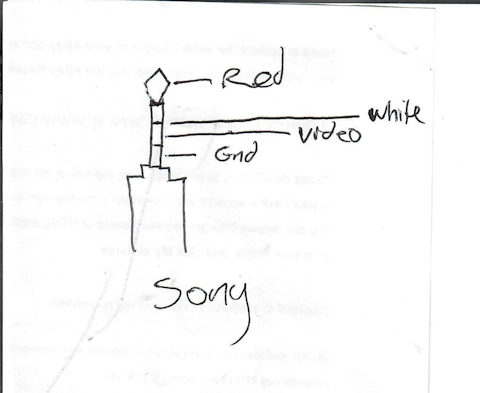


Published in cPanel
Wednesday, 01 March 2023 11:11

My Divi Notes

These are a collection of my notes on how to use Divi to build websites.
General

Modules (Native)

Misc


Divi Plugins to look at

Resource Sites


Published in Wordpress
Page 6 of 96