
I have made a PC that will go under me television for playing retro games and I choose Batocera for the OS
Batocera.linux is an open-source and completely free retro-gaming distribution that can be copied to a USB stick or an SD card with the aim of turning any computer or nano computer like Raspberry Pis and Odroids into a gaming console, for one game or permanently.
Batocera.linux does not require any modification on your computer. Note that you must own the games you play in order to comply with the law.
- If you are a Windows user
- Immediately after installing Batocera you should format your User Share to ExFat. This allows you to plug your Batocera drive into Windows and access it like a normal drive.
- See "Format the `userdata` Partition to ExtFat (allow Windows direct access)" for instructions
- Consider changing your root password from the default (user: root, pass: linux)
- If you do, write it down immediately and store safely.
- Official Sites
- batocera.linux - Only Cores That Matter
- Batocera.linux - Wiki - Batocera documentation!
- batocera-linux · GitHub - Follow their code on GitHub.
- Videos / Tutorials - batocera.linux - Only Cores That Matter
- Batocera - YouTube
- Updates Site - Interesting for browsing.
- General
- troubleshooting [Batocera.linux - Wiki] - Troubleshooting for various aspects of Batocera.
- What is Batocera?
- Batocera
- is an OS built from scratch, it is not based on another distro.
- Batocera.linux is based on Buildroot.
- It is a specialized, lightweight Linux distribution built from scratch to act as a firmware-like system, with a heavy reliance on RecalboxOS for its underlying structure and customization
- It uses a customized version of EmulationStation as its graphical front-end.
- It has a system partition and Share partition to keep system and user files separate.
- What is Batocera? - YouTube | Batocera Nation - This video gives you a brief description of what Batocera is all about. Thinking about installing Batocera? This video is for you.
- Batocera
- Which Emulator is best?
- Bazzite
- You are really into gaming
- Ideal for a dedicated Linux gaming
- This uses Retroarch
- Retroarch
- You have one PC and it is Linux.
- Your are not using Bazzite.
- Retrobat
- Retro gaming on windows
- You have one PC and it is Windows.
- Better Steam support
- Batocera
- full retro box
- Games Cabinet
- Old PC hardware
- Batpocera VS Retrobat
- RetroBat VS Batocera! - YouTube | KevoBato - RetroBat VS Batocera, Will we be able to answer the question, what is the best way to emulation!?
- Bazzite
Installing and Upgrading Batocera
TL;DR
- Flash Batocera to your drive (Etcher/ Pi Imager / USB Imager)
- Run Batocera
- Format the `userdata/share` partition to ExFAT
- Go through all of the settings of the GUI and set as needed
- Add your ROMs
- install_batocera [Batocera.linux - Wiki] - Official Installation Guide
- I used Raspberry Pi imager - as per the instructions but you can use Etcher and USB Imager.
- secureboot [Batocera.linux - Wiki]
- Secure Boot For Batocera v39 and higher on x86_64 systems, streamlined support for Secure Boot is present.
- This makes it easier to boot Batocera on PCs which have poor secure boot key management in the native UEFI BIOS.
- The process detailed below will install Batocera's security certificate into the machine's “Machine Owner Keys” (MOK) into the PC's UEFI variable store.
- This will allow the machine to execute Batocera's bootloader, which has been digitally signed with Batocera's certificate, even when Secure Boot is enabled in the BIOS.
- Before You Upgrade Batocera - What You Need to Know! - YouTube | Batocera TV
- In this video, we go through everything you should know before upgrading your system.
- How the upgrade process really works, what might change in version 42, and what to do if something doesn’t work after the update.
Using Batocera
- General
- How to connect Bluetooth controller on Batocera - YouTube | Showtime Gaming
- A quick tutorial on how to quickly and easily connect a Bluetooth controller.
- This example demonstrates an Xbox controller connecting to the PC that is operating the system. The PC or device used to operate batocera must have WiFi and the Bluetooth controller must be compatible as well.
- How to SSH into Batocera from Windows (No Install Needed!) - YouTube | Batocera TV
- Want to access your Batocera system via SSH without installing anything on Windows?
- In this quick and easy tutorial, I’ll show you how to connect to Batocera using PowerShell and even take a screenshot with a simple command!
- How to Install Windows Games in Batocera - YouTube | Batocera Nation
- This is a quick tutorial that teaches you how to install and setup Windows games in Batocera.
- getting_started [Batocera.linux - Wiki]
- Batocera will only show the systems for which ROMs are installed for. As more ROMs are added for different systems, more systems will be shown.
- To update the game list, press [START] and go to GAME SETTINGS → UPDATE GAMELISTS.
- Batocera Emulation Setup & Survival Guide | Electro Arcade
- This guide walks you through setup, SSH access, storage management, and the pitfalls we learnt the hard way so you don't have to.
- The 5% free space rule
- The default SSH password is linux. If you change this via System Settings → Security, write it down immediately. There is no password recovery path without booting from a second drive and manually editing the shadow file.
- How to connect Bluetooth controller on Batocera - YouTube | Showtime Gaming
- Keys
- File Manager: F1
- Menu: Spacebar
- Hotkey: On the xbox one controller, it is the Xbox logo button.
- Exit Emulator: Hotkey + Start/Menu
- Game Achievements
- You can attain achievements for various ROMS
- RetroAchievements (Netplay)
- Earn and track achievements in classic games. We add custom challenges to retro titles, letting you revisit old favorites in new ways.
- About Us | RetroAchievements - Explore the history and roles within the RetroAchievements community, from its founding by Scott Breen to the dedicated teams that keep the project thriving today. Learn about the staff, their responsibilities, and how the community has evolved over the years.
- Retro Achievements - Retro Game ROMs & BIOS - Where? How? - YouTube | Joey's Retro Handhelds
BIOS and ROMs
- General
- Retrogaming BIOS Guide – What You Really Need (And What You Don’t) | Batocera TV
- TL;DR: Only add BIOS files as you need them as you probably do not need as many as you think and this strategy prevents your system getting laden with unwanted files.
- In this video, we're breaking down the truth about bios files in retro emulation — and why grabbing a full pack is almost never the right move.
- Most emulators do not need a BIOS.
- If you have issues with playback, an external BIOS might fix this.
- Do not use a massive BIOS pack as you will never need most of them.
- A lot of open BIOS are already included in Batocera.
- Some emulators do need a real official BIOS
- You can scan you Batocera system to see what BIOS files you need.
SETTINGS --> GAME SETTINGS --> MISSING BIOS CHECK
- You don't always need dozens of BIOSes from different regions.
- Playstation - Only 1 region free BIOS is needed for all regions (US/JAP/EU).
- Build you setup, 1 BIOS file at a time.
- Retrogaming BIOS Guide – What You Really Need (And What You Don’t) | Batocera TV
- Adding ROMs
- Download single games as you want, you don't need massive ROM packs with games you are never going to play on your drive.
- Extract the ROMs from their zip files (except for ROMsets, e.g. MAME)
- Puts ROMs directly into the folder with no sub folders (Flat Directory Structure)
- Batocera Installation Guide / How to Add Roms - YouTube | Sonic Love Emulation
- He extracts ROM from zip
- Puts the ROMs directly into the folder (flat files)
- Adding ROMs - add_games_bios [Batocera.linux - Wiki]
- By default, Batocera will hide systems which do not have ROMs present on the drive in the system list. Once ROMs in the right format are added to the appropriate folders and the gamelist is refresh, the new systems will appear.
- How To Add Roms & Bios To Batocera Remotely With Network Share | Windows 10 & Windows 11 Tutorials - YouTube
- In this video I demonstrate how to access your Batocera File System remotely through network sharing to easily add roms or bios files.
- Copying directly from another OS - add_games_bios [Batocera.linux - Wiki]
- Format your userdata partition to an older filesystem compatible with more OS's, such as NTFS or
exFAT, and copy the files directly to it. This is not recommended, as those filesystems have limitations. - In Batocera 5.26 and higher, format your userdata partition to BTRFS and transfer directly to it.
- On Windows, you can install the btrfs_for_windows driver from the tools/ folder on the Batocera drive. Check its readme on how to install it. If using secure boot, an additional workaround is needed.
- Format your userdata partition to an older filesystem compatible with more OS's, such as NTFS or
- Do You Need to Unzip ROMs?
- Emulators will play zipped files but they have to be decompressed on every use.
- Zipping a ROM saves very little space.
- Having them decompressed means you can apply ROM hacks and stuff to them.
- Do not uncompress ROMsets (except for ROMsets, e.g. MAME)
- Do you need to unzip ROMs? | CyberPost - A Retro Gaming Deep Dive
- Folder Structure
- Reddit - Please wait for verification - No meta description
- You can't do this. Generally everything needs to be in a flat directory structure per rom type.
- Separate folders are usually only for additional artwork, audio, etc.
- Any actual sub folder support is subject to the emulator being used.
- user interface settings --> show folders: never --> always
- Reddit - Please wait for verification - No meta description
- ROMsets
- ROMsets - arcade [Batocera.linux - Wiki]
- A ROMset is a set of all the different game ROMs emulated by a particular MAME version.
- Essentially, the “game's files”. These are different from the typical ROMs used in convential home consoles, as instead of one ROM existing for a game, a ROMset is particular to the version of the arcade emulator being used.
- Some people call massive collections of games, e.g. a Megadrive collection a ROMset, but this is a different thing.
- ROMsets - arcade [Batocera.linux - Wiki]
- Downloading
- Retro Game ROMs & BIOS - Where? How? - YouTube | Joey's Retro Handhelds - In this video, we're going to talk about ROMs, BIOS, Retro Achievements and ROM Hacks. Let's go.
- Download ROMs Directly To Batocera w/ JDownloader! - YouTube | KevoBato
- ROM Hacking
- SMW Central - We are the primary resource for Super Mario World ROM hacking and the home of the SMW hacking community.
- The PokéCommunity Forums - This is a Pokémon forum for Pokémon fans all over the world. Discussions include games, trading card game, strategies, TV series, movies, role play, fan fiction, and trivia
- Romhacking.net - Classic video game modification community. Home to ROM hack mods, fan translations, documents, utilities, homebrew, and other learning resources..
- Opensource BIOSes
- EmuTOS
- EmuTOS is a Free operating system for computers based on Motorola 680x0 or ColdFire microprocessors.
- It features functionality similar to TOS, which powered the Atari ST and its successors between 1985 and 1994.
- GitHub - emutos/emutos
- EmuTOS User Manual - The User Manual for EmuTOS.
- AROS Research Operating System
- The AROS Research Operating System is a lightweight, efficient, and flexible desktop operating system, designed to help you make the most of your computer.
- It's an independent, portable and free project, aiming at being compatible with AmigaOS at the API level (like Wine, unlike UAE), while improving on it in many areas.
- An alternative to the KickStart BIOS.
- Openbios - PCSX-Redux - An open-source alternative to a retail PSX bios (Playstation).
- EmuTOS
- How To use TOSEC
- TOSECdev Home - TOSEC - The Old School Emulation Center
- software recommendation - How to use TOSEC? - Retrocomputing Stack Exchange
- Using TOSEC databases - English Amiga Board
- RomVault Wiki
- RomVault will take one or more DAT files and your set of ROM (zip) files, and clean up your files to match your DAT files.
- If you find more ROMs to add to your collection RomVault will scan and merge in these files, and if new DATs are released you can easily scan in these new DATs and update your ROM collections to match, all of this can be done with just a few button clicks in the UI.
- TOSEC - Complete Datafile Collection | The Emulation Realm - This file contains the latest TOSEC dats.
Addons
- Batocera Addons Just Got Even BETTER! - YouTube | KevoBato - The BUA ( Batocera Unofficial Add-ons just got a big update! )
- How To Add Desktop Mode To Batocera! - YouTube | KevoBato - In today’s video I’m showing off the new Desktop Mode The Notorious Fox has added to the BUA! Im excited for everyone to try it out and let me know how you plan to utilize the new desktop mode. It even works on raspberry pis 4 and up!
- RGSX (RetroGamesSets) Application - This Batocera Addon Changes Everything.. AGAIN - YouTube | KevoBato
- From xterm run
curl -L bit.ly/rgsx-install | bash
- Once installed it appears in ROMS
- Download ROMS for many different services.
- Can download ROMS from `The Mini Cake`
- Uses online file hosting services.
- Online file hosting service
- Can select and download multiple ROMs at a time.
- There is a web interface, so when RGSX is running use
http://<my-batocera-ip>:5000
- From xterm run
- How To Add ITCH.IO in Batocera & Gain Access To THOUSANDS of Free Games! - YouTube | KevoBato - In today’s video I’m showing how to add itch.io to YOUR Batocera machine and gain access to over 200,000 games right within the app!
- Play Batocera From ANY Device Moonlight + Sunshine - YouTube | KevoBato - Using Moonlight & Sunshine to stream batocera to any device is a game changer.
Hardware
- Hardware Reviews
- Sinden vs RS3 Reaper Lightguns - YouTube | Batocera Nation - In this video, we will examine the Sinden lightgun versus Retro Shooter's RS3 Reaper in Batocera, Windows emulation, and Tekknoparrot.
- WiFi and Bluetooth
- Try the hardware you have, you might find it just works.
- Not all BT and WiFi is supported.
- Wifi and BT combos seem to have issues in Linux.
- The driverless dongles (aliexpress, eBay etc...) are not driverless, they present a USB drive with the drivers on it.
- hardware:compatible_dongle_list [Batocera.linux - Wiki] - This list is out of date and a lot more devices out of the box are supported.
- USB-WiFi/home/Recommended_Bluetooth_Adapters_for_Linux.md at main · morrownr/USB-WiFi · GitHub
- I have started this list because of my strong recommendation to Linux users to avoid USB WiFi adapters that include bluetooth support.
- I have seen too many problems with combo adapters over the years.
- There are technical reasons for the problems that users see with combo adapters and problems happen on both Linux and Windows.
- I will explain this in detail on this page as I have time.
Storage
- How to Fix Boot Partition Space Issues in Batocera - Step-by-Step Tutorial - YouTube | Batocera TV
- Batocera just keeps growing with every release - more features, more systems, more updates!
- But with all these improvements, you might run into a problem: your BOOT partition may no longer have enough space to handle automatic upgrades.
- In this video, I’ll guide you step-by-step through the process of extending the BOOT partition so you can keep updating Batocera without any issues.
- We’ll use Ventoy to create a bootable USB stick and GParted to safely resize the partitions — a method that’s simple enough for anyone to follow.
- store_games_on_a_nas [Batocera.linux - Wiki]
- Store games on a NAS Instead of using the internal storage or an external USB key/hard drive to store your userdata (games, saves, configuration, etc.), you can use a NAS (Network Attached Storage) instead.
- Format the `userdata` Partition to ExtFat (allow Windows direct access)
- This allows you to plug your Batocera drive into Windows and access it like a normal drive.
- This should only be dome immediately after installing Batocera becasue it wipes all the files on the drive.
- After the format, Batocera will restore the required folder structure.
- Problem getting into userdata\share folder through windows | Reddit
- Instructions
- Install Batocera to your USB drive
- Run Batocera
- Set this option for future disks
SETTINGS --> EXTRA DRIVE FILESYSTEM TYPES: EXFAT
- Goto
SETTINGS --> FRONTEND DEVELOPER OPTIONS --> FORMAT DISK
- Format with these settings
DEVICE TO FORMAT: INTERNAL
FILE SYSTEM:      EXFAT
- Reboot Batocera
- Press
F1and navigate to theuserdatapartition and verify there is a filesystem there. - Shutdown Batocera
- Now using DiskGenius (Free) remove the "Hidden" attribute from
userdatapartition. - Done.
- You can now boot Batocera on your choosen hardware and at any time, you can now unplug the drive and use Windows to put ROM, BIOS and media files directly onto the
userdatapartition.
- You can now boot Batocera on your choosen hardware and at any time, you can now unplug the drive and use Windows to put ROM, BIOS and media files directly onto the
- batatocera remove a drive from the ignored list (I cannot verify this)
- Press [F1] on the main menu to open the File
- Manager.Navigate to /userdata/system/.
- Open the batocera.conf file with a text editor.
- Look for lines that mention ignored devices, often in the format ignore.uuid=[UUID] or ignore.label=[LABEL].
- Remove or comment out (add a # to the beginning) the line that corresponds to the drive you want to bring back.
- Save the file and reboot Batocera
Networking
- Enable Network Sharing on Batocera
- Instructions
- Enable Network connections on Batocera
SYSTEM SETTINGS --> FRONTEND DEVELOPER OPTIONS --> ENABLE PUBLIC WEB API ACCESS: On
- Reboot Batocera
- Connect from Windows using
\\batocera

or

\\10.0.0.199
- Enter Username and password
Username: root
Password: linux
- Enable Network connections on Batocera
- Links
- How to Transfer Games / ROMs To Batocera Using Windows PC & Laptop - YouTube | KevoBato - This Is A Quick Guide Showing How To Transfer Files From Your Windows Computer To Batocera Wirelessly.
- How To Transfer Games & ROMs From Windows To Batocera Wirelessly ! - YouTube | KevoBato - In today’s video I’m showing off how to transfer files from Windows To Batocera WIRELESSLY!
- Instructions
- Web Control Panel
- Enable networking as shown above and connect to:
http://batocera:1234

or

http://<your-batocera-ip>:1234
- NOTIFICATION SERVICE UNREACHABLE
- es-webserver [Batocera.linux - Wiki]
- EmulationStation Web Server Emulation has an embedded web server, mainly used internally by other services like the Content Downloader to update/refresh the games lists.
- This UI is designed to get notifications, and to enable them, you need to go to SYSTEM SETTINGS → SERVICES → ES_WEB_NOTIFIER. Currently, it displays which game is currently running in the web UI.
- es-webserver [Batocera.linux - Wiki]
- Enable networking as shown above and connect to:
Troubleshooting
General
- Download game not showing in my list
- you need to run
SETTINGS --> GAME SETTINGS --> UPDATE GAMELISTS
- you need to run
- Internet Status shows "not connected" even when connected
- Internet Status shows "not connected" even when connected + can't update because of this · Issue #1102 · batocera-linux/batocera-emulationstation · GitHub
- Batocera/EmulationStation is pinging
8.8.8.8to see if you are on the internet. It does not affect functionality and is just an indicator. - My firewall Hijacks DNS so this behaviour is expected as I block access to Googles DNS.
- Batocera/EmulationStation is pinging
- Internet Status shows "not connected" even when connected + can't update because of this · Issue #1102 · batocera-linux/batocera-emulationstation · GitHub
- Network Connection
- network_issues [Batocera.linux - Wiki] - Network issues This is for general networking issues. If you're specifically after assistance with Wi-Fi connections (such as missing drivers), check out its dedicated page instead.
- Troubleshooting No display on TV after using fine on a monitor (1280x1024)
- Causes
- Connecting to the TV through a cheap HDMI source changer.
- Swapping between the monitor and the TV.
- Why
- The issue is that the EDID of the monitor is stored in the graphics card and that resolution is incompatible with the TV.
- The graphics card does not want to change it's resolution or refresh rate to correct itself.
- It could also be the TV that is stuck on a particular refresh rate and will not automatically change. eg 50Hz/60Hz.
- It is probably cause by a the HDMI change not sending the negotiation information (EDID) in time or at all.
- Solution to restore screen
- Make sure you are connected directly to your TVs HDMI port.
- Do full power down on Batocera and your TV
- Power on and see if Batocera now works. Eventually this will reset your graphics card and TV.
- When Batocera is now working on your TV, you can go back to using your HDMI swapper which is now passing the EDID/resolution/Refresh rate correctly.
- Workarounds
- Force Batocera to use a known good resolution and refresh rate eg
1920x1080@60Hz- This might allow batocera to load and work but the BIOS and loads screens might look funny.
- Once booted you can then revoot and the BIOS screen loks normal.
- Connect directly to a your TV's HDMI port.
- Try a different TV/Monitor.
- Turn HDMI splitter on before turning batocera on.
- Force Batocera to use a known good resolution and refresh rate eg
- Causes
Batocera not Booting
You have imaged your USB drive successfully but Batocera will not boot.
Batocera supports these boot types:
- UEFI + Secure Boot (preferred)
- UEFI + No Secure Boot
- MBR/CSM/Legacy (Easiest)
Notes before we start
- The MBR type of booting is very resilient and practically if your system supports it, Batocera will just boot if it is enabled.
- On modern UEFI systems you have to enable CSM to allow MBR booting. On the very newest of systems there is only UEFI boot type available.
- Sometimes your have to disable secure boot to be able to boot Batocera, however there is now an installable key to get around this.
- Fastboot, in the BIOS, has been known to cause booting issues, so I would recommend disabling this anyway.
Look at the official docs
- secureboot [Batocera.linux - Wiki] - If you disable Secure Boot, this is not needed.
- BIOS settings (if Batocera fails to boot) - install_batocera [Batocera.linux - Wiki]
- Boot issues - troubleshooting [Batocera.linux - Wiki]
My Setup that is not working
- ASUS Vivobook S16 (S3607CA)
- This does not have CSM so I cannot legacy boot, I must rely on UEFI.
- I cannot disable the TPM.
- USB 3.0 to SATA Adapter
- 870 EVO (2TB) SSD
The Issue
No matter what setting I change (Fastboot, Disable Secure Boot, different USB adapters) my laptop can see my external Batocera drive (Samsung Evo), but does not see any bootable OS on it so I cannot select Batocera and boot it.
What I did
- I tried adding some UEFI entries but they were never shown or available to use.
- I updated to the latest BIOS (Using Windows) and now it can see USB 3 bootable items from my Batocera drive.
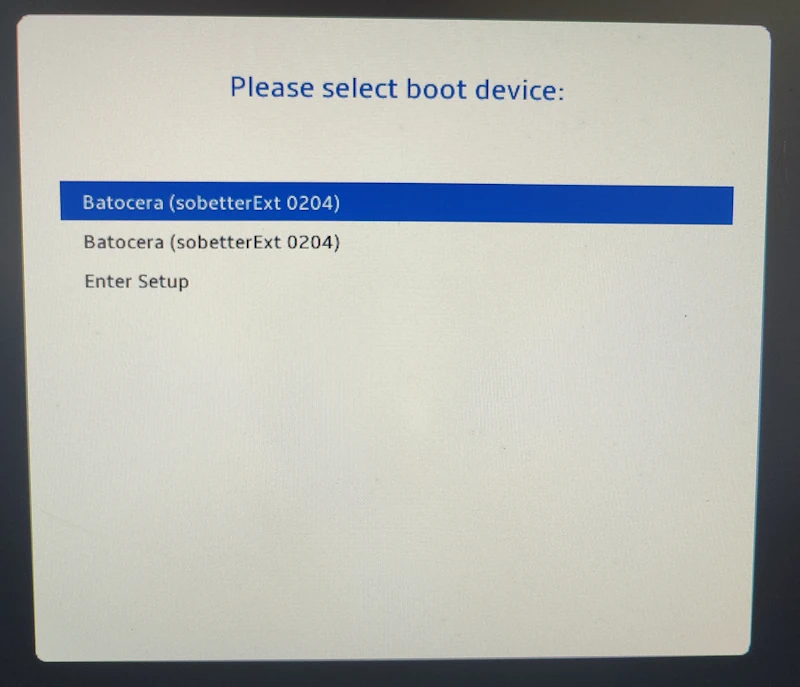
Batocera (sobetterExt 204)
Batocera (sobetterExt 204)
Batocera (sobetterExt 204)
- I disabled Fastboot
- Not sure this was needed, but it is a good thing and saves power anyway.
- I turned it back on to test and I could still see the USB boot items
- I then booted and added the security key from the disk (as per secureboot [Batocera.linux - Wiki])
- The Vivobook did give me some warnings during this process, but nothing unexpected.
- I still have Secure Boot on.
- I cannot disable my TPM.
- Enrolling a new key from will cause any required Bitlocker key to be reprovided. This might be an internal drive on your laptop which has your Windows installation on it.
- I went back into the bios to set the boot order
- to boot USB first by disabling the `Windows Boot Manager`option.
- I am now getting getting a `Secure Boot Violation` error message.
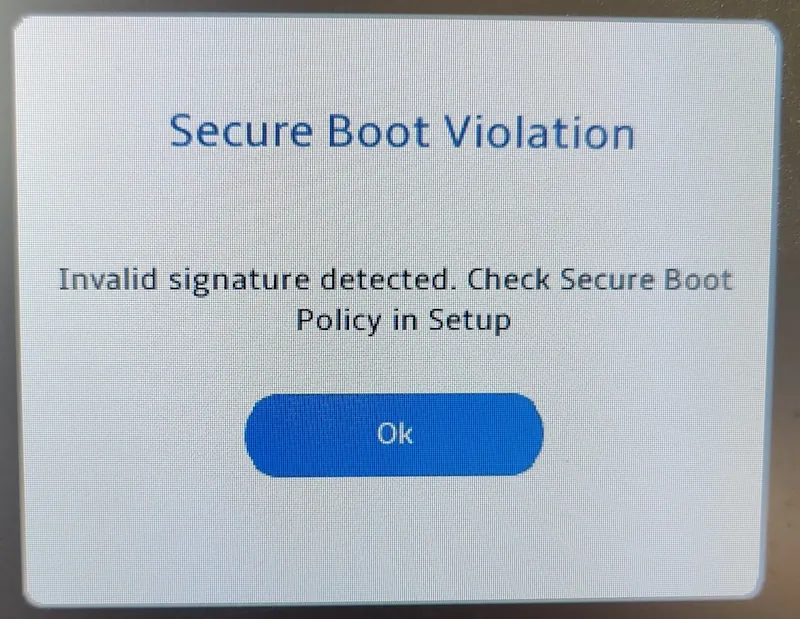
Secure Boot Violation
Invalid signature detected. Check Secure Boot Policy in Setup
- This is because there are 3 bootable options on the Batocera disks and the wrong boot file is being used causing the error to be generated.
- The installed certificate/key does not match this particular boot binary.
- Secure Boot Violation Fix | Booting Batocera HDD or SSD | Retro Gaming Guy
- In this video I show you how to fix a secure boot violation when loading a new SSD or HDD into your PC. In this instance I've just installed a fresh 2TB Batocera HDD into my HP PC for retro gaming emulation.
- He disabled Secure Boot which does not fix this specific issue directly and should be classed as a workaround.
- I deleted the unwanted manually added boot entries in the BIOS.
- Batocera now boots as expected.
The Solution (TL;DR)
- Update the BIOS.
- Leave Secure Boot on.
- Disable Fastboot (optional)
Workarounds
If the non of the fixes above work you can
- Manually add a UEFI Boot entry in your BIOS
For Batocera v39 and higher: /EFI/batocera/bootx86.efi
For Batocera v38 and lower: /EFI/BOOT/bootx86.efi
- install_batocera [Batocera.linux - Wiki]
- Most motherboards should automatically add detected EFIs to the list of permitted bootable drives, but certain motherboards require this to be a manual action.
- Add the file at
EFI/boot/bootx64.efifrom the Batocera boot drive. This can be avoided entirely by switching secure boot off.
- Use Linux efibootmgr Command to Manage UEFI Boot Menu - LinuxBabe
- The Linux efibootmgr command line utility is a very handy tool to manage UEFI boot menu.
- This tutorial shows you how to use efibootmgr with 5 examples.
- install_batocera [Batocera.linux - Wiki]
- Use a Windows disk or WinPE Recovery
- Boot of a Windows disk
- Select `continue to Windows`
- You might no have a Batocera option you can pick
- Alternative Boot Manager
- from Boot issues - troubleshooting [Batocera.linux - Wiki]
- If your motherboard's EFI shell is unable to load or select Batocera's EFI partition (common on Mac hardware), consider replacing it with the more universal rEFInd Boot Manager. It's recommended to read through the entire page and understand it first before going through with the process.
- Legacy Boot Fix
- shoulders: I do not know if this is a thing.
- GitHub - Nomuarch/batocera-legacy-boot-fix
- Fix Batocera boot issues (Error 1962) on older business PCs. Includes manual guide and automated MBR/Legacy conversion script.
- You're trying to install Batocera on an older business PC (like Lenovo H50-50, ThinkCentre, HP EliteDesk, Dell OptiPlex from 2014-2016 era) and getting one of these errors.
Links
- On brand computers, batocera can not boot on GPT+UEFI (hard disk pluged on internal SATA port) format. · Issue #8703 · batocera-linux/batocera.linux · GitHub
- dmanlfc
- I don't know what you expect us to do... it's not a bug on our side.
- We make a bootable image for MBR & GPT systems.
- All your evidence leads to lazy BIOS bugs with MBR booting as a valid workaround...
- dmanlfc
- We don't use GRUB like other distributions, we use syslinux so comparing other linux distributions is still apples & oranges.
- Usually disabling Secure Boot works around the problem.
- The alternative you can try is copying your /boot/EFI/BOOT folder to /boot/EFI/syslinux/ & see if that works.
- Just because it's a well known brand, doesn't mean they have good practices. i.e. works if booting from USB but not from SATA. Regardless our image is the same, therefore the BIOS code is the problem...
- dmanlfc
- mount: mounting LABEL=BATOCERA on /boot_root failed: no such file or directory waiting for the root device · Issue #13731 · batocera-linux/batocera.linux · GitHub
- Make sure to check in bios that VMD is turned off and also try changing your boot to legacy boot type, that worked for me
- shoulders:
- VMD is intel's RAID technology and changes how the internal driver is present to the OS.
- When this is on, most software will just not see the NVMe.
- This does not affect any USB drive.