
Items filtered by date: December 2014
How To Transfer Domains Using WHMCS
This article is written to give you clear instructions on how to transfer domains covering the main types of transfer, the lco.uk with IPS Tag and then the EPP code based transfers such as .com
Unless otherwise specified you should assume these instructions are using WHMCS.
- Register = Register a new domain
- Transfer = Transfer In a domain
Transfer in a .CO.UK
IPS Tag Change Method (Default)
- Customer
- The customer needs to verify their contact details on their domain. This is important so the domain is not lost in limbo.
- Our End (Via WHMCS)
- Do a new order filling in the domain details
- Select Transfer
- Submit
- Confirm the order etc.
- ENOM will now be ready to accept the transfer
- Check in ENOM for this message showing the transfer has started (Domains --> Transfer Domains --> My Transfers)
exampledomain.co.uk Transfer Pending - Awaiting Release by Current Registrar
- Customer
- Customer now needs to change their IPS Tag at their current provider to the following
ENOM
- The customer might now get a series of emails with authorisation links which they need to click on to authorise the transfer.
- Customer now needs to change their IPS Tag at their current provider to the following
EPP Code Method
- Customer
- The customer needs to verify their contact details on their domain. This is important so the domain is not lost in limbo.
- Needs to contact their current provider and get them to supply us with the EPP code for the domain
- Our End (Via WHMCS)
- Do a new order filling in the domain details
- Select Transfer
- Fill in the EPP code.
- Submit
- Confirm the order etc.
- ENOM will now be ready to accept the transfer.
- Check in ENOM for this message showing the transfer has started (Domains --> Transfer Domains --> My Transfers)
exampledomain.co.uk Transfer Pending - Awaiting Release by Current Registrar
- Customer
- The customer might now get a series of emails with authorisation links which they need to click on to authorise the transfer.
Transfer out a .co.uk
- Customer
- create a 'transfer in' request at their new registrar
- tell us to change their IPS tag in writing (email preferred) and supply their new tag
- supply us with a contact email (if needed) so we can update the domain contact details for the process of a safe transfer.
- Our End
- ENOM
- Goto ENOM control panel
- Either click change IPS tag or contact support. (not checked what the options are)
- NB: The ENOM module in WHMCS does not support the changing of the IPS Tag. If the domain is with ENOM you must change the IPS tag via the eNom control panel.
- ResellerClub (Via WHMCS)
- Goto the customers account in WHMCS
- Goto the domains tab and select the correct domain
- Verify you have the correct domain selected as this process cannot be reversed once started.
- It is also advisable to check the contact details on the domain, although this is no longer our problem it is good customer services and if there are any issues we should advise the customer
- select 'Release Domain'
- enter the new IPS Tag
- ENOM
- Customer
- The customer might now get a series of emails with authorisation links which they need to click on to authorise the transfer.
Transfer in a .com
- Customer
- needs to verify their contact details on their domain. This is important so the domain is not lost in limbo.
- needs to contact their current provider and get them to supply the EPP code for the domain / create an EPP code (via a transfer out request) at their registrar
- supply us with the generated EPP code
- Our End (Via WHMCS)
- Do a new order
- Select transfer
- Fill in the EPP code (supplied by customer)
- Submit
- Confirm the order etc..
- ENOM will now be ready to accept the transfer.
- Check in ENOM for this message showing the transfer has started (Domains --> Transfer Domains --> My Transfers)
exampledomain.co.uk Transfer Pending - Awaiting Release by Current Registrar
- Customer
- The customer might now get a series of emails with authorisation links which they need to click on to authorise the transfer.
Transfer out a .com
- Customer
- The customer needs to tell us to transfer out the domain in writing (email prefered)
- Our End - Get EPP Code
- Via WHMCS
- Go to the domain
- Verify the contact details on the domain. This is important so the domain is not lost in limbo.
- Click on 'Get EPP Code'.

- The code is now automatically sent to registered contact/administrative email addresses on the domain
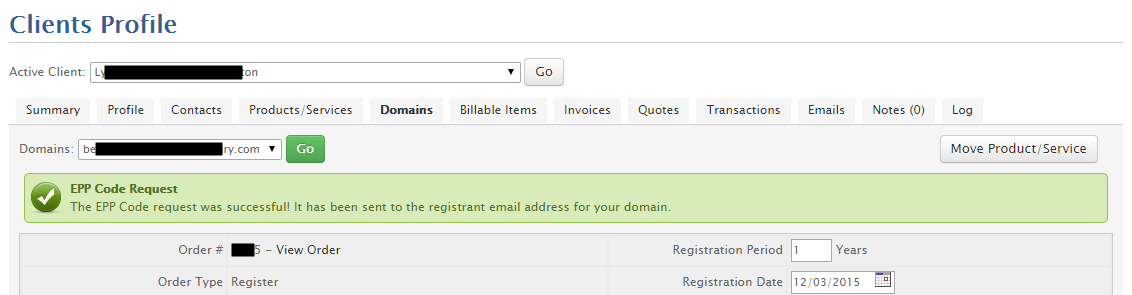
- Via ENOM
- From the DOMAINS menu option, click my domains
- Click on the specific domain name that you wish to work (clicking on the domain name will take you to the domain control panel)
- Click General Settings.
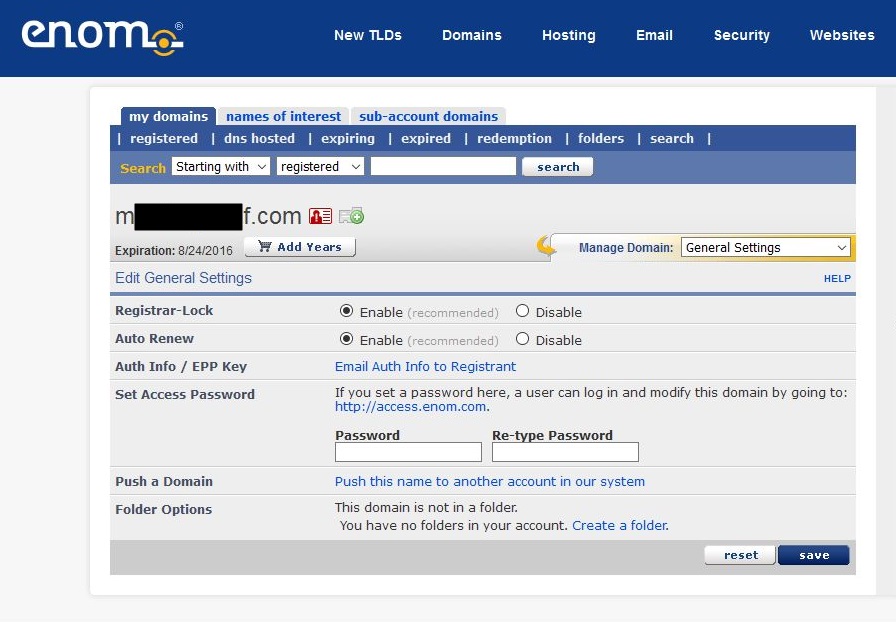
- Be sure to disable the Registrar-Lock for the domain if enabled.
- Click the "Email Auth Code to Registrant" link. An email will now be sent to the domain's registrant contact.
- Via WHMCS
- Customer
- They need to supply the EPP code to their new provider.
- The customer will now get a series of emails and emails in with authorisation links.
- The customer needs to authorise the transfer by clicking on the links.
Reattempt Registration or Transfer
If you have done an order for a new registration or transfer of a domain and it has failed then you can read this article on what to do. But extensively it is split into a two options
- Use the Registrar command button (Register/Transfer as appropriate) to restart the process without having to redo the order.
- For transfers enter a valid EPP code i f required.
- Cancel the order and start again.
Notes
- Reattempt Registration or Transfer - WHMCS - Manually try to register or transfer a domain again after resolving an error or other failure that occurred during the last attempt.
Registrar Commands Buttons
Below are explanations of the Registrar Commands buttons and some potential uses. Not all buttons will be present for all registrars and some will only appear when they can be used. Most of these functions will be multiple steps and require confirmation.

- Register
- This will initiate a "domain registration" process of a domain at your registrar.
- This button should be used:
- The initial registration process has failed.
- Transfer
- This will initiate a "transfer in" process of a domain at your registrar.
- The nameservers presented on the second screen will be ignored and the client's current domain nameservers will be preserved.
- However this is correct for Enom, but might be different for other registrars.
- This button should be used:
- Where the initial transfer process failed for reasons such as, the allowed time period for the transfer has expired.
- During the initial order creation, the EPP code was not entered.
- The client has already changed the domain's IPS tag to your registrar but this domain has not been brought into your particular account. This will allow the process to complete (usually in 15-20mins).
- Renew
- Manually renew/add years to a domain.
- Modify Contact Details
- This will allow you to edit the registered contact details of the domain, or can just be used to check them.
- Get EPP code
- This will generate an EPP code which you will supply to the client so they can transfer the domain to their new registry/provider.
- The EPP code might be supplied onscreen or sent to the registered contact email for the domain
- Enable ID Protection
- Enable ID protection at your registrar for this domain.
- There is usually a cost for this feature at the registrar.
- Request Delete
- This enables you to explicitly delete a domain if your client no longer needs it. The deletion process will begin immediately and will not wait for the domain to expire.
- Some registrars will refund the domain fee if the domain is deleted within so many days/hours of being created.
- Use with caution
- Release Domain
- This allows you to change the IPS tag of a domain and therefore release it.
- Resend Transfer Approval Email
- Cancel Domain Transfer
- This allows for cancelling an initiated Domain Transfer.
- This is helpful in case there's something wrong with the Transfer Request (e.g. wrong nameserver data or contact data) or if the transfer got initiated by mistake, fraud, etc..
Notes
- Transfer in process, there are extra buttons
- When you have initiated a transfer in of a domain in WHMCS you will notice extra buttons in the 'Registrar Commands' section on the domain page in the clients account for the domain you are transferring in at it is normal for them only to appear when you are in the process of transferring a domain.

- When you have initiated a transfer in of a domain in WHMCS you will notice extra buttons in the 'Registrar Commands' section on the domain page in the clients account for the domain you are transferring in at it is normal for them only to appear when you are in the process of transferring a domain.
- WHMCS - Available Registrar Module Features & Addons – CentralNic Reseller - This company has implement all of the registrar module features and has excellent descriptions of them including the buttons.
- release a .co.uk using whmcs - states there is no tag release function in the eNom whmcs module
- Enom - WHMCS - The Enom module allows you to register and manage domains with Enom.
- Function Index - WHMCS Developer Documentation - The following is an index of all prescribed supported functions for a registrar module.
General Notes
- WHMCS
- When transferring or registering a domain, WHMCS is aware of the domain ending ie .co.uk .com. ie. presence or lack of the WHOIS opt out
- WHMCS did not prompt for an EPP code when using the Shopping cart
- WHMCS EPP Code | Web Hosting Talk
- Q:
- Today i tried my first domain transfer from Godaddy to our resellerclub account, but the WHMCS shopping cart never prompted for the EPP code. I had to login to admin area and manually enter in for client. How do I setup so when a user tries to transfer a domain to us, WHMCS will prompt for EPP code?
- A:
- You will need to tick the "EPP Code" box in the (Setup --> Domain Pricing) area of WHMCS for the relevant TLD in order to have WHMCS request users to enter their EPP codes when ordering transfers and be able to retrieve EPP codes for their existing domains.
- ResellerClub
- .co.uk is different client initiates the transfer at the current registrar and transfers the tag to PDR-IN , i will then receive a Security Key. The secret key is to be used like an EPP code, in fact it is used in the EPP code box. i believe ResellerClub add this for extra security so they do not get blamed for stuff
- .com client needs to request an EPP code from their registrar, then enter this in the transfer page, if the code is faulty i can redo it in the backend by clicking on the transfer button belonging to the domain, then enter the correct code and hit submit/transfer
- .eu just transfer, no EPP code required
- then the owners email get a link, click the link, enter the captcha and authorise the transfer
- Domains
- EPP domains: (.com, .net, .org, .info, .biz, .us, .cn, .com.cn, .net.cn, .org.cn, .cn, .tw, and .in)
- With .co.uk domain transfers you can start the process at either end but if you set up the receiving registrar first this prevents domain loss to another ENOM account, for instance as any issues with the receiving registrar will get flagged before the transfer.
- Authorization (EPP) keys are a security code required by the registry for domain transfer, thus are unique to every domain name. No two EPP/authorization keys are the same, thus if you are transferring more than one EPP domain, you will need to obtain each domain’s specific code separately for security reasons.
- Enom
- Transfers can only be performed with a renewal period of 1 year. Additional years need to be added separately and it is required to have one year as this allows the registrar to offset some costs, however you do get the additional year added to the domains expiry date.
Bulk Emailing Software
This is my list of bulk emailing software
- Groupmail - Free version is heavily limited to a 100 emails a group, i think
- Sendblaster - Free version is heavily limited
- Big Mass Mailer - Fre and opensource but has not been updated in a while
- OpenEMM - e-mail & marketing automation - I think this is a full emailing systems for marketing and is opensource
- Free Bulk Email Software Download - Not Tried this but there is also a 'Bulk Email Verifier'
- Bulk Mailer - Free Bulk Email Software Download - Not tried this
Display All PHP Server Environment Variables
This simple script will loop through all PHP enviromental variables and then display them on screen. This is useful to find out what variables exist for reference, and the actual values they return for diagnostics or programming.
Instructions
- Just simply create a php file with this code
- place this file on your webserver
- run the file
NB: When yo have finished make sure you remove this file as it can be a security risk.
<!DOCTYPE html PUBLIC "-//W3C//DTD XHTML 1.0 Transitional//EN" "http://www.w3.org/TR/xhtml1/DTD/xhtml1-transitional.dtd">
<html xmlns="http://www.w3.org/1999/xhtml">
<head>
<meta http-equiv="Content-Type" content="text/html; charset=utf-8" />
<title>Untitled Document</title>
</head>

<body>
this is quantumwarp.com<br />
<?php
   while (list($var,$value) = each ($_SERVER)) {
      echo "$var => $value <br />";
   }
?>
</body>
</html>
Silastic Thermal Glue
What is Silastic Thermal Glue?
This is a silicon based glue that is used among other things to glue electronic components to circuit boards which is addition to soldering the component. The purpose is to prevent the component from vibrating durin use or transport which can increase the life of the component. The glue used for electronics is electrically inert to prevent conduction and is also resistant to high temperatures.
Silastic Thermal Glue has many different types and different uses, not just electronics so it is important that you use the correct type for you application.
{add image of silastic glue on a motherboard)
Silastic Thermal Glue is not to be confused with Termal Paste although they probably share a heritage and there might be a crossover is the glue that is used to glue a heatsink to a CPU.
Notes
- Do not use normal silicon or glue this will be unsafe and can damage your electronics
- Be careful you select the right type of glue as there are glues for Heatsinks and that of components
- RTV = room temperature vulcanizing
Also Know as:
- Thermal Adhesive
- Electronic Grade Silicone
703 704 705 (chinese glue)
These glues are available on ebay and alibaba but i have managed to get the data sheet and an image with the different types of the glue on a piece of paper so you can see what they look like.

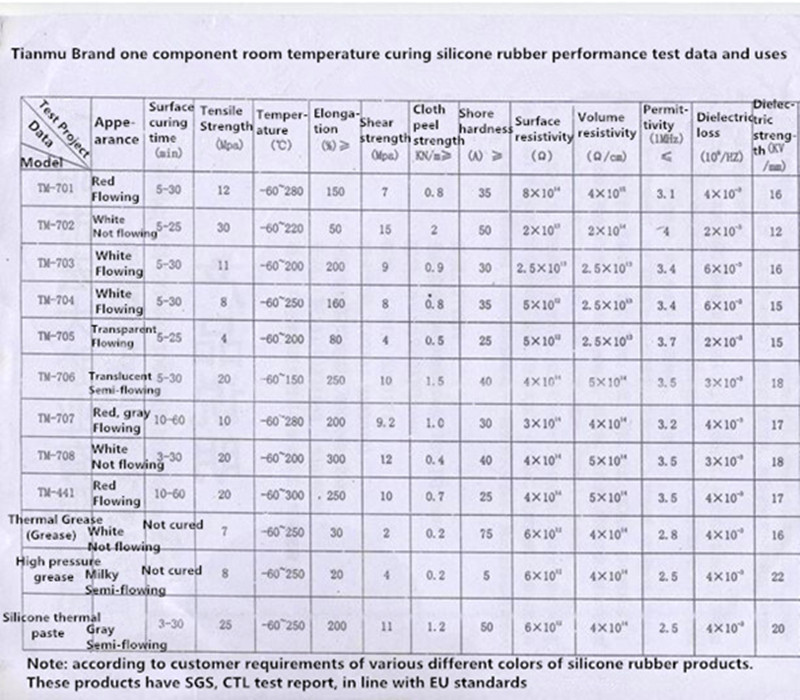
Notes about 703, 704 and 705
Hi,
Thanks for your communication.
There are some differences among 705, 704 and 703:
WH-703 silicone rubber :( white, black):
Properties and Uses:
Cold water resistance, good adhesion, better than the 704 silicone, but prone to yellow light, temperature -60 ℃ - + 150 ℃. Can be used underwater instrumentation moisture sealing, potting submarine cables, small motor magnetic tile adhesive, ignition coil, coated front sensor potting table, car chassis, sealed refrigerated equipment and so on.
Widely used in electronic components bonding, sealing, insulation; anti-leakage, corrosion and surface protection device management.
WH-704 silicone rubber :( white, black)
Properties and Uses:
Temperature good, intolerance blisters, adhesive force of less than 703 silicone, easy to break repair, not yellow after curing, temperature -60 ℃ - + 250 ℃. Widely used in electric heaters, electric control, instrumentation, analytical electrode, electric plugs, electric heaters bonding, sealing, insulation; corrosion and surface protection device management.
WH-705 silicone rubber :( transparent)
Properties and Uses:
Transparent, easy to overhaul, used the occasion to be optically transparent, and SCR, rectifier tube tops protection. Widely used as a transparent RTV, fast curing cement and water. Temperature -60 ℃ - + 200 ℃.
Widely used in electronics, instrumentation, chemical, light industry, machinery industry, bonding, sealing, insulation, potting; surface protection device management. Has excellent electrical insulation and arc resistance, moisture, shock.
Hope it can be helpful to you.
If you like it, welcome to purchase directly, then we will arrange the item for you ASAP.
Should you have any other questions,please feel free to contact us.
Have a nice day.
Best wishes.
Other Silastic Glues
- 703 / 704 / 705 - As described above - just search on eBay
- 703 New 1 Piece Hot Solidification Curing Silicone Rubber Adhesive Sealant Glue | eBay
- 704 High Temperature Electronic Devices Silicon Rubber Adhesive Sealant Glue 45g | eBay
- 705 RTV Silicone Rubber Adhesive Sealant Sticker CTL-29320 - Wholesale Supplier: TinyDeal
- TianMu Good insulation glue thermal conductivity silicone rubber Natural Cure Silicone Sealant, View Good insulation glue, TianMu Product Details from Xiamen Luduo Electronic Technology Co., Ltd. on Alibaba.com
- Tianmu 704 silicone rubber sealant white general potting silicone high-temperature insulation waterproof glue, View Silicone Rubber Sealant, TianMu Product Details from Xiamen Luduo Electronic Technology Co., Ltd. on Alibaba.com
- TianMu Good Silicone rubber Natural Cure Silicone Sealant 705 Silicone Rubber Sealant, View Silicone Rubber, TianMu Product Details from Xiamen Luduo Electronic Technology Co., Ltd. on Alibaba.com
- 10x Silicone Thermal Conductive Adhesive Silicone Glue PTC silicone rubber | eBay
- White Electronic Grade Silicone - 10.2 oz Cartridge | eBay
- GC Electronics
- GC ELECTRONICS 19-155 ADHESIVE, SILICONE, TUBE, 3FL.OZ.(US) - this i believe is safe for electronics but check (info here)
- Amazon.com: GC Electronic Grade Silicone Sealant / Adhesive (3oz.) : 19-155: Industrial & Scientific
- Dow Corning
- DOW CORNING - 1922181 - RTV SILICONE, 744, WHITE, 310ML | eBay
- Dow Corning® 744 Silicone Adhesive White 310ml | Rapid Online - Buy Dale Corning 744 Silicone Adhesive White 310ml – a high quality, one-part silicone adhesive and sealant, designed to provide long-term bonding and to protect against moisture, environmental attack, mechanical and thermal shock as well as vibration.
- DOW CORNING 744RTV WHITE 90ML TUBE | Sil-Mid - UK Company
- GE RTV162 electronic grade silicone.
- Momentive RTV 162 1-Part White Performance Electrical Adhesive Sealant - RTV160, RTV162 and RTV167 adhesive sealants from Momentive Performance Materials are one-component, ready-to-use electronic grade silicone sealants. RTV162 Datasheet
- Momentive RTV162 One Part Silicone Sealant, 2.8 Ounce Tube, White: Silicone Caulk: Amazon.com: Industrial & Scientific
- Momentive RTV 1035 Clear Non-Corrosive Paste - 85ML - RTV Silicones - MG Chemicals - Circuit Specialists
- Other
- thermal glue from DX - not checked
- 3M makes glues for electronics
Useful Links
- Silastic Thermal Protection Materials Research Progress | MC Silicone - A scientific article on Silastic materials
- Dow Corning 340 Heat Sink Compound Information
- Thermal Adhesive | eBay
- Looking for glue to keep capacitors on the PCB - EEVBlog Page 1
- What kind of glue should I use for PCB-mounted components to avoid vibrations? - Electrical Engineering Stack Exchange
- Adhesives for securing components - EEVBlog Page 1
- dow_744_tds information sheet | Krayden, Inc.
- Dow Corning 744 Adhesive/Sealant Product Information
- Practical Production uses of SMT Adhesives
CPU Glue
Also known as
- White Silicone Thermal Plaster/Glue/Adhesive/Paste (these terms are not precise and are for help in searching on eBay only)
- thermal glue
- heatsink plaster
Links
SEF URLs not working after upgrade
Problem
When i upgraded Prestashop 1.5 to 1.6.0.11 the product and category SEF / Friendly URLs do not work but the CMS pages do.
Cause
In my case i believe it was because i had custom Friendly URLs set so this solution might for everyone, in which case use the Useful Links.
Solution
- Go to your prestashop admin / Preferences / SEO & URLs page
- Navigate to the Schema of URLs section
- Click on Save.
- Disable Friendly URLs, click save in this section, then re-enable the Friendly URLs
- Test, You might get away with the steps so far.
- As a further step, copy the Schema of URLs from a fresh install of prestashop (same version) and then click save.
- Disable Friendly URLs, click save in this section, then re-enable the Friendly URLs
- Test
Other Things to Try
There are several tutorials out there that tell you to experiment by turning the apache multiviews on/off and the same with mod_security. After you change either of these you need to disable the freiendly urls and then re-enable them, this causes the .htaccess to be regenerated correctely. These methods will only help a few people and you really should not disable mod_security.
Useful Links
No carriers available after upgrade
Problem
When i upgraded Prestashop 1.5 to 1.6.0.11 there were no carriers available even though they were setup correctely in PS 1.5
Cause
This is caused by prestashop changing how they handled the shipping matrix. The matrices that are present after upgrade reflect he carriers that you had there before but the costing data and ranges have not be preserved.
Solution
Go into the shipping methods and repopulated the costing data into the ranges and add ranges as needed as if you were setting these up from fresh
temp mantis SVN environment setup instructions
This is what I did to get mantis to work with SourceSVN
- Create folder D:\Documents\Developer\
Install Subversion
- Install CollabNet Subversion Edge D:\Documents\Developer\SubversionEdge\
- Create a Normal User and assign it to the ‘Test’ repositories - shoulders
Install Xampp
- Install xampp - D:\Documents\Developer\xampp\
- Change xampp ports (optional)
To prevent issues with my other webservers I use for development. It is easier to reconfigure the one sever that is not going to get changed.
- Apache
- Httpd.conf
- Listen 80 –> 81
- ServerName localhost:80 -> :81
- Httpd.conf
- Httpd-ssl.conf
- Listen 443 –> 444
- <VirtualHost _default_:443> -> <VirtualHost _default_:444>
- Apache
- Mysql –my.ini
- [client] port = 3306 – 3307
- [mysqld] port=3306 - 3307
- Php.ini - if you do not change this you get a #2002 – connection actively reused error
- mysql.default_port=3306 – 3307
- mysqli.default_port=3306 - 3307
Install Mantis
- create a table in PHPMyadmin called mantis using utf8_general_ci collation
- set a username and password ; mantis : YFb5fNTtmXsFHpBP, grant all privileges on the mantis SQL table
- setup mantis, install with MySQLi – it is quicker of connecting
- Nb you need a MySQL root account to install. This might change in a newer version. Stupid, I had to use root and not password
- Default username/password: administrator / root
- Renamed default user to mantis-admin
- Delete the admin folder ( I renamed it just in case)
- Run mantis
- Create a normal user – if more than one user - shoulders
- Install Source Integration Plugin and SourceSVN
- Config settings I changed
- Bug Fixed Message Template – I added everything in ?
- API Key – added my random generated key here
- SVN: Path to binary - D:\Documents\Developer\SubversionEdge\bin also “D:\Documents\Developer\SubversionEdge\bin” might be valid when there are spaces in the path
- SVN: Trust All SSL Certs – ticked, allows me to use a self-signed cert whilst being secure
- SVN: Use Windows `start` - I believe you need this when using windows. ?
Create Repository
- Goto mantis/repositories
- Type in ‘test’ for name and select SVN for type
- Click create repository
- Fill in the following details, leave the rest
- Name – prefilled - Test
- URL – this is the front facing url for the repository
https://svn.exampleserver.com:18080/svn/ - SVN Username – don’t use the super admin, you might consider a repository specific username here
- SVN Password
- Standard Repository – tick
- Click ‘update repository’
- Click ‘import everything’
This is far as I got, more errors and bugs. Mantis is free but needs a serious GUI upgrade
My Redmine Notes
My notes on using and configuring Redmine.
Notes
- General
- you can have multiple repositories per project
- Redmine Tutorial - YouTube - A tutorial on using Redmine software project management suite.
- Security
- rename admin and set a decent password (ie redmine-admin) or shoulders. You cannot unmkae this account as an administrator
- make redmine to use https/SSL (this is not easy)
- create a new user, ie yourusername, you can then makes this user an administrator by clicking a box.
- it is better to keep the main admin and your username seperate. at some point in the future other people might start using redmine. als, it makes it easier to get back in if you forget your password.
- when setting these 2 users, hide your email address.
- Show smaller images in the editor
- How to resize an image in redmine so it will show up, properly resized, when a pdf is produced from the issue? - Stack Overflow
- Feature #38504: Display pasted images in appropriate size on HiDPI displays - Redmine
- I want to update the patch to specify the width of an image in the markup like GitHub, instead of using the "@2x" trick. This approach allows users to change or remove the width value if necessary.
Textile: !{width: 400px;}.clipboard-202402030959-abcde.png! CommonMark Markdown: <img src="/clipboard-202402030959-abcde.png" width="400"> Deprecated Redcarpet-based Markdown:  (size specifications are not supported)
- I want to update the patch to specify the width of an image in the markup like GitHub, instead of using the "@2x" trick. This approach allows users to change or remove the width value if necessary.
Configure Redmine Emails
- if emails is not setup you get the following message:
Email delivery is not configured, and notifications are disabled.
Configure your SMTP server in config/configuration.yml and restart the application to enable them.
configure redmine@quantumwarp.com as the system email
Create the email account
- create email account on your cPanel with 0mb mailbox and forwarding if required. this advoids another mail address to monitor.
configure email in configuration.xml, you must restart redmine to see the changes.
- http://www.redmine.org/projects/redmine/wiki/EmailConfiguration
- NB you will struggle to get it to work until you know the following editing the configuration file.
- when you edit the appropriate section you will notice 'email_delivery:' this is also at the top og the configuration file above all of the email configuratioins and obviously declaring this twice causes problemd so just rem this out at the top of the you email configuration section. it makes it neater doing it there than at the top of the file.
now go back to the emails settings in redmine app as they will be available.
- change the 'Emission email address' to redmine@quantumwarp.com
- send a test email, the button is at the bottom left.
- redmine@quantumwarp.com can be used for incoming stuff.
- under the 'General Tab' change 'Host name and path' to 'svn.quantumwarp.com:81/redmine'
Errors and Alerts
when you first run Redmine you are presented with the following message. You should load the default configuratioin.
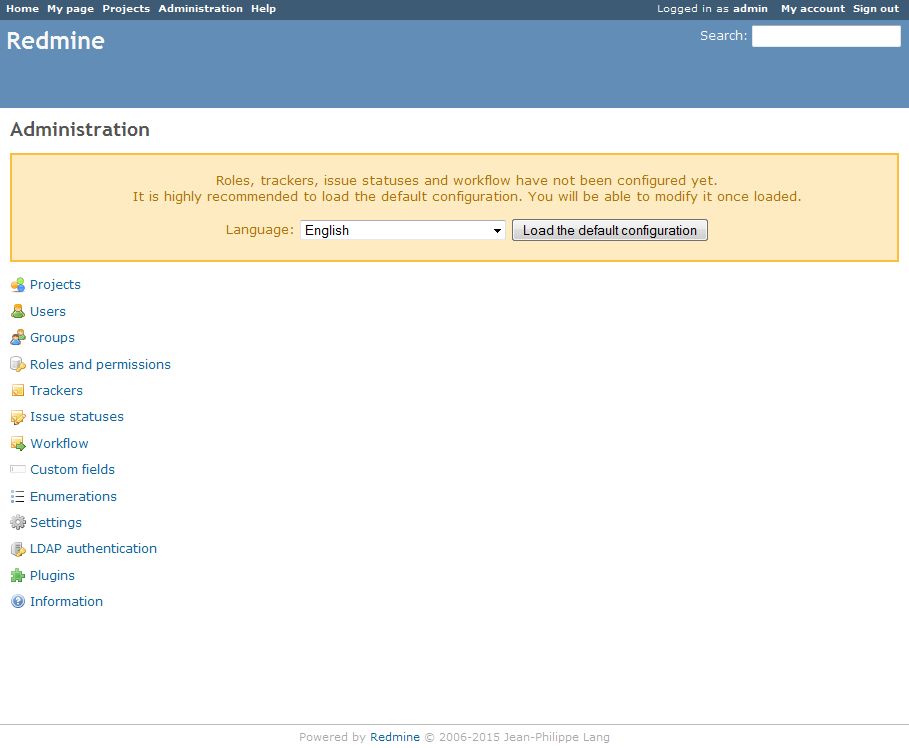
Redmine Security and SSL
Security and SSL
If you are using this on a real website you might want to use SSL and make your installation secure. There are a few things you can do. For most people running on their local machine that do not want it on the internet do not require any of these settings, but it will not harm if they did. Following the instructions above you should already be using ProxyRequests Off
<Directory> / <Location>
- location acts upon the url only, directory works on the physical file path, so they basically do the same thing via the 2 declarative paths.
- however, directory is a little more secure because there can be multip-le urls poitning to the same file whereas when using directory there is only 1 file path so directory is better for security permissions etc ..
- directory and location directives can be used within a virtual host and will apply to that virtualhost only, if not it will be applied to the main/default website/name/localhost etc..
- using <directory> is better than <location>
SSL on non default port
- SSL on Webrick
- Defect #12102: Installed Redmine in a sub-URI: Links are generated not correctly - Redmine - This is where i got the proper subdirectory code that works and also has the code for SSL usage
- Listen Directive - Official Documentation
- How to configure WEBrick to serve Redmine over SSL using openSSL certificate | PI Media - Web Apps Development
The optional protocol argument is not required for most configurations. If not specified, https is the default for port 443 and http the default for all other ports. The protocol is used to determine which module should handle a request, and to apply protocol specific optimizations with the AcceptFilter directive.
You only need to set the protocol if you are running on non-standard ports. For example, running an https site on port 8443:
Listen 192.170.2.1:8443 https
Hooks
- Secure the commit path ie /sys/ folder - i read some where that you should protect the {redmine}/sys folder and was not sure why or where i have seen that. but the reaon is to protect where you send the post-commit.bat submissions ie. curl "http://<redmine url>/sys/fetch_changesets?key=<your service key>"
- use https cURL and https for submitting locations
- HowTo Automate repository creation - Redmine - Mentions Web Service and security
Secure Proxy
- ProxyRequests Off - prevent abuse of proxy
- Protect the subversion / REdmine installation with IP blocking in Apache
- HowTo Install Redmine on subdirectory (sub-URI) on Apache - Redmine - Tells of how you should restrict access when using apache proxy
apache httpd.conf
<Proxy *>
  Order Deny,Allow
  Deny from all
  Allow from 192.168.0
</Proxy>
Running Redmine Through Apache on Xampp
Some Notes Before We Start
When you have a webserver running you probably would like redmine through that server aswell to keep things easier, reducing port forwarding requirements and the number of addresses you hand out. You could just hand out the new address which usually looks like http://localhost:3000/ if you want, but why not do a proper integration.
These methods will allow you to run redmine from your normal webserver or localhost, http://localhost/ with no port number on the end (this assumes that your webserver does not have a port number, using port 80).
Tthere are 2 parts of this process to consider:
- Changing the folder from which redmine is server ie from http://localhost:3000/ to http://localhost:3000/redmine/
- Proxying / Redirecting redmine from the server where it is (ie http://localhost:3000/) to youer apache server http://localhost/
With the following instructions i will assume the following
- Redmine is located at http://localhost:3000/
- The target apache server http://localhost/redmine/ - might need to amend this rule
NB if you are just running your apache at http://localhost/ you can just use the following instead http://localhost/redmine/
If you just want the code, click here, this will take you to the bottom where you can just get the code for a quick start without any of the history.
Files
This section is not required reading but might help if you have issues or question later on.
During my research i cam across references to Redmine files where you could put code. I am going to list them here and what i think they do.
- {redmine}/config.ru - this is the intialization configuration file, i think
- {redmine}/config/enviroment.rb - This file controls additonal settings that will get applied to both development and production enviroments
- {redmine}/config/additional_enviroment.rb - This is only present in later version of Ruby/Rails/Redmine and probably needs creating. . This file controls additonal settings that will get applied to both development and production enviroments similiar enviroment.rb does. Not all commands in this file work in this file that would in enviroment.rb .
- {redmine}/config/application.rb - dont bother altering code in this
- {redmine}/config/development.rb - this files allows you to add additional commands/instructions to just the development enviroment
- {redmine}/config/production.rb - this files allows you to add additional commands/instructions to just the production enviroment
Move Redmine to a Sub-Folder
Method 1 - Using WebBrick
This techniques is the best an i have taken most of the information from Defect #12102: Installed Redmine in a sub-URI: Links are generated not correctly - Redmine
This method also utilises the inbuilt WebBrick Webserver, This is an excellent simple solution but if you are going to use this for a lot of users you should perhaps think about using Thin Server, this will require slightly different instructions and some more work. WebBrick is classed as a reference server and if you are going to server more than 20 people at a time there will be large performance issues. For the most of us WebBrick will be fine.
config.ru
# This file is used by Rack-based servers to start the application.

require ::File.expand_path('../config/environment',  __FILE__)
map '/redmine' do
  run RedmineApp::Application
end
Replace the contents of {redmine}/config.ru with this code. This also assumes you have not already made any alterations to this file.
This code does 2 things
- changes all links in the pages to /redmine/
- changes the actual served root. Files in the /public/ directory are now served as http://3000/redmine/ instead of http://localhost:3000/
The root folder effectively no longer exists, you get page not found supplied by the webserver if you browse to http://localhost:3000/ and this is normal.
Other Static Asset Commands
You can also change the dynamic urls by using the 2 following commands:
- RedmineApp::Application.routes.default_scope = { :path => '/redmine', :shallow_path => '/redmine'
- RedmineApp::Application.routes.default_scope = '/redmine'
which cause the following issues:
- the directory of the dynamic links changes but the root of the webserver stays the same. This means that the static files stay in the root directory (http://localhost/) while all of the dynamic links are in http://localhost:3000/redmine/
- it is very difficult to proxy these 2 folders because this will involve complex rewrite rules
enviroment.rb
ActionController::Base.relative_url_root = '/redmine'
Add this to the end of {redmine}config/enviroment.rb. I also think you can put this in either development.rb or production.rb, this change will then only occur in that particular enviroment.
This code alters the path of the links pointing to the static files such as javascripts and CSS. Currently all paths for these still point to the root http://localhost:3000/ but they actual ar now present at http://localhost:3000/redmine/ and even though we have added the code in config.ru these paths are not altered so we need this code to correct that.
NB:
- RedmineApp::Application.routes.default_scope = '/redmine' works but is not the prefered method. This must also be put before RedmineApp::Application.initialize!
- ActionController::AbstractRequest.relative_url_root = "/redmine" - Does not work, it was for older versions of Redmine
- config.action_controller.relative_url_root = '/redmine' - not sure about this
You now have moved your Redmine installation to a subfolder
Method 2 - Thin Server + Passenger Server
this will be for my Thin server notes when i do them, there is also the Passenger Webserver to consider. Each has there own method. Basically youo can run these servers with switches to perform the directory change, You can then proxy this over to your main webserver as in the instructions below. Check my General Links section for resources.
Proxying Redmine to Apache / Xampp
Redmine in Root Folder
This is the easiest of the methods to implement. You can simply proxy Remine to your apache server using the following code, this assumes redmine is at http://localhost:3000/
httpd.conf
LoadModule proxy_module modules/mod_proxy.so
LoadModule proxy_http_module modules/mod_proxy_http.so
Make sure these modules are enabled in httpd.conf, they are required.
ProxyRequests Off
ProxyPreserveHost On
ProxyPass / http://localhost:3000/
ProxyPassReverse / http://localhost:3000/
Add these lines to the end your apache httpd.conf , if you do this you will not be able to run any other stuff from your apache webserver because all requests will get forwarded to the Redmine server.
Or Alter the Redmine Server port directely
Simply run the Redmine server on port 80 by using the following switch which will give the same effect
-p 80
Redmine in Subfolder
Method 1 - Basic (also blunt and site wide)
These instructions will assume the subfolder on apache you want is http://localhost/redmine/
.htaccess file
# Redirects /redmine to /redmine/
RedirectMatch ^/redmine$ /redmine/
RedirectMatch ^/$ /redmine/
add this code to ..../htdocs/.htaccess in your apache server.
You can redirect the non-slashed version, but this is to make sure we have a correct URL. A directory is denoted by having a slash at the end of the URL (ie /redmine/ ) wheresas if you dont, it denotes a page (ie /redmine ).
What we are directing to is more akin to a directory/default index file like a normal webserver, http://www.example.com/ You dont often see http://www.example.com/index.html , but they are the same page. Notice the slash at the end, this is intentional.
httpd.conf
LoadModule proxy_module modules/mod_proxy.so
LoadModule proxy_http_module modules/mod_proxy_http.so
Make sure these modules are enabled in httpd.conf, they are required.
ProxyRequests Off
ProxyPreserveHost On
ProxyPass /redmine/ http://localhost:3000/redmine/
ProxyPassReverse /redmine/ http://localhost:3000/redmine/
This is code that actualy passes the information/request between Redmine Server and your Apache server.
- ProxyRequest - This function provides forward proxying services and is not required here. This will prevent abuse of your server.
php - Apache ProxyRequest - Server Fault - not required for reverse proxies, this must be off
ProxyRequests Off - not working and httpd being abused as forward proxy | Apache | Users - turns of forward proxy requests - ProxyPreserveHost - keeps header information in the request sent to the Redmine Server so things work nicely. If you want more information about this use google.
- ProxyPass and ProxyPassReverse - these handle the proxy mappings.
Can I make this Better
The commands above will work site wide so are a bit blunt, the following methods will allow you to apply these rules to a specific locations.
Method 2 - <Location>
<Location> works on the URLs presented to the server
httpd.conf
LoadModule proxy_module modules/mod_proxy.so
LoadModule proxy_http_module modules/mod_proxy_http.so
Make sure these modules are enabled in httpd.conf, they are required.
ProxyRequests Off
<Location /redmine/>
	RedirectMatch ^/redmine$ /redmine/
	RedirectMatch ^/$ /redmine/
	ProxyPreserveHost On
	ProxyPass http://localhost:3000/redmine/
	ProxyPassReverse http://localhost:3000/redmine/
</Location>
- ProxyRequests Off will not work in <Location>
- Notice that the proxy statements do not have a target in them, only the source
- The RedirectMatch commands will work outside of <Location>
- rules in <location> can be moved easier that <directory> because there are not absolut addresses
With this method you have to split the commands, ProxyRequests will not work in location so needs to be put in the normal flow of the httpd.conf (i.e. not in <location>)
Method 3 - <Directory>
Directory works on the physical path of the accessed files and is better to be used for security because several URLs can point to a single directory or file whereas the <Directory> command is very specific.
httpd.conf
LoadModule proxy_module modules/mod_proxy.so
LoadModule proxy_http_module modules/mod_proxy_http.so
Make sure these modules are enabled in httpd.conf, they are required.
ProxyRequests Off
<Directory "d:\Documents\Developer\xampp\htdocs\redmine\">
	RedirectMatch ^/redmine$ /redmine/
	RedirectMatch ^/$ /redmine/
	ProxyPreserveHost On
	ProxyPass http://localhost:3000/redmine/
	ProxyPassReverse http://localhost:3000/redmine/
</Directory>
- ProxyRequests Off will not work in <Location>
- Notice that the proxy statements do not have a target in them, only the source
- <Directory "D:/Documents/Developer/xampp/htdocs/redmine/"> is also valid
- this command acts on the Virtual Directory in the xampp public folder
- This should work even though the directory does not exist
- The RedirectMatch commands will work outside of <Directory>
Method 4 - VirtualHost
With Virtualhost you can run a another domain name on the 1 xampp/apache server. This is very useful. You can also just use it to apply rules to the server and keep the code neater, easier for copying and pasting.
httpd.conf
LoadModule proxy_module modules/mod_proxy.so
LoadModule proxy_http_module modules/mod_proxy_http.so
Make sure these modules are enabled in httpd.conf, they are required.
<VirtualHost *:80>

	## This is for setting a domain name
	ServerName rails.localhost.com
	DocumentRoot "D:\Documents\Developer\RubyRoot\redmine\public\"

	# Make sure there is a trailing slash in the root
	RedirectMatch ^/redmine$ /redmine/
	RedirectMatch ^/$ /redmine/

	# The proxying code
	ProxyRequests Off
	ProxyPreserveHost On
	ProxyPass /redmine/ http://localhost:3000/redmine/
	ProxyPassReverse /redmine/ http://localhost:3000/redmine/

</VirtualHost>
- If you want to run another domain on you local webserver you need to add a rule to your Hosts file, ie 127.0.0.1 rails.localhost.com
- All the code required is contained within <VirtualHost> tags
- This code be used on the whole server or just an individual domain (depends if you define ServerName)
Including the rules in the <VirtualHost> tags is not required but can make handling the code easier and if you do want apply this to a specific domain it is easy to enable it.
My Code
So you have arrived here at the code, just following the simple instructions and edit the files. Redmine will then run at http://localhost/redmine/ on you xampp installation. This does of course assume you have Redmine already running on your Windows PC.
Redmine - config.ru
# This file is used by Rack-based servers to start the application.

require ::File.expand_path('../config/environment',  __FILE__)
map '/redmine' do
  run RedmineApp::Application
end
Replace the contents of {redmine}/config.ru with this code. This also assumes you have not already made any alterations to this file.
Redmine - enviroment.rb
ActionController::Base.relative_url_root = '/redmine'
Add this to the end of {redmine}config/enviroment.rb. I also think you can put this in either development.rb or production.rb, this change will then only occur in that particular enviroment.
Apache / Xampp - httpd.conf
Edit your Apache / Xampp httpd.conf file
LoadModule proxy_module modules/mod_proxy.so
LoadModule proxy_http_module modules/mod_proxy_http.so
Make sure these modules are enabled in httpd.conf file, they are required.
#################################
# RUBY SETUP
#################################

	# Enforces a trailing slash for the /redmine/ directory
	RedirectMatch ^/redmine$ /redmine/
	RedirectMatch ^/$ /redmine/

	# The proxying code
	ProxyRequests Off
	ProxyPreserveHost On
	ProxyPass /redmine/ http://localhost:3000/redmine/
	ProxyPassReverse /redmine/ http://localhost:3000/redmine/

#################################
# RUBY SETUP
#################################
Add these lines at the bottom of the httpd.conf file.
Done
All the changes are now done, you will find that Redmine will be served from http://localhost/redmine/ and http://localhost:3000/redmine/ , this is normal.
If you had your servers running while making these changes you need to restart them both.
You should note that this setup is non-SSL version so is not secure.
General Links
These are the links i used for my research and might be of use.
Redmine / Ruby
- HowTo Install Redmine on subdirectory (sub-URI) on Apache - Redmine
- Defect #11881: FCGI mode does not support sub-URI - Redmine
- Defect #12102: Installed Redmine in a sub-URI: Links are generated not correctly - Redmine - This is where i got the proper subdirectory code that works and also has the code for SSL usage
- Subdirectory problem with Redmine 2.1.2 under Windows - Redmine - Run Redmine in a subfolder using the Thin Server
- HowTo Install Redmine in a sub-URI - Redmine - The official page to get Redmine in a sub-URI / Sub-directory. It is dated and uses the mongrel server to work
- HowTo Install Redmine in a sub-URI on Windows with Apache - Redmine - Again this uses Mongrel and the instructions are probably out of date
- HowTo have both development and production environment available from Apache with VirtualHost - Redmine
- Apache2 + passenger configuration - Redmine
- Redmine not working properly from a subdirectory - Redmine - An unsuccessful attempt to run Redmine in a sub directory but they did get some things right
- Thin - yet another web server - Homepage of the Thin Server
- How do I configure Apache 2.2 for Ruby on Rails in Windows? - Stack Overflow
- apache 2.2 - How to configure Apache2 for Redmine properly? - Server Fault - Useful setup info for redmine suing apssenger on Debian Linux
- apache 2.2 - Virtualhost setup for Ruby on Rails application (mod passenger) - Server Fault
- Apache configuration for installing Redmine in URL subdirectory - Stack Overflow - mentions Phusion Passenger and the appropriate configuration
- Changing the base URL for Rails 3 development - Stack Overflow - This also has the correct subfolder fix for Redmine
Reverse Proxy
- Running a Reverse Proxy with Apache
- Using mod_rewrite for Proxying - Apache HTTP Server Version 2.2
- Using mod_rewrite for Proxying - Apache HTTP Server Version 2.4
- mod_proxy_html - Apache HTTP Server Version 2.4
- Running a Reverse Proxy in Apache
- mod_proxy - Apache HTTP Server Version 2.2
- How to set up a proxy server with XAMPP on Windows
- Use mod_rewrite’s proxy flag with caution — statichtml.com
- reverse proxy - Setting Redmine path - Server Fault - uses ProxyHTMLMap command, not sure if this alters hyperkinks in the content
- apache - ProxyPreserveHost seems to do little for me - Stack Overflow explains a little about ProxyPreserveHost in simple terms
- apache - Can ProxyPass and ProxyPassReverse work in htaccess? - Stack Overflow - No you cant, and this tells you why
- xampp - How can I enable mod_proxy_http - Server Fault - mentions security when using Proxy
- Apache config and .htaccess - URL rewriting - Reverse Proxy
- Configuring Ruby On Rails App in a subdirectory under Apache - Stack Overflow
- mod rewrite - Apache rewriterule with proxyPass and proxyPassReverse - Stack Overflow
Apache
- VirtualHost Examples - Apache HTTP Server Version 2.2
- Difference between and Apache directives - Server Fault
- <Directory> Directive - Official Documentation
- <VirtualHost> Directive - Official Documentation
- <Location> Directive - Official Documentation
- Rewriting URLs in hyperlinks (Configure Apache as a reverse proxy) - This article discuss rewriting hyperlinks in the source before serving the code and how this can take a lot of processing
- Apache's features to manipulate URL's
- mod rewrite - Apache mod_rewrite internally to different port - Stack Overflow
- apache 2.2 - How to configure Apache2 for Redmine properly? - Server Fault - this mentions Passenger and RailsBaseURI