
My Windows explorer.exe crashes then any open File Explorer Windows close, RetroTask bar and the normal taskbar underneath are restarted. these following is what I have done to track this down. It is most likely an app with faulty Shell Extensions (ShellEx).
The crashing can happen on it's own, sometimes when I right click but because I have not found a pattern to trigger the crash, the diagnosis of the cause is very hard.
Look at this article first
- How to Find Which Shell Extension Is Crashing Explorer.exe | ShellEx Info
- Your taskbar disappears and reappears. Your desktop goes black for a moment. You get the dreaded “Windows Explorer has stopped working” dialog. Something is crashing
explorer.exe, and the most likely culprit is a faulty shell extension DLL.- A systematic guide to identifying the exact shell extension DLL that causes explorer.exe crashes, freezes, and restarts on Windows 11 and 10, from quick 2-minute checks to advanced debugging techniques.
- Some of my article shares the same information, but was gathered before I found this article.
Things that I tried and have not worked for me
- SFC
sfc /scannow
- DISM
DISM /Online /Cleanup-Image /RestoreHealth
- Windows Updates
- Removing various software Especially old and x86 stuff.
- K-Lite Codecs
- All Logitec stuff + replaced with OpenLogi
- X-Mouse Button Control
Things that I tried and not tried yet
- Re-register the shell packages in an admin PowerShell:
Get-AppxPackage Microsoft.Windows.ShellExperienceHost | Foreach {Add-AppxPackage -DisableDevelopmentMode -Register "$($_.InstallLocation)\AppXManifest.xml"} Get-AppxPackage Microsoft.Windows.StartMenuExperienceHost | Foreach {Add-AppxPackage -DisableDevelopmentMode -Register "$($_.InstallLocation)\AppXManifest.xml"} - Re‑register the UWP/XAML app platform
-
Get-AppxPackage -AllUsers | ForEach { Add-AppxPackage -DisableDevelopmentMode -Register "$($_.InstallLocation)\AppXManifest.xml" }- This refreshes all XAML‑based components, including Defender’s UI
-
- Updating all software
- File Explorer crashes in Windows 11 upon right click Faulting module name: Windows.UI.Xaml.dll, version: 10.0.22000.348 · Issue #6482 · microsoft/microsoft-ui-xaml · GitHub
- if anyone is running taskbar on all/multiple displays, disable it. explorer.exe keeps crashing on my pc due to this enabled.
- configure Windows Error Reporting to collect explorer Dumps, open the dump in windbg and use the PDE extension dll with pdx -dse command to list all Stowed Exceptions C000027B
- ProcDump - Sysinternals | Microsoft Learn - This command-line utility is aimed at capturing process dumps of otherwise difficult to isolate and reproduce CPU spikes.
Get the faulting Module
The faulting module (a dll file) is usually the cause and is usually very easy to find. However with my issue the faulting module is C:\Windows\System32\Windows.UI.Xaml.dll but it is the program calling it that is the issue.
Below is a couple of methods.
1. Event Viewer
- When the crash occurs, make a note of the time
- Open up: Event Viewer --> Windows Logs --> Application
- Navigate to the time of the error and look for errors, which should look like this
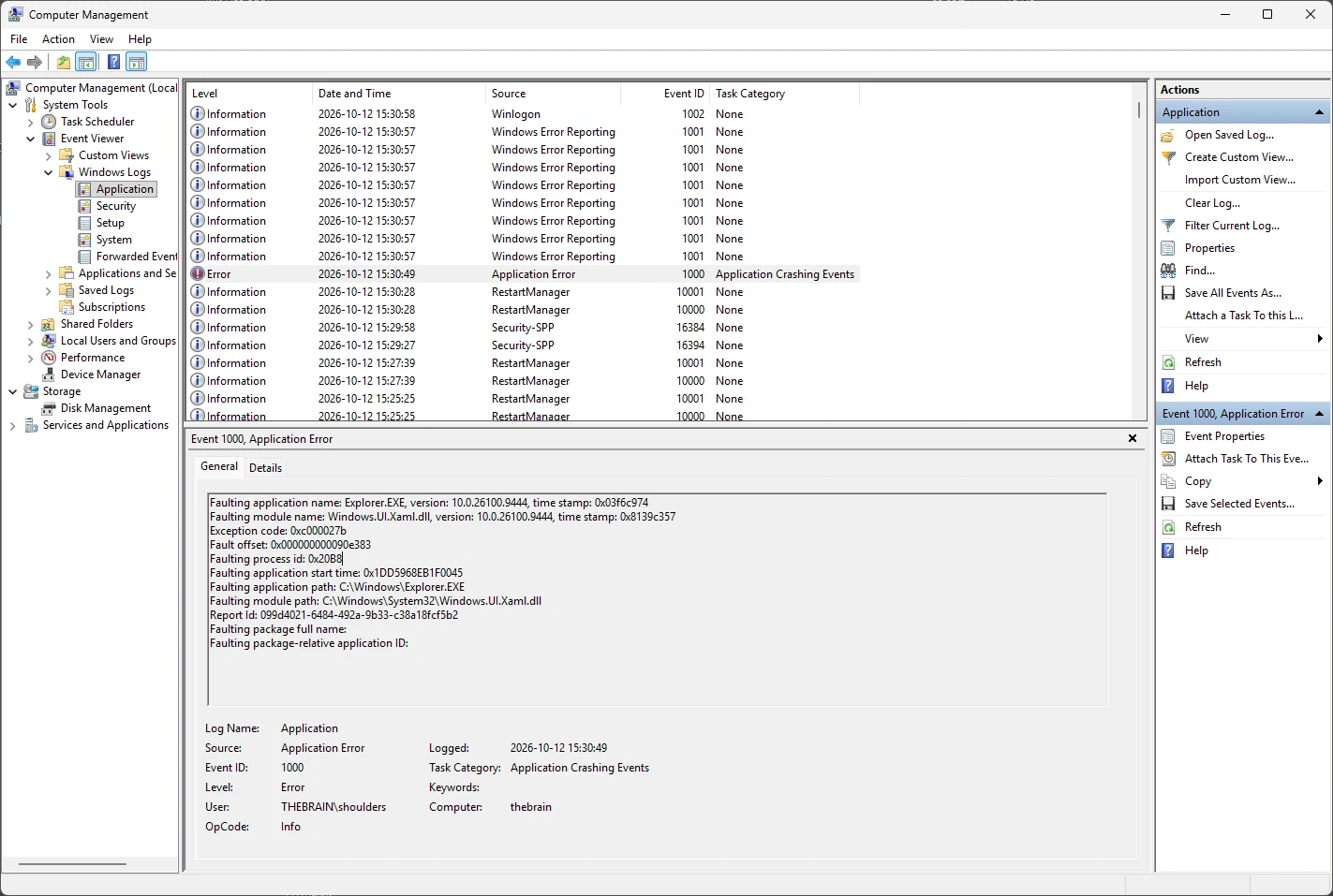
Faulting application name: Explorer.EXE, version: 10.0.26100.9444, time stamp: 0x03f6c974
Faulting module name: Windows.UI.Xaml.dll, version: 10.0.26100.9444, time stamp: 0x8139c357
Exception code: 0xc000027b
Fault offset: 0x000000000090e383
Faulting process id: 0x20B8
Faulting application start time: 0x1DD5968EB1F0045
Faulting application path: C:\Windows\Explorer.EXE
Faulting module path: C:\Windows\System32\Windows.UI.Xaml.dll
Report Id: 099d4021-6484-492a-9b33-c38a18fcf5b2
Faulting package full name:
Faulting package-relative application ID:
- You can see the Faulting module is
Windows.UI.Xaml.dll, however this is not the root cause. - What the error means
0xc000027bis a stowed exception. This is from my own knowledge, not the search results. A XAML/WinRT component inside Explorer hit an unhandled error, andWindows.UI.Xaml.dllis just the module that raised it.- The faulting module is therefore the messenger. The real culprit is whatever XAML UI was running in Explorer at the time (taskbar, Start, Search, Widgets, notification area, Settings flyouts, File Explorer’s XAML parts).
2. Use ShellExView
- Download ShellExView
- ShellExView - Shell Extension Manager For Windows - Shell Extensions Manager
- Hide Microsoft extensions
- Disable half of the extensions
- Start with the likely culprits.
- Use you PC for a while and see if the crash happens again
- In my case the crash is very sporadic so this can take a while
3. Process Monitor
- Download Process Monitor
- Process Monitor - Sysinternals | Microsoft Learn - Monitor file system, Registry, process, thread and DLL activity in real-time.
4. Get a Dump file when explorer.exe crashes, and Analyse it
This can be very useful, but to get the most out of it you need to have some skills.
- Install WinDbg from the MS Store
- Enable Crash Dumps for Explorer (via the registry) (a.k.a. WER LocalDumps)
# Create dump directory
New-Item -Path "C:\CrashDumps" -ItemType Directory -Force

# Configure Windows Error Reporting to create full dumps
$dump = "HKLM:\SOFTWARE\Microsoft\Windows\Windows Error Reporting\LocalDumps\explorer.exe"
New-Item -Path $dump -Force
Set-ItemProperty -Path $dump -Name "DumpType" -Value 2 -Type DWord
Set-ItemProperty -Path $dump -Name "DumpFolder" -Value "C:\CrashDumps" -Type ExpandString
Set-ItemProperty -Path $dump -Name "DumpCount" -Value 5 -Type DWord
- Verify the key is correct
Get-ItemProperty "HKLM:\SOFTWARE\Microsoft\Windows\Windows Error Reporting\LocalDumps\explorer.exe"
- Wait for a crash event
- A dump file will now be created
- Open WinDbg
- Load the dumpfile (e.g. C:\CrashDumps\explorer.exe.5900.dmp)
- Analyse the dump file
- Run the command:
!analyze -v
- The symbol files will now be downloaded
- e.g.: windows.ui.xaml.pdb
- They can take a while because they are large or the download bandwidth is restricted.
- Now you should see a result like:
### This is not the complete analysis

EXCEPTION_RECORD:  (.exr -1)
ExceptionAddress: 00007ffbea30e383 (Windows_UI_Xaml!DirectUI::ErrorHelper::ProcessUnhandledError+0x00000000000000fb)
   ExceptionCode: c000027b
  ExceptionFlags: 00000001
NumberParameters: 2
   Parameter[0]: 00000000035254a0
   Parameter[1]: 0000000000000033

...

SYMBOL_NAME:  Windows_UI_Xaml!CLayoutManager::UpdateLayout+5f7

MODULE_NAME: Windows_UI_Xaml

IMAGE_NAME:  Windows.UI.Xaml.dll

FAILURE_BUCKET_ID:  STOWED_EXCEPTION_XAML_TEXT_Layout_cycle_detected.__Layout_could_not_complete_802b0014_Windows.UI.Xaml.dll!CLayoutManager::UpdateLayout
- This points to the faulting module being
Windows.UI.Xaml.dllbut not what performed an incorrect call to it. - This did not yield an answer for me, so i pasted the analysis into Claude
Windows_UI_Xamldidn’t fail on its own. It killedexplorer.exeon purpose because the XAML layout never settled. Your dump doesn’t say which element caused it.- The dump identifies the failure. It’s a XAML layout loop in the taskbar’s UI, not a corrupted file or a failed update.
- The stack is explorer!CTray::MainThreadProc → CTray::_MessageLoop → XAML dispatcher tick → NWDrawTree → UpdateLayout. CTray is the taskbar’s main class, as far as I know. So the loop was in the taskbar’s own UI thread.
- The
c000027bcode is a stowed exception. XAML caught its own error and calledRaiseFailFastException, so this is a deliberate fail-fast, not memory corruption or an access violation. - The faulting thread is explorer’s main shell thread (
CTray::MainThreadProc→CTray::_MessageLoop). It hit the problem in a normal XAML render tick (CXcpBrowserHost::OnTick→NWDrawTree→UpdateLayout). That points to a XAML surface hosted in the shell, such as the taskbar, system tray, or a flyout. No single control is identified. - Typical cause: In explorer, that usually means a bad interaction between the shell and something that modifies or injects into the taskbar or Start UI. Examples are taskbar/Start customisers like Windhawk, ExplorerPatcher or StartAllBack, or other shell extensions. This is my inference from the stack, not something the dump proves.
- The symbol files will now be downloaded
- Run the command:
- Get the loaded modules from the dump file which then allows you to take a more targeted look at the culprit ShellEx
- Run the command:
dx @$curprocess.Modules.Where(m => !m.Name.ToLower().Contains("\\windows\\")).Select(m => m.Name) - This returns something like this which are all of the loaded Shell Extensions, one of which us likely to be the culprit of the crash
@$curprocess.Modules.Where(m => !m.Name.ToLower().Contains("\\windows\\")).Select(m => m.Name)
    [0x1]            : C:\Program Files\7-Zip\7-zip.dll
    [0x2]            : C:\Program Files\FileZilla FTP Client\fzshellext_64.dll
    [0x3]            : C:\Program Files (x86)\Beyond Compare 3\BCShellEx64.dll
    [0xc]            : C:\Program Files\Agent Ransack\ShellExt.dll
    [0x16]           : C:\Program Files\Notepad++\contextMenu\NppShell.dll
    [0x18]           : C:\Program Files\Windows Defender\shellext.dll
    [0x19]           : C:\Program Files\LockHunter\LHShellExt64.dll
    [0x1a]           : C:\Program Files (x86)\UltraISO\isoshl64.dll
    [0x1b]           : C:\Program Files\WinRAR\RarExt.dll
    [0x3b]           : C:\Program Files\Open-Shell\StartMenuDLL.dll
    [0x47]           : C:\Program Files\Open-Shell\ClassicExplorer64.dll
    [0x67]           : C:\Program Files\Common Files\microsoft shared\ink\tiptsf.dll
    [0x117]          : C:\Program Files\Windows Photo Viewer\PhotoBase.dll
- Run the command:
- If there is more than one error
- can run this command
.exr -1
- Swap the number for the particular error.
- It is usually only the first error that is of use.
- And expect a result like this:
0:106> .exr -1
ExceptionAddress: 00007ffbea30e383 (Windows_UI_Xaml!DirectUI::ErrorHelper::ProcessUnhandledError+0x00000000000000fb)
   ExceptionCode: c000027b
  ExceptionFlags: 00000001
NumberParameters: 2
   Parameter[0]: 00000000035254a0
   Parameter[1]: 0000000000000033
- can run this command
- Once done, revert the settings
- Run this PowerShell script to delete the key
Remove-Item "HKLM:\SOFTWARE\Microsoft\Windows\Windows Error Reporting\LocalDumps\explorer.exe" -Recurse
- Delete
C:\CrashDumps\
- Run this PowerShell script to delete the key
5. Time Travel Debugging (with WinDbg)
I have not done this.
- Time Travel Debugging Overview - Windows drivers | Microsoft Learn
- Learn how Time Travel Debugging (TTD) captures process execution to replay and debug issues by rewinding your debugger session forwards and backwards.
- Time Travel Debugging (TTD) is a tool that captures a trace of your process as it executes and replays it later both forwards and backwards. TTD helps you debug issues by letting you "rewind" your debugger session, instead of having to reproduce the issue until you find the bug.
What Apps are using Windows.UI.Xaml.dll
- Over time: Process Monitor
- Download ProcessMonitor
- Process Monitor - Sysinternals | Microsoft Learn - Monitor file system, Registry, process, thread and DLL activity in real-time.
- Process Monitor monitors file system, registry, process, thread and DLL activity in real time so we can do the following
- Use
Options → Enable Boot Loggingif you also need to catch processes that load it at startup. - You can filter the results
- Open the filter dialog with
Ctrl+L. - Add these rules
-
PathcontainsWindows.UI.Xaml.dll. OperationisLoad Image.
-
- Each matching row names the process that loaded it, with a timestamp and PID.
- Open the filter dialog with
- Look for Load Image operations just before the crash timestamp.
The last Load Image before the crash is usually the culprit.
- Download ProcessMonitor
- Quick command line
- Run this command
tasklist /m Windows.UI.Xaml.dll
- This will give you a result like this
Windows PowerShell
Copyright (C) Microsoft Corporation. All rights reserved.

PS C:\Users\shoulders> tasklist /m Windows.UI.Xaml.dll

Image Name                     PID Modules
========================= ======== ============================================
ApplicationFrameHost.exe     11848 Windows.UI.Xaml.dll
CHXSmartScreen.exe           20224 Windows.UI.Xaml.dll
ShellHost.exe                 1716 Windows.UI.Xaml.dll
explorer.exe                 10088 Windows.UI.Xaml.dll
explorer.exe                 22192 Windows.UI.Xaml.dll
SearchHost.exe               20952 Windows.UI.Xaml.dll
StartMenuExperienceHost.e    26920 Windows.UI.Xaml.dll
ShellExperienceHost.exe       6512 Windows.UI.Xaml.dll
TextInputHost.exe            20644 Windows.UI.Xaml.dll
SystemSettings.exe            8828 Windows.UI.Xaml.dll
WindowsTerminal.exe           7048 Windows.UI.Xaml.dll
PS C:\Users\shoulders>
- I do run Open-Shell which can possibly affect
StartMenuExperienceHost.exe, but there are so many users of this software, the crashing would of been fixed by now.
- I do run Open-Shell which can possibly affect
- Run this command
Links
ShellEx
- How to Find Which Shell Extension Is Crashing Explorer.exe | ShellEx Info
- Your taskbar disappears and reappears. Your desktop goes black for a moment. You get the dreaded “Windows Explorer has stopped working” dialog. Something is crashing
explorer.exe, and the most likely culprit is a faulty shell extension DLL. - A systematic guide to identifying the exact shell extension DLL that causes explorer.exe crashes, freezes, and restarts on Windows 11 and 10, from quick 2-minute checks to advanced debugging techniques.
- This article covers a lot of diagnostics:
- Method 1: Event Viewer (2 Minutes)
- Method 2: Binary Search with ShellExView (10 Minutes)
- Method 3: Process Monitor (Advanced)
- Method 4: Windows Debug Tools (Expert)
- Add a PowerShell script to verify it has been set
Get-ItemProperty "HKLM:\SOFTWARE\Microsoft\Windows\Windows Error Reporting\LocalDumps\explorer.exe"
- Add a PowerShell script to remove the reg keys
Remove-Item "HKLM:\SOFTWARE\Microsoft\Windows\Windows Error Reporting\LocalDumps\explorer.exe" -Recurse
- Add a note to remove the “CrashDumps” directory when done
- Add download links for WinDbg
- Add a note that downloading symbols can take a while.
- Add the script to see loaded modules from a Dump in WinDbg
dx @$curprocess.Modules.Where(m => !m.Name.ToLower().Contains("\\windows\\")).Select(m => m.Name)
- Add a PowerShell script to verify it has been set
- Your taskbar disappears and reappears. Your desktop goes black for a moment. You get the dreaded “Windows Explorer has stopped working” dialog. Something is crashing
- Popular Windows shell extension guides | ShellEx Inf
- ShellEx.info is an independent resource for Windows shell extension problems: slow right-click menus, Explorer freezes, suspicious DLLs, and the tools used to diagnose them (ShellExView, Autoruns, and related utilities).
WinDbg
- Install WinDbg - Windows drivers | Microsoft Learn
- Start here for an overview on the Windows debugger and installing WinDbg.
- Download links are available here.
- WinDbg - Free download and install on Windows | Microsoft Store
- We've updated WinDbg to have more modern visuals, faster windows, a full-fledged scripting experience, and Time Travel Debugging (TTD), all with the easily extensible debugger data model front and center.
- WinDbg is using the same underlying engine as WinDbg (classic), so all the commands, extensions, and workflows you're used to will still work as they did before.
- See https://aka.ms/WinDbgWhatsNew and https://go.microsoft.com/fwlink/p/?linkid=854349 for more information!IMPORTANT: This app works with Windows 10/11 Pro and Home but not with Windows 10/11 S.
- "Instead of manually downloading the normal WinDbg and debug symbols, you just download this app, shove a dump file into it, and click the analyse link, and you're done. Extremely straightforward and much easier to diagnose."
- This app has an MCP server.
- Symbols are locally stored here by default
C:\ProgramData\Dbg\sym
- Symbols come from
- http://msdl.microsoft.com/download/symbols
- cannot be dowload directly
- see: Symbols for Windows Debugging - Windows drivers | Microsoft Learn - Explore symbols for the Windows debuggers (WinDbg, KD, CDB, and NTSD) that are available from a public symbol server.
Debugging Tutorials
- Software Diagnostics and Observability Institute - Structural and Behavioral Patterns for Software Diagnostics, Forensics and Prognostics. Software Diagnostics Library
- Get Started with WinDbg User-Mode Debugger - Windows drivers | Microsoft Learn - Learn to use WinDbg as a user-mode debugger with hands-on exercises. Attach to processes, set breakpoints, analyze crashes, and debug your applications step-by-step.
- Case of the Windows 11 Explorer Crash | chentiangemalc
- Viewing reliability monitor and Windows Application Event log I noticed a high volume of Explorer crashes since upgrading to Windows 11, with at least one crash a day.
- Uses
- Reliability Monitor
- Event Viewer
- TTD
- Collecting User-Mode Dumps - Win32 apps | Microsoft Learn - Starting with Windows Server 2008 and Windows Vista with Service Pack 1 (SP1), Windows Error Reporting (WER) can be configured so that full user-mode dumps are collected and stored locally after a user-mode application crashes.
Software with Shell Extensions
- Beyond Compare
- Beyond Compare - Explorer Shell Extension | Scooter Software
- The shell extension adds Beyond Compare to the Windows Explorer's right-click menu. Then, from any Explorer window, you can select the files or folders and launch Beyond Compare to compare them.
- A FAQ for installing and fixing the Shell Extension.
- Beyond Compare Version Comparrison | Scooter Software - According to this only BC5 supports Windows 11 Context Menu, which is weird because they are offering a patch to fix the context menus and I do have context menus with BC version 3.
- Beyond Compare - Explorer Shell Extension | Scooter Software
- Open-Shell
Windows.UI.Xaml.dll
- GitHub - microsoft/microsoft-ui-xaml: WinUI - A modern UI framework with a rich set of controls and styles to build dynamic and high-performing Windows applications.
- How to fix Windows.UI.Xaml.dll after a set of updates? - Microsoft Q&A
- I understand how disruptive it is that after routine updates, core things like Search and Copilot suddenly fail with silent XAML launch errors. Before trying the in-place repair suggested by Q&A Assist, below are some other fixes you can check out first:
- Roll back the suspected cumulative updates (if possible)
- Go to Settings > Update & Security > Windows Update
- Open View update history > select Uninstall updates
- Remove the one(s) you think affected Windows.
- Restart the PC > Test search functionality again.
- If it works, consider pausing updates temporarily.
- Re‑register the UWP/XAML app platform
- Press Win + X > open Windows PowerShell / Terminal (Admin)
- Run:
Get-AppxPackage -AllUsers | ForEach { Add-AppxPackage -DisableDevelopmentMode -Register "$($_.InstallLocation)\AppXManifest.xml" }- This refreshes all XAML‑based components, including Defender’s UI
- Restart your PC and see if the issue is gone.
- Roll back the suspected cumulative updates (if possible)
- Unfortunately, there is no supported method to repair
Windows.UI.Xaml.dlldirectly. If rollback and re‑registration fail, the in‑place repair install as suggested below is the final possible fix without data loss. - The behavior matches known issues where XAML-dependent components (Start menu, Search, Copilot, Settings, other shell apps) fail or crash after certain Windows updates because XAML packages don’t register correctly.
- I understand how disruptive it is that after routine updates, core things like Search and Copilot suddenly fail with silent XAML launch errors. Before trying the in-place repair suggested by Q&A Assist, below are some other fixes you can check out first:
- File Explorer crashes in Windows 11 upon right click Faulting module name: Windows.UI.Xaml.dll, version: 10.0.22000.348 · Issue #6482 · microsoft/microsoft-ui-xaml · GitHub
- if anyone is running taskbar on all/multiple displays, disable it. explorer.exe keeps crashing on my pc due to this enabled.
- configure Windows Error Reporting to collect explorer Dumps, open the dump in windbg and use the PDE extension dll with pdx -dse command to list all Stowed Exceptions C000027B
Reliability Monitor
- What is it?
- Reliability Monitor is a built-in Windows tool that gives a day-by-day (or week-by-week) timeline of crashes, failed updates, driver problems, and other system events, plus a 1–10 stability score for each period — the score is a diagnostic indicator, not something that actually throttles or changes how your PC runs.
- Open it (any of these):
- Run box (
Win+R)→perfmon /rel— fastest, most reliable route - Search → type “reliab” → View reliability history
- Control Panel → Security and Maintenance → View reliability history (under Maintenance)
- Run box (
- What it shows:
- A timeline with a red ✕ for errors/crashes, a yellow ⚠ for warnings, and a blue ℹ for informational events (e.g., software installs)
- Categories: Application failures, Windows failures (OS/component crashes — this is where your Explorer.EXE crash would land), Hardware failures, and Miscellaneous failures
- Click a specific day/event → View technical details to get the exact faulting module, exception code, etc. — same data as your Event Viewer excerpt, but pre-filtered to just the failures
- Links
- How to Use Windows Reliability Monitor to Identify Software Issues | Dell United Kingdom - Windows Reliability Monitor is a Windows application that assists you in the identification of software issues.
- Troubleshooting Windows with Reliability Monitor – Computerworld - Built right into Windows 10 and 11, this old-school tool helps diagnose crashes, hangs, and other issues.
Windows
- Fix: Windows Explorer Keeps Crashing in Windows 11 (2026 Solutions) - Is File Explorer crashing repeatedly in Windows 11? Learn how to fix Explorer crashes caused by system files, extensions, thumbnails, drivers, updates, and more.
- Solved : Windows 10/11 File explorer Crashing Problem | The Geek Page - Most of Windows 10 users are complaining about File explorer crashing problem. People affected with this problem when try to open a folder or drive, file explorer crashes abruptly. Now, here are some quick fixes to get rid of the problem.
- Microsoft confirms Windows 11 24H2 bug that crashes the Start Menu, File Explorer and more | BetaNews - Microsoft has acknowledged a serious issue with Windows 11 24H2 which it says can cause “multiple symptoms”. The problem has been around for a number of months now, and occurs when provisioning systems with cumulative updates released from July 2025.