
Items filtered by date: December 2014
What a client sees when you transfer a .com address in to your hosting company (internetters)
When the client has supplied us with the EPP code and we have started the process the following steps will occur.
Although these instructions are written for a .com address they will most likely apply to all other domain transfers except .co.uk
These instructions are written for us and our registrar is eNom so not everybody will get the steps 2 -3 which are from eNom. Different registrars might have something similiar but i dont believe it is mandatory.
1 - 18-03-15 10:37
Receipt of the Authentication code which is then supplied to us.
From : no-reply@internetters.co.uk
Date : 18/03/2015 - 10:37 (GMTST)
To : bob.builder@clientdomain.com
Subject : Auth code for trexxxxxxxxxxxxxire.com

Further to your request, the auth-code for trexxxxxxxxxxxxxire.com is: #ZZI861^54>'[2.

If you require assistance, please visit http://helpdesk.internetters.co.uk
or call +44.370 056 6700.

Regards

Internetters Ltd
2 - 20-03-15 23:56
An email from eNom that says the have received a transfer request for the client's domain and that they need to click on the link and follow the instructions.
From : info@transfer-approval.com
Date : 20/03/2015 - 23:56 (GMTST)
To : bob.builder@clientdomain.com
Subject : Domain Transfer Request for trexxxxxxxxxxxxxire.com

STANDARDIZED FORM OF AUTHORIZATION

DOMAIN NAME TRANSFER - Initial Authorization for Registrar Transfer

Attention: Joxxxxxxxxxxxxxtors
Re: Transfer of trexxxxxxxxxxxxxire.com

eNom, Inc. has received a request from John Baird (Joxxxxxxxxxxxxxtors) on 20 Mar 2015 to become the new registrar of record.

You have received this message because you are listed as the Registered Name Holder or Administrative contact for this domain name in the WHOIS database.

Please read the following important information about transferring your domain name:

* You must agree to enter into a new Registration Agreement with us.  You can review the full terms and conditions of the Agreement at < http://transfer-approval.com/u.asp?id=86C1EA39-7FF9-4F8D-A891-9B2D1B9D5B90 >

* Once you have entered into the Agreement, the transfer will take place within five (5) calendar days unless the current registrar of record denies the request.

* Once a transfer takes place, you will not be able to transfer to another registrar for 60 days, apart from a transfer back to the original registrar, in cases where both registrars so agree or where a decision in the dispute resolution process so directs.

If you WISH TO PROCEED with the transfer, you must respond to this message by using the following URL (note if you do not respond by 27 Mar 2015, trexxxxxxxxxxxxxire.com will not be transferred to us):
< http://transfer-approval.com/u.asp?id=86C1EA39-7FF9-4F8D-A891-9B2D1B9D5B90 > YOU MUST CLICK THIS LINK TO CONTINUE THE TRANSFER PROCESS

If you DO NOT WANT the transfer to proceed, then don't respond to this message.

If you have any questions about this process, please contact info@mustbemedia.co.uk.
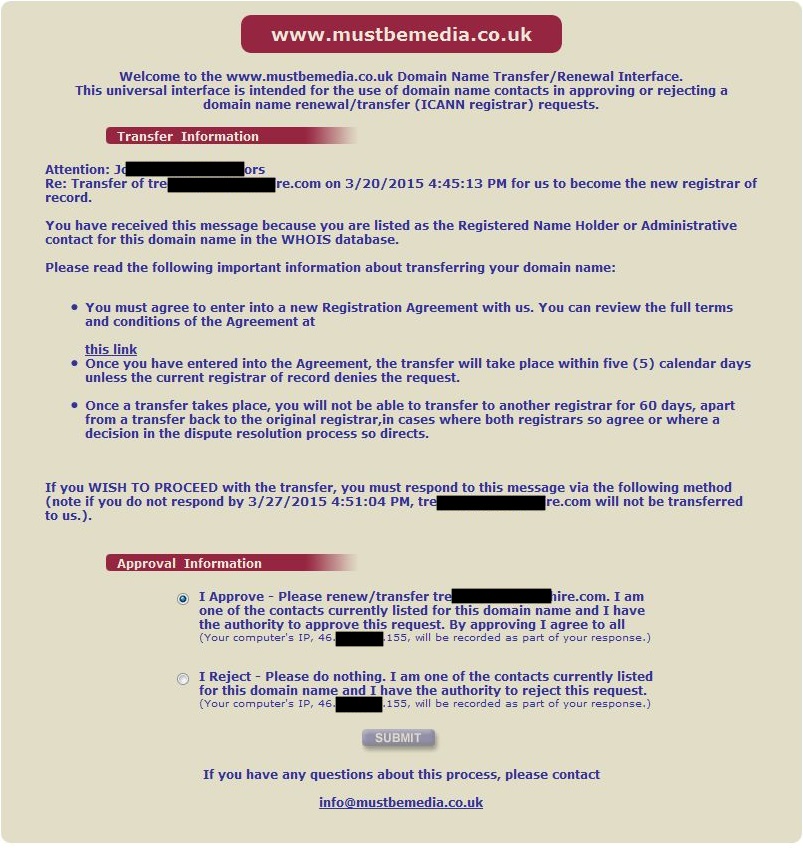
3 - 20-03-15 16:45
This is the page that is loaded from the link in the first email and it basically is asking the client if they want to transfer their domain or cancel the process.
4 - 20-03-15 16:45
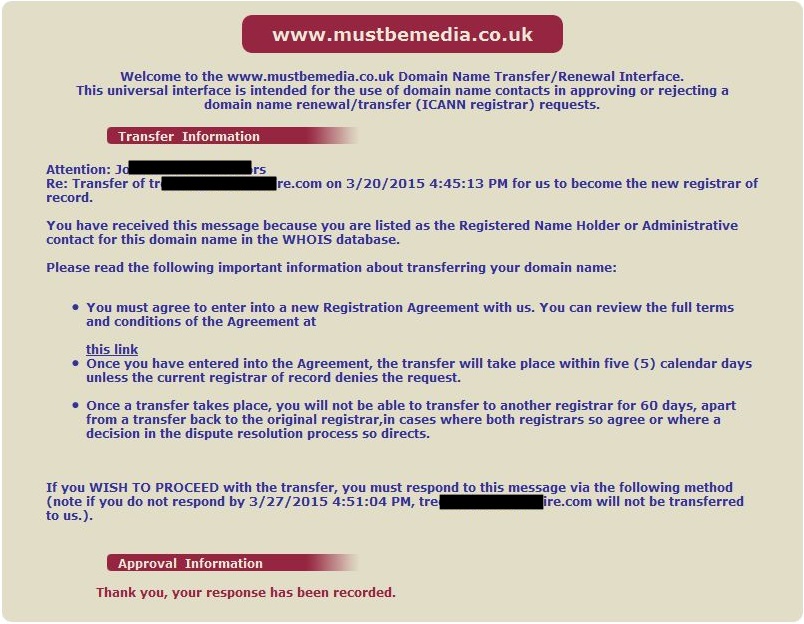
After approving the transfer with eNom on the previous step the client will now see a confirmation message on-screen.
5 - 21-03-15 14:17
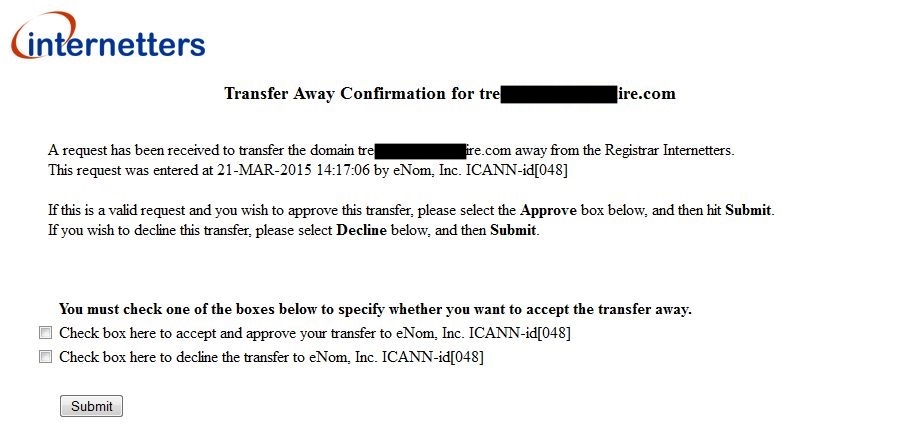
eNom has now contacted the loosing registrar which in turn has sent the client an email requesting confirmation that they approve the transfer. The client needs to click on the link to finish the last part of the transfer with their current registrar.
From : transfers@internetters.co.uk
Date : 21/03/2015 - 18:21 (GMTST)
To : bob.builder@clientdomain.com
Subject :  Transfer Away request has been received for the domain  treesurgeonsayrshire .com


An English version of this message is contained below.


Attention: bob.builder@clientdomain.com

Re: Transfer of trexxxxxxxxxxxxxire.com

Iomart received notification on Sat Mar 21 14:17:06 2015 that you have requested a transfer to another domain name registrar.

If you want to proceed with this transfer, you do not need to respond to this message.

If you wish to cancel the transfer (or to approve it immediately), please contact us before Thu Mar 26 14:17:06 2015 by going to our website, https://transfers.internetters.com/index.cgi?away=1&domain=trexxxxxxxxxxxxxire.com&id=r8q2UUzJWf to confirm.

You may need to enter the following information to complete the transfer:

      Domain Name:  trexxxxxxxxxxxxxire.com
      Transfer Key: r8q2UUzJWf

If we do not hear from you by Thu Mar 26 14:17:06 2015, the transfer will proceed.

If you have any queries at any time, please contact our Support Team via our helpdesk, where you can also search our extensive knowledge base for advice on using the control panel and our extensive range of web packages.
The helpdesk can be accessed via your control panel or you can call our Support Team on +44.370 056 6700, Monday to Friday 9am - 5.30pm.

Regards
Internetters Support
6 - 21-03-15 18:21
Once the client has clicked on the link they are presented with the following question. They obviously need to select to approve the transfer.
7 - 22-03-15 18:35
Once the Client has approved the transfer with their loosing registrar they will be presented with the following message confirming the transfer will now go ahead and that they will be transfered to the registrar, in this case eNom.

What you get when you click the 'Get EPP Code' Button
To transfer out a domain (which is not a .co.uk) you need to supply your client with an EPP code which they then give to their new registrar. When you click the Get EPP Code button in WHMCS you get the following message:
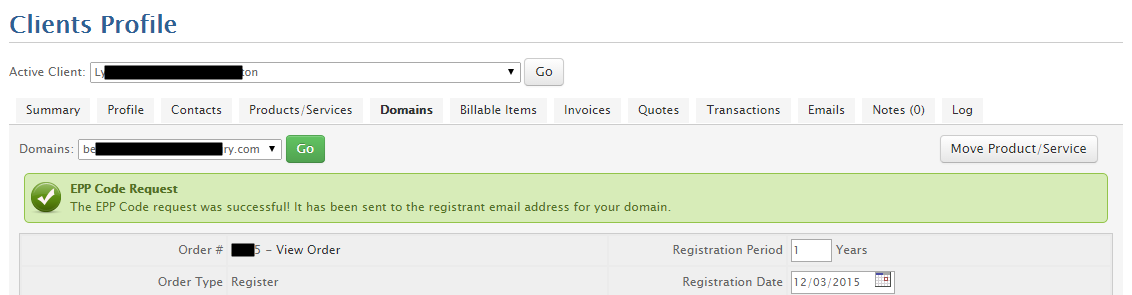
The client will now receive a valid EPP code for the relevant domain. This EPP code will expire it is either valid for 24hr, 48hr or 7 days but I am not sure which.
eNom - How to Transfer Domains (.com)
These transfers will use an EPP code to facilitate the transfer of a domain between registrars and is quite safe.
Incoming Transfers
Answer ID 246 - How to Initiate an Incoming Domain Transfer?
Prepare Domain for Transfer at the Current Registrar
To transfer a domain into our system, you will need to do three things on the current registrar's system (for most domain extensions):
- Unlock the domain by disabling Registrar-Lock.
- Verify that the registrant and administrative contacts on the domain are current and valid. You may also want to disable ID Protect if it's enabled, as this will make the transfer process easier.
- Obtain the authorization (EPP) code.
Please note that some domain extensions don't use Registrar-Lock or authorization codes. For example, .eu domains only use email verification for transfers, and don't need to be unlocked or have an authorization code submitted for the transfer. If you are having trouble completing any of the above steps, please search our knowledgebase for specifics on the domain extension that you are trying to transfer, or submit us a ticket with your request.
For specific instructions on how to complete the above steps in the current registrar's system, please see our Domain Name Transfer Help Section.
For specific on .UK transfers, please see the article, Answer ID 362 - How to Transfer a .UK Domain?
Submit the Incoming Transfer Order through Your Account with Us
Once you have the necessary information, please do the following to submit the incoming transfer request in our system:
- Log into your account.
- Select the menu option Domains > Transfer Domains > Transfer a Domain
- In most cases, you'll want to choose the Auto-Verification (email) method. If you're transferring a large volume of domains, you may want to select the Fax option. For further details, please see the article, How does the INCOMING domain FAX transfer process work?.
- Click Next.
- Enter the domain name(s) in the appropriate format, which is demonstrated in the examples on the page.
- Set the desired settings:
- Registrar-Lock: If enabled, this prevents the domain from being transferred away once it's in your account.
- Auto-Renew: If enabled, our system will automatically attempt to renew the domain 30 days prior to expiration.
- Apply WhoIs Info: If enabled, the whois information at the time of transfer will be applied to the domain. If disabled, the system will apply the contact information that you provided when the order was created.
- Domain Password: Setting this password will allow you to log into the domain control at http://access.enom.com. This is an optional control panel.
- Follow any additional prompts that are displayed.
- Click Submit Order.
If you're using the Auto-Verification method, in most cases, either our system or the registry will send you an email to approve or reject the transfer. Once you respond affirmatively to the email, the transfer process will go forward.
For information on transfer timeframes, please see the article, Transfers - Timeframe to complete.
Transfer restrictions and additional information
For information on transfer restrictions, please see the article, Reasons a transfer could be rejected.
If your domain expired and you renewed it with your current registrar during the expiration grace period, you may want to wait until 46 days after the expiration date to transfer your domain to avoid losing one year of registration. Please see this article for further details: Transfers - extra year missing after transfer completed.
Outgoing Transfers
Answer ID 234 - How to Initiate an Outgoing Domain Transfer?
Transferring your domain to another registrar is different than changing your nameservers, or "transferring your domain to your hosting company." Please see the article, How to change domain nameservers (DNS) for further information. Please give us a call or submit us a ticket if you have any questions.
Transfer Requirements
If you choose to work with a different registrar and need to transfer your domain registration away from us, you will need to do three things on our system (for most domain extensions):
- Unlock the domain by disabling Registrar-Lock.
- Verify that the registrant and administrative contacts on the domain are current and valid. You may also want to disable ID Protect if it's enabled, as this will make the transfer process easier.
- Email the authorization (EPP) code to yourself.
Please note that some domain extensions don't use Registrar-Lock or authorization codes. For example, .eu domains only use email verification for transfers, and don't need to be unlocked or have an authorization code submitted for the transfer. For such domain extensions, the below instructions may not be entirely applicable. If this is the case, please search our knowledgebase for specifics on the domain extension that you are trying to transfer, or submit us a ticket with your request.
Transfer Steps
- To unlock a domain, please follow the instructions in the article, How to enable or disable Registrar-Lock (clientTransferProhibited) status.
- To verify or modify the registrant and administrative email addresses, please see the article, Do you list my contact information publicly on my domain? How can I change the WHOIS on my domain?
- To disable ID Protect, please see the article, Enable/Disable ID protect for a domain.
- To disable auto renewal, please see the article, Enable/Disable Auto Renew for Domains
- To email the authorization code to yourself, please do the following:
- Select the menu option Domains > My Domains.
- Click on the link for the domain name.
- Click on General Settings or select General Settings from the Manage Domain drop-down list.
- Click the link, Email Auth Code to Registrant.
- Once you have removed the registrar lock and/or obtained the EPP/authorization key for transfer, you will need to submit the transfer order through your NEW registrar.
- No further action is required by you or by eNom to transfer the domain away. The gaining registrar (your new registrar) must obtain transfer approval from the listed registrant and/or administrative domain contacts and then submit the transfer request to eNom through the registry. There is no way for us to "push" a domain to another registrar other than via the transfer process.
For information on transfer timeframes, please see the article, Transfers - Timeframe to complete.
Transfer restrictions and additional information
For information on transfer restrictions, please see the article, Reasons a transfer could be rejected.
If your domain expired and you renewed it with us during the expiration grace period, you will want to wait until 46 days after the expiration date to transfer your domain to avoid losing one year of registration. Please see this article for further details: Transfers - extra year missing after transfer completed. If your domain auto renews while in pending transfer status, the transfer will be cancelled. Therefore it is recommended that the auto-renewal setting be disabled prior to transfer. Enable/Disable Auto Renew for Domains
Note: eNom's DNS services are provided at no cost while your domain is registered with eNom. If your domain is utilizing our DNS services, and is transferred away to another registrar, you would need to purchase DNS hosting. Your domain will not continue to resolve to our name servers once it has been transferred away from the eNom credential and marked as transferred away within our database.
If you do not have a direct account with us please contact your reseller to obtain this information. If you do not know the name of your reseller, please see the instructions in the article, Who is my reseller?.
eNom - How to Transfer Domains (.uk)
How do I transfer a .co.uk or .org.uk domain? What is involved in a .co.uk or .org.uk transfer?
Please note that .UK domains don't use authorization codes (EPP).
These instructions are based on Answer ID 362 - How to Transfer a .UK Domain?
Incoming Transfers
Transferring .UK domains into our system is a two step process. Please do the following:
- Follow the instructions in the article, How to Initiate an Incoming Domain Transfer, starting with the section, "Submit the Incoming Transfer Order through Your Account with Us." Choose the Auto-Verification method. You can also intiate the process through WHMCS which is easier. You do this by creating a new order and selecting transfer.
What you see in eNom control panel once you have started the transfer from your end.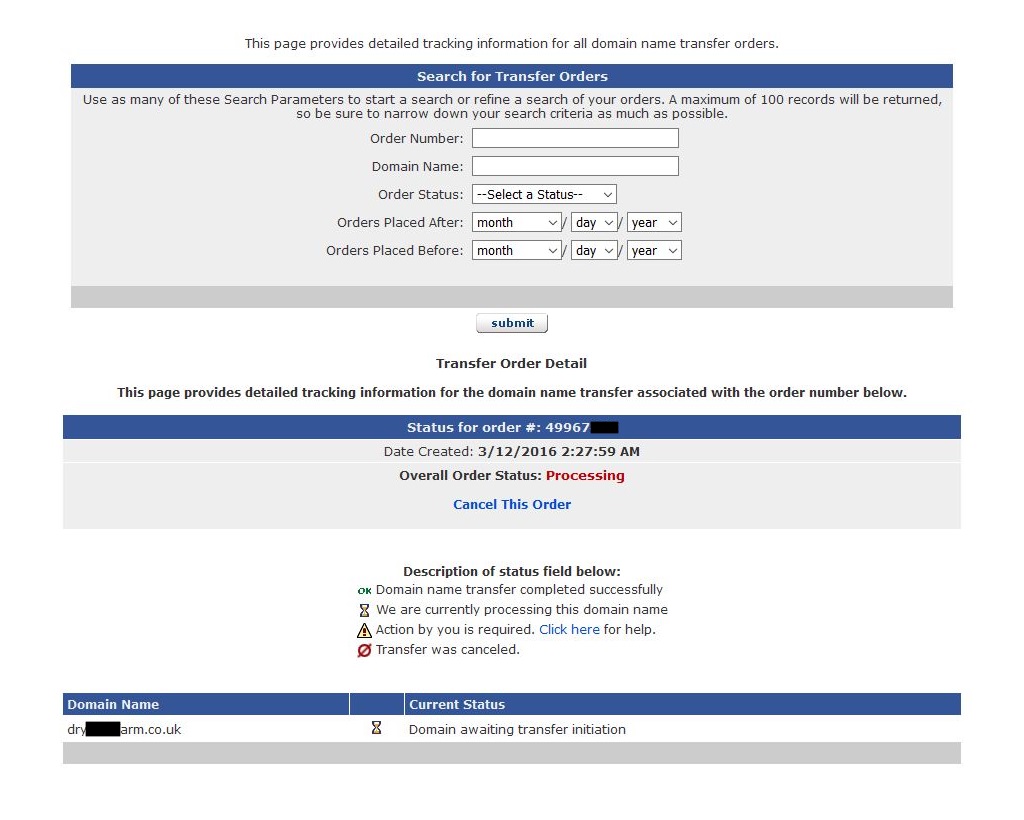
- Contact the current registrar and request that they change the IPS TAG on your domain to ENOM.
What you see in eNom control panel when they have changed the IPS tag and eNom has updated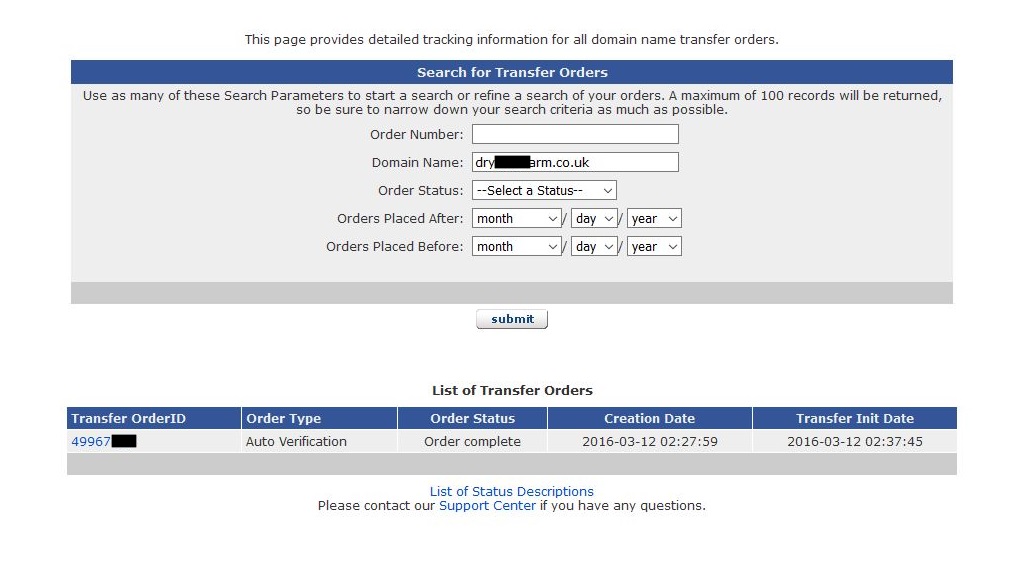
It does not matter the order in which the steps are completed, however, if you initiate the transfer with eNom first, you must submit the request to the losing registrar within one week. If initiating the request to the losing registrar first, you must initiate your transfer with eNom by either the 8th of current month or the 8th of the following month, whichever is closest to the current date.
What fees are involved?
At the time the transfer order is submitted in our system, we will reserve funds for the 2 year renewal price. The registry requires 2 year renewals for applicable transfers. There are two possible scenarios:
- The domain has more than 3 months remaining on the domain expiration. In this case, the domain will not be renewed, and the transfer will be FREE. Our system still reserves the funds for a 2 year renewal, but releases them once the transfer completes.
- The domain is within 3 months or less of its expiration date. In this case, the domain will be renewed for 2 years upon transfer and a charge for renewal will be made.
For further information on the reservation of funds, please see the article, INCOMING Domain Transfers - Are there fees if the transfer fails?.
For current transfer prices, please see the article, What prices do you charge for domain names and services? Where can I view my pricing?.
Outgoing Transfers
Transferring .UK domains away from our system is a two step process. Please do the following:
- In your account, under your domain's General Settings, you are now able to retag your domain yourself. For a complete list of IPS TAG holders, please go to http://www.nominet.org.uk/registrars/becomeregistrar/taglist/. If your domain is not in an account, please transfer it in for fastest results. See the above section for related fees.
- Initiate the transfer on the gaining registrar's system.
It does not matter the order in which the steps are completed, however, if you initiate the transfer with the gaining registrar first, you must submit the ticket within one week. If submitting the TAG change request with us first, you must initiate your transfer with the gaining registrar by either the 8th of current month or the 8th of the following month, whichever is closest to the current date.
Notes
- Transferring out .UK domains | Enom
- The standard method to transfer domain names does not apply to .UK domain extensions. Instead, these domains must have their IPS tag updated and the registrar lock disabled.
- If the domain has expired, you need to contact support to update the tag.
- Preparing your domain for transfer | Enom - No matter how you have registered your domain, the required steps to prepare your domain for transfer are the same, with the exception of .UK domain transfers.
- Enabling domain management at access.enom.com | Enom
- The Enom Access domain management portal is a helpful tool that allows a domain to be managed efficiently by your customers.
- In the Access domain management portal, you can make changes to various DNS services, such as host records management, MX records access and nameservers, and update the registrant WHOIS information.
- Can only be used when domains are not expired.
- You can enable this via the domains record in admin under 'General Settings'
- I have an expired domain that a client wants to transfer away from Enom to their new provider. (Answers from Enom Chat)
- The ability for clients to manage their own domain via access.enom.com is disabled when the domain is expired.
- Expired Common
- If I renew a domain (.uk/.com) here at Enom and then transfer them out within 1 year, am I correct that the additional year that was added will be removed when the domain lands at the remote registrar?
- If a domain expires, is renewed during the grace period, and then transferred between registrars within 45 days of being renewed, the gaining registrar will charge for the transfer, but no additional year will be added.
- Can I transfer to the remote registrar whilst the domain is expired (.uk/.com) and the year would be added and kept?
- Yes. If you transfer while the domain is expired, the winning registrar charges for the transfer and adds the year to the domain name.
- With Expired domains in your Enom account, you need supports assistance, to get the EPP codes (sometimes) and IPS Tags updated via chat.
- Enom only charge for registrations, renewals and Transfer INs
- If I renew a domain (.uk/.com) here at Enom and then transfer them out within 1 year, am I correct that the additional year that was added will be removed when the domain lands at the remote registrar?
- Expired .UK domains
- Can only have their IPS tag changed by Enom and this is done by contacting them through chat.
- Expired .COM domains
- Can still have their EPP code generated through the reseller admin control panel.
- The ability to generate EPP might be available at access.enom.com for the client.
- Reseller/Client can only generate the EPP code if they are early enough, perhaps upto 30 days after expiration when it goes into retention.
eNom - How to Push or Move Domains to Other eNom Accounts
Answer ID 243 - How do I push a domain to another account or sub-account?
To push a currently registered domain into another account:
- Log into your account.
- Select menu option Domains > My Domains > select the domain > General Settings > Push this name to another account in our system.
- Verify the domain name and enter the "push to" login ID.
- Click Submit.
To push an EXPIRED domain or MULTIPLE domains:
- Log into your account.
- Select menu option Domains > Bulk Tools > Bulk Push.
- Enter the domain names and the "push to" login ID.
- Click Submit.
eNom - Pricing rules for transfers (.uk)
Incoming to eNom
- At the time of the transfer request with eNom, we will pre-authorize the full cost (two year renewal price).
- For .uk transfers where the domain has more than 3 months remaining on the domain expiration, the domain will be transferred to eNom at no charge.
- For .uk transfers where the domain is within three (3) months or less of its renewal date, the domain will be renewed for 2 years upon transfer and a charge for two year's renewal will be made.
Outgoing from eNom
Create a PayPal Sandbox Account
In order to Test your Integration in our Sandbox, you need a Sandbox Account.
Please Note that you can’t use the API Credentials from our live site in our sandbox and likewise!
If you don’t have a Sandbox Account yet, you need to create one.
- Log in to the developer portal by using your PayPal Account Login.
- Go to "Dashboard" tab and click on "Sandbox / Accounts" https://developer.paypal.com/webapps/developer/applications/accounts
- You should see your Sandbox accounts. Normally there is one account called something including “facilitator”, this is you default Merchant Sandbox Account.
- There is also one account with something including “buyer" this is the default buyer account.
- If there is no Account you must create one seller account and one Buyer Sandbox Account.
- You can add other Accounts using the pre-configured accounts option. Please note that you can use any (fantasy) email, as we won't send actual mail out.
- So you can setup your sandbox account using something like: Company_Seller_us@x.com and Company_Buyer_us@x.com
- When you expand the account (Email Address) you see two links:
- Profile: here you can find the API credentials.
- Notifications: brings you the internal email Inbox for this account, here you can find the confirmation request for manually opened accounts.
Please Note that you can’t use the API Credentials from our live site in our sandbox and likewise!
Links
- This link provides additional information: https://developer.paypal.com/webapps/developer/docs/classic/lifecycle/sb_about-accounts/
Cannot login to PayPal Sandbox or reset password
I cannot login to Sandbox or reset the password.
- When I try and reset my password the captcha code I enter fails
- When i hit the refresh button the captcha stays as NICETRY and does not change.
- I have tried chrome, ie11 and Firefox
When I try and login at the link (https://developer.paypal.com/webapps/developer/applications/accounts) you sent me I get the following error message
We’re sorry, but something went wrong. Please try again. [Error message: Format specifier 's']
Import your existing Sandbox test accounts using the email address and password you used previously with the Sandbox. Make sure you import to the PayPal account that you want to use for development. You can import only once. Import data
Causes
- Logining in to the wrong place.
- My credentials are no longer valid as it was a long time since i used them and PayPal has migrated to a new sandbox system.
- Wrong Credentials. This is not the most likely, but you should always try this just in case.
Solutions
- Login using the correct URL which is here.
- Create a new sandbox account.
- You can always reset your password and retrieve your Sandbox API credentials in our developer portal.
Information from PayPal Merchant Technical Services
- You can always reset your password and retrieve your Sandbox API credentials in our developer portal.
Please login here ( using your live credentials):
https://developer.paypal.com/webapps/developer/applications/accounts - Here you can find information on how to manage your Sandbox accounts:
https://developer.paypal.com/docs/classic/lifecycle/sb_about-accounts/
Links
- Sandbox Test Accounts | PayPal Developer - Please login here ( using your live credentials)
- About Sandbox Accounts - PayPal Developer - Here you can find information on how to manage your Sandbox accounts
Change your logo in the PayPal checkout process
Instructions
These are the instructions to change your logo in the PayPal checkout process.
The Process
- Visit www.paypal.co.uk and log in to your PayPal account.
- Click 'Profile' near the top of the page.
- Select 'My selling preferences'.
- In the 'Selling online' section, click 'Update' next to 'Payment pages'.
- From here you can add a new page style or edit an existing style.
You'll have the option to:
- Use your own company logo
- Choose the colour of the checkout
- Change the header and the colour of the header
- Change the background colour
Note: The Primary page style applies to all of your payment pages, unless specified otherwise for a particular button or link.
Paypal Connection Testing
The following command, which can be execute from xampp on a windows PC, will help you assertain if you communications with PayPal are getting blocked.
From PayPal
We have recently seen contacts from merchants whose host IPs got blocked by an ISP in-between PayPal and the host, effectively blocking them from reaching PayPal. we do not block these IPs ourselves, this is an issue outside the scope of our company.
You could execute ( or ask your network administrator to do so ) the following commands and send the results to your admin (or host) for further analysis, this will help them to find a definitive fix for this situation.
openssl s_client -connect www.paypal.com:443 (or the endpoint URL you use to connect to PayPal)
Links
- What are the IP addresses for Live PayPal servers? - The IPs used by our systems can be found here
- Going Live with Your Application - PayPal Developer - Also please have a look at this guide